
파티션을 삭제하면 어떻게 될까요? MBR과 GPT의 변화 설명
파티션을 삭제하면 어떻게 될까요? 파티션 분할 소프트웨어는 디스크의 활성 파티션 레이아웃에서 해당 파티션의 정의를 제거하므로, Windows는 더 이상 해당 영역을 원래의 볼륨으로 인식할 수 없게 됩니다. 이로 인해 모든 파일이 반드시 덮어쓰이는 것은 아니지만, 해당 공간이 재사용 가능하게 되어 남아 있는 데이터가 위험에 처할 수 있습니다.
MBR 디스크와 GPT 디스크 간에는 메타데이터 변경 사항에 차이가 있습니다. GPT의 경우, 파티션이 사라지더라도 보호용 MBR은 대개 변경되지 않습니다. 이 문서에서는 일반 Windows 10 및 Windows 11 기본 디스크의 이러한 차이점을 설명하며, WinHex에서 확인해야 할 사항도 포함합니다. 동적 디스크와 스토리지 스페이스는 별도의 분석이 필요합니다.
목차
파티션을 삭제하면 무엇이 달라지나요?
파티션 테이블은 디스크의 영역을 식별합니다. 파일 시스템은 이러한 영역 중 하나 안에 있는 파일들을 정리합니다. 파티션을 삭제하면 주로 첫 번째 계층이 변경됩니다.
레이어 | 역할 | 일반 파티션 삭제의 영향 |
파티션 테이블 | 파티션의 위치와 유형을 정의합니다. | 선택된 파티션이 인식된 레이아웃에서 제거됩니다. |
파일 시스템 메타데이터 | 디렉터리, 파일 할당 및 기타 볼륨 정보를 기록합니다. | 이전 분할 지역에 계속 머물 수 있으나, 정상적인 출입은 불가능할 수 있다 |
파일 내용 | 문서, 이미지, 동영상 및 기타 데이터를 저장합니다. | 다른 데이터로 덮어쓰거나 다른 방식으로 접근할 수 없게 될 때까지 읽을 수 있는 상태로 유지될 수 있습니다. |
Windows 볼륨 액세스 | 드라이브 문자 또는 마운트 지점을 통해 해당 볼륨을 표시합니다. | 원본 자료는 이전 경로를 통해 더 이상 이용할 수 없습니다. |
Windows는 일반적으로 이전 파티션 영역을 다음과 같이 표시합니다. 할당되지 않음. 확장 파티션 내에서 삭제된 MBR 논리 드라이브는 대신 다음과 같은 상태를 남길 수 있습니다. 여유 공간 해당 컨테이너 내에서.
두 표기법 모두 해당 영역에 0이 포함되어 있음을 증명하지는 못합니다.
파티션 삭제는 몇 가지 관련 작업과도 차이가 있습니다:
- 드라이브 문자 제거하기 파티션을 그대로 유지한 채 액세스 경로를 변경합니다.
- 서식 지정 볼륨 내에 파일 시스템 구조를 생성합니다.
- DiskPart
clean디스크 전체의 파티션 정보를 삭제합니다. - DiskPart
모두 지우기디스크 전체에 0을 기록합니다.
회수 가능한 잔여 자산을 평가할 때, 이러한 작업들을 서로 대체 가능한 것으로 간주해서는 안 됩니다.
MBR 파티션 테이블에는 어떤 변화가 있나요?
일반적인 MBR 디스크에서는 4개의 16바이트 파티션 레코드가 바이트를 차지합니다. 0x1BE–0x1FD LBA 0의.
기록 | 디스크 시작 지점으로부터의 절대 바이트 범위 |
첫 번째 파티션 항목 |
|
두 번째 파티션 항목 |
|
세 번째 파티션 항목 |
|
네 번째 파티션 항목 |
|
MBR 시그니처 |
|
각 레코드에는 파티션 유형, 시작 LBA 및 섹터 수가 포함됩니다. 이 MBR 파티션 테이블 안내서 전체 레코드 구성을 설명합니다.
삭제된 항목은 더 이상 사용되지 않게 됩니다
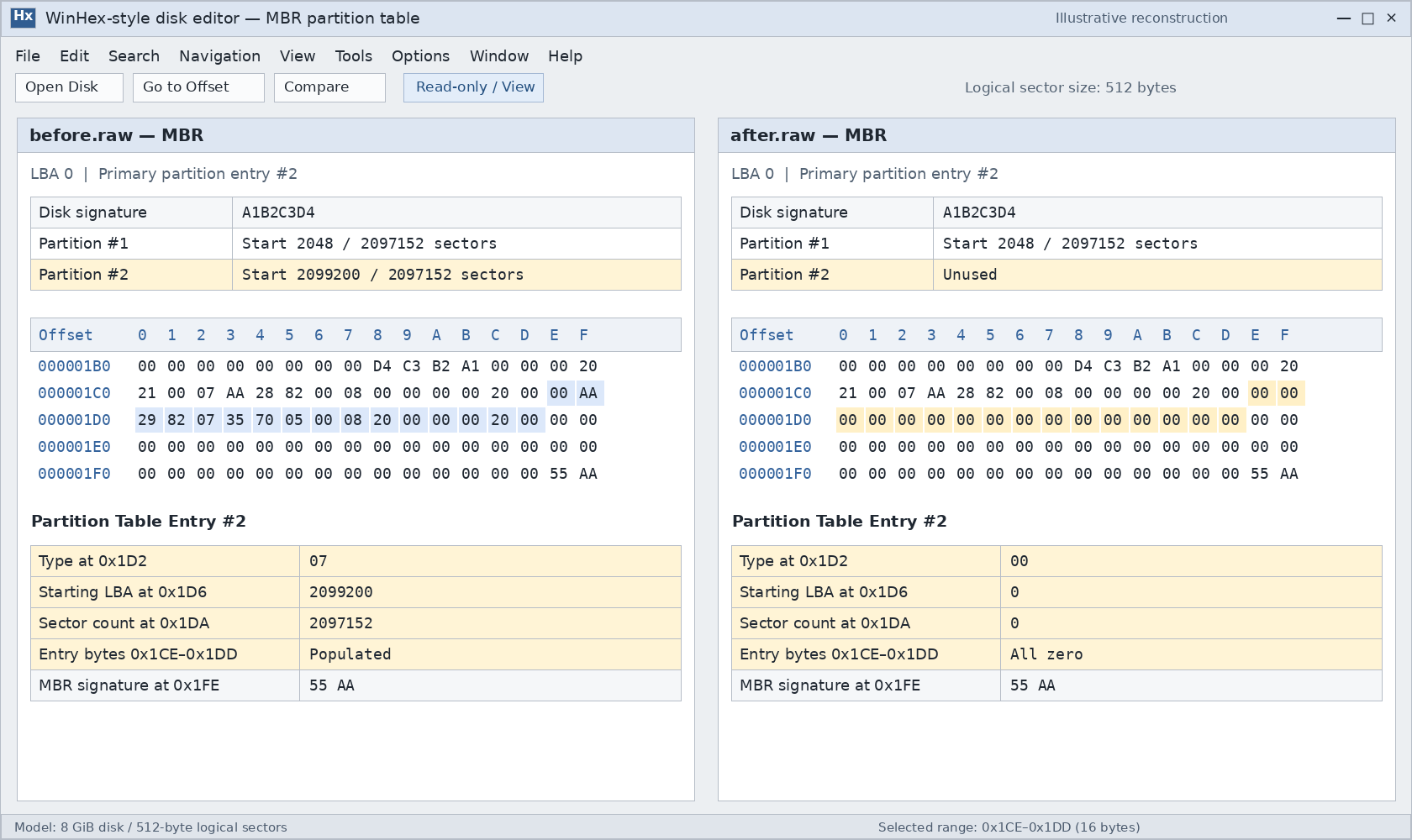
일반적인 구현 방식에서는 선택된 파티션 레코드를 0으로 초기화합니다. 예를 들어, util-linux 파티셔닝 코드는 MBR 주 파티션을 삭제할 때 해당 레코드를 초기화합니다.
그러나 실제로 기록되는 정확한 바이트 수는 구현상의 세부 사항입니다. 모든 Windows 유틸리티와 모든 타사 파티션 관리 프로그램이 동일한 섹터 이미지를 생성한다고 가정해서는 안 됩니다.
삭제된 파티션 테이블 항목은 더 이상 이전 파티션을 나타내는 유효한 정보가 아닙니다. 일반적으로 이 항목은 복구 가능한 “삭제됨” 플래그가 포함된 완전한 기록으로 보존되지 않습니다.
예시: LBA 2,048에서 시작하고 2,097,152개의 논리 섹터를 포함하는 MBR 주 파티션을 생각해 봅시다.
해당 레코드 내의 필드 | 상대적 오프셋 | 삭제 전 | 구현이 전체 레코드를 지운 후 |
파티션 유형 |
|
|
|
LBA 시작 |
|
|
|
섹터 수 |
|
|
|
다바이트 값은 리틀 엔디안 인코딩을 사용합니다. 512바이트 논리 섹터를 기준으로 할 때, 이 예제의 파티션은 1 GiB를 차지합니다. 유형 0x07 그것만으로는 해당 파일 시스템이 NTFS라는 사실을 증명할 수는 없습니다.
MBR 전체가 사라질 필요는 없습니다
주 파티션 하나를 삭제한다고 해서 반드시 부트스트랩 코드, 디스크 시그니처, 기타 파티션 레코드 또는 최종 55 AA 서명.
따라서, ~를 찾는 것은 55 AA 삭제되었다고 해서 원래의 파티션이 여전히 존재한다는 증거가 되는 것은 아닙니다.
논리 드라이브의 경우 추가적인 확인이 필요합니다. 논리 드라이브의 레이아웃은 확장 파티션 내의 확장 부트 레코드(EBR)에 따라 결정됩니다. 삭제 작업 시 LBA 0에 있는 최상위 확장 파티션 레코드는 그대로 남기면서, 해당 레코드나 그 연결 정보가 변경될 수 있습니다.
GPT 파티션 삭제 메타데이터에는 어떤 변화가 있나요?
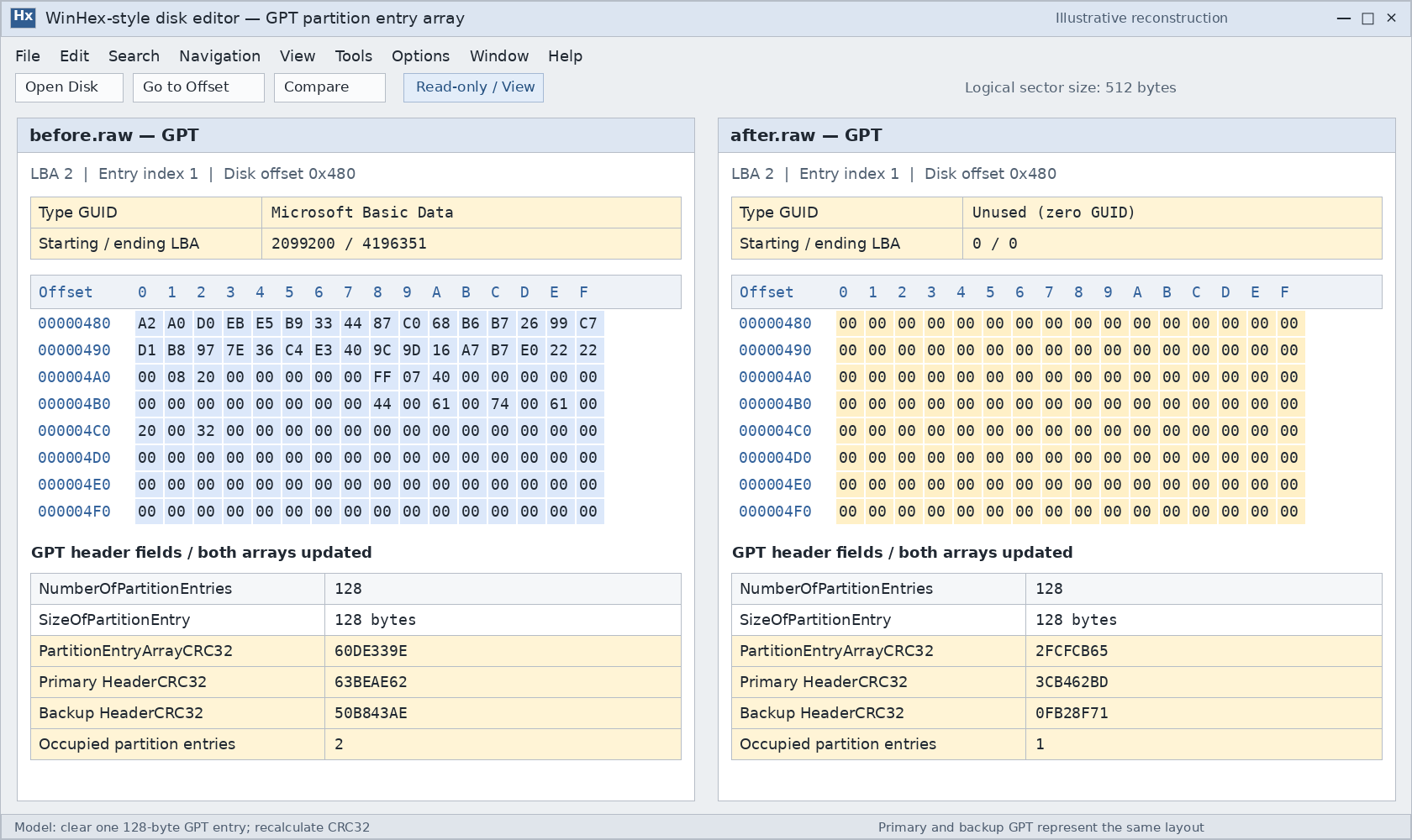
GPT는 파티션 정의 정보를 파티션 항목 배열에 저장합니다. 일반적인 항목 크기는 128바이트이지만, 실제 크기는 헤더에 명시되어 있습니다.
그리고 GPT 파티션 항목 구조 다음과 같은 필드가 포함되어 있습니다:
필드 | 항목 내의 오프셋 | 삭제 후의 의미 |
파티션 유형 GUID |
| 모든 자릿수가 0인 GUID는 사용되지 않은 항목을 나타냅니다. |
고유한 파티션 GUID |
| 해당 항목의 나머지 부분과 함께 삭제될 수 있습니다. |
LBA 시작 |
| 해당 항목이 사용되지 않을 경우 더 이상 활성 파티션으로 정의되지 않습니다. |
LBA 종료 |
| 시작 LBA와 동일한 제한 사항 |
속성 |
| 처리될 수 있음 |
파티션 이름 |
| 처리될 수 있음 |
중요한 구분은 다음 두 가지 사이에 있습니다. 사용되지 않은 항목 그리고 바이트 단위로 보장되는 삭제 패턴.
UEFI에서는 파티션 유형 GUID가 0인 경우를 ‘미사용’으로 정의합니다. 파티션 분할 소프트웨어는 해당 항목 전체를 지울 수 있으며, util-linux는 이러한 동작에 대한 구체적인 예를 보여줍니다. 특정 Windows 작업의 경우, 정확히 어떤 바이트가 변경되었는지 확인하기 위해서는 해당 작업 전후의 상태를 별도로 캡처해야 합니다.
모든 자리가 0인 슬롯만으로는 삭제가 발생했다는 사실을 증명할 수 없습니다. 해당 슬롯이 한 번도 사용되지 않았을 수도 있기 때문입니다.
두 GPT 사본 모두 삭제 내용이 반영되어야 합니다.
GPT는 기본 파티션과 백업 파티션의 메타데이터를 관리합니다. 올바르게 완료된 업데이트는 두 사본 모두를 수정하여 현재 레이아웃을 반영합니다.
즉, 백업 GPT는 일반적으로 되돌리기용 사본이 아님 삭제된 파티션이 포함된 디스크. 일반적인 삭제 작업이 성공적으로 완료된 후 이를 복원하면 대개 현재와 동일한 레이아웃이 복원됩니다.
쓰기 작업이 중단되거나 데이터가 손상된 후에는 오래된 백업이 남아 있을 수 있지만, 이는 신뢰할 수 있는 복구 방법이라기보다는 조사해야 할 불일치 사항입니다.
체크섬을 다시 계산해야 합니다
항목 배열을 변경하려면 해당 배열을 업데이트해야 합니다. PartitionEntryArrayCRC32. 해당 체크섬이 헤더 내에 포함되어 있기 때문에, 헤더의 헤더 CRC32 또한 재계산해야 합니다.
그리고 GPT header guide explains these relationships.
Two fields are especially easy to misinterpret:
파티션 항목 수is the number of available entry slots, not the number currently occupied. Deleting one partition normally does not reduce it.디스크 GUIDidentifies the disk. Removing one partition does not inherently require changing that identifier.
Valid GPT checksums establish metadata consistency. They do not establish that the former partition’s files remain intact.
Does the Protective MBR Change When a GPT Partition Is Deleted?
Usually, its meaningful partition information does not change.
The structure sometimes called a GPT disk’s “virtual MBR” is more accurately called the protective MBR, or PMBR. It occupies LBA 0 and helps prevent older MBR-only utilities from treating the disk as empty.
A standard protective MBR contains one 0xEE record. That record protects the GPT disk area; it does not separately describe each GPT partition.
Protective record field | Normal meaning | Expected effect of deleting one GPT partition |
파티션 유형 |
| Remains |
LBA 시작 | LBA 1 | Remains LBA 1 |
섹터 수 | Disk logical-block count minus one, capped at | Does not shrink by the deleted partition’s size |
Other three MBR records | Unused | Remain unused |
If the protective record occupies the first MBR slot, WinHex shows its type byte at absolute offset 0x1C2.
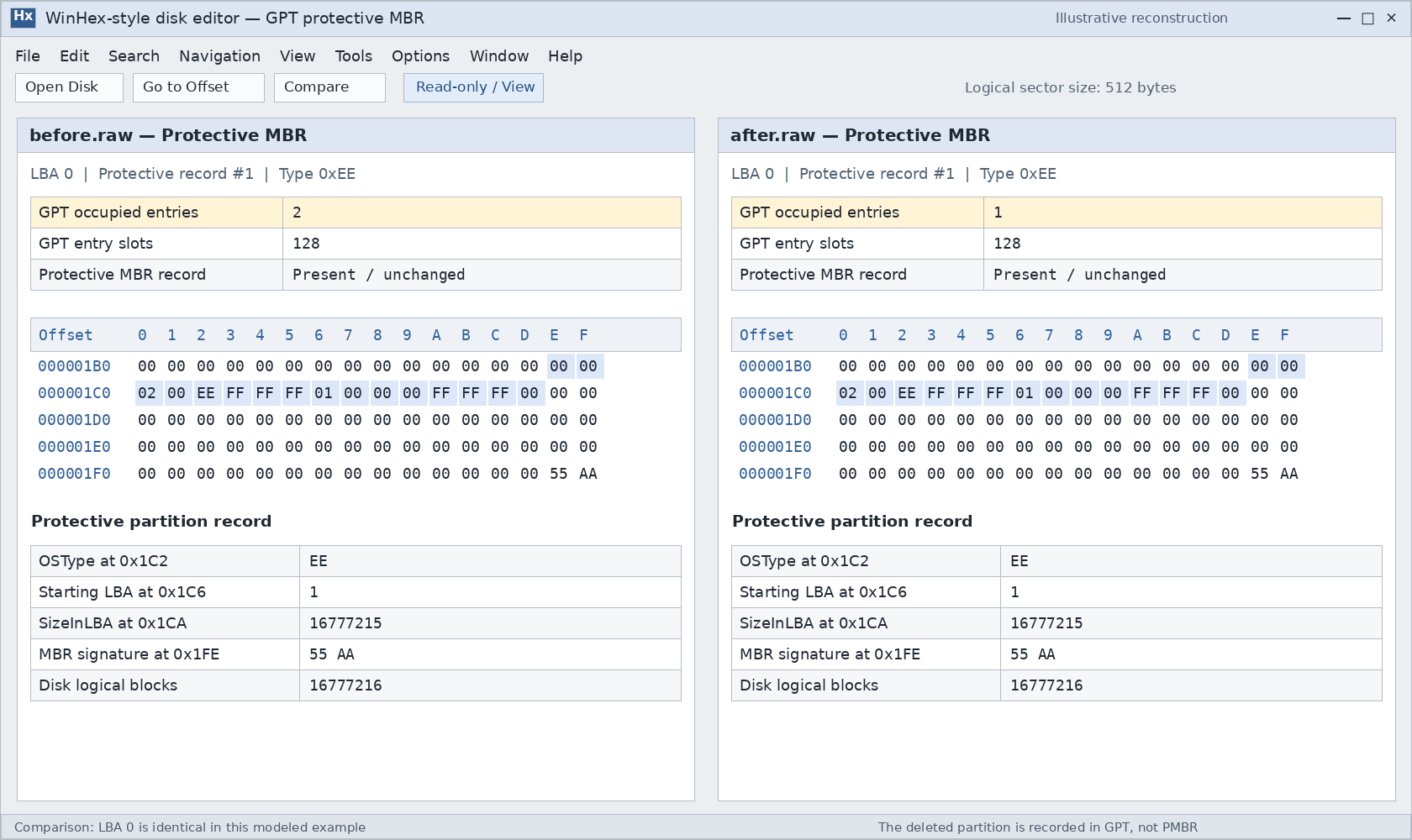
An unchanged protective MBR does not mean GPT partition deletion failed. The actual partition definitions reside in the GPT arrays.
Software can rewrite or normalize LBA 0 while saving changes, so an identical whole-sector comparison is not a universal requirement. Hybrid MBR layouts also require separate treatment because they contain additional legacy partition mappings.
What Happens to the File System and Files?
Removing a partition definition does not inherently require overwriting the former volume’s boot sector, NTFS Master File Table, FAT structures, or every file-data sector.
That separation explains how a scanner can sometimes locate a missing volume even after its partition-table record has been cleared.
However, “the partition table changed” is not enough to conclude that all file data survived:
- Additional formatting or signature-wiping operations can damage file-system metadata.
- New partitions and subsequent writes can overlap the original data.
- TRIM, UNMAP, or related deallocation behavior can make storage ranges unavailable through normal reads.
- Existing corruption may prevent a surviving file system from being reconstructed.
On SSDs and thin-provisioned storage, do not assume that avoiding new file copies guarantees recovery. Deallocation behavior depends on the operation, operating system, storage stack, and device.
The partition’s role also matters. Deleting a data partition removes normal access to its files. Deleting an EFI 시스템 파티션 can prevent startup even while the Windows partition remains present.
How to Inspect the Changes in WinHex
For an affected disk containing important files, preserve a disk image before investigating. Use a disposable test disk or virtual disk for a deliberate deletion experiment.
A reliable comparison requires images captured before and after the same operation. An after-only image cannot show exactly what changed.
Identify the disk and its logical sector size
In an elevated PowerShell window, these commands query the current layout:
Get-Disk |- Select-Object Number, FriendlyName, SerialNumber, PartitionStyle,
- Size, LogicalSectorSize, PhysicalSectorSize
After identifying the correct disk, inspect its recognized partitions:
Get-Partition -DiskNumber 3 |- Select-Object PartitionNumber, DriveLetter, Offset, Size, Type
3 is an example disk number. Confirm the actual device by its model, capacity, and identifier before substituting it.
These queries report the recognized layout; they do not recover a deleted entry.
Open the correct address space in read-only mode
Open the complete disk image in WinHex, or select the physical disk when direct examination is appropriate. Confirm Read-only/View mode in the information pane.
Opening a mounted volume starts from that volume’s address space. It does not present the whole disk’s LBA 0.
Use the device’s logical sector size when converting logical block addresses to byte offsets:
- Disk byte offset = LBA × logical sector size
Compare the relevant structures
For MBR, compare LBA 0, particularly the four partition records. Include the EBR chain when investigating a logical drive.
For GPT:
- Read the primary header at LBA 1.
- Obtain
PartitionEntryLBA,파티션 항목 크기, 및파티션 항목 수. - Compare the relevant entries in both arrays.
- Check the array and header checksums.
- Compare the protective MBR separately.
For a zero-based entry index i, its disk byte offset is:
- PartitionEntryLBA × logical sector size
- + i × SizeOfPartitionEntry
예시: With 512-byte logical sectors, an array beginning at LBA 2, and 128-byte entries, entry index 0 begins at 0x400. These are example conditions, not universal offsets.
Finally, compare the former volume’s starting sector using its recorded pre-deletion location. A surviving boot sector is useful evidence, but it does not prove that every directory or file remains readable.
What Recovering a Deleted Partition Structure Requires
Recovering deleted partition structure means reconstructing a valid partition definition from surviving evidence. It differs from copying recoverable files to another disk.
A candidate structure needs more support than a familiar signature. Check:
- Whether the proposed start and length fit inside the disk.
- Whether the file system’s internal geometry agrees with those boundaries.
- Whether it overlaps any partition that must remain.
- Whether directories and representative files can be read.
- Whether the proposed layout preserves other required partitions.
TestDisk can search for lost partitions and write selected definitions. Its search results still require review; finding a candidate does not make writing it automatically correct.
If the immediate goal is retrieving documents or photos, recovering files to another physical disk can avoid committing a reconstructed layout first. The lost partition recovery guide explains how to choose an appropriate next step.
After reconstruction, verify the recognized boundaries, readable folders, and actual files. For a system disk, startup verification is a separate requirement. A successful partition-table write alone does not confirm a complete recovery.
자주 묻는 질문
마지막 파티션을 삭제하면 GPT가 MBR로 변환되나요?
백업 GPT를 통해 의도적으로 삭제한 파티션을 복원할 수 있나요?
'할당되지 않음'은 모든 섹터가 비어 있다는 뜻인가요?
CHKDSK로 삭제된 파티션 항목을 복원할 수 있나요?
파티션을 삭제하면 파일이 휴지통으로 이동하나요?
같은 크기의 파티션을 만들면 모든 데이터가 복구되나요?
드라이브를 판매하기 전에 파티션을 삭제하는 것만으로도 충분할까요?

Jason는 15년 이상의 실무 경험을 갖춘 데이터 복구 및 기술 지원 전문가입니다. 그는 현장 사용자와 폭넓게 협력하며, 까다로운 데이터 손실 사례를 해결하고, 실수로 인한 삭제, 드라이브 포맷, 파일 시스템 손상, 파티션 손실, 시스템 장애 및 기타 긴급 복구 상황에 대한 실용적인 복구 솔루션을 제공해 왔습니다. 또한 백업 및 복원, 파일 복구, 재해 복구 분야에서도 전문성을 갖추고 있으며, 안전하고 신뢰할 수 있으며 기술적으로 정확한 지침을 제공하는 데 중점을 두고 있습니다.