
Recuperar dados do cartão SD: arquivos apagados, formatados ou corrompidos
Recuperação de cartão SD may be possible after accidental deletion if the original data remains readable and has not been overwritten. Stop taking photos, recording videos, or saving files to the card. Check existing copies first; if none are available and the card reads reliably, recovery software may help.
A card that shows its normal capacity but has missing photos, videos, or documents is not necessarily empty. Files may be hidden, stored in another folder, or deleted. The checks below help you distinguish these situations before scanning.
This guide focuses on deleted and lost files, primarily on Windows. It also explains a free cross-platform option and Magic Data Recovery solution. For related device problems, visit our SD card recovery resources.
Compatível com Windows 7/8/10/11 e Windows Server
Índice
Before You Start SD Card Recovery
Keep the original card unchanged. Power off the camera or phone before removing it when practical. Cancel requests to format or initialize it. Avoid CHKDSK and other repair tools until important files are safe. Install recovery software on your computer and save its output to another physical device. If the card overheats, disconnects repeatedly, or has visible damage, stop DIY attempts rather than trying another scan.
Choose Your SD Card Recovery Route
Match your situation to the table before choosing a tool.
Situação | Low-risk check | Next action |
Files were deleted, but other folders open normally | Confirm the card and look for imported copies | Restore a backup or scan for deleted files |
A readable folder appears empty | Check DCIM, other folders, and hidden items | Copy existing files elsewhere; scan if originals remain missing |
O cartão foi formatado | Identify the operation and any later use | Follow the formatted-card guide |
Windows reports RAW or asks to format | Inspect detection and capacity in Disk Management without changing anything | Use the corrupted-card recovery route before repair |
A card was used as Android internal storage | Confirm whether the phone adopted and encrypted it | Preserve the original phone and card; check device-specific options |
No card appears in File Explorer | Try one compatible reader or port if there are no physical warning signs | Inspect Disk Management; seek help if detection remains unreliable |
The card disconnects or shows physical damage | Avoid more scans and repeated reconnection | Considere uma avaliação profissional |
For accidental formatting, follow our Guia de recuperação de cartão SD formatado. For RAW volumes and access errors, use recuperação de cartão SD corrompido. This article keeps those scenarios brief so you can follow the appropriate specialist workflow.
Check Whether the Files Are Really Deleted
Confirm the card, folders, and existing copies
Connect the card through a compatible reader. Compare its capacity and label with the card you used. Search DCIM and other device folders for a known filename or extension, such as .jpg, .mov, ou .pdf.
Also check camera-import folders, editing projects, and computer libraries. An imported original can resolve the loss without SD card recovery software. Check quality: a thumbnail or compressed export may not replace the full-resolution file.
Display hidden items
On Windows 11, select Explorador de Arquivos > Exibir > Mostrar > Itens ocultos. No Windows 10, use Exibir > Itens ocultos. If files appear, copy them to another drive and open them.
This changes the display setting, not the deleted data. Avoid commands that rewrite file attributes across the card before identifying the cause.
Check detection without repairing
If File Explorer shows nothing, open Disk Management to inspect whether the card appears with a plausible capacity. Do not initialize, format, or create a partition.
Detection alone does not prove the card can be read reliably. A device that shows 0 bytes, disappears, or produces persistent read errors needs assessment rather than repeated software attempts.
Identify Android adopted storage before scanning
An SD card used as portable storage differs from one configured as Android internal storage. Android’s official documentation explains that adopted storage is encrypted and tied to the device that adopted it.
A computer reader does not remove that encryption. Keep the original phone and card together, avoid resets or formatting, and check backups or device-specific support. Ordinary SD card recovery instructions cannot bypass this boundary.
When Can SD Card Recovery Work?
Deleting a file can invalidate its directory information without immediately removing all underlying content. Recoverability depends on the readable data that remains, later overwriting, and whether the file can be reconstructed completely.
Elapsed time is less useful than the card’s usage history. A card stored unused may retain recoverable content, while one that recorded new footage immediately after deletion may have overwritten it.
Formatting requires a separate assessment. The SD Association distinguishes its Quick Format, which initializes file-system information, from Overwrite Format, which also overwrites the user data area. Other devices may use different formatting operations; do not assume a camera’s option behaves identically.
Choose an SD card recovery method based on these conditions. Start with existing copies, then a suitable tool for a stable card. Prioritize professional assessment for hardware symptoms or irreplaceable high-value data.
Method 1: Restore Backups or Imported Files
Melhor para: Files copied, imported, shared, or backed up before deletion.
Restoring an existing copy avoids reconstructing deleted data. The limitation is that the copy must contain the version and quality you need.
- Search your computer’s Pictures, Videos, Documents, and camera-import folders.
- Check external drives and other backup destinations.
- Check cloud libraries and their trash or version history, where available.
- Copy matching originals to a safe folder outside the affected card.
- Compare content, dates, resolution, and recording duration.
Do not rely on Windows Recycle Bin to contain files deleted directly from a removable card. A phone gallery’s trash helps only when that app retained the relevant items.
Resultado esperado: Usable copies of the missing files. If none exist, continue with an SD card recovery tool that suits your platform and experience.
Method 2: Try Windows File Recovery for Free
Melhor para: Windows users comfortable with commands and a readable card assigned a drive letter.
Recuperação de arquivos do Windows is Microsoft’s free command-line option. For SD card recovery on FAT or exFAT, Microsoft specifies Modo abrangente. There is no graphical file preview.
- Install the tool from Microsoft Store on your computer.
- Confirm the card’s letter and a destination on another physical device.
- Open Windows File Recovery and approve its permission prompt.
- Adapt this example:
E:is the card andD:is the destination drive. - winfr E: D: /extensive /n *.jpg /n *.jpeg /n *.mp4 /n *.mov /n *.pdf
- Confirm with
Yquando solicitado. - Open the destination’s
Recovery_<date and time>folder and inspect the files.
The filters target only those extensions. Change them for other files, or omit the /n filters for a broader attempt.
If nothing useful appears: Check the letters, mode, and filters once. Choose Method 3 for a graphical workflow or Method 4 for signature-based recovery. Stop if the card develops read errors.
Method 3: Use Magic Data Recovery on Windows
Melhor para: A stable, readable SD or microSD card with missing files and no usable backup.
Magic Data Recovery offers a graphical SD card recovery workflow on Windows. It supports memory cards and file systems including FAT and exFAT. You can scan the source, preview supported files, and save selected results elsewhere.
Compatível com Windows 7/8/10/11 e Windows Server
This is a logical recovery option, not a physical repair service. Overwriting, encryption, and missing file fragments can prevent usable results. Check the current edition’s saving limits before relying on free recovery; scan or preview access does not necessarily include unrestricted recovery output.
Step 1: Prepare the destination
Install the program on your computer, not the affected card. Prepare a separate physical drive with sufficient free space for recovered files.
Step 2: Select the correct memory card
Connect the card through a compatible reader. Open the program and identify the source by its capacity and available device details. Select the card containing the missing files, not the destination drive.
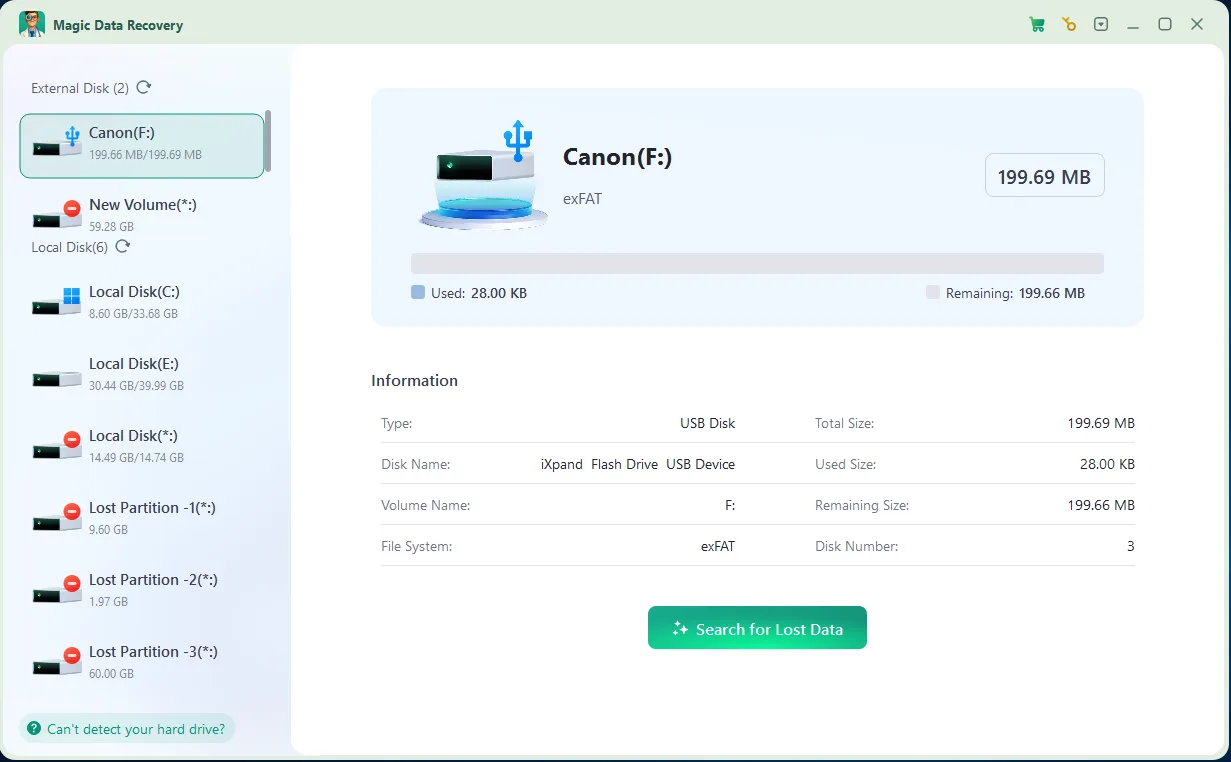
Step 3: Scan the source
Start the scan and let it finish while the connection remains stable. SD card recovery time varies with capacity, reader speed, and card condition. A completed progress bar does not establish file integrity.
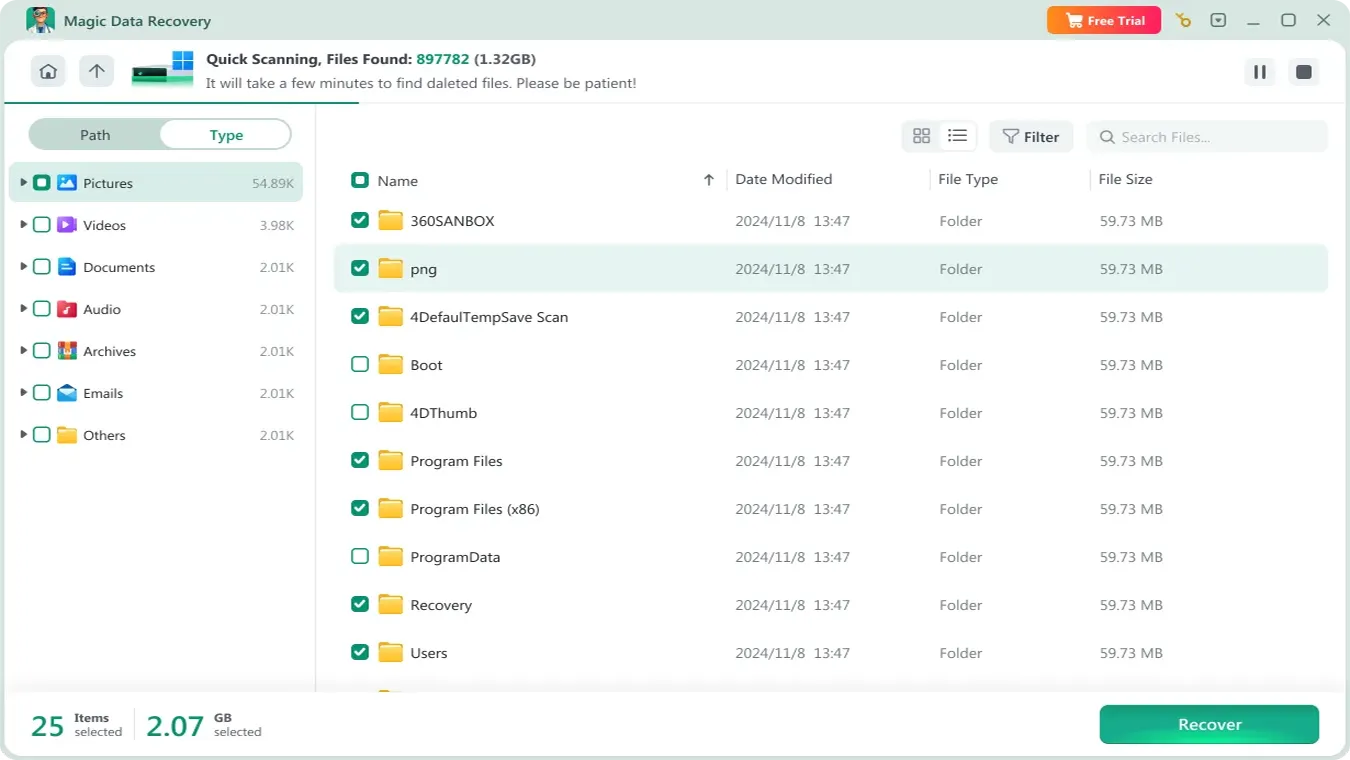
Step 4: Inspect the results
Browse the results for the missing file types. Preview supported files and examine their content. If the original folders are unavailable, also inspect results organized by file type.

A recognizable full image or readable document is more useful evidence than a familiar filename. Preview availability depends on the file and format; an unavailable preview alone does not establish whether saved output will open.
Step 5: Save selected files elsewhere
Select the important files and choose the prepared destination. Keep recovery output off the original card. Recover a small selection of priority files first so you can assess practical results.
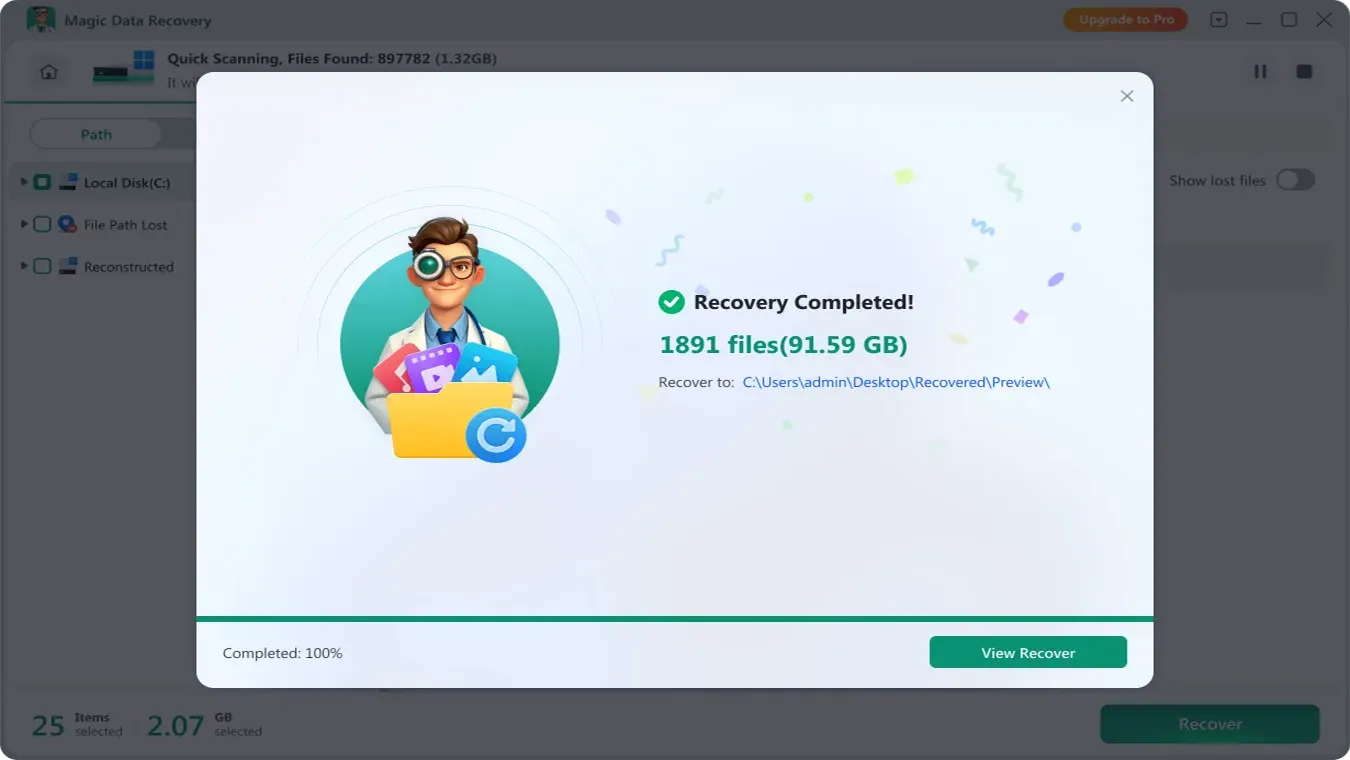
Step 6: Verify the saved output
Open recovered files in their normal applications and use the verification checklist below. The manual oficial do usuário illustrates the selection, preview, and saving workflow.
Resultado esperado: Usable files outside the source card. If files remain damaged, review which types are affected before choosing another SD card recovery approach. Do not repeat identical scans indefinitely or format the source to make a scan work.
Method 4: Try PhotoRec for Free SD Card Recovery
Melhor para: Users who can accept sorting files without their original names and folders.
FotoRec is a free, open-source SD card recovery option for Windows, macOS, and Linux. It searches underlying content using file signatures and reads the source without writing recovered output there. Original filenames and directory structure are generally not retained.
- Download the TestDisk and PhotoRec package to your computer.
- Launch PhotoRec and select the correct physical card.
- Select the relevant partition and desired file types.
- Escolha Outros for FAT32 or exFAT at the file-system-family prompt.
- Escolha Grátis for deleted files on an intact FAT32 partition when offered. Choose Total for a reformatted or corrupted partition, or when unallocated-space scanning is unavailable. ExFAT does not offer the same free-space-only option.
- Select a destination on another physical device and start recovery.
Results appear in recup_dir folders. Follow the official walkthrough for platform-specific controls. Check the saved files. If only fragments remain, stop and assess the remaining options rather than repeating an unchanged scan.
What Free SD Card Recovery Includes
Free scanning, previewing, and saving are separate features. Check what is included before starting a large scan.
Opção | Cost model | Principal limitação |
Existing copies | No recovery-software purchase | Requires usable earlier copies |
Recuperação de arquivos do Windows | Ferramenta gratuita da Microsoft | Fluxo de trabalho na linha de comando |
FotoRec | Livre e de código aberto | Original names and folders generally lost |
Commercial software | Free and paid features vary by edition | Scan access may not include all recovery output |
Choose SD card recovery software by the workflow, recoverable content, and current license conditions. Paying for a tool does not reverse overwriting or guarantee complete files.
Verify Your SD Card Recovery Results
SD card recovery succeeds when the important saved files work, not when a scan reports a large result count. Check output outside the original card.
Tipo de arquivo | Verificação |
Fotos | Open full-resolution images and inspect for missing or distorted areas |
Vídeos | Test playback throughout; fully play irreplaceable recordings |
Documentos | Inspect pages, text, tables, images, and embedded content |
Audio | Check duration and playback throughout |
Arquivos | Test extraction to a separate folder |
Keep a second copy of verified files. Preserve the original card until you have confirmed the results and decided whether further recovery is needed. Repair or reuse comes afterward.
When to Stop DIY SD Card Recovery
Stop if the card overheats, disconnects repeatedly, shows physical damage, or cannot be read through a known-good compatible reader. Consider professional assessment before scanning if this is the only copy of exceptionally valuable work.
A specialist can assess hardware problems that software cannot solve, but cannot promise to restore fully overwritten content. Ask about diagnostic charges, approval of costs, confidentiality, and unsuccessful-recovery fees. Do not open or physically modify the card yourself.
Prevent Another Loss After SD Card Recovery
Build a routine around verified copies rather than treating a memory card as permanent storage.
- Import recordings after each session and open representative files before clearing the card.
- Keep an independent backup on another device, with an additional off-site copy for irreplaceable work.
- Check whether cloud synchronization propagates deletions and whether version history is available.
- Use compatible readers and safely eject the card after transfers.
- Replace cards that repeatedly corrupt files or disconnect.
For important shoots, bring spare cards so you can set a questionable card aside. Before formatting or repairing any card, confirm that the originals exist elsewhere. A visible thumbnail is not sufficient evidence: open the full image, document, or recording from the backup location.
Avoid storing both the only backup and the recovery output on the same card. Keep those copies independent, and periodically check that the backup drive or cloud account remains accessible.
Conclusão
Recuperação de cartão SD starts with protecting the original data and identifying what happened. Restore an existing copy when possible. For genuinely deleted files on a stable card, Windows File Recovery and PhotoRec provide free routes; Magic Data Recovery offers a graphical Windows workflow with supported previews and recovery to another device.
Choose the method that matches the card’s condition and your experience. If the device becomes unstable, stop scanning and consider professional assessment. If it was encrypted as Android internal storage, preserve the original phone and investigate that specific situation instead of treating it as an ordinary portable card.
Always verify important saved files before repair, formatting, or reuse. For related scenarios and device guidance, visit our SD card recovery resources.
Compatível com Windows 7/8/10/11 e Windows Server
Perguntas frequentes
É possível recuperar arquivos do cartão SD que foram excluídos há vários meses?
A recuperação de cartões SD consegue restaurar arquivos sobrescritos?
É possível recuperar arquivos de um cartão SD sem usar nenhum software?
Os cartões microSD exigem métodos de recuperação diferentes?
Devo reiniciar meu celular Android se o cartão SD instalado nele não puder ser lido?
É possível recuperar dados de um cartão SD em um Mac?
Um site online consegue recuperar arquivos excluídos diretamente do meu cartão SD?
Por que os arquivos recuperados têm nomes diferentes ou não abrem?

Vasilii é um especialista em recuperação de dados com cerca de 10 anos de experiência prática na área. Ao longo de sua carreira, ele resolveu com sucesso milhares de casos complexos envolvendo arquivos excluídos, unidades formatadas, partições perdidas e sistemas de arquivos RAW. Sua experiência abrange métodos de recuperação manual usando ferramentas profissionais, como editores hexadecimais, e soluções automatizadas avançadas com software de recuperação. A missão do Vasilii é tornar o conhecimento confiável sobre recuperação de dados acessível tanto para profissionais de TI quanto para usuários comuns, ajudando-os a proteger seus valiosos ativos digitais.