還原 Google 雲端硬碟 中永久刪除的檔案

還原 Google 雲端硬碟 中永久刪除的檔案
嘗試 recover permanently deleted files google drive no longer shows can feel stressful, especially when the missing item includes work reports, school assignments, client folders, photos, or financial documents. Many users first open Google 雲端硬碟的「垃圾桶」, only to find that the file has already been deleted forever.

At that moment, you need a clear recovery guide, not guesswork. This article explains how to recover permanently deleted files google drive users lose by checking official Google Drive recovery options first, including Trash, support requests, Workspace admin recovery, backups, and shared file access.

However, Google Drive recovery is not the only path worth checking. If your deleted files were previously synced to your computer through Google Drive for desktop, downloaded for offline use, exported from Google Docs, or saved in a local folder, you may still have a chance to recover those local deleted copies.

在這種情況下, Magic Data Recovery can help you scan your local drive for deleted synced files and restore useful copies before they are overwritten. Therefore, this guide gives you a practical recovery workflow: start with Google Drive, then check local synced file recovery when cloud-side options do not solve the problem.

支援 Windows 7/8/10/11 和 Windows Server

目錄

Quick Answer: Can You Recover Permanently Deleted Files Google Drive Removed?

是的,您仍然可以 recover permanently deleted files from Google Drive, but only in certain situations.

If the file still sits in Trash, you can restore it quickly. If you deleted it from Trash recently, Google Support or a Google Workspace admin may still help. However, if Google has fully removed the cloud copy and no backup exists, recovery becomes difficult.

In that case, check whether the file had a local version. For example, you may have downloaded it, exported it, mirrored it with Google Drive for desktop, or made it available offline. If so, a dedicated recovery software can scan your local drive and help recover deleted synced files.

What “Permanently Deleted” Means in Google Drive

在您嘗試 restore permanently deleted files on Google Drive, you need to understand what happened to the file.

A Google Drive file can disappear for several reasons:

  • You moved it to Trash.
  • You deleted it forever from Trash.
  • Google removed it after the Trash retention period.
  • Someone removed your access to a shared file.
  • The file owner deleted the original item.
  • Google Drive sync removed the local copy from your computer.

These cases look similar, but they require different solutions. For example, a shared file may not appear in your Trash because you never owned it. On the other hand, a deleted synced file may still leave recoverable data on your computer.

So, do not save new files to the affected local drive if you plan to use recovery software. New data may overwrite deleted file traces.

Methods You Can Try to Recover Permanently Deleted Files Google Drive

當您需要 recover permanently deleted files from Google Drive, do not jump to only one solution. Instead, try the methods below in order. Start with Google Drive’s built-in recovery options, then check support channels, admin recovery, backups, and local synced copies. This workflow helps you avoid missing a simple fix before moving to advanced recovery.

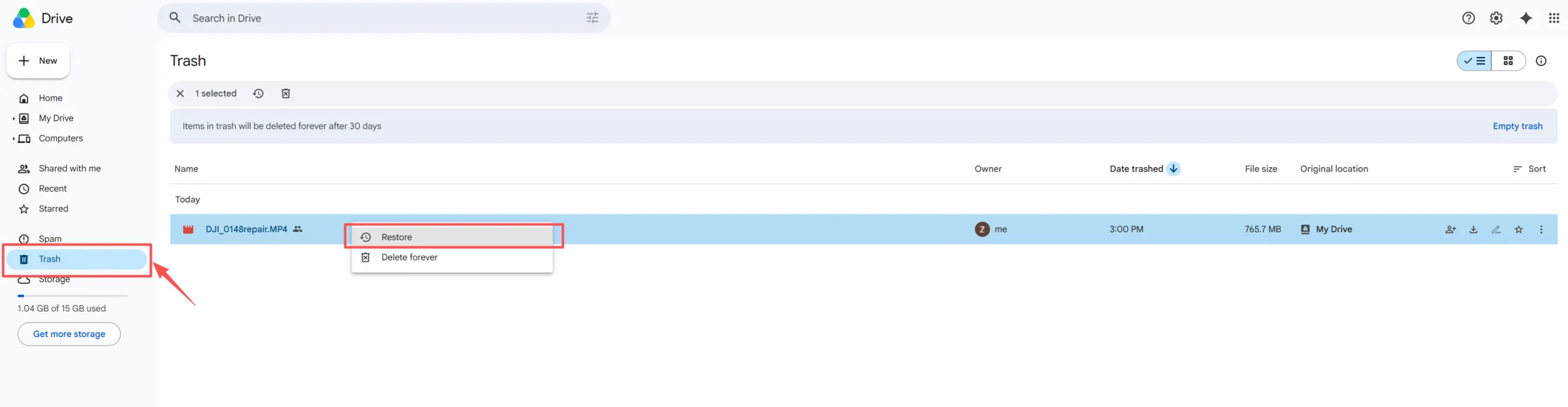
如何 還原 Google 雲端硬碟 中永久刪除的檔案 from Trash

Start with Google Drive Trash because it gives you the fastest and safest recovery path.

請遵循以下步驟:

  1. 開啟 Google Drive in your browser.
  2. Sign in to the correct Google account.
  3. Click “Trash” in the left sidebar.
  4. Search by file name, type, or deletion date.
  5. Right-click the file you need.
  6. Choose “Restore.”

This method works well when you deleted the file recently and did not empty Trash manually. Moreover, it does not require extra tools or technical knowledge.

However, once you delete the file forever from Trash, the normal restore button disappears. Then, you need to try another method to recover permanently deleted files google drive no longer keeps in Trash.

搜尋 Google Drive Before You Assume Permanent Deletion

Sometimes, users think they need to recover permanently deleted files google drive removed, but the file still exists somewhere else.

Before moving to advanced recovery, check these places:

  • Recent files
  • Shared with me
  • Starred files
  • Search results by file name
  • Search results by file type
  • Activity panel
  • Other Google accounts
  • Shared folders from another owner

This step matters because Google Drive depends on ownership and permissions. If someone removed your access, the file may disappear from your view even though the owner still has it.

Also, check spelling mistakes in file names. Search with partial keywords, project names, client names, and file extensions such as DOCX, PDF, XLSX, JPG, PNG, or MP4.

As a result, you may find the file without needing support or software.

Contact Google Support to 還原 Google 雲端硬碟 中永久刪除的檔案

If Trash is empty, Google Support may help in some recent deletion cases. This option works best for personal Google account users who deleted files forever not long ago.

Prepare these details before you contact support:

  • 檔案名稱
  • 檔案類型
  • Approximate deletion date
  • Google account email
  • Whether you emptied Trash manually
  • Whether you owned the file
  • Whether the file came from a shared folder

This method may help you recover permanently deleted files on Google Drive. Still, recovery is not guaranteed. Timing matters, and older deletions become harder to restore.

In addition, Google Support can only work with cloud-side recovery options. It cannot scan your computer for deleted synced files. Therefore, if the cloud option fails, you should check local copies next.

Ask a Workspace Admin to Restore Permanently Deleted Files Google Drive

If you use a school, company, or organization account, contact your Google Workspace administrator. Admins may have extra options to restore permanently deleted files on Google Drive. The admin usually needs to:

  1. Open the Google Admin Console.
  2. Select the affected user.
  3. Choose the restore data option.
  4. Select the correct date range.
  5. Choose Drive as the data type.
  6. Confirm the recovery request.

This method works only for managed Google Workspace accounts. Personal Gmail users cannot access the Admin Console.

Besides, admin recovery has time limits. So, you should ask for help as soon as possible. If the admin cannot recover the file, move to backups and local synced copies.

檢查 備份, Downloads, and Other Devices

If Google Drive recovery fails, look for a separate copy. Many users download or export Drive files without realizing it.

檢查這些地點:

  • 桌上型電腦
  • 「下載」資料夾
  • Documents folder
  • 電子郵件附件
  • Messaging apps
  • USB 磁碟機
  • Old laptops
  • Windows backup folders
  • Google Takeout exports
  • Other cloud storage services

This method often works because Google Drive files can exist outside the cloud. For example, you may have exported a Google Docs file as a Word document, saved a Google Sheet as an Excel file, or downloaded a shared PDF for offline use.

Therefore, even when you cannot recover permanently deleted files on Google Drive, you may still find a useful version elsewhere.

恢復 Permanently Deleted Files Google Drive with Magic Data Recovery

Now, let’s move to the local recovery path. Although Magic Data Recovery cannot scan Google Drive cloud storage, it can help when the missing file once had a local copy.

This makes Magic Data Recovery useful when you need to recover Google Drive permanently deleted files previously synced, mirrored, downloaded, exported, or saved offline.

When Magic Data Recovery Can Help

Magic Data Recovery can help in these situations:

  • You used Google Drive for desktop.
  • You mirrored Google Drive files to your PC.
  • You deleted files from a local Google Drive folder.
  • You downloaded Drive files before deletion.
  • You exported Google Docs, Sheets, or Slides.
  • You made files available offline.
  • You saved project files in a synced local folder.

For example, suppose you used Google Drive for desktop to mirror a work folder to your Windows computer. Later, you deleted the file from Drive and emptied Trash. If Google’s cloud options fail, the old local copy may still remain recoverable on your drive.

In this case, Magic Data Recovery gives you a practical way to scan for deleted synced files.

How to Use Magic Data Recovery to Recover Synced Google Drive Files

If your missing file may have existed on your computer, follow these steps. This process can help you restore Google Drive permanently deleted files when a local synced copy still exists.

步驟 1:下載並安裝 Magic Data Recovery

Download Magic Data Recovery and install it on a drive that is different from the location where your synced Google Drive files were deleted. This helps prevent accidental overwriting and protects the lost data before recovery.

支援 Windows 7/8/10/11 和 Windows Server

步驟 2:選擇 當地 Drive or Google Drive Synced Folder to Scan

Launch the program. Then, from the main interface, choose the local drive that previously stored your Google Drive for desktop files, mirrored folder, downloaded files, or offline files. If you are not sure where the file was stored, start with the drive that contains your Google Drive folder.

Using Magic Data Recovery to recover permanently deleted files from Google Drive
步驟 3:掃描 Drive for Deleted Synced Files

Magic Data Recovery performs an Advanced Scan automatically. Meanwhile, it lists recoverable files as the scan continues, so you can review possible results without waiting for the entire process to finish.

等待掃描
步驟 4:復原前預覽刪除的檔案

Next, use the preview function to confirm the file content. This step helps you identify the correct documents, photos, videos, or exported Google Drive files before recovery. As a result, you can avoid restoring unnecessary or duplicate files.

預覽檔案
步驟 5:將檔案復原至安全位置

Finally, select the files you want to recover and save them to a different drive or another safe folder. Do not restore the files to the same location you scanned, because doing so may overwrite other recoverable data and reduce the chance of a complete recovery.

檔案復原

Best Tips to Avoid Losing Google Drive Files Again

在您 recover Google Drive permanently deleted files, build a safer file routine. Use these tips:

  • Do not treat sync as a full backup.
  • Keep important files in more than one place.
  • Export Google Docs, Sheets, and Slides regularly.
  • Avoid emptying Trash too quickly.
  • Use Google Drive for desktop carefully.
  • Check shared file ownership before deleting folders.
  • Keep local backups for important projects.
  • Save recovered files to a safe location.

These habits reduce future risk. In addition, they give you more recovery options if something goes wrong again.

總結

最好的方法是 recover permanently deleted files google drive users lose is to start with official options. Check Trash first. Then search Drive carefully, contact Google Support, or ask a Google Workspace admin if you use a managed account.

However, cloud recovery does not cover every situation. If the deleted file once existed on your computer, Magic Data Recovery can help you scan for local synced, mirrored, downloaded, exported, or offline copies. It cannot recover files directly from Google Drive cloud storage, but it gives users a practical next step when Google’s built-in options no longer work.

That is why Magic Data Recovery deserves a place in this guide. It supports a real recovery scenario, avoids exaggerated claims, and helps users recover deleted local file copies before overwritten data reduces the chance of success.

支援 Windows 7/8/10/11 和 Windows Server

FAQs About Recovering Google Drive Permanently Deleted Files

Can I recover permanently deleted files google drive after emptying Trash?

You may recover them if Google Support or a Workspace admin can still access recoverable cloud data. However, success depends on timing, account type, and file ownership. If Google cannot restore the cloud copy, check whether the file existed locally through syncing, downloading, exporting, or offline access.

Can I restore permanently deleted files google drive after 30 days?

It becomes harder after the normal Trash retention period. You should still contact Google Support or your Workspace admin quickly, especially if the deletion happened recently. However, if cloud recovery fails, your best chance may come from backups, downloaded files, exported copies, or local synced folders.

Can Magic Data Recovery recover files directly from Google Drive?

No. Magic Data Recovery cannot scan Google Drive cloud servers. It only scans local storage on your computer. However, it may help recover deleted files that were previously synced, mirrored, downloaded, exported, or saved offline through Google Drive for desktop or normal browser downloads.

Can I recover deleted Google Docs, Sheets, or Slides with software?

You can recover exported local versions, such as DOCX, XLSX, PDF, CSV, or PPTX files. However, software cannot recover a cloud-only Google Docs, Sheets, or Slides file that never existed on your computer. Therefore, regular exports give you an extra layer of protection.

What should I do first after deleting important Google Drive files?

First, check Google Drive Trash and restore the file if it appears there. Next, search Drive, Recent, Shared with me, and other Google accounts. Then contact Google Support or your Workspace admin. If those methods fail, scan possible local synced locations with Magic Data Recovery.

Why can a synced Google Drive file still be recoverable?

A synced or mirrored file may leave data on your local drive after deletion. If new files have not overwritten that space, recovery software may still find it. That is why you should stop using the affected drive and scan it as soon as possible.

Is Magic Data Recovery better than Google Drive recovery options?

It is not a replacement for Google Drive recovery. Instead, it solves a different problem. Google’s tools handle cloud-side recovery, while Magic Data Recovery handles local synced, downloaded, exported, or offline files. Using both options in the right order gives you a more complete recovery plan.

Vasilii 是一位在該領域擁有約 10 年實務經驗的資料復原專家。在他的職業生涯中,他已成功解決數千個複雜的個案,包括刪除的檔案、格式化的硬碟機、遺失的磁碟分割和 RAW 檔案系統。他的專業知識涵蓋使用十六進位編輯器等專業工具的手動復原方法,以及使用復原軟體的進階自動解決方案。Vasilii 的使命是讓 IT 專業人士和一般使用者都能獲得可靠的資料復原知識,協助他們保護寶貴的數位資產。.