
Recuperare i file eliminati definitivamente da Google Drive
Cercando di recuperare file cancellati definitivamente da Google Drive Non riuscire più a visualizzare i file può essere fonte di stress, soprattutto quando tra i file mancanti figurano rapporti di lavoro, compiti scolastici, cartelle dei clienti, foto o documenti finanziari. Molti utenti aprono innanzitutto Cestino di Google Drive, solo per scoprire che il file è già stato cancellato definitivamente.
In quel momento, hai bisogno di una guida chiara su come riprenderti, non di supposizioni. Questo articolo spiega come recuperare file cancellati definitivamente da Google Drive Gli utenti hanno tutto da guadagnarci verificando prima le opzioni ufficiali di recupero di Google Drive, tra cui il Cestino, le richieste di assistenza, il recupero da parte dell'amministratore di Workspace, i backup e l'accesso ai file condivisi.
Tuttavia, il recupero tramite Google Drive non è l'unica soluzione da prendere in considerazione. Se i file eliminati erano stati precedentemente sincronizzati sul tuo computer tramite Google Drive per desktop, scaricati per l'utilizzo offline, esportati da Google Docs o salvati in una cartella locale, potresti ancora avere la possibilità di recuperare quelle copie locali cancellate.
In questa situazione, Magic Data Recovery può aiutarti a eseguire una scansione del tuo disco locale alla ricerca di file sincronizzati cancellati e a ripristinare le copie utili prima che vengano sovrascritte. Pertanto, questa guida ti offre una procedura pratica di recupero: inizia con Google Drive, quindi verifica la possibilità di recuperare i file sincronizzati in locale qualora le opzioni disponibili sul cloud non risolvano il problema.
Supporta Windows 7/8/10/11 e Windows Server
Indice dei contenuti
Risposta rapida: È possibile recuperare i file eliminati definitivamente da Google Drive?
Sì, potete ancora recuperare i file cancellati definitivamente da Google Drive, ma solo in determinate situazioni.
Se il file si trova ancora nel Cestino, puoi ripristinarlo rapidamente. Se lo hai eliminato dal Cestino di recente, l'assistenza di Google o un amministratore di Google Workspace potrebbero comunque aiutarti. Tuttavia, se Google ha rimosso completamente la copia nel cloud e non esiste alcun backup, il recupero diventa difficile.
In tal caso, verifica se il file era presente in una versione locale. Ad esempio, potresti averlo scaricato, esportato, sincronizzato con Google Drive per desktop o reso disponibile offline. In tal caso, un software di recupero specifico può eseguire una scansione del tuo disco locale e aiutarti a recuperare i file sincronizzati cancellati.
Cosa significa “Eliminato definitivamente” in Google Drive
Prima di provare a ripristinare i file eliminati definitivamente su Google Drive, devi capire cosa è successo al file.
Un file su Google Drive può scomparire per diversi motivi:
- L'hai spostato nel Cestino.
- L'hai eliminato definitivamente dal Cestino.
- Google l'ha rimosso al termine del periodo di conservazione nel Cestino.
- Qualcuno ti ha revocato l'accesso a un file condiviso.
- Il proprietario del file ha eliminato l'elemento originale.
- La sincronizzazione di Google Drive ha eliminato la copia locale dal tuo computer.
Questi casi sembrano simili, ma richiedono soluzioni diverse. Ad esempio, un file condiviso potrebbe non comparire nel Cestino perché non ne sei mai stato il proprietario. D’altra parte, un file sincronizzato eliminato potrebbe comunque lasciare dati recuperabili sul tuo computer.
Pertanto, se prevedi di utilizzare un software di recupero dati, evita di salvare nuovi file sull'unità locale interessata. I nuovi dati potrebbero sovrascrivere le tracce dei file cancellati.
Metodi che puoi provare per recuperare i file cancellati definitivamente da Google Drive
Quando è necessario recuperare i file cancellati definitivamente da Google Drive, non limitarti a una sola soluzione. Prova invece i metodi riportati di seguito in ordine. Inizia con le opzioni di recupero integrate in Google Drive, poi verifica i canali di assistenza, il recupero da parte dell'amministratore, i backup e le copie sincronizzate localmente. Questo flusso di lavoro ti aiuta a evitare di tralasciare una soluzione semplice prima di passare a procedure di recupero avanzate.
Come Recuperare i file eliminati definitivamente da Google Drive da "Cestino"
Inizia dal Cestino di Google Drive, perché ti offre il metodo di recupero più veloce e sicuro.
Seguire questi passaggi:
- Aperto Google Drive nel tuo browser.
- Accedi all'account Google corretto.
- Fai clic su “Cestino” nella barra laterale sinistra.
- Cerca per nome del file, tipo o data di eliminazione.
- Fai clic con il tasto destro del mouse sul file che ti serve.
- Seleziona “Ripristina”.”
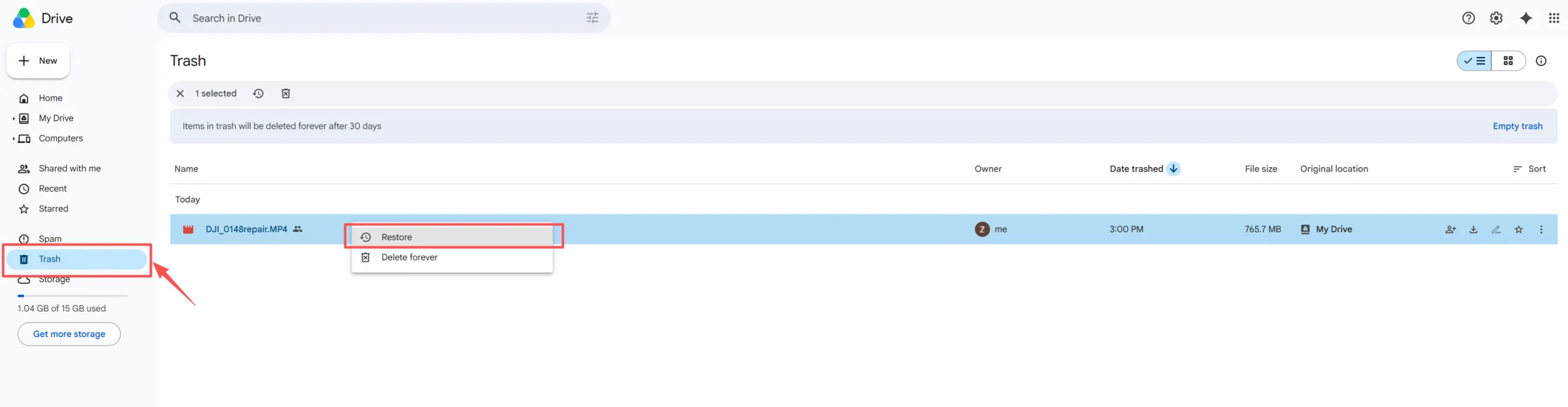
Questo metodo funziona bene se il file è stato eliminato di recente e il Cestino non è stato svuotato manualmente. Inoltre, non richiede strumenti aggiuntivi né conoscenze tecniche.
Tuttavia, una volta eliminato definitivamente il file dal Cestino, il normale pulsante di ripristino scompare. A quel punto, è necessario provare un altro metodo per recuperare file cancellati definitivamente da Google Drive non viene più conservato nel Cestino.
Ricerca Google Verifica prima di procedere alla cancellazione definitiva
A volte, gli utenti pensano di dover recuperare file cancellati definitivamente da Google Drive è stato rimosso, ma il file esiste ancora da qualche altra parte.
Prima di passare alla procedura di ripristino avanzata, controlla questi punti:
- File recenti
- Condiviso con me
- File contrassegnati con un asterisco
- Risultati della ricerca per nome del file
- Risultati della ricerca per tipo di file
- Pannello delle attività
- Altri account Google
- Cartelle condivise da un altro proprietario
Questo passaggio è importante perché Google Drive si basa sulla proprietà e sui permessi. Se qualcuno ti revocasse l'accesso, il file potrebbe scomparire dalla tua visualizzazione anche se il proprietario lo possiede ancora.
Inoltre, controlla che non ci siano errori ortografici nei nomi dei file. Effettua la ricerca utilizzando parole chiave parziali, nomi di progetti, nomi di clienti ed estensioni di file quali DOCX, PDF, XLSX, JPG, PNG o MP4.
Di conseguenza, potresti riuscire a trovare il file senza bisogno di assistenza o di software.
Contatti Google Sostegno a Recuperare i file eliminati definitivamente da Google Drive
Se il Cestino è vuoto, l'Assistenza Google potrebbe essere d'aiuto in alcuni casi di cancellazione recente. Questa opzione è particolarmente indicata per gli utenti con un account Google personale che hanno cancellato definitivamente dei file da poco.
Prima di contattare l'assistenza, prepara i seguenti dati:
- Nome del file
- Tipo di file
- Data approssimativa della cancellazione
- Indirizzo e-mail dell'account Google
- Che tu abbia svuotato il Cestino manualmente
- Che tu fossi o meno il proprietario del file
- Se il file proviene da una cartella condivisa
Questo metodo potrebbe esserti d'aiuto recuperare i file cancellati definitivamente su Google Drive. Tuttavia, il recupero non è garantito. La tempistica è fondamentale e le cancellazioni più datate diventano più difficili da ripristinare.
Inoltre, l'assistenza di Google può intervenire solo con le opzioni di recupero dal cloud. Non è in grado di eseguire una scansione del computer alla ricerca di file sincronizzati cancellati. Pertanto, se l'opzione cloud non funziona, dovresti verificare le copie locali.
Chiedi a un Area di lavoro Amministratore a Ripristinare i file eliminati definitivamente da Google Drive
Se utilizzi un account scolastico, aziendale o di un'organizzazione, contatta l'amministratore di Google Workspace. Gli amministratori potrebbero disporre di ulteriori opzioni per ripristinare i file eliminati definitivamente su Google Drive. Di solito l'amministratore deve:
- Apri la Console di amministrazione di Google.
- Selezionare l'utente interessato.
- Seleziona l'opzione "Ripristina dati".
- Seleziona l'intervallo di date corretto.
- Scegli "Drive" come tipo di dati.
- Conferma la richiesta di recupero.
Questo metodo funziona solo per gli account Google Workspace gestiti. Gli utenti Gmail privati non possono accedere alla Console di amministrazione.
Inoltre, il recupero da parte dell'amministratore è soggetto a limiti di tempo. Pertanto, è consigliabile chiedere aiuto il prima possibile. Se l'amministratore non riesce a recuperare il file, ricorri ai backup e alle copie sincronizzate in locale.
Controllo Backup, Download e altri dispositivi
Se il recupero da Google Drive non va a buon fine, cerca una copia separata. Molti utenti scaricano o esportano i file da Drive senza rendersene conto.
Controllate questi luoghi:
- Desktop
- Cartella "Download"
- Cartella "Documenti"
- Allegati alle e-mail
- App di messaggistica
- Unità USB
- Vecchi computer portatili
- Cartelle di backup di Windows
- Esportazioni tramite Google Takeout
- Altri servizi di archiviazione cloud
Questo metodo spesso funziona perché i file di Google Drive possono trovarsi al di fuori del cloud. Ad esempio, potresti aver esportato un file di Google Docs come documento Word, salvato un foglio di Google Sheets come file Excel oppure scaricato un PDF condiviso per utilizzarlo offline.
Pertanto, anche quando non è possibile recuperare i file cancellati definitivamente su Google Drive, potresti comunque trovare una versione utile altrove.
Recupero In modo permanente File cancellati da Google Drive con Magic Data Recovery
Passiamo ora al percorso di ripristino locale. Sebbene Magic Data Recovery Non è possibile eseguire la scansione dell'archivio cloud di Google Drive; ciò può essere utile nel caso in cui il file mancante avesse in precedenza una copia locale.
Questo rende Magic Data Recovery utile quando è necessario recuperare i file cancellati definitivamente da Google Drive precedentemente sincronizzati, duplicati, scaricati, esportati o salvati offline.
Quando Magic Data Recovery può essere d'aiuto
Magic Data Recovery può essere d'aiuto in queste situazioni:
- Hai utilizzato Google Drive per desktop.
- Hai copiato i file di Google Drive sul tuo PC.
- Hai eliminato dei file da una cartella locale di Google Drive.
- Hai scaricato i file da Drive prima che venissero eliminati.
- Hai esportato documenti, fogli di lavoro o presentazioni di Google Docs.
- Hai reso i file disponibili in modalità offline.
- Hai salvato i file di progetto in una cartella locale sincronizzata.
Ad esempio, supponiamo che tu abbia utilizzato Google Drive per desktop per sincronizzare una cartella di lavoro sul tuo computer Windows. Successivamente, hai eliminato il file da Drive e svuotato il Cestino. Se i servizi cloud di Google non dovessero funzionare, la vecchia copia locale potrebbe comunque essere recuperabile sul tuo disco rigido.
In questo caso, Magic Data Recovery offre un modo pratico per cercare i file sincronizzati cancellati.
Come utilizzare Magic Data Recovery per recuperare i file sincronizzati su Google Drive
Se il file che non riesci a trovare potrebbe essere stato presente sul tuo computer, segui questi passaggi. Questa procedura può aiutarti ripristinare i file eliminati definitivamente da Google Drive quando esiste ancora una copia sincronizzata locale.
Passo 1: Scaricare e installare Magic Data Recovery
Scarica Magic Data Recovery e installalo su un'unità diversa da quella in cui sono stati eliminati i file sincronizzati su Google Drive. In questo modo si evita la sovrascrittura accidentale e si proteggono i dati persi prima del recupero.
Supporta Windows 7/8/10/11 e Windows Server
Fase 2: Selezionare la voce Locale Cartella sincronizzata su Drive o Google Drive da scansionare
Avvia il programma. Quindi, dall'interfaccia principale, seleziona l'unità locale in cui erano precedentemente salvati i file di Google Drive per desktop, la cartella di mirroring, i file scaricati o i file offline. Se non sei sicuro di dove fosse salvato il file, inizia dall'unità che contiene la cartella di Google Drive.

Fase 3: scansione il Unità in cui si trovano i file sincronizzati eliminati
Magic Data Recovery esegue automaticamente una scansione avanzata. Nel frattempo, man mano che la scansione procede, elenca i file recuperabili, consentendoti così di esaminare i possibili risultati senza dover attendere il completamento dell'intero processo.

Passo 4: Anteprima dei file eliminati prima del recupero
Successivamente, utilizza la funzione di anteprima per verificare il contenuto del file. Questo passaggio ti aiuta a identificare i documenti, le foto, i video o i file esportati da Google Drive corretti prima del recupero. In questo modo, potrai evitare di ripristinare file non necessari o duplicati.

Passo 5: Recuperare i file in una posizione sicura
Infine, seleziona i file che desideri recuperare e salvali su un'altra unità o in un'altra cartella sicura. Non ripristinare i file nella stessa posizione in cui è stata eseguita la scansione, poiché ciò potrebbe sovrascrivere altri dati recuperabili e ridurre le possibilità di un recupero completo.

I migliori consigli per evitare di perdere nuovamente i file su Google Drive
Dopo aver recuperare i file cancellati definitivamente da Google Drive, crea una routine di gestione dei file più sicura. Segui questi consigli:
- Non considerare la sincronizzazione come un backup completo.
- Conserva i file importanti in più di un posto.
- Esporta regolarmente i documenti, i fogli di lavoro e le presentazioni di Google Docs.
- Evita di svuotare il Cestino troppo in fretta.
- Utilizza Google Drive per desktop con cautela.
- Prima di eliminare le cartelle, verificare a chi appartengono i file in esse contenuti.
- Conserva dei backup locali dei progetti importanti.
- Salva i file recuperati in una posizione sicura.
Queste abitudini riducono i rischi futuri. Inoltre, ti offrono più possibilità di recupero nel caso in cui qualcosa dovesse andare storto di nuovo.
Conclusione
Il modo migliore per recuperare file cancellati definitivamente da Google Drive Se gli utenti non riescono a ritrovare i propri file, la prima cosa da fare è provare con le opzioni ufficiali. Controlla prima il Cestino. Poi cerca attentamente in Drive, contatta l'assistenza di Google oppure chiedi a un amministratore di Google Workspace se utilizzi un account gestito.
Tuttavia, il ripristino dal cloud non copre tutte le situazioni. Se il file cancellato era presente in precedenza sul tuo computer, Magic Data Recovery può aiutarti a cercare copie locali sincronizzate, in mirroring, scaricate, esportate o offline. Non è in grado di recuperare i file direttamente dall'archivio cloud di Google Drive, ma offre agli utenti una soluzione pratica quando le opzioni integrate di Google non funzionano più.
Ecco perché Magic Data Recovery merita un posto in questa guida. Supporta uno scenario di recupero reale, evita affermazioni esagerate e aiuta gli utenti ripristinare le copie dei file locali cancellati prima che i dati sovrascritti riducano le probabilità di successo.
Supporta Windows 7/8/10/11 e Windows Server
Domande frequenti sul recupero dei file eliminati definitivamente da Google Drive
È possibile recuperare i file cancellati definitivamente da Google Drive dopo aver svuotato il Cestino?
È possibile recuperarli se l'assistenza di Google o un amministratore di Workspace è ancora in grado di accedere ai dati recuperabili dal cloud. Tuttavia, il successo dell'operazione dipende dai tempi, dal tipo di account e dalla titolarità del file. Se Google non è in grado di ripristinare la copia nel cloud, verificare se il file era presente in locale tramite sincronizzazione, download, esportazione o accesso offline.
È possibile recuperare i file cancellati definitivamente da Google Drive dopo 30 giorni?
La situazione si complica una volta trascorso il normale periodo di conservazione nel Cestino. È comunque consigliabile contattare tempestivamente l'assistenza di Google o l'amministratore di Workspace, soprattutto se la cancellazione è avvenuta di recente. Tuttavia, se il recupero dal cloud non va a buon fine, la soluzione migliore potrebbe essere rappresentata dai backup, dai file scaricati, dalle copie esportate o dalle cartelle sincronizzate localmente.
Magic Data Recovery è in grado di recuperare i file direttamente da Google Drive?
No. Magic Data Recovery non è in grado di eseguire la scansione dei server cloud di Google Drive. Esegue la scansione solo dei dati memorizzati localmente sul tuo computer. Tuttavia, potrebbe aiutarti a recuperare file cancellati che erano stati precedentemente sincronizzati, duplicati, scaricati, esportati o salvati offline tramite Google Drive per desktop o tramite i normali download dal browser.
È possibile recuperare con un software i documenti, i fogli di calcolo o le presentazioni di Google Docs cancellati?
È possibile recuperare le versioni locali esportate, come i file DOCX, XLSX, PDF, CSV o PPTX. Tuttavia, il software non è in grado di recuperare file di Google Docs, Sheets o Slides presenti esclusivamente sul cloud che non sono mai stati salvati sul computer. Pertanto, le esportazioni regolari offrono un ulteriore livello di protezione.
Cosa devo fare per prima cosa dopo aver cancellato dei file importanti da Google Drive?
Per prima cosa, controlla il Cestino di Google Drive e ripristina il file se lo trovi lì. Successivamente, cerca in Drive, in "Recenti", in "Condivisi con me" e negli altri account Google. Quindi contatta l'assistenza di Google o l'amministratore di Workspace. Se questi metodi non funzionano, esegui una scansione delle possibili posizioni locali sincronizzate con Magic Data Recovery.
Perché un file sincronizzato su Google Drive può essere ancora recuperabile?
Un file sincronizzato o duplicato potrebbe lasciare dei dati sul disco locale anche dopo la cancellazione. Se lo spazio in questione non è stato sovrascritto da nuovi file, un software di recupero potrebbe comunque individuarlo. Ecco perché è consigliabile smettere di utilizzare il disco interessato ed eseguire una scansione il prima possibile.
Magic Data Recovery è migliore delle opzioni di recupero di Google Drive?
Non si tratta di un’alternativa al ripristino di Google Drive. Risolve invece un problema diverso. Gli strumenti di Google gestiscono il ripristino dal cloud, mentre Magic Data Recovery si occupa dei file locali sincronizzati, scaricati, esportati o offline. Utilizzando entrambe le opzioni nel giusto ordine, si ottiene un piano di ripristino più completo.

Vasilii è uno specialista del recupero dati con circa 10 anni di esperienza pratica nel settore. Nel corso della sua carriera, ha risolto con successo migliaia di casi complessi riguardanti file cancellati, unità formattate, partizioni perse e file system RAW. La sua esperienza copre sia i metodi di recupero manuale utilizzando strumenti professionali come gli editor esadecimali, sia le soluzioni automatiche avanzate con i software di recupero. La missione di Vasilii è quella di rendere accessibile la conoscenza del recupero dati affidabile sia ai professionisti IT che agli utenti di tutti i giorni, aiutandoli a salvaguardare i loro preziosi beni digitali.