How to Recover Files from a Formatted Hard Drive

如果您需要 從格式化的硬碟中復原檔案, stop using the drive immediately. Many users panic after formatting a disk, especially when it contains work documents, family photos, videos, or project files. However, a formatted drive does not always mean permanent data loss.
In many cases, formatting removes the file system records instead of wiping every file at once. Therefore, your lost data may still exist until new files overwrite it. The sooner you act, the better your recovery chance becomes.
本指南說明如何 格式化硬碟機復原 works, what you should do first, and how to use Magic Data Recovery to scan, preview, and restore lost files safely. Instead of giving risky shortcuts, this article focuses on practical steps, common mistakes, and reliable 格式化硬碟機復原 options for ordinary users.
支援 Windows 7/8/10/11 和 Windows Server
目錄
Can You Recover Files from a Formatted Hard Drive?
是的,您仍然可以 從格式化的硬碟中復原檔案, but the result depends on how the drive was formatted and what happened afterward. For example, a quick format usually removes file indexes and marks the space as available. It does not always erase the original file content immediately.
However, once you save new data to the same drive, that new data may overwrite the lost files. As a result, recovery becomes harder. If the formatted drive is an 固態硬碟機, ,......。 調整 feature may also reduce recovery chances because it can clear unused data blocks automatically.
Even so, you should not assume that everything has disappeared. If the drive still appears on your computer and has no physical damage, reliable data recovery software can scan the drive and look for recoverable files.
Stop First Before You Recover Files from a Formatted Hard Drive
在您嘗試 從格式化的硬碟中復原檔案, take a few safety steps. These actions help protect the remaining data and prevent accidental overwriting.
First, do not copy new files to the formatted drive. Also, do not reinstall Windows, download programs, or run disk repair tools on the affected drive. These operations may write new data and damage files that still have a chance of recovery.
Next, prepare another storage location. You should save recovered files to a different drive, USB device, or cloud location. In addition, avoid restoring files to the same formatted drive during the recovery process.
Follow these quick rules:
- 請停止使用已格式化的磁碟。.
- 請勿在受影響的磁碟機上安裝資料恢復軟體。.
- 請勿再次格式化磁碟機。.
- 請勿將已復原的檔案儲存回同一個磁碟機。.
- Use another storage device for the restored files.
These steps may look simple, yet they often make the difference between successful recovery and permanent loss.
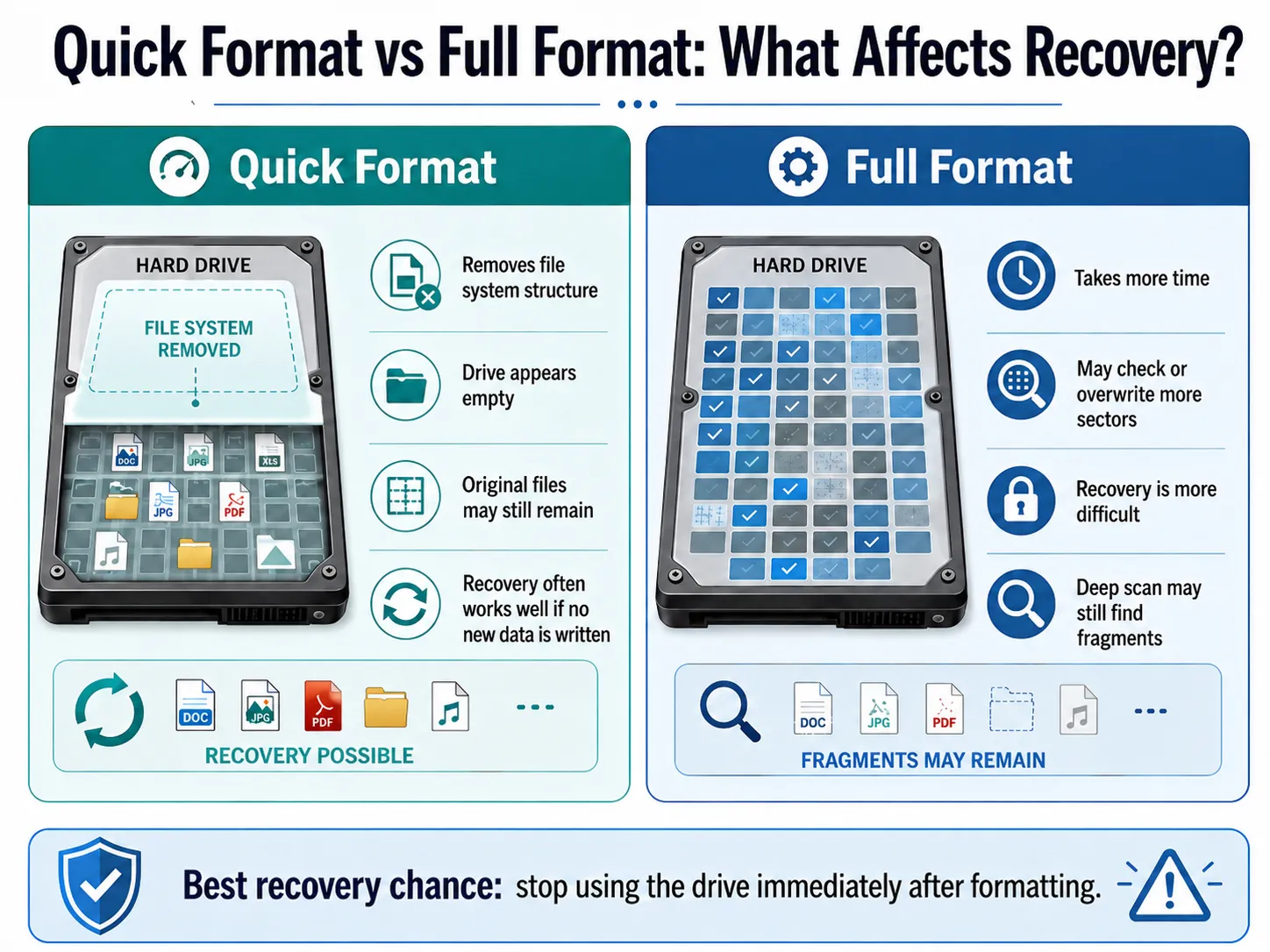
Quick Format vs Full Format: What Affects Recovery?
至 從格式化的硬碟中復原檔案, you need to understand the type of format first. Different formatting methods affect the recovery result in different ways.
快速格式
A 快速格式 removes the file system structure and makes the drive look empty. However, the original files may remain in the storage area until new data replaces them. Because of this, 快速格式化資料恢復 often works well if you stop using the drive quickly.
完整格式
A 完整格式 takes more time and may check or overwrite more disk sectors. Therefore, full format recovery can be more difficult. Still, you can run a deep scan if the files are important. Sometimes, recovery software can still find file fragments or remaining data.

Why Use Magic Data Recovery to Recover Files from a Formatted Hard Drive?
When users want to 從格式化的硬碟中復原檔案, they often face two problems. First, they do not know whether their files still exist. Second, they worry that a wrong operation may make recovery worse.
Magic Data Recovery helps solve these problems with a simple recovery workflow. It scans the formatted drive, lists recoverable files, lets you preview them, and helps you save selected files to another safe location.
This makes it useful for common data loss situations, including accidental formatting, deleted files, 丟失的分區, RAW drives, USB drives, memory cards, and other storage issues.
Magic Data Recovery 的主要優勢
Magic Data Recovery offers several practical benefits for 格式化硬碟機復原:
- It scans formatted drives and lost partitions.
- It supports hard drives, SSDs, USB drives, and SD cards.
- It provides an Advanced Scan for deeper recovery.
- It lists recoverable files while scanning.
- It allows file preview before recovery.
- It helps users filter files by type, name, or path.
- It guides users to save recovered files to a safer location.
Unlike risky manual methods, Magic Data Recovery does not require advanced technical skills. Moreover, it focuses on finding lost files first, instead of changing the drive structure before recovery.
How to Recover Files from a Formatted Hard Drive with Magic Data Recovery
如果您想 從格式化的硬碟中復原檔案, Magic Data Recovery gives you a clear and safe workflow. The key is to scan the formatted drive without writing new data to it. Then, you can restore the found files to another storage location.
步驟 1:下載並安裝 Magic Data Recovery
First, download Magic Data Recovery and install it on a drive that is different from the formatted hard drive. This approach helps prevent accidental overwriting and protects lost data.
支援 Windows 7/8/10/11 和 Windows Server
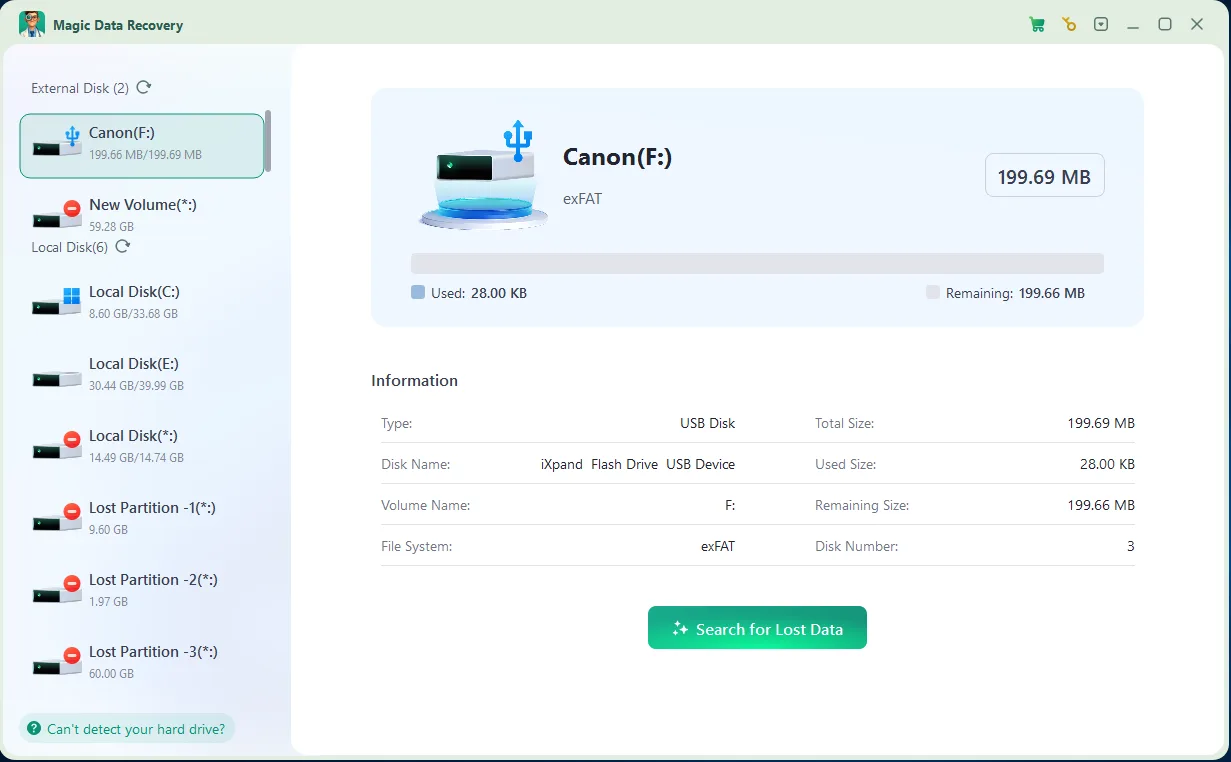
步驟 2:選擇要掃描的格式化硬碟機
Launch Magic Data Recovery. Then, from the main interface, choose the formatted hard drive or lost partition where your files disappeared. After that, start the scan to search for recoverable data.

步驟 3:掃瞄 格式化 用於恢復遺失檔案的硬碟
Magic Data Recovery automatically performs an Advanced Scan. Meanwhile, it lists recoverable files as the scan progresses, so you can begin checking results before the full scan finishes.

步驟 4:預覽檔案 之前 復原
Next, use the preview function to confirm file content, names, formats, or thumbnails. This step helps you recover only the files you actually need and avoid restoring unnecessary data.

步驟 5:將檔案復原至安全位置
Finally, select the target files and save them to a different drive or storage device. Never restore data to the same formatted hard drive, because doing so may overwrite other lost files or cause data corruption.

Other Ways to Recover Files from a Formatted Hard Drive
Although Magic Data Recovery works well as a first recovery option, you can also try backup-based methods. In fact, backups may offer the fastest way to 從格式化的硬碟中復原檔案 if you created them before formatting.
從檔案歷史還原
If you enabled Windows File History before the format, connect your backup drive and check previous file versions. This method works best for documents, desktop files, libraries, and folders that Windows backed up regularly.
Check Cloud Storage
Next, check OneDrive, Google Drive, Dropbox, or another cloud service. If your files synced before formatting, you may download them again without scanning the formatted drive.
Restore from a Full Backup
If you created a full system or file backup, restore your files from that backup first. This method avoids extra scanning and reduces the risk of overwriting the formatted drive.
Use a Professional Recovery Service
If the hard drive makes clicking sounds, disconnects repeatedly, or does not appear in the system, stop using it. In that case, software may not solve the problem. A professional service can inspect physical damage with specialized tools.
Common Mistakes That Make It Harder to Recover Files from a Formatted Hard Drive
Many users reduce their recovery chances without realizing it. Therefore, avoid these common mistakes before you 從格式化的硬碟中復原檔案.
Installing Software on the Formatted Drive
Installing software on the formatted drive may overwrite lost data. Instead, install Magic Data Recovery on another drive and scan the affected drive from there.
Saving Files Back to the Same Drive
This mistake can damage files that still have recovery potential. Always save recovered files to another storage device.
重新格式化磁碟機
A second format may make recovery harder. If Windows asks you to format the drive again, cancel the message and scan the drive first.
Running Random Repair Commands
Some repair commands change the file system. As a result, they may reduce your chance of 格式化硬碟機復原. Try file recovery before running commands that modify the drive.
Using the Computer Normally
If the formatted drive is part of your main computer, normal activity may create temporary files. These files can overwrite lost data. Therefore, reduce use until recovery finishes.
Tips to Improve Your Chance to Recover Files from a Formatted Hard Drive
You can improve your results when you 從格式化的硬碟中復原檔案 by following a careful recovery plan.
First, start the scan as soon as possible. Next, scan the whole drive instead of only checking visible folders. If a quick scan does not find your files, use Advanced Scan to search deeper.
Also, preview files before recovery. This helps you confirm file quality and choose the most important data first. Finally, recover files to another safe location and check them after restoration. Here are the most useful tips:
- Act quickly after formatting.
- Avoid writing new data to the drive.
- Use a deep scan when needed.
- Preview files before saving them.
- Recover important files first.
- Save restored files to another storage device.
- Stop software recovery if the drive shows physical failure signs.
With these steps, you reduce risk and give the recovery software a better chance to find usable files.
總結
如果您需要 從格式化的硬碟中復原檔案, act quickly and avoid writing new data to the affected drive. Formatting does not always erase every file immediately, but every new operation may reduce your recovery chance.
Magic Data Recovery is recommended because it offers a clear and practical 格式化硬碟機復原 process. It helps users scan the formatted drive, preview recoverable files, select useful data, and restore files to another safe location. Compared with risky manual methods, it gives ordinary users a more reliable and easier recovery path.
If you are looking for a simple 硬碟復原解決方案, try Magic Data Recovery before you format the drive again or run repair tools that may change the data structure.
支援 Windows 7/8/10/11 和 Windows Server
FAQ About How to Recover Files from a Formatted Hard Drive
Can I recover files from a formatted hard drive after a quick format?
Yes, you often can recover files from a formatted hard drive after a quick format, especially if you stop using the drive immediately. A quick format usually removes file system records instead of wiping all file content. Therefore, recovery software may still find your documents, photos, videos, and other files before new data overwrites them.
Can I recover files from a formatted hard drive after a full format?
You can try, but the chance may be lower after a full format. A full format may check or overwrite more disk sectors, which can damage recoverable data. However, if the files are important, run an Advanced Scan with Magic Data Recovery before giving up or using tools that modify the drive.
Can I recover files from a formatted hard drive without software?
Sometimes, you can restore files without software if you have File History, cloud sync, or another backup. However, if no backup exists, you usually need data recovery software to scan the formatted drive. Magic Data Recovery can help locate lost files and preview them before you decide what to recover.
Is Magic Data Recovery safe for formatted hard drive recovery?
Magic Data Recovery is a safe option for formatted hard drive recovery when you install it on a different drive and save recovered files elsewhere. It focuses on scanning, previewing, and restoring files instead of asking users to rebuild partitions manually. This guided workflow reduces common mistakes that may overwrite lost data.
Where should I save recovered files after formatting?
Always save recovered files to a different drive, USB device, or cloud location. Do not save them back to the same formatted hard drive during recovery. This rule matters because new files may overwrite other lost data. After you confirm all important files work correctly, you can reorganize them safely.
Can CMD help recover files from a formatted hard drive?
CMD cannot reliably recover files from a formatted hard drive after formatting. It may help fix some file system errors, but it does not provide a complete file recovery workflow. In many cases, running repair commands too early may change the drive structure. Therefore, scan for lost files first.
What should I do if the formatted hard drive is not detected?
First, check the cable, port, power supply, and Disk Management. However, do not initialize or format the drive again. If the drive still does not appear or makes unusual noises, stop using it. In that situation, professional recovery may be safer than software because the problem may involve hardware failure.
Vasilii 是一位在該領域擁有約 10 年實務經驗的資料復原專家。在他的職業生涯中,他已成功解決數千個複雜的個案,包括刪除的檔案、格式化的硬碟機、遺失的磁碟分割和 RAW 檔案系統。他的專業知識涵蓋使用十六進位編輯器等專業工具的手動復原方法,以及使用復原軟體的進階自動解決方案。Vasilii 的使命是讓 IT 專業人士和一般使用者都能獲得可靠的資料復原知識,協助他們保護寶貴的數位資產。.