
Come recuperare i file da un disco rigido formattato
Se avete bisogno di recuperare i file da un disco rigido formattato, smetti immediatamente di utilizzare l'unità. Molti utenti vanno nel panico dopo aver formattato un disco, soprattutto quando questo contiene documenti di lavoro, foto di famiglia, video o file di progetto. Tuttavia, un'unità formattata non comporta sempre una perdita definitiva dei dati.
In molti casi, la formattazione elimina i record del file system anziché cancellare tutti i file in una volta sola. Pertanto, i dati persi potrebbero essere ancora presenti fino a quando non verranno sovrascritti da nuovi file. Prima si interviene, maggiori saranno le possibilità di recupero.
Questa guida spiega come recupero del disco rigido formattato come funziona, cosa fare per prima cosa e come utilizzarlo Magic Data Recovery per eseguire la scansione, visualizzare in anteprima e recuperare i file persi in tutta sicurezza. Anziché proporre soluzioni rapide ma rischiose, questo articolo si concentra su passaggi pratici, errori comuni e metodi affidabili recupero delle unità formattate opzioni per gli utenti comuni.
Supporta Windows 7/8/10/11 e Windows Server
Indice dei contenuti
È possibile recuperare i file da un disco rigido formattato?
Sì, potete ancora recuperare i file da un disco rigido formattato, ma il risultato dipende da come è stata formattata l'unità e da cosa è successo in seguito. Ad esempio, una formattazione rapida di solito rimuove gli indici dei file e contrassegna lo spazio come disponibile. Non sempre cancella immediatamente il contenuto originale dei file.
Tuttavia, una volta salvati nuovi dati sullo stesso disco, questi potrebbero sovrascrivere i file persi. Di conseguenza, il recupero diventa più difficile. Se il disco formattato è un SSD, il TRIM Questa funzione potrebbe inoltre ridurre le possibilità di recupero, poiché è in grado di cancellare automaticamente i blocchi di dati inutilizzati.
Ciononostante, non bisogna dare per scontato che tutto sia andato perso. Se l'unità è ancora visibile sul computer e non presenta danni fisici, un software affidabile per il recupero dei dati può eseguire una scansione dell'unità e cercare i file recuperabili.
Prima di recuperare i file da un disco rigido formattato, fermati un attimo
Prima di provare a recuperare i file da un disco rigido formattato, è bene adottare alcune misure di sicurezza. Queste azioni contribuiscono a proteggere i dati rimanenti e a impedire la sovrascrittura accidentale.
Innanzitutto, non copiare nuovi file sull'unità formattata. Inoltre, non reinstallare Windows, non scaricare programmi e non eseguire strumenti di riparazione del disco sull'unità interessata. Queste operazioni potrebbero scrivere nuovi dati e danneggiare i file che hanno ancora una possibilità di essere recuperati.
Successivamente, prepara un’altra posizione di archiviazione. È consigliabile salvare i file recuperati su un’altra unità, su un dispositivo USB o su uno spazio di archiviazione cloud. Inoltre, evita di ripristinare i file sulla stessa unità formattata durante il processo di recupero.
Segui queste semplici regole:
- Smetti di utilizzare l'unità formattata.
- Non installare software di ripristino sull'unità interessata.
- Non formattare nuovamente l'unità.
- Non salvare i file recuperati nella stessa unità.
- Utilizza un altro dispositivo di archiviazione per i file ripristinati.
Questi passaggi possono sembrare semplici, ma spesso fanno la differenza tra un recupero riuscito e una perdita definitiva.
Formattazione rapida o formattazione completa: cosa influisce sul recupero dei dati?
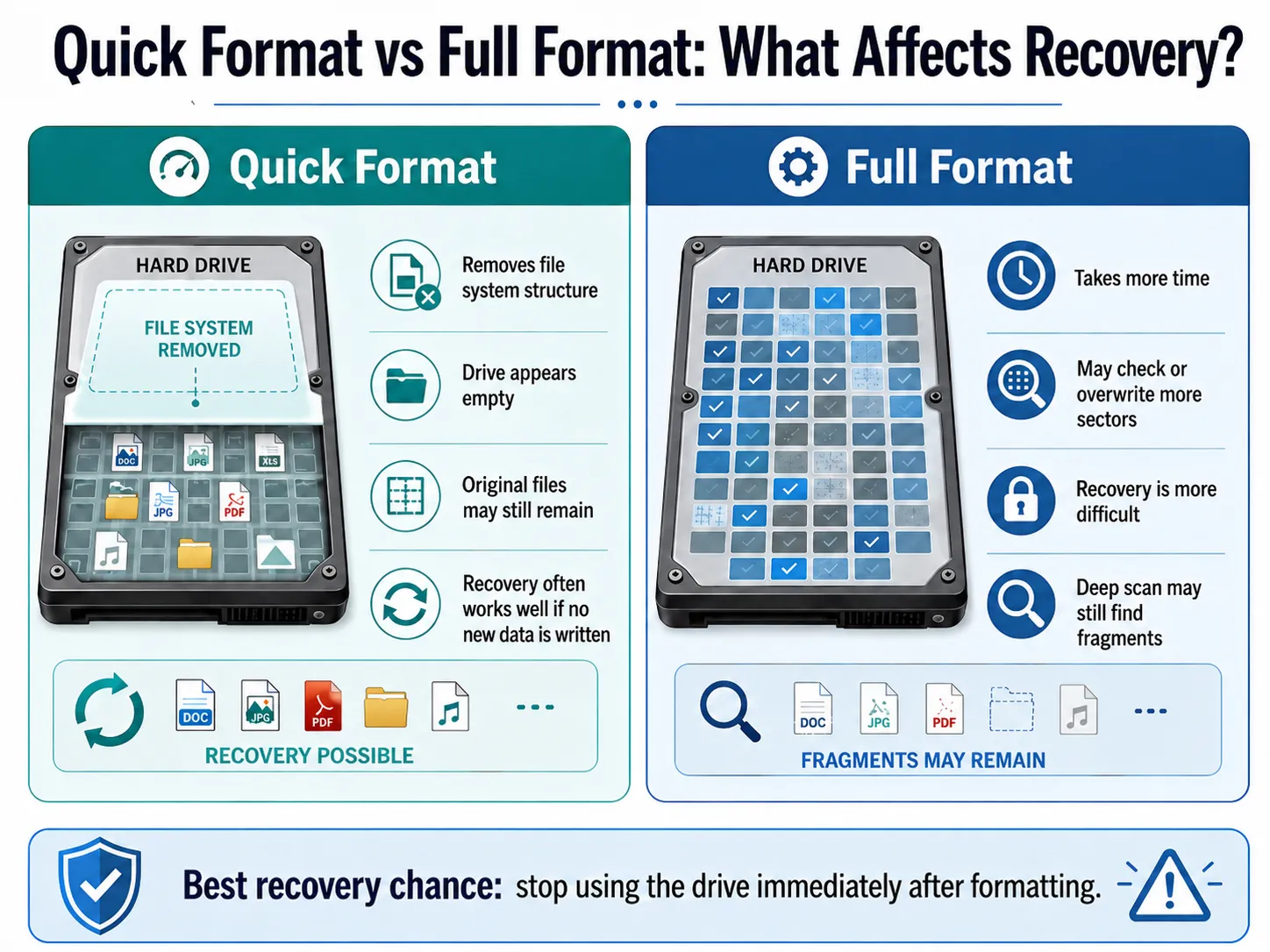
A recuperare i file da un disco rigido formattato, è necessario innanzitutto comprendere il tipo di formattazione. I diversi metodi di formattazione influiscono in modo diverso sul risultato del recupero.
Formato rapido
A formato rapido elimina la struttura del file system e fa apparire l'unità vuota. Tuttavia, i file originali potrebbero rimanere nell'area di archiviazione finché non vengono sostituiti da nuovi dati. Per questo motivo, ripristino dopo una formattazione rapida spesso funziona bene se si smette di utilizzare l'unità rapidamente.
Formato completo
A formato completo richiede più tempo e potrebbe controllare o sovrascrivere un numero maggiore di settori del disco. Pertanto, ripristino completo del formato può risultare più complicato. Tuttavia, se i file sono importanti, puoi eseguire una scansione approfondita. A volte, i software di recupero riescono comunque a individuare frammenti di file o dati residui.
Perché utilizzare Magic Data Recovery per recuperare i file da un disco rigido formattato?
Quando gli utenti desiderano recuperare i file da un disco rigido formattato, spesso si trovano ad affrontare due problemi. Innanzitutto, non sanno se i propri file esistano ancora. In secondo luogo, temono che un’operazione errata possa peggiorare la situazione.
Magic Data Recovery aiuta a risolvere questi problemi grazie a un semplice flusso di lavoro di recupero. Esegue la scansione dell'unità formattata, elenca i file recuperabili, consente di visualizzarne l'anteprima e aiuta a salvare i file selezionati in un'altra posizione sicura.
Ciò lo rende utile nelle situazioni più comuni di perdita di dati, tra cui la formattazione accidentale, i file cancellati, partizioni perse, unità RAW, chiavette USB, schede di memoria e altri problemi relativi ai dispositivi di archiviazione.
Vantaggi principali di Magic Data Recovery
Magic Data Recovery offre numerosi vantaggi pratici per recupero del disco rigido formattato:
- Esegue la scansione delle unità formattate e delle partizioni perse.
- Supporta dischi rigidi, SSD, chiavette USB e schede SD.
- Offre una scansione avanzata per un recupero più approfondito.
- Durante la scansione, elenca i file recuperabili.
- Consente di visualizzare l'anteprima dei file prima del recupero.
- Consente agli utenti di filtrare i file in base al tipo, al nome o al percorso.
- Aiuta gli utenti a salvare i file recuperati in una posizione più sicura.
A differenza dei metodi manuali, che comportano dei rischi, Magic Data Recovery non richiede competenze tecniche avanzate. Inoltre, si concentra innanzitutto sulla ricerca dei file persi, anziché modificare la struttura dell'unità prima del recupero.
Come recuperare i file da un disco rigido formattato con Magic Data Recovery
Se si vuole recuperare i file da un disco rigido formattato, Magic Data Recovery ti offre una procedura chiara e sicura. Il segreto sta nel eseguire la scansione dell'unità formattata senza scriverci nuovi dati. Successivamente, potrai ripristinare i file individuati in un'altra posizione di archiviazione.
Passo 1: Scaricare e installare Magic Data Recovery
Per prima cosa, scarica Magic Data Recovery e installalo su un'unità diversa dal disco rigido formattato. Questo metodo aiuta a evitare la sovrascrittura accidentale e protegge i dati persi.
Supporta Windows 7/8/10/11 e Windows Server
Fase 2: Selezionare il disco rigido formattato da analizzare
Avvia Magic Data Recovery. Quindi, dall'interfaccia principale, seleziona il disco rigido formattato o la partizione persa da cui sono scomparsi i tuoi file. Dopodiché, avvia la scansione per cercare i dati recuperabili.
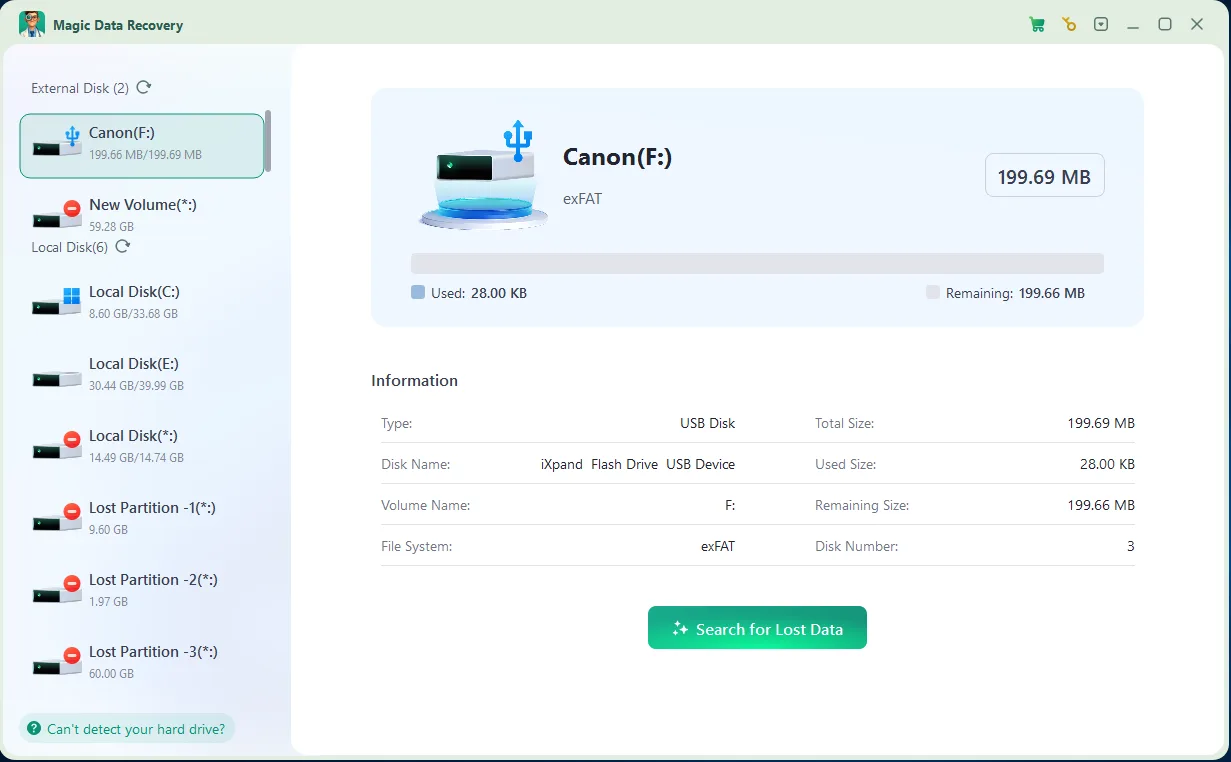
Fase 3: scansione del Formattato Disco rigido per i file persi
Magic Data Recovery esegue automaticamente una scansione avanzata. Nel frattempo, man mano che la scansione procede, elenca i file recuperabili, consentendoti così di iniziare a controllare i risultati prima che la scansione completa sia terminata.

Fase 4: Anteprima dei file Prima Recupero
Successivamente, utilizza la funzione di anteprima per verificare il contenuto, i nomi, i formati o le miniature dei file. Questo passaggio ti aiuta a recuperare solo i file di cui hai effettivamente bisogno ed evitare di ripristinare dati non necessari.

Passo 5: Recuperare i file in una posizione sicura
Infine, seleziona i file di destinazione e salvali su un'altra unità o su un altro dispositivo di archiviazione. Non ripristinare mai i dati sullo stesso disco rigido formattato, poiché ciò potrebbe sovrascrivere altri file persi o causare il danneggiamento dei dati.

Altri modi per recuperare i file da un disco rigido formattato
Sebbene Magic Data Recovery funzioni bene come prima opzione di ripristino, è possibile provare anche metodi basati sui backup. Infatti, i backup potrebbero rappresentare il modo più veloce per recuperare i file da un disco rigido formattato se li hai creati prima della formattazione.
Ripristino dalla cronologia dei file
Se hai attivato la Cronologia dei file di Windows prima della formattazione, collega l'unità di backup e controlla le versioni precedenti dei file. Questo metodo funziona al meglio per documenti, file sul desktop, librerie e cartelle di cui Windows ha eseguito regolarmente il backup.
Verifica lo spazio di archiviazione su cloud
Successivamente, controlla su OneDrive, Google Drive, Dropbox o un altro servizio cloud. Se i tuoi file erano stati sincronizzati prima della formattazione, puoi scaricarli nuovamente senza eseguire la scansione dell'unità formattata.
Ripristino da un backup completo
Se hai creato un backup completo del sistema o dei file, ripristina innanzitutto i file da quel backup. Questo metodo evita ulteriori scansioni e riduce il rischio di sovrascrivere l'unità formattata.
Ricorri a un servizio di recupero dati professionale
Se il disco rigido emette rumori simili a clic, si disconnette ripetutamente o non viene rilevato dal sistema, smettete di utilizzarlo. In tal caso, il software potrebbe non essere in grado di risolvere il problema. Un servizio di assistenza professionale può verificare la presenza di danni fisici utilizzando strumenti specializzati.
Errori comuni che rendono più difficile il recupero dei file da un disco rigido formattato
Molti utenti riducono le proprie possibilità di recupero senza rendersene conto. Pertanto, evitate questi errori comuni prima di recuperare i file da un disco rigido formattato.
Installazione del software sull'unità formattata
L'installazione del software sull'unità formattata potrebbe sovrascrivere i dati persi. Si consiglia invece di installare Magic Data Recovery su un'altra unità e di eseguire la scansione dell'unità interessata da lì.
Salvataggio dei file sulla stessa unità
Questo errore può danneggiare i file che potrebbero ancora essere recuperati. Salvare sempre i file recuperati su un altro dispositivo di archiviazione.
Formattazione dell'unità (nuovamente)
Una seconda formattazione potrebbe rendere più difficile il recupero dei dati. Se Windows ti chiede di formattare nuovamente l'unità, chiudi il messaggio e esegui prima una scansione dell'unità.
Esecuzione di comandi di riparazione casuali
Alcuni comandi di riparazione modificano il file system. Di conseguenza, potrebbero ridurre le possibilità di recupero delle unità formattate. Prova a recuperare i file prima di eseguire comandi che modificano l'unità.
Utilizzo normale del computer
Se l'unità formattata fa parte del computer principale, le normali attività potrebbero generare file temporanei. Questi file potrebbero sovrascrivere i dati persi. Pertanto, si consiglia di ridurre l'utilizzo fino al completamento del recupero.
Consigli per aumentare le possibilità di recuperare i file da un disco rigido formattato
Puoi migliorare i tuoi risultati quando recuperare i file da un disco rigido formattato seguendo un piano di recupero accurato.
Per prima cosa, avvia la scansione il prima possibile. Successivamente, esegui una scansione dell'intero disco invece di limitarti a controllare solo le cartelle visibili. Se una scansione rapida non individua i tuoi file, utilizza la scansione avanzata per effettuare una ricerca più approfondita.
Inoltre, visualizza l'anteprima dei file prima del recupero. Questo ti aiuta a verificare la qualità dei file e a scegliere per primi i dati più importanti. Infine, recupera i file in un'altra posizione sicura e controllali dopo il ripristino. Ecco i consigli più utili:
- Agisci rapidamente dopo la formattazione.
- Evitare di scrivere nuovi dati sull'unità.
- Se necessario, esegui una scansione approfondita.
- Visualizza l'anteprima dei file prima di salvarli.
- Recupera prima i file importanti.
- Salvare i file ripristinati su un altro dispositivo di archiviazione.
- Interrompere il recupero dei dati se l'unità presenta segni di guasto fisico.
Seguendo questi passaggi, riduci i rischi e dai al software di recupero una maggiore possibilità di individuare file utilizzabili.
Conclusione
Se avete bisogno di recuperare i file da un disco rigido formattato, agisci rapidamente ed evita di scrivere nuovi dati sull'unità interessata. La formattazione non sempre cancella immediatamente tutti i file, ma ogni nuova operazione potrebbe ridurre le tue possibilità di recupero.
Magic Data Recovery è consigliato perché offre una guida chiara e pratica recupero del disco rigido formattato processo. Consente agli utenti di eseguire una scansione dell'unità formattata, visualizzare in anteprima i file recuperabili, selezionare i dati utili e ripristinare i file in un'altra posizione sicura. Rispetto ai rischiosi metodi manuali, offre agli utenti comuni un percorso di recupero più affidabile e semplice.
Se stai cercando un semplice soluzione di recupero del disco rigido, prova Magic Data Recovery prima di formattare nuovamente l'unità o di eseguire strumenti di riparazione che potrebbero modificare la struttura dei dati.
Supporta Windows 7/8/10/11 e Windows Server
Domande frequenti su come recuperare i file da un disco rigido formattato
È possibile recuperare i file da un disco rigido formattato dopo una formattazione rapida?
Sì, spesso è possibile recuperare i file da un disco rigido formattato dopo una formattazione rapida, soprattutto se si smette immediatamente di utilizzare il disco. Una formattazione rapida di solito rimuove solo i record del file system, senza cancellare il contenuto dei file. Pertanto, i software di recupero potrebbero comunque individuare i tuoi documenti, foto, video e altri file prima che vengano sovrascritti da nuovi dati.
È possibile recuperare i file da un disco rigido formattato dopo una formattazione completa?
Puoi provarci, ma le probabilità potrebbero essere inferiori dopo una formattazione completa. Una formattazione completa potrebbe controllare o sovrascrivere un numero maggiore di settori del disco, danneggiando così i dati recuperabili. Tuttavia, se i file sono importanti, esegui una scansione avanzata con Magic Data Recovery prima di rinunciare o di utilizzare strumenti che modificano l'unità.
È possibile recuperare i file da un disco rigido formattato senza utilizzare alcun software?
A volte è possibile ripristinare i file senza ricorrere a software specifici, se si dispone di Cronologia file, sincronizzazione su cloud o un altro tipo di backup. Tuttavia, in assenza di backup, solitamente è necessario un software di recupero dati per eseguire la scansione dell'unità formattata. Magic Data Recovery può aiutarti a individuare i file persi e a visualizzarne un'anteprima prima di decidere quali recuperare.
Magic Data Recovery è sicuro per il recupero dei dati da un disco rigido formattato?
Magic Data Recovery rappresenta una soluzione sicura per il recupero dei dati da un disco rigido formattato, purché venga installato su un'unità diversa e i file recuperati vengano salvati altrove. Il programma si concentra sulla scansione, l'anteprima e il ripristino dei file, senza richiedere agli utenti di ricostruire manualmente le partizioni. Questo flusso di lavoro guidato riduce il rischio di errori comuni che potrebbero sovrascrivere i dati persi.
Dove devo salvare i file recuperati dopo la formattazione?
Salva sempre i file recuperati su un'unità diversa, su un dispositivo USB o su uno spazio di archiviazione cloud. Non salvarli nuovamente sullo stesso disco rigido formattato durante il recupero. Questa regola è importante perché i nuovi file potrebbero sovrascrivere altri dati persi. Dopo aver verificato che tutti i file importanti funzionino correttamente, potrai riorganizzarli in tutta sicurezza.
CMD può aiutare a recuperare i file da un disco rigido formattato?
CMD non è in grado di recuperare in modo affidabile i file da un disco rigido formattato dopo la formattazione. Può aiutare a correggere alcuni errori del file system, ma non offre un flusso di lavoro completo per il recupero dei file. In molti casi, l'esecuzione prematura dei comandi di riparazione può alterare la struttura del disco. Pertanto, è consigliabile eseguire prima una scansione alla ricerca dei file persi.
Cosa devo fare se il disco rigido formattato non viene rilevato?
Per prima cosa, controlla il cavo, la porta, l'alimentazione e la Gestione disco. Tuttavia, non inizializzare né formattare nuovamente l'unità. Se l'unità continua a non essere rilevata o emette rumori insoliti, smetti di utilizzarla. In tal caso, un intervento di recupero professionale potrebbe essere più sicuro rispetto all'uso di software, poiché il problema potrebbe essere dovuto a un guasto hardware.

Vasilii è uno specialista del recupero dati con circa 10 anni di esperienza pratica nel settore. Nel corso della sua carriera, ha risolto con successo migliaia di casi complessi riguardanti file cancellati, unità formattate, partizioni perse e file system RAW. La sua esperienza copre sia i metodi di recupero manuale utilizzando strumenti professionali come gli editor esadecimali, sia le soluzioni automatiche avanzate con i software di recupero. La missione di Vasilii è quella di rendere accessibile la conoscenza del recupero dati affidabile sia ai professionisti IT che agli utenti di tutti i giorni, aiutandoli a salvaguardare i loro preziosi beni digitali.