
So stellen Sie Dateien von einer formatierten Festplatte wieder her
Wenn Sie Folgendes benötigen Wiederherstellung von Dateien von einer formatierten Festplatte, stellen Sie die Nutzung des Laufwerks sofort ein. Viele Nutzer geraten nach der Formatierung einer Festplatte in Panik, insbesondere wenn diese Arbeitsdokumente, Familienfotos, Videos oder Projektdateien enthält. Eine formatierte Festplatte bedeutet jedoch nicht immer einen dauerhaften Datenverlust.
In vielen Fällen werden bei der Formatierung lediglich die Dateisystemeinträge gelöscht, anstatt alle Dateien auf einmal zu löschen. Daher sind Ihre verlorenen Daten möglicherweise noch vorhanden, bis sie durch neue Dateien überschrieben werden. Je schneller Sie handeln, desto besser sind Ihre Chancen auf eine Wiederherstellung.
Dieser Leitfaden erklärt, wie Wiederherstellung einer formatierten Festplatte wie es funktioniert, was Sie als Erstes tun sollten und wie man es benutzt Magic Data Recovery um verlorene Dateien zu scannen, in der Vorschau anzuzeigen und sicher wiederherzustellen. Anstatt riskante Abkürzungen zu empfehlen, konzentriert sich dieser Artikel auf praktische Schritte, häufige Fehler und zuverlässige Wiederherstellung eines formatierten Laufwerks Optionen für normale Benutzer.
Unterstützt Windows 7/8/10/11 und Windows Server
Inhaltsübersicht
Kann man Dateien von einer formatierten Festplatte wiederherstellen?
Ja, Sie können noch Wiederherstellung von Dateien von einer formatierten Festplatte, doch das Ergebnis hängt davon ab, wie das Laufwerk formatiert wurde und was danach geschah. Bei einer Schnellformatierung werden beispielsweise in der Regel die Dateiindizes entfernt und der Speicherplatz als verfügbar markiert. Der ursprüngliche Dateiinhalt wird dabei nicht immer sofort gelöscht.
Sobald Sie jedoch neue Daten auf demselben Laufwerk speichern, können diese die verlorenen Dateien überschreiben. Dadurch wird die Wiederherstellung erschwert. Wenn es sich bei dem formatierten Laufwerk um ein SSD, die TRIM Diese Funktion kann zudem die Wiederherstellungschancen verringern, da sie ungenutzte Datenblöcke automatisch löschen kann.
Dennoch sollten Sie nicht davon ausgehen, dass alles verloren ist. Wenn das Laufwerk auf Ihrem Computer noch angezeigt wird und keine physischen Schäden aufweist, kann eine zuverlässige Datenwiederherstellungssoftware das Laufwerk scannen und nach wiederherstellbaren Dateien suchen.
Bevor Sie Dateien von einer formatierten Festplatte wiederherstellen, sollten Sie zunächst Folgendes beachten
Bevor Sie versuchen Wiederherstellung von Dateien von einer formatierten Festplatte, sollten Sie einige Sicherheitsmaßnahmen ergreifen. Diese Maßnahmen tragen dazu bei, die verbleibenden Daten zu schützen und ein versehentliches Überschreiben zu verhindern.
Kopieren Sie zunächst keine neuen Dateien auf das formatierte Laufwerk. Führen Sie außerdem keine Neuinstallation von Windows durch, laden Sie keine Programme herunter und führen Sie keine Festplattenreparaturprogramme auf dem betroffenen Laufwerk aus. Diese Vorgänge können neue Daten schreiben und Dateien beschädigen, die noch wiederherstellbar wären.
Bereiten Sie als Nächstes einen weiteren Speicherort vor. Sie sollten die wiederhergestellten Dateien auf einem anderen Laufwerk, einem USB-Stick oder in der Cloud speichern. Vermeiden Sie es außerdem, Dateien während des Wiederherstellungsprozesses auf demselben formatierten Laufwerk wiederherzustellen.
Beachten Sie diese kurzen Regeln:
- Verwenden Sie das formatierte Laufwerk nicht mehr.
- Installieren Sie keine Wiederherstellungssoftware auf dem betroffenen Laufwerk.
- Formatieren Sie das Laufwerk nicht erneut.
- Speichern Sie wiederhergestellte Dateien nicht wieder auf demselben Laufwerk.
- Verwenden Sie für die wiederhergestellten Dateien ein anderes Speichermedium.
Diese Schritte mögen einfach erscheinen, doch oft entscheiden sie darüber, ob eine erfolgreiche Wiederherstellung gelingt oder ein dauerhafter Verlust eintritt.
Schnellformatierung vs. vollständige Formatierung: Was beeinflusst die Datenwiederherstellung?
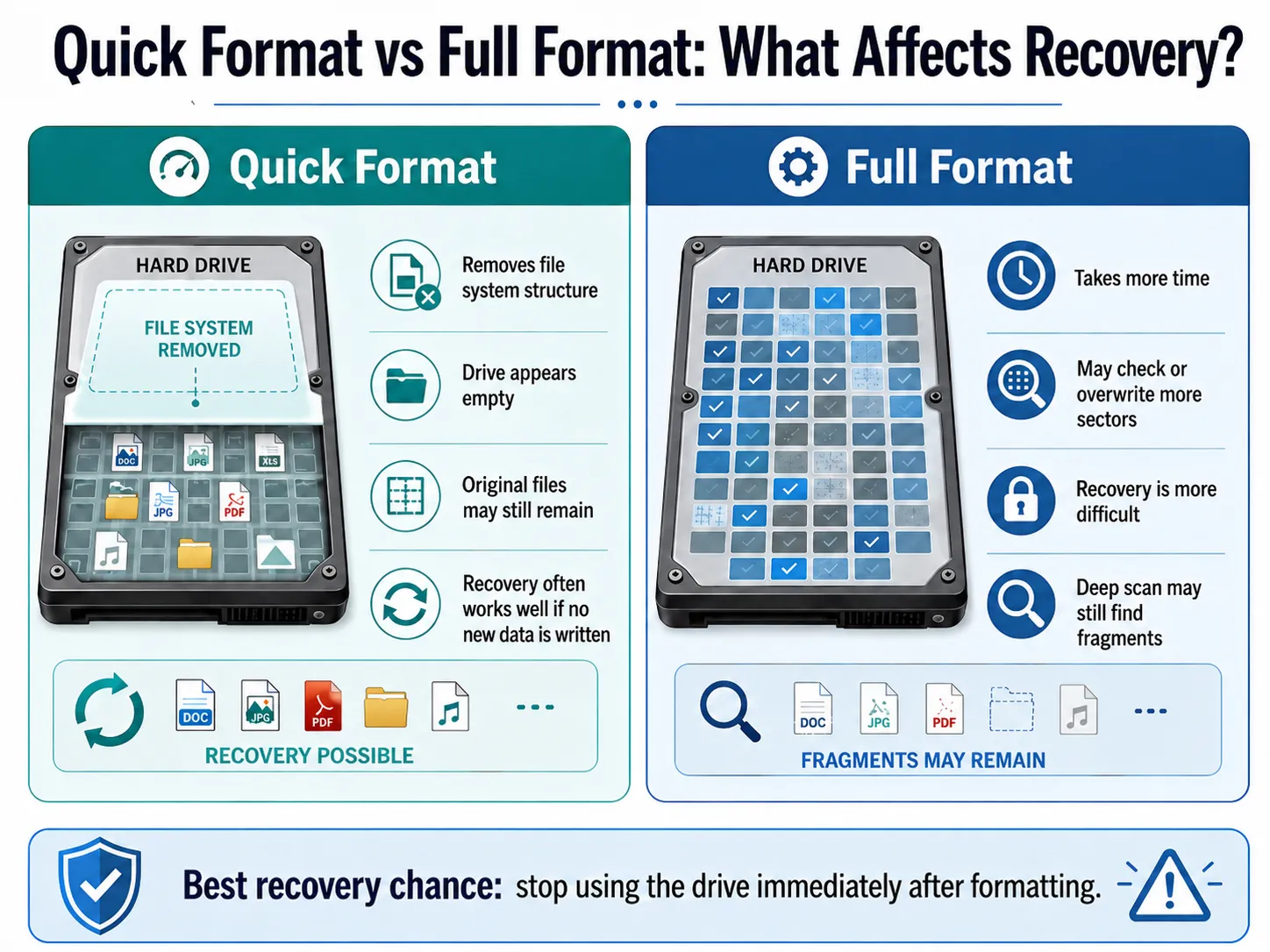
An Wiederherstellung von Dateien von einer formatierten Festplatte, müssen Sie zunächst die Art der Formatierung verstehen. Verschiedene Formatierungsmethoden wirken sich unterschiedlich auf das Ergebnis der Wiederherstellung aus.
Schnelles Format
A schnelles Format löscht die Dateisystemstruktur und lässt das Laufwerk leer erscheinen. Die ursprünglichen Dateien können jedoch im Speicherbereich verbleiben, bis sie durch neue Daten ersetzt werden. Aus diesem Grund, Wiederherstellung nach Schnellformatierung Das funktioniert oft gut, wenn man das Laufwerk schnell ausschaltet.
Vollständiges Format
A vollständiges Format dauert länger und überprüft oder überschreibt möglicherweise mehr Festplattensektoren. Daher, Vollständige Formatwiederherstellung kann schwieriger sein. Dennoch können Sie einen Tiefenscan durchführen, wenn die Dateien wichtig sind. Manchmal kann eine Wiederherstellungssoftware dennoch Dateifragmente oder verbleibende Daten finden.
Warum sollte man Magic Data Recovery zur Wiederherstellung von Dateien von einer formatierten Festplatte verwenden?
Wenn Nutzer Wiederherstellung von Dateien von einer formatierten Festplatte, stehen sie oft vor zwei Problemen. Erstens wissen sie nicht, ob ihre Dateien noch vorhanden sind. Zweitens befürchten sie, dass ein falscher Vorgang die Wiederherstellung noch erschweren könnte.
Magic Data Recovery hilft bei der Lösung dieser Probleme mit einem einfachen Wiederherstellungsablauf. Das Programm scannt das formatierte Laufwerk, listet die wiederherstellbaren Dateien auf, ermöglicht eine Vorschau und hilft Ihnen dabei, ausgewählte Dateien an einem anderen sicheren Speicherort zu speichern.
Dadurch eignet es sich für typische Fälle von Datenverlust, darunter versehentliches Formatieren, gelöschte Dateien, verlorene Partitionen, RAW-Laufwerke, USB-Sticks, Speicherkarten und andere Probleme mit Speichermedien.
Die wichtigsten Vorteile von Magic Data Recovery
Magic Data Recovery bietet zahlreiche praktische Vorteile für Wiederherstellung einer formatierten Festplatte:
- Es durchsucht formatierte Laufwerke und verlorene Partitionen.
- Es unterstützt Festplatten, SSDs, USB-Sticks und SD-Karten.
- Es bietet einen erweiterten Scan für eine gründlichere Wiederherstellung.
- Während des Scans werden die wiederherstellbaren Dateien aufgelistet.
- Es ermöglicht eine Dateivorschau vor der Wiederherstellung.
- Damit können Benutzer Dateien nach Typ, Name oder Pfad filtern.
- Es hilft den Benutzern dabei, die wiederhergestellten Dateien an einem sichereren Ort zu speichern.
Im Gegensatz zu riskanten manuellen Methoden erfordert Magic Data Recovery keine fortgeschrittenen technischen Kenntnisse. Zudem konzentriert sich das Programm darauf, verlorene Dateien zunächst zu finden, anstatt vor der Wiederherstellung die Laufwerksstruktur zu verändern.
So stellen Sie Dateien von einer formatierten Festplatte mit Magic Data Recovery wieder her
Wenn Sie möchten, dass Wiederherstellung von Dateien von einer formatierten Festplatte, Magic Data Recovery bietet Ihnen einen übersichtlichen und sicheren Arbeitsablauf. Der Schlüssel liegt darin, das formatierte Laufwerk zu scannen, ohne neue Daten darauf zu schreiben. Anschließend können Sie die gefundenen Dateien an einem anderen Speicherort wiederherstellen.
Schritt 1: Herunterladen und Installieren von Magic Data Recovery
Laden Sie zunächst Magic Data Recovery herunter und installieren Sie es auf einem anderen Laufwerk als der formatierten Festplatte. Auf diese Weise können Sie ein versehentliches Überschreiben verhindern und verlorene Daten schützen.
Unterstützt Windows 7/8/10/11 und Windows Server
Schritt 2: Wählen Sie die zu scannende formatierte Festplatte aus
Starten Sie Magic Data Recovery. Wählen Sie anschließend in der Hauptoberfläche die formatierte Festplatte oder die verlorene Partition aus, auf der Ihre Dateien verschwunden sind. Starten Sie danach den Scanvorgang, um nach wiederherstellbaren Daten zu suchen.
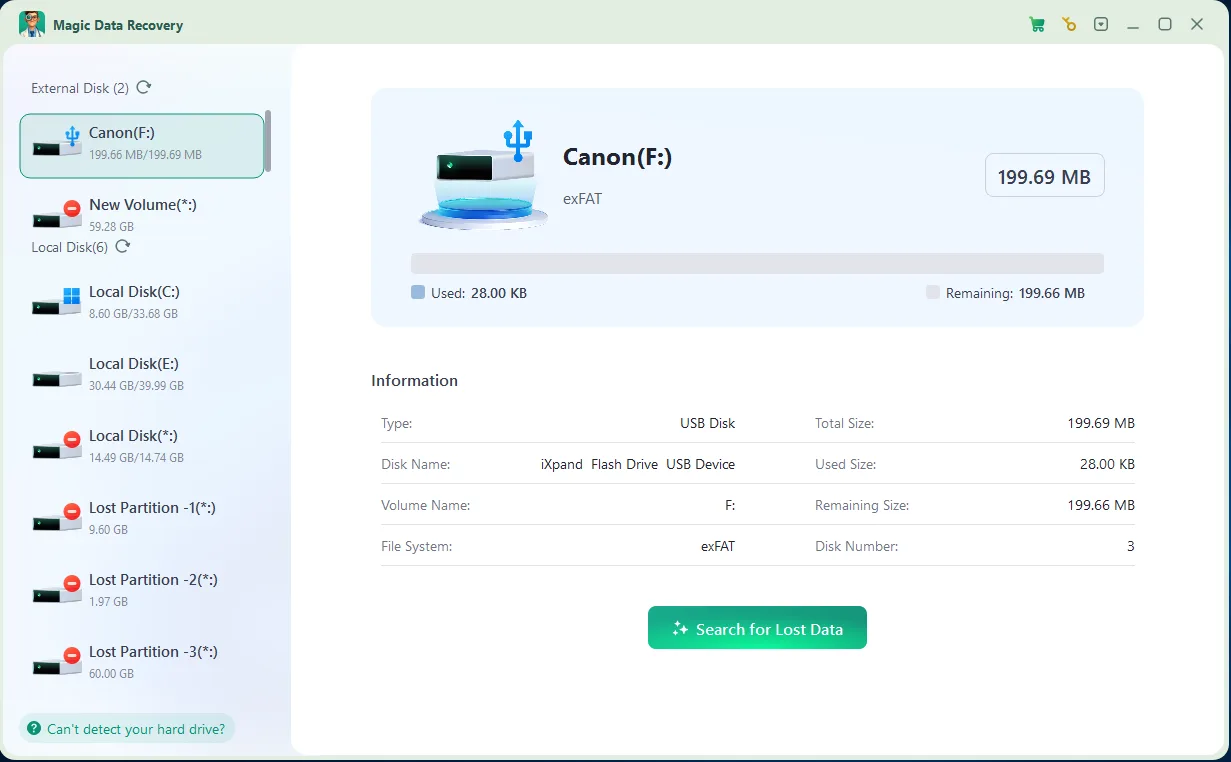
Schritt 3: Scannen Sie die Formatiert Festplatte für verlorene Dateien
Magic Data Recovery führt automatisch einen erweiterten Scan durch. Währenddessen werden im Verlauf des Scans die wiederherstellbaren Dateien aufgelistet, sodass Sie bereits vor Abschluss des vollständigen Scans mit der Überprüfung der Ergebnisse beginnen können.

Schritt 4: Vorschau der Dateien Vor Erholung
Nutzen Sie anschließend die Vorschaufunktion, um den Inhalt, die Namen, die Formate oder die Miniaturansichten der Dateien zu überprüfen. Dieser Schritt hilft Ihnen dabei, nur die Dateien wiederherzustellen, die Sie tatsächlich benötigen, und die Wiederherstellung unnötiger Daten zu vermeiden.

Schritt 5: Dateien an einem sicheren Ort wiederherstellen
Wählen Sie abschließend die Zieldateien aus und speichern Sie sie auf einem anderen Laufwerk oder Speichermedium. Stellen Sie Daten niemals auf derselben formatierten Festplatte wieder her, da dies andere verlorene Dateien überschreiben oder zu Datenbeschädigungen führen kann.

Weitere Möglichkeiten zur Wiederherstellung von Dateien von einer formatierten Festplatte
Obwohl Magic Data Recovery sich gut als erste Wiederherstellungsoption eignet, können Sie auch auf Backups basierende Methoden ausprobieren. Tatsächlich bieten Backups möglicherweise den schnellsten Weg, um Wiederherstellung von Dateien von einer formatierten Festplatte sofern Sie diese vor der Formatierung erstellt haben.
Wiederherstellen aus dem Dateiverlauf
Falls Sie vor der Formatierung die Windows-Dateiversionsgeschichte aktiviert haben, schließen Sie Ihr Sicherungslaufwerk an und überprüfen Sie frühere Dateiversionen. Diese Methode eignet sich am besten für Dokumente, Dateien auf dem Desktop, Bibliotheken und Ordner, die Windows regelmäßig gesichert hat.
Cloud-Speicher prüfen
Überprüfen Sie als Nächstes OneDrive, Google Drive, Dropbox oder einen anderen Cloud-Dienst. Falls Ihre Dateien vor der Formatierung synchronisiert wurden, können Sie sie erneut herunterladen, ohne das formatierte Laufwerk zu scannen.
Aus einer vollständigen Sicherung wiederherstellen
Wenn Sie eine vollständige System- oder Dateisicherung erstellt haben, stellen Sie Ihre Dateien zunächst aus dieser Sicherung wieder her. Auf diese Weise vermeiden Sie zusätzliche Scans und verringern das Risiko, das formatierte Laufwerk zu überschreiben.
Nutzen Sie einen professionellen Datenrettungsdienst
Wenn die Festplatte Klickgeräusche macht, wiederholt die Verbindung unterbricht oder im System nicht angezeigt wird, sollten Sie sie nicht weiter verwenden. In diesem Fall lässt sich das Problem möglicherweise nicht durch Software beheben. Ein professioneller Service kann mit Spezialwerkzeugen prüfen, ob physische Schäden vorliegen.
Häufige Fehler, die die Wiederherstellung von Dateien von einer formatierten Festplatte erschweren
Viele Nutzer verringern ihre Heilungschancen, ohne sich dessen bewusst zu sein. Vermeiden Sie daher diese häufigen Fehler, bevor Sie Wiederherstellung von Dateien von einer formatierten Festplatte.
Software auf dem formatierten Laufwerk installieren
Die Installation von Software auf dem formatierten Laufwerk kann verlorene Daten überschreiben. Installieren Sie Magic Data Recovery stattdessen auf einem anderen Laufwerk und scannen Sie das betroffene Laufwerk von dort aus.
Dateien auf demselben Laufwerk speichern
Dieser Fehler kann Dateien beschädigen, die noch wiederherstellbar sind. Speichern Sie wiederhergestellte Dateien stets auf einem anderen Speichermedium.
Das Laufwerk erneut formatieren
Eine zweite Formatierung kann die Wiederherstellung erschweren. Falls Windows Sie auffordert, das Laufwerk erneut zu formatieren, schließen Sie die Meldung und scannen Sie das Laufwerk zunächst.
Ausführen von zufälligen Reparaturbefehlen
Einige Reparaturbefehle verändern das Dateisystem. Dadurch kann sich Ihre Chance verringern, Wiederherstellung eines formatierten Laufwerks. Versuchen Sie zunächst, die Dateien wiederherzustellen, bevor Sie Befehle ausführen, die das Laufwerk verändern.
Den Computer ganz normal nutzen
Wenn das formatierte Laufwerk Teil Ihres Hauptcomputers ist, können bei normaler Nutzung temporäre Dateien entstehen. Diese Dateien können verlorene Daten überschreiben. Schränken Sie daher die Nutzung ein, bis die Wiederherstellung abgeschlossen ist.
Tipps, um Ihre Chancen auf die Wiederherstellung von Dateien von einer formatierten Festplatte zu verbessern
Sie können Ihre Ergebnisse verbessern, wenn Sie Wiederherstellung von Dateien von einer formatierten Festplatte durch die Umsetzung eines sorgfältig ausgearbeiteten Sanierungsplans.
Starten Sie den Scanvorgang zunächst so schnell wie möglich. Scannen Sie anschließend das gesamte Laufwerk, anstatt nur die sichtbaren Ordner zu überprüfen. Wenn Ihre Dateien bei einem Schnellscan nicht gefunden werden, verwenden Sie den erweiterten Scan, um gründlicher zu suchen.
Sehen Sie sich die Dateien außerdem vor der Wiederherstellung in der Vorschau an. So können Sie die Qualität der Dateien überprüfen und die wichtigsten Daten zuerst auswählen. Speichern Sie die Dateien schließlich an einem anderen sicheren Ort und überprüfen Sie sie nach der Wiederherstellung. Hier sind die nützlichsten Tipps:
- Handeln Sie nach der Formatierung umgehend.
- Vermeiden Sie es, neue Daten auf das Laufwerk zu schreiben.
- Führen Sie bei Bedarf einen Tiefenscan durch.
- Zeigen Sie eine Vorschau der Dateien an, bevor Sie sie speichern.
- Stellen Sie zuerst wichtige Dateien wieder her.
- Speichern Sie die wiederhergestellten Dateien auf einem anderen Speichermedium.
- Brechen Sie die Software-Wiederherstellung ab, wenn das Laufwerk Anzeichen eines physischen Defekts aufweist.
Mit diesen Schritten verringern Sie das Risiko und erhöhen die Chancen, dass die Wiederherstellungssoftware brauchbare Dateien findet.
Schlussfolgerung
Wenn Sie Folgendes benötigen Wiederherstellung von Dateien von einer formatierten Festplatte, handeln Sie schnell und vermeiden Sie es, neue Daten auf das betroffene Laufwerk zu schreiben. Durch das Formatieren werden nicht immer alle Dateien sofort gelöscht, aber jeder neue Vorgang kann Ihre Chancen auf eine Wiederherstellung verringern.
Magic Data Recovery wird empfohlen, da es eine klare und praktische Wiederherstellung einer formatierten Festplatte Vorgang. Es hilft Benutzern dabei, das formatierte Laufwerk zu scannen, eine Vorschau der wiederherstellbaren Dateien anzuzeigen, nützliche Daten auszuwählen und die Dateien an einem anderen sicheren Speicherort wiederherzustellen. Im Vergleich zu riskanten manuellen Methoden bietet es normalen Benutzern einen zuverlässigeren und einfacheren Weg zur Datenwiederherstellung.
Wenn Sie auf der Suche nach einer einfachen Lösung für die Wiederherstellung von Festplatten, probieren Sie Magic Data Recovery aus, bevor Sie das Laufwerk erneut formatieren oder Reparaturprogramme ausführen, die die Datenstruktur verändern könnten.
Unterstützt Windows 7/8/10/11 und Windows Server
Häufig gestellte Fragen zur Wiederherstellung von Dateien von einer formatierten Festplatte
Kann ich nach einer Schnellformatierung Dateien von einer formatierten Festplatte wiederherstellen?
Ja, oft lassen sich Dateien nach einer Schnellformatierung von einer formatierten Festplatte wiederherstellen, insbesondere wenn Sie die Festplatte sofort nicht mehr verwenden. Bei einer Schnellformatierung werden in der Regel nur die Dateisystemeinträge gelöscht, nicht jedoch der gesamte Dateiinhalt. Daher kann eine Wiederherstellungssoftware Ihre Dokumente, Fotos, Videos und andere Dateien möglicherweise noch finden, bevor sie durch neue Daten überschrieben werden.
Kann ich nach einer vollständigen Formatierung Dateien von einer formatierten Festplatte wiederherstellen?
Sie können es versuchen, aber die Erfolgschancen sind nach einer vollständigen Formatierung möglicherweise geringer. Bei einer vollständigen Formatierung werden möglicherweise mehr Festplattensektoren überprüft oder überschrieben, was zu einer Beschädigung der wiederherstellbaren Daten führen kann. Wenn die Dateien jedoch wichtig sind, führen Sie einen erweiterten Scan mit Magic Data Recovery durch, bevor Sie aufgeben oder Tools verwenden, die das Laufwerk verändern.
Kann ich Dateien von einer formatierten Festplatte ohne Software wiederherstellen?
Manchmal lassen sich Dateien auch ohne Software wiederherstellen, wenn Sie über „Dateiversionsverlauf“, eine Cloud-Synchronisierung oder ein anderes Backup verfügen. Liegt jedoch kein Backup vor, benötigen Sie in der Regel eine Datenwiederherstellungssoftware, um das formatierte Laufwerk zu scannen. Magic Data Recovery kann Ihnen dabei helfen, verlorene Dateien zu finden und eine Vorschau davon anzuzeigen, bevor Sie entscheiden, welche Dateien Sie wiederherstellen möchten.
Ist Magic Data Recovery für die Wiederherstellung formatierter Festplatten geeignet?
Magic Data Recovery ist eine sichere Lösung für die Wiederherstellung formatierter Festplatten, wenn Sie das Programm auf einem anderen Laufwerk installieren und die wiederhergestellten Dateien an einem anderen Ort speichern. Der Schwerpunkt liegt auf dem Scannen, der Vorschau und der Wiederherstellung von Dateien, anstatt den Benutzer dazu aufzufordern, Partitionen manuell neu anzulegen. Dieser geführte Arbeitsablauf verringert häufige Fehler, die zum Überschreiben verlorener Daten führen können.
Wo soll ich die wiederhergestellten Dateien nach der Formatierung speichern?
Speichern Sie wiederhergestellte Dateien stets auf einem anderen Laufwerk, einem USB-Stick oder in der Cloud. Speichern Sie sie während der Wiederherstellung nicht erneut auf derselben formatierten Festplatte. Diese Regel ist wichtig, da neue Dateien andere verlorene Daten überschreiben könnten. Nachdem Sie sich vergewissert haben, dass alle wichtigen Dateien einwandfrei funktionieren, können Sie sie sicher neu organisieren.
Kann man mit CMD Dateien von einer formatierten Festplatte wiederherstellen?
CMD kann Dateien nach der Formatierung nicht zuverlässig von einer formatierten Festplatte wiederherstellen. Es kann zwar helfen, einige Dateisystemfehler zu beheben, bietet jedoch keinen vollständigen Workflow zur Dateiwiederherstellung. In vielen Fällen kann die zu frühe Ausführung von Reparaturbefehlen die Struktur des Laufwerks verändern. Führen Sie daher zunächst eine Suche nach verlorenen Dateien durch.
Was soll ich tun, wenn die formatierte Festplatte nicht erkannt wird?
Überprüfen Sie zunächst das Kabel, den Anschluss, die Stromversorgung und die Datenträgerverwaltung. Initialisieren oder formatieren Sie das Laufwerk jedoch nicht erneut. Wenn das Laufwerk weiterhin nicht angezeigt wird oder ungewöhnliche Geräusche macht, sollten Sie es nicht weiter verwenden. In diesem Fall ist eine professionelle Datenrettung möglicherweise sicherer als der Einsatz von Software, da das Problem möglicherweise auf einen Hardwarefehler zurückzuführen ist.

Vasilii ist ein Datenrettungsspezialist mit rund 10 Jahren praktischer Erfahrung in diesem Bereich. Im Laufe seiner Karriere hat er Tausende von komplexen Fällen mit gelöschten Dateien, formatierten Laufwerken, verlorenen Partitionen und RAW-Dateisystemen erfolgreich gelöst. Sein Fachwissen umfasst sowohl manuelle Wiederherstellungsmethoden mit professionellen Tools wie Hex-Editoren als auch fortschrittliche automatische Lösungen mit Wiederherstellungssoftware. Vasilii hat es sich zur Aufgabe gemacht, zuverlässiges Wissen zur Datenwiederherstellung sowohl IT-Fachleuten als auch normalen Nutzern zugänglich zu machen und ihnen dabei zu helfen, ihre wertvollen digitalen Ressourcen zu schützen.