
Windows Server 2016 BitLocker 與 2019 使用指南
Windows Server 2016 BitLocker 雖然可以保護伺服器磁碟區,但若缺少某項功能或出現意料之外的還原畫面,都可能中斷該作業。同樣地,這也適用於 Windows Server 2019 BitLocker. 本指南說明安裝、加密、金鑰備份及還原等操作。有關相關還原情況,請參閱我們的 BitLocker 復原指南. 如果已儲存的金鑰遺失了,, Magic Recovery Key 可協助搜尋可存取的儲存空間,以找回可復原的金鑰資訊。.
開始之前,請先釐清您的情況:您是要保護一臺可存取的伺服器,還是試圖解鎖一臺伺服器?若為已鎖定的伺服器,則需要現有的解鎖方法。重新安裝 BitLocker 並不會為其加密磁碟機建立替代金鑰。.
目錄
Windows Server 2016 是否支援 BitLocker?
是的。. Windows Server 2016 BitLocker 支援磁碟區加密,Windows Server 2019 亦支援此功能。然而,這兩項版本預設均不會安裝 BitLocker 功能。您必須先新增此功能,才能進行加密設定。微軟針對這兩項版本,提供了相同的功能安裝流程說明。.
BitLocker 用於保護靜態資料。例如,它有助於防止他人透過另一台電腦讀取已移除的伺服器硬碟。它並不能取代備份,也無法阻止經授權的帳戶刪除可存取的檔案。.
對於大多數小型部署而言,主要的差異在於伺服器的設定:
部署詳情 | Windows Server 2016 | Windows Server 2019 |
BitLocker 功能 | 請先安裝,再進行設定 | 請先安裝,再進行設定 |
桌面體驗 | 提供「伺服器管理員」及圖形化工具 | 提供「伺服器管理員」及圖形化工具 |
伺服器核心 | 使用命令列管理 | 使用命令列管理 |
復原規劃 | 備份每個磁區的復原資訊 | 備份每個磁區的復原資訊 |
A Server 2016 BitLocker 因此,此次部署需要與 2019 年的部署相同的基本規劃:解鎖方法、獨立的恢復路徑,以及受控重啟。.
在伺服器上啟用 BitLocker 之前
檔案伺服器即使成功完成加密,在下次重新開機時仍可能引發問題。例如,系統管理員可能會保護 C: 磁碟機,卻忘記應用程式還需要一個獨立加密的 D: 磁碟區。.
適用於 Server 2019 BitLocker 以及較舊的安裝版本,請先準備以下項目:
- 一個已驗證的備份: 請確認您能夠還原重要資料及伺服器設定。.
- 維護時段: 此功能安裝需重新啟動系統。請協調服務停機時間。.
- 主機介面存取: 安排透過實體或遠端管理主控台進行存取。在開機前復原畫面中,RDP 無法提供協助。.
- 還原目標位置: 請使用貴組織核准的目錄備份方案,或選擇一個與伺服器獨立且安全的儲存位置。.
- 一本書的目錄: 記錄磁碟機代號、磁碟標籤,以及哪些應用程式依賴各個磁碟。.
了解 TPM 及其啟動需求
可信平台模組(TPM)有助於保護作業系統的加密金鑰,並驗證開機環境。TPM 並非適用於所有 BitLocker 使用情境的通用要求:資料磁碟區亦可使用其他保護機制。.
若要執行不具備相容 TPM 的作業系統加密,當政策與韌體允許時,Windows 會支援 USB 啟動金鑰的方式。這需要針對每次重新啟動進行規劃。此外,TPM 2.0 需要使用 UEFI,而非傳統模式或 CSM 模式。.
適用於 Windows Server 2016 BitLocker 在虛擬機器上,選擇基於 TPM 的設定之前,請先確認虛擬化平台所支援的虛擬 TPM 配置。請勿假設來賓系統會自動獲得對主機實體 TPM 的存取權限。.
請將這三項憑證分開存放
憑證 | 目的 |
Windows Server 產品金鑰 | 啟用 Windows;不會解鎖加密磁碟區 |
BitLocker 啟動 PIN 碼或磁碟機密碼 | 提供一種已設定的常規解鎖方法 |
BitLocker 還原密碼 | 當正常解鎖失敗時,會提供 48 位數的恢復憑證 |
人們常將這 48 位數的復原密碼稱為「復原金鑰」。微軟也將外部金鑰檔案稱為「復原金鑰」。請將憑證與復原提示相匹配。.
如何安裝 Windows Server 2016 BitLocker
以下安裝方法同樣適用於 Windows Server 2019 BitLocker. 安裝後會新增此功能;但不會自動加密您的磁碟區。.
選項 1:使用「伺服器管理員」
在安裝了「桌面體驗」的伺服器上:
1.開啟 伺服器管理員.
2.選擇 管理 → 新增角色與功能.
3.選擇 基於角色的安裝或基於功能的安裝.
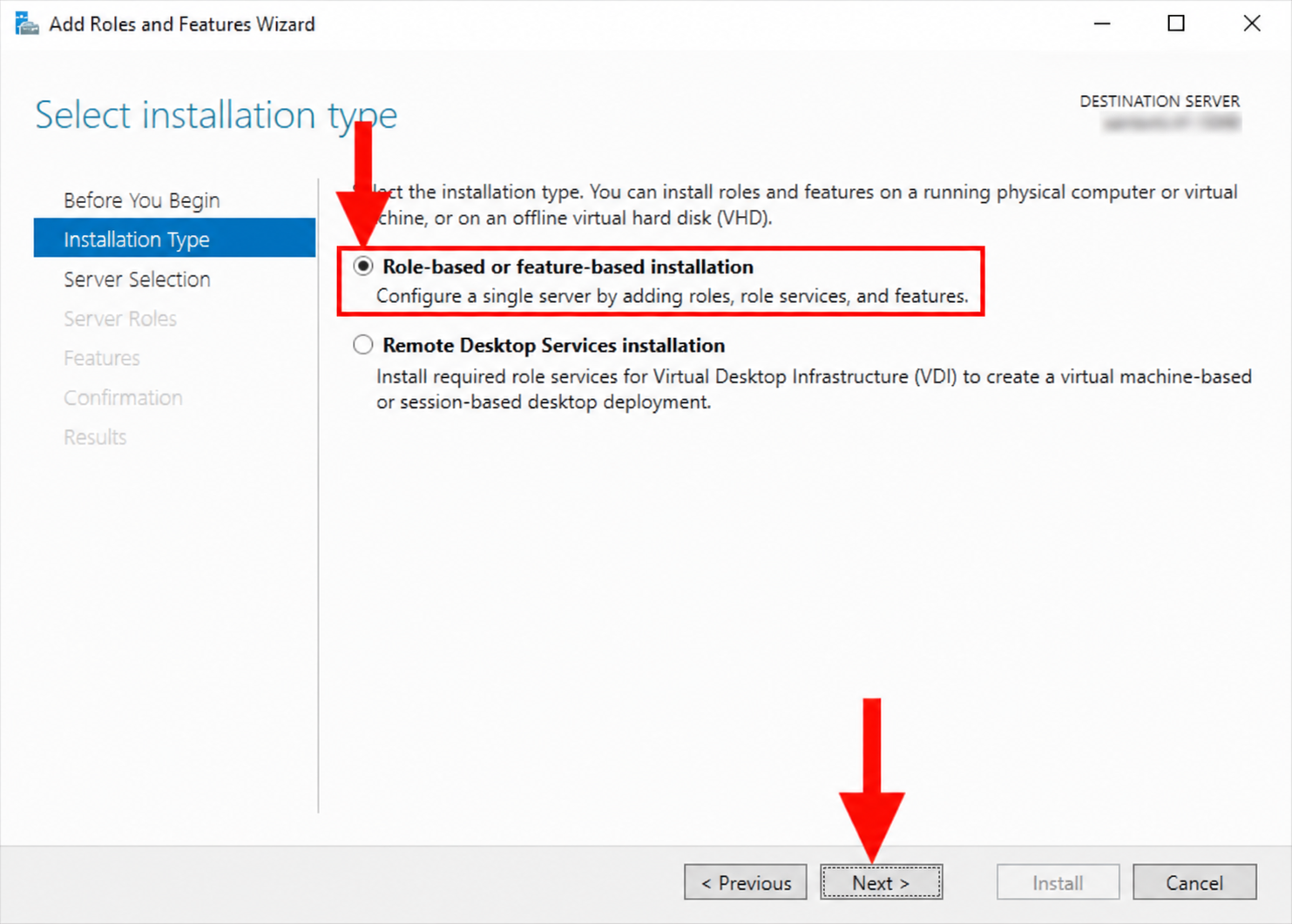
4. 選擇正確的目標伺服器。.
5. 繼續往前走 伺服器角色 至 特點.
6. 選取 BitLocker 磁碟機加密 並接受所需的增補內容。.
7. 請在維護時段內檢視選項、進行安裝,並重新啟動系統。.
除非您已安排好停機事宜,否則請避免啟用自動重啟功能。.
選項 2:使用 PowerShell
以系統管理員身分開啟 Windows PowerShell。首先檢查該功能:
Get-WindowsFeature -Name BitLocker
接著使用其管理工具進行安裝:
- Install-WindowsFeature -Name BitLocker -IncludeManagementTools
請於預定時間重新啟動系統以完成安裝。微軟亦提供所有子功能的安裝選項;請僅在部署需求所必需時才新增這些功能。.
重新啟動後,請確認 BitLocker 指令是否可用:
Get-Command Get-BitLockerVolume
如果該指令無法使用,請在繼續操作前檢視安裝結果及待處理的重啟事項。.
如何啟用 Windows Server 2019 的 BitLocker
此基本工作流程同樣適用於 Server 2016 BitLocker. 請先從一台伺服器和一個儲存卷開始,以便在擴展部署之前確認還原流程。.
加密作業系統磁碟機
若要進行簡單的「桌面體驗」安裝:
- 開啟 控制台 → 系統與安全 → BitLocker 磁碟機加密.
- 找出作業系統磁碟區,通常是 C:。.
- 選擇 開啟 BitLocker.
- 請依照精靈的指示,設定可用的啟動方式。.
- 請將還原憑證備份至本伺服器以外的位置。.
- 請根據您的政策選擇加密範圍與模式。.
- 請保持系統檢查功能啟用,並在系統提示時重新啟動。.
對於已儲存資料的伺服器而言,全磁碟區加密也會涵蓋可能殘留先前刪除檔案殘餘的空閒空間。僅加密已使用空間的加密方式,則適用於從未儲存過敏感未加密資料的新磁碟區。.
適用於 Windows Server 2019 BitLocker, 請根據貴組織的政策及可攜性需求來選擇加密演算法。切勿假設「最大金鑰長度」是部署決策中唯一重要的考量因素。.
在 Server Core 上使用 PowerShell
對於一個新的、未加密且已啟用 TPM 的 C: 磁碟區,系統管理員可先建立一個復原密碼保護機制:
- Add-BitLockerKeyProtector -MountPoint “C:” -RecoveryPasswordProtector
在私人管理會話中檢視該保護者的詳細資料:
- (Get-BitLockerVolume -MountPoint “C:”).KeyProtector |
- Where-Object KeyProtectorType -eq “RecoveryPassword” |
- 格式化清單 KeyProtectorId、RecoveryPassword
請將恢復密碼記錄在您已核准的安全位置。此輸出內容包含機密資訊;請勿將其記錄在共享日誌或螢幕截圖中。僅新增保護器並不會啟動加密功能。.
驗證備份後,請啟用基於 TPM 的保護:
- Enable-BitLocker -MountPoint “C:” -TpmProtector -EncryptionMethod XtsAes128
此範例採用全磁碟加密,並保留標準的硬體檢查機制。若存在保護程式、網域原則或其他啟動需求,可能需要使用不同的指令。Microsoft 建議在啟用作業系統磁碟加密之前,先設定還原選項。.
分別保護資料卷
請勿假設加密 C: 磁碟機也能同時保護 D: 磁碟機。在圖形化精靈中,請分別選取每個所需的数据磁碟區,設定其解鎖方式,並儲存各自的復原憑證。.
實用 Server 2019 BitLocker 舉例來說,某台檔案伺服器擁有一個加密的作業系統分割區和一個獨立的文件分割區。在將伺服器交還給使用者之前,請確認兩者於重新啟動後均已解鎖。.
自動解鎖功能可減少固定資料卷的手動操作,但需具備受保護的作業系統卷。即使啟用自動解鎖功能,也應為每個資料卷保留一份獨立的還原副本。.
Back Up Recovery Information to Active Directory
For domain-managed Windows Server 2016 BitLocker installations, Active Directory Domain Services (AD DS) can provide a central recovery destination.
In Group Policy, open:
Computer Configuration → Administrative Templates → Windows Components → BitLocker Drive Encryption
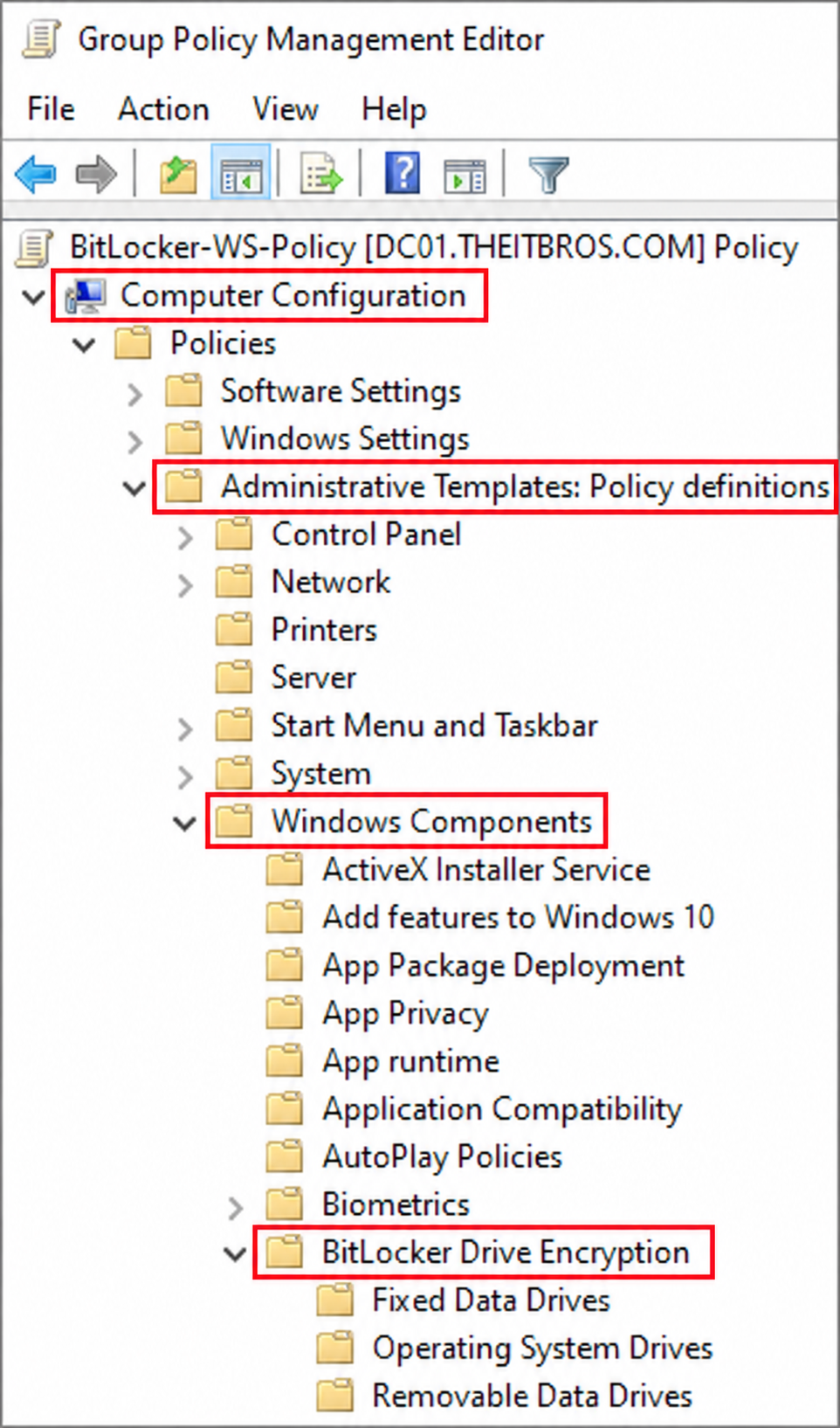
Review the recovery settings under 作業系統磁碟機 和 固定式資料硬碟. Configure AD DS backup and, where appropriate, require successful recovery-information storage before encryption can begin. Domain membership alone does not establish this safeguard.
For an existing recovery password protector, use its actual ID:
- Backup-BitLockerKeyProtector -MountPoint “C:” -KeyProtectorId “{RECOVERY-PROTECTOR-GUID}”
Replace the placeholder, including its contents, with the recovery protector’s GUID. This command targets AD DS; it does not create a local text-file backup. Confirm that an authorized administrator can retrieve the resulting recovery record.
適用於 Server 2016 BitLocker on a standalone server, use a secure external recovery store instead. A key saved only on the encrypted server may become inaccessible at exactly the wrong moment.
Check Encryption and Protection Status
After setup, inspect all volumes:
- manage-bde -status
Check the conversion status, encryption percentage, protection status, and lock status. “Fully Encrypted” describes conversion; also confirm that protection is on.
For either server version, complete a controlled restart and verify:
- Windows starts through the expected unlock method.
- Required data volumes become available.
- File shares and dependent applications work.
- Another authorized administrator can locate the recovery backup.
These checks turn a completed encryption task into a usable recovery plan.
Fix Common Server 2016/2019 BitLocker Problems
問題 | 首先應檢查什麼 |
BitLocker option is missing | Feature installation, administrative rights, and pending restart |
“Compatible TPM” error | TPM readiness, firmware configuration, and startup policy |
Encryption refuses to start | Required recovery backup, effective policy, and the exact error message |
Recovery screen appears after maintenance | Boot or firmware changes and the matching recovery credential |
Data volume stays locked after restart | Its separate unlock method and any auto-unlock configuration |
適用於 Server 2016 BitLocker recovery prompts, investigate recent changes before changing more settings. Clearing the TPM is not a substitute for finding a valid recovery credential.
Some firmware changes require planned suspension. Suspension keeps data encrypted but temporarily changes protection; turning BitLocker off decrypts the volume. Follow the hardware vendor’s update guidance and confirm protection resumes afterward.
A Windows Server 2019 BitLocker problem after reboot may affect only one data volume. Check the affected volume before changing the entire server’s encryption configuration.
Find a Missing Key with Magic Recovery Key
Start with your organization’s authoritative recovery records: AD DS, an approved credential vault, saved recovery files, USB backups, or printed records. Match the recovery key ID to the affected drive. A personal Microsoft account is not the default recovery destination for a domain-managed server.
If those checks fail, Magic Recovery Key offers another search route. It can look for previously stored BitLocker recovery information in accessible supported locations. Amagicsoft also documents software license-key retrieval, saved browser credentials, and Wi-Fi password retrieval. Availability depends on what the source system still stores.
支援 Windows 7/8/10/11 和 Windows Server
適用於 Windows Server 2016 BitLocker recovery, its useful distinction is focused key discovery. A general file-recovery scan may return documents without identifying a usable recovery credential. However, there is no verified basis here to claim a higher recovery success rate than Microsoft’s directory records.
Consider an administrator who inherits a server and an accessible old maintenance drive. If that drive contains a recoverable saved key, a focused search may help locate it. This is an illustrative scenario, not a reported product test.
How to Search for Stored BitLocker Keys
1. Download Magic Recovery Key from its official product page.
2. Install and launch it on an accessible, supported Windows system.
3.選擇 BitLocker 復原金鑰.

4.按一下 搜尋 and review any results.

5. Match the recovered credential to the required recovery key ID.
6. Store the matching key securely before using it.
遵循 Magic Recovery Key 使用手冊 for interface details.
The tool cannot run inside a locked preboot screen or bypass BitLocker encryption. A recoverable key must exist in a location the tool can access. A copy stored only inside the locked volume cannot provide an independent recovery route.
適用於 Server 2019 BitLocker data volumes, Windows can unlock a drive with a valid 48-digit recovery password:
- manage-bde -unlock D: -RecoveryPassword YOUR-48-DIGIT-RECOVERY-PASSWORD
Replace the placeholder with the complete password, including its hyphens. Confirm the drive letter first, especially in a recovery environment. Unlocking provides access; it does not decrypt the entire volume.
Conclusion: Make Server Encryption Recoverable
可靠的 Windows Server 2016 BitLocker setup includes more than encryption. Back up recovery information, verify protection status, and test the restart path. Apply the same discipline to Windows Server 2019 BitLocker, including every separate data volume.
我們建議 Magic Recovery Key when you need a focused way to search accessible storage for a previously saved recovery key. It complements directory backups and manual searches while keeping its role clear: finding existing credentials. For other lockout situations, continue with our BitLocker 復原指南.
支援 Windows 7/8/10/11 和 Windows Server
常見問題
Windows Server 2016 是否包含 BitLocker?
如何啟用 Windows Server 2019 的 BitLocker?
Server 2016 的 BitLocker 能否在沒有 TPM 的情況下運作?
我應該將伺服器的復原金鑰儲存在哪裡?
BitLocker 會讓我的伺服器變慢嗎?
Windows Server 的產品金鑰能否解鎖 BitLocker?
Magic Recovery Key 能否恢復所有遺失的 BitLocker 金鑰?
解除 BitLocker 鎖定會關閉加密功能嗎?

Jason 是一位擁有超過 15 年實務經驗的資料復原與技術支援專家。 他長期與第一線使用者密切合作,處理棘手的資料遺失案例,並針對誤刪資料、磁碟格式化、檔案系統損毀、分割區遺失、系統故障及其他緊急資料復原情況,提供實用的復原解決方案。其專業領域還涵蓋備份與還原、檔案修復及災難復原,並特別注重提供安全、可靠且技術上精準的指導。.