Serato Relocate Lost Files: Fix Missing Tracks

Serato Relocate Lost Files Fix Missing Tracks

When a track suddenly shows as missing or “File Not Found”, Serato Relocate Lost Files feature can reconnect the library entry if the audio still exists at another location. According to Serato Support, Serato DJ Pro references music from its existing storage location instead of copying every audio file into the application. If you move a track or folder, Serato can therefore lose the path even though the original music still exists.

That distinction matters because Serato Relocate Lost Files and file recovery solve two different problems. If the track still exists somewhere on your computer or connected storage, relocation is normally the right solution. If the source audio itself is gone, Serato has nothing to reconnect and you need to check backups or recovery options instead.

This guide helps you make that decision first, then shows how to use Serato Relocate Lost Files, what to check when Serato Relocate Lost Files not working becomes the problem, and what to do if the underlying music file was actually deleted. For broader guidance on permanently deleted files and recovery safety, see the Deleted File Recovery guide.

目錄

Quick Answer: How to Use Serato Relocate Lost Files

If the missing track still exists, open the 檔案 panel in Serato DJ.

When you know where the music was moved, use Relocate from folder and point Serato to that directory. Otherwise, click Relocate Lost Files and let Serato search the available drives.

Once Serato finds a matching file, it updates the library with the new path. Serato notes that a full relocation can search all attached drives and may take considerably longer than a targeted folder search.

Before running relocation, Serato also recommends temporarily turning off Show iTunes Library under Setup > Library + Display to reduce the risk of duplicate entries.

Should You Use Serato Relocate Lost Files or File Recovery?

Before changing anything, identify which situation applies to you.

情況

通常的含義

最佳下一步

Track exists in another folder

Serato path is outdated

Relocate Lost Files

Music folder was moved

Library still points to old location

Relocate Lost Files

Drive letter or storage path changed

Path no longer matches

Reconnect or relocate

Entire library disappears after storage is disconnected

Source files may still exist

Restore access first

Track is available only in cloud storage

無法取得本地副本

將其下載至本地

Original MP3/WAV cannot be found anywhere

File may have been deleted

Check backup/recovery

Music folder was accidentally deleted

Actual data loss may have occurred

Recovery may be needed

儲存裝置已格式化

Files may no longer be indexed

Recovery may be needed

關鍵規則很簡單:

Relocate files that still exist. Recover files that do not.

重要: If the track is simply stored somewhere else, continue with Serato relocation normally. However, if you cannot find the original audio anywhere and suspect it was actually deleted, avoid downloading, copying, installing, or saving new files to that same drive until you have checked your backup and recovery options. New writes can overwrite deleted file data.

Check Whether the Original Music File Still Exists

Before starting a full Serato Relocate Lost Files scan, check the path that Serato currently expects.

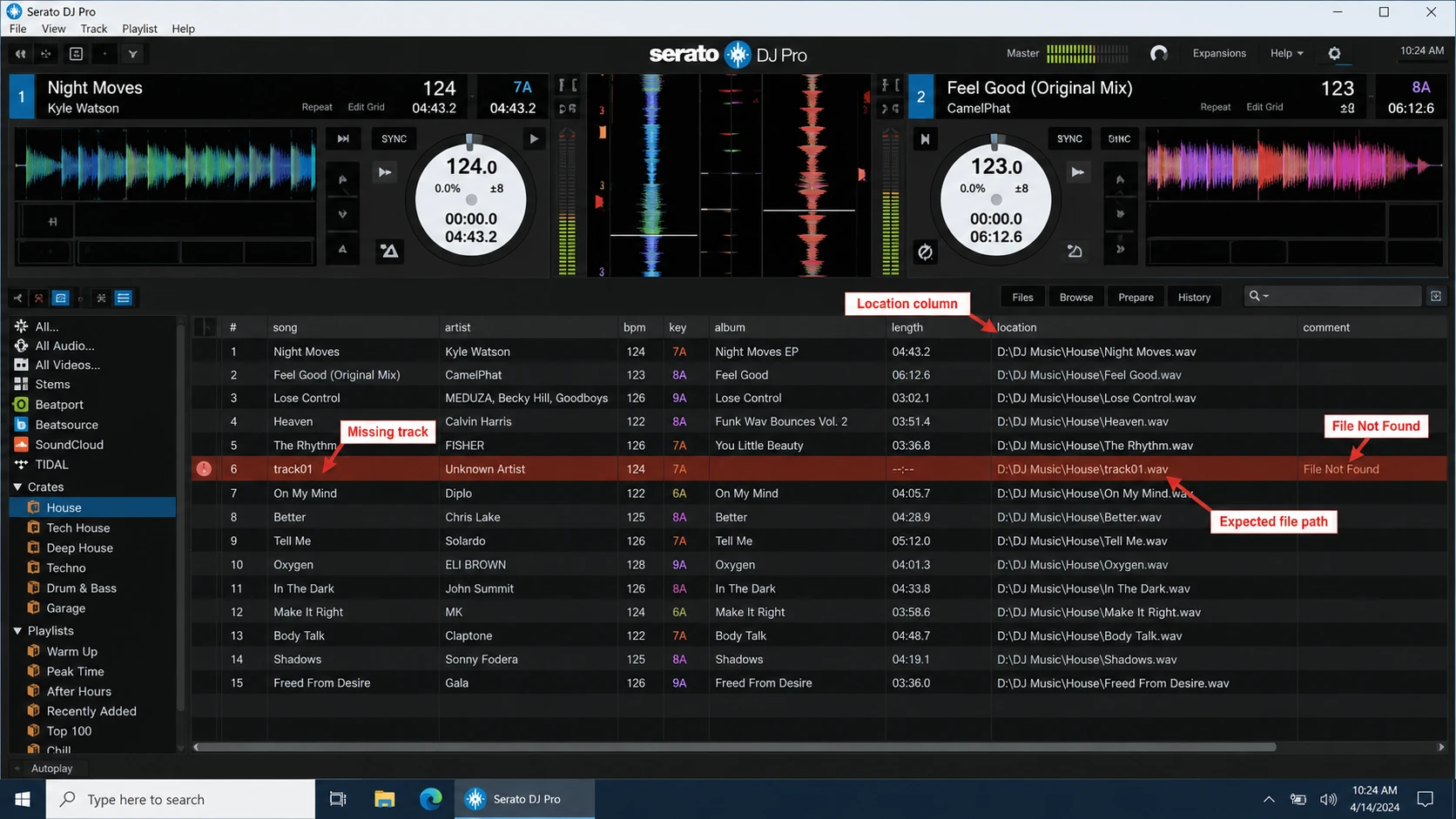
Serato recommends using the 地點 column when troubleshooting missing files. If the file is no longer present at the listed path, Serato marks it as missing.

For example, Serato may expect:

D:\DJ Music\House\track01.wav

while the actual file now lives at:

E:\Music Library\House\track01.wav

That is a relocation problem, not a deleted-file problem.

Serato-Location-column-showing-the-expected-path-of-a-missing-track

Search File Explorer using the following clues if the track is no longer at the expected path:

  • The track filename
  • Artist or album name
  • Original music folder
  • .mp3
  • .wav
  • .flac
  • .aiff
  • .m4a

Finding the music elsewhere confirms that you are dealing with a path problem, so proceed with Serato Relocate Lost Files.

When the source track cannot be found anywhere, do not assume Serato can restore it. Check cloud storage and backups first, then consider file recovery only if no intact copy remains.

How This Workflow Was Verified

This guide deliberately separates Serato relocation from data recovery because the two processes operate at different layers.

Serato-specific behavior and relocation steps were cross-checked against official Serato Support documentation, including its guidance on missing library files, the Location column, folder-based relocation, full-drive relocation, and duplicate iTunes references.

The recovery workflow follows a separate safety principle: once actual deletion is suspected, minimize writes to the affected storage, check non-destructive restore sources first, recover lost data to another drive when necessary, and only then reconnect the restored music in Serato.

This separation avoids using recovery software for a problem that is really just a broken file path.

Why Do Serato Tracks Become Missing?

Serato usually marks a track as missing when the path stored in its library no longer points to the music file.

常見原因包括

  • Moving a song to another folder
  • Renaming a parent music folder
  • Changing a storage path
  • Reorganizing a DJ library outside Serato
  • Moving an iTunes or Apple Music library
  • Cloud synchronization removing the local copy
  • Accidentally deleting the original audio

Serato specifically states that moving a file or renaming its folder can break the connection between the library and the music, resulting in a missing or “File Not Found” track.

Therefore, a missing track is primarily a location symptom. Actual deletion is only one possible cause.

How to Use Serato Relocate Lost Files

Once you confirm that the music still exists, use Serato’s built-in relocation tools before trying anything more invasive.

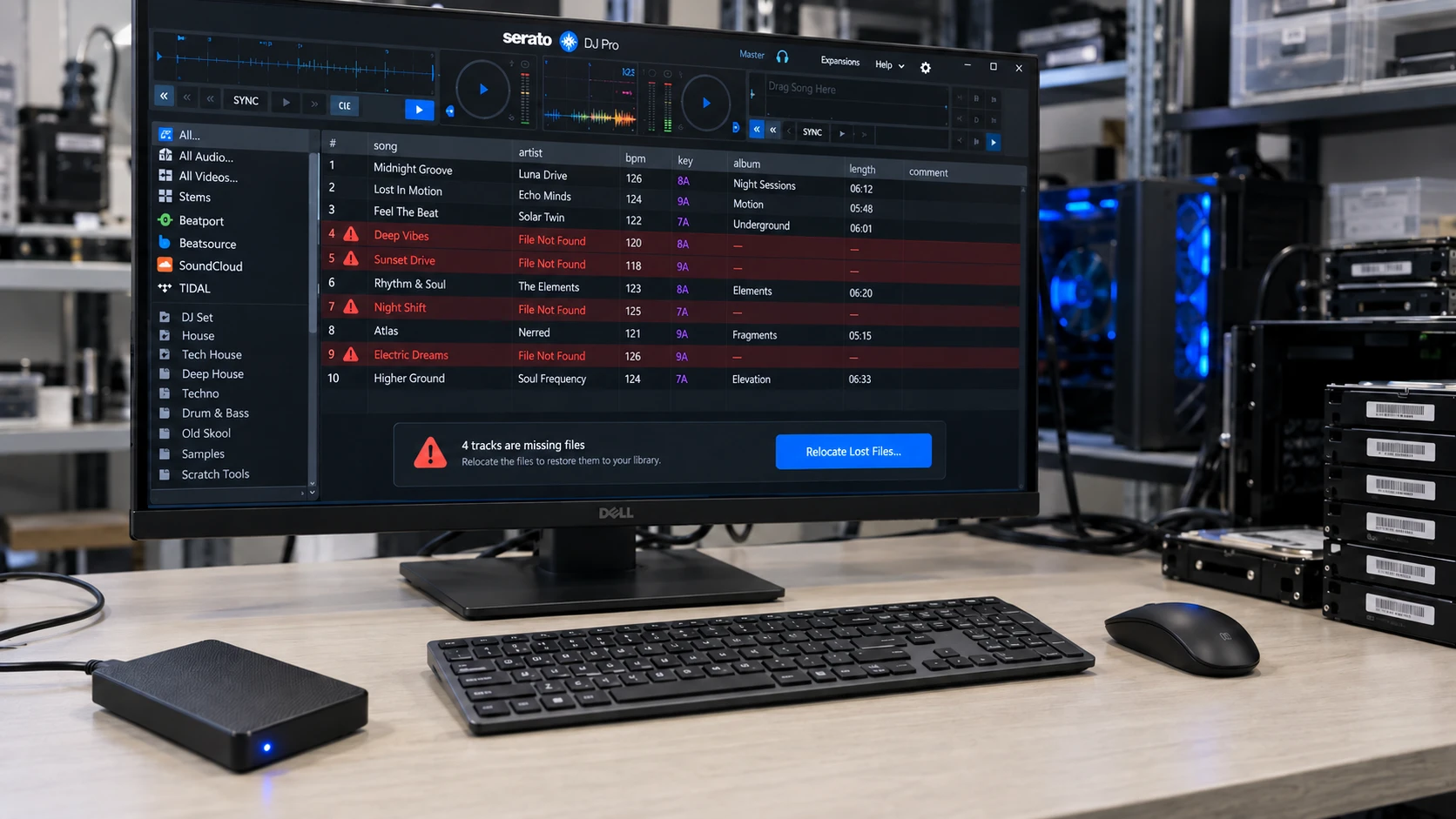
how to use Serato-Relocate-Lost-Files Feature for missing tracks

Method 1: Use Serato Relocate Lost Files to Search All Drives

Open Serato DJ and select the 檔案 面板。.

Then click Relocate Lost Files.

Serato searches the computer and connected storage for files currently marked as missing. When it finds matching tracks, it updates the library database with their new paths.

This option makes sense when you know the tracks still exist but do not know where they were moved.

However, a full search can take time on systems with large libraries or complex storage layouts.

Method 2: Use Serato Relocate Lost Files with a Specific Folder

If you already know where the music moved, use a targeted relocation.

Open the Files panel, choose Relocate from folder, navigate to the folder containing your missing tracks, and start the search.

例如:

Old location:

D:\DJ Music\House

New location:

E:\DJ Library\House

Pointing Serato directly at the new folder avoids searching unrelated storage.

If you already know the new folder location, start with a targeted relocation instead of scanning every connected drive.

Serato Relocate Lost Files Not Working? Try These Fixes

If the audio still exists but Serato Relocate Lost Files not working prevents it from reconnecting, investigate the library reference before assuming the track is deleted.

Check the Expected Path Again

Look at the Location column and compare it with the track’s actual Windows path.

A changed drive letter, renamed parent folder, or library migration may explain the mismatch immediately.

Use the Exact Folder Instead of a Full Search

If Windows can find the song but Serato does not, navigate directly to the folder containing it.

A focused relocation reduces the number of locations Serato has to search.

Temporarily Disable the iTunes Library

Serato recommends disabling Show iTunes Library before running Relocate Lost Files.

If the same song exists as both a valid iTunes reference and a missing Serato crate entry, Serato may treat the file as already found. In that situation, relocation of the missing reference may fail until the duplicate library source is temporarily hidden.

After relocation finishes, you can enable the library again.

Check for Duplicate Track Entries

Suppose a track became missing and you manually imported the same file from its new folder.

Serato may now contain:

  • One missing entry pointing to the old path
  • One working entry pointing to the new path

Importing the song again does not repair the original reference.

Resolve the duplicate situation first, then relocate the missing entry.

Check Whether the Filename Changed

Moving and renaming a file simultaneously can make automatic matching more difficult.

If:

Track_01_Final.wav

became:

September House Mix.wav

find the file manually and verify that it is actually the original track before changing the library further.

Check Cloud Storage Before Assuming the Track Is Deleted

Cloud synchronization can make a file appear present without keeping the complete audio locally.

If you use OneDrive, Dropbox, Google Drive, or iCloud Drive, check whether the missing song is:

  • Online-only
  • In a deleted-items area
  • Stored in another synchronized folder
  • Waiting to download

If you find the original file, download it to a stable local folder and use Serato Relocate Lost Files 再次。.

There is no reason to run data recovery when the original music still exists in cloud storage.

Restore Missing Serato Music from a Backup

Next, check whether you have a real backup of the music.

Remember that Serato library information and your actual audio files are not the same thing. Serato’s own backup guidance includes its library data, while the music itself also needs to be preserved when moving or backing up a collection.

檢查:

  • Windows 檔案歷史
  • 先前版本
  • NAS 備份
  • 雲端備份
  • Manually copied DJ music folders
  • Copies from a previous computer

Restore any intact copy you find to a stable folder, then relocate it in Serato.

If a Windows file was deleted and the Recycle Bin has already been emptied, Amagicsoft’s guide to recovering files from an emptied Recycle Bin explains the backup and disk-level options available before you scan the drive.

Recover Truly Deleted Serato Tracks with Magic Data Recovery

When the original music is no longer present and you have no usable backup, relocation has reached its limit.

Serato Relocate Lost Files can reconnect an existing file. It cannot undelete an MP3, WAV, FLAC, or AIFF that has been removed from the storage device.

At this point, avoid writing new data to the affected drive whenever possible.

New downloads, software installations, recordings, file transfers, or even recovered files saved back to the same disk may overwrite deleted data.

適用於 Windows 使用者、, Magic Data Recovery provides a practical next step. It can scan Windows-recognized internal drives and removable storage for lost files, including common music formats used in DJ libraries.

Recover Deleted Serato Tracks with Magic Data Recovery

When Does Magic Data Recovery Make Sense?

Consider file recovery software when:

  • You accidentally deleted a Serato music folder.
  • 您使用了 Shift + Delete。.
  • You emptied the Windows Recycle Bin.
  • Songs disappeared from an external HDD.
  • A drive was accidentally formatted.
  • The original storage still works, but the files are no longer accessible.
  • Serato shows missing tracks and you cannot locate the source files anywhere.

For example, if you deleted a folder normally on Windows, check the Recycle Bin before scanning the disk. If the Recycle Bin has already been emptied, the guide on recovering files emptied from the Recycle Bin explains why recovery may still be possible before the old storage space is overwritten.

Compared with repeatedly running Serato Relocate Lost Files, Magic Data Recovery addresses a different problem.

Serato searches for an existing file.

Data recovery software searches storage for lost file data.

That distinction is the main reason to use recovery software only after confirming the music is genuinely missing.

How to Recover Missing Serato Tracks

If the drive remains healthy and Windows recognizes it normally, you can proceed with file recovery.

步驟 1:下載並安裝 Magic Data Recovery

Download Magic Data Recovery and install it on your Windows computer.

Whenever possible, install the software on a drive different from the one that originally contained the missing Serato music. This reduces unnecessary writes to the affected storage and helps protect deleted data from being overwritten.

支援 Windows 7/8/10/11 和 Windows Server

Step 2: Select the Drive That Stored the Missing Tracks

Launch Magic Data Recovery. From the main interface, select the disk or partition where the Serato music was stored before it disappeared.

For example, if your DJ library previously existed in:

D:\DJ Library

select the corresponding D: volume and start the scan.

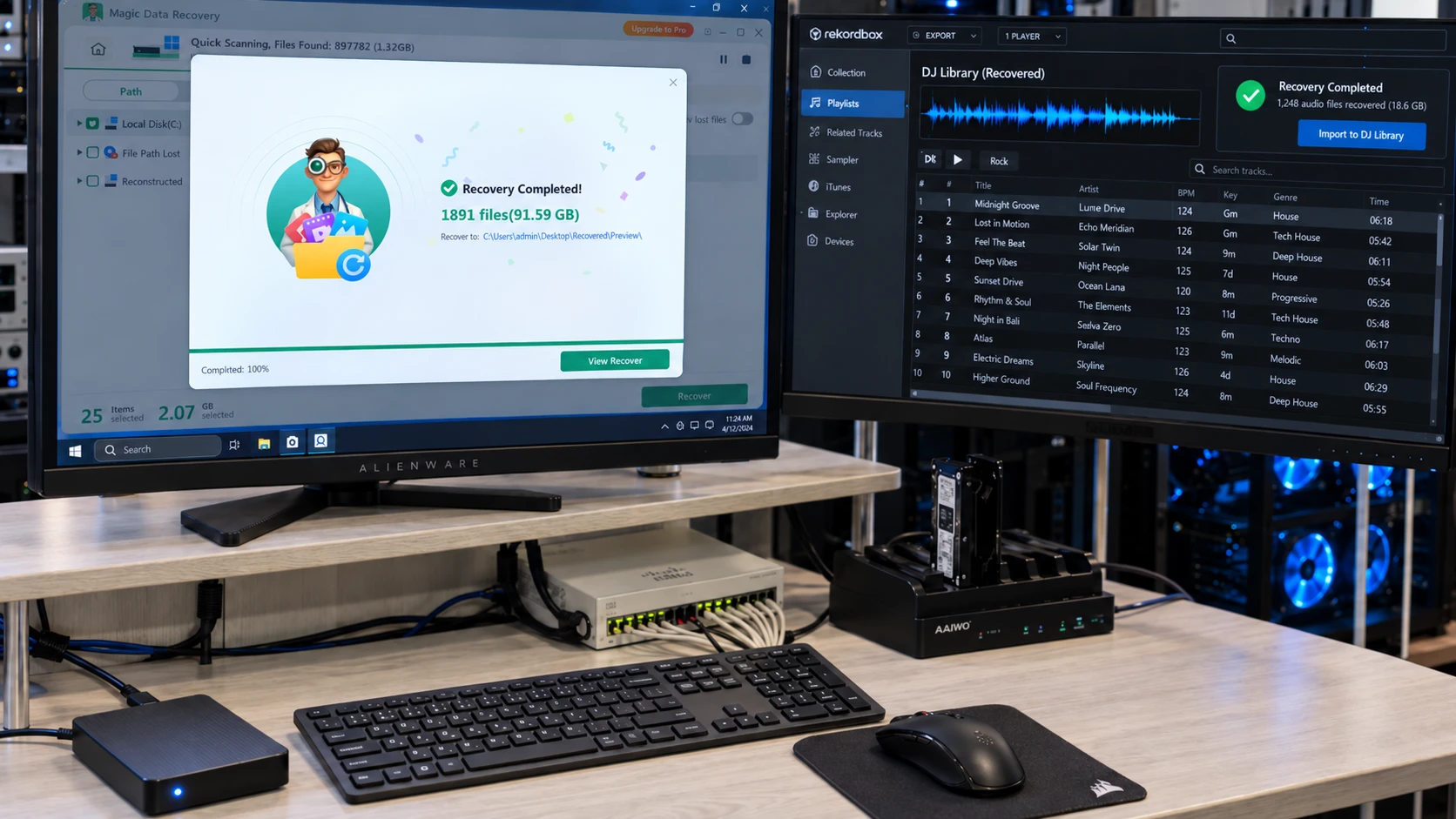
Using Magic Data Recovery to recover deleted Serato music files

Step 3: Scan for Deleted Serato Music Files

Magic Data Recovery scans the selected storage for recoverable files and displays results as the scan progresses.

Use filenames, original folders, and audio formats such as MP3, WAV, FLAC, AIFF, or M4A to narrow the results.

If possible, allow the scan to finish before making your final selection because additional files may appear later in the process.

等待掃描

步驟 4: 恢復 the Tracks to a Safe Location

Select the Serato music files you need and save them to a different drive or safe storage location.

不是 restore recovered files to the same drive they were deleted from during the recovery process. Writing data back to the source disk can overwrite other recoverable tracks.

檔案復原

After recovery, place the restored tracks in a stable DJ library folder. Then return to Serato.

Use Serato Relocate Lost Files After Recovery

Recovery restores the audio file, but it does not automatically repair Serato’s library reference.

Create a stable location such as:

D:\DJ Library\Recovered Tracks

Move the recovered songs there and avoid unnecessary filename changes.

Next, open Serato and run Serato Relocate Lost Files against that folder.

If Serato can match the recovered audio with the existing missing entry, it can update the stored path and reconnect the track.

The complete decision flow is therefore:

File exists → Relocate

Relocation fails → Diagnose path/library

File does not exist → Check cloud and backup

No intact copy exists → Recover the file

File recovered → Relocate it back into Serato

Does Relocate Lost Files Work Differently in Serato Studio?

Serato Studio follows the same general concept, although the interface differs.

Under Setup > Library, Studio provides both Relocate Lost Files and a directory-specific relocation option. Users can also relocate individual library items with Search All or Choose Location. Samples, Drum Deck content, and Deck Presets may need their own relocation steps.

Therefore, check whether you use Serato DJ Pro, DJ Lite, or Serato Studio before following interface-specific instructions.

The underlying rule remains unchanged: relocate existing files and recover genuinely missing ones.

How to Prevent Missing Serato Tracks

Once your library works again, a few habits can reduce future path problems.

Keep your DJ collection inside a consistent folder structure instead of spreading music across Downloads, Desktop, temporary folders, and multiple unrelated directories.

In addition:

  • Avoid frequently renaming top-level music folders.
  • Keep important DJ tracks available offline.
  • Plan large library migrations before moving folders.
  • Back up both your Serato library information and the actual audio.
  • Verify several tracks after moving a collection.
  • Keep at least one independent copy of important music.

A library database cannot recreate a deleted WAV or MP3, while a folder of audio files does not necessarily restore every Serato crate and reference. Backing up both sides provides much stronger protection.

總結

Serato Relocate Lost Files is designed for tracks that still exist but are no longer stored where Serato expects them to be. Start by checking the Location column and determining whether the source audio is still available. If it is, relocation—not data recovery—is the correct first step.

Serato Relocate Lost Files not working, check the exact path, folder location, duplicate entries, iTunes integration, and filename changes before assuming the file is gone.

If the original audio cannot be found anywhere, check cloud storage and backups next. Only when the track itself has actually been deleted does file recovery become relevant.

For Windows-recognized storage affected by logical file loss, Magic Data Recovery is useful because it addresses the missing file data rather than simply repairing a Serato reference. Once the track is recovered to a safe location, Serato Relocate Lost Files can reconnect it with the library.

For more guidance on permanent deletion, overwritten data, and choosing the appropriate recovery path, visit the Deleted File Recovery guide.

Relocate what still exists. Recover only what is actually gone.

支援 Windows 7/8/10/11 和 Windows Server

FAQs About Serato Relocate Lost Files

What does Serato Relocate Lost Files do?

Serato Relocate Lost Files searches accessible storage for tracks that still exist but no longer match the path stored in the Serato library. When Serato finds the file, it updates the library reference. It does not recover audio data that has actually been deleted from the storage device.

Why does Serato say File Not Found when the song still exists?

This usually happens when the song, its parent folder, or the storage path has changed. Check the Location column to see where Serato expects the track. If Windows finds the song somewhere else, point Serato Relocate Lost Files toward its current folder.

Why is Serato Relocate Lost Files not working?

First confirm that the source track still exists. Then check its current path, filename, duplicate entries, and iTunes or Apple Music references. Serato specifically warns that duplicate library references can interfere with relocation, so temporarily disabling the iTunes library may help in applicable cases.

Is it better to relocate from a folder or search every drive?

If you know where the music moved, relocate from that specific folder. This narrows the search and is usually more efficient. Use the broader Serato Relocate Lost Files search when you know the track still exists but genuinely do not know its current location.

Can Serato Relocate Lost Files recover deleted songs?

No. Relocation can only reconnect files that still exist. If the MP3, WAV, FLAC, AIFF, or other source audio was deleted, first check the Recycle Bin, cloud storage, and backups. File recovery becomes relevant only when no intact copy remains.

Does a Serato backup include my actual music?

Do not assume that library information alone protects every audio file. A reliable backup strategy should preserve both Serato library data and the actual music collection. If you restore the audio to a different path, you can then use Serato Relocate Lost Files to reconnect it.

What should I do if my missing Serato tracks were permanently deleted?

Minimize writes to the affected drive first. Check backups and cloud storage before scanning the disk. If no copy exists and Windows still recognizes the storage normally, you can attempt logical file recovery. Save recovered tracks to another drive, then relocate them back into Serato.

Vasilii 是一位在該領域擁有約 10 年實務經驗的資料復原專家。在他的職業生涯中,他已成功解決數千個複雜的個案,包括刪除的檔案、格式化的硬碟機、遺失的磁碟分割和 RAW 檔案系統。他的專業知識涵蓋使用十六進位編輯器等專業工具的手動復原方法,以及使用復原軟體的進階自動解決方案。Vasilii 的使命是讓 IT 專業人士和一般使用者都能獲得可靠的資料復原知識,協助他們保護寶貴的數位資產。.