
Seratoで紛失したファイルを復元:トラックが見つからない問題を解決する
トラックが突然「欠落」または「ファイルが見つかりません」と表示された場合、, Seratoで失われたファイルを復元する この機能により、オーディオが別の場所にまだ存在する場合、ライブラリエントリを再接続することができます。によると、 Serato サポート, Serato DJ Pro は、すべてのオーディオファイルをアプリケーション内にコピーするのではなく、既存の保存場所にある楽曲を参照します。そのため、トラックやフォルダを移動すると、元の楽曲がまだ存在していても、Serato はそのパスを認識できなくなる可能性があります。.
その区別が重要なのは、 Seratoで失われたファイルを復元する また、ファイルの復元は2つの異なる問題を解決します。トラックがまだコンピュータや接続されたストレージのどこかに残っている場合は、通常、その場所を特定して復元するのが適切な解決策です。一方、元のオーディオファイル自体が失われている場合、Seratoが再接続できる対象がないため、代わりにバックアップや復元オプションを確認する必要があります。.
このガイドでは、まずその判断を下すための手助けをし、その後、使い方を解説します Seratoで失われたファイルを復元する, 確認すべき点 Seratoの「紛失したファイルの復元」機能が動作しない これが問題となります。また、元の音楽ファイルが実際に削除されてしまった場合の対処法についても検討する必要があります。完全に削除されたファイルや復元時の安全性に関するより広範なガイダンスについては、 削除されたファイルの復元ガイド.
目次
【クイック回答】Seratoで紛失したファイルを復元する方法
失われたトラックがまだ存在する場合は、 ファイル Serato DJのパネル。.
音楽が移動された場所がわかったら、次のコマンドを使用してください。 フォルダから移動 そして、Seratoをそのディレクトリに指定してください。そうでない場合は、[クリック] 紛失したファイルを復元する そして、Seratoに利用可能なドライブを検索させます。.
Seratoが一致するファイルを見つけると、ライブラリに新しいパスが反映されます。Seratoによると、完全な再検索では接続されているすべてのドライブが検索対象となるため、特定のフォルダを検索する場合に比べてかなり時間がかかる場合があります。.
リロケーションを実行する前に、Seratoでは以下の機能を一時的にオフにすることも推奨しています。 iTunesライブラリを表示 「設定」>「ライブラリ+表示」で、重複登録のリスクを減らすことができます。.
Seratoの「失われたファイルの再配置」機能と「ファイル復元」機能、どちらを使うべきか?
何かを変更する前に、どの状況が自分に当てはまるかを確認してください。.
状況 | 通常、それはどういう意味か | 次にとるべき最善の行動 |
トラックは別のフォルダに存在します | Seratoのパスが古くなっています | 紛失したファイルを復元する |
「Music」フォルダが移動されました | ライブラリはまだ古い場所を指している | 紛失したファイルを復元する |
ドライブ文字または保存先パスが変更されました | パスが一致しなくなりました | 再接続または再配置 |
ストレージを取り外すと、ライブラリ全体が消えてしまう | ソースファイルがまだ残っている可能性があります | まずはアクセス権を復元してください |
トラックはクラウドストレージでのみ利用可能です | ローカルコピーは利用できません | ローカルにダウンロードする |
元のMP3/WAVファイルがどこにも見つかりません | ファイルが削除された可能性があります | バックアップ/復旧の確認 |
「Music」フォルダを誤って削除してしまいました | 実際にデータが消失した可能性があります | 回復が必要になる可能性があります |
ストレージがフォーマットされた | ファイルはインデックス登録されなくなる可能性があります | 回復が必要になる可能性があります |
重要なルールは単純だ:
まだ存在するファイルを別の場所に移動します。存在しないファイルは復元します。.
重要 トラックが単に別の場所に保存されているだけの場合は、通常通りSeratoの移動手続きを進めてください。ただし、元のオーディオファイルがどこにも見つからず、実際に削除されてしまった可能性がある場合は、バックアップや復元方法を確認するまでは、そのドライブへの新しいファイルのダウンロード、コピー、インストール、保存を避けてください。新しいデータを書き込むと、削除されたファイルのデータが上書きされてしまう可能性があります。.
元の音楽ファイルがまだ存在するか確認する
本格的に始める前に Seratoで失われたファイルを復元する スキャンして、Seratoが現在想定しているパスを確認してください。.
Seratoでは、以下の使用を推奨しています。 所在地 ファイルが見つからない場合のトラブルシューティングでは、この列を確認してください。リストされたパスにファイルが存在しなくなった場合、Seratoはそのファイルを「欠落」としてマークします。.
たとえば、Seratoでは次のようなことが想定されるかもしれません:
D:\DJ Music\House\track01.wav
一方、実際のファイルは現在以下の場所に保存されています:
E:\Music Library\House\track01.wav
それはファイルが削除されたことによる問題ではなく、移動に関する問題です。.
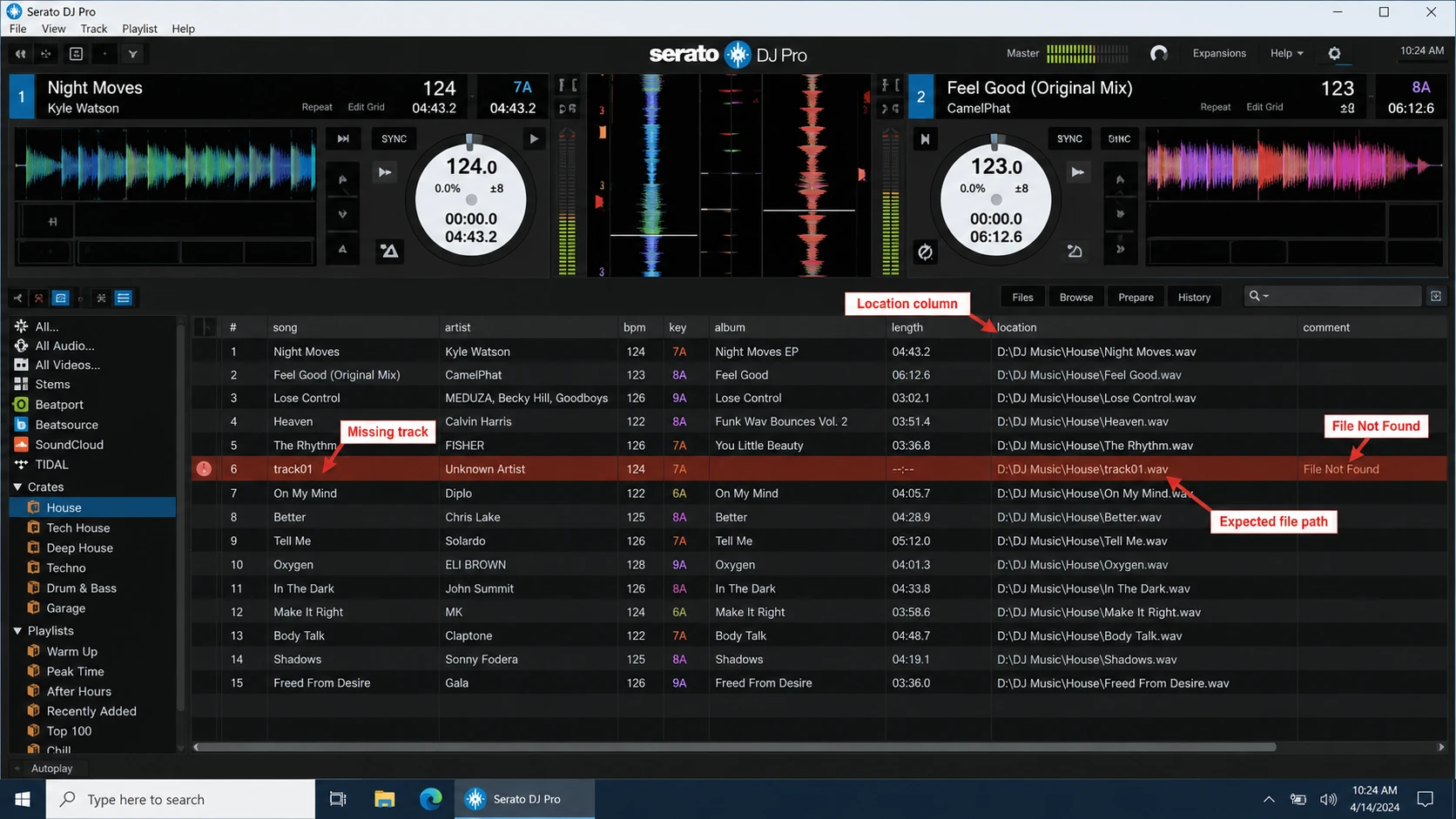
トラックが想定されるパスにない場合は、以下の手がかりを参考にファイルエクスプローラーで検索してください:
- トラックのファイル名
- アーティスト名またはアルバム名
- オリジナル楽曲フォルダ
.mp3.wav.flac.aiff.m4a
別の場所でその音楽が見つかったということは、パスに関する問題であることが確認できたことになりますので、次のように進めてください。 Seratoで失われたファイルを復元する.
元のトラックがどこにも見つからない場合、Seratoがそれを復元できると決めつけないでください。まずクラウドストレージやバックアップを確認し、完全なコピーが一切残っていない場合にのみ、ファイルの復元を検討してください。.
このワークフローの検証方法
このガイドでは、Seratoの再配置とデータ復旧を意図的に区別しています。これは、これら2つのプロセスが異なるレイヤーで動作するためです。.
Serato特有の動作および移動手順については、ライブラリファイルの欠落、[場所] 列、フォルダ単位の移動、ドライブ全体の移動、iTunesの参照の重複に関するガイダンスなど、Serato公式サポートドキュメントと照合を行いました。.
復旧ワークフローでは、別の安全原則に従います。つまり、実際にデータが削除された疑いがある場合は、影響を受けたストレージへの書き込みを最小限に抑え、まず非破壊的な復元ソースを確認し、必要に応じて失われたデータを別のドライブに復元してから、その後にのみSeratoで復元された音楽を再接続します。.
この分離を行うことで、実際には単にファイルパスが破損しているだけの問題に対して、復旧ソフトウェアを使用する必要がなくなります。.
Seratoのトラックがなぜ表示されなくなるのでしょうか?
Seratoでは通常、ライブラリに保存されているパスが音楽ファイルを指さなくなった場合、そのトラックを「欠落」としてマークします。.
一般的な原因は以下の通り:
- 曲を別のフォルダに移動する
- 親フォルダの名称を変更する
- 保存先の変更
- Seratoの外部でDJライブラリを整理し直す
- iTunes または Apple Music のライブラリを移動する
- ローカルコピーを削除するクラウド同期
- 元の音声を誤って削除してしまった
Seratoは、ファイルを移動したりフォルダ名を変更したりすると、ライブラリと楽曲との関連性が失われ、トラックが表示されなくなったり、「ファイルが見つかりません」というエラーが表示されたりする可能性があることを明確に述べています。.
したがって、トラックが欠落しているというのは、主に 部位・症状. 実際に削除されたことは、考えられる原因の一つにすぎない。.
Seratoの使い方:紛失したファイルの復元方法
音楽ファイルがまだ存在していることを確認したら、より大掛かりな処置を試みる前に、Seratoに組み込まれているファイル移動ツールを使用してください。.
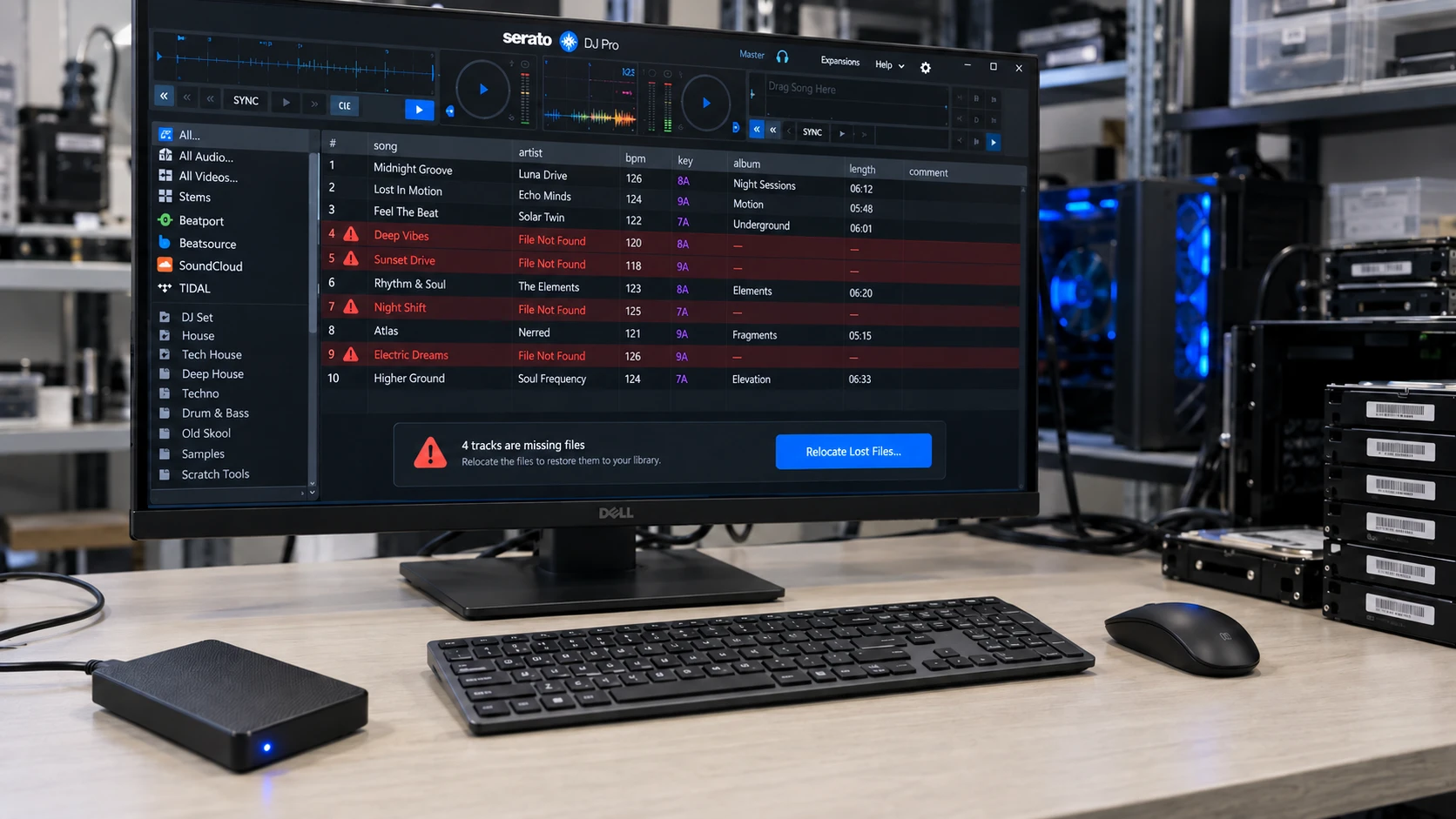
方法 1:Serato Relocate Lost Files を使用してすべてのドライブを検索する
Serato DJ を起動し、[ ファイル のパネルがある。.
次に、[クリック] 紛失したファイルを復元する.
Seratoは、現在「欠落」とマークされているファイルについて、コンピュータおよび接続されたストレージ内を検索します。一致するトラックが見つかった場合、ライブラリデータベースを更新し、新しいパスを登録します。.
このオプションは、トラックがまだ存在していることはわかっているものの、どこに移動されたのかがわからない場合に有効です。.
ただし、ライブラリの規模が大きいシステムやストレージのレイアウトが複雑なシステムでは、完全検索に時間がかかる場合があります。.
方法 2:特定のフォルダを指定して、Serato Relocate で紛失したファイルを復元する
音楽が移動した場所がすでにわかっている場合は、対象を絞った移動を行ってください。.
「ファイル」パネルを開き、[ ] を選択します。 フォルダから移動, 、再生できないトラックが入っているフォルダに移動し、検索を開始してください。.
例えば、こうだ:
以前の場所:
D:\DJ Music\House
新しい場所:
E:\DJライブラリ\ハウス
Seratoを新しいフォルダに直接指定することで、関係のないストレージを検索することを避けられます。.
新しいフォルダの場所がすでにわかっている場合は、接続されているすべてのドライブをスキャンするのではなく、対象を絞った移動から始めてください。.
Seratoで失われたファイルの復元がうまくいかない? これらの解決策を試してみてください
音声がまだ残っている場合でも、 Seratoの「紛失したファイルの復元」機能が動作しない 再接続できなくなるため、トラックが削除されたと決めつける前に、ライブラリへの参照を確認してください。.
予想される経路をもう一度確認してください
「場所」列を確認し、そのトラックの実質的な Windows パスと比較してください。.
ドライブ文字の変更、親フォルダの名称変更、またはライブラリの移行などが、この不一致の直接的な原因である可能性があります。.
全検索の代わりに、特定のフォルダを指定する
Windowsではその曲が検出されるのに、Seratoでは検出されない場合は、その曲が保存されているフォルダに直接移動してください。.
対象を絞った再配置を行うことで、Seratoが検索しなければならない場所の数を減らすことができます。.
iTunesライブラリを一時的に無効にする
Seratoでは、以下の機能を無効にすることを推奨しています iTunesライブラリを表示 「紛失したファイルの再配置」を実行する前に。.
同じ曲が、有効なiTunesリファレンスと、Seratoのクレートに存在しないエントリの両方として存在する場合、Seratoはそのファイルをすでに検出済みとして扱うことがあります。その場合、重複するライブラリソースを一時的に非表示にするまで、存在しないリファレンスの再検索は失敗する可能性があります。.
移行が完了したら、ライブラリを再度有効にすることができます。.
重複するトラックエントリの有無を確認する
あるトラックが失われてしまい、新しいフォルダから同じファイルを手動でインポートしたとします。.
Seratoには現在、以下のものが含まれている可能性があります:
- 古いパスを指すエントリが1つ欠落しています
- 新しいパスを指す有効なエントリが1つ
その曲を再度インポートしても、元の参照は修復されません。.
まず重複している項目を整理してから、欠落しているエントリを別の場所に移動してください。.
ファイル名が変更されたかどうかを確認する
ファイルの移動と名前の変更を同時に行うと、自動マッチングが難しくなる可能性があります。.
もし:
Track_01_Final.wav
次のようになった:
September House Mix.wav
ライブラリをさらに変更する前に、手動でそのファイルを探し、それが実際に元のトラックであることを確認してください。.
トラックが削除されたと決めつける前に、クラウドストレージを確認してください
クラウド同期を利用すれば、ファイルをローカルに完全に保存しなくても、そのファイルが存在しているかのように見せることができます。.
OneDrive、Dropbox、Google Drive、またはiCloud Driveをご利用の場合は、失われた曲が以下のいずれかに該当するかご確認ください:
- オンライン限定
- 削除済みアイテムの領域で
- 別の同期済みフォルダに保存されています
- ダウンロード待ち
元のファイルが見つかった場合は、それを安定したローカルフォルダにダウンロードし、以下を使用してください。 Seratoで失われたファイルを復元する 再び.
元の音楽がクラウドストレージにまだ残っている場合は、データ復旧を実行する理由はありません。.
バックアップから失われたSerato Musicを復元する
次に、その音楽の有効なバックアップがあるかどうかを確認してください。.
Seratoのライブラリ情報と実際のオーディオファイルは別物であることに注意してください。Seratoが提供するバックアップのガイダンスにはライブラリデータが含まれていますが、コレクションを移動したりバックアップしたりする際には、音楽ファイルそのものも保存しておく必要があります。.
チェックする:
- Windowsのファイル履歴
- 旧バージョン
- NASバックアップ
- クラウドバックアップ
- 手動でコピーしたDJ用音楽フォルダ
- 以前のパソコンからのコピー
見つかった無傷のコピーは、すべて安定したフォルダに復元してから、Serato内でその場所を再指定してください。.
Windowsのファイルが削除され、ごみ箱がすでに空にされている場合、Amagicsoftの 「ごみ箱」を空にした後のファイル復元ガイド ドライブのスキャンを実行する前に利用可能なバックアップおよびディスクレベルのオプションについて説明します。.
Magic Data Recoveryを使って、完全に削除されたSeratoトラックを復元する
元の音楽ファイルが存在しなくなり、利用可能なバックアップもない場合、ファイルの移動には限界があります。.
Seratoで失われたファイルを復元する 既存のファイルを再接続することは可能です。ただし、ストレージデバイスから削除されたMP3、WAV、FLAC、またはAIFFファイルを復元することはできません。.
現時点では、可能な限り、問題のあるドライブへの新規データの書き込みは避けてください。.
新しいダウンロード、ソフトウェアのインストール、記録、ファイル転送、さらには復元したファイルを同じディスクに保存することさえ、削除されたデータを上書きしてしまう可能性があります。.
Windowsユーザー向け、, Magic Data Recovery 実用的な次のステップを提供します。Windowsが認識する内蔵ドライブやリムーバブルストレージをスキャンし、DJライブラリで一般的に使用される音楽フォーマットを含む、紛失したファイルを探し出すことができます。.
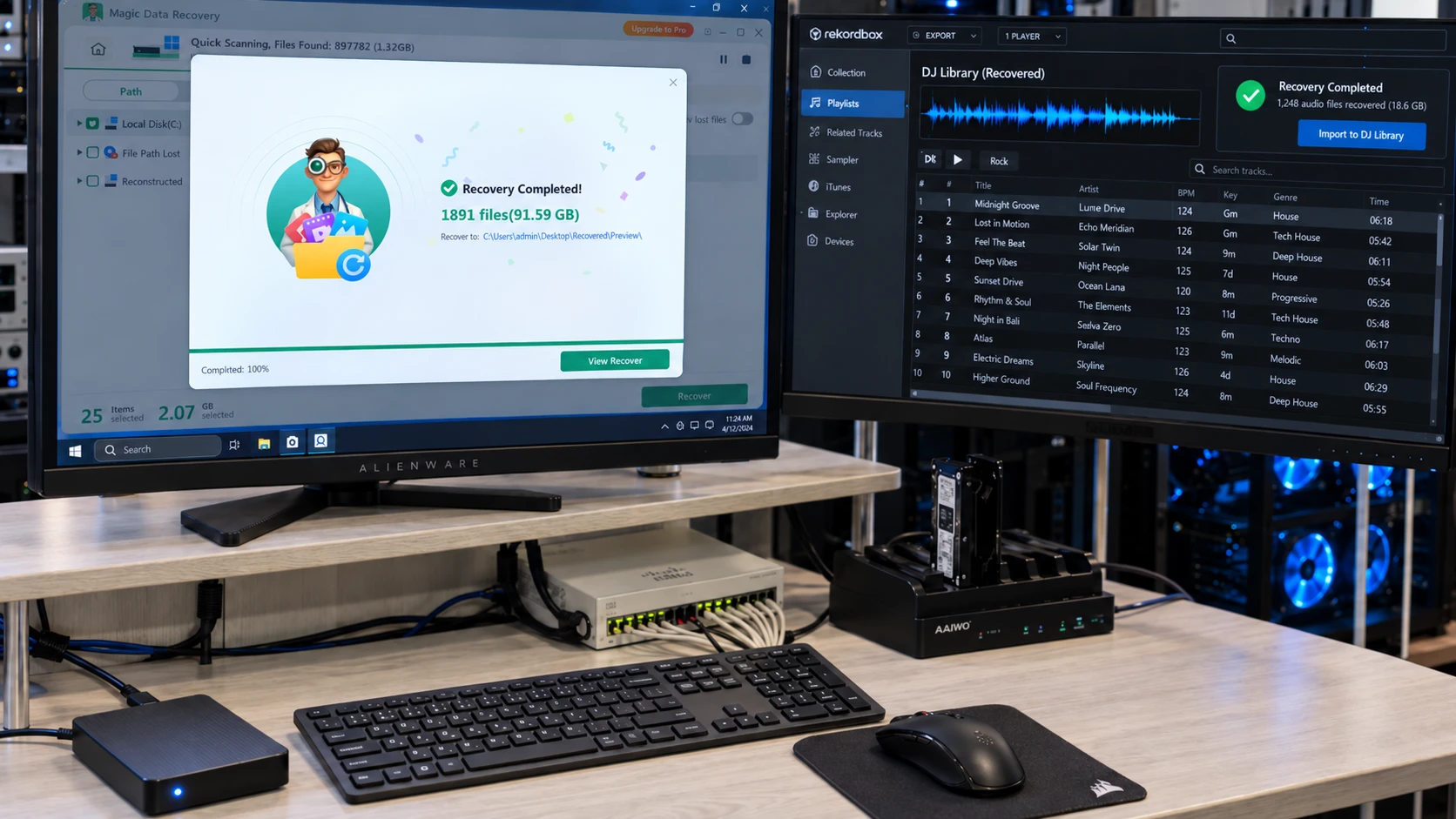
Magic Data Recoveryはどのような場合に有効か?
次のような場合は、ファイル復元ソフトウェアの利用を検討してください:
- Seratoの音楽フォルダを誤って削除してしまいました。.
- あなたはShift + Deleteを使った。.
- Windowsの「ごみ箱」を空にしました。.
- 外付けHDDから曲が消えてしまった。.
- ドライブが誤ってフォーマットされてしまいました。.
- 元のストレージは依然として動作していますが、ファイルにはもうアクセスできません。.
- Seratoにはトラックが表示されているのに、ソースファイルがどこにも見つからない。.
たとえば、Windows で通常の手順でフォルダを削除した場合は、ディスクをスキャンする前に「ごみ箱」を確認してください。もし「ごみ箱」がすでに空になっている場合は、以下のガイドを参照してください。 ごみ箱から削除されたファイルを復元する 古いストレージ領域が上書きされる前に、復旧がまだ可能である理由を説明しています。.
繰り返し実行する場合と比較して Seratoで失われたファイルを復元する, Magic Data Recoveryは別の問題に対処しています。.
Seratoは、あるものを検索します。 既存のファイル.
データ復旧ソフトウェアは、ストレージ内を検索して 失われたファイルデータ.
この違いこそが、音楽ファイルが本当に失われていることを確認してからでないと、復元ソフトを使用すべきではない主な理由です。.
Seratoで失われたトラックを復元する方法
ドライブに異常がなく、Windows が通常通り認識している場合は、ファイルの復元を進めることができます。.
ステップ1: Magic Data Recoveryのダウンロードとインストール
Magic Data Recoveryをダウンロードし、Windowsパソコンにインストールしてください。.
可能であれば、欠落しているSeratoの音楽ファイルが元々保存されていたドライブとは別のドライブにソフトウェアをインストールしてください。これにより、影響を受けたストレージへの不要な書き込みを減らし、削除されたデータが上書きされるのを防ぐことができます。.
Windows 7/8/10/11およびWindows Serverをサポート
手順 2:失われたトラックが保存されていたドライブを選択する
Magic Data Recoveryを起動します。メイン画面から、Seratoの音楽が消える前に保存されていたディスクまたはパーティションを選択してください。.
たとえば、DJライブラリが以前次の場所に存在していた場合:
D:\DJライブラリ
該当するものを選択してください D: ボリュームを選択して、スキャンを開始します。.

ステップ 3:削除された Serato Music ファイルをスキャンする
Magic Data Recoveryは、選択されたストレージをスキャンして復元可能なファイルを検索し、スキャンの進行状況に応じて結果を表示します。.
ファイル名、元のフォルダ、およびMP3、WAV、FLAC、AIFF、M4Aなどのオーディオ形式を指定して、検索結果を絞り込んでください。.
可能であれば、スキャンが完了するまで待ってから最終的な選択を行ってください。スキャンの進行に伴い、追加のファイルが表示される場合があります。.

ステップ4: 回復する 安全な場所への道筋
必要なSeratoの音楽ファイルを選択し、別のドライブまたは安全な保存場所に保存してください。.
を行う。 違う 復元プロセス中に、復元されたファイルを削除されたのと同じドライブに復元してください。元のディスクにデータを書き戻すと、復元可能な他のトラックが上書きされてしまう可能性があります。.

復元が完了したら、復元されたトラックを安定したDJライブラリフォルダに配置してください。その後、Seratoに戻ってください。.
復元後にSeratoで紛失したファイルを再配置する
「リカバリー」を実行するとオーディオファイルは復元されますが、Seratoのライブラリ参照情報は自動的に修復されません。.
次のような安定した場所を用意してください:
D:\DJライブラリ\復元されたトラック
復元した曲をそこに移動し、不必要なファイル名の変更は避けてください。.
次に、Seratoを開いて、以下のコマンドを実行します。 Seratoで失われたファイルを復元する そのフォルダに対して。.
Seratoが復元されたオーディオと、既存の欠落しているエントリを照合できれば、保存されているパスを更新し、トラックを再接続することができます。.
したがって、決定フローの全体は次のとおりです:
ファイルが存在する場合 → 移動
再配置に失敗 → パス/ライブラリの診断
ファイルが存在しません → クラウドとバックアップを確認してください
完全なコピーは存在しない → ファイルを復元する
ファイルが復元されました → Serato に戻して配置し直してください
「失われたファイルの復元」機能は、Serato Studioでは動作が異なるのでしょうか?
Serato Studioも基本的には同じコンセプトに基づいていますが、インターフェースは異なります。.
「設定」>「ライブラリ」では、Studioは以下の両方を提供しています 紛失したファイルを復元する およびディレクトリ単位の移動オプションがあります。ユーザーは、「すべて検索」または「場所を選択」を使用して、個々のライブラリ項目を移動することもできます。サンプル、ドラムデッキのコンテンツ、およびデッキプリセットについては、別途移動手順が必要になる場合があります。.
したがって、インターフェースごとの手順に従う前に、ご使用のソフトウェアが「Serato DJ Pro」、「DJ Lite」、または「Serato Studio」のいずれであるかを確認してください。.
基本的なルールは変わりません。既存のファイルを別の場所に移動し、本当に失われたファイルを復元することです。.
Seratoのトラックが欠落するのを防ぐ方法
ライブラリが再び正常に動作するようになったら、いくつかの習慣を身につけることで、今後のパスに関する問題を減らすことができます。.
DJ用の音楽コレクションは、「ダウンロード」フォルダや「デスクトップ」、一時フォルダ、あるいは関連性のない複数のディレクトリに散らばらせるのではなく、一貫性のあるフォルダ構造の中にまとめて保管しましょう。.
さらに:
- 最上位の音楽フォルダの名前を頻繁に変更しないようにしてください。.
- 重要なDJ用トラックをオフラインでも利用できるようにしておきましょう。.
- フォルダを移動する前に、大規模なライブラリ移行の計画を立てておきましょう。.
- Seratoライブラリの情報と実際のオーディオファイルの両方をバックアップしてください。.
- コレクションを移動した後、いくつかのトラックを確認してください。.
- 重要な楽曲については、少なくとも1つは別の場所にコピーを保管しておいてください。.
ライブラリのデータベースでは、削除されたWAVやMP3ファイルを復元することはできません。一方、オーディオファイルのフォルダだけでは、Seratoのクレートや参照情報をすべて復元できるとは限りません。両方をバックアップすることで、より強力な保護が図れます。.
まとめ
Seratoで失われたファイルを復元する これは、トラック自体は存在しているものの、Seratoが想定する場所に保存されなくなってしまった場合に備えて設計されています。まず、「場所」の列を確認し、ソースオーディオがまだ利用可能かどうかを判断してください。利用可能な場合は、データ復旧ではなく、場所の変更が正しい最初の対処法となります。.
いつ Seratoの「紛失したファイルの復元」機能が動作しない, 、ファイルが消えたと決めつける前に、正確なパスやフォルダの場所、重複するエントリ、iTunesとの連携状況、ファイル名の変更などを確認してください。.
元の音声がどこにも見つからない場合は、次にクラウドストレージやバックアップを確認してください。トラック自体が実際に削除されてしまった場合にのみ、ファイルの復元が検討の対象となります。.
Windows が認識するストレージで、論理的なファイルの消失が発生した場合、, Magic Data Recovery これは、単にSeratoのリファレンスを修復するだけでなく、欠落したファイルデータに対処してくれるため便利です。トラックが安全な場所に復元されたら、, Seratoで失われたファイルを復元する ライブラリと再接続することができます。.
完全削除、データの上書き、および適切な復旧方法の選択に関する詳細については、以下のページをご覧ください。 削除されたファイルの復元ガイド.
まだ残っているものは別の場所に移す。実際に失われたものだけを復元する。.
Windows 7/8/10/11およびWindows Serverをサポート
Serato に関するよくある質問:紛失したファイルの復元方法
Serato Relocate Lost Files の機能とは何ですか?
曲がまだ存在しているのに、なぜSeratoは「ファイルが見つかりません」と表示されるのですか?
Seratoの「失われたファイルの復元」機能が動作しないのはなぜですか?
フォルダから移動させるのと、すべてのドライブを検索するのと、どちらが良いでしょうか?
Serato Relocate Lost Files では、削除された曲を復元できますか?
Seratoのバックアップには、実際に持っている音楽も含まれますか?
Seratoのトラックが紛失し、完全に削除されてしまった場合はどうすればよいですか?

バシリイは、この分野で約10年の実務経験を持つデータ復元のスペシャリストです。そのキャリアを通じて、彼は削除されたファイル、フォーマットされたドライブ、失われたパーティション、RAWファイルシステムを含む何千もの複雑なケースの解決に成功してきました。彼の専門知識は、16進エディタなどの専門ツールを使用した手動復元方法と、復元ソフトウェアを使用した高度な自動化ソリューションの両方をカバーしています。バシリの使命は、信頼できるデータ復元知識をITプロフェッショナルと一般ユーザーの双方が利用できるようにし、貴重なデジタル資産を保護できるようにすることです。.