
Spotify 本地檔案消失了?8 種解決方法
如果您的 Spotify 中的本地檔案消失了, 請不要貿然斷定這些歌曲已被刪除。可能是 Spotify 無法再存取該資料夾、[本地檔案] 設定已變更,或是該應用程式已不再具備讀取您音訊檔案的權限。.
首先應確認原始檔案是否仍存在於您的裝置中。本指南將向您說明如何解決此問題 Spotify 本地檔案遺失 首先處理這些問題,以及若檔案確實已遺失該如何處理。如需更廣泛的資料恢復建議,請參閱 Amagicsoft 的 已刪除檔案復原指南. 如果原始音訊檔已從 Windows 磁碟機中刪除,, Magic Data Recovery 可以掃描已刪除或因其他原因遺失的檔案。.
支援 Windows 7/8/10/11 和 Windows Server
目錄
快速解答:Spotify 本地檔案消失時該怎麼辦
最快的解決方案取決於原始音訊是否仍存在於 Spotify 之外。.
你所看到的 | 可能原因 | 最佳的第一步 |
檔案仍存在於「檔案總管」或「Finder」中 | Spotify 遺失了來源路徑或無法存取 | 重新啟用「本機檔案」,並再次新增該資料夾 |
一個資料夾消失了 | 資料夾已移動、重新命名或已斷開連線 | 還原路徑或選擇新的來源 |
只有手機上缺少檔案 | 權限或行動裝置設定問題 | 啟用「本機音訊檔案」並檢查權限 |
軌跡可見,但呈灰色 | 播放清單參照失效或來源不可用 | 從「本機檔案」重新新增這些檔案 |
儲存裝置中缺少原始檔案 | 刪除、清理或檔案系統問題 | 請檢查「資源回收筒」或備份資料,然後再考慮進行資料還原 |
這項區別很重要。. Spotify 中的本機檔案未顯示 這通常表示應用程式存取出現問題。若「檔案總管」或「Finder」中缺少檔案,則表示儲存空間有問題,需採取不同的處理方式。.
為什麼 Spotify 的本地檔案會消失?
Spotify 會讀取儲存於您裝置上的個人音訊檔案,而非將這些檔案視為其串流目錄中的曲目。若原始路徑、權限或檔案內容發生變更,即使音訊檔案仍然存在,該歌曲仍可能從 Spotify 中消失。.
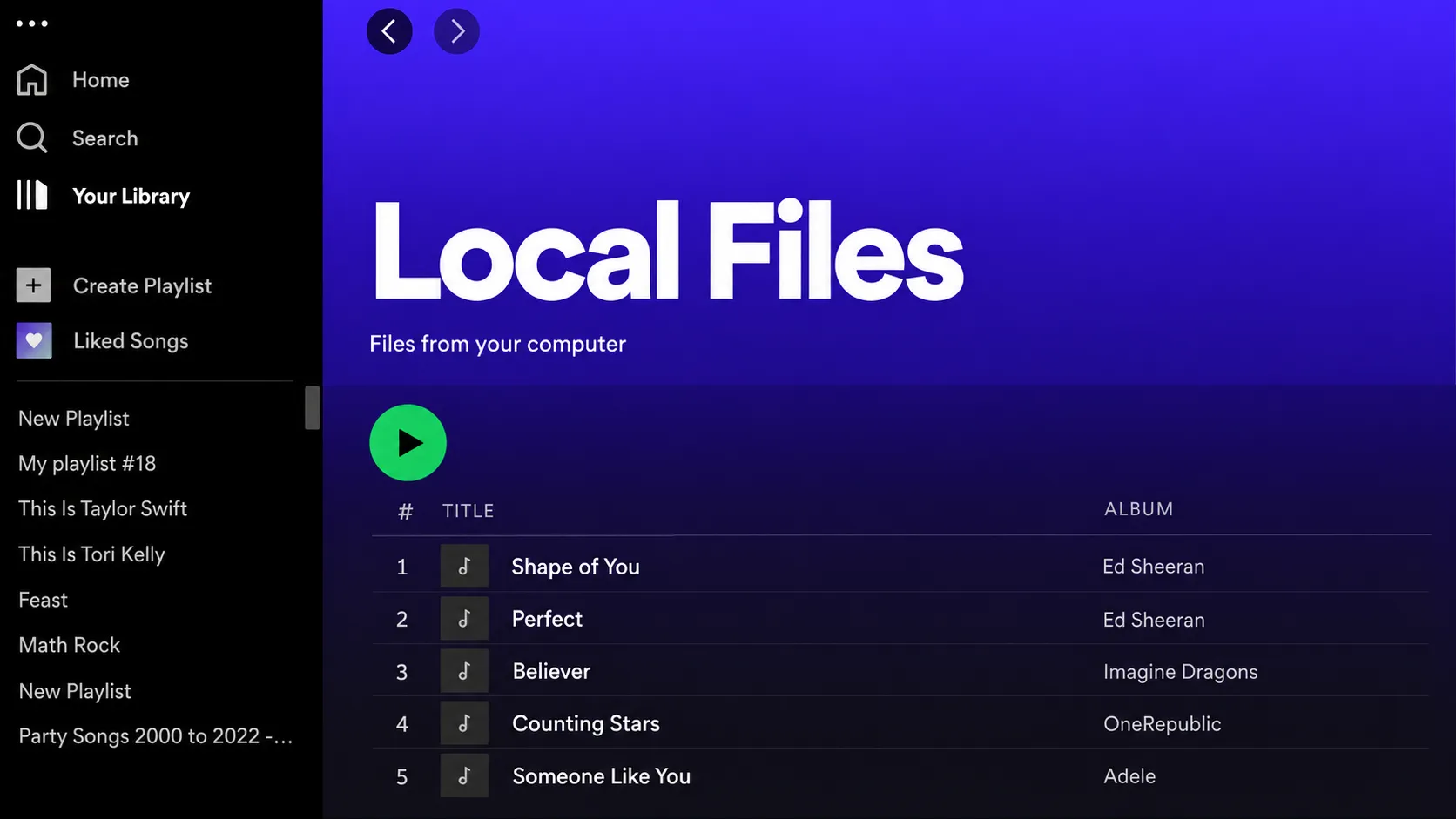
背後常見的原因 Spotify 中的本地檔案消失了 或 Spotify 本地檔案遺失 包括
- 「顯示本地檔案」功能已停用。. 更新、重新安裝或重設設定可能會變更此選項。.
- 來源資料夾已被移動或重新命名。. Spotify 可能仍會指向舊的位置。.
- 檔案權限已變更。. 這種情況在手機進行作業系統更新或重新安裝後尤其常見。.
- 該檔案存在於另一台裝置上,或僅存於雲端儲存空間中。. Spotify 需要存取實際的本地副本。.
- 某些檔案存在相容性問題。. 編解碼器、元資料、數位版權管理(DRM)、檔案損毀或檔案名稱問題,都可能影響個別音軌。.
- Spotify 的快取或應用程式資料已過期。. 若簡單的檢查未能解決問題,重新整理應用程式可能會有所幫助。.
- 原始音訊已被刪除。. 在這種情況下,即使變更 Spotify 的設定,也無法還原原始檔案。.
關鍵在於,在嘗試隨機的解決方案之前,先釐清你實際面臨的是哪種情況。.
解決方案 1:檢查原始音訊檔案是否仍存在
當 Spotify 中的本地檔案消失了, 請在 Spotify 外部啟動。.
在 Windows 上開啟「檔案總管」,或在 Mac 上開啟「Finder」,並檢查原本存放您音樂的資料夾。.
如果您記得檔案名稱,請直接搜尋該檔案。否則,請嘗試使用常見的音訊副檔名,例如:
*.mp3*.m4a*.wav*.flac
此外,請檢查「下載」、「音樂」、「桌面」、最近重新整理過的資料夾、外接硬碟,以及您通常用來儲存音訊檔案的其他位置。.
請嘗試使用另一款媒體播放器開啟其中一首無法播放的歌曲。.
如果檔案能正常播放,問題很可能與 Spotify 有關。請繼續嘗試以下解決方案。.
如果無法在裝置的任何位置找到該音訊檔案,請跳至 修正 8.
這個簡單的檢查步驟能避免一個常見的錯誤:當實際檔案已被移動或刪除時,卻花費一小時來排除 Spotify 的問題。.
解決方案 2:啟用「本機檔案」,並重新新增來源
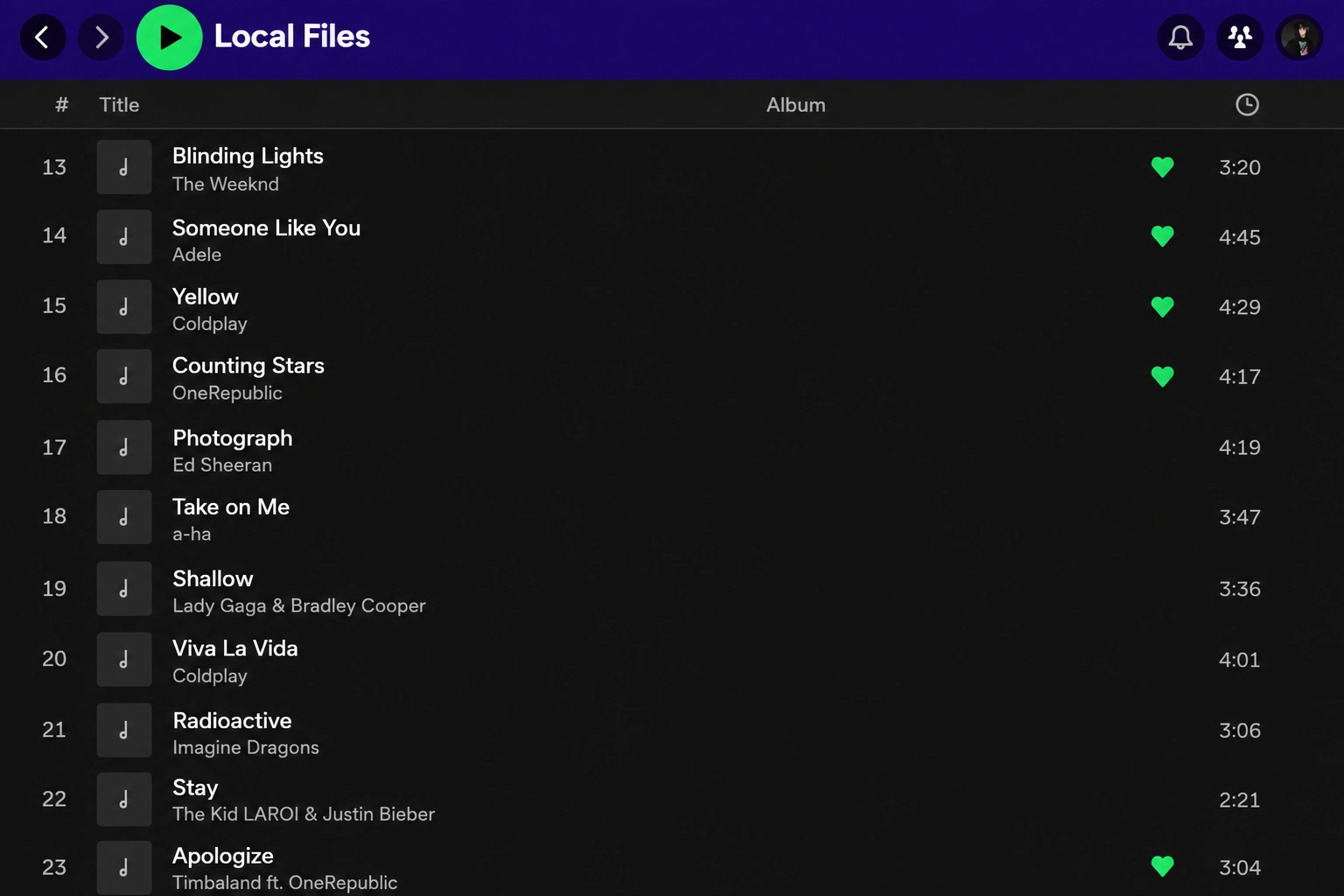
如果您的音訊檔案仍然存在,但 Spotify 的本機檔案無法顯示, 請檢查 Spotify 的桌面版設定。.
- 開啟 Spotify。.
- 點擊您的個人頭像,然後選擇 設定.
- 向下捲動至 圖書館.
- 開啟 顯示本機檔案.
- 啟用存放您音樂的資料夾。.
- 如果該資料夾不存在,請按一下 新增來源 然後再次選取它。.
- 返回 您的圖書館 然後開啟「本機檔案」。.
當……時,這是最有效的解決方案之一 更新後,Spotify 中的本機檔案消失了, 、重新安裝,或變更設定。.
為了讓系統運作更穩定,請將個人音樂存放在一個專用的資料夾中,而非將檔案散落在「下載」資料夾、「桌面」以及多個可移除儲存裝置中。.
例如:
音樂 > Spotify 本地版
設定一個固定資料夾,能讓 Spotify 更輕鬆地長期維持相同的來源路徑。.
解決方案 3:修復已移動、已重新命名或已斷開連線的來源資料夾
資料夾的變更很容易被忽略。.
假設您原本新增的是:
C:\Users\您的名稱\Music\Imports
接著,您重新整理了該資料庫,並將所有內容移至:
D:\Music\Archive
這些曲目仍然存在,但 Spotify 可能會繼續沿著舊路走。結果看起來完全就像 Spotify 中的本地檔案消失了, ,儘管並沒有刪除任何音樂。.
您可以透過以下兩種方式之一來解決這個問題:
- 將檔案移回原始資料夾;或者
- 將新資料夾新增為「本機檔案」來源。.
如果歌曲儲存於外接硬碟中,請確保該硬碟已連接。.
Windows 使用者也應檢查磁碟機代號。如果外接磁碟先前顯示為 D: 但 Windows 後來會為其分配 E:, Spotify 的舊來源路徑可能會停止運作。.
修正位置後,請重新啟動 Spotify,並再次檢查「本機檔案」。.
解決方案 4:檢查 iPhone 或 Android 裝置上的本地音訊權限
如果 iPhone 上的 Spotify 本地檔案消失了 或 Android 裝置上,雖然桌面版仍可正常運作,但請另行檢查行動裝置的設定。.
在 Spotify 應用程式中:
- 點擊您的個人頭像。.
- 開啟 設定與隱私權.
- 選擇 應用程式與裝置.
- 開啟 本機音訊檔案.
- 返回 您的圖書館 並勾選「本機檔案」。.
接著,請開啟手機的系統設定,並確認 Spotify 已具備存取本機檔案或媒體所需的權限。.
適用於 iPhone
本地音樂可能需要儲存於內部:
檔案 > 我的 iPhone > Spotify
如果你知道這些檔案就在你的 iPhone 上,但 Spotify 本地檔案遺失, 在嘗試重新安裝之前,請先確認此位置。.
Spotify 也指出,在某些情況下,「我的 iPhone」下的資料夾可能會消失。重新啟動 Spotify 應用程式後,該資料夾可能會再次顯示。.
因此,即使「本機檔案」播放清單消失,也不代表您的音樂已自動被刪除。.
解決方案 5:確認音訊確實儲存於裝置中
這造成了很多混淆。.
在您的電腦上看到一首本地歌曲,並不代表 Spotify 已將原始音訊檔案上傳至您的 Spotify 帳戶。.
如果 Spotify 的本機檔案從您的手機上消失了 但仍會出現在桌面上,請檢查音訊檔案是否實際儲存於手機中。.
請特別注意位於以下位置的檔案:
- 僅限雲端的資料夾
- 另一個讀卡機
- 一台 NAS
- 已拔除的 USB 隨身碟
- 一台外接硬碟
- 一個最近已移至「僅限線上儲存」的資料夾
如有需要,請將音訊下載或複製到裝置的本地儲存空間,並讓 Spotify 重新偵測該檔案。.
較早的指南通常建議,透過讓兩台裝置連線至同一個 Wi-Fi 網路,將桌面端的「本地檔案」同步至手機。隨著時間推移,此操作流程已有所變更,且在當前的 Spotify 版本中可能無法始終如一地運作。.
若要確保設定更為可靠,請確認該檔案確實存在於您欲播放的裝置本機中。.
解決方案 6:當僅有部分歌曲消失時,測試檔案相容性
假設原本有 100 首歌曲可見,但其中五首突然消失了。.
既然如此,全球性的「顯示本地檔案」設定應該不是問題所在。.
相反地,請測試一個遺失的檔案:
- 在 Spotify 以外的地方播放此檔案。.
- 將它複製到一個簡單的資料夾中,例如
音樂\Spotify 本地版. - 請為它取一個淺顯易懂的檔案名稱。.
- 將新資料夾新增為 Spotify 來源。.
- 請確認該曲目是否顯示。.
如有需要,請從您合法擁有的音訊檔案中製作一份標準的 MP3 副本,並測試該版本。.
這在以下情況下會有所幫助: Spotify 中的本地檔案消失了 這是由於使用了不常見的編解碼器、元資料受損、檔案損毀或檔案名稱問題所致。.
若 MP3 音軌能正常顯示,而其他檔案類型卻無法顯示,此時進行相容性測試便特別有用。與其立即將整個音樂收藏轉換,不如先測試一首受影響的歌曲。.
解決方案 7:重新整理或重新安裝 Spotify
如果原始檔案確實仍存於磁碟上,但 Spotify 的本機檔案無法顯示, 請逐步更新 Spotify,而非直接進行完整重新安裝。.
請依序嘗試以下步驟:
- 請完全關閉 Spotify,然後重新開啟它。.
- 轉 顯示本機檔案 關掉,然後再打開。.
- 請移除並重新新增受影響的來源資料夾。.
- 清除 Spotify 的快取。.
- 請將 Spotify 更新至最新版本。.
- 僅當前面的步驟失敗時,才重新安裝 Spotify。.
如果該曲目在「本機檔案」主集合中顯示正常,但在某個播放清單內卻呈現灰色或無法使用,請刪除該播放清單中的項目,並從「本機檔案」重新加入該歌曲。.
這樣一來,便能重建播放清單的參照,同時不改變原始音訊。.
Spotify 也提醒,重新安裝應用程式意味著必須再次下載透過 Spotify 下載的音樂和播客。.
Do Not Reinstall First If the Original Files Are Missing
There is one important exception.
如果 Spotify 中的本地檔案消失了 and you also cannot find the original audio in File Explorer, do not immediately start downloading updates, reinstalling apps, or copying large amounts of data to that drive.
The missing music may actually have been deleted.
Writing new data to the affected storage device can overwrite space that still contains recoverable file data. In that situation, proceed to recovery before creating unnecessary disk activity.
Fix 8: Recover Spotify Local Files That Were Actually Deleted
如果 Spotify 中的本地檔案消失了 from the app and the original audio is also missing from your Windows storage, Spotify troubleshooting has reached its limit.
Spotify can rediscover an existing file. It cannot reconstruct an audio file that no longer exists in the file system.
Check Recycle Bin and Backups First
Start with the simplest recovery options.
Open Windows Recycle Bin and look for:
- The missing songs
- Their original music folder
- Recently deleted MP3 or other audio files
If they are there, right-click them and choose 還原.
Next, check any backup system you already use, such as File History, OneDrive backup, another cloud backup, or an external backup drive.
For a broader Windows recovery workflow, see Amagicsoft’s guide on 如何擷取最近刪除的檔案.
Recover Missing Audio with Magic Data Recovery
If the tracks were permanently deleted, lost after formatting, or became inaccessible because of a file-system problem, Magic Data Recovery provides another recovery option for Windows users.
It is relevant only at this stage because it operates on the storage device rather than trying to repair Spotify.
支援 Windows 7/8/10/11 和 Windows Server
Magic Data Recovery supports common audio types such as MP3, M4A, AAC, WAV, FLAC, OGG, and others. It can scan data lost through deletion, formatting, and file-system problems and lets you preview recoverable files before saving them.
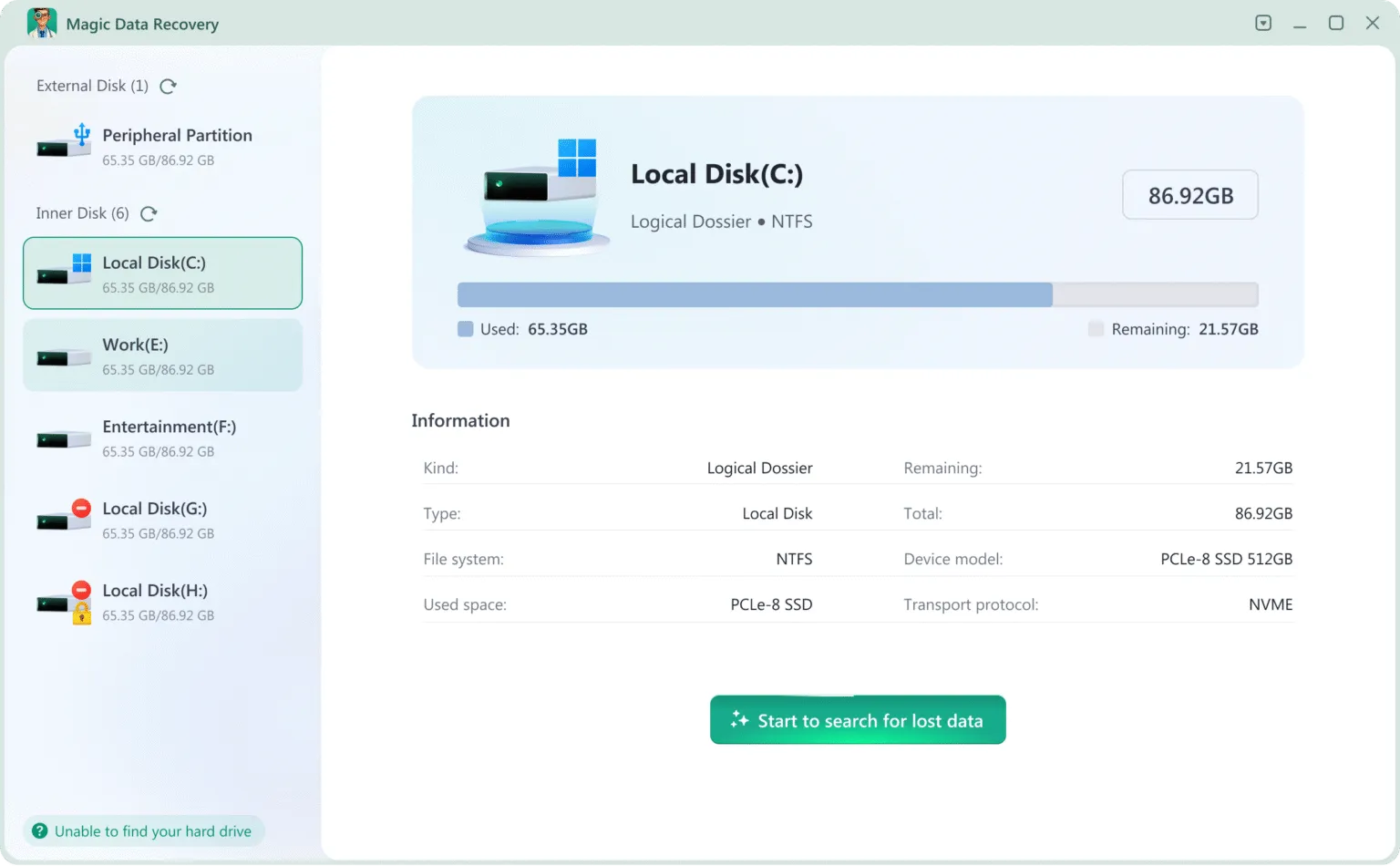
The process can stay simple:
- Stop writing new data to the affected drive.
- Launch Magic Data Recovery and scan the drive where the missing music was stored.
- Preview the results, select the required audio, and recover it to a different drive or partition.
Do not save recovered files back to the same location you are scanning.
Recovery is never guaranteed. Once file data has been overwritten, software cannot recreate the original information. Deleted-file recovery from SSDs can also be more difficult when TRIM has already cleared the relevant storage blocks.
That is why Magic Data Recovery is not the first fix for Spotify 本地檔案遺失. It becomes useful only after you confirm that the actual audio files have disappeared from Windows storage.
How to Prevent Spotify Local Files from Disappearing Again
Once the problem is fixed, a few habits can make your Local Files library much more stable.
- Keep personal music in one dedicated folder.
- Avoid moving or renaming the source folder after adding it to Spotify.
- Keep backups of rare songs, personal recordings, mixes, and other irreplaceable audio.
- Make sure cloud-storage files are downloaded locally instead of remaining online-only.
- Check external drives before opening playlists that depend on them.
- Before reinstalling Spotify, confirm where your original files are stored.
- Recheck Local Files settings and permissions after major Spotify or operating-system updates.
Most importantly, treat Spotify as a player and library interface rather than the only backup of your personal audio collection.
總結
當 Spotify 中的本地檔案消失了, first determine whether Spotify lost access to the songs or the actual audio files were deleted.
If the files still exist, re-enable Local Files, repair the source path, check mobile permissions, confirm that the tracks are stored locally on the device, and refresh Spotify. These steps resolve most Spotify 中的本機檔案未顯示 problems without touching the original music.
If the original audio is genuinely gone from a Windows drive, stop unnecessary disk activity and move from Spotify troubleshooting to 刪除的檔案復原.
In that specific situation, Magic Data Recovery is worth considering because it supports deleted, formatted, and file-system-loss scenarios as well as common audio formats. It is unnecessary for a simple Spotify setting problem, but it provides a practical recovery path when there is no longer a file for Spotify to read.
支援 Windows 7/8/10/11 和 Windows Server
FAQs About Spotify Local Files Disappeared
為什麼我的 Spotify 本地檔案突然消失了?
我該如何將我的本機檔案恢復到 Spotify 桌面版?
為什麼我的電腦上會顯示 Spotify 的本機檔案,但手機上卻看不到?
為什麼 iPhone 上的 Spotify 本地檔案會消失?
Spotify 能否還原已刪除的本地檔案?
清除 Spotify 的快取會刪除我的本機音樂檔案嗎?
如果只有部分 Spotify 本地檔案遺失了,該怎麼辦?
Magic Data Recovery 能否恢復遺失的 Spotify 本地檔案?

Jason 是一位擁有超過 15 年實務經驗的資料復原與技術支援專家。 他長期與第一線使用者密切合作,處理棘手的資料遺失案例,並針對誤刪資料、磁碟格式化、檔案系統損毀、分割區遺失、系統故障及其他緊急資料復原情況,提供實用的復原解決方案。其專業領域還涵蓋備份與還原、檔案修復及災難復原,並特別注重提供安全、可靠且技術上精準的指導。.