
Spotify Local Files Disappeared? 8 Fixes
If your Spotify local files disappeared, do not assume the songs were deleted. Spotify may simply have lost access to the folder, a Local Files setting may have changed, or the app may no longer have permission to read your audio.
The first thing to check is whether the original files still exist on your device. This guide shows you how to fix Spotify local files missing problems first and what to do if the files are genuinely gone. For broader recovery advice, see Amagicsoft’s deleted file recovery guide. If the original audio was deleted from a Windows drive, Magic Data Recovery can scan for deleted or otherwise lost files.
Supports Windows 7/8/10/11 and Windows Server
Table of Contents
Quick Answer: What to Do When Spotify Local Files Disappeared
The fastest solution depends on whether the original audio still exists outside Spotify.
What you see | Likely cause | Best first action |
Files still exist in File Explorer or Finder | Spotify lost the source path or access | Re-enable Local Files and add the folder again |
One folder vanished | Folder moved, renamed, or disconnected | Restore the path or select the new source |
Files are missing only on phone | Permission or mobile setup issue | Enable Local audio files and check permissions |
Tracks are visible but gray | Broken playlist reference or unavailable source | Re-add them from Local Files |
Original files are missing from storage | Deletion, cleanup, or file-system issue | Check Recycle Bin or backup, then consider recovery |
This distinction matters. Spotify local files not showing usually points to an app-access problem. Files missing from File Explorer or Finder indicate a storage problem and require a different response.
Why Did Spotify Local Files Disappear?
Spotify reads personal audio stored on your device rather than treating those files like tracks from its streaming catalog. If the original path, permission, or file changes, the song may disappear from Spotify even though the audio still exists.
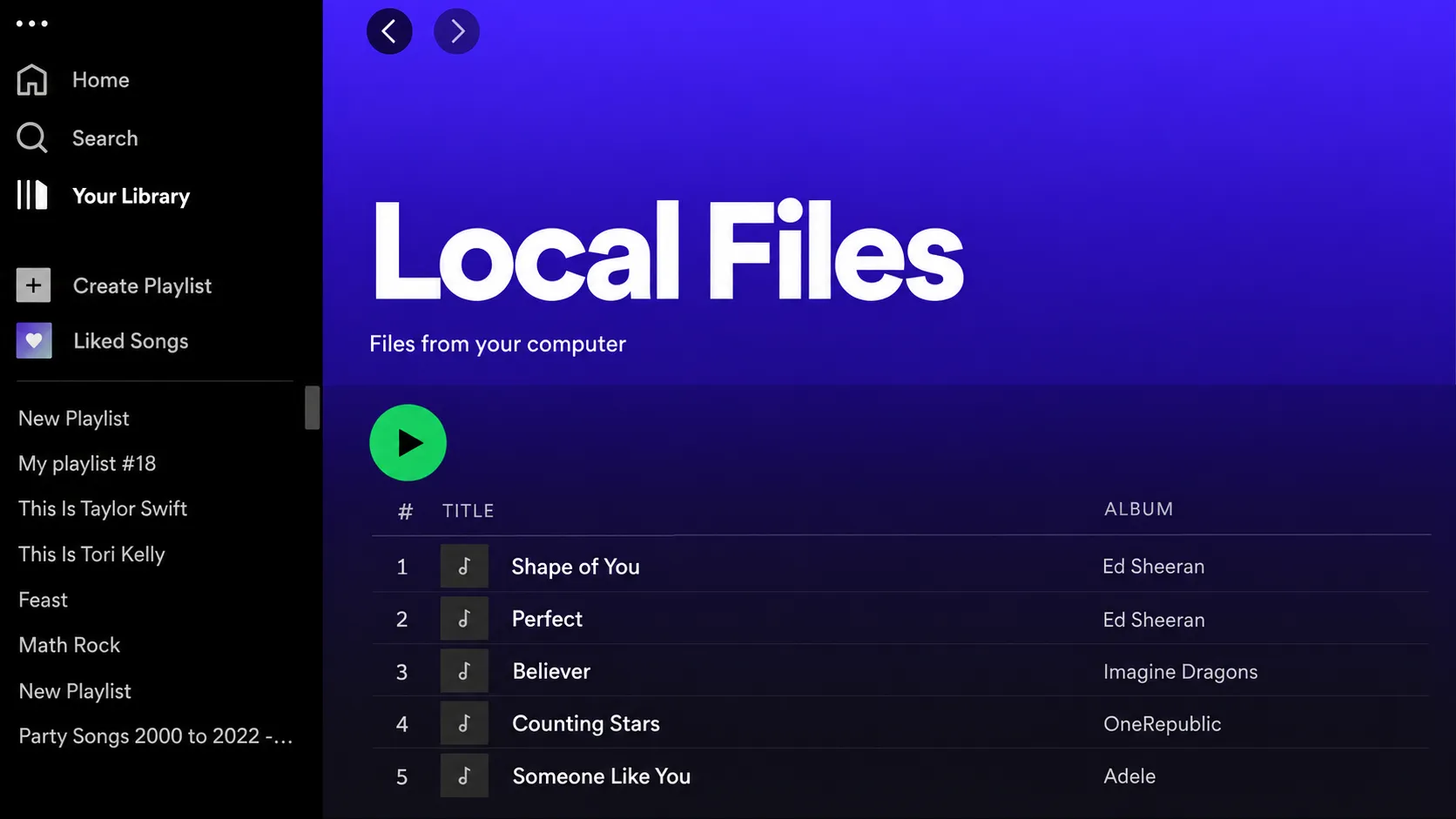
Common causes behind Spotify local files disappeared or Spotify local files missing include:
- Show Local Files was disabled. An update, reinstall, or settings reset can change the option.
- The source folder moved or was renamed. Spotify may still point to the old location.
- File permissions changed. This is especially common on phones after an OS update or reinstall.
- The file exists on another device or only in cloud storage. Spotify needs access to an actual local copy.
- Some files have compatibility problems. Codec, metadata, DRM, corruption, or filename issues may affect individual tracks.
- Spotify’s cache or app data is stale. Refreshing the app may help after simpler checks fail.
- The original audio was deleted. In this case, changing Spotify settings cannot restore the underlying file.
The key is to identify which situation you actually have before trying random fixes.
Fix 1: Check Whether the Original Audio Files Still Exist
When Spotify local files disappeared, start outside Spotify.
Open File Explorer on Windows or Finder on Mac and inspect the folder that originally stored your music.
If you remember the filename, search for it directly. Otherwise, try common audio extensions such as:
*.mp3*.m4a*.wav*.flac
Also check Downloads, Music, Desktop, recently reorganized folders, external drives, and other locations where you commonly save audio.
Try opening one of the missing songs with another media player.
If the file plays normally, the problem is probably Spotify-specific. Continue with the following fixes.
If the audio itself cannot be found anywhere on the device, skip to Fix 8.
This simple check prevents a common mistake: spending an hour troubleshooting Spotify when the actual file has been moved or deleted.
Fix 2: Turn On Local Files and Add the Source Again

If your audio files still exist but Spotify local files are not showing, check Spotify’s desktop settings.
- Open Spotify.
- Click your profile picture and choose Settings.
- Scroll to Library.
- Turn on Show Local Files.
- Enable the folder that contains your music.
- If the folder is missing, click Add a source and select it again.
- Return to Your Library and open Local Files.
This is one of the most effective fixes when Spotify local files disappeared after an update, reinstall, or settings change.
For a more stable setup, keep personal music in one dedicated folder rather than scattering files across Downloads, Desktop, and several removable drives.
For example:
Music > Spotify Local
A fixed folder makes it much easier for Spotify to keep the same source path over time.
Fix 3: Repair a Moved, Renamed, or Disconnected Source Folder
Folder changes are easy to overlook.
Suppose you originally added:
C:\Users\YourName\Music\Imports
Then you reorganized the library and moved everything to:
D:\Music\Archive
The tracks still exist, but Spotify may continue looking at the old path. The result looks exactly like Spotify local files disappeared, even though no music was deleted.
You can fix this in either of two ways:
- Move the files back to their original folder; or
- Add the new folder as a Local Files source.
If the songs are stored on an external drive, make sure the drive is connected.
Windows users should also check the drive letter. If an external disk previously appeared as D: but Windows later assigns it E:, Spotify’s old source path may stop working.
After correcting the location, restart Spotify and check Local Files again.
Fix 4: Check Local Audio Permissions on iPhone or Android
If Spotify local files disappeared on iPhone or Android while the desktop version still works, check the mobile settings separately.
In the Spotify app:
- Tap your profile picture.
- Open Settings and privacy.
- Select Apps and devices.
- Turn on Local audio files.
- Return to Your Library and check Local Files.
Next, open your phone’s system settings and make sure Spotify has the necessary permission to access local files or media.
For iPhone
Local music may need to be stored inside:
Files > On My iPhone > Spotify
If you know the files are on your iPhone but Spotify local files are missing, verify this location before attempting a reinstall.
Spotify also notes that its folder under On My iPhone can disappear in some circumstances. Restarting the Spotify app may make the folder visible again.
Therefore, a missing Local Files playlist does not automatically mean your music was erased.
Fix 5: Make Sure the Audio Is Actually Stored on the Device
This causes a lot of confusion.
Seeing a local song on your PC does not mean Spotify has uploaded the original audio file to your Spotify account.
If Spotify local files disappeared from your phone but still appear on desktop, check whether the audio is physically stored on the phone.
Pay particular attention to files located in:
- Cloud-only folders
- Another computer
- A NAS
- A disconnected USB drive
- An external hard drive
- A folder recently moved to online-only storage
If necessary, download or copy the audio to local device storage and let Spotify detect it again.
Older guides often recommend syncing desktop Local Files to a phone by keeping both devices on the same Wi-Fi network. That workflow has changed over time and may not behave consistently on current Spotify versions.
For a more dependable setup, make sure the file itself exists locally on the device where you want to play it.
Fix 6: Test File Compatibility When Only Some Songs Disappear
Suppose 100 songs are visible but five suddenly disappear.
In that case, the global Show Local Files setting probably isn’t the problem.
Instead, test one missing file:
- Play the file outside Spotify.
- Copy it to a simple folder such as
Music\Spotify Local. - Give it a straightforward filename.
- Add the new folder as a Spotify source.
- Check whether the track appears.
If necessary, create a standard MP3 copy from audio you legally own and test that version.
This can help when Spotify local files disappeared because of an unusual codec, damaged metadata, file corruption, or filename issue.
A compatibility test is particularly useful if MP3 tracks appear normally while another file type does not. Rather than converting your entire music collection immediately, test one affected song first.
Fix 7: Refresh or Reinstall Spotify
If the original files are definitely still on disk but Spotify local files are not showing, refresh Spotify gradually instead of jumping straight to a complete reinstall.
Try these steps in order:
- Fully quit Spotify and reopen it.
- Turn Show Local Files off and back on.
- Remove and re-add the affected source folder.
- Clear Spotify’s cache.
- Update Spotify to the latest version.
- Reinstall Spotify only if the earlier steps fail.
If the track appears normally in the main Local Files collection but shows as gray or unavailable inside one of your playlists, remove that playlist entry and add the song again from Local Files.
This can rebuild the playlist’s reference without changing the original audio.
Spotify also warns that reinstalling the app means Spotify-downloaded music and podcasts will need to be downloaded again.
Do Not Reinstall First If the Original Files Are Missing
There is one important exception.
If Spotify local files disappeared and you also cannot find the original audio in File Explorer, do not immediately start downloading updates, reinstalling apps, or copying large amounts of data to that drive.
The missing music may actually have been deleted.
Writing new data to the affected storage device can overwrite space that still contains recoverable file data. In that situation, proceed to recovery before creating unnecessary disk activity.
Fix 8: Recover Spotify Local Files That Were Actually Deleted
If the Spotify local files disappeared from the app and the original audio is also missing from your Windows storage, Spotify troubleshooting has reached its limit.
Spotify can rediscover an existing file. It cannot reconstruct an audio file that no longer exists in the file system.
Check Recycle Bin and Backups First
Start with the simplest recovery options.
Open Windows Recycle Bin and look for:
- The missing songs
- Their original music folder
- Recently deleted MP3 or other audio files
If they are there, right-click them and choose Restore.
Next, check any backup system you already use, such as File History, OneDrive backup, another cloud backup, or an external backup drive.
For a broader Windows recovery workflow, see Amagicsoft’s guide on how to retrieve recently deleted files.
Recover Missing Audio with Magic Data Recovery
If the tracks were permanently deleted, lost after formatting, or became inaccessible because of a file-system problem, Magic Data Recovery provides another recovery option for Windows users.
It is relevant only at this stage because it operates on the storage device rather than trying to repair Spotify.
Supports Windows 7/8/10/11 and Windows Server
Magic Data Recovery supports common audio types such as MP3, M4A, AAC, WAV, FLAC, OGG, and others. It can scan data lost through deletion, formatting, and file-system problems and lets you preview recoverable files before saving them.

The process can stay simple:
- Stop writing new data to the affected drive.
- Launch Magic Data Recovery and scan the drive where the missing music was stored.
- Preview the results, select the required audio, and recover it to a different drive or partition.
Do not save recovered files back to the same location you are scanning.
Recovery is never guaranteed. Once file data has been overwritten, software cannot recreate the original information. Deleted-file recovery from SSDs can also be more difficult when TRIM has already cleared the relevant storage blocks.
That is why Magic Data Recovery is not the first fix for Spotify local files missing. It becomes useful only after you confirm that the actual audio files have disappeared from Windows storage.
How to Prevent Spotify Local Files from Disappearing Again
Once the problem is fixed, a few habits can make your Local Files library much more stable.
- Keep personal music in one dedicated folder.
- Avoid moving or renaming the source folder after adding it to Spotify.
- Keep backups of rare songs, personal recordings, mixes, and other irreplaceable audio.
- Make sure cloud-storage files are downloaded locally instead of remaining online-only.
- Check external drives before opening playlists that depend on them.
- Before reinstalling Spotify, confirm where your original files are stored.
- Recheck Local Files settings and permissions after major Spotify or operating-system updates.
Most importantly, treat Spotify as a player and library interface rather than the only backup of your personal audio collection.
Conclusion
When Spotify local files disappeared, first determine whether Spotify lost access to the songs or the actual audio files were deleted.
If the files still exist, re-enable Local Files, repair the source path, check mobile permissions, confirm that the tracks are stored locally on the device, and refresh Spotify. These steps resolve most Spotify local files not showing problems without touching the original music.
If the original audio is genuinely gone from a Windows drive, stop unnecessary disk activity and move from Spotify troubleshooting to deleted file recovery.
In that specific situation, Magic Data Recovery is worth considering because it supports deleted, formatted, and file-system-loss scenarios as well as common audio formats. It is unnecessary for a simple Spotify setting problem, but it provides a practical recovery path when there is no longer a file for Spotify to read.
Supports Windows 7/8/10/11 and Windows Server
FAQs About Spotify Local Files Disappeared
Why did my Spotify local files suddenly disappear?
How do I get my local files back on Spotify desktop?
Why are Spotify local files showing on my PC but not my phone?
Why did Spotify local files disappear on iPhone?
Can Spotify recover deleted local files?
Will clearing Spotify cache delete my local music files?
What if only some Spotify local files are missing?
Can Magic Data Recovery recover missing Spotify local files?

Jason is a data recovery and technical support specialist with over 15 years of hands-on experience. He has worked extensively with frontline users, troubleshooting difficult data loss cases and providing practical recovery solutions for accidental deletion, formatted drives, damaged file systems, lost partitions, system failures, and other recovery emergencies. His expertise also includes backup and restoration, file repair, and disaster recovery, with a strong emphasis on safe, reliable, and technically accurate guidance.