
Erläuterung zum Intune-BitLocker-Wiederherstellungsschlüssel
Eine Intune-BitLocker-Wiederherstellungsschlüssel is a 48-digit recovery password for a BitLocker-encrypted Windows drive that authorized users can retrieve through Microsoft Intune when the password has been successfully backed up to Microsoft Entra ID. It allows users to regain access to encrypted data when Windows cannot unlock the drive normally.
Although Intune manages BitLocker policies and recovery information, it does not generate recovery passwords on demand. Windows creates the recovery password, while Microsoft Entra ID can store its backup.
Understanding this relationship helps explain why a recovery key may appear in Intune, why it sometimes goes missing, and which recovery options remain available. For broader background, see our BitLocker Recovery Guide.
Inhaltsübersicht
Intune BitLocker Recovery Key: Quick Facts
The following table summarizes the main characteristics of BitLocker recovery keys in Microsoft-managed Windows environments.
Eigenschaft | Erläuterung |
Technologie | Microsoft BitLocker Drive Encryption |
Recovery format | 48-digit numerical recovery password |
Erstellt von | Windows BitLocker |
Cloud backup location | Microsoft Entra ID, when configured |
Management interface | Microsoft Intune admin center |
User access | Authorized administrators or eligible device users |
Related terms | Azure AD, Endpoint Manager, Recovery Key ID, Company Portal |
Hauptzweck | Restore authorized access when normal BitLocker unlocking fails |
Wesentlicher Unterschied: Microsoft Intune provides access to recovery records, but it is not itself the encryption engine or a universal storage location for every BitLocker password.
What Does an Intune BitLocker Recovery Key Actually Do?
In simple terms, BitLocker protects your Windows drive by encrypting its contents. This prevents someone from reading the data simply by removing the drive and connecting it to another computer.
Under normal circumstances, Windows unlocks the system drive automatically after checking the computer’s trusted security configuration.
However, certain changes can cause BitLocker to request additional verification. For example, the computer might enter recovery mode after a firmware update, TPM-related change, or modification to its startup environment.
When this happens, Windows displays a BitLocker recovery screen and requests a 48-digit password.
For a company-managed device, an authorized administrator may retrieve that password from Microsoft Intune. The user can then enter it to unlock the drive.
This process serves two purposes:
- Data protection: Unauthorized users cannot simply bypass encryption to access protected files.
- Authorized recovery: An organization can help legitimate users regain access without disabling BitLocker security.
Therefore, the Intune-BitLocker-Wiederherstellungsschlüssel is best understood as part of a managed recovery system rather than a separate encryption technology.
How Does Intune BitLocker Recovery Key Management Work?
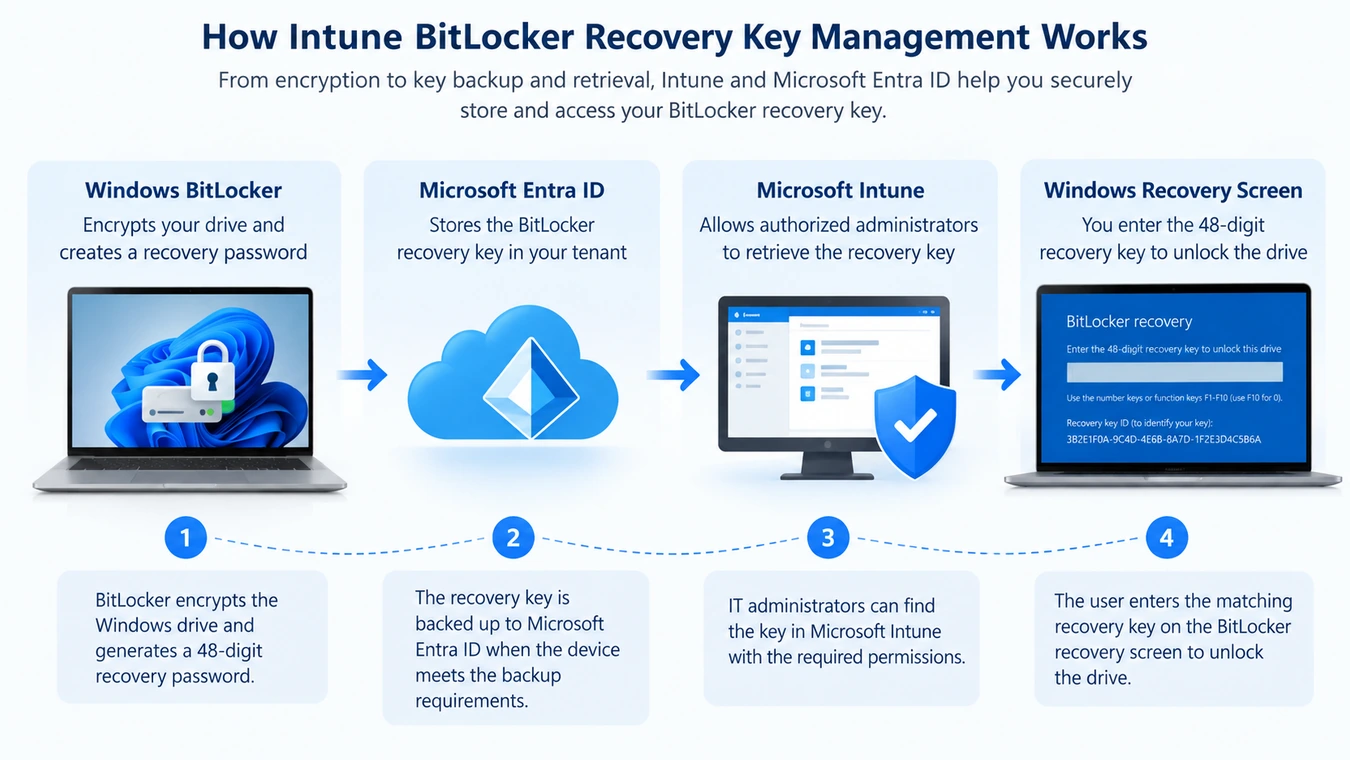
BitLocker recovery involves several Windows and Microsoft cloud components working together.
Understanding the sequence explains where recovery information originates and what Intune actually manages.
Windows Creates a BitLocker Recovery Password
When an administrator enables BitLocker, Windows configures the encryption protectors required for the drive.
A recovery password protector provides an alternative unlocking method when normal authentication cannot succeed.
The recovery password contains 48 digits, usually displayed in eight groups of six.
This numerical password is different from the encryption keys that BitLocker uses internally to protect the volume.
Windows Backs Up the Recovery Information
In an Intune-managed environment, administrators can configure policies that require Windows to back up BitLocker recovery information to Microsoft Entra ID.
The relevant settings determine whether Windows should save the recovery password and whether encryption must wait for a successful backup.
This distinction matters. If the organization allows encryption to proceed without confirming recovery key storage, the computer may become encrypted even though no usable cloud backup exists.
Microsoft documents these controls in its Intune BitLocker policy settings.
Microsoft Entra ID Stores the Recovery Record
When backup succeeds, Microsoft Entra ID associates the recovery information with the relevant device identity.
The stored information can include the recovery password and its corresponding identifier.
However, cloud storage does not mean everyone in the organization can access the password.
Microsoft Entra applies identity and permission controls to recovery key retrieval.
Intune Displays the Stored Key to Authorized Users
When an administrator requests a recovery password in Intune, the service accesses the associated Microsoft Entra recovery information.
If the key exists and the account has sufficient permission, Intune displays it.
Microsoft also records the key-access event in its audit logs.
If the record does not exist, Intune may show No BitLocker key found for this device.
Windows Uses the Matching Password to Unlock the Drive
Finally, the administrator or authorized user compares the stored Recovery Key ID with the identifier shown on the locked computer.
After identifying the correct password, the user enters the 48-digit code.
BitLocker then validates the recovery password and, if successful, allows the protected drive to unlock.
The overall process follows this sequence:
BitLocker encryption → Recovery password creation → Microsoft Entra backup → Intune retrieval → Authorized drive unlocking
Importantly, a successful encryption operation does not, by itself, prove that a recovery password exists in the cloud.
Intune vs. Azure AD vs. Endpoint Manager: What's the Difference?
Microsoft has changed several product names over time. As a result, older instructions may use terminology that differs from today’s management interfaces.
For example, searches for azure ad bitlocker recovery key und bitlocker recovery key azure ad generally refer to recovery passwords stored in Microsoft Entra ID.
Ähnlich, endpoint manager bitlocker recovery key reflects older Microsoft endpoint management terminology.
These terms overlap, but they do not all describe the same component.
Microsoft Component | Primary Role | Relationship to BitLocker |
Microsoft Intune | Cloud endpoint management | Configures encryption policies and provides recovery access |
Microsoft Entra ID | Identity and device directory | Stores eligible cloud-backed recovery information |
Azure Active Directory | Former name of Entra ID | Older name for the same identity platform |
Microsoft Endpoint Manager | Former management product branding | Historical term used in older Intune documentation |
Company Portal | Employee self-service interface | Allows eligible users to retrieve recovery information |
Active Directory Domain Services | On-premises directory service | Can store recovery information for domain-managed devices |
Intune vs. Microsoft Entra ID
The most important difference concerns management and storage.
Intune manages device configuration and provides a recovery key viewing interface. Meanwhile, Microsoft Entra ID maintains the corresponding cloud device records and backed-up recovery information.
Consequently, a computer can appear in Intune without having a recovery password available in Entra ID.
Entra ID vs. Active Directory Domain Services
Microsoft Entra ID and traditional Active Directory Domain Services support different identity-management environments.
Organizations using on-premises domain management may store BitLocker recovery passwords in AD DS instead of, or alongside, Entra ID.
In that situation, administrators need the appropriate directory tools and permissions.
For additional details, see How to Find a BitLocker Recovery Key in Active Directory.
BitLocker Recovery Key vs. Recovery Key ID
The recovery password and its identifier serve different purposes.
Merkmal | Passwort zurücksetzen | Wiederherstellungsschlüssel-ID |
Hauptzweck | Entsperrt das verschlüsselte Laufwerk | Identifies the relevant recovery password |
Typical format | 48-digit number | Identifier associated with a recovery protector |
Entsperrt BitLocker? | Yes, if it matches | Nein |
Where displayed | Recovery records and approved backups | Recovery screen and management tools |
Can generate the password? | Nicht zutreffend | Nein |
A Recovery Key ID is not an encoded recovery password.
Therefore, you cannot calculate a valid BitLocker recovery password from its identifier alone.
Instead, use the ID to match the recovery screen with an existing record.
This distinction becomes especially important when a computer has undergone password rotation or has several recovery records.
For a more detailed explanation, read So finden Sie Ihren BitLocker-Wiederherstellungsschlüssel anhand der ID.
Why Is Intune BitLocker Recovery Key Management Important?
Die Intune-BitLocker-Wiederherstellungsschlüssel plays an important role in enterprise data protection and device support.
Its value goes beyond unlocking a computer after a startup problem.
Data Security and Controlled Access
BitLocker encryption protects data when a computer is lost, stolen, or accessed without authorization.
However, organizations also need a reliable method to restore access for legitimate users.
Centralized recovery information helps administrators handle these situations without broadly distributing encryption passwords.
Business Continuity
Consider an employee whose Windows laptop enters BitLocker recovery mode after a firmware update.
Without a recovery password, the employee may be unable to access the encrypted system drive.
If the organization has backed up the password correctly, an authorized administrator can retrieve it and help restore access.
This reduces dependence on a single printed recovery document or locally saved file.
Auditing and Accountability
Recovery passwords are sensitive security credentials.
Microsoft Entra ID and Intune support permission-controlled access and auditing when administrators reveal recovery information.
As a result, organizations can review who accessed recovery records and apply appropriate security policies.
Recovery Limitations
Centralized management also creates responsibilities.
If administrators fail to verify recovery backups, they may discover missing records only after a computer becomes locked.
Therefore, encryption deployment should include recovery planning, backup verification, and access-control reviews.
Where Can You Find an Intune BitLocker Recovery Key?
You may encounter BitLocker recovery information in several Microsoft management interfaces.
The correct location depends on your organization’s device configuration and your account permissions.
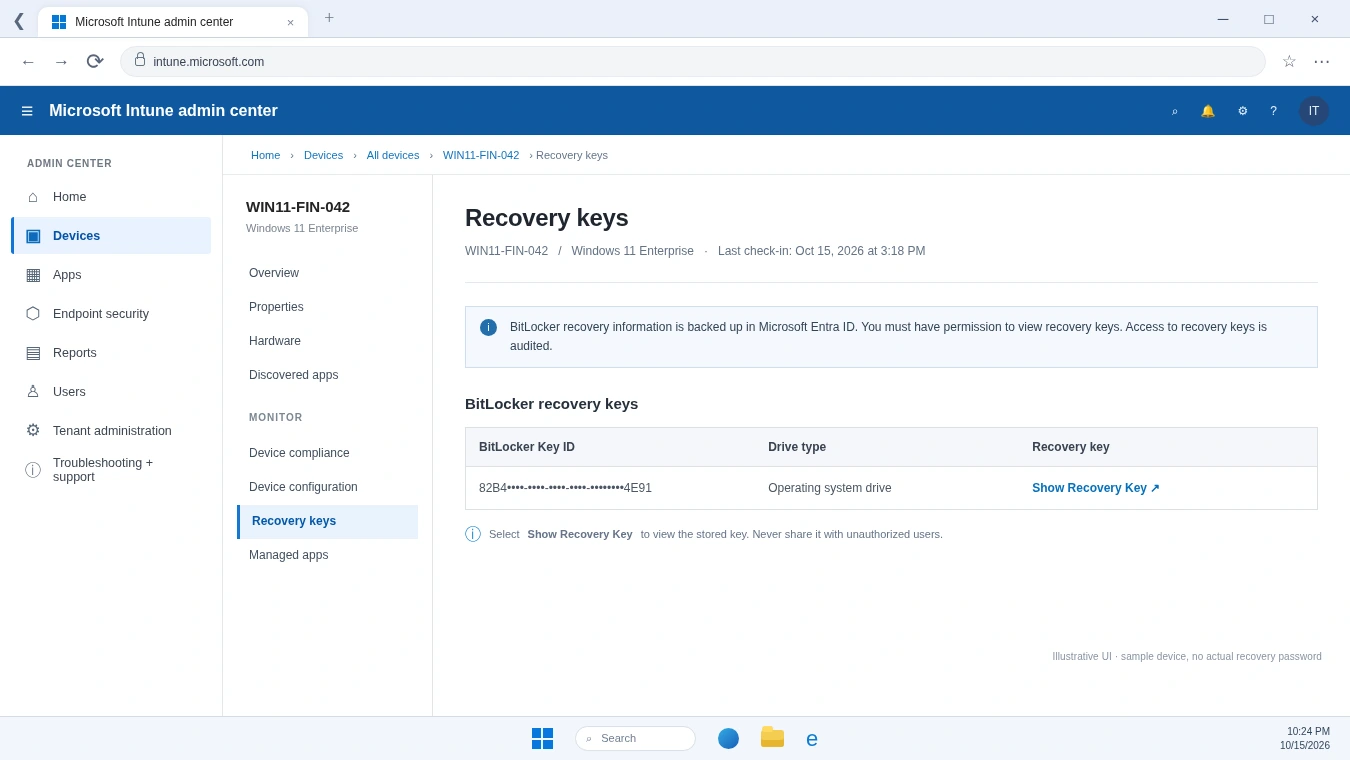
Microsoft Intune Admin Center
IT administrators can view available cloud-backed recovery information through the Microsoft Intune admin center.
The usual path is:
Devices → All devices → Select device → Recovery keys → Show Recovery Key
The Recovery keys option appears under the device’s monitoring section.
When recovery records exist, Intune can display the Key ID, recovery password, and drive type.
However, administrators need the appropriate Microsoft Entra permissions to reveal the password.
Microsoft Entra Admin Center
Administrators can also view an azure ad bitlocker recovery key through the Microsoft Entra admin center.
Öffnen Sie Entra ID → Devices → All devices, select the affected computer, and choose Show Recovery Key sofern verfügbar.
This method accesses recovery information associated with the device’s Entra identity.
Microsoft documents the required roles and permissions in its device management guidance.
BitLocker Recovery Portal for Employees
Employees may be able to retrieve their own recovery passwords through a bitlocker recovery portal, depending on organizational settings.
For eligible Intune-enrolled devices, the Company Portal website provides a self-service option:
- Sign in with your registered work or school account.
- Öffnen Sie Geräte and select the affected computer.
- Wählen Sie Get recovery key und Show recovery key.
- Compare the Key ID and use the matching password.
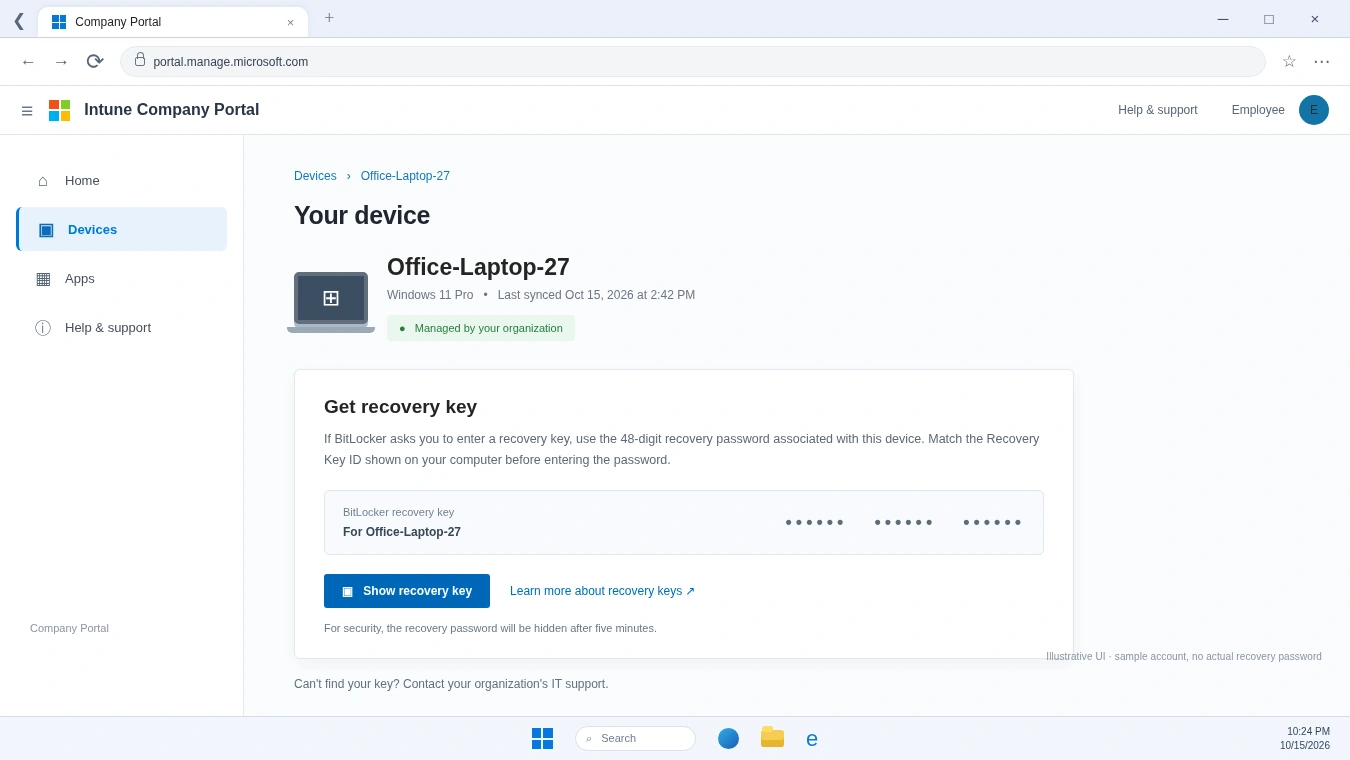
Microsoft states that Company Portal hides the displayed password after five minutes.
Some organizations also allow device owners to view recovery information through Microsoft My Account.
However, Configuration Manager’s separate BitLocker Self-Service Portal is not the same service as Intune Company Portal. Organizations must configure it independently.
Siehe Microsoft’s official Company Portal guide for current requirements and supported devices.
Common Misconceptions About Intune BitLocker Recovery Keys
Several misunderstandings can make BitLocker recovery more confusing than necessary.
Does Every Intune-Managed Device Have a Recovery Key in Entra ID?
Nein.
Intune enrollment and successful recovery password backup are separate conditions.
A device may appear in the Intune inventory even though Windows never successfully saved its recovery password to Microsoft Entra ID.
Administrators should verify the backup rather than assume enrollment guarantees recovery availability.
Can Intune Generate a New Recovery Key for a Locked Drive?
Nein.
Intune cannot generate the missing recovery password needed to unlock an already inaccessible drive.
Supported key rotation can refresh recovery information for eligible managed devices, but it does not replace the requirement to unlock an inaccessible volume with valid credentials.
Can You Recover a Password from Its Key ID Alone?
Nein.
The Key ID identifies a recovery protector. It does not contain enough information to calculate the 48-digit recovery password.
A legitimate recovery process must locate an existing matching password rather than attempt to convert the identifier into one.
Does a Missing Recovery Key Mean the Drive Is Damaged?
Nicht unbedingt.
A missing cloud record usually points to a backup, account, identity, or permission problem.
The encrypted drive may still function correctly.
Therefore, avoid assuming the storage device needs formatting or repair merely because Intune cannot display a recovery password.
What Happens When an Intune BitLocker Recovery Key Is Missing?
A missing recovery password can have different causes and consequences.
Understanding the visible symptoms helps determine whether the issue involves missing data or simply unavailable access.
Symptom | Possible Explanation | Appropriate Next Step |
No BitLocker key found | No recovery record exists in Entra ID | Verify backup status on an accessible device |
Zugang verweigert | Account lacks required permission | Ask an authorized administrator |
Device not listed | Incorrect account, tenant, or device identity | Verify organizational registration |
Key does not work | Incorrect or outdated recovery password | Compare the Recovery Key ID |
Self-service option missing | Organizational policy restricts access | Contact the IT help desk |
If Windows is still accessible, an administrator can inspect the existing BitLocker protector information with PowerShell:
Get-BitLockerVolume -MountPoint "C:"
This command provides information about the drive’s encryption status and key protectors.
However, it cannot run within a normal Windows session when the computer is blocked at the preboot recovery screen.
Furthermore, checking protector information is not the same as repairing a missing cloud backup.
For more comprehensive recovery methods, see BitLocker-Wiederherstellungsschlüssel verloren? Schritte zur Wiederherstellung.
Is It Safe to Delete or Modify BitLocker Recovery Information?
BitLocker recovery information requires careful handling because it protects access to encrypted data.
Deleting a recovery record does not necessarily remove encryption from the drive. Instead, it may eliminate an important way to regain access later.
For example, Microsoft warns that deleting device records from Entra ID can affect associated BitLocker recovery information. Device deletion behavior also depends on the applicable lifecycle and soft-delete support.
Therefore, administrators should verify recovery backups before removing device objects.
Likewise, recovery password rotation should follow supported Intune procedures. After rotation, confirm that the current password appears in the intended backup location.
Avoid these actions when the only recovery password is missing:
- Resetting or formatting the encrypted drive without understanding the data-loss consequences.
- Removing organizational device records before checking recovery information.
- Sharing complete recovery passwords through public or unsecured channels.
- Attempting to calculate a password from its Recovery Key ID.
If the drive is already locked, involve the organization’s IT administrator before making changes that could complicate recovery.
When Should You Take Further Action?
Das Verständnis der Intune-BitLocker-Wiederherstellungsschlüssel is useful even when your computer works normally. However, certain situations require more than a conceptual explanation.
If you are an administrator, review whether BitLocker policies require successful recovery information backup and whether authorized staff can retrieve the correct keys.
If your device is locked, check Intune, Entra ID, Company Portal, and approved backup locations before making changes to the encrypted drive.
When an existing recovery password may have been stored on an accessible Windows system, Magic Recovery Key offers a supplementary way to search for that information. Its dedicated BitLocker search interface can display found keys and support copying or saving them, which may be more convenient than manually examining multiple locations. However, it cannot bypass encryption or generate a password that was never stored, and organizational authorization remains essential.

Schlussfolgerung
Eine Intune-BitLocker-Wiederherstellungsschlüssel is the recovery password used to regain access to a BitLocker-encrypted Windows drive when normal unlocking fails. Windows creates the password, Microsoft Entra ID can store its backup, and Intune provides an authorized management interface for retrieving it.
Understanding these separate roles helps explain why a device can appear in Intune without an available recovery password.
For most users, the safest approach is to rely on official recovery portals and verified backups. When local recovery information exists on accessible storage, Magic Recovery Key may provide a useful supplementary search option.
For more information about BitLocker recovery mechanisms and practical solutions, explore the Amagicsoft BitLocker Recovery Hub.
Unterstützt Windows 7/8/10/11 und Windows Server
Häufig gestellte Fragen
Wo wird ein Intune-BitLocker-Wiederherstellungsschlüssel eigentlich gespeichert?
Unterscheidet sich ein Azure AD-BitLocker-Wiederherstellungsschlüssel von einem Entra ID-Schlüssel?
Warum meldet Intune, dass für dieses Gerät kein BitLocker-Schlüssel gefunden wurde?
Kann ein normaler Mitarbeiter einen BitLocker-Wiederherstellungsschlüssel einsehen?
Ändert sich die Schlüssel-ID bei der Rotation des BitLocker-Wiederherstellungsschlüssels?
Was passiert mit den BitLocker-Wiederherstellungsschlüsseln, wenn ein Gerät gelöscht wird?
Kann eine Wiederherstellungssoftware die BitLocker-Wiederherstellung von Microsoft Intune ersetzen?

Vasilii ist ein Datenrettungsspezialist mit rund 10 Jahren praktischer Erfahrung in diesem Bereich. Im Laufe seiner Karriere hat er Tausende von komplexen Fällen mit gelöschten Dateien, formatierten Laufwerken, verlorenen Partitionen und RAW-Dateisystemen erfolgreich gelöst. Sein Fachwissen umfasst sowohl manuelle Wiederherstellungsmethoden mit professionellen Tools wie Hex-Editoren als auch fortschrittliche automatische Lösungen mit Wiederherstellungssoftware. Vasilii hat es sich zur Aufgabe gemacht, zuverlässiges Wissen zur Datenwiederherstellung sowohl IT-Fachleuten als auch normalen Nutzern zugänglich zu machen und ihnen dabei zu helfen, ihre wertvollen digitalen Ressourcen zu schützen.