
Cómo encontrar las claves de producto del software instalado (3 métodos fiables)
Necesidad de Buscar claves de producto del software instalado ¿Antes de reinstalar Windows, sustituir un disco duro o trasladar programas a un nuevo ordenador? Las claves de producto pueden estar almacenadas localmente, vinculadas a una cuenta en línea o sustituidas por una licencia digital, dependiendo del software y del método de activación.
Puede Buscar claves de producto mediante una herramienta de recuperación de claves de producto, PowerShell, correos electrónicos de compra o cuentas de los proveedores de software. Sin embargo, no todos los programas instalados almacenan una clave de producto recuperable en el ordenador.
Para una forma más rápida de Buscar claves de producto de los programas instalados, Magic Recovery Key Puede analizar las ubicaciones compatibles de Windows y mostrar las claves de producto, los números de serie y la información de licencia del software que se pueden recuperar en un formato legible.
Compatible con Windows 7/8/10/11 y Windows Server
Índice
Por qué necesita encontrar claves de producto
Las claves de producto (también llamadas claves de licencia, claves de activación o claves de CD) validan la propiedad del software. Sin ellas, corre el riesgo de perder el acceso a funciones premium, actualizaciones o asistencia técnica. Entre las situaciones habituales que requieren la recuperación de claves de producto se incluyen:
• Reinstalar Windows o aplicaciones después de una caída
- Migración de software a un nuevo dispositivo
- Recuperación de licencias de programas olvidados
Método 1: Utilice una herramienta dedicada para encontrar claves de producto (la solución más rápida)
Para la mayoría de los usuarios, encontrar las claves de producto de los programas instalados es más fácil con una herramienta de terceros de confianza. Los buscadores de claves especializados escanean su sistema al instante y extraen licencias para:
• Microsoft Office, Windows y aplicaciones de Adobe
- Software antivirus (Norton, McAfee)
- Juegos y otros programas de pago
¿Por qué elegir este método?
✅ Ahorra tiempo: Recupera automáticamente las llaves en segundos.
✅ Funciona con software caducado/borrado: Encuentra las claves aunque los programas estén desinstalados.
✅ Exportación a archivo: Guarda las claves en formato TXT.
Herramienta recomendada: Magic Recovery Key
Cómo utilizar Magic Recovery Key?
Magic Recovery Key es fácil de usar, sólo tienes que instalarlo y ejecutarlo, y en unos minutos te listará todas tus claves.
- Descargue e instale el software desde el sitio web oficial.
Compatible con Windows 7/8/10/11 y Windows Server
- Ejecute el software y haga clic en la pestaña “Claves del Registro” en “Local”.”

- Vea las Claves del Registro de Aplicaciones y localice la clave de su producto.
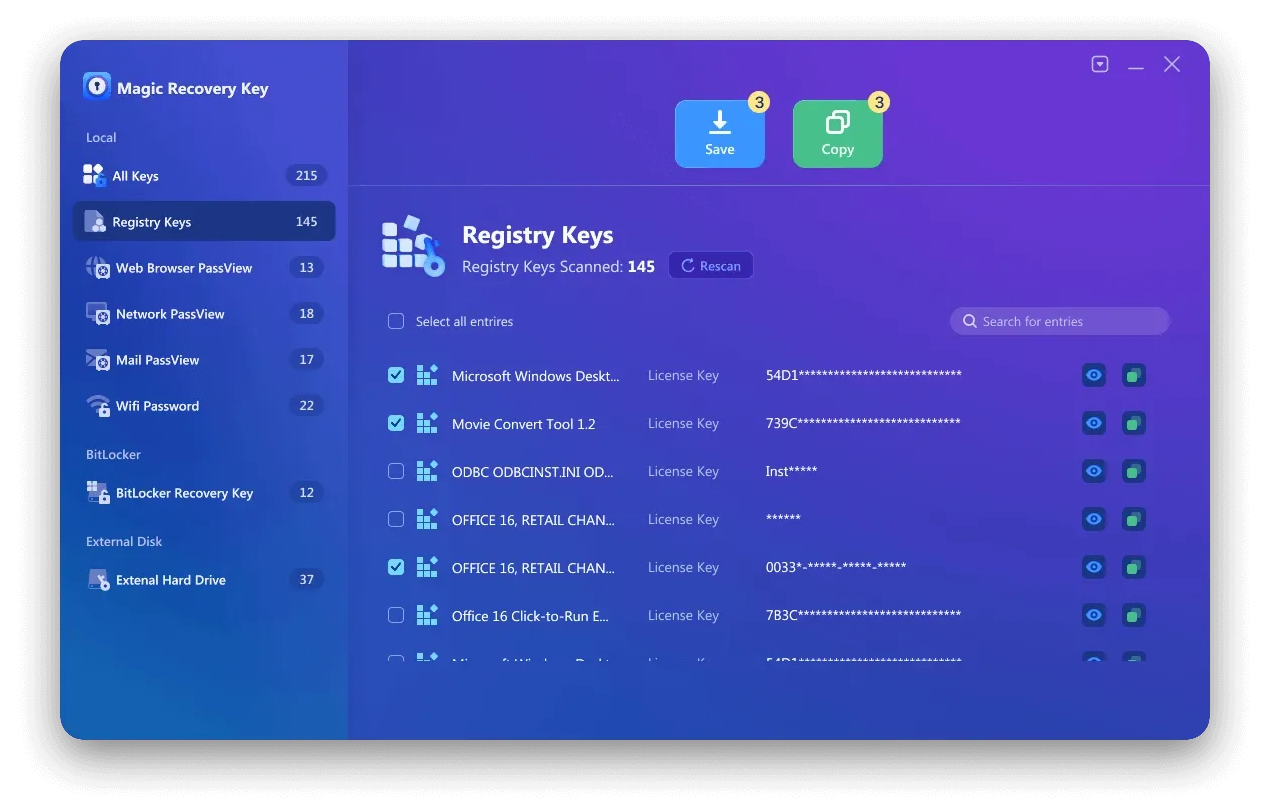
- Seleccione y copie la clave, o guárdela para utilizarla en el futuro.
Método 2: Buscar claves de producto manualmente
Si prefieres un enfoque manual, sigue estos pasos:
A. Buscar en el Registro de Windows
1)Prensa Ganar + R, escribe regedit y pulsa Intro.
2)Navega hasta: HKEY_LOCAL_MACHINE/SOFTWARE/Microsoft/Windows NT/CurrentVersion/Digital/ProductId
3) Localice el DigitalProductId para las teclas de Windows.
Nota: Editar el registro incorrectamente puede dañar su sistema. Haga primero una copia de seguridad.
B. Utilizar símbolo del sistema
1) Abra el símbolo del sistema como administrador.
2) Entra: wmic path softwarelicensingservice get OA3xOriginalProductKey
3) Su clave de producto de Windows se mostrará si está disponible.
Método 3: Compruebe los paquetes de software, correos electrónicos o cuentas
Antes de recurrir a métodos técnicos:
- Buscar en su correo electrónico: Los vendedores suelen enviar las claves por correo electrónico después de la compra.
- Marque las casillas físicas: El software de venta al público incluye pegatinas para llaves.
- Acceder a las cuentas: Adobe, Microsoft o Steam almacenan claves en los perfiles de usuario.
Conclusión: Proteja sus licencias
Conocer cómo encontrar las claves de producto le garantiza que nunca perderá el acceso al software crítico. Para mayor velocidad y fiabilidad, utilice una herramienta específica como Magic Recovery Key. Para necesidades ocasionales, los métodos manuales funcionan, pero requieren precaución. Guarda siempre las claves recuperadas en un lugar seguro, como un gestor de contraseñas o un archivo cifrado.
Optimice su flujo de trabajo: Marque esta guía para consultarla rápidamente y compártala con otras personas que se esfuerzan por recuperar licencias perdidas!
Compatible con Windows 7/8/10/11 y Windows Server
Preguntas frecuentes
¿Puedo recuperar claves de producto de programas que ya he desinstalado?
¿Es legal el uso de herramientas de búsqueda de claves de producto?
¿Qué debo hacer si mi clave de producto recuperada no es válida o no funciona?
¿Puedo encontrar claves de producto para software de terceros, no sólo Windows o Microsoft Office?
¿Funcionará un buscador de claves de producto después de reinstalar Windows?
¿Las claves de producto OEM son diferentes de las claves de producto para minoristas?
¿Puedo utilizar una clave de producto recuperada en otro ordenador?
¿Qué debo hacer si la clave de producto recuperada está incompleta o no es válida?

Erin Smith es reconocida como una de las redactoras más profesionales de Amagicsoft. Ha perfeccionado continuamente sus habilidades de escritura durante los últimos 10 años y ha ayudado a millones de lectores a resolver sus problemas tecnológicos.