
¡6 maneras! Cómo encontrar la clave de producto de Microsoft Office

¿Buscas tu Clave de producto Microsoft Office? El método adecuado depende de la versión de Office que utilices, de cómo la hayas adquirido y de si la clave ya se ha canjeado.
Para versiones anteriores de Microsoft Office, es posible que aún puedas recuperar la clave de producto de tu ordenador, del recibo enviado por correo electrónico o del embalaje original. En el caso de Microsoft 365, Office 2024, Office 2021, Office 2019 y Office 2016, Microsoft suele utilizar tu cuenta de Microsoft en lugar de mostrar la clave de producto completa de 25 caracteres.
En esta guía se explica dónde encontrar la clave de producto de Microsoft Office, qué hacer si no se ve la clave completa y cómo recuperar una clave de Office perdida de un ordenador antiguo o averiado.
Compatible con Windows 7/8/10/11 y Windows Server
Índice
Respuesta rápida: ¿Todavía se puede encontrar la clave de producto completa de Microsoft Office?
Antes de probar todos los métodos, consulta la tabla que aparece a continuación. Te ayudará a elegir la mejor solución.
Versión de Office | ¿Se puede ver la clave de producto completa? | La mejor forma de recuperar o reinstalar |
Microsoft 365 | Normalmente no | Inicia sesión con la cuenta de Microsoft vinculada a tu suscripción |
Office 2024 | Normalmente se abona en la cuenta tras el canje | Inicia sesión en la cuenta de Microsoft asociada |
Office 2021 | Normalmente, en Office no se muestra la tecla completa | Cuenta de Microsoft, historial de pedidos, ficha del producto o recibo |
Oficina 2019 | Normalmente, en Office no se muestra la tecla completa | Cuenta de Microsoft, recibo o los últimos 5 caracteres a través de CMD |
Oficina 2016 | Depende del tipo de licencia | Cuenta de Microsoft, recibo, los últimos 5 caracteres del CMD o herramienta de recuperación |
Office 2013 | En ocasiones, se puede recuperar, dependiendo del tipo de instalación | Recibo, caja del producto, cuenta o herramienta de recuperación |
Office 2010 / 2007 / 2003 | Con mayores probabilidades de ser recuperable | La caja del producto, el recibo por correo electrónico, el ordenador antiguo o un programa de recuperación de claves de producto |
Importante: Si ya has canjeado la clave de producto de Office, normalmente no es necesario que la vuelvas a introducir. A menudo, puedes reinstalar o activar Office iniciando sesión con la misma cuenta de Microsoft.
¿Qué es una clave de producto de Microsoft Office?
A Clave de producto Microsoft Office es un código de 25 caracteres que se utiliza para activar determinadas versiones de Microsoft Office. Suele tener este aspecto:
XXXXX-XXXXX-XXXXX-XXXXX-XXXXX
Es posible que necesites una clave de producto en los siguientes casos:
- Instalación de Office por primera vez
- Reinstalar Office tras cambiar de ordenador
- Activación de Office tras la reinstalación de Windows
- Trasladar Office a otro dispositivo
- Recuperar una licencia de un ordenador antiguo o que haya sufrido un fallo
- Comprobar qué licencia de Office se ha utilizado en un ordenador
Sin embargo, Microsoft ha modificado el funcionamiento de la activación en muchas de las versiones más recientes. En el caso de Microsoft 365 y de muchas versiones de compra única, como Office 2024, Office 2021, Office 2019 y Office 2016, es posible que tu cuenta de Microsoft sea más importante que la propia clave de producto.
Clave de producto de Microsoft Office frente a cuenta de Microsoft
Muchos usuarios buscan “clave de producto de Microsoft Office” porque Office les pide que lo activen. Sin embargo, en muchos casos, la solución no consiste en encontrar la clave completa, sino en iniciar sesión con la cuenta de Microsoft correcta.
Esta es la diferencia:
Artículo | Significado |
Clave de producto | Un código de 25 caracteres que se utiliza para canjear o activar Office |
Cuenta Microsoft | La cuenta vinculada a tu licencia de Office tras canjearla |
Licencia digital | Una licencia asociada a tu cuenta o dispositivo |
Los últimos 5 caracteres | Una clave parcial que muestran las herramientas de Office o el CMD para identificar la licencia instalada |
Una vez canjeada una clave de producto, normalmente se vincula a una cuenta de Microsoft. A partir de ese momento, puedes reinstalar Office iniciando sesión en esa cuenta, en lugar de volver a introducir la clave de producto.
Por lo tanto, antes de utilizar métodos avanzados de recuperación, comprueba siempre si tu licencia de Office ya está vinculada a tu cuenta de Microsoft.
Método 1. Cómo encontrar la clave de producto de Microsoft Office a través de Magic Recovery Key
Siga los pasos detallados para encontrar las claves de producto de Microsoft Office:
Paso 1. Haga clic en la pestaña “Claves de registro” en “Local“.

Paso 2. En el panel derecho, vea las Claves del Registro de Aplicaciones. Magic Recovery Key mostrará todas las claves del software instalado. Seleccione y copie los números de serie correspondientes. Además, tiene la opción de hacer clic en “Copiar” o “Guardar” para su comodidad.
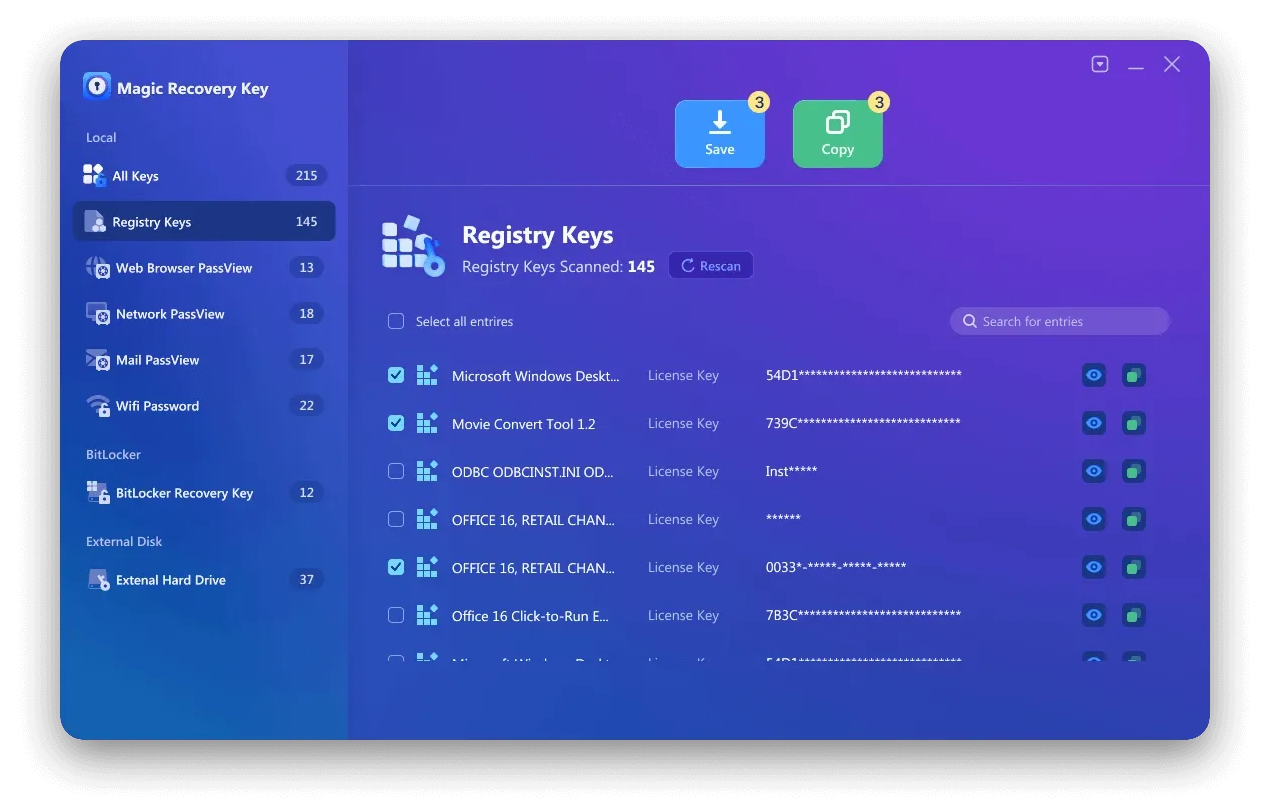
¿Le gustaría utilizar Magic Recovery Key para encontrar su clave de producto de Microsoft Office? Puede descargarlo para utilizarlo.
Compatible con Windows 7/8/10/11 y Windows Server
Método 2. Ejecutar el CMD para encontrar la clave de producto de Microsoft Office
Se aplica a: Office 2013, Office 2016 u Office 2019.
Este método es efectivo solo si los últimos cinco caracteres de una clave de producto de Office 2019, Office 2016 u Office 2013 de 25 caracteres están almacenados en su computadora. Si ese es el caso, puedes probar este método para recuperar las claves de producto de Microsoft.
Paso 1. Escriba “CMD” en el cuadro de búsqueda, haga clic con el botón derecho en el resultado del símbolo del sistema y seleccione “Ejecutar como administrador” para ejecutarlo con privilegios administrativos.
Paso 2. Escribe el siguiente comando según tus necesidades.
					Office 2013 (32-bit)(Win32-bit): cscript “C:Archivos de programaMicrosoft OfficeOffice15OSPP.VBS” /dstatus
Office 2013 (32 bits)(Win64 bits): cscript “C:Archivos de programa (x86)Microsoft OfficeOffice15OSPP.VBS” /dstatus
Office 2013 (64 bits)(Win64-bit): cscript “C:Archivos de programaMicrosoft OfficeOffice15OSPP.VBS” /dstatus
Paso 3. Tras ejecutar el comando adecuado o seguir los pasos necesarios, tu clave de producto de Microsoft Office debería aparecer en la pantalla o en la ubicación designada. Tenga en cuenta que la apariencia y el formato exactos pueden variar en función del método que haya utilizado para recuperarla.

Método 3. Abre ProduKey para encontrar la clave de producto de Microsoft Office
Se aplica a: Office 2003, Office 2007, Office 2010, Office 2013
Tienes razón en que ProduKey es una herramienta sencilla para encontrar claves de producto, especialmente para productos de Microsoft anteriores a Office 2013. Aquí hay un desglose más detallado de cómo utilizar ProduKey para recuperar su clave de producto de Microsoft Office:
Primer paso: Descargar y descomprimir ProduKey
Navegue hasta una fuente de confianza para descargar el archivo ProduKey.zip.
Extraiga el contenido del archivo zip a una carpeta de su ordenador.
Paso 2: Abrir ProduKey
Localice el archivo produkey.exe dentro de la carpeta extraída.
Haga doble clic en produkey.exe para ejecutar el programa.
Paso 3: Ver la clave del producto
Una vez abierto ProduKey, escaneará automáticamente su sistema en busca de claves de producto de software instalado.
Desplácese por la lista de productos hasta que encuentre su versión de Microsoft Office (por ejemplo, Microsoft Office Professional Plus 2010).
La clave de producto de su versión de Office aparecerá en la columna “Clave de producto” junto al nombre del software.

Nota:
ProduKey sólo muestra claves de producto para productos de Microsoft y no es compatible con software que no sea de Microsoft.
Asegúrate de descargar ProduKey de una fuente segura para evitar posibles riesgos de programas maliciosos.
Si utiliza una versión más reciente de Microsoft Office (2016, 2019 o 365), considere la posibilidad de utilizar Magic Recovery Key, ya que es posible que ProduKey no pueda recuperar claves para estas
versiones.
Método 4. Buscar la clave de producto de Microsoft Office con la cuenta de Microsoft
Aplicable a: Todas las versiones de Microsoft Office.
“Si has registrado y activado previamente tu copia de Microsoft Office 2010, 2013, 2016 o 2019, te alegrará saber que Microsoft ha almacenado tu clave de producto original y puede mostrártela.”
Paso 1. Accede a tu Cuenta Microsoft.
Paso 2. Expanda la sección de información de licencia para ver su clave de producto.

Nota: Ten en cuenta que la disponibilidad de ver las claves de producto a través de la Cuenta Microsoft puede depender de varios factores, incluyendo cómo compraste y activaste tu licencia de Office. Es posible que algunas claves no se muestren directamente en la cuenta, especialmente en el caso de claves vinculadas a cuentas corporativas o educativas. En estos casos, es posible que tenga que ponerse en contacto con el departamento de TI de su organización o utilizar una herramienta de búsqueda de claves de terceros, como Magic Recovery Key.
Método 5. Ponte en contacto con el servicio de asistencia para obtener la clave de producto de Microsoft Office
Si no puede localizar la clave de producto de Microsoft Office mediante ninguno de los métodos descritos anteriormente, el último recurso es ponerse en contacto directamente con Microsoft. Antes de hacerlo, asegúrese de tener una prueba de compra.
Si tienes un problema con tu clave de producto y necesitas hablar con un representante de Microsoft, puedes visitar la página contáctanos. Aquí, tendrás la opción de buscar ayuda a través de la aplicación “Obtener ayuda” o de contactar con el soporte a través de tu navegador.
Si tienes la aplicación “Obtener ayuda” instalada en tu dispositivo, al abrirla accederás directamente a una sesión de soporte técnico de Microsoft rápida y gratuita. Esta aplicación está disponible para usuarios de Windows 10.
Alternativamente, obtener ayuda a través de su navegador también es rápido y gratuito. Se le presentará un agente virtual que le ayudará a resolver su problema. Sólo tienes que seguir las instrucciones en pantalla para recibir ayuda de Microsoft.

Método 6. Activar Microsoft Office mediante KMS (a modo de prueba)
En determinados entornos empresariales o de prueba, Microsoft Office puede activarse mediante KMS (Servicio de gestión de claves) activación. KMS permite a las organizaciones activar instalaciones de Office a través de un servidor centralizado, lo que facilita la gestión de licencias en varios dispositivos.
Cómo funciona la activación de KMS
- Microsoft Office se conecta a un servidor KMS local o autorizado
- La activación se completa automáticamente sin necesidad de introducir la clave manualmente
- La activación debe renovarse periódicamente para seguir siendo válida
Cómo activarlo paso a paso
(1) En primer lugar, debe descargar los archivos de instalación de Office ProPlus desde el sitio web de Microsoft. Aquí solo se proporcionan Office 2019 y 2016 para su prueba.
(2) Una vez finalizada la instalación, descargue la herramienta de instalación de la versión VOL mediante haciendo clic aquí. Una vez descargado, haga doble clic para ejecutarlo y verá la siguiente información.
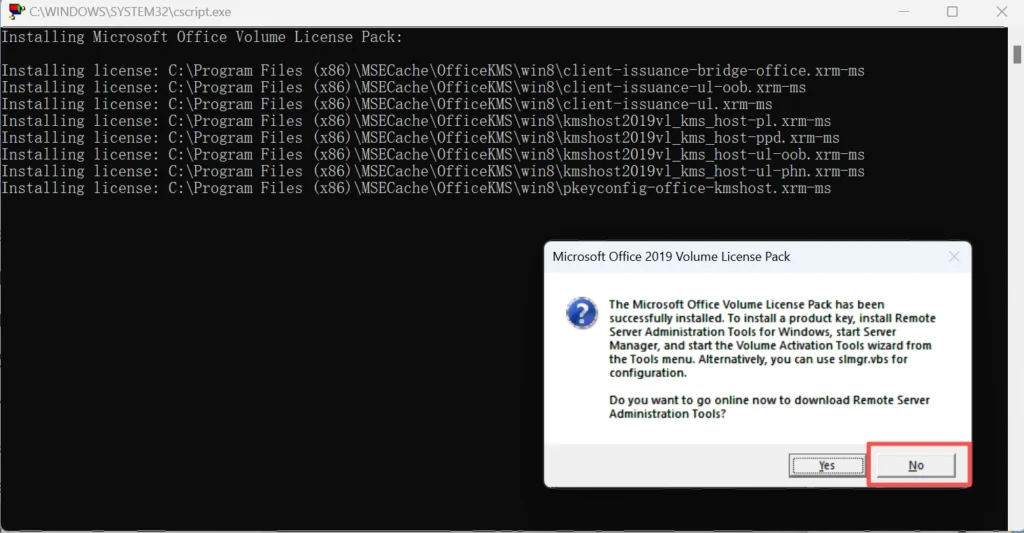
Nota: Durante el proceso de instalación, si aparece un mensaje preguntando si desea descargar las Herramientas de administración remota del servidor, haga clic en No.
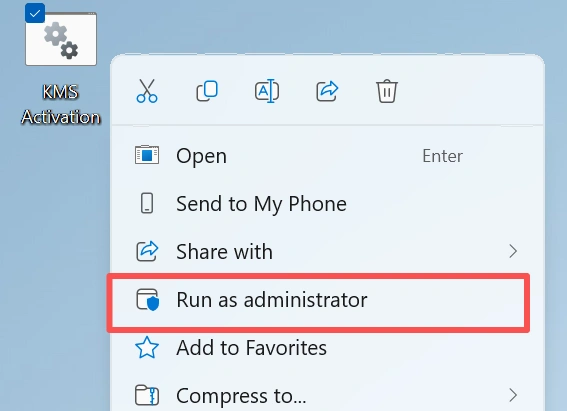
(3) Descargue el archivo de activación de KMS compartido de GitHub:
Información sobre el archivo de activación KMS:
					si existe "%ProgramFiles%\Microsoft Office\Office16\ospp.vbs" cd /d "%ProgramFiles%\Microsoft Office\Office16"
if exist "%ProgramFiles(x86)%\Microsoft Office\Office16\ospp.vbs" cd /d "%ProgramFiles(x86)%\Microsoft Office\Office16"
cscript ospp.vbs /inpkey:XQNVK-8JYDB-WJ9W3-YJ8YR-WFG99
cscript ospp.vbs /sethst:kms1689.anan.cc
cscript ospp.vbs /setprt:1689
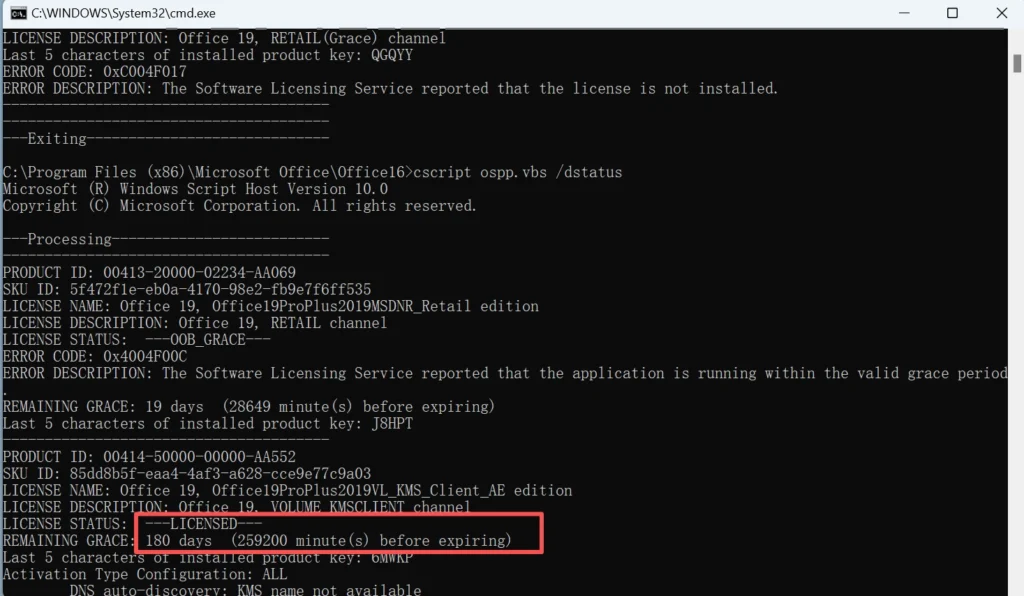
cscript ospp.vbs /act
cscript ospp.vbs /dstatus
La ‘inpkey‘indica la clave de activación, y el símbolo ‘sethst‘indica la dirección del host KMS. Si la activación KMS que ha descargado no se puede utilizar correctamente, es posible que tenga que cambiar la clave de activación o la dirección del servidor de activación. A continuación se muestran algunas claves de activación compartidas y la dirección del host KMS:
Clave de activación de Office 2019:
GRBR4-J4N3M-KTX9C-JM4PJ-J8HPT
NXVJY-X9T8G-Y6RWG-8VQ7V-PWHPT
W8W6K-3N7KK-PXB9H-8TD8W-BWTH9
3Q9NB-GJFJ8-RYVQY-BDGFJ-W46TG
CWGWB-4DN22-H6QV3-W9M3W-4VXGG
XNTT9-CWMM3-RM2YM-D7KB2-JB6DV
BHXN7-MQB36-MTHQ4-8MHKV-CYT97
3XJTG-YNBMY-TBH9M-CWB2Y-YWRHH
6TCQ3-NBBJ2-RTJCM-HFRKV-G6PQV
CGGR9-NQYC7-KRRGM-K4Y8J-XW3K7
Para la versión Others, puede obtener la clave en Sitio de Microsoft.
Dirección del host KMS:
- kms.srv.crsoo.com
- cy2617.jios.org
- kms.digiboy.ir
- kms.cangshui.net
También puede obtener más direcciones de host KMS.
Cómo mantener a salvo tu clave de producto de Microsoft Office
Una vez que hayas recuperado o localizado tu clave de producto de Microsoft Office, guárdala en un lugar seguro.
Formas recomendadas de guardar tu llave:
- Guárdala en un gestor de contraseñas
- Imprime una copia y guárdala junto con los recibos de compra
- Guarda el correo electrónico de confirmación de tu pedido
- Haz una foto de la tarjeta con la clave del producto
- Conserva la caja original del producto
- Anota qué cuenta de Microsoft está vinculada a Office
No compartas tu clave de producto públicamente. Una clave de producto puede dejar de funcionar si se utiliza de forma incorrecta o se comparte con otras personas.
Conclusión
Recuperar o activar su Clave de producto Microsoft Office no es tan complicado como puede parecer. Dependiendo de la versión de Office y del método de concesión de licencias, la clave del producto puede estar almacenada en el registro del sistema, vinculada a la cuenta de Microsoft o gestionada mediante herramientas de activación de empresa. Métodos como las secuencias de comandos del símbolo del sistema, el acceso a la cuenta Microsoft y las herramientas profesionales de recuperación de claves pueden ayudarle a recuperar su clave de Office rápidamente.
Si su clave de producto está guardada localmente pero es difícil localizarla manualmente, Magic Recovery Key ofrece una forma sencilla y fiable de analizar el sistema y recuperar la clave de producto de Microsoft Office automáticamente. Elija el método que mejor se adapte a su situación para restaurar el acceso completo a Microsoft Office.
Compatible con Windows 7/8/10/11 y Windows Server
Preguntas frecuentes
¿Cómo puedo encontrar mi clave de producto de Microsoft Office?
Funcionarán estos métodos para todas las versiones de Office (Office 2013, 2016, 2019, 365)?
¿Qué ocurre si no encuentro la clave de producto con ninguno de los métodos indicados?
¿Puedo encontrar mi clave de producto de Microsoft Office en el registro?
¿Office 365 tiene una clave de producto tradicional?
¿Puedo utilizar la misma clave de producto de Microsoft Office en varios equipos?
¿Qué debo hacer si he perdido la clave de producto de Office después de reinstalar Windows?
¿Es posible recuperar una clave de producto de Office de un disco duro averiado o antiguo?

Erin Smith es reconocida como una de las redactoras más profesionales de Amagicsoft. Ha perfeccionado continuamente sus habilidades de escritura durante los últimos 10 años y ha ayudado a millones de lectores a resolver sus problemas tecnológicos.