
¿Se han perdido los archivos de Quicken? Guía de recuperación
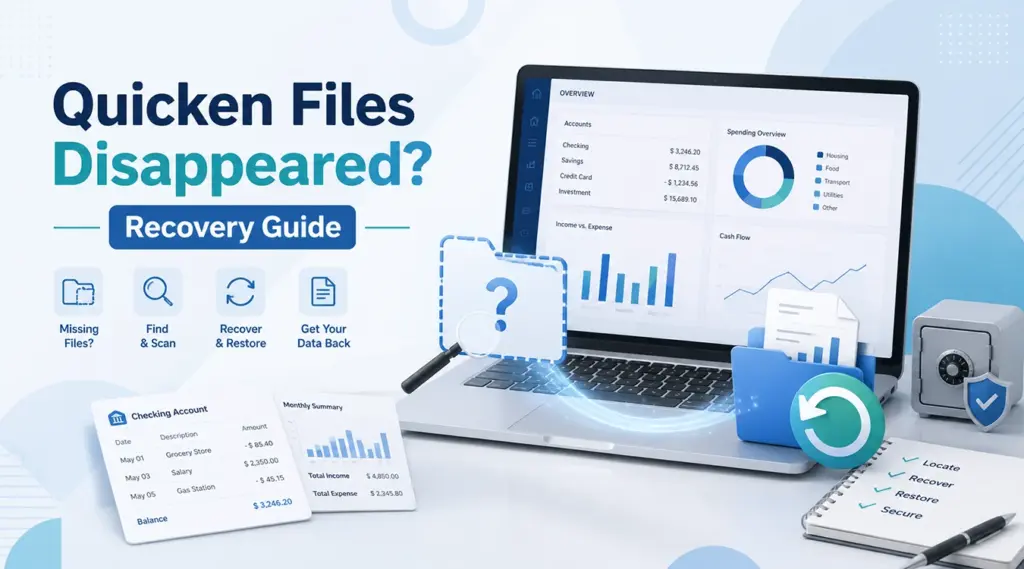
Si su Los archivos de Quicken han desaparecido, no des por hecho que tus datos financieros se han perdido para siempre. Es posible que Quicken haya perdido la ruta del archivo, que Windows lo haya movido, que OneDrive haya cambiado la ubicación de «Documentos» o que aún exista una copia de seguridad válida. Por lo tanto, diagnostica el problema antes de escribir nuevos datos en la unidad afectada.
Esta guía explica cómo Buscar un archivo QDF de Quicken ubicaciones, restaurar una copia de seguridad, comprobar Windows y OneDrive, y Recuperar un archivo de Quicken eliminado datos con Magic Data Recovery cuando es normal recuperación de archivos eliminados los métodos fallan.
Compatible con Windows 7/8/10/11 y Windows Server
Índice
¿Por qué han desaparecido tus archivos de Quicken?
En Los archivos de Quicken han desaparecido, hay varios problemas que pueden provocar el mismo síntoma. Por ejemplo, es posible que Quicken te pida que selecciones un archivo de datos o que se abra sin cuentas.
Las causas más comunes son:
- Quicken ha abierto otro archivo de datos.
- El QDF se ha trasladado a otra carpeta.
- Windows ha cambiado el Ubicación del archivo de Quicken.
- OneDrive ha redirigido o sincronizado los documentos.
- Alguien ha borrado el QDF por error.
- Debido a una migración del ordenador, el archivo se trasladó a otro perfil.
- El QDF principal desapareció, pero un Copia de seguridad de QDF sigue existiendo.
Por lo tanto, trata de forma diferente los archivos “perdidos” y los “eliminados”. En primer lugar, busca el archivo original y las copias de seguridad. A continuación, intenta recuperar el archivo eliminado solo si no existe ninguno de los dos.
Método 1: Buscar archivos QDF de Quicken en tu ordenador
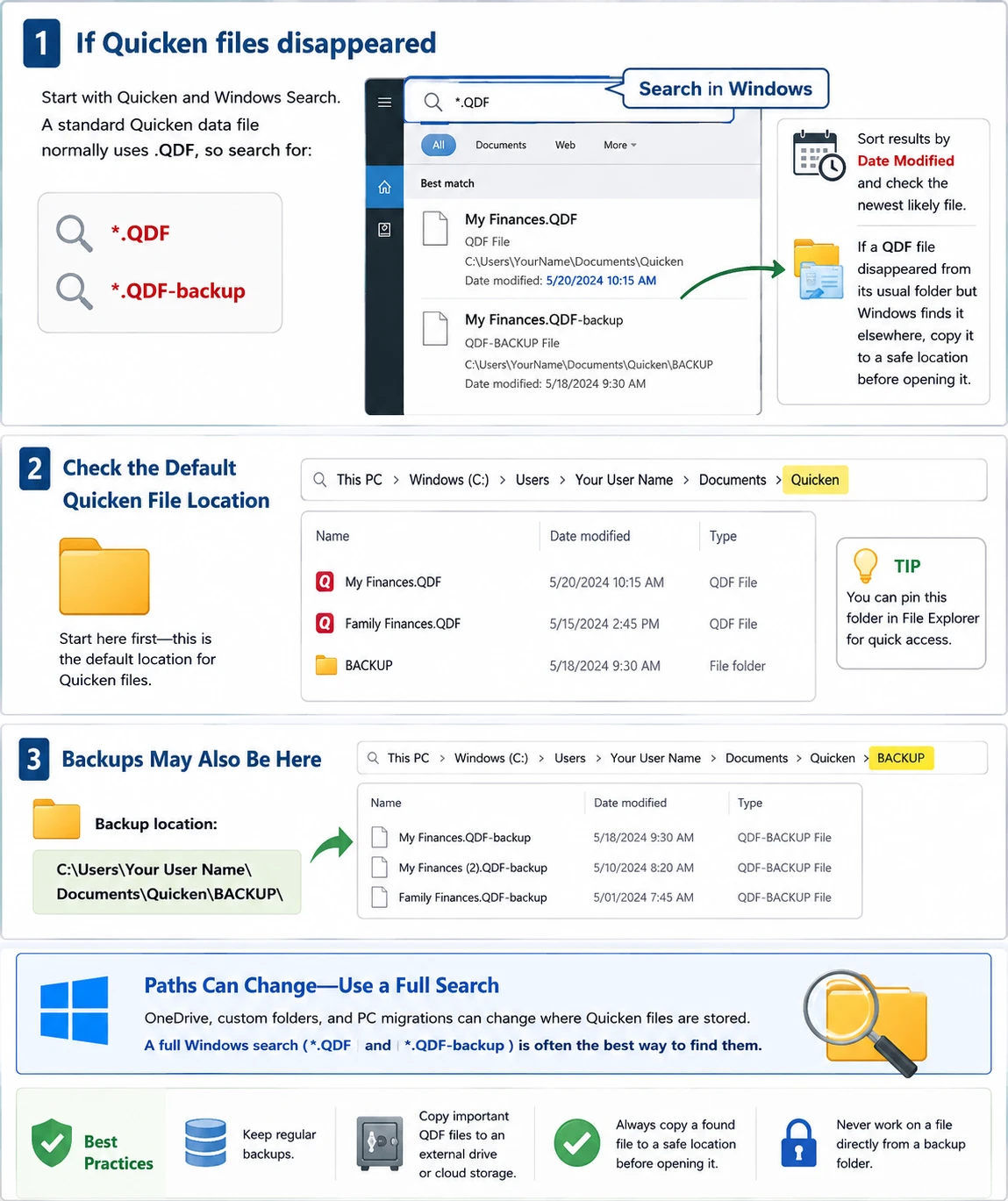
Si Los archivos de Quicken han desaparecido, empieza por Quicken y la búsqueda de Windows. Un archivo de datos estándar de Quicken suele utilizar .QDF, así que busca:
*.QDF*.QDF-copia de seguridad
A continuación, ordena los resultados por «Fecha de modificación» y comprueba el archivo más reciente. Si un El archivo QDF ha desaparecido si no está en su carpeta habitual, pero Windows lo encuentra en otro lugar, cópialo en una ubicación segura antes de abrirlo.
Comprueba la configuración predeterminada Ubicación del archivo de Quicken
Si pregunta ¿Dónde se guardan los archivos de Quicken?, empieza por:
C:\Usuarios\[Tu nombre de usuario]\Documentos\Quicken\
Las copias de seguridad también pueden aparecer en:
C:\Usuarios\[Tu nombre de usuario]\Documentos\Quicken\BACKUP\
Sin embargo, OneDrive, las carpetas personalizadas y las migraciones de PC pueden modificar estas rutas. Por lo tanto, suele ser más eficaz realizar una búsqueda completa en Windows que limitarse a revisar una sola carpeta.
Método 2: Restaurar una copia de seguridad cuando los archivos de Quicken han desaparecido
A veces Los archivos de Quicken han desaparecido solo desde la carpeta de trabajo, mientras que una versión reciente Copia de seguridad de QDF sigue estando disponible. Por lo tanto, busca los archivos de copia de seguridad en todo el ordenador.
Si aparecen varias, compara sus fechas, tamaños y ubicaciones. A continuación, elige la copia de seguridad más reciente creada antes de que se produjera el problema.
Cómo Restaurar la copia de seguridad de Quicken Archivos seguros
Utiliza la opción «Restaurar desde copia de seguridad» de Quicken en lugar de cambiar el nombre de los archivos o sobrescribir los datos existentes. En primer lugar, restaura la copia de seguridad en una carpeta independiente. A continuación, comprueba las transacciones recientes, los saldos, la actividad de inversión y el historial de conciliaciones.
Si Han desaparecido los archivos de copia de seguridad de Quicken Si es así, sigue leyendo a continuación. De lo contrario, crea una copia de seguridad nueva e independiente después de comprobar los datos restaurados.
Método 3: Revisa la Papelera de reciclaje y OneDrive cuando desaparezcan los archivos de Quicken
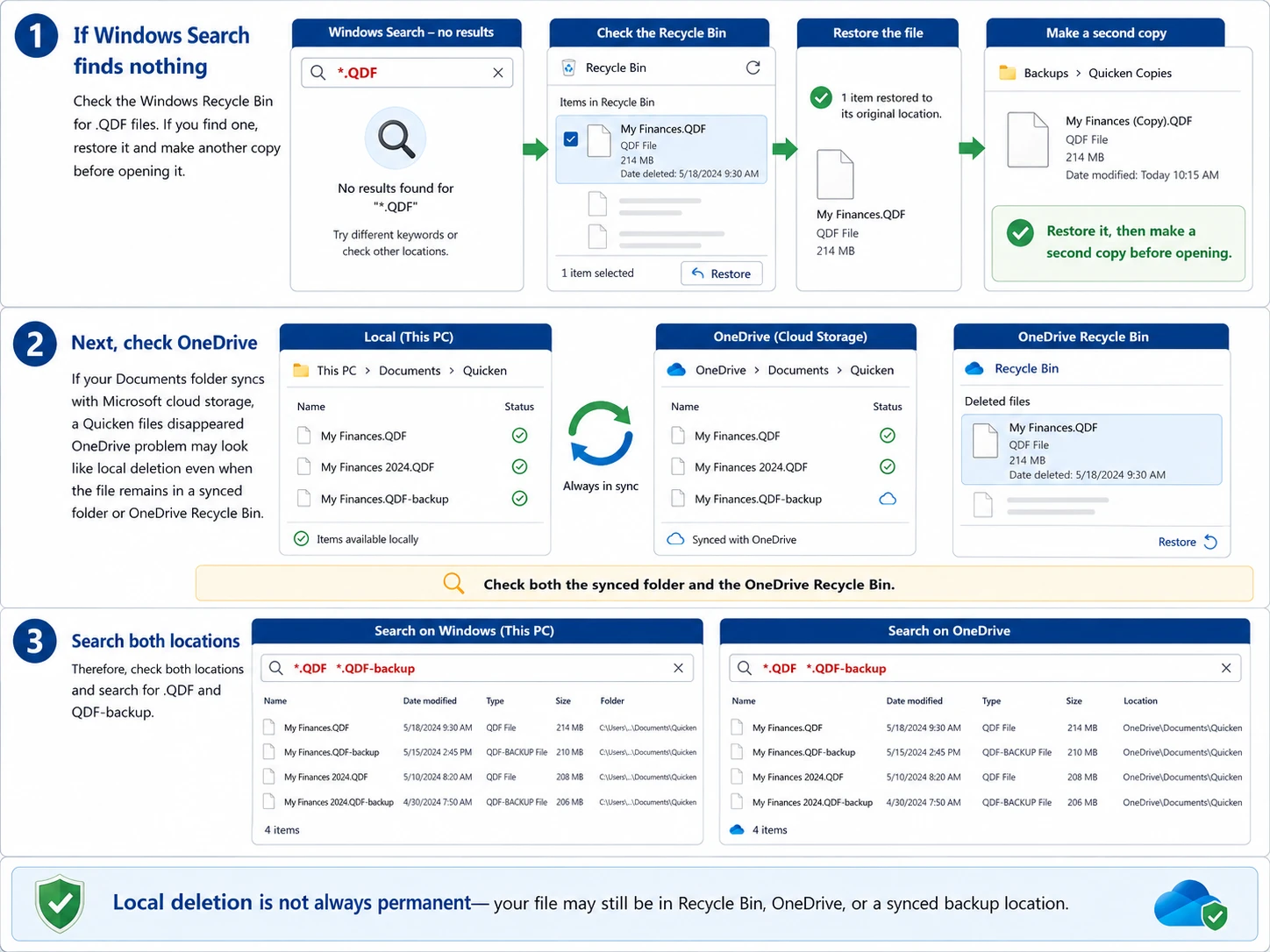
Si la búsqueda de Windows no encuentra nada, comprueba la Papelera de reciclaje de Windows en busca de .QDF archivos. Si encuentras alguno, restáuralo y haz otra copia antes de abrirlo.
A continuación, comprueba en OneDrive si tu carpeta «Documentos» se sincroniza con el almacenamiento en la nube de Microsoft. A Los archivos de Quicken han desaparecido de OneDrive El problema puede parecer un borrado local, incluso cuando el archivo permanece en una carpeta sincronizada o en la Papelera de reciclaje de OneDrive.
Por lo tanto, comprueba ambas ubicaciones y busca .QDF y Copia de seguridad de QDF.
Quicken Cloud no es una copia de seguridad de escritorio
La sincronización de Quicken Cloud y una copia de seguridad completa en formato QDF tienen fines distintos. Por lo tanto, no des por sentado que la sincronización en la nube pueda recrear tu base de datos de escritorio completa tras un El archivo de datos de Quicken ha desaparecido. En su lugar, mantén un QDF independiente o Copia de seguridad de QDF copias.
Método 4: Comprobar el historial de archivos y otras ubicaciones de copia de seguridad
Si Los archivos de Quicken han desaparecido Si tampoco aparecen en ninguna de las dos Papeleras de reciclaje, comprueba otras fuentes de copia de seguridad, como el Historial de archivos de Windows, las copias de seguridad manuales, las unidades de otros ordenadores, perfiles antiguos de Windows y los servicios de copia de seguridad en la nube.
Por ejemplo, si Faltan archivos QDF Si los problemas comenzaron tras una migración del ordenador, revisa el disco duro antiguo y la carpeta «Documentos» anterior. Si no hay ninguna copia válida, pasa a la recuperación a nivel de almacenamiento.

Método 5: Prepararse para recuperar un archivo de Quicken eliminado
En Los archivos de Quicken han desaparecido Dado que alguien ha borrado el archivo original, la actividad continua del disco puede reducir las posibilidades de recuperación. Windows podría reutilizar ese espacio de almacenamiento, por lo que las nuevas operaciones de escritura podrían sobrescribir los datos recuperables.
Por lo tanto, evita las descargas de gran tamaño, la instalación de programas que no tengan relación con el tema, las herramientas de limpieza de disco y guardar los datos recuperados en la misma unidad. Esta precaución es importante si necesitas Recuperar un archivo de Quicken sin copia de seguridad.
Método 6: ¿Han desaparecido tus archivos de Quicken? Recupéralos con Magic Data Recovery
Si Los archivos de Quicken han desaparecido y no encuentras ningún archivo QDF válido en las copias de seguridad de Quicken, en la Papelera de reciclaje de Windows, en OneDrive ni en el Historial de archivos, Magic Data Recovery puede escanear la unidad en la que se encontraba anteriormente el archivo perdido.
A diferencia de la lista de archivos o de la función de restauración de copias de seguridad de Quicken, Magic Data Recovery funciona a nivel de almacenamiento. Por lo tanto, ofrece otra vía cuando el archivo ya no aparece en las carpetas habituales. Sin embargo, ninguna herramienta de recuperación puede garantizar el éxito tras un sobrescrito.
Paso 1: Descargar e instalar Magic Data Recovery
Descarga Magic Data Recovery desde la página web oficial Amagicsoft sitio web. Si es posible, instálalo en una unidad diferente a la que anteriormente almacenaba el archivo de Quicken que falta.
Esto reduce las escrituras innecesarias. Como resultado, se reduce el riesgo de sobrescribir datos que aún podrían recuperarse.
Compatible con Windows 7/8/10/11 y Windows Server
Paso 2: Selecciona la unidad en la que se guardó el archivo de Quicken
Inicia Magic Data Recovery y revisa las unidades en la interfaz principal. A continuación, selecciona la unidad en la que se almacenó originalmente el archivo que falta Archivo QDF de Quicken y inicia el escaneo.

Paso 3: Busca en la unidad el archivo de Quicken que falta
Magic Data Recovery inicia un análisis avanzado y busca datos recuperables en la unidad seleccionada. Mientras tanto, los archivos detectados van apareciendo a medida que avanza el análisis.
Puedes consultar los resultados mientras se realiza el análisis. No obstante, deja que se complete siempre que sea posible. A continuación, busca el archivo perdido por nombre, ruta original, fecha, tamaño o extensión .QDF, si está disponible.

Paso 4: Recupera el archivo de Quicken y guárdalo en una ubicación segura
Por último, selecciona los archivos que desees y inicia la recuperación. Guarda los datos recuperados en una unidad o ubicación de almacenamiento diferente a la unidad que has escaneado.
Una vez recuperado el archivo, haz otra copia del QDF. A continuación, abre la copia en Quicken y comprueba las cuentas, las transacciones recientes, los saldos y otros registros importantes.

Por qué Magic Data Recovery encaja en este escenario
Magic Data Recovery resuelve un problema que las herramientas integradas de Quicken no pueden solucionar: es posible que el archivo local ya no aparezca en una carpeta visible ni en una copia de seguridad utilizable. Además, su flujo de trabajo de análisis, vista previa y recuperación ofrece a los usuarios de Windows un proceso sencillo.
Por ejemplo, supongamos que tu Los archivos de Quicken han desaparecido desde la unidad C:, el La papelera de reciclaje está vacía, OneDrive no tiene ninguna copia, y cada Copia de seguridad de QDF es demasiado antigua. En ese caso, escanear la unidad original supone otra opción práctica.
Sin embargo, el software de recuperación debería complementar las copias de seguridad, no sustituirlas.
Qué hacer tras recuperar los archivos de Quicken perdidos
Encontrar el archivo no es el último paso. En primer lugar, no modifiques el original recuperado. A continuación, abre una copia en Quicken y comprueba los saldos, las transacciones recientes, los registros de inversiones, las categorías y las conciliaciones.
Si todo parece correcto, realiza una nueva copia de seguridad inmediatamente. Además, guarda otra copia en una ubicación diferente.
Cómo evitar que los archivos de Quicken vuelvan a desaparecer
Puedes reducir el riesgo de que se produzca otro Los archivos de Quicken han desaparecido incidente relacionado con una sencilla rutina de copia de seguridad.
En primer lugar, mantén activadas las copias de seguridad automáticas. A continuación, realiza una copia de seguridad manual antes de actualizar Windows, actualizar Quicken, realizar migraciones del ordenador o sustituir discos duros. Además, guarda al menos una copia de seguridad fuera de la carpeta principal de Quicken.
Por último, comprueba tus copias de seguridad periódicamente. Una copia de seguridad solo sirve de algo si puedes localizarla y restaurarla.
Conclusión: qué hacer cuando desaparecen los archivos de Quicken
En Los archivos de Quicken han desaparecido, empieza por la solución más segura. En primer lugar, busca el archivo QDF original. A continuación, comprueba Copia de seguridad de QDF archivos, la Papelera de reciclaje de Windows, OneDrive, el Historial de archivos y otras ubicaciones de copia de seguridad.
Si sigues sin encontrar una copia válida, reduce el número de operaciones de escritura en la unidad afectada y plantéate realizar una recuperación a nivel de almacenamiento. Magic Data Recovery Es adecuado para esta fase porque permite escanear la unidad cuando fallan las búsquedas normales y la recuperación de copias de seguridad.
Sin embargo, ningún programa de recuperación puede garantizar el éxito en todos los casos de borrado. Por ese motivo, Magic Data Recovery funciona mejor como último recurso práctico recuperación de archivos eliminados opción. Tras la recuperación, crea nuevas copias de seguridad independientes para reducir el riesgo en el futuro.
Compatible con Windows 7/8/10/11 y Windows Server
Preguntas frecuentes sobre la desaparición de archivos de Quicken
¿Por qué ha desaparecido de repente mi archivo de Quicken?
El problema de la desaparición de un archivo de Quicken puede deberse a que Quicken haya abierto otra base de datos, a que Windows haya movido el archivo, a que OneDrive haya cambiado la ruta de «Documentos» o a que alguien haya borrado el archivo QDF por error. Por lo tanto, busca archivos con extensión .QDF y .QDF-backup antes de dar por hecho que se han perdido definitivamente. Comprueba también las ubicaciones de los archivos recientes, la Papelera de reciclaje, OneDrive y tus carpetas de copias de seguridad.
¿Dónde se almacenan los archivos de Quicken en Windows?
Si te preguntas dónde se almacenan los archivos de Quicken, empieza por la carpeta «Documentos\Quicken» de tu perfil de Windows. Sin embargo, la ubicación real de los archivos de Quicken puede variar si utilizas OneDrive, otra partición, una carpeta personalizada o un perfil migrado. Por lo tanto, suele ser más eficaz realizar una búsqueda completa de archivos *.QDF que limitarse a comprobar una sola ubicación.
¿Qué debo hacer si Quicken me pide que abra un archivo de datos?
Si Quicken te pide que abras un archivo de datos, no crees una nueva base de datos inmediatamente. En primer lugar, revisa los archivos recientes y busca archivos con la extensión .QDF en Windows. A continuación, revisa las carpetas «Documentos\Quicken», OneDrive y las carpetas de copias de seguridad. Si aparecen varios archivos posibles, compara las fechas de modificación y abre una copia del archivo que te parezca más probable.
¿Puedo recuperar un archivo de Quicken sin copia de seguridad?
Sí, es posible recuperar un archivo de Quicken sin copia de seguridad si el archivo QDF sigue existiendo en otra ubicación o si los datos eliminados aún se pueden recuperar en la unidad. Sin embargo, el éxito depende de lo que haya ocurrido tras la eliminación. Por lo tanto, reduce las nuevas operaciones de escritura en la unidad afectada e intenta la recuperación a nivel de almacenamiento solo después de que hayan fallado las búsquedas, la Papelera de reciclaje, OneDrive y el Historial de archivos.
¿Qué es un archivo de copia de seguridad QDF?
Un archivo de copia de seguridad QDF almacena una copia de seguridad de los datos de Quicken para ordenador. Si el archivo QDF activo se pierde o deja de ser utilizable, puedes restaurar los datos de Quicken a partir de ese archivo. Por lo tanto, busca en todo el ordenador archivos con la extensión .QDF-backup antes de utilizar la función de recuperación de archivos eliminados. Restaura siempre primero los datos en una ubicación diferente para conservar la copia de seguridad original.
¿Puede Quicken Cloud sustituir a mi copia de seguridad QDF local?
No. La sincronización de Quicken Cloud no sustituye a una copia de seguridad independiente del archivo QDF en el ordenador. Por lo tanto, guarda copias de seguridad independientes de los datos importantes de Quicken. Si desapareciera un archivo de datos de Quicken, comprueba primero las ubicaciones del archivo QDF original y de la copia de seguridad del QDF, en lugar de dar por sentado que la sincronización en la nube puede recrear la base de datos completa del ordenador.
¿Cuándo debo utilizar Magic Data Recovery para los archivos de Quicken?
Utiliza Magic Data Recovery cuando los archivos de Quicken hayan desaparecido y ya hayas comprobado la Búsqueda de Windows, las copias de seguridad de Quicken, la Papelera de reciclaje, OneDrive, el Historial de archivos y otras ubicaciones de copia de seguridad. En ese momento, es posible que el archivo original se haya eliminado definitivamente y no se trate simplemente de un error de ubicación. Por lo tanto, un análisis a nivel de almacenamiento ofrece otra opción, aunque la recuperación siga dependiendo de si el archivo ha sido sobrescrito por datos nuevos.

Vasilii es un especialista en recuperación de datos con unos 10 años de experiencia práctica en este campo. A lo largo de su carrera, ha resuelto con éxito miles de casos complejos relacionados con archivos borrados, unidades formateadas, particiones perdidas y sistemas de archivos RAW. Su experiencia abarca tanto métodos de recuperación manual con herramientas profesionales como editores hexadecimales como soluciones automatizadas avanzadas con software de recuperación. La misión de Vasilii es poner los conocimientos sobre recuperación de datos al alcance tanto de los profesionales informáticos como de los usuarios de a pie, ayudándoles a salvaguardar sus valiosos activos digitales.