
Guide d'utilisation de la commande « Attrib » pour récupérer des fichiers
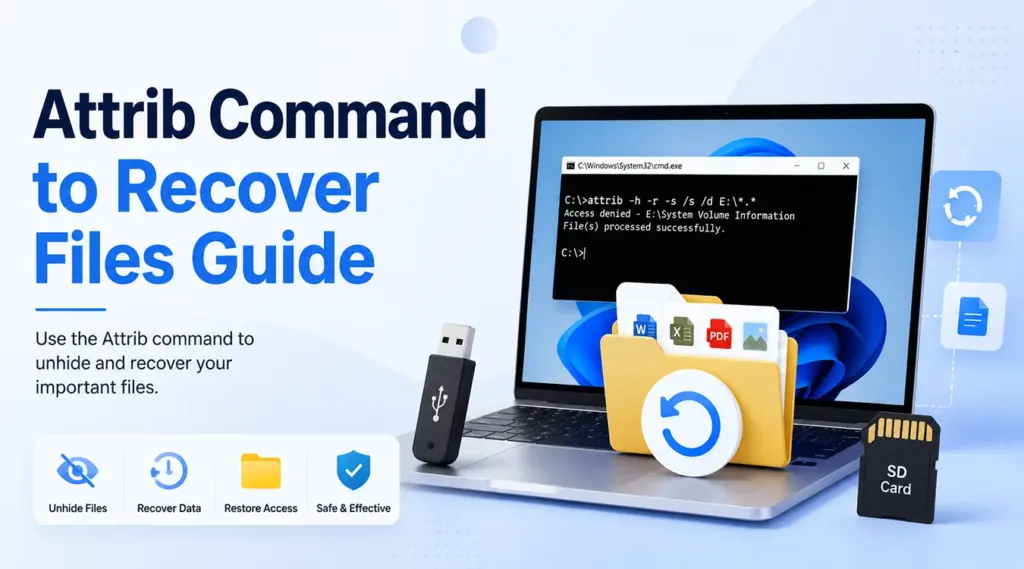
Lorsque des fichiers disparaissent d'une clé USB, d'une carte SD, d'un disque dur ou d'un dossier Windows, de nombreux utilisateurs cherchent la commande « attrib » pour récupérer des fichiers. Cette commande intégrée à Windows permet de faire apparaître les fichiers qui conservent encore les attributs « Caché », « Système » ou « En lecture seule ». Elle ne permet toutefois pas de récupérer des données après une suppression définitive, un formatage, un écrasement, la perte d'une partition ou un dommage physique.
Ce guide explique comment utiliser le commande « attrib » pour récupérer des fichiers, identifier les situations dans lesquelles il fonctionne et corriger les erreurs courantes liées à l'utilisation de CMD. Vous apprendrez également quand il vaut mieux cesser d'utiliser CMD et opter pour un véritable solution de récupération du disque dur. Lorsque les fichiers manquants n'apparaissent plus comme éléments masqués, Magic Data Recovery offre un moyen pratique de scanner, de prévisualiser et de récupérer des données supprimées ou perdues.
Prise en charge de Windows 7/8/10/11 et Windows Server
Table des matières
La commande « Attrib » permet-elle vraiment de récupérer des fichiers ?
Oui, mais uniquement lorsque ce sont les attributs du fichier qui ont provoqué sa disparition. Microsoft définit attribuer en tant que commande permettant d'afficher, de définir ou de supprimer des attributs de fichiers et de dossiers. Par conséquent, la commande « attrib » pour récupérer des fichiers Il n'analyse pas l'espace disque inutilisé et ne reconstitue pas les enregistrements de fichiers supprimés.
Utilisez « Attrib » lorsqu'un disque semble vide mais affiche de l'espace utilisé, lorsque des fichiers ont disparu à la suite d'une attaque de logiciel malveillant, ou dir /a affiche toujours les dossiers manquants. En revanche, l'utilisation d'un logiciel de récupération après avoir appuyé sur Maj+Suppr, un Corbeille vidée, le formatage, la perte d'une partition ou l'écrasement de données.
À quoi sert la commande « attrib » ?
Windows utilise des attributs pour contrôler le comportement des fichiers et des dossiers. Un attribut « Caché » ou « Système » peut empêcher un élément existant d'apparaître dans l'Explorateur de fichiers.
Utilisez cette commande pour supprimer les attributs concernés :
attrib -h -r -s /s /d X:\*.*
Remplacer X avec la lettre de lecteur correcte.
-hsupprime l'attribut « Hidden ».-rsupprime l'attribut « Lecture seule ».-ssupprime l'attribut « System »./sy compris les sous-dossiers./dy compris les répertoires.*.*cibles correspondant aux éléments.
En résumé, le commande « attrib » pour récupérer des fichiers rétablit la visibilité. Il ne permet pas de récupérer les données supprimées.
Avant d'utiliser la commande « attrib » pour récupérer des fichiers
Tout d'abord, cessez d'enregistrer de nouvelles données à l'emplacement concerné. Ensuite, ne formatez pas le disque et n'utilisez pas d'outils de réparation. Vérifiez également la lettre attribuée au disque.
Vérifiez ensuite si les fichiers manquants existent toujours :
dir /a X:\
Les /a Cette option affiche les éléments avec tous leurs attributs. Si la commande répertorie vos dossiers, récupérer des fichiers cachés sur une clé USB à l'aide de CMD Cela pourrait fonctionner. Cependant, si rien ne s'affiche, la commande « Attrib » ne pourra probablement pas vous aider, car il ne reste plus aucun attribut à modifier.
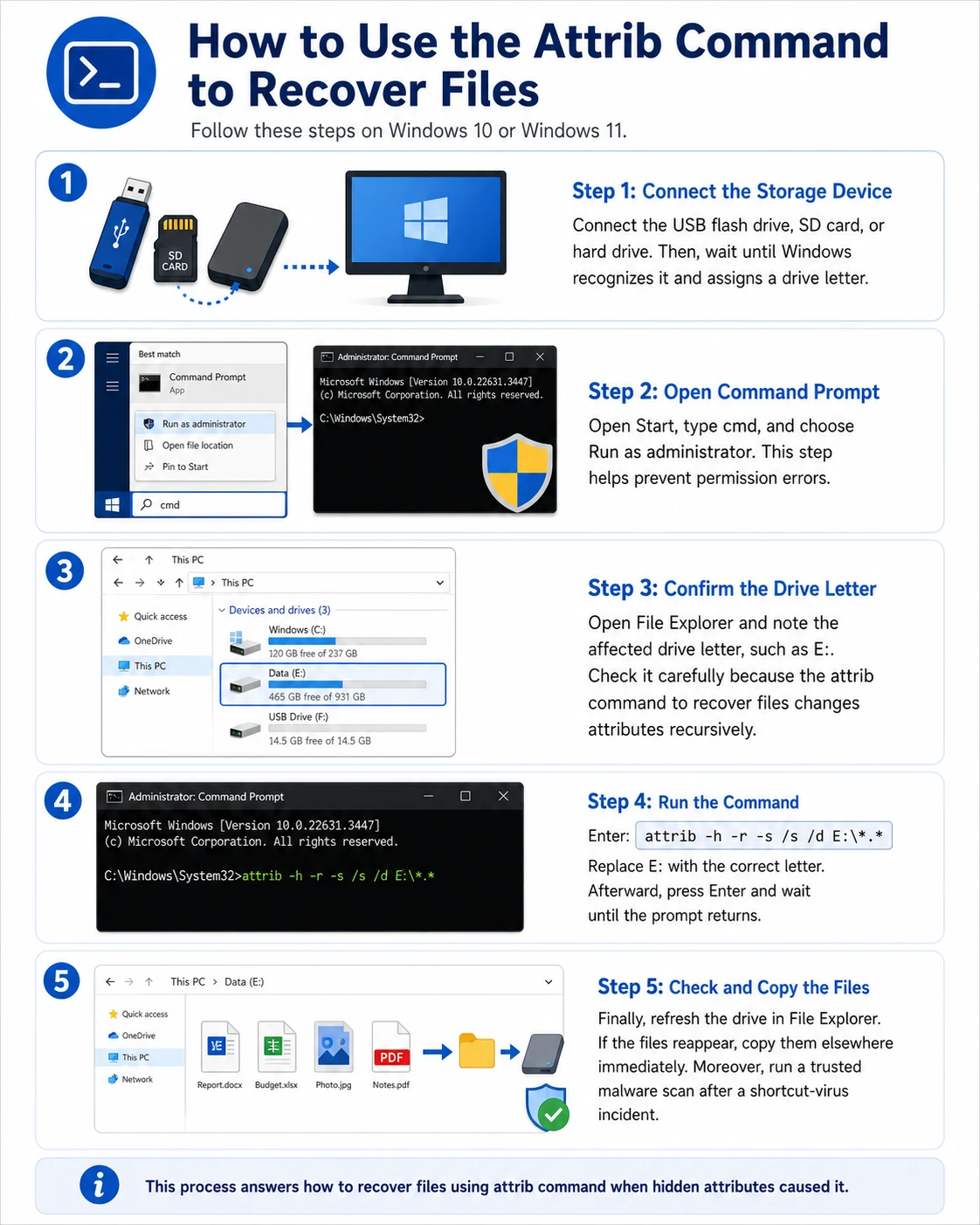
Comment utiliser la commande « attrib » pour récupérer des fichiers
Suivez ces étapes sous Windows 10 ou Windows 11.
Étape 1 : Connecter le périphérique de stockage
Branchez la clé USB, la carte SD ou le disque dur. Attendez ensuite que Windows le détecte et lui attribue une lettre de lecteur.
Étape 2 : Ouvrez l'invite de commande
Ouvrez « Démarrer », tapez cmd, et choisir Exécuter en tant qu'administrateur. Cette étape permet d'éviter les erreurs liées aux droits d'accès.
Étape 3 : Vérifier la lettre du lecteur
Ouvrez l'Explorateur de fichiers et notez la lettre du lecteur concerné, par exemple E :. Vérifiez-le attentivement car le commande « attrib » pour récupérer des fichiers modifie les attributs de manière récursive.
Étape 4 : Exécuter la commande
Entrer :
attrib -h -r -s /s /d E:\*.*
Remplacer E : avec la lettre correspondante. Ensuite, appuyez sur Entrée et attendez que l'invite réapparaisse.
Étape 5 : Vérifier et copier les fichiers
Enfin, actualisez le lecteur dans l'Explorateur de fichiers. Si les fichiers réapparaissent, copiez-les immédiatement ailleurs. De plus, lancez une analyse antivirus fiable après un incident lié à un virus de raccourci.
Ce processus répond à Comment récupérer des fichiers à l'aide de la commande attrib lorsque cela était dû à des attributs masqués.
Exemples utiles d'utilisation de la commande « Attrib »
Pour traiter un dossier, indiquez son chemin d'accès complet entre guillemets :
attrib -h -r -s /s /d "E:\Fichiers de travail\*.*"
Ce format prend en charge les chemins d'accès contenant des espaces et permet de commande « attrib » sous Windows 11 faciliter le processus.
Dans quelles circonstances la commande « attrib » est-elle la plus efficace pour récupérer des fichiers ?
Les commande « attrib » pour récupérer des fichiers fonctionne mieux lorsque le problème concerne la visibilité plutôt que la suppression.
Par exemple, une clé USB peut afficher des raccourcis alors que Windows continue d'indiquer l'espace utilisé. Dans ce cas, dir /a peut faire apparaître les dossiers d'origine dotés des attributs « Caché » et « Système ». Une fois le logiciel malveillant supprimé, un commande « attrib » pour la restauration USB permet de rendre ces dossiers à nouveau visibles.
Ouvrez néanmoins plusieurs fichiers restaurés par la suite. S'ils s'affichent mais ne s'ouvrent pas, cela signifie que les modifications apportées n'ont pas permis de réparer le contenu corrompu.
La commande « Attrib » ne fonctionne pas ? Essayez ces solutions
“ Accès refusé ”
Commencez par rouvrir l'invite de commandes en tant qu'administrateur. Vérifiez ensuite si un logiciel de sécurité, BitLocker ou un autre programme bloque l'accès. Évitez également les répertoires Windows protégés.
“ Fichier introuvable ” ou “ Chemin d'accès introuvable ”
Vérifiez la lettre du lecteur et l'orthographe. Ensuite, mettez les chemins d'accès contenant des espaces entre guillemets. Enfin, vérifiez que Windows détecte toujours le périphérique.
La commande s'exécute, mais rien ne s'affiche
Les fichiers ont peut-être été supprimés, formatés, écrasés ou perdus à la suite d'une partition endommagée. Par conséquent, répéter la commande « attrib » pour récupérer des fichiers Cela ne servira à rien.
Seuls les fichiers de raccourci s'affichent
N'ouvrez pas les raccourcis d'origine inconnue. Effectuez plutôt une analyse antivirus, utilisez dir /a pour localiser les dossiers d'origine, supprimer la menace, puis exécuter attrib -h -r -s /s /d.
Commande « Attrib » ou logiciel de récupération de données ?
Situation | Attrib | Logiciel de récupération de données |
Les fichiers existants sont masqués. | Adapté | Généralement inutile |
Des fichiers ont été supprimés | Ne convient pas | Approprié |
Le disque a été formaté | Ne convient pas | Approprié |
L'appareil présente des dommages physiques | Ne convient pas | Faites appel à un service professionnel |
Windows File Recovery existe également sous la forme d'un outil distinct destiné aux fichiers locaux supprimés. Par conséquent, le commande « attrib » pour récupérer des fichiers ne peut pas remplacer un véritable logiciel de récupération.
Récupérer des fichiers supprimés lorsque la commande « attrib » échoue
Si dir /a Si vous ne parvenez pas à retrouver les fichiers manquants, ou si leur perte est due à une suppression ou à un formatage, choisissez un outil capable d'analyser l'emplacement concerné à la recherche de données récupérables.
Magic Data Recovery offre un processus de scan visuel, de prévisualisation et de récupération pour Windows. Il pallie la principale limite du commande « attrib » pour récupérer des fichiers car il recherche les données perdues au lieu de se contenter de modifier des attributs.
Pourquoi le modèle Magic Data Recovery est adapté à ce problème
Magic Data Recovery peut vous aider en cas de suppression, de mise en forme, de partitions perdues et de stockage inaccessible. Ses principaux avantages sont les suivants :
- Une interface intuitive ne nécessitant pas l'utilisation de la ligne de commande.
- Prise en charge des disques durs, des SSD, des clés USB et des cartes mémoire.
- Récupération de documents courants, de photos, de vidéos et de fichiers d'archives.
- Aperçu du fichier avant la récupération.
- Un processus simple d'analyse, de prévisualisation et de récupération.
Cela peut par exemple s'avérer utile lorsqu'un dossier de projet a été supprimé ou qu'une carte mémoire d'appareil photo a été formatée. Toutefois, l'écrasement des données, le chiffrement, une corruption grave et les dommages physiques peuvent réduire les chances de récupération.
Comment utiliser Magic Data Recovery en toute sécurité
Suivez ces étapes lorsque la suppression, le formatage ou tout autre problème logique empêche le commande « attrib » pour récupérer des fichiers de travailler.
Étape 1 : Télécharger et installer Magic Data Recovery
Téléchargez Magic Data Recovery et installez-le sur une partition en bon état, différente de celle qui contient les fichiers perdus. Ce choix réduit le risque d'écraser des informations récupérables.
Prise en charge de Windows 7/8/10/11 et Windows Server
Étape 2 : Sélectionner le lecteur ou la partition concerné(e)
Lancez le programme. Ensuite, identifiez le disque ou la partition sur lequel/laquelle les fichiers ont disparu. Sélectionnez-le/la et lancez l'analyse.

Étape 3 : Recherche des fichiers supprimés ou perdus
Magic Data Recovery lance automatiquement une analyse avancée. Parallèlement, il répertorie les fichiers détectés au fur et à mesure de l'analyse, ce qui vous permet de passer en revue les résultats potentiels avant même que l'analyse ne soit terminée.

Étape 4 : Prévisualisation des fichiers avant la récupération
Ensuite, prévisualisez les photos, documents, vidéos ou autres fichiers pris en charge qui ont été détectés, dans la mesure du possible. Cette étape vous permet de vérifier le contenu des fichiers et de ne sélectionner que ceux dont vous avez besoin.

Étape 5 : Récupération des fichiers vers un emplacement sûr
Enfin, sélectionnez les fichiers souhaités et lancez la récupération. Enregistrez-les sur un autre disque ou périphérique de stockage. Ne restaurez jamais les fichiers à l'emplacement d'origine, car de nouvelles données pourraient écraser d'autres contenus récupérables.

Faut-il lancer CHKDSK avant de procéder à la récupération de fichiers ?
En cas de données manquantes importantes, commencez par les récupérer, puis corrigez-les par la suite. CHKDSK vérifie si un volume présente des erreurs au niveau du système de fichiers ou du disque. Étant donné que les options de réparation peuvent modifier la structure du système de fichiers, il n'est pas possible de commande « attrib » pour récupérer des fichiers en une méthode de récupération de fichiers supprimés.
Si une partition apparaît RAW Si des fichiers ont disparu à la suite d'une corruption, commencez par analyser et sécuriser les données. Ensuite, réparez, reformatez ou remplacez le périphérique.
Conclusion : quand utiliser la commande « attrib » pour récupérer des fichiers
Les commande « attrib » pour récupérer des fichiers propose une solution rapide et intégrée lorsque les attributs « Caché », « Système » ou « En lecture seule » empêchent Windows d'afficher les données existantes. Cette solution est particulièrement efficace dans les cas de virus de raccourcis et pour les dossiers qui restent sur le disque.
Cependant, Attrib ne peut pas récupérer les données supprimées, formatées, écrasées ou endommagées physiquement. Par conséquent, lorsque dir /a si aucun fichier ne manque, cessez d'utiliser l'emplacement concerné et optez pour un produit authentique méthode de récupération des fichiers effacés.
Magic Data Recovery Ce logiciel mérite d'être recommandé car il offre un processus clair d'analyse, de prévisualisation et de récupération. De plus, il propose aux utilisateurs de Windows une solution pratique lorsque le commande « attrib » pour récupérer des fichiers atteint ses limites, sans faire de promesses irréalistes.
Prise en charge de Windows 7/8/10/11 et Windows Server
FAQ relative au guide d'utilisation de la commande « Attrib » pour récupérer des fichiers
La commande « Attrib » permet-elle de récupérer des fichiers supprimés définitivement ?
Non. La commande « attrib » permettant de récupérer des fichiers ne modifie que les attributs des fichiers et dossiers qui existent encore. Elle ne permet pas de restaurer les données après une suppression avec Shift+Suppr, un vidage de la Corbeille, un formatage ou un écrasement. Dans ces cas-là, cessez d'utiliser l'emplacement concerné et essayez de recourir à une sauvegarde, à l'outil de récupération de fichiers de Windows, à Magic Data Recovery ou à un service professionnel.
Quelle est la commande « attrib » à utiliser pour les fichiers cachés ?
Utilisez la commande attrib -h -r -s /s /d X:\*.*, en remplaçant X par la lettre de lecteur appropriée. Cette commande supprime les attributs « Caché », « En lecture seule » et « Système » des fichiers et dossiers correspondants. Au préalable, vérifiez la lettre du lecteur et utilisez la commande dir /a X:\ pour vous assurer que les fichiers manquants s'y trouvent toujours avant de continuer.
La commande « Attrib » fonctionne-t-elle sous Windows 11 ?
Oui. Windows 11 intègre la commande « Attrib », et cette même syntaxe de base fonctionne également sous Windows 10. Ouvrez l'Invite de commandes en tant qu'administrateur, vérifiez que la lettre du lecteur est correcte, puis exécutez la commande avec précaution. Notez toutefois que la commande « Attrib » ne fait qu'afficher les fichiers cachés existants ; elle ne permet pas de récupérer des données réellement supprimées.
Pourquoi mes fichiers sont-ils toujours manquants après avoir exécuté la commande « attrib » ?
Il se peut que ces fichiers n'existent plus en tant qu'entrées normales du système de fichiers. Une suppression, un formatage, un écrasement, la perte d'une partition, une corruption ou une panne matérielle peuvent empêcher Attrib de les trouver. Commencez par exécuter la commande « dir /a » pour vérifier la présence d'éléments cachés. Si rien n'apparaît, cessez toute écriture à l'emplacement concerné et utilisez plutôt une méthode de récupération.
La commande « Attrib » peut-elle être utilisée en toute sécurité ?
Oui, à condition d'indiquer la lettre de lecteur correcte et de ne cibler que l'emplacement des données concernées. Cependant, cette commande peut modifier les attributs de nombreux fichiers et dossiers à la fois. Évitez donc les répertoires Windows protégés. De plus, copiez les fichiers restaurés ailleurs et analysez le périphérique à la recherche de logiciels malveillants si le problème a été causé par des fichiers de raccourci.
Attrib peut-il réparer une clé USB endommagée ?
Non. La commande « Attrib » modifie les attributs des fichiers et des dossiers, mais elle ne répare pas le système de fichiers, les secteurs défectueux ni le contenu des fichiers endommagés. Elle peut permettre de révéler des fichiers masqués par des logiciels malveillants, mais elle ne peut pas corriger les dommages. Si la clé USB apparaît en format RAW, se déconnecte de manière répétée ou signale des erreurs, récupérez les données importantes avant de tenter toute réparation.
Que dois-je faire si la commande « attrib » ne fonctionne pas ?
Commencez par vérifier la lettre du lecteur, utilisez des guillemets pour les chemins d'accès comportant des espaces, puis lancez l'Invite de commandes en tant qu'administrateur. Vérifiez ensuite l'emplacement à l'aide de la commande « dir /a ». Si les fichiers n'apparaissent toujours pas, cessez de répéter la commande. Effectuez plutôt une analyse de l'emplacement concerné à l'aide de Magic Data Recovery et enregistrez les fichiers récupérés ailleurs.

Vasilii est un spécialiste de la récupération de données qui possède une dizaine d'années d'expérience pratique dans ce domaine. Tout au long de sa carrière, il a résolu avec succès des milliers de cas complexes impliquant des fichiers supprimés, des disques formatés, des partitions perdues et des systèmes de fichiers RAW. Son expertise couvre à la fois les méthodes de récupération manuelle à l'aide d'outils professionnels tels que les éditeurs hexagonaux et les solutions automatisées avancées à l'aide de logiciels de récupération. La mission de Vasilii est de rendre accessible aux professionnels de l'informatique et aux utilisateurs quotidiens des connaissances fiables en matière de récupération de données, afin de les aider à sauvegarder leurs précieuses ressources numériques.