
Guida all'uso del comando Attrib per il recupero dei file
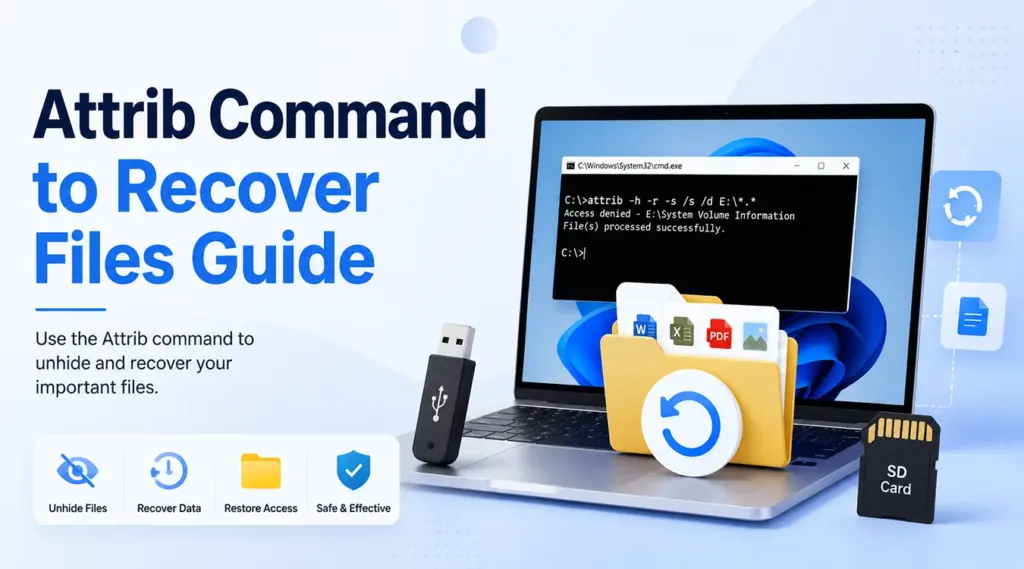
Quando i file scompaiono da una chiavetta USB, da una scheda SD, da un disco rigido o da una cartella di Windows, molti utenti cercano il comando "attrib" per recuperare i file. Questo comando integrato in Windows consente di individuare i file che presentano ancora gli attributi "Nascosto", "Di sistema" o "Sola lettura". Tuttavia, non è in grado di recuperare i dati in seguito a cancellazione definitiva, formattazione, sovrascrittura, perdita di partizioni o danni fisici.
Questa guida spiega come utilizzare il comando "attrib" per recuperare i file, individuare le situazioni in cui funziona e correggere gli errori più comuni nei comandi. Imparerai inoltre quando smettere di usare CMD e optare per un vero e proprio soluzione di recupero del disco rigido. Quando i file mancanti non esistono più come elementi nascosti, Magic Data Recovery offre un modo pratico per eseguire la scansione, visualizzare in anteprima e recuperare i dati cancellati o persi.
Supporta Windows 7/8/10/11 e Windows Server
Indice dei contenuti
Il comando "Attrib" per il recupero dei file funziona davvero?
Sì, ma solo quando sono stati gli attributi del file a causarne la scomparsa. Microsoft definisce attribuire come comando che visualizza, imposta o rimuove gli attributi di file e cartelle. Pertanto, il comando "attrib" per recuperare i file non esegue la scansione dello spazio libero su disco né ricostruisce i record dei file eliminati.
Utilizza Attrib quando un'unità sembra vuota ma mostra spazio utilizzato, i file sono scomparsi a causa di un malware, oppure dir /a continua a visualizzare le cartelle mancanti. Al contrario, se si utilizza un software di recupero dopo aver premuto Shift+Canc, un Cestino svuotato, problemi di formattazione, perdita di partizioni o sovrascrittura.
A cosa serve il comando "attrib"?
Windows utilizza gli attributi per controllare il comportamento di file e cartelle. Un attributo “Nascosto” o “Di sistema” può impedire la visualizzazione di un elemento esistente in Esplora file.
Utilizza questo comando per rimuovere gli attributi in questione:
attrib -h -r -s /s /d X:\*.*
Sostituire X con la lettera di unità corretta.
-hrimuove l'attributo "Hidden".-rrimuove l'attributo "Sola lettura".-srimuove l'attributo "System"./sinclude le sottocartelle./dcomprende le directory.*.*elementi corrispondenti ai criteri di ricerca.
In breve, il comando "attrib" per recuperare i file ripristina la visibilità. Non recupera i dati cancellati.
Prima di utilizzare il comando Attrib per recuperare i file
Innanzitutto, smettete di salvare nuovi dati nella posizione interessata. Inoltre, non formattate l'unità né eseguite strumenti di riparazione. Verificate infine la lettera assegnata all'unità.
A questo punto, verifica se i file mancanti esistono ancora:
dir /a X:\
Il /a L'opzione visualizza gli elementi con tutti gli attributi. Se il comando elenca le tue cartelle, recuperare i file nascosti da una chiavetta USB utilizzando il CMD potrebbe funzionare. Tuttavia, se non compare nulla, Attrib probabilmente non potrà essere d’aiuto perché non ci sono più attributi esistenti da modificare.
Come utilizzare il comando "attrib" per recuperare i file
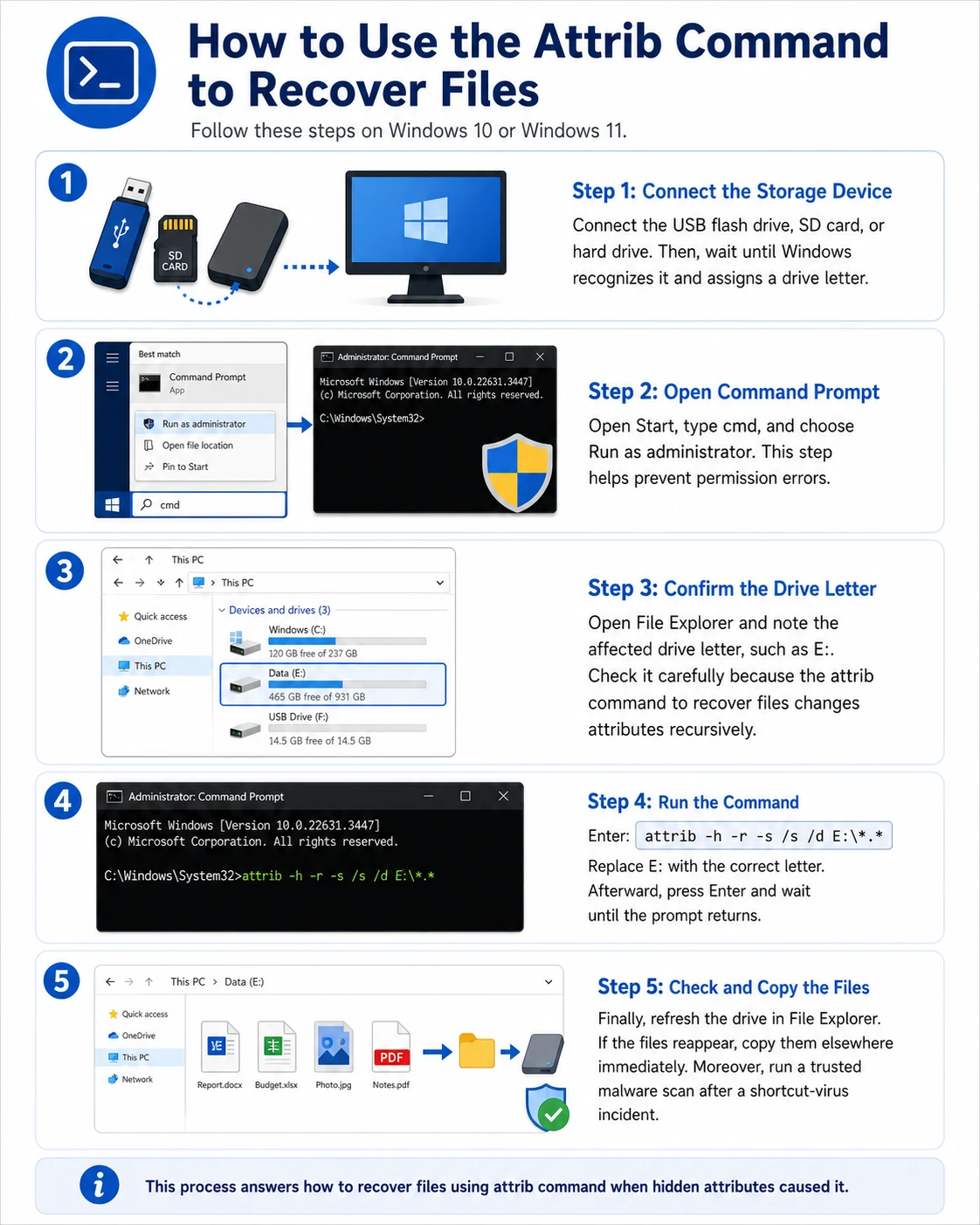
Segui questi passaggi su Windows 10 o Windows 11.
Fase 1: Collegare il dispositivo di archiviazione
Collegare la chiavetta USB, la scheda SD o il disco rigido. Attendere quindi che Windows lo riconosca e gli assegni una lettera di unità.
Passaggio 2: Aprire il Prompt dei comandi
Apri Start, digita cmd, e scegliere Eseguire come amministratore. Questo passaggio aiuta a evitare errori relativi alle autorizzazioni.
Fase 3: Confermare la lettera dell'unità
Apri Esplora file e prendi nota della lettera dell'unità interessata, ad esempio E:. Controllalo attentamente perché il comando "attrib" per recuperare i file modifica gli attributi in modo ricorsivo.
Fase 4: Eseguire il comando
Entrare:
attrib -h -r -s /s /d E:\*.*
Sostituire E: con la lettera corretta. Successivamente, premere Invio e attendere che ricompaia il prompt.
Fase 5: Controllare e copiare i file
Infine, aggiorna l'unità in Esplora file. Se i file ricompaiono, copiali immediatamente altrove. Inoltre, dopo un attacco da virus delle scorciatoie, esegui una scansione antimalware affidabile.
Questo processo risponde Come recuperare i file utilizzando il comando attrib quando la causa era da ricercarsi negli attributi nascosti.
Esempi utili di comandi attrib
Per elaborare una cartella, utilizzare il percorso completo e le virgolette:
attrib -h -r -s /s /d "E:\Work Files\*.*"
Questo formato supporta i percorsi contenenti spazi e rende il comando attrib in Windows 11 semplificare il processo.
Quando il comando "attrib" per il recupero dei file funziona al meglio?
Il comando "attrib" per recuperare i file funziona meglio quando il problema riguarda la visibilità piuttosto che la cancellazione.
Ad esempio, una chiavetta USB potrebbe mostrare dei collegamenti mentre Windows continua a segnalare lo spazio utilizzato. In tal caso, dir /a potrebbe rivelare le cartelle originali con gli attributi “Nascosto” e “Di sistema”. Dopo la rimozione del malware, un comando "attrib" per il ripristino tramite USB può rendere nuovamente visibili quelle cartelle.
Tuttavia, prova ad aprire in seguito alcuni dei file ripristinati. Se vengono visualizzati ma non si aprono, le modifiche apportate non sono sufficienti a riparare il contenuto danneggiato.
Il comando "Attrib" non funziona? Prova queste soluzioni
“Accesso negato”
Per prima cosa, riapri il Prompt dei comandi come amministratore. Quindi, verifica se l'accesso sia bloccato da un software di sicurezza, da BitLocker o da un altro programma. Inoltre, evita le directory protette di Windows.
“File non trovato” o “Percorso non trovato”
Controlla la lettera dell'unità e l'ortografia. Successivamente, inserisci le virgolette attorno ai percorsi che contengono spazi. Infine, verifica che Windows rilevi ancora il dispositivo.
Il comando viene eseguito, ma non viene visualizzato nulla
I file potrebbero essere stati cancellati, formattati, sovrascritti o persi a causa di una partizione danneggiata. Pertanto, ripetendo la comando "attrib" per recuperare i file non servirà a nulla.
Vengono visualizzati solo i file di collegamento
Non aprire collegamenti sconosciuti. Effettua invece una scansione alla ricerca di malware, utilizza dir /a per individuare le cartelle originali, rimuovere la minaccia e quindi eseguire attrib -h -r -s /s /d.
Comando "Attrib" vs. software di recupero dati
Situazione | Attrib | Software di recupero dati |
I file esistenti presentano attributi nascosti | Adatto | Di solito non è necessario |
I file sono stati eliminati | Non adatto | Adeguato |
L'unità è stata formattata | Non adatto | Adeguato |
Il dispositivo presenta danni fisici | Non adatto | Rivolgiti a un servizio professionale |
Windows File Recovery è disponibile anche come strumento autonomo per il recupero dei file locali cancellati. Pertanto, il comando "attrib" per recuperare i file non può sostituire un software di ripristino originale.
Come recuperare i file cancellati quando il comando Attrib non funziona
Se dir /a Se non riesci a trovare i file mancanti, oppure se la perdita è stata causata da una cancellazione o da una formattazione, scegli uno strumento che esegua una scansione della posizione interessata alla ricerca di dati recuperabili.
Magic Data Recovery offre un flusso di lavoro che comprende scansione visiva, anteprima e recupero per Windows. Risolve il principale limite del comando "attrib" per recuperare i file perché cerca i dati persi invece di limitarsi a modificare gli attributi.
Perché Magic Data Recovery è la soluzione ideale per questo problema
Magic Data Recovery può fornire assistenza in caso di cancellazione, formattazione, partizioni perse e spazio di archiviazione inaccessibile. I principali vantaggi includono:
- Un'interfaccia intuitiva che non richiede l'uso della riga di comando.
- Supporto per dischi rigidi, SSD, chiavette USB e schede di memoria.
- Recupero di documenti, foto, video e file di archivio comuni.
- Anteprima del file prima del recupero.
- Una procedura semplice per la scansione, l'anteprima e il recupero.
Ad esempio, potrebbe rivelarsi utile nel caso in cui qualcuno abbia cancellato una cartella di progetto o formattato la scheda di una fotocamera. Tuttavia, la sovrascrittura, la crittografia, gravi danni ai file e danni fisici potrebbero ridurre le possibilità di recupero.
Come utilizzare Magic Data Recovery in modo sicuro
Seguire questi passaggi quando la cancellazione, la formattazione o un altro problema logico impedisce il comando "attrib" per recuperare i file dal lavoro.
Passo 1: Scaricare e installare Magic Data Recovery
Scarica Magic Data Recovery e installalo su una partizione integra, diversa da quella che contiene i file persi. Questa scelta riduce il rischio di sovrascrivere le informazioni recuperabili.
Supporta Windows 7/8/10/11 e Windows Server
Fase 2: Selezionare l'unità o la partizione interessata
Avvia il programma. Quindi, individua l'unità o la partizione da cui sono scomparsi i file. Selezionala e avvia la scansione.

Fase 3: Ricerca dei file cancellati o persi
Magic Data Recovery avvia automaticamente una scansione avanzata. Nel frattempo, elenca i file rilevati man mano che la scansione procede, consentendoti così di esaminare i potenziali risultati prima che la scansione sia terminata.

Passo 4: Anteprima dei file prima del recupero
Successivamente, visualizza in anteprima le foto, i documenti, i video o gli altri file supportati individuati, ove possibile. Questo passaggio ti aiuta a verificare il contenuto dei file e a selezionare solo gli elementi che ti servono.

Passo 5: Recuperare i file in una posizione sicura
Infine, seleziona i file desiderati e avvia il recupero. Salva i file su un'altra unità o su un altro dispositivo di archiviazione. Non ripristinare mai i file nella posizione interessata dal problema, poiché i nuovi dati potrebbero sovrascrivere altri contenuti recuperabili.

È consigliabile eseguire CHKDSK prima del recupero dei file?
Nel caso di dati importanti mancanti, recuperali prima e sistemali dopo. CHKDSK verifica la presenza di errori nel file system e nel disco su un volume. Poiché le opzioni di riparazione possono modificare le strutture del file system, non è possibile convertire il comando "attrib" per recuperare i file in un metodo di recupero dei file cancellati.
Se compare una partizione RAW oppure, se i file sono andati persi a causa di un danneggiamento, eseguire prima una scansione e mettere al sicuro i dati. Successivamente, riparare, riformattare o sostituire il dispositivo.
Conclusione: quando utilizzare il comando "attrib" per recuperare i file
Il comando "attrib" per recuperare i file offre una soluzione rapida e integrata quando gli attributi "Nascosto", "Di sistema" o "Sola lettura" impediscono a Windows di visualizzare i dati presenti. Funziona particolarmente bene nei casi di virus che creano collegamenti e per le cartelle che rimangono sul disco.
Tuttavia, Attrib non è in grado di recuperare dati cancellati, formattati, sovrascritti o danneggiati fisicamente. Pertanto, quando dir /a se non vengono segnalati file mancanti, smetti di utilizzare la posizione interessata e scegli un prodotto originale metodo di recupero dei file cancellati.
Magic Data Recovery merita una raccomandazione perché offre un flusso di lavoro chiaro per la scansione, l'anteprima e il recupero. Inoltre, fornisce agli utenti Windows una soluzione pratica da adottare quando il comando "attrib" per recuperare i file raggiunge il proprio limite, senza promesse irrealistiche.
Supporta Windows 7/8/10/11 e Windows Server
Domande frequenti sulla guida all'uso del comando Attrib per il recupero dei file
Il comando Attrib permette di recuperare i file cancellati definitivamente?
No. Il comando "attrib" per il recupero dei file modifica solo gli attributi dei file e delle cartelle che esistono ancora. Non è in grado di ripristinare i dati dopo l'uso di Shift+Canc, lo svuotamento del Cestino, la formattazione o la sovrascrittura. In questi casi, smetti di utilizzare la posizione interessata e prova a eseguire un backup, a utilizzare Windows File Recovery, Magic Data Recovery o a rivolgerti a un servizio professionale.
Qual è il comando "attrib" corretto per i file nascosti?
Utilizza il comando attrib -h -r -s /s /d X:\*.*, sostituendo X con la lettera di unità corretta. Questo comando rimuove gli attributi "Nascosto", "Sola lettura" e "Sistema" dai file e dalle cartelle corrispondenti. Prima di procedere, verifica la lettera dell'unità e utilizza il comando dir /a X:\ per assicurarti che i file mancanti siano ancora presenti in quella posizione.
Il comando Attrib funziona su Windows 11?
Sì. Windows 11 include il comando Attrib, e la stessa sintassi di base funziona anche su Windows 10. Apri il Prompt dei comandi come amministratore, verifica che la lettera dell'unità sia corretta ed esegui il comando con attenzione. Tuttavia, tieni presente che Attrib rivela solo i file nascosti esistenti; non recupera i dati effettivamente cancellati.
Perché i miei file continuano a mancare dopo aver eseguito il comando Attrib?
I file potrebbero non esistere più come normali voci del file system. La cancellazione, la formattazione, la sovrascrittura, la perdita di partizioni, il danneggiamento o un guasto hardware possono impedire ad Attrib di individuarli. Innanzitutto, eseguire il comando dir /a per verificare la presenza di elementi nascosti. Se non viene visualizzato nulla, interrompere qualsiasi operazione di scrittura nella posizione interessata e ricorrere invece a un metodo di recupero.
È sicuro utilizzare il comando Attrib?
Sì, a condizione che si inserisca la lettera di unità corretta e si selezioni solo la posizione dei dati interessati. Tuttavia, il comando può modificare gli attributi di numerosi file e cartelle contemporaneamente. Pertanto, è consigliabile evitare le directory protette di Windows. Inoltre, se il problema è stato causato dai file di collegamento, è opportuno copiare i file ripristinati in un’altra posizione ed eseguire una scansione del dispositivo alla ricerca di malware.
Attrib è in grado di riparare una chiavetta USB danneggiata?
No. Il comando "Attrib" modifica gli attributi di file e cartelle, ma non ripara il file system, i settori danneggiati né il contenuto dei file danneggiati. Può rendere visibili i file nascosti dal malware, ma non è in grado di correggere i danni. Se l'unità USB appare come RAW, si disconnette ripetutamente o segnala errori, è necessario recuperare i dati importanti prima di tentare qualsiasi riparazione.
Cosa devo fare se il comando "attrib" non funziona?
Per prima cosa, verifica la lettera dell'unità, usa le virgolette per i percorsi che contengono spazi ed esegui il Prompt dei comandi come amministratore. Successivamente, controlla la posizione con il comando dir /a. Se i file continuano a non apparire, smetti di ripetere il comando. Esegui invece una scansione della posizione interessata con Magic Data Recovery e salva i file recuperati in un'altra posizione.

Vasilii è uno specialista del recupero dati con circa 10 anni di esperienza pratica nel settore. Nel corso della sua carriera, ha risolto con successo migliaia di casi complessi riguardanti file cancellati, unità formattate, partizioni perse e file system RAW. La sua esperienza copre sia i metodi di recupero manuale utilizzando strumenti professionali come gli editor esadecimali, sia le soluzioni automatiche avanzate con i software di recupero. La missione di Vasilii è quella di rendere accessibile la conoscenza del recupero dati affidabile sia ai professionisti IT che agli utenti di tutti i giorni, aiutandoli a salvaguardare i loro preziosi beni digitali.