
Récupérer des fichiers sur un disque dur externe : 7 méthodes
Lorsque vous avez besoin de récupération de fichiers sur un disque dur externe solutions, votre priorité absolue est de protéger les données qui pourraient encore se trouver sur le disque dur. Suppression accidentelle, formatage, une partition RAW, ou une corruption du système de fichiers ne signifie pas toujours que vos fichiers sont perdus à jamais. Dans de nombreux cas de perte logique de données, la récupération reste possible tant que de nouvelles données n'ont pas écrasé l'espace de stockage d'origine.
Ce guide explique comment récupérer des fichiers sur un disque dur externe en toute sécurité, comment choisir le bon méthode de récupération des données d'un disque dur externe, et dans quels cas il est judicieux d'utiliser un logiciel de récupération de données. De plus, vous apprendrez comment Magic Data Recovery peut simplifier le processus pour les utilisateurs de Windows qui préfèrent un flux de travail visuel plutôt que des outils en ligne de commande.
Prise en charge de Windows 7/8/10/11 et Windows Server
Table des matières
Récupération de fichiers sur un disque dur externe : par où commencer ?
Avant d'essayer quoi que ce soit récupération de fichiers sur un disque dur externe méthode, cessez d'utiliser le disque concerné. De nouvelles écritures risquent d'écraser des données récupérables.
C'est pourquoi :
- Cessez de copier, de déplacer ou de créer des fichiers sur ce disque.
- Ne formatez pas un disque RAW ou inaccessible.
- Éviter CHKDSK avant d'enregistrer vos fichiers importants.
- Installez le logiciel de récupération sur un autre disque dur en bon état.
- Enregistrer les fichiers récupérés sur un autre périphérique de stockage.
- Débranchez le disque dur s'il émet des cliquetis, des grincements ou s'il s'éteint de manière répétée.
Il convient donc d'empêcher toute nouvelle écriture avant la restauration.
Est-il encore possible de récupérer les données de votre disque dur externe ?
La réponse dépend de la nature du problème : logique ou physique. Les pertes logiques comprennent les suppressions, les formatages, les partitions perdues, les fichiers cachés et les problèmes liés aux disques RAW. Les pannes physiques sont quant à elles liées à des dommages matériels.
Symptôme | Problème probable | La meilleure première étape |
Fichiers supprimés | Perte logique | Cessez d'utiliser le disque dur et vérifiez vos sauvegardes |
Disque formaté | Perte logique | Cessez de l'utiliser et lancez une analyse |
La partition devient RAW | Dégâts au niveau du système de fichiers | Récupérer les données avant le formatage |
Les fichiers disparaissent, mais le disque s'ouvre | Fichiers cachés ou erreur logique | Vérifier les attributs, puis lancer l'analyse |
Le lecteur n'apparaît que dans la Gestion des disques | Problème lié à la partition ou au système de fichiers | Ne le mettez pas en forme |
Cliquetis ou grincements | Défaillance physique | Débranchez le disque dur |
Odeur de brûlé, dégât causé par un liquide ou absence d'essorage | Défaillance physique | Contacter un service de dépannage |
Si Windows détecte toujours le disque, faites-le vous-même récupération de données sur disque dur externe Cela pourrait fonctionner. En cas de panne matérielle, il est recommandé de faire appel à un professionnel.
7 méthodes pour récupérer des fichiers sur un disque dur externe
Méthode 1 : Vérifier le disque dur externe dans la Gestion des disques
Avant de commencer un récupération de fichiers sur un disque dur externe processus, vérifiez que Windows détecte toujours le périphérique.
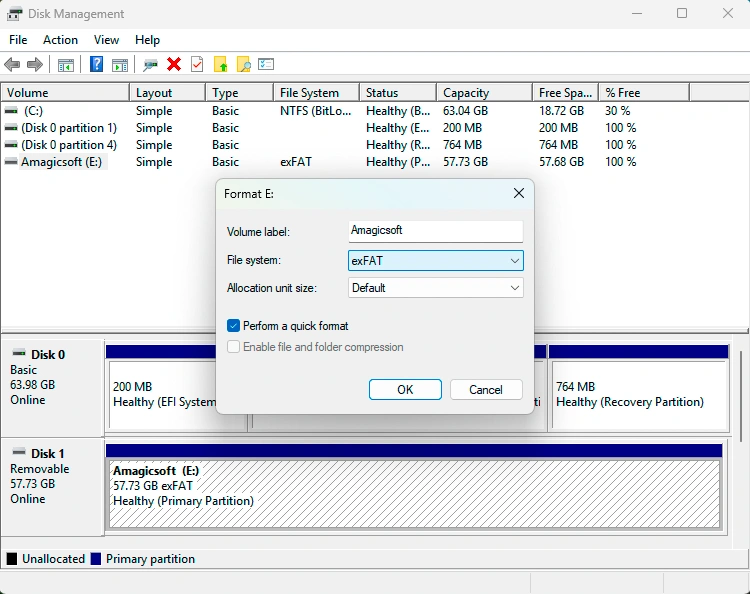
Presse Windows + X, sélectionner Gestion des disques, puis identifiez le disque. Vérifiez sa capacité, l'état de ses partitions et sa lettre de lecteur.
Si « Gestion des disques » détecte le disque mais pas l'Explorateur de fichiers, il se peut que vous soyez confronté à un problème lié à la lettre de lecteur, à la partition ou au système de fichiers. Ne formatez pas le disque, même si Windows vous y invite. Si le disque émet des cliquetis, se déconnecte de manière répétée ou ne tourne pas, cessez toute tentative de récupération par vos propres moyens.
Méthode 2 : Restaurer des fichiers à partir d'une sauvegarde
Vérifiez ensuite l'historique des fichiers, OneDrive, Google Drive, Dropbox, un périphérique de stockage NAS, un autre disque externe ou votre système de sauvegarde habituel.
Une sauvegarde est généralement la solution la plus sûre. S'il n'existe aucune copie utilisable, passez à logiciel de récupération de disque dur externe.
Méthode 3 : Récupérer des fichiers sur un disque dur externe avec Magic Data Recovery
En l'absence de sauvegarde exploitable, Magic Data Recovery offre une solution pratique récupération de fichiers sur un disque dur externe option pour les utilisateurs de Windows.
Il prend en charge les périphériques de stockage courants et de nombreux types de fichiers. De plus, son interface graphique permet de gérer la suppression, le formatage, les partitions RAW et d’autres cas de perte de données logiques sur des disques lisibles. Son processus de scan, de prévisualisation et de récupération permet de récupération de fichiers sur un disque dur externe plus facile.
Étape 1 : Télécharger et installer Magic Data Recovery
Téléchargez Magic Data Recovery et installez-le sur un disque en bon état. N'installez pas le programme sur le disque externe endommagé, car les nouvelles données d'installation pourraient écraser les fichiers perdus.
Prise en charge de Windows 7/8/10/11 et Windows Server
Étape 2 : Sélectionnez le disque dur externe
Ensuite, connectez le disque, lancez Magic Data Recovery, puis sélectionnez le disque ou la partition sur laquelle les fichiers ont disparu.

Étape 3 : Recherche des fichiers perdus
Lancez l'analyse. En attendant, évitez d'utiliser le disque concerné pour d'autres tâches.

Étape 4 : Prévisualiser les résultats de la récupération
Une fois la numérisation terminée, prévisualisez les fichiers pris en charge et vérifiez ceux dont vous avez besoin.

Étape 5 : Récupération des fichiers sur un autre disque
Enfin, enregistrez les fichiers dont vous avez besoin sur un autre support de stockage. Ne les restaurez jamais sur le disque d'origine.
Pour avoir une idée récupération de fichiers sur un disque dur externe En termes de procédure, Magic Data Recovery est plus simple que la restauration par ligne de commande. Cependant, le logiciel ne peut pas restaurer des données entièrement écrasées ni réparer des dommages physiques graves.

Méthode 4 : Utiliser la fonctionnalité de récupération de fichiers de Windows
« Windows File Recovery » est l'utilitaire de récupération en ligne de commande de Microsoft :
winfr E: D: /regular /n *.docx
Ici, E : est la source et D : c'est la destination ; il faut qu'il s'agisse de disques différents. L'outil est gratuit, mais il nécessite une syntaxe correcte et la sélection du mode approprié. C'est pourquoi les débutants préféreront peut-être Magic Data Recovery pour son interface graphique récupération de fichiers sur un disque dur externe processus.

Méthode 5 : Restaurer une version antérieure
Si « Historique des fichiers » ou une autre fonctionnalité de sauvegarde a créé une copie antérieure, cliquez avec le bouton droit sur le dossier d'origine, puis sélectionnez Propriétés, et ouvrir Versions précédentes. Restaurez une version appropriée si Windows en propose une.
Toutefois, cette méthode repose sur l'existence d'une sauvegarde et n'effectue pas d'analyse du disque à la recherche de données supprimées.
Méthode n° 6 : Récupérer des fichiers cachés à l'aide de CMD
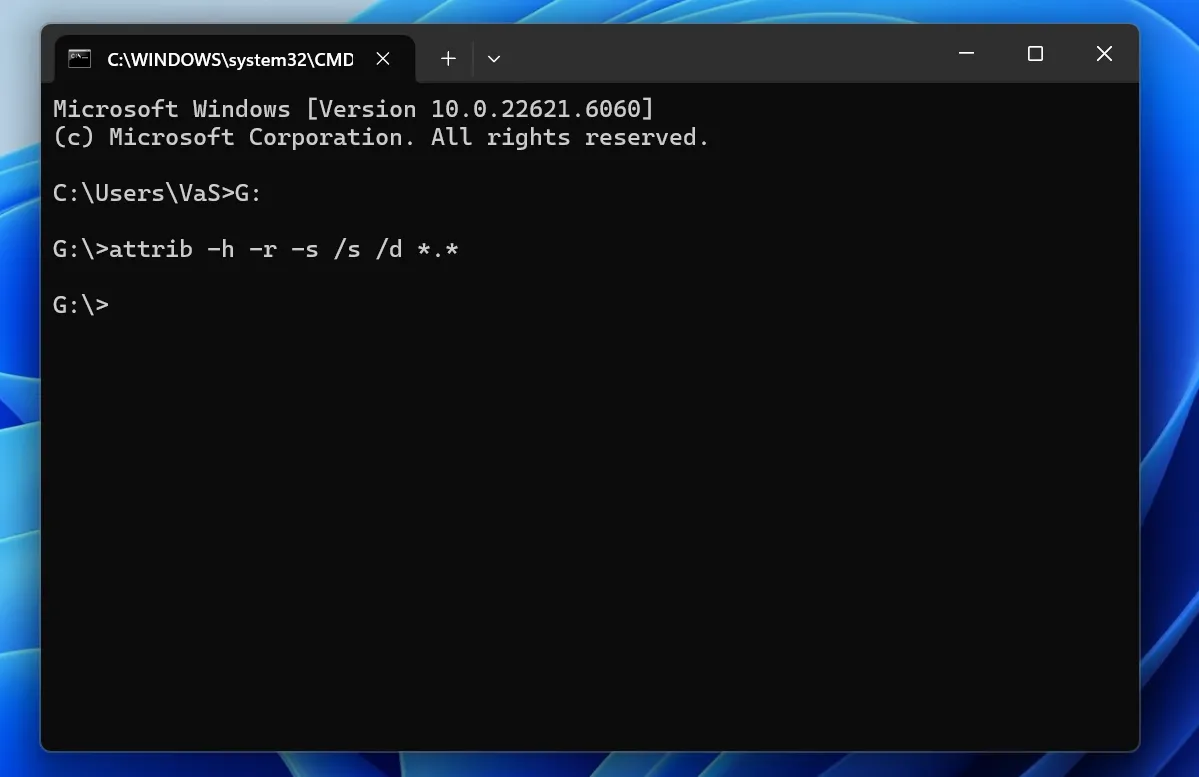
Il arrive parfois que des logiciels malveillants ou certains attributs de fichiers masquent des fichiers existants dans l'Explorateur de fichiers.
Essayez :
attrib -h -r -s /s /d G:\*.*
Remplacer G : avec la lettre de lecteur correcte.
Cette commande permet d'afficher les fichiers cachés, mais elle ne permet pas de récupérer des données supprimées définitivement ou écrasées. Par conséquent, si certains fichiers sont toujours manquants, utilisez un récupération de fichiers sur un disque dur externe scan.
Méthode n° 7 : faire appel à un service professionnel de récupération de données
Cessez toute tentative de récupération par vous-même si le disque dur émet des cliquetis, des grincements, se déconnecte de manière répétée, dégage une odeur de brûlé, ne tourne plus ou a subi des dommages causés par un liquide ou un choc. Ces symptômes peuvent indiquer une panne matérielle ; faites donc appel à un laboratoire de récupération professionnel.
Récupération de fichiers sur un disque dur externe : quelle est la meilleure méthode ?
La meilleure méthode dépend de la cause et de l'état du disque dur.
Solution | Meilleur pour | Difficulté |
Gestion des disques | Vérifier si Windows détecte le lecteur | Facile |
Sauvegarde / Historique des fichiers | Copies de sauvegarde existantes | Facile |
Magic Data Recovery | Données supprimées, formatées, au format RAW ou inaccessibles | Facile |
Récupération de fichiers sous Windows | Cas de fichiers supprimés et de fichiers dont le formatage a été altéré ou qui sont corrompus | Avancé |
Versions précédentes | Copies de sauvegarde antérieures | Facile |
CMD | Fichiers cachés | Moyen |
Service professionnel | Défaillance physique | Pas de travaux à faire soi-même |
Commencez par vérifier que Windows détecte le disque. Ensuite, utilisez une sauvegarde existante si vous en disposez. Si aucune sauvegarde ne contient les fichiers et que le disque reste lisible, un logiciel de récupération s'impose alors comme la solution la plus logique.
Par conséquent, cette récupération de fichiers sur un disque dur externe Cette séquence permet de maintenir le chemin de récupération dégagé.
Faut-il lancer CHKDSK avant de récupérer des fichiers sur un disque dur externe ?
En général, non, surtout lorsque les fichiers importants ne sont pas sauvegardés.
CHKDSK vérifie et corrige les problèmes liés au système de fichiers, mais les opérations de réparation peuvent modifier les métadonnées du système de fichiers. Par conséquent, commencez par récupérer les fichiers essentiels. Ensuite, lancez CHKDSK ou reformatez le disque si nécessaire.
Si votre priorité est un récupération de fichiers sur un disque dur externe Avant toute opération, sauvegardez les données avant de réparer le disque.
Erreurs courantes à éviter lors de la récupération de données sur un disque dur externe
Évitez ces erreurs courantes :
- Copier de nouveaux fichiers sur le disque concerné
- Formater le disque lorsque Windows vous y invite
- Exécuter des outils de réparation avant de récupérer des fichiers importants
- Installation d'un logiciel de récupération sur le disque concerné
- Sauvegarde des fichiers récupérés sur le même disque
- Reconnecter à plusieurs reprises un disque dur présentant un dysfonctionnement mécanique
Par exemple, la copie de nouvelles données après une suppression peut écraser des secteurs qui contiennent encore des fichiers perdus. Par conséquent, même des logiciel de récupération de disque dur externe peut échouer.
Comment prévenir les pertes de données sur les disques durs externes ?
Une fois la récupération effectuée, conservez une autre copie de vos données importantes, retirez les disques durs portables en toute sécurité et protégez les disques durs mécaniques contre les chutes. De plus, respectez la règle du 3-2-1 sauvegarde Principe : conserver trois copies, utiliser deux types de stockage et conserver une copie ailleurs.
Conclusion : récupérer des fichiers en toute sécurité à partir d'un disque dur externe
Le plus sûr récupération de fichiers sur un disque dur externe La méthode à adopter dépend de la cause de la perte. Commencez par vérifier que Windows détecte bien le disque externe. Vérifiez ensuite si une sauvegarde existante contient les fichiers manquants. S’il n’existe aucune sauvegarde et que le disque reste physiquement lisible, le recours à un logiciel de récupération constitue la prochaine étape la plus pratique. En cas de panne physique, cessez d’utiliser le disque et faites appel à un professionnel.
Magic Data Recovery merite d'être envisagé par les utilisateurs de Windows qui préfèrent une interface graphique. Il permet de sélectionner le disque concerné, de rechercher les données perdues, de prévisualiser les fichiers pris en charge et d'enregistrer les fichiers récupérés ailleurs. De plus, il évite d'avoir à se familiariser avec la ligne de commande, contrairement à Windows File Recovery.
Aucun outil ne permet de récupérer des données entièrement écrasées ni de réparer des dommages matériels graves. Toutefois, pour les cas courants de perte logique de données, Magic Data Recovery propose une solution claire solution de récupération de données sur disque dur externe.
Prise en charge de Windows 7/8/10/11 et Windows Server
FAQ - Récupération de fichiers sur un disque dur externe
Puis-je récupérer des fichiers sur un disque dur externe ?
Oui, de nombreux cas de perte de données logiques peuvent encore faire l'objet d'une récupération. Vous pouvez restaurer des fichiers supprimés, formatés ou inaccessibles tant que de nouvelles données n'ont pas écrasé l'espace de stockage d'origine et que le disque fonctionne encore physiquement. Pour maximiser vos chances de récupérer des fichiers sur un disque dur externe, cessez tout d'abord d'utiliser le disque, vérifiez que Windows le détecte, puis consultez vos sauvegardes ou utilisez un logiciel de récupération.
Comment récupérer des fichiers supprimés définitivement sur un disque dur externe ?
Commencez par cesser d'écrire de nouvelles données sur le disque. Vérifiez ensuite si une autre copie existe dans l'Historique des fichiers, sur un espace de stockage dans le cloud, sur un autre disque de sauvegarde ou sur un serveur NAS. S'il n'existe aucune sauvegarde, analysez le disque à l'aide d'un logiciel de récupération de disque dur externe tel que Magic Data Recovery. Enfin, enregistrez les fichiers récupérés sur un autre disque afin d'éviter d'écraser d'autres données récupérables.
Puis-je récupérer des fichiers sur un disque dur externe formaté ?
Souvent, oui. Le formatage peut supprimer les références du système de fichiers avant que de nouvelles données ne recouvrent tous les secteurs sous-jacents. Par conséquent, une analyse de récupération de fichiers sur un disque dur externe peut encore permettre de retrouver des données si vous cessez rapidement d'utiliser le disque. Ne formatez pas à nouveau le disque, n'ajoutez pas de nouveaux fichiers et n'utilisez pas d'outils de réparation inutiles avant de tenter la récupération.
Comment puis-je récupérer des fichiers sur un disque dur externe sans logiciel ?
Vérifiez l'historique des fichiers, les versions précédentes, le stockage dans le cloud, un autre disque de sauvegarde ou une sauvegarde sur NAS. Ces méthodes permettent de restaurer des fichiers sans logiciel tiers lorsqu'une autre copie valide existe déjà. Cependant, les fichiers supprimés définitivement, les partitions formatées et certains cas de corruption nécessitent généralement un logiciel dédié à la récupération de données sur disque dur externe ou le recours à un service de récupération professionnel.
Puis-je récupérer des fichiers si le disque dur externe n'est pas détecté ?
Tout dépend de l'endroit où Windows parvient à détecter le disque. Si « Gestion des disques » le détecte mais pas l'Explorateur de fichiers, il se peut qu'un problème logique permette tout de même une récupération. En revanche, si l'ordinateur ne détecte le disque nulle part, ou si le disque dur émet des cliquetis, s'éteint ou se déconnecte de manière répétée, cessez toute tentative de récupération par vous-même et contactez un service de récupération professionnel.
Dois-je lancer CHKDSK avant de récupérer mes fichiers ?
En général, ce n'est pas le cas lorsque des fichiers importants ne sont pas sauvegardés. CHKDSK répare les problèmes du système de fichiers et peut modifier la structure du disque au cours de ce processus. C'est pourquoi il faut, dans la mesure du possible, commencer par récupérer les données essentielles. Une fois ces fichiers mis en sécurité, vous pouvez lancer CHKDSK ou reformater le disque pour corriger les erreurs restantes sans exposer inutilement la seule copie récupérable à un risque.
Est-il possible de récupérer les données d'un disque dur externe endommagé physiquement ?
C'est parfois le cas, certes, mais les logiciels ne constituent généralement pas la première solution à envisager. Des cliquetis, des grincements, des dégâts causés par un liquide, un choc violent ou un disque dur qui ne tourne plus peuvent indiquer une panne matérielle. Dans ce cas, débranchez l'appareil et contactez un laboratoire de récupération professionnel plutôt que de le mettre sous tension à plusieurs reprises ou d'essayer différentes applications de récupération.

Vasilii est un spécialiste de la récupération de données qui possède une dizaine d'années d'expérience pratique dans ce domaine. Tout au long de sa carrière, il a résolu avec succès des milliers de cas complexes impliquant des fichiers supprimés, des disques formatés, des partitions perdues et des systèmes de fichiers RAW. Son expertise couvre à la fois les méthodes de récupération manuelle à l'aide d'outils professionnels tels que les éditeurs hexagonaux et les solutions automatisées avancées à l'aide de logiciels de récupération. La mission de Vasilii est de rendre accessible aux professionnels de l'informatique et aux utilisateurs quotidiens des connaissances fiables en matière de récupération de données, afin de les aider à sauvegarder leurs précieuses ressources numériques.