
Recupero dei file da un disco rigido esterno: 7 metodi
Quando hai bisogno di ripristino dei file da un disco rigido esterno soluzioni, la vostra priorità assoluta è proteggere i dati che potrebbero essere ancora presenti sul disco. Cancellazione accidentale, formattazione, una partizione RAW, oppure il danneggiamento del file system non significa sempre che i file siano persi per sempre. In molti casi di perdita logica dei dati, il recupero rimane possibile purché i dati originali non siano stati sovrascritti da nuovi dati nello stesso spazio di archiviazione.
Questa guida spiega come recuperare i file da un disco rigido esterno in tutta sicurezza, come scegliere quello giusto metodo di recupero da disco esterno, e quando è opportuno ricorrere a un software di recupero dati. Inoltre, imparerete come Magic Data Recovery può semplificare il processo per gli utenti Windows che preferiscono un flusso di lavoro visivo anziché gli strumenti da riga di comando.
Supporta Windows 7/8/10/11 e Windows Server
Indice dei contenuti
Recupero dei file da un disco rigido esterno: cosa fare per prima cosa
Prima di provare qualsiasi cosa ripristino dei file da un disco rigido esterno Procedura: smettere di utilizzare l'unità interessata. Eventuali nuove operazioni di scrittura potrebbero sovrascrivere i dati recuperabili.
Pertanto:
- Interrompere la copia, lo spostamento o la creazione di file sull'unità.
- Non formattare un'unità RAW o inaccessibile.
- Evitare CHKDSK prima di salvare i file importanti.
- Installare il software di ripristino su un altro disco funzionante.
- Salvare i file recuperati su un altro dispositivo di archiviazione.
- Scollegare l'unità se emette rumori simili a scatti o stridii oppure se si spegne ripetutamente.
Pertanto, è necessario impedire ulteriori operazioni di scrittura prima del ripristino.
È ancora possibile recuperare i dati dal tuo disco rigido esterno?
La risposta dipende dal fatto che il problema sia di natura logica o fisica. La perdita logica comprende la cancellazione, la formattazione, la perdita di partizioni, i file nascosti e i problemi relativi alle unità RAW. Il guasto fisico riguarda invece i danni all'hardware.
Sintomo | Problema probabile | Il primo passo migliore |
File eliminati | Perdita logica | Smetti di utilizzare l'unità e controlla i backup |
Unità formattata | Perdita logica | Smetti di usarlo ed esegui una scansione |
La partizione diventa RAW | Danni al file system | Recupera i dati prima della formattazione |
I file scompaiono, ma l'unità si apre | File nascosti o errore logico | Controlla gli attributi, poi esegui la scansione |
L'unità compare solo in "Gestione disco" | Problema relativo alle partizioni o al file system | Non formattarlo |
Clic o cigolii | Guasto fisico | Scollegare l'unità |
Odore di bruciato, danni causati da liquidi o assenza di centrifuga | Guasto fisico | Contatta un servizio di recupero |
Se Windows continua a rilevare l'unità, procedi con la riparazione fai da te recupero dati da disco rigido esterno Potrebbe funzionare. In caso di guasto hardware, è necessario rivolgersi a un tecnico specializzato.
7 metodi per recuperare i file da un disco rigido esterno
Metodo 1: Controllare il disco rigido esterno in “Gestione disco”
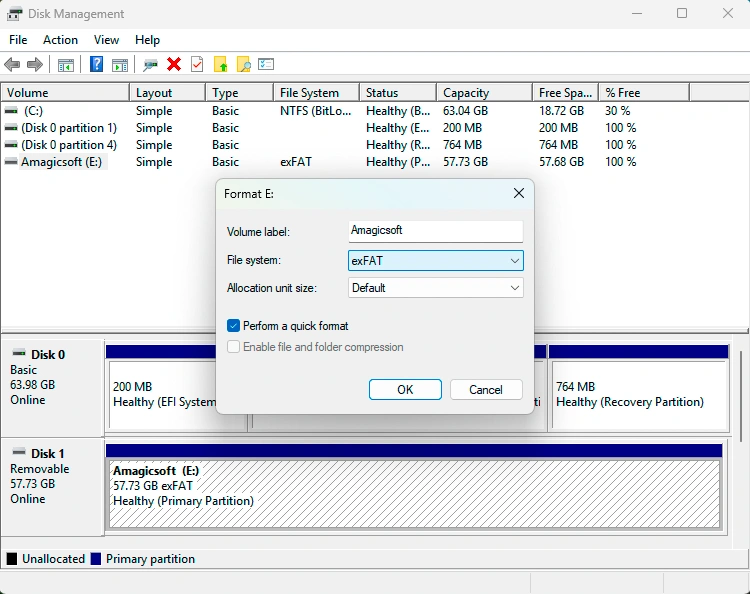
Prima di iniziare un ripristino dei file da un disco rigido esterno processo, verificare che Windows riesca ancora a rilevare il dispositivo.
Stampa Windows + X, selezionare Gestione del disco, quindi individuare l'unità. Verificarne la capacità, lo stato delle partizioni e la lettera di unità.
Se “Gestione disco” rileva l’unità ma “Esplora file” no, potrebbe esserci un problema relativo alla lettera di unità, alla partizione o al file system. Non formattare il disco anche se Windows lo richiede. Se l’unità emette dei clic, si disconnette ripetutamente o non gira, interrompi il tentativo di recupero fai-da-te.
Metodo 2: Ripristino dei file da un backup
Successivamente, controlla la Cronologia dei file, OneDrive, Google Drive, Dropbox, un dispositivo di archiviazione NAS, un altro disco esterno o il tuo sistema di backup abituale.
Un backup è solitamente la soluzione più sicura. Se non esiste alcuna copia utilizzabile, passare a software di recupero del disco rigido esterno.
Metodo 3: Recupero dei file da un disco rigido esterno con Magic Data Recovery
Quando non è disponibile alcun backup utilizzabile, Magic Data Recovery offre una soluzione pratica ripristino dei file da un disco rigido esterno opzione per gli utenti Windows.
Supporta i dispositivi di archiviazione più comuni e numerosi tipi di file. Inoltre, la sua interfaccia grafica è adatta alla cancellazione, alla formattazione, alle partizioni RAW e ad altri casi di perdita logica dei dati su unità leggibili. Il suo flusso di lavoro di scansione, anteprima e recupero rende recupero dei file da un disco rigido esterno più facile.
Passo 1: Scaricare e installare Magic Data Recovery
Scarica Magic Data Recovery e installalo su un'unità funzionante. Non installare il programma sul disco esterno danneggiato, poiché i nuovi dati di installazione potrebbero sovrascrivere i file persi.
Supporta Windows 7/8/10/11 e Windows Server
Fase 2: Selezionare il disco rigido esterno
A questo punto, collega l'unità, avvia Magic Data Recovery e seleziona il disco o la partizione da cui sono scomparsi i file.

Fase 3: Scansione dei file persi
Avvia la scansione. Nel frattempo, evita di utilizzare l'unità interessata per altre operazioni.

Fase 4: Anteprima dei risultati del recupero
Dopo la scansione, visualizza l'anteprima dei file supportati e verifica quali ti servono.

Passo 5: Recuperare i file in un'altra unità
Infine, salva i file necessari su un altro dispositivo di archiviazione. Non ripristinarli mai sul disco di origine.
Per avere un'idea ripristino dei file da un disco rigido esterno In termini di flusso di lavoro, Magic Data Recovery è più semplice rispetto al ripristino tramite riga di comando. Tuttavia, il software non è in grado di recuperare dati completamente sovrascritti né di riparare danni fisici gravi.

Metodo 4: Utilizzare la funzione di recupero file di Windows
Windows File Recovery è l'utilità di recupero da riga di comando di Microsoft:
winfr E: D: /regular /n *.docx
Qui, E: è la fonte e D: è la destinazione; devono essere unità diverse. Lo strumento è gratuito, ma richiede una sintassi corretta e la selezione della modalità giusta. Pertanto, i principianti potrebbero preferire Magic Data Recovery per un'interfaccia grafica ripristino dei file da un disco rigido esterno processo.

Metodo 5: Ripristino di una versione precedente
Se "Cronologia file" o un'altra funzione di backup ha creato una copia precedente, fare clic con il pulsante destro del mouse sulla cartella originale, quindi selezionare Proprietà, e apri Versioni precedenti. Se Windows ne indica una, ripristinare una versione adeguata.
Tuttavia, questo metodo si basa sulla presenza di un backup esistente e non esegue la scansione dell'unità alla ricerca di dati cancellati.
Metodo 6: Recuperare i file nascosti con CMD
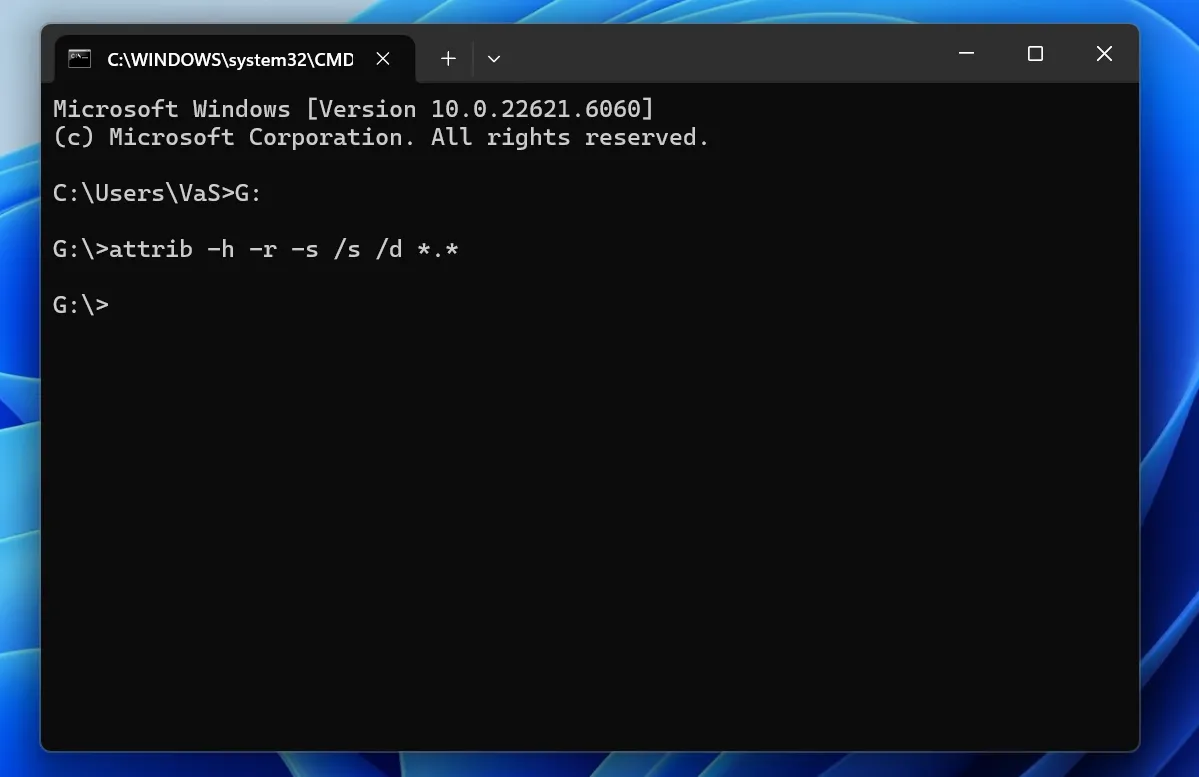
A volte il malware o gli attributi dei file nascondono i file esistenti in Esplora file.
Provate:
attrib -h -r -s /s /d G:\*.*
Sostituire G: con la lettera di unità corretta.
Questo comando consente di visualizzare i file nascosti, ma non è in grado di recuperare i dati cancellati definitivamente o sovrascritti. Pertanto, se i file continuano a non essere presenti, utilizzare un ripristino dei file da un disco rigido esterno scansione.
Metodo 7: Rivolgersi a un servizio professionale di recupero dati
Interrompete il recupero fai-da-te se l'unità emette clic, cigolii, si disconnette ripetutamente, emana odore di bruciato, non gira più o ha subito danni causati da liquidi o urti. Questi sintomi possono indicare un guasto fisico, pertanto rivolgetevi a un laboratorio di recupero dati professionale.
Recupero dei file da un disco rigido esterno: qual è il metodo migliore?
Il metodo migliore dipende dalla causa e dalle condizioni dell'unità.
Soluzione | Il migliore per | Difficoltà |
Gestione del disco | Verifica se Windows rileva l'unità | Facile |
Backup / Cronologia dei file | Copie di backup esistenti | Facile |
Magic Data Recovery | Dati cancellati, formattati, in formato RAW o inaccessibili | Facile |
Recupero file di Windows | Casi di file cancellati e di file con formattazione errata o danneggiati | Avanzato |
Versioni precedenti | Copie di backup precedenti | Facile |
CMD | File nascosti | Medio |
Servizio professionale | Guasto fisico | Nessun lavoro fai-da-te |
Per prima cosa, verifica che Windows rilevi l'unità. Successivamente, se disponibile, utilizza un backup esistente. Se nessun backup contiene i file e l'unità rimane leggibile, il software di recupero diventa la scelta più logica.
Pertanto, questo ripristino dei file da un disco rigido esterno La sequenza mantiene libero il percorso di recupero.
È consigliabile eseguire CHKDSK prima di recuperare i file da un disco rigido esterno?
Di solito no, soprattutto quando i file importanti non hanno un backup.
CHKDSK verifica e corregge i problemi del file system, ma le operazioni di riparazione possono modificare i metadati del file system. Pertanto, è necessario recuperare prima i file critici. Successivamente, eseguire CHKDSK o, se necessario, riformattare l'unità.
Se la tua priorità è un ripristino dei file da un disco rigido esterno Prima di procedere alla riparazione del disco, salvare i dati.
Errori comuni da evitare nel recupero dei dati da un disco rigido esterno
Evita questi errori comuni:
- Copia dei nuovi file sull'unità interessata
- Formattare il disco quando Windows lo richiede
- Eseguire gli strumenti di riparazione prima di recuperare i file importanti
- Installazione del software di recupero sul disco interessato
- Salvataggio dei file recuperati sulla stessa unità
- Riconnessione ripetuta di un disco rigido con problemi meccanici
Ad esempio, la copia di nuovi dati dopo una cancellazione potrebbe sovrascrivere settori che contengono ancora file persi. Di conseguenza, anche se affidabile software di recupero del disco rigido esterno può fallire.
Come prevenire una futura perdita di dati da un disco rigido esterno
Dopo il ripristino, conservate un’altra copia dei dati importanti, rimuovete in modo sicuro le unità portatili e proteggete i dischi rigidi meccanici dalle cadute. Inoltre, seguite la regola del 3-2-1 backup Principio: conservare tre copie, utilizzare due tipi di archiviazione e conservare una copia altrove.
Conclusione: recuperare i file da un disco rigido esterno in tutta sicurezza
Il più sicuro ripristino dei file da un disco rigido esterno Il metodo da adottare dipende dalla causa della perdita. Innanzitutto, verifica che Windows riesca a rilevare l'unità esterna. Successivamente, controlla se un backup esistente contiene i file mancanti. Se non è presente alcun backup e l'unità rimane fisicamente leggibile, il passo successivo più pratico è ricorrere a un software di recupero dati. In caso di guasto fisico, smetti di utilizzare l'unità e rivolgiti a un professionista.
Magic Data Recovery è una soluzione da prendere in considerazione per gli utenti Windows che preferiscono un flusso di lavoro grafico. Consente agli utenti di selezionare l'unità interessata, eseguire la scansione alla ricerca dei dati persi, visualizzare in anteprima i file supportati e salvare i file recuperati in un'altra posizione. Inoltre, evita la curva di apprendimento della riga di comando richiesta da Windows File Recovery.
Nessuno strumento è in grado di recuperare dati completamente sovrascritti o di riparare danni hardware gravi. Tuttavia, in caso di perdita logica dei dati di tipo comune, Magic Data Recovery offre una soluzione chiara soluzione per il recupero dei dati da un disco rigido esterno.
Supporta Windows 7/8/10/11 e Windows Server
Domande frequenti - Recupero file da disco rigido esterno
È possibile recuperare i file da un disco rigido esterno?
Sì, in molti casi di perdita logica dei dati è ancora possibile recuperare i dati. È possibile ripristinare file cancellati, formattati o inaccessibili purché lo spazio di archiviazione originale non sia stato sovrascritto da nuovi dati e l'unità funzioni ancora dal punto di vista fisico. Per massimizzare le possibilità di recupero dei file da un disco rigido esterno, smettete innanzitutto di utilizzare il disco, verificate che Windows lo rilevi e poi controllate i backup o utilizzate un software di recupero.
Come posso recuperare i file cancellati definitivamente da un disco rigido esterno?
Per prima cosa, smetti di scrivere nuovi dati sull'unità. Successivamente, controlla se è presente un'altra copia in “Cronologia file”, nell'archivio cloud, su un'altra unità di backup o su un dispositivo NAS. Se non esiste alcun backup, esegui una scansione del disco con un software di recupero dati per dischi rigidi esterni, come Magic Data Recovery. Infine, salva i file recuperati su un'altra unità per evitare di sovrascrivere ulteriori dati recuperabili.
È possibile recuperare i file da un disco rigido esterno formattato?
Spesso sì. La formattazione può rimuovere i riferimenti del file system prima che i nuovi dati sovrascrivano tutti i settori sottostanti. Pertanto, una scansione per il recupero dei file su un disco rigido esterno potrebbe comunque individuare dei dati se si smette di utilizzare l'unità tempestivamente. Non formattare nuovamente il disco, non aggiungere nuovi file né eseguire strumenti di riparazione non necessari prima di tentare il recupero.
Come posso recuperare i file da un disco rigido esterno senza utilizzare alcun software?
Verifica la Cronologia dei file, le Versioni precedenti, l'archiviazione su cloud, un'altra unità di backup o un backup su NAS. Questi metodi consentono di ripristinare i file senza ricorrere a software di terze parti, qualora esista già una copia valida. Tuttavia, i file eliminati definitivamente, le partizioni formattate e alcuni casi di danneggiamento richiedono solitamente un software specifico per il recupero dei dati da dischi rigidi esterni o un servizio di recupero professionale.
È possibile recuperare i file se il disco rigido esterno non viene rilevato?
Dipende da dove Windows riesce a rilevare l'unità. Se Gestione disco la rileva ma Esplora file no, potrebbe comunque essere possibile il recupero a causa di un problema logico. Tuttavia, se il computer non riesce a rilevare l'unità da nessuna parte, oppure se l'HDD emette dei clic, si spegne o si disconnette ripetutamente, interrompi i tentativi fai-da-te e contatta un servizio di recupero professionale.
Devo eseguire CHKDSK prima di recuperare i miei file?
Di solito no, se i file importanti non sono stati sottoposti a backup. CHKDSK risolve i problemi del file system e, durante tale processo, potrebbe modificare le strutture del disco. Pertanto, ove possibile, è opportuno recuperare prima i dati critici. Dopo aver messo al sicuro i file, è possibile eseguire CHKDSK o riformattare l'unità per risolvere gli errori rimanenti senza esporre a rischi inutili l'unica copia recuperabile.
È possibile recuperare i dati da un disco rigido esterno danneggiato fisicamente?
A volte sì, ma il software di solito non è la prima soluzione da adottare. Rumori di scatto o striduli, danni causati da liquidi, urti violenti o un disco che non gira più possono indicare un guasto hardware. In tali casi, scollegare il dispositivo e rivolgersi a un laboratorio di recupero dati professionale, invece di accenderlo ripetutamente o provare diverse applicazioni di recupero.

Vasilii è uno specialista del recupero dati con circa 10 anni di esperienza pratica nel settore. Nel corso della sua carriera, ha risolto con successo migliaia di casi complessi riguardanti file cancellati, unità formattate, partizioni perse e file system RAW. La sua esperienza copre sia i metodi di recupero manuale utilizzando strumenti professionali come gli editor esadecimali, sia le soluzioni automatiche avanzate con i software di recupero. La missione di Vasilii è quella di rendere accessibile la conoscenza del recupero dati affidabile sia ai professionisti IT che agli utenti di tutti i giorni, aiutandoli a salvaguardare i loro preziosi beni digitali.