
Gestione del disco: Come usare e risolvere i problemi del disco
Quando un disco rigido o SSD improvvisamente diventa inaccessibile, molti utenti si accorgono prima di tutto che qualcosa non va all'interno di Gestione del disco. Le partizioni possono scomparire, diventare RAW o mostrare errori come “Non allocato” o “Sconosciuto”. A questo punto si scatena il panico, soprattutto se sul disco sono memorizzati dati importanti.
Questa guida spiega Gestione del disco in un linguaggio semplice. Imparerete come funziona, cosa significano i diversi stati del disco, in che modo si differenzia da Gestione dispositivi, e, soprattutto, come recuperare i dati persi da un'unità SSD in caso di problemi al disco. Soluzioni pratiche di recupero, tra cui Magic Data Recovery, sono introdotti in modo naturale sulla base di scenari reali.
Indice dei contenuti
Che cos'è Gestione del disco?
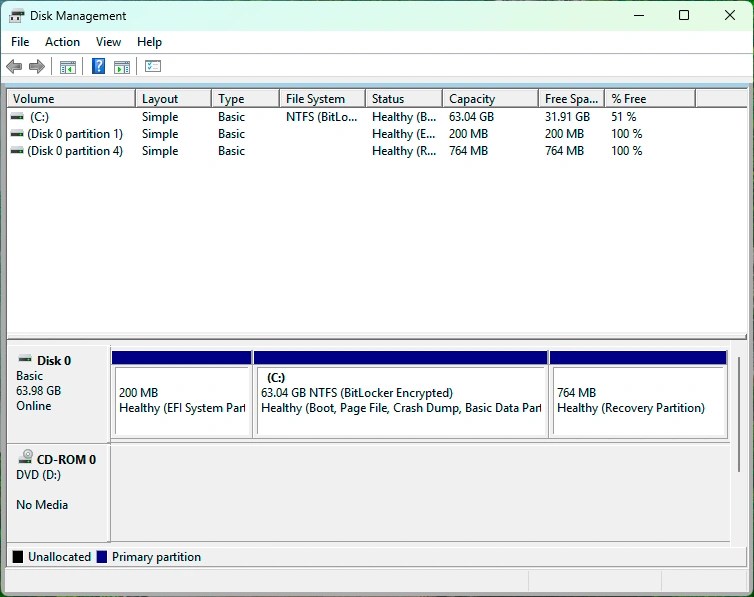
È un'utilità integrata in Windows che consente agli utenti di visualizzare, gestire e configurare i dispositivi di archiviazione collegati al sistema. Fornisce una panoramica grafica di tutti i dischi, partizioni, file system e stati dei volumi.
A differenza di Esplora file, la gestione delle unità disco di Windows mostra informazioni di basso livello sul disco. Ciò la rende essenziale per diagnosticare i problemi di archiviazione, creare o eliminazione delle partizioni, e la preparazione di nuove unità per l'uso.
Funzioni chiave
- Inizializzazione di nuovi HDD o SSD
- Creare, formattare, estendere o ridurre le partizioni
- Assegnare o modificare le lettere delle unità
- Rilevamento di errori del disco e di stati anomali
- Visualizzare i tipi di file system come NTFS, FAT32, o RAW
Per gli utenti di tutti i giorni e per i professionisti IT, Gestione del disco è spesso il primo strumento utilizzato quando un disco non si comporta come previsto.
Il ruolo e lo scopo di Gestione del disco
Il ruolo primario di Gestione del disco è il controllo a livello di disco piuttosto che l'accesso a livello di file. Aiuta gli utenti a capire come è strutturato lo storage e se il sistema operativo può comunicare correttamente con il disco.
In pratica, Gestione del disco viene utilizzato per:
- Risoluzione dei problemi di unità mancanti o inaccessibili
- Preparare le unità SSD per l'installazione del sistema
- Ricostruire i layout delle partizioni dopo le modifiche al disco
- Identificare i potenziali rischi di perdita di dati prima che si aggravino
Ad esempio, quando un'unità SSD viene improvvisamente visualizzata come “non allocata”.” Gestione del disco conferma che la tabella delle partizioni è stata danneggiata, anche se i dati sono ancora disponibili.
Stati del disco comuni in Gestione del disco
La comprensione degli stati del disco è fondamentale prima di agire. Operazioni errate, come la formattazione della partizione sbagliata, possono cancellare i dati in modo permanente.
Sano (partizione primaria)
Questo stato indica che la partizione funziona correttamente e ha un file system riconosciuto. I dati sono accessibili e non sono necessarie azioni immediate.
Non allocato
Lo spazio non allocato significa che manca la struttura della partizione. Ciò si verifica spesso dopo un'eliminazione accidentale, corruzione del disco, o danni alla tabella delle partizioni.
Nota importante:
Non allocato fa non significa che i dati sono andati perduti. In molti casi, i file possono ancora essere recuperati.
RAW
A Partizione RAW indica che Windows non è in grado di riconoscere il file system. Ciò può essere dovuto a un danneggiamento del file system, a una rimozione non sicura, a un'interruzione dell'alimentazione o a errori del controller SSD.
Non formattate una partizione RAW se i dati sono importanti.
Non in linea
Il disco viene rilevato ma non è accessibile. Questo può accadere a causa di conflitti di firma o di impostazioni manuali offline.
Sconosciuto / Non inizializzato
Windows riconosce il disco fisico ma non riesce a leggerne la struttura. Spesso vengono visualizzate richieste di inizializzazione, ma l'inizializzazione del disco può sovrascrivere metadati critici.
Gestione del disco rispetto a Gestione dispositivi
Sebbene entrambi gli strumenti facciano parte di Windows, Gestione del disco e Device Manager hanno scopi molto diversi.
Caratteristica | Gestione del disco | Gestione dispositivi |
Focus | Partizioni e volumi | Hardware e driver |
Visibilità del file system | Sì | No |
Importanza del recupero dati | Alto | Basso |
Inizializzazione SSD/HDD | Sì | No |
In breve, Gestione dispositivi conferma se l'hardware è stato rilevato, mentre Gestione del disco determina se le strutture di dati sono leggibili. In caso di perdita di partizione o di errori RAW, Gestione del disco è lo strumento diagnostico corretto.
Come recuperare i dati persi dai problemi dell'unità
Gli scenari di perdita dei dati dell'unità spesso appaiono per primi in Gestione del disco. Di seguito sono riportati i casi più comuni e il corretto approccio di recupero.
Scenario 1: Partizione mancante o eliminata
Se una partizione scompare e lo spazio diventa non allocato:
- Interrompere immediatamente la scrittura dei dati
- Non creare una nuova partizione
- Evitare l'inizializzazione del disco
È necessario uno strumento di recupero specializzato per scansionare l'SSD e ricostruire le partizioni perse.
Scenario 2: La partizione diventa RAW
Quando una partizione viene visualizzata come RAW:
- La formattazione cancella i metadati del file system.
- CHKDSK di solito fallisce sulle partizioni RAW
In questo caso, recupero a livello di file è l'opzione più sicura.
Scenario 3: errore di partizione o corruzione del file system
Gli errori del file system possono derivare da arresti improvvisi o da problemi del firmware dell'SSD. Gli strumenti di riparazione di Windows possono essere utili, ma spesso falliscono quando il danneggiamento è grave.
Perché Magic Data Recovery È consigliato per il recupero dei dati
Quando Gestione del disco mostra problemi critici del disco, Magic Data Recovery offre una soluzione pratica e affidabile senza rischiare ulteriori danni.
I problemi principali che risolve
- Recupera i dati da partizioni RAW, non allocate o cancellate.
- Supporta HDD e SSD, Unità NVMe, e di archiviazione esterna
- Funziona anche quando non è possibile montare l'unità
Vantaggi principali
- La scansione in sola lettura impedisce la sovrascrittura dei dati
- Algoritmi avanzati ottimizzati per le strutture SSD
- Supporta i file system più comuni utilizzati in Windows
- L'anteprima chiara prima del recupero migliora la precisione
Caso d'uso nel mondo reale
Uno scenario comune è quello di un'unità SSD che improvvisamente viene visualizzata come RAW dopo un crash del sistema. Gestione del disco rileva il disco ma non riesce ad accedere ai file. Utilizzando Magic Data Recovery, gli utenti possono eseguire la scansione dell'unità SSD, visualizzare l'anteprima dei documenti importanti e ripristinarli in modo sicuro su un'altra unità.
Rispetto alle correzioni manuali o alle formattazioni rischiose, questo approccio riduce notevolmente i rischi di perdita dei dati.
Se siete alla ricerca di una soluzione più sicura ed efficiente, vale la pena prendere in considerazione l'Magic Data Recovery.
Supporta Windows 7/8/10/11 e Windows Server
Le migliori pratiche prima di utilizzare Gestione disco per risolvere i problemi
Prima di intraprendere qualsiasi azione correttiva in Gestione del disco, seguire le seguenti linee guida:
- Non formattate mai un disco con dati importanti
- Evitare tentativi di inizializzazione ripetuti
- Interrompere immediatamente l'utilizzo dell'SSD interessato
- Eseguire il recupero prima delle operazioni di riparazione
Questi passaggi aumentano notevolmente la percentuale di successo del recupero dei dati.
Conclusione
Gestione del disco è un potente strumento di diagnostica, ma non è una soluzione per il recupero dei dati. Aiuta a identificare problemi come la mancanza di partizioni, Sistemi di file RAW, e gli errori del disco. Tuttavia, azioni non corrette all'interno di Gestione unità disco possono peggiorare la perdita di dati.
Per i problemi relativi alle unità SSD, soprattutto quando i dati sono importanti, l'utilizzo di uno strumento di ripristino dedicato come Magic Data Recovery offre un percorso più sicuro e affidabile. Risolve i punti critici principali senza distruggere le operazioni, rendendolo una scelta affidabile sia per gli utenti quotidiani che per i professionisti.
Domande frequenti su Gestione del disco
A cosa serve la Gestione disco in Windows?
Perché l'unità SSD viene visualizzata come RAW in Gestione disco?
Gestione disco può recuperare i dati persi?
È sicuro inizializzare un disco in Gestione disco?
Come si risolve un'unità SSD non allocata senza perdere i dati?
L'Magic Data Recovery funziona con le unità SSD?
Cosa fare quando il disco mostra degli errori?

Erin Smith è riconosciuta come una delle scrittrici più professionali di Amagicsoft. Negli ultimi 10 anni ha continuamente affinato le sue capacità di scrittura e ha aiutato milioni di lettori a risolvere i loro problemi tecnologici.