
Recupero gratuito dei file: 5 metodi sicuri per Windows
La cancellazione accidentale di documenti importanti, foto, video o file di lavoro può essere fonte di stress. Tuttavia, gli utenti che cercano recupero gratuito dei file di solito cercano un modo sicuro per ripristinare i dati cancellati senza dover pagare in anticipo. Fortunatamente, gli strumenti di Windows, i backup, i servizi cloud e i software di recupero professionali possono aiutarti recuperare file gratuitamente in molte situazioni comuni.
Questa guida illustra cinque modi pratici per recuperare file gratuitamente. Innanzitutto, imparerai come proteggere i dati cancellati. Successivamente, confronterai le opzioni integrate in Windows. Infine, vedrai come Magic Data Recovery esegue la scansione, l'anteprima e il ripristino dei file attraverso un semplice flusso di lavoro visivo.
Supporta Windows 7/8/10/11 e Windows Server
Indice dei contenuti
Risposta rapida: come si possono recuperare i file gratuitamente?
Il metodo più adatto dipende dal modo in cui i file sono scomparsi. Pertanto, è consigliabile iniziare con l'opzione meno invasiva e passare a una scansione più approfondita solo se necessario.
Situazione | Il metodo migliore per iniziare | Costo | Difficoltà |
I file rimangono nel Cestino | Cestino | Gratuito | Facile |
La cronologia dei file contiene una copia precedente | Versioni precedenti | Gratuito | Facile |
Un servizio cloud ha sincronizzato i file | Cestino del cloud o cronologia delle versioni | Di solito gratuito | Facile |
Hai eliminato definitivamente i file locali | Recupero file di Windows | Gratuito | Avanzato |
Hai svuotato il Cestino o formattato un'unità | Magic Data Recovery | Fino a 500 MB gratuiti | Facile |
Prima di recuperare i file gratuitamente, proteggi i dati
Le azioni che intraprenderai dopo la cancellazione possono determinare il successo del recupero. Per questo motivo, segui queste precauzioni prima di provare qualsiasi recupero file gratuito metodo.
Interrompere l'utilizzo dell'unità interessata
Non installare programmi, non scaricare file di grandi dimensioni e non copiare cartelle sull’unità che conteneva i dati persi. Windows potrebbe riutilizzare lo spazio di archiviazione occupato dal file eliminato. Una volta che nuove informazioni lo sovrascrivono, anche il il miglior software gratuito per il recupero dei dati può fallire.
Scegli un'altra località
Quando possibile, installa il software di recupero su un’altra partizione. Allo stesso modo, salva i dati recuperati su un’unità diversa. Ad esempio, recupera i file dalla partizione C: alla partizione D:, oppure da una scheda di memoria al computer. In caso contrario, i dati recuperati potrebbero sovrascrivere file che potrebbero ancora essere recuperabili.
5 modi per recuperare file gratuitamente su Windows
Gli utenti Windows hanno a disposizione diverse opzioni di recupero. Alcuni metodi consentono di ripristinare una copia esistente, mentre altri eseguono una scansione dello spazio di archiviazione alla ricerca dei dati cancellati. Sebbene nessun metodo garantisca risultati certi, queste soluzioni coprono le situazioni più comuni.
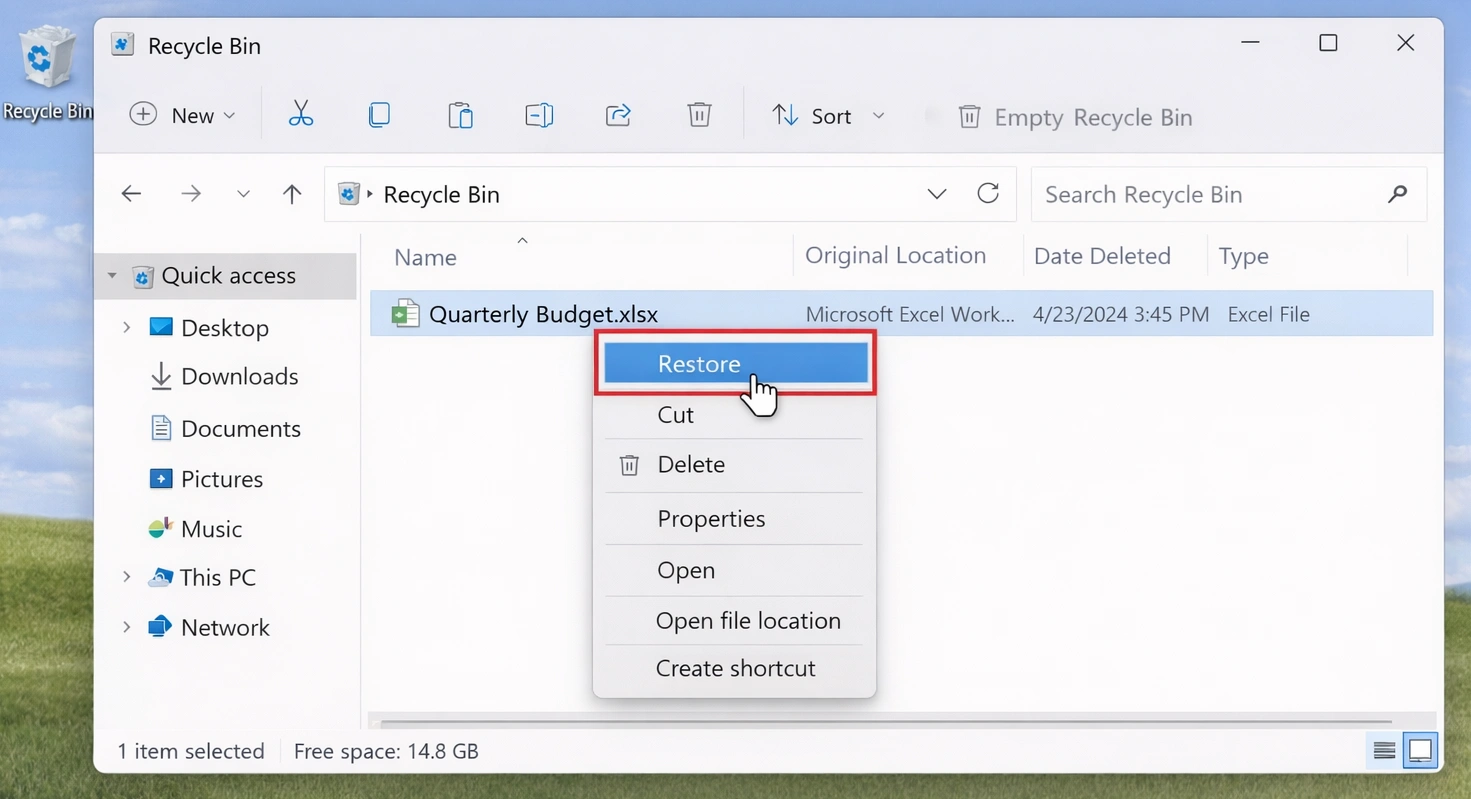
Metodo 1: Ripristinare i file dal Cestino
Il Cestino rappresenta il modo più veloce per recuperare file gratuitamente dopo una normale cancellazione.
- Aprire il Cestino.
- Cerca per nome del file, tipo o data di eliminazione.
- Seleziona i file o le cartelle che ti servono.
- Fare clic con il tasto destro del mouse e scegliere Ripristino.
- Controllare la cartella originale.
Questo metodo non esegue la scansione dell'unità. Tuttavia, non è di alcun aiuto dopo Maiusc+Canc, un Cestino svuotato o la cancellazione da alcuni dispositivi rimovibili.
Metodo 2: Utilizzare la Cronologia dei file
La Cronologia dei file consente di ripristinare una copia precedente, a condizione che la funzione fosse stata attivata prima della perdita.
- Aprire Esplora file.
- Vai alla cartella originale.
- Fare clic con il tasto destro del mouse e selezionare Ripristino delle versioni precedenti.
- Apri una versione adeguata.
- Ripristina il file richiesto.
Ad esempio, la Cronologia dei file potrebbe recuperare un report precedente in caso di sostituzione accidentale. Tuttavia, Windows non può creare un backup precedente dopo che il file è scomparso. Se non viene visualizzata alcuna versione, scegli un altro modo per recuperare file gratuitamente.

Metodo 3: Verifica lo spazio di archiviazione cloud e i backup
Prima di eseguire la scansione di un'unità, controlla ogni posizione in cui potrebbe esserci un'altra copia. Questo approccio rappresenta spesso il modo più sicuro per recuperare gratuitamente i file cancellati.
Controlla OneDrive, Google Drive, Dropbox, gli allegati delle e-mail, i file scaricati dalle app di messaggistica, le unità di backup, le cartelle condivise e altri dispositivi. Ad esempio, OneDrive potrebbe ancora contenere la struttura originale dei file e delle cartelle. Pertanto, controlla i servizi sincronizzati prima di avviare una scansione approfondita.
Metodo 4: Utilizzare la funzione di recupero file di Windows
Recupero file di Windows è l'utilità da riga di comando di Microsoft per i file locali eliminati. È in grado di effettuare ricerche sulle unità interne e sui supporti rimovibili. Inoltre, è particolarmente indicata per gli utenti che hanno familiarità con i percorsi dei file e i comandi di base.
winfr C: E: /regular /n \Users\YourName\Documents\
In questo caso, l'unità C: contiene i dati mancanti, mentre l'unità E: memorizza i risultati. L'unità di origine e quella di destinazione devono essere diverse.
Windows File Recovery offre un'opzione completamente gratuita senza limiti di dimensione dei file recuperabili. Tuttavia, non dispone di anteprima visiva e i principianti potrebbero trovare difficili i suoi comandi. Di conseguenza, gli utenti che desiderano recuperare file gratuitamente chi utilizza un'interfaccia grafica potrebbe preferire una soluzione più semplice.

Metodo 5: Utilizzare Magic Data Recovery
Quando i metodi integrati falliscono, Magic Data Recovery offre un modo visivo per recuperare file gratuitamente. Gli utenti possono selezionare un'unità, avviare una scansione, filtrare i risultati, visualizzare l'anteprima dei contenuti e ripristinare i file selezionati senza dover inserire comandi.
Magic Data Recovery supporta oltre 5.000 tipi di file e dispositivi comuni, tra cui dischi rigidi (HDD), SSD, chiavette USB e schede di memoria. Inoltre, la versione gratuita consente di recuperare fino a 500 MB. Gli utenti possono quindi provare operazioni di recupero di piccole dimensioni prima di valutare un upgrade.
Come Recupera i file gratuitamente con Magic Data Recovery
Magic Data Recovery può aiutarti in caso di cancellazione con Shift+Canc, svuotamento del Cestino, formattazione accidentale o perdita di file da una chiavetta USB o da una scheda di memoria. Ma soprattutto, la sua funzione di anteprima ti permette di esaminare i file individuati prima del recupero.
Passo 1: Scaricare e installare Magic Data Recovery
Scarica Magic Data Recovery e installalo sul tuo computer. Quando possibile, scegli un'unità o una partizione che non contenga i file cancellati. Questa precauzione riduce il rischio di sovrascrittura accidentale.
Supporta Windows 7/8/10/11 e Windows Server
Fase 2: Selezionare la voce Guida Vuoi eseguire una scansione
Apri Magic Data Recovery. Quindi, controlla le unità e le partizioni nell'interfaccia principale. Seleziona la posizione in cui sono scomparsi i file e avvia la scansione.

Fase 3: scansione dell'unità alla ricerca di file eliminati
Magic Data Recovery avvia automaticamente una scansione avanzata alla ricerca di dati cancellati e persi. Nel frattempo, l'interfaccia mostra i file individuati man mano che la scansione procede. È quindi possibile esaminare i risultati prima che il processo sia terminato.

Passo 4: Anteprima File prima del recupero
Successivamente, è possibile visualizzare in anteprima il contenuto e lo stato dei file. È inoltre possibile filtrare i risultati in base al tipo di file, al nome o alla posizione originale. In questo modo, è possibile identificare i documenti, le foto, i video e gli altri file corretti prima di ripristinarli.

Passo 5: Recuperare i file in una posizione sicura
Infine, seleziona i file che ti servono e avvia il recupero. Salva i file su un'unità o una partizione diversa da quella di origine. In caso contrario, i dati ripristinati potrebbero sovrascrivere altri file recuperabili.

Perché scegliere Magic Data Recovery?
Molti utenti hanno bisogno di una scansione più approfondita, ma non vogliono imparare la sintassi della riga di comando. Per questo motivo, Magic Data Recovery riunisce in un’unica interfaccia le funzioni di scansione, filtraggio, anteprima e recupero.
I suoi principali vantaggi includono:
- Un flusso di lavoro visivo adatto ai principianti
- Anteprima prima del recupero
- Supporto per oltre 5.000 tipi di file
- Compatibilità con i dispositivi di archiviazione più diffusi per Windows
- Fino a 500 MB di spazio di recupero gratuito
- Filtri per tipo di file, nome e posizione
Ad esempio, una persona che svuotare il Cestino può eseguire una scansione dell'unità interessata, visualizzare in anteprima le foto cancellate e recuperare solo gli elementi necessari. Allo stesso modo, un utente che ha formattato una chiavetta USB può esaminare i documenti trovati prima di ripristinarli.
Magic Data Recovery offre un flusso di lavoro più intuitivo rispetto agli strumenti da riga di comando. Tuttavia, non può garantire un recupero completo. I risultati dipendono dalla sovrascrittura, dalle condizioni di conservazione, frammentazione dei file, e il tipo di perdita di dati. Questa limitazione vale per tutti i programmi di recupero.
Confronta i metodi gratuiti di recupero file
Metodo | Anteprima | Cestino svuotato | Unità formattata | Facile per i principianti | Limitazione principale |
Cestino | Sì | No | No | Sì | I file devono rimanere lì |
Storia del file | Sì | A volte | No | Sì | Deve già esistere un backup |
Backup in cloud | Sì | A volte | Non applicabile | Sì | Deve esistere una copia sincronizzata |
Recupero file di Windows | No | Sì | A volte | No | Richiede dei comandi |
Magic Data Recovery | Sì | Sì | Sì | Sì | Limite di spazio libero di 500 MB |
Gli strumenti integrati funzionano al meglio quando esiste ancora una copia dei dati. Al contrario, i software di recupero ti aiutano a recuperare file gratuitamente quando Windows non visualizza più i file correttamente. Scegli quindi il metodo più semplice adatto alla tua situazione.
Quando i software di recupero file non sono d’aiuto
Anche se il software può recuperare file gratuitamente In molti casi di perdita logica dei dati, questa soluzione non è in grado di risolvere tutti i problemi di archiviazione. Interrompi il recupero fai-da-te se il disco rigido emette clic ripetuti, si disconnette durante l'uso, emana odore di bruciato o non viene riconosciuto in modo costante.
In queste situazioni, l'esecuzione ripetuta di scansioni potrebbe sottoporre il dispositivo a uno stress maggiore. Pertanto, è consigliabile scollegarlo e valutare la possibilità di ricorrere a un servizio professionale di recupero dati. Inoltre, il software non è in grado di ripristinare i dati dopo una sovrascrittura completa. Inoltre, SSD il recupero potrebbe rivelarsi difficile perché TRIM è in grado di recuperare rapidamente i dati cancellati.
Conclusione: il modo migliore per recuperare i file gratuitamente
Un processo di recupero sicuro inizia con l'approccio meno invasivo metodo di recupero dei file cancellati. Per prima cosa, controlla il Cestino. Poi, verifica la Cronologia file, l'archiviazione su cloud e i backup. Dopodiché, se hai dimestichezza con gli strumenti da riga di comando, utilizza il recupero file di Windows.
Magic Data Recovery È utile quando serve un modo più semplice per eseguire una scansione del Cestino svuotato, di un'unità formattata, di un dispositivo USB o di una scheda di memoria. Offre un'anteprima visiva, supporta migliaia di tipi di file e consente di recuperare gratuitamente fino a 500 MB di dati. Pertanto, fornisce agli utenti comuni un modo pratico per valutare i dati recuperabili prima di intraprendere un'operazione di recupero più ampia.
Se avete bisogno di recuperare file gratuitamente tramite un flusso di lavoro intuitivo, prova Magic Data Recovery. Esegui la scansione dell'unità interessata, visualizza l'anteprima dei risultati e ripristina i file necessari in una posizione sicura.
Supporta Windows 7/8/10/11 e Windows Server
Domande frequenti sul recupero gratuito dei file
È possibile recuperare i file gratuitamente dopo aver svuotato il Cestino?
Sì, puoi comunque provare, a condizione che i contenuti cancellati non siano stati sovrascritti da nuovi dati. Innanzitutto, smetti di utilizzare l'unità interessata. Successivamente, esegui Windows File Recovery o Magic Data Recovery. Una scansione con anteprima ti aiuta a identificare i file leggibili prima di ripristinarli in un'altra posizione.
Qual è il miglior metodo gratuito per recuperare file su Windows?
Inizia dal Cestino, dalla Cronologia dei file e dai backup su cloud, poiché questi metodi consentono di ripristinare le copie esistenti senza effettuare una scansione approfondita. Tuttavia, se non dovessero funzionare, ricorri a Windows File Recovery o a Magic Data Recovery. La tua esperienza tecnica, le dimensioni dei file e la situazione relativa alla perdita dei dati dovrebbero guidare la scelta finale.
Magic Data Recovery è completamente gratuito?
Magic Data Recovery consente agli utenti di eseguire la scansione alla ricerca di file persi e di recuperarne fino a 500 MB gratuitamente. Pertanto, è particolarmente indicato per documenti di piccole dimensioni, foto o file selezionati. Le operazioni di recupero di dimensioni maggiori potrebbero richiedere una licenza a pagamento, pertanto si consiglia di verificare prima i risultati della scansione e la dimensione totale dei file.
È possibile recuperare i file cancellati definitivamente su Windows 11?
È possibile recuperare i file cancellati in modo definitivo se Windows non ha ancora riutilizzato lo spazio di archiviazione occupato da essi. Smetti immediatamente di utilizzare l'unità. Prova quindi a utilizzare Windows File Recovery o uno strumento di recupero visivo. Tuttavia, nessun software è in grado di ricostruire un file dopo che nuovi dati ne hanno sovrascritto completamente il contenuto originale.
Un software di recupero gratuito può ripristinare una chiavetta USB formattata?
I software di recupero dati potrebbero individuare dei file dopo una formattazione rapida, soprattutto se non sono stati copiati nuovi dati sull'unità USB. Seleziona il dispositivo, esegui una scansione completa, visualizza l'anteprima dei risultati e salva i file recuperati in un'altra posizione. Una formattazione completa o una sovrascrittura massiccia riducono le possibilità di recupero.
Dove devo salvare i file recuperati?
Salva i file recuperati su un'altra unità, partizione o dispositivo di archiviazione. Ad esempio, recupera i dati dall'unità C: sull'unità D: oppure da un'unità USB sul tuo computer. Questo approccio impedisce che i dati ripristinati sovrascrivano altri file cancellati che potrebbero essere ancora recuperabili durante la stessa sessione.
È possibile recuperare i file cancellati da un SSD?
Il recupero dei dati da un SSD può risultare difficile perché la funzione TRIM potrebbe cancellare rapidamente i dati eliminati. Smetti di utilizzare l'SSD il prima possibile ed esegui la scansione da un'altra unità o da un altro sistema. Se il software non riesce a visualizzare in anteprima i file mancanti, ripetuti tentativi fai-da-te potrebbero non migliorare il risultato.

Vasilii è uno specialista del recupero dati con circa 10 anni di esperienza pratica nel settore. Nel corso della sua carriera, ha risolto con successo migliaia di casi complessi riguardanti file cancellati, unità formattate, partizioni perse e file system RAW. La sua esperienza copre sia i metodi di recupero manuale utilizzando strumenti professionali come gli editor esadecimali, sia le soluzioni automatiche avanzate con i software di recupero. La missione di Vasilii è quella di rendere accessibile la conoscenza del recupero dati affidabile sia ai professionisti IT che agli utenti di tutti i giorni, aiutandoli a salvaguardare i loro preziosi beni digitali.