
I file in Box sono scomparsi? Come recuperarli
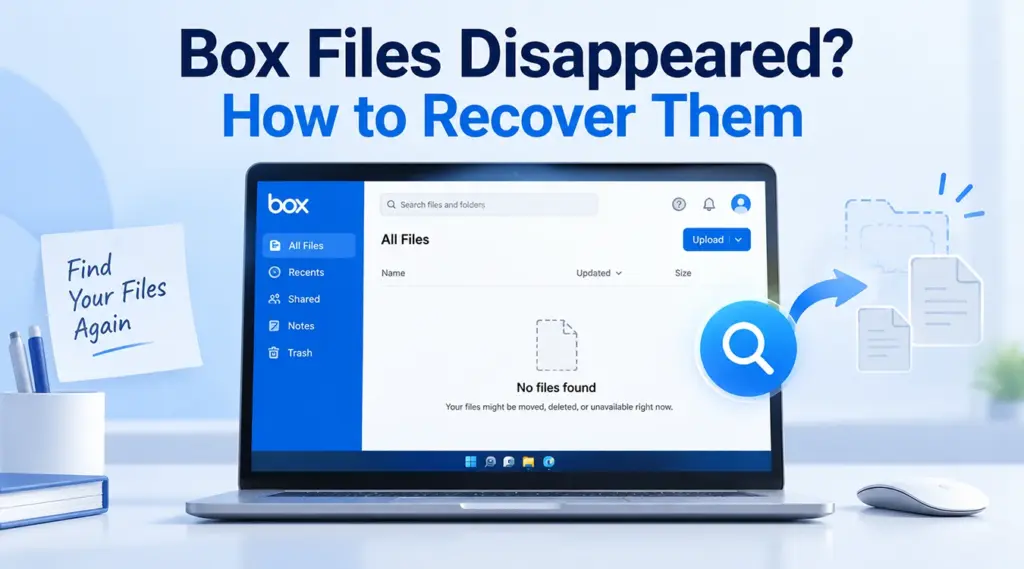
Se il vostro i file in archivi sono scomparsi, non dare per scontato che siano stati eliminati definitivamente. I file potrebbero essere ancora presenti nell’interfaccia web di Box, nel Cestino, in un’altra cartella, in una versione precedente o in uno spazio di lavoro condiviso a cui non puoi più accedere. Inizia con le opzioni di recupero integrate in Box. Se anche una copia scaricata o salvata in locale è stata eliminata da Windows, Magic Data Recovery potrebbe essere d'aiuto qualora tali opzioni non funzionassero. Per i casi generali di eliminazione, consulta la nostra Guida al recupero dei file cancellati.
Supporta Windows 7/8/10/11 e Windows Server
Indice dei contenuti
Cosa controllare per prima cosa quando i file in un cartone sono scomparsi
Prima di modificare le impostazioni di Box Drive o di utilizzare un software di recupero dati, occorre stabilire dove si trovassero effettivamente i contenuti mancanti.
Quello che vedi | Situazione probabile | Da provare per primo |
File non presente su Box Drive ma visibile online | Problema di visualizzazione o sincronizzazione di Box Drive | Risoluzione dei problemi di Box Drive |
Il file non è presente in nessuna cartella del tuo account Box | Eliminato o spostato | Cerca e controlla il Cestino |
La cartella condivisa è scomparsa | Modifica delle autorizzazioni o della collaborazione | Contatta il proprietario della cartella |
Il file è ancora presente, ma contiene un contenuto errato | Il file è stato sovrascritto | Controlla la cronologia delle versioni |
Il file non si trova più nel Cestino | I contenuti potrebbero essere stati cancellati | Contatta l’assistenza di Box |
La copia scaricata è scomparsa da Windows | Eliminazione dei file locali | Controlla il Cestino o il backup |
Questa distinzione è importante perché Box Drive non è semplicemente una cartella qualsiasi che contiene copie locali permanenti di tutto ciò che è presente nel tuo account cloud. Box spiega che Drive visualizza i contenuti dell'account sul desktop e scarica i file in locale quando necessario.
Pertanto, se i file in archivi sono scomparsi Da Esplora file, verificare se le copie sul cloud sono ancora presenti prima di tentare il recupero dei dati.
Perché i miei file archiviati sono scomparsi?
Diversi fattori possono far sembrare che i file di Box siano mancanti:
- Qualcuno ha spostato o rinominato i file.
- Un collaboratore ha eliminato dei contenuti da una cartella condivisa.
- Il tuo accesso a una cartella condivisa è cambiato.
- Il file è stato sovrascritto con una versione più recente.
- Box Drive non visualizza più correttamente i contenuti nel cloud.
- L'elemento è stato spostato nel Cestino.
- Il periodo di conservazione dei dati è scaduto.
- Una copia locale scaricata o esportata è stata eliminata da Windows.
Il metodo di recupero corretto dipende dal tipo di evento verificatosi. Ad esempio, un software di recupero dati su disco non è in grado di ripristinare un file presente esclusivamente nel cloud dai server di Box, mentre il Cestino di Box non può recuperare un file Windows separato che è stato scaricato in precedenza.
Se i file stanno scomparendo anche in altre parti del computer, consulta Come recuperare i file scomparsi su Windows.
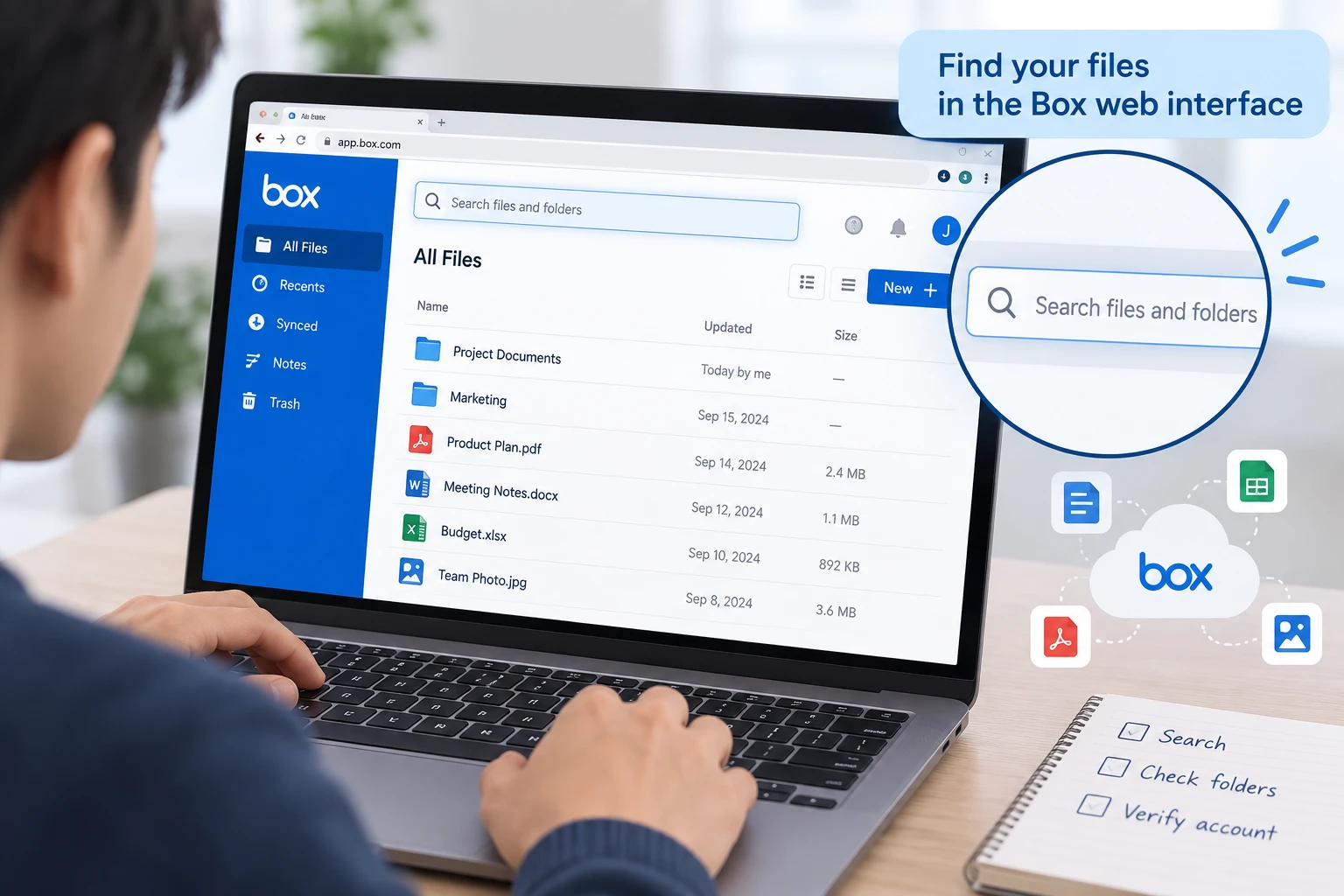
Controlla prima l'interfaccia web di Box
Quando i file in archivi sono scomparsi Da Box Drive, accedi al tuo account Box tramite un browser prima di reimpostare o reinstallare qualsiasi cosa.
Cerca il file mancante:
- Nome completo del file.
- Parte del nome del file.
- Estensione del file.
- Nome della cartella.
- Contenuto modificato di recente.
Se trovi i file online, significa che non sono stati eliminati definitivamente da Box. In tal caso, concentrati su Box Drive piuttosto che sul recupero dei file eliminati.
Verifica inoltre di aver effettuato l'accesso con l'account corretto. Questo controllo è particolarmente importante se utilizzi account Box distinti per il lavoro, la scuola o l'uso personale.
Ripristina i file eliminati dal Cestino di Box
Se i file in archivi sono scomparsi anche dall'interfaccia web, "Cestino" dovrebbe essere la tua prossima tappa.
Box conserva normalmente i contenuti eliminati nel Cestino per 30 giorni, anche se gli amministratori degli account Business ed Enterprise possono modificare tale periodo. Finché un elemento rimane nel Cestino, è possibile ripristinarlo nella sua posizione originale. Box precisa inoltre che sia il proprietario che la persona che ha eliminato un elemento da una cartella collaborativa potrebbero essere in grado di recuperarlo.
Aperto Altro > Cestino, quindi cerca il file o la cartella mancante.
Se sono scomparsi più file contemporaneamente, cerca anche la cartella principale. Tuttavia, il ripristino della cartella principale non comporta necessariamente il ripristino degli elementi secondari che sono stati eliminati prima della cartella stessa.
Ricorda che Box Trash e il Cestino di Windows sono sistemi diversi. Se hai eliminato dal tuo PC una copia scaricata separatamente, controlla invece nel Cestino di Windows. Se il Cestino di Windows è già stato svuotato, consulta Come recuperare i file eliminati dal Cestino.
Verifica se i file sono stati spostati o se sono state apportate modifiche ai diritti di accesso
A volte i file in archivi sono scomparsi perché non sono mai stati cancellati.
Negli spazi di lavoro condivisi, un altro utente con autorizzazioni sufficienti può spostare, rinominare o eliminare contenuti. Allo stesso modo, la revoca dell'accesso in collaborazione può far scomparire l'intera cartella del progetto dalla tua visualizzazione, anche se i file continuano a esistere.
Chiedi al proprietario della cartella o all'amministratore di:
- Cerca il contenuto mancante.
- Verifica se la cartella è stata spostata.
- Verifica che il tuo accesso alla collaborazione sia ancora attivo.
- Se sono disponibili i report dell'amministratore, controlla le attività recenti.
Questo metodo è particolarmente utile quando un'intera cartella condivisa scompare senza che venga visualizzato alcun messaggio di cancellazione evidente.
In questa situazione, non utilizzare software di recupero dati locali. I dati appartengono ancora all’account cloud; il problema riguarda la posizione o le autorizzazioni, piuttosto che la cancellazione locale.
Utilizzare la cronologia delle versioni per un file sovrascritto
Un'altra interpretazione comune di i file in archivi sono scomparsi è che il contenuto originale sia scomparso dopo che qualcuno ha modificato o sostituito un file.
Se il file esiste ancora, controlla Storia della versione prima di cercare i file eliminati. Box conserva le versioni precedenti in base al tipo di account e alle impostazioni dell'amministratore. Gli utenti autorizzati possono visualizzare in anteprima, scaricare o ripristinare una versione precedente.
La cronologia delle versioni è utile quando:
- Un documento è stato sovrascritto per errore.
- Qualcuno ha caricato un altro file con lo stesso nome.
- Una modifica errata sincronizzata tramite Box Drive.
- Ti servono i contenuti di una versione precedente.
Tuttavia, la Cronologia delle versioni è diversa dal Cestino. Se il file è stato eliminato definitivamente, controlla invece il Cestino e l'attività di collaborazione.
Risolvere il problema di Box Drive quando i file sono presenti online ma non sul PC
Se i file in archivi sono scomparsi solo all'interno di Esplora file di Windows, ma rimangono visibili nell'interfaccia web; il problema è probabilmente legato a Box Drive.
Inizia con controlli a basso rischio:
- Verifica che Box Drive sia in esecuzione.
- Controlla la tua connessione a Internet.
- Se necessario, esci dall'account e accedi nuovamente.
- Riavvia Box Drive.
- Installa la versione più recente di Box Drive se quella che hai è obsoleta.
Prima di ripristinare manualmente Box Drive, salva i file che non sono ancora stati caricati.
Su Windows, la guida all'assistenza di Box indica questa posizione:
C:\Utenti\[NOME UTENTE]\AppData\Local\Box\Box\unsyncedFiles
I file archiviati in quella cartella potrebbero non essere ancora presenti nel cloud. Box consiglia di copiarli in una posizione esterna alla cartella “Application Data” di Box prima di eseguire un ripristino manuale, poiché il processo di ripristino potrebbe eliminarli.
Quell’avvertimento è importante. Se i file in archivi sono scomparsi Dopo che Box Drive ha smesso di funzionare, il ripristino dell'applicazione troppo presto potrebbe causare un ulteriore problema di perdita di dati.
Contatta l'assistenza di Box se i file non si trovano più nel Cestino
Se i file in archivi sono scomparsi dal tuo account e il Cestino non li contiene più, contatta immediatamente l'assistenza di Box.
Box precisa che gli utenti paganti dispongono di un periodo di grazia di 14 giorni dopo la cancellazione definitiva dei contenuti cestinati, durante il quale l'assistenza tecnica potrebbe ancora essere in grado di recuperarli. Questo periodo di recupero non si applica agli account individuali gratuiti.
Quando contatti l'assistenza, fornisci quante più informazioni possibili:
- Nome del file o della cartella.
- Percorso originale della cartella.
- Titolare del file.
- Data approssimativa di cancellazione.
- Nomi dei collaboratori coinvolti.
Esegui questa operazione prima di tentare il recupero locale. Un file che era presente solo nell'archivio cloud di Box non può essere ricostruito eseguendo una scansione del disco del computer.
Cosa succederebbe se una copia locale del file Box venisse cancellata?
Si applica una procedura di ripristino diversa se in precedenza il file Box è stato scaricato, esportato, copiato o salvato separatamente su un’unità di Windows.
Ad esempio, potresti aver scaricato un .docx ho spostato un file da Box alla cartella "Download", ho modificato un foglio di calcolo esportato sul desktop oppure ho copiato i file di progetto in un'altra cartella.
Se quella copia locale dovesse scomparire, controlla innanzitutto:
- Cestino di Windows.
- Cronologia dei file.
- Versioni precedenti.
- Altri backup.
- Un'altra cartella in cui il file potrebbe essere stato spostato.
Per i file di Windows eliminati di recente, consulta la nostra guida su ripristinare i file cancellati di recente in Windows 11. Se una cartella locale è scomparsa completamente, utilizzare il Guida al recupero delle cartelle cancellate.
Questa distinzione permette di evitare un grave errore durante il recupero. Un segnaposto di Box Drive o un file presente solo sul cloud non equivale automaticamente a un normale file cancellato archiviato in modo permanente sul disco di Windows.
Quando Magic Data Recovery può essere d'aiuto
Se i file in archivi sono scomparsi dal cloud, Magic Data Recovery non è in grado di eseguire la scansione dei server Box né di aggirare il sistema di conservazione dei dati di Box.
Tuttavia, la questione diventa rilevante quando in precedenza esisteva una copia locale autentica sul proprio disco rigido (HDD), SSD, chiavetta USB o altro dispositivo di archiviazione leggibile da Windows e tale copia è stata eliminata.
In tale situazione, il software di recupero funziona in modo diverso rispetto al Cestino di Box o alla Cronologia delle versioni. Esso esegue una scansione del dispositivo di archiviazione locale alla ricerca di record del file system e dati residui dei file, anziché richiedere una copia precedente dal cloud.
Smetti di utilizzare l'unità interessata prima di eseguire la scansione. Eventuali nuove operazioni di scrittura potrebbero sovrascrivere i dati cancellati. Inoltre, la funzione TRIM degli SSD può ridurre significativamente la possibilità di recuperare i dati cancellati dall'SSD.
Se le opzioni di recupero integrate non funzionano più, puoi provare Magic Data Recovery prima che i nuovi dati sovrascrivano i file eliminati.
Come utilizzare Magic Data Recovery per i file della cartella "Local Box" eliminati
Passo 1: Scaricare e installare Magic Data Recovery
Installare Magic Data Recovery su un'unità o una partizione diversa da quella che conteneva i file Box locali eliminati. L'installazione nella posizione interessata potrebbe sovrascrivere i dati recuperabili.
Supporta Windows 7/8/10/11 e Windows Server
Passo 2: selezionare il Unità in cui erano archiviati i file in formato Box
Avvia il software e seleziona l'unità o la partizione di Windows che originariamente conteneva i file Box scaricati o salvati localmente. Quindi avvia la scansione.

Fase 3: Ricerca dei file locali di Box eliminati
Lascia che la scansione prosegua mentre il software esegue la ricerca nella posizione di archiviazione selezionata. Se necessario, utilizza nomi di file, estensioni, percorsi e tipi di file per restringere i risultati.

Passo 4: Recupero I file in una posizione sicura
Selezionare i file desiderati e recuperarli su un'altra unità o in una posizione di archiviazione sicura. Durante il recupero, non salvarli nuovamente nella posizione originale in cui si è verificata la perdita dei dati.

Come evitare che i file in archivi compressi scompaiano di nuovo
Se i file in archivi sono scomparsi Una volta fatto ciò, sfrutta l’accaduto per migliorare le tue possibilità di ripresa.
Innanzitutto, conservate una copia di backup indipendente dei documenti importanti. La sincronizzazione è utile per l'accessibilità e la collaborazione, ma non equivale a un backup separato.
Successivamente, controlla le autorizzazioni delle cartelle condivise. Gli utenti che devono solo visualizzare i file potrebbero non aver bisogno dei diritti di modifica o di eliminazione.
Inoltre, assicurati che le modifiche importanti siano state caricate prima di ripristinare Box Drive o di sostituire un computer. I file non sincronizzati richiedono particolare attenzione, poiché la copia su cloud potrebbe non contenere il tuo lavoro più recente.
Infine, conservate i file importanti esportati o scaricati in una posizione di Windows di cui è stato eseguito il backup, anziché affidarvi a un'unica copia locale.
Conclusione
Quando i file in archivi sono scomparsi, inizia verificando se il problema riguarda l'interfaccia web di Box, il Cestino, la Cronologia delle versioni, le autorizzazioni di collaborazione, Box Drive o una copia salvata separatamente su Windows. Il ripristino dal cloud dovrebbe sempre avere la precedenza sulla scansione del disco quando il contenuto mancante proviene da Box.
Per altri casi di cancellazione, il nostro Guida al recupero dei file cancellati spiega il processo di recupero più ampio. Se le opzioni integrate in Box non sono d'aiuto, ma una copia locale originale è stata cancellata da Windows, Magic Data Recovery offre un ulteriore metodo per eseguire la scansione del dispositivo di archiviazione originale senza pretendere di recuperare i dati direttamente dai server di Box.
Supporta Windows 7/8/10/11 e Windows Server
FAQ
Perché i miei file di Box sono scomparsi se non li ho cancellati?
È possibile recuperare i file di Box dopo che sono stati eliminati dal Cestino?
Perché i miei file su Box sono online ma non compaiono su Box Drive?
La Cronologia delle versioni consente di ripristinare i file quando quelli su Box sono scomparsi?
Magic Data Recovery è in grado di recuperare i file direttamente dal servizio di archiviazione cloud Box?
Cosa devo fare se i file di Box sono scomparsi dopo che Box Drive ha smesso di funzionare?
file non sincronizzati Individua e salva i contenuti importanti non sincronizzati in un luogo sicuro. Solo allora procedi alla risoluzione dei problemi o al ripristino di Box Drive. Questo approccio evita la perdita delle modifiche locali che non sono state ancora caricate correttamente.Come posso evitare che i file importanti presenti in Box scompaiano definitivamente?

Vasilii è uno specialista del recupero dati con circa 10 anni di esperienza pratica nel settore. Nel corso della sua carriera, ha risolto con successo migliaia di casi complessi riguardanti file cancellati, unità formattate, partizioni perse e file system RAW. La sua esperienza copre sia i metodi di recupero manuale utilizzando strumenti professionali come gli editor esadecimali, sia le soluzioni automatiche avanzate con i software di recupero. La missione di Vasilii è quella di rendere accessibile la conoscenza del recupero dati affidabile sia ai professionisti IT che agli utenti di tutti i giorni, aiutandoli a salvaguardare i loro preziosi beni digitali.