
Recover InDesign File After Crash: Free Guide

InDesign closes halfway through a layout, and the document that reopens is missing your latest edits. To recover an InDesign file after a crash, start with the application’s recovery process. A crash does not necessarily delete your saved document: you may have lost recent changes, access to its location, or links to placed images.
Start with the recovery steps below. For files that have actually disappeared from storage, our Guida al recupero dei file cancellati explains when a Windows tool such as Magic Data Recovery può essere d'aiuto.
下载
Indice dei contenuti
Recover an InDesign File After a Crash: Start Here
Risposta breve: Relaunch InDesign once and let automatic recovery finish. If a document opens with “[Recovered]” in its title, check the content and choose File > Salva con nome. Save a new copy. If nothing opens, preserve the recovery folder, locate the original document, and check cloud versions or backups before scanning for deleted files.
If the crash only removed recent edits, start with Steps 1–2. Use the other branches only when their symptoms match your project.
Quello che vedi | Probabile problema | Il passo successivo più indicato |
A new, never-saved document disappears | No saved INDD copy yet | Try native recovery; see Step 1 |
Cloud document opens at the wrong version | Version or sync issue | Check account and version history; see Step 4 |
Document opens without the latest edits | Unsaved changes | Automatic recovery, then earlier copies |
InDesign crashes again at launch | Damaged recovery data or another startup fault | Back up recovery data before troubleshooting |
Document exists but will not open | Corruption, access, or version issue | Work on a copy; follow the damaged-file branch |
Layout opens with missing images | Broken asset paths | Locate and relink the source files |
File has disappeared from Recent | Stale history or changed location | Search actual storage |
File is absent from accessible storage and backups | Actual loss or deletion | Consider a storage recovery scan; see Step 6 |
Entire drive is inaccessible or asks to format | Connection, volume, or device issue | Do not format; check connection and device stability first |
Preserve the remaining files first
Avoid cache cleaners, reinstalling InDesign, or deleting temporary folders before InDesign crash recovery. Copy any existing INDD document and its recovery folder to separate storage before advanced troubleshooting. Keep original filenames and folder relationships intact.
If you suspect deletion, minimize writes to the affected drive. Do not format it or run repair utilities as a first recovery step. Stop DIY attempts if the device clicks, disconnects repeatedly, or reports hardware errors.
Scope: These instructions follow Adobe’s published guidance for desktop InDesign on Windows and macOS. Menu labels can vary by release. Check the recovery location shown in your installed application; cloud version history applies only to documents with stored cloud versions.
1. Recover Unsaved Changes Through InDesign
Ideale per: An unexpected shutdown that interrupted an open document.
Adobe explains that InDesign stores recovery information separately from the original document. Its automatic recovery feature can bring back changes after an abnormal shutdown.
- Launch InDesign and allow recovery to finish.
- Inspect any document that opens with [Recovered] after its name.
- Check the pages you edited most recently.
- Scegliere File > Salva con nome and use a new name, such as
Brochure-recovered.indd.
The result may contain recent edits, but do not assume it includes your final keystrokes. For example, check the revised price in a brochure rather than trusting that the correct cover means the entire document is current.
For a new document you never saved, let InDesign attempt the same recovery process. If it opens, save it immediately under a recognizable name. Without usable recovery data, there may be no INDD file on disk to retrieve.
For a previously saved document, keep the original alongside the recovered copy until you compare them. Recovery data is temporary; it does not provide a permanent collection of previous versions.
2. Locate and Protect the InDesign Recovery Folder
Ideale per: Recovery does not start, or you need to preserve evidence before troubleshooting.
Il InDesign autosave location usually means the folder containing recovery data. It is not an ordinary folder of finished INDD backups.
Adobe lists these recovery folder paths:
Finestre
C:\Utenti\<username>\AppData\Local\Adobe\InDesign\<version>\<language>\Caches\InDesign Recovery
macOS
- /Users/<username>
/Library/Caches/AdobeInDesign/<version>/<language>/InDesign Recovery
Replace the placeholders with your account, installed version, and language folder. On Windows, enter %LOCALAPPDATA%\Adobe\InDesign in File Explorer. On macOS, use Finder > Vai > Vai alla cartella e digita ~/Library/Caches/Adobe InDesign/.
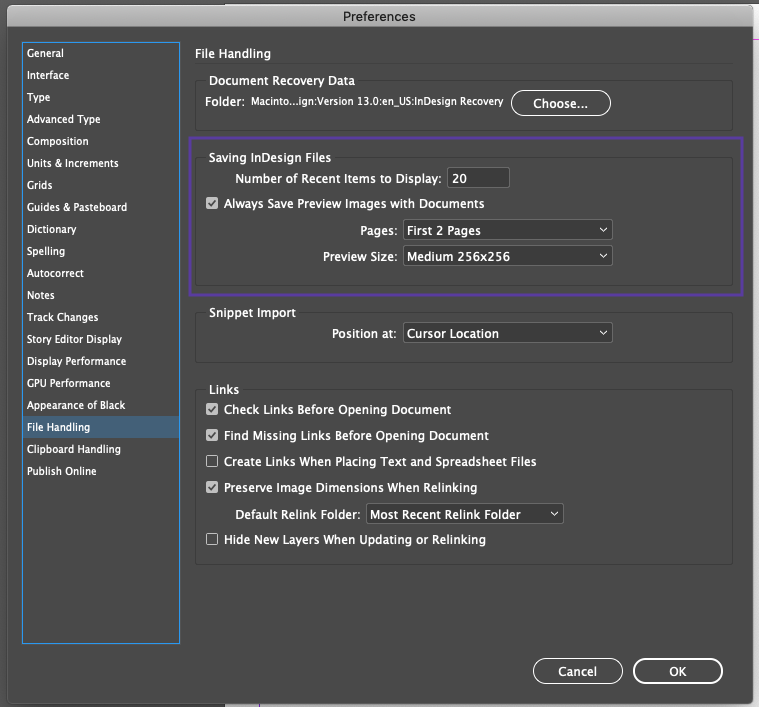
If InDesign opens, confirm the configured location under Preferences > File Handling > Document Recovery Data. Windows places Preferences under Edit; macOS places it under InDesign. A custom location can differ from the defaults.
With InDesign closed, copy the entire InDesign recovery folder before changing its contents. Preserve the original document too. File dates can help identify relevant activity, but a recent timestamp alone does not prove that usable edits remain.
Do not rename arbitrary .dbt o .tmp file in .indd. Changing an extension does not convert internal recovery data into a complete document.
What if InDesign crashes during recovery?
Repeated failure during InDesign crash recovery requires a different goal: first make the application usable without destroying your only recovery evidence.
After backing up the entire recovery folder, move its contents out of the active location while InDesign is closed. Relaunch the application. This follows Adobe’s approach of clearing damaged recovery data while retaining a separate copy for investigation.
If InDesign starts, open a copy of the last saved document manually. Clearing recovery data does not restore unsaved changes. If startup still fails, follow Adobe’s recovery troubleshooting guidance, including preference troubleshooting where appropriate.
3. Find the Original Document or Relink Missing Assets
Ideale per: The project has vanished from Recent, or the layout opens with missing graphics.
A layout and its source images need different recovery steps. An .indd file contains the document; an .idml file is an interchange copy. Linked photographs, illustrations, and other assets can live elsewhere.
On Windows, search the likely project folder for the project name, *.indd, e *.idml. On macOS, search the project name in Finder, then narrow results by name or file extension. Compare modification dates and check project folders, external drives, shared storage, and previous handoff packages. Open a found document through File > Apri rather than relying on Recent.
A missing network connection or online-only cloud placeholder can also block access. Confirm the account and location, then download a complete copy to healthy local storage before testing it.
Restore missing image links
If the layout opens and your edits are intact, focus on the missing image links:
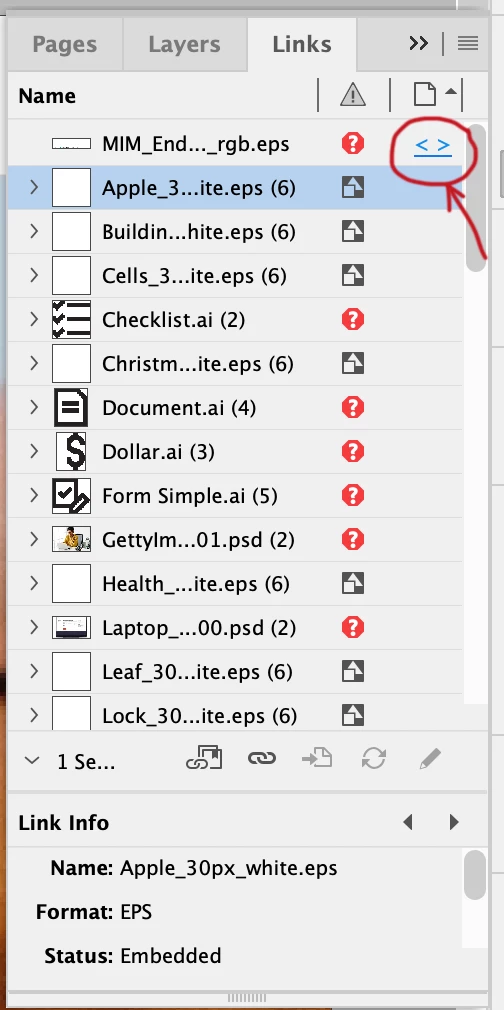
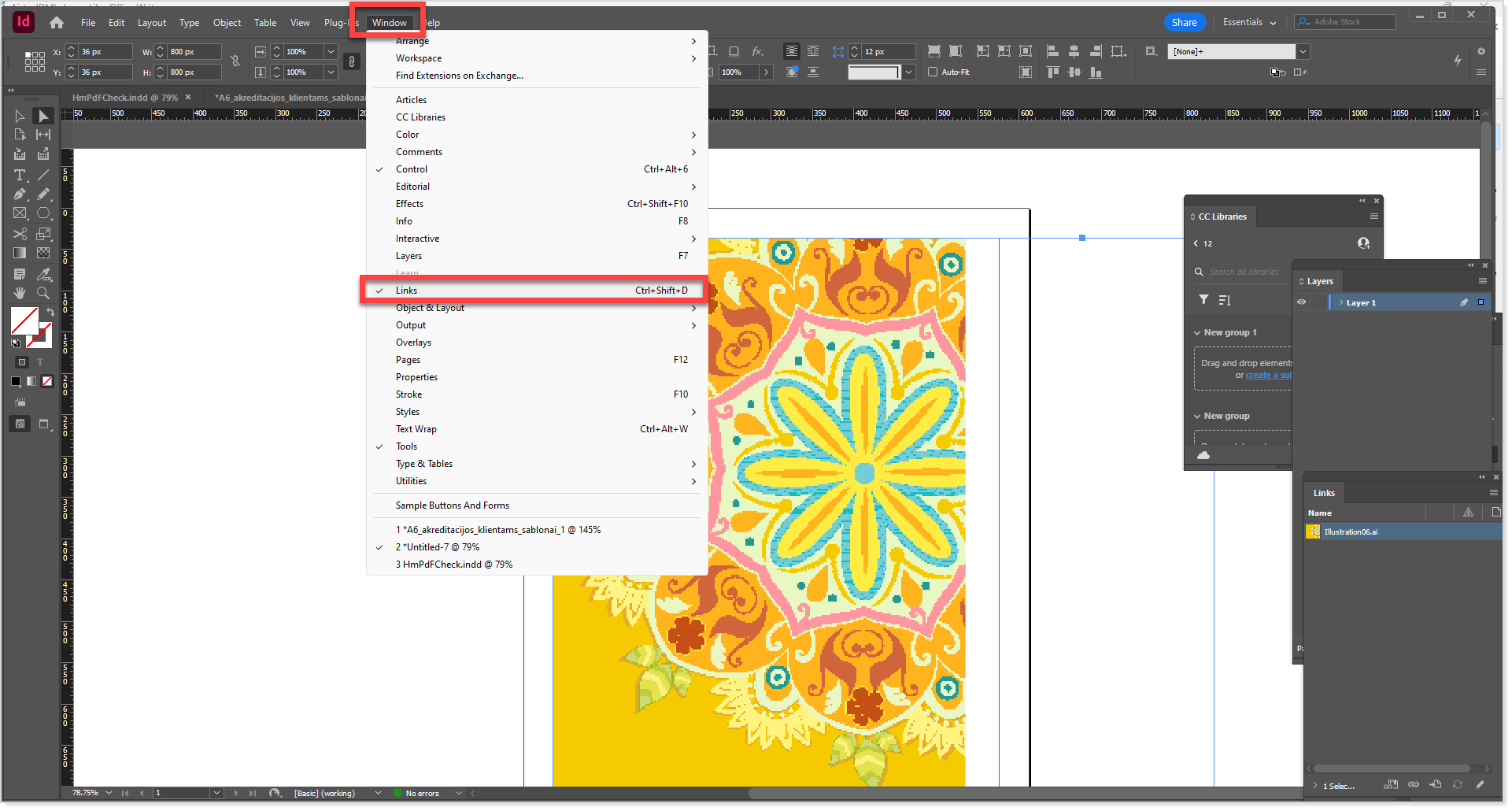
- Aperto Window > Links.
- Select a missing asset and inspect its recorded location in Link Info.
- Reconnect the expected drive or locate the moved source file.
- Scegliere Relink, select that file, and check its placement.
Adobe’s guide to updating and restoring links documents this workflow. Check the actual image, crop, and resolution when several files share a name.
Relinking works when the source exists. If the original image has disappeared too, restore or recover that asset before relinking it.
4. Restore Cloud Versions, Deleted Copies, or Backups
Ideale per: Automatic recovery fails, or the available file contains older or unwanted content.
Check InDesign cloud document history
Before changing a cloud document, confirm that you have opened the correct Adobe account and project. Save a separate copy of any current content you want to keep.
For a genuine InDesign cloud document:
- Aperto File > Version history if your release provides that command.
- Compare the available versions with the time of the crash.
- Open the chosen version’s additional actions and select Revert to this version.
- Reopen or review the document and check the affected pages.
Adobe’s cloud version recovery guide covers this route. If your desktop interface lacks the command, use the Creative Cloud website workflow: open Your files > Cloud documents, select the document, then inspect its Timeline and version actions. If neither route shows versions, do not assume a recoverable history exists.
An ordinary local INDD file does not acquire cloud history simply because you subscribe to Creative Cloud. For files in another sync service, check that service’s version history and deleted-files area instead.
Check the Recycle Bin, Trash, and existing backups
Prima di provare a recover deleted InDesign files with software, look in the Recycle Bin or Trash. Then check backups that existed before the crash, including configured File History or Time Machine backups, exported IDML copies, and packaged project folders.
Per Cronologia file di Windows, connect the backup drive. Right-click the original file or its containing folder in File Explorer and choose Ripristino delle versioni precedenti. Select a date, then use Aperto to inspect the available copy. Copy the needed document to a separate recovery folder, or use Ripristina a where available. Microsoft explains the options in its Istruzioni sulla cronologia dei file.
Per Time Machine su Mac, preserve your current document first. Open its original folder in Finder, enter Time Machine, browse to a backup before the crash, select the item, and choose Ripristino. Apple notes that restored items return to their original location, so review any replacement prompt carefully. See Apple’s restore instructions.
Both methods require an existing backup that includes the project. Enabling backup after the loss cannot create an earlier version. Compare restored copies before continuing; an older complete layout can be more useful than a newer damaged one. Check linked images separately because a document backup may exclude those assets.
5. Handle an INDD File That Exists but Will Not Open
Ideale per: The file remains on disk, but InDesign reports damage or repeatedly fails to open it.
InDesign file recovery and document repair address different problems. Scanning a drive does not automatically repair a corrupt file that still exists.
Work on a duplicate. In File > Apri, provare Open As: Copy where available. Also check whether your installed InDesign version can open the document and whether you have permission to access its folder.
If the document opens but behaves incorrectly, choose File > Export > InDesign Markup (IDML). Open the exported copy, inspect its layout, and save a new INDD file. This can help with some structural problems; it cannot restore content that no longer exists. Adobe’s damaged-document instructions distinguish these cases.
If it never opens, you cannot use its Export command. Return to backups or seek Adobe’s help with a copy of the damaged file.
6. Recover Deleted InDesign Files with Magic Data Recovery
Ideale per: Actual files have disappeared after deletion, formatting, or file-system errors on supported Windows storage.
Before scanning, confirm all three points:
- The project or asset is absent from its expected location and storage searches, rather than merely missing from Recent or Links.
- Native recovery, the Recycle Bin, cloud versions, and backups provide no usable copy.
- Windows detects the original device consistently, without repeated disconnections or physical warning signs.
An inaccessible volume does not prove deletion. Recheck its connection and access permissions first. If Windows asks to format it, cancel that prompt; consider a recovery scan only while the device remains stable. Physical faults call for specialist help.
For a broader overview across Adobe applications, see our Guida al recupero dei file Adobe.
Magic Data Recovery offers a practical next step for this InDesign file recovery scenario. Its quick and deep scanning options address file loss beyond the Recycle Bin, while previews of supported formats can help identify accompanying images. For example, you might need to recover a deleted project folder containing both a layout and linked photographs.

Its advantage over repeatedly reopening InDesign is access to recoverable data on the original storage. It does not replace native crash recovery, repair broken links, or reconstruct edits that never reached disk.
Supporta Windows 7/8/10/11 e Windows Server
Scan the original storage safely
- Prepara un'altra unità. Install the software away from the affected physical drive and reserve separate storage for recovered files.
- Select the source. Scan the volume that originally held the missing project or assets.
- Inspect the results. Look for project names, folders,
.inddo.idmlentries, and linked assets. Preview formats that the application supports; do not assume it offers an INDD preview. - Recover elsewhere. Save candidates to another drive, then test document copies in InDesign.
Actual INDD recoverability depends on remaining file data and metadata; finding an entry does not prove an intact layout. Overwriting, SSD TRIM, and severe damage can prevent recovery. Magic Data Recovery is a Windows tool. On a Mac, start with InDesign recovery, cloud versions, and Time Machine backups.
Validate the Recovered Project and Prevent Another Loss
The final step in InDesign crash recovery is returning to a usable layout. Check page count, recent text changes, parent pages, styles, and linked artwork. Resolve missing fonts and open Window > Output > Preflight to inspect issues such as overset text. Check which errors your selected Preflight profile includes. Export a review PDF and compare important pages with any previous proof.
Keep recovered assets in a stable folder, relink them, and save a new document. If a candidate fails, record the error and try an earlier copy. Repeating disk scans cannot recreate overwritten data or reliably fix severe document corruption.
For future projects:
- Save named milestones before major layout changes.
- Keep recovery data on reliable local storage with sufficient space.
- Use versioned backups that include both documents and assets.
- Utilizzo File > Package for handoffs or archives, checking available assets and font licensing. Adobe’s project sharing guide explains packaging.
- Keep a review PDF alongside important milestones.
Conclusione
A recover an InDesign file after a crash, identify what disappeared first. Use native recovery for unsaved changes, locate and relink existing assets, or restore an earlier cloud or backup copy.
If the actual files are gone, follow the flusso di lavoro per il recupero dei file cancellati. We recommend Magic Data Recovery for supported Windows file-loss scenarios because it can search the original storage after simpler recovery paths fail. Judge success by whether the document opens and its content and dependencies work.
Supporta Windows 7/8/10/11 e Windows Server
Domande frequenti
Can I recover an InDesign file after a crash if I never saved it?
Where is the InDesign autosave location?
Can I rename a DBT file to INDD to recover my document?
Why does InDesign crash again when recovering a file?
Can I recover changes after clicking Don't Save?
Why are images missing after I recover the InDesign document?
Can Magic Data Recovery recover unsaved InDesign edits?
Does exporting to IDML repair every corrupted InDesign file?

Jason è uno specialista nel recupero dati e nell’assistenza tecnica con oltre 15 anni di esperienza sul campo. Ha lavorato a lungo a stretto contatto con gli utenti finali, risolvendo casi complessi di perdita di dati e fornendo soluzioni pratiche di recupero in caso di cancellazione accidentale, unità formattate, file system danneggiati, partizioni perse, guasti di sistema e altre emergenze di recupero. La sua competenza comprende anche il backup e il ripristino, la riparazione dei file e il ripristino di emergenza, con particolare attenzione a fornire indicazioni sicure, affidabili e tecnicamente accurate.