
Gestione dispositivi: come aprirlo, utilizzarlo e risolvere i problemi hardware in Windows
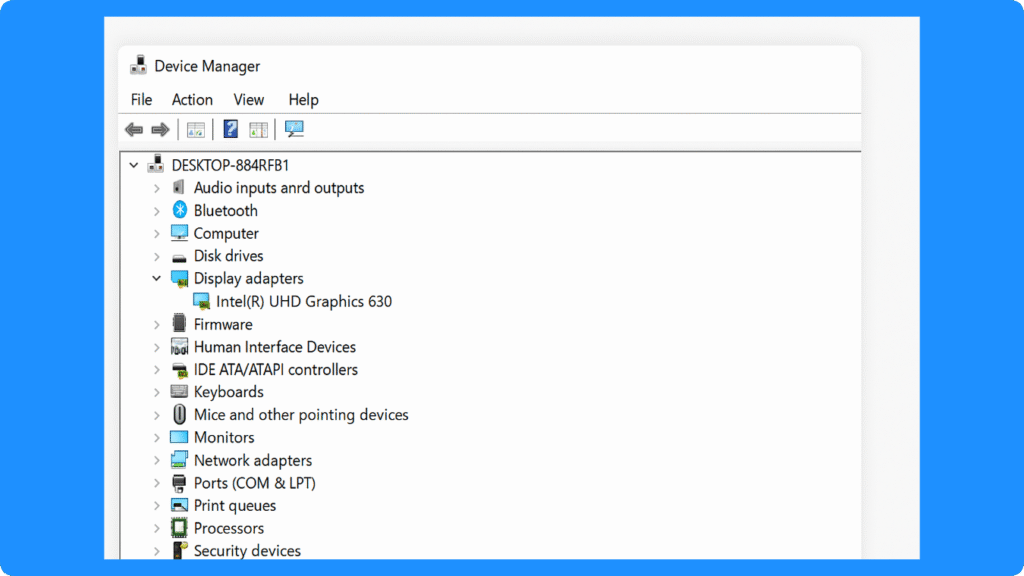
Che cosa è Gestione dispositivi? Gestione dispositivi è uno strumento integrato in Windows che consente di visualizzare i dispositivi hardware, verificarne lo stato, aggiornare i driver, ripristinare le versioni precedenti dei driver, disinstallare i dispositivi, abilitare o disabilitare l'hardware e risolvere i problemi relativi ai driver o all'hardware. Viene comunemente utilizzato quando un dispositivo non funziona, manca un driver o Windows mostra un punto esclamativo giallo accanto a un dispositivo.
In Windows 11 e Windows 10, Gestione dispositivi ti aiuta a gestire schede grafiche, schede di rete, dispositivi audio, controller USB, unità disco, tastiere, mouse, dispositivi Bluetooth, stampanti e altro hardware collegato al PC. Se il computer non riesce a riconoscere un dispositivo, non riesce ad accedere a un'unità, non emette alcun suono, non riesce a connettersi al Wi-Fi o mostra errori relativi ai driver, Gestione dispositivi è spesso uno dei primi posti da controllare.
Questa guida spiega a cosa serve Gestione dispositivi, come aprirla in diversi modi, come aggiornare, ripristinare una versione precedente, disinstallare, abilitare o disabilitare i driver, cosa significano le icone più comuni di Gestione dispositivi e come risolvere in modo sicuro i problemi più comuni relativi all'hardware e ai driver.
Risposta rapida: Gestione dispositivi è un'utilità di sistema di Windows che consente di gestire l'hardware e i driver. Per aprirla, fare clic con il pulsante destro del mouse su Start e selezionare Gestione dispositivi, oppure premere Win + R, digitare devmgmt.msc e premere Invio.
Indice dei contenuti
Funzioni principali di Device Manager
1. Monitoraggio del dispositivo
In primo luogo, questo strumento visualizza tutti i componenti hardware riconosciuti in elenchi categorizzati, tra cui processori, controller di archiviazione, adattatori grafici, adattatori di rete, dispositivi USB e periferiche. Inoltre, gli indicatori di stato, come i simboli di avviso o i codici di errore, forniscono un feedback immediato sullo stato di salute del dispositivo. Questa centralizzazione semplifica gestione dei dispositivi e contribuisce a mantenere la stabilità complessiva del sistema.
2. Gestione dei conducenti
Gli utenti possono visualizzare i dettagli dei driver attuali, aggiornare i driver obsoleti, eseguire il rollback dei driver o disinstallarli. La corretta gestione dei driver garantisce la compatibilità con gli ultimi aggiornamenti di Windows e migliora le prestazioni dei dispositivi.
3. Risoluzione dei conflitti
Inoltre, individua i conflitti tra risorse, come gli IRQ, I/O, oppure problemi relativi al DMA. Se l'allocazione automatica non va a buon fine, i professionisti IT possono regolare manualmente le risorse del dispositivo tramite Pannello di controllo Gestione dispositivi.
4. Configurazione dell'hardware
Gli utenti avanzati possono modificare le impostazioni dei dispositivi, abilitarli o disabilitarli e configurare le funzioni di gestione dell'alimentazione, come ad esempio consentire a un dispositivo di risvegliare il sistema dalla sospensione.
Che cos’è Gestione dispositivi in Windows?
Gestione dispositivi è una console di gestione di Windows che elenca i dispositivi hardware installati o collegati al computer. Organizza i dispositivi in categorie quali Schede video, Unità disco, Schede di rete, Controller audio, video e di gioco, Bluetooth, Tastiere, Mouse, Controller USB e altre ancora.
È possibile utilizzare Gestione dispositivi per verificare se Windows riconosce correttamente un dispositivo. Se un dispositivo presenta un problema, Gestione dispositivi potrebbe visualizzare un'icona di avviso, un codice di errore o un messaggio relativo allo stato del dispositivo. Questi segnali possono aiutare a capire se il problema è causato dalla mancanza di un driver, da un driver non aggiornato, da un dispositivo disabilitato, da un conflitto hardware o da un problema di connessione del dispositivo.
Gestione dispositivi è particolarmente utile quando:
Un dispositivo non funziona più dopo un aggiornamento di Windows.
Un driver è mancante o danneggiato.
Un dispositivo USB, un'unità esterna, un dispositivo audio o una scheda di rete non viene riconosciuto.
Accanto a un dispositivo compare un punto esclamativo giallo.
È necessario aggiornare, ripristinare una versione precedente, disinstallare, abilitare o disabilitare un driver.
È consigliabile verificare il nome esatto del componente hardware prima di scaricare un driver dal sito del produttore.
Come aprire Gestione dispositivi in Windows 11 e Windows 10
Esistono diversi modi per aprire Gestione dispositivi. Il metodo più veloce è solitamente il menu Win + X o il comando "Esegui".
Metodo 1: Aprire Gestione dispositivi dal menu Start
- Fare clic su Start.
- Digita "Gestione dispositivi".
- Seleziona "Gestione dispositivi" dai risultati della ricerca.
Questo metodo è semplice e funziona bene per la maggior parte degli utenti di Windows.
Metodo 2: Aprire Gestione dispositivi con Win + X
- Fare clic con il tasto destro del mouse sul pulsante Start.
- Selezionare "Gestione dispositivi" dal menu.
Puoi anche premere Win + X sulla tastiera e poi selezionare Gestione dispositivi.
Metodo 3: Aprire Gestione dispositivi con il comando "Esegui"
- Premi Win + R.
- Digita devmgmt.msc.
- Premere Invio.
Questo è uno dei modi più veloci per aprire Gestione dispositivi, soprattutto per gli utenti esperti.
Metodo 4: Aprire Gestione dispositivi dal Pannello di controllo
- Aprire il Pannello di controllo.
- Vai su "Hardware e suoni".
- Selezionare "Gestione dispositivi" nella sezione "Dispositivi e stampanti".
Questo metodo è utile se si sta già utilizzando il Pannello di controllo per altre impostazioni hardware.
Metodo 5: Aprire Gestione dispositivi da Gestione computer
- Fai clic con il tasto destro del mouse su "Start".
- Selezionare "Gestione computer".
- Fare clic su "Gestione dispositivi" nel pannello di sinistra.
Questo metodo è utile per gli utenti IT che necessitano anche di Gestione disco, Visualizzatore eventi o Servizi.
Cosa si può fare in Gestione dispositivi?
Gestione dispositivi viene utilizzata principalmente per gestire i dispositivi hardware e i driver. Non sostituisce Windows Update né gli strumenti per i driver forniti dai produttori, ma consente di controllare direttamente i singoli dispositivi.
Aggiornamento dei driver
È possibile aggiornare un driver quando un dispositivo non funziona correttamente, quando un nuovo dispositivo non viene riconosciuto o quando il produttore mette a disposizione un driver più recente.
Passi:
- Apri Gestione dispositivi.
- Espandi la categoria dei dispositivi.
- Fare clic con il tasto destro del mouse sul dispositivo di destinazione.
- Selezionare "Aggiorna driver".
- Scegli tra "Cerca automaticamente i driver" o "Cerca i driver nel mio computer".
- Segui le istruzioni visualizzate sullo schermo.
- Se necessario, riavvia il PC.
Seleziona "Cerca automaticamente i driver" se desideri che Windows cerchi un driver compatibile. Seleziona "Cerca i driver nel computer" se hai già scaricato un driver dal sito del produttore.
Driver di rollback
Se un dispositivo smette di funzionare dopo l'aggiornamento di un driver, è possibile ripristinare la versione precedente del driver.
Passi:
- Apri Gestione dispositivi.
- Fare clic con il tasto destro del mouse sul dispositivo.
- Selezionare Proprietà.
- Apri la scheda "Driver".
- Fare clic su "Ripristina driver".
- Scegli un motivo e conferma.
- Riavviare il computer.
Se il pulsante "Ripristina driver" è disattivato, significa che Windows non dispone di una versione precedente del driver per quel dispositivo.
Disinstalla dispositivi
La disinstallazione di un dispositivo può essere utile quando il driver è danneggiato o il dispositivo non funziona correttamente.
Passi:
- Apri Gestione dispositivi.
- Fare clic con il tasto destro del mouse sul dispositivo che presenta il problema.
- Selezionare "Disinstalla dispositivo".
- Conferma l'operazione.
- Riavviare il computer.
Dopo il riavvio, Windows potrebbe reinstallare automaticamente il dispositivo. Per alcuni componenti hardware, potrebbe essere necessario installare il driver corretto fornito dal produttore.
Attiva o disattiva i dispositivi
È possibile disattivare temporaneamente un dispositivo senza rimuovere il driver.
Passi:
- Apri Gestione dispositivi.
- Fare clic con il tasto destro del mouse sul dispositivo.
- Selezionare "Disattiva dispositivo".
- Conferma l'operazione.
Per riattivarlo, fare nuovamente clic con il tasto destro del mouse sul dispositivo e selezionare "Abilita dispositivo".
Questa funzione è utile per la risoluzione dei problemi relativi a schede di rete, dispositivi Bluetooth, fotocamere, dispositivi audio o touchpad. Non disattivare i dispositivi di sistema essenziali a meno che non si conosca la loro funzione.
Visualizza le proprietà del dispositivo e i codici di errore
Gestione dispositivi può mostrare informazioni dettagliate su un dispositivo.
Passi:
- Fare clic con il tasto destro del mouse sul dispositivo.
- Selezionare Proprietà.
- Seleziona la scheda "Generale".
- Leggi il messaggio relativo allo stato del dispositivo.
- Nella scheda "Driver" è possibile verificare il fornitore del driver, la data, la versione e le opzioni di rollback.
Se Windows visualizza un codice di errore, utilizzalo per identificare il problema esatto prima di modificare i driver o le impostazioni hardware.
Le icone di Gestione dispositivi e il loro significato
Gestione dispositivi utilizza delle icone per indicare lo stato dei dispositivi. Comprendere il significato di queste icone può aiutarti a individuare i problemi più rapidamente.
| Icona o stato | Significato | Cosa fare |
|---|---|---|
| Punto esclamativo giallo | Windows rileva un problema con il dispositivo, spesso legato a un driver mancante, obsoleto, danneggiato o incompatibile | Apri "Proprietà", controlla lo stato del dispositivo, quindi aggiorna, reinstalla o ripristina la versione precedente del driver |
| Freccia giù | Il dispositivo è disattivato | Fai clic con il tasto destro del mouse sul dispositivo e seleziona "Abilita dispositivo" |
| Dispositivo sconosciuto | Windows rileva l'hardware ma non riesce a identificarlo correttamente | Verificare gli ID hardware, installare il driver corretto fornito dal produttore oppure eseguire Windows Update |
| Nessuna icona di avviso | Il dispositivo viene riconosciuto e funziona correttamente | Di solito non è necessario intervenire |
| Il dispositivo non viene visualizzato | Il dispositivo potrebbe essere scollegato, nascosto, disabilitato nel BIOS/UEFI oppure non rilevato da Windows | Controlla i collegamenti, attiva i dispositivi nascosti, riavvia Windows oppure verifica le impostazioni del BIOS/UEFI |
Un punto esclamativo giallo non significa sempre che l'hardware sia fisicamente danneggiato. In molti casi, significa che Windows necessita del driver corretto o che il driver esistente non funziona correttamente.
Come risolvere il problema del punto esclamativo giallo in Gestione dispositivi
Un punto esclamativo giallo è uno dei problemi più comuni riscontrati in Gestione dispositivi. Di solito indica che Windows ha rilevato un problema con il dispositivo o con il relativo driver.
Prova queste soluzioni nell'ordine indicato:
- Apri Gestione dispositivi.
- Fai clic con il tasto destro del mouse sul dispositivo contrassegnato dal punto esclamativo giallo.
- Selezionare Proprietà.
- Leggi il messaggio relativo allo stato del dispositivo.
- Annotare eventuali codici di errore.
- Fare clic su "Aggiorna driver".
- Se l'aggiornamento non funziona, prova a ripristinare la versione precedente del driver.
- Se l'opzione di ripristino non è disponibile, selezionare "Disinstalla dispositivo" e riavviare il PC.
- Scarica il driver corretto dal sito del produttore del dispositivo o del PC.
- Riavvia Windows e controlla nuovamente Gestione dispositivi.
Se il dispositivo è un disco esterno, un dispositivo USB, una stampante, un adattatore Bluetooth o un adattatore di rete, controllare anche il cavo, la porta, l'alimentazione e il collegamento fisico.
Come trovare un dispositivo smarrito o sconosciuto
A volte Windows visualizza il messaggio "Dispositivo sconosciuto" oppure non rileva affatto il dispositivo. Ciò può verificarsi dopo aver reinstallato Windows, aver collegato un nuovo dispositivo hardware, aver aggiornato il sistema o aver utilizzato un dispositivo meno recente.
Provate a seguire questi passaggi:
- Apri Gestione dispositivi.
- Fai clic su Visualizza.
- Seleziona "Mostra dispositivi nascosti".
- Controllare le voci "Altri dispositivi", "Controller USB", "Unità disco", "Schede di rete" e "Dispositivi di sistema".
- Fare clic con il tasto destro del mouse sul dispositivo sconosciuto.
- Selezionare Proprietà.
- Apri la scheda "Dettagli".
- Selezionare "ID hardware" dal menu "Proprietà".
- Copia l'ID hardware e utilizzalo per trovare il driver corretto sul sito ufficiale del produttore.
Evita di scaricare driver da siti web sconosciuti. Le fonti più sicure sono Windows Update, il produttore del PC, il produttore della scheda madre o il produttore dell'hardware.
Quando è opportuno aggiornare i driver in Gestione dispositivi?
Non è necessario aggiornare manualmente ogni driver solo perché è disponibile una versione più recente. L'aggiornamento dei driver è particolarmente utile quando si verifica un problema specifico o si presenta un'esigenza di compatibilità.
È consigliabile aggiornare un driver quando:
Un dispositivo non funziona correttamente.
Windows mostra un punto esclamativo giallo.
Dopo un aggiornamento di Windows manca un dispositivo.
Hai installato del nuovo hardware.
Un produttore consiglia di aggiornare il driver per il tuo modello.
Un dispositivo grafico, audio, di rete o di archiviazione presenta un problema noto.
È necessario prestare attenzione agli aggiornamenti dei driver quando:
Il dispositivo funziona correttamente.
Uno strumento di terze parti segnala che molti driver sono obsoleti, ma Windows non rileva alcun problema.
Il driver proviene da un sito web sconosciuto.
Il driver non è stato progettato specificatamente per il tuo modello di dispositivo.
Per i componenti critici come il chipset, il controller di archiviazione, la scheda grafica e la scheda di rete, scaricare i driver dal sito web ufficiale del produttore è solitamente più sicuro rispetto all'utilizzo di strumenti di aggiornamento dei driver non verificati.
Gestione dispositivi o Windows Update: quale scegliere?
Sia Gestione dispositivi che Windows Update possono essere d'aiuto per i driver, ma non sono la stessa cosa.
| Strumento | Il migliore per | Note |
| Gestione dispositivi | Aggiornamento, ripristino della versione precedente, disinstallazione, attivazione, disattivazione e verifica dei singoli dispositivi | Ideale per risolvere un problema hardware specifico |
| Aggiornamento di Windows | Installazione degli aggiornamenti dei driver consigliati e opzionali forniti da Microsoft e dai partner dei dispositivi | Ideale per la manutenzione generale dei driver di sistema |
| Sito web del produttore | Come scaricare il driver più recente per un determinato PC, una scheda madre, una scheda grafica, una stampante o un accessorio | Ideale quando Windows non riesce a trovare il driver corretto |
Un buon flusso di lavoro per la risoluzione dei problemi è il seguente:
- Verifica lo stato del dispositivo in Gestione dispositivi.
- Prova ad aggiornare tramite Windows Update o Gestione dispositivi.
- Se il problema persiste, scarica il driver dal sito web ufficiale del produttore.
- Se il nuovo driver causa problemi, utilizzare la funzione "Ripristina versione precedente del driver" oppure disinstallare il dispositivo.
Cosa fare se un'unità diventa illeggibile a seguito di un problema legato al driver o all'hardware
Gestione dispositivi può aiutare a stabilire se un'unità disco, un'unità USB, un dispositivo esterno disco rigido, Windows rileva un lettore di schede SD o un controller di archiviazione. Tuttavia, non è in grado di recuperare autonomamente i file persi.
Se un'unità diventa illeggibile, scompare da Esplora file, segnala un problema con il driver o richiede di essere formattata, evitare di scrivere nuovi dati sull'unità. Non formattare, inizializzare o riparare ripetutamente l'unità prima di verificare se i file importanti sono recuperabili.
In questa situazione, Magic Data Recovery può aiutare a eseguire una scansione dell'unità interessata e a recuperare i file persi a seguito di cancellazione, formattazione, errori del file system, problemi di partizione o dispositivi di archiviazione inaccessibili, purché i dati originali non siano stati sovrascritti.
Utilizza Gestione dispositivi per verificare se Windows è in grado di rilevare il dispositivo. Utilizza Magic Data Recovery quando il problema principale è la perdita di dati o l'impossibilità di accedere ai file.
Conclusione
Gestione dispositivi è uno strumento integrato in Windows che consente di visualizzare, gestire e risolvere i problemi relativi ai dispositivi hardware e ai driver. È possibile utilizzarlo per aprire le proprietà dei dispositivi, aggiornare i driver, ripristinare le versioni precedenti dei driver, disinstallare i dispositivi, abilitare o disabilitare l'hardware, controllare i codici di errore e risolvere i problemi più comuni relativi ai driver.
Per aprire rapidamente Gestione dispositivi, fare clic con il tasto destro del mouse su Start e selezionare Gestione dispositivi, oppure premere Win + R, digitare devmgmt.msc e premere Invio. Se viene visualizzato un punto esclamativo giallo, un dispositivo sconosciuto o un dispositivo disabilitato, aprire prima le proprietà del dispositivo e controllare il messaggio relativo allo stato del dispositivo prima di modificare i driver.
In caso di problemi con i driver, Gestione dispositivi è utile per una risoluzione mirata dei problemi. Per gli aggiornamenti generali dei driver, Windows Update e i siti web ufficiali dei produttori sono solitamente fonti più affidabili. Se un dispositivo di archiviazione diventa illeggibile o si verificano perdite di file a seguito di problemi hardware o relativi ai driver, Magic Data Recovery può aiutare a eseguire una scansione del dispositivo e a recuperare i dati persi, purché non siano stati sovrascritti.
Supporta Windows 7/8/10/11 e Windows Server
DOMANDE FREQUENTI: DOMANDE E RISPOSTE
Che cos’è Gestione dispositivi?
Come si apre Gestione dispositivi in Windows 11?
Come si apre Gestione dispositivi in Windows 10?
Cosa significa un punto esclamativo giallo in Gestione dispositivi?
Come si aggiornano i driver in Gestione dispositivi?
Devo disinstallare un dispositivo in Gestione dispositivi?
Che cos’è il “Roll Back Driver” in Gestione dispositivi?
Come si risolve il problema di un dispositivo non riconosciuto in Gestione dispositivi?
Gestione dispositivi è la stessa cosa di Windows Update?
Gestione dispositivi è in grado di recuperare i file persi?

Erin Smith è riconosciuta come una delle scrittrici più professionali di Amagicsoft. Negli ultimi 10 anni ha continuamente affinato le sue capacità di scrittura e ha aiutato milioni di lettori a risolvere i loro problemi tecnologici.