
Physical Hard Drive Data Recovery: When Software Works and When You Need a Lab
A hard drive falls off a desk. Now it clicks, disappears from Windows, or asks you to format it. Data recovery from a physically damaged hard disk may still be possible, but the next step depends on whether the hardware can read data safely. A visible drive letter alone does not answer that question.
Damaged heads, failed electronics, and scratched platters need different treatment from deleted files or a corrupted file system. A lab may recover readable data after specialist intervention. However, neither software nor a lab can promise to reconstruct information that physical damage has destroyed.
If the drive clicks repeatedly, grinds, smells burnt, or stopped working after a drop, disconnect it. This guide explains when physical hard drive data recovery requires a specialist and when Magic Data Recovery fits a stable drive with logical data loss. For broader HDD guidance, visit our hard drive recovery resource.
Supporta Windows 7/8/10/11 e Windows Server
Indice dei contenuti
Before You Try Physical Hard Drive Data Recovery
Keep a suspected failing HDD powered off while you decide what to do. Avoid these actions:
- Reconnecting it repeatedly to see whether it works this time.
- Running CHKDSK, formatting, initializing, or rebuilding partitions before securing the data.
- Opening the metal drive cover, tapping the drive, freezing it, or swapping circuit boards.
- Installing recovery software or saving recovered files on the affected disk.
Seagate warns that grinding or scratching can indicate platter damage that continued use may worsen. With important data at stake, its guidance is to contact a recovery service before troubleshooting. Source: Seagate
Quick Decision: Software, Backup, or Recovery Lab?
Use the symptoms you already observed. Do not power on a damaged drive just to complete this table.
What happened or what you noticed | Cosa potrebbe significare | Il passo successivo più sicuro |
Repeated hard clicking, grinding, or scraping | Possible head, media, or other internal failure | Power off; contact a specialist lab |
Drop, liquid exposure, burning smell, or visible electrical damage | Possible physical or electronic damage | Keep disconnected; request professional assessment |
Frequent disconnects, read errors, or severe slowdowns | Unstable hardware, media, firmware, or connection problem | Stop scanning; discuss controlled imaging with a specialist |
Stable operation, normal sounds, correct capacity, files deleted or quick-formatted | Likely logical data loss, provided no physical incident or warning signs exist | Check backups; consider recovery software |
RAW or “You need to format the disk” | File-system trouble or an underlying hardware problem | Do not format; assess hardware stability before choosing a route |
No detection, but no known impact or abnormal sounds | Connection, enclosure, power, firmware, or internal failure | Consider one limited connection check only under the conditions below |
The key distinction in hard disk physical damage data recovery is whether the device can supply readable data without making the failure worse. Detection does not establish that it can.
Data Recovery from a Physically Damaged Hard Disk: What Is Possible?
Sometimes. An HDD stores information on magnetic platters. Read/write heads access that information, while motors, electronics, and firmware keep the mechanism working. Failure in one component does not automatically erase every file.
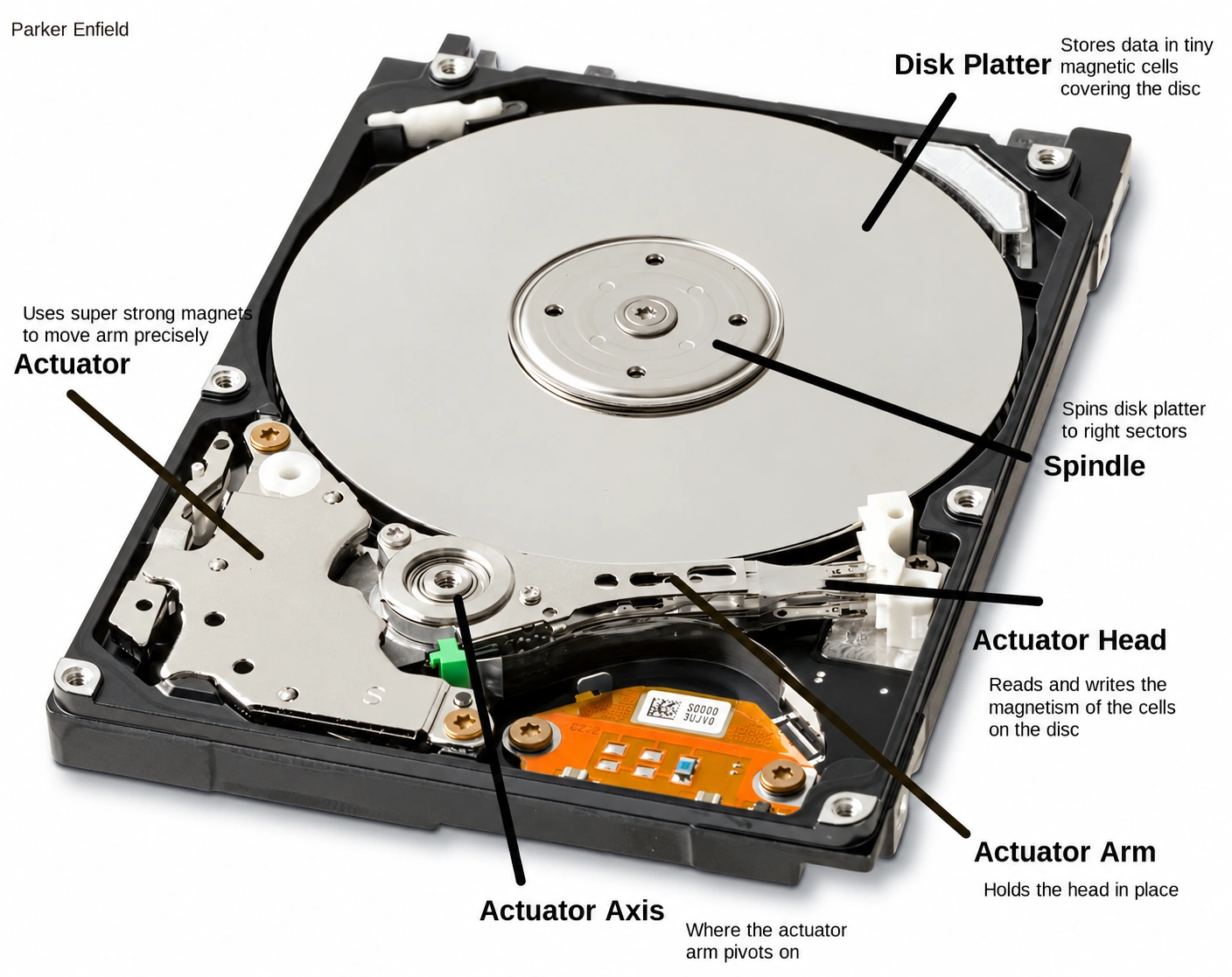
For example, failed electronics may prevent access even when the recording surfaces still hold data. A head crash can damage those surfaces directly. The first situation and the second require very different assessments.
Physical hard drive recovery aims to extract readable data onto healthy storage. It does not make the original disk dependable again. Even a successful recovery can leave missing folders, damaged files, or unreadable sections.
Physical Failure vs. Logical Data Loss
With logical loss, the hardware still works, but Windows cannot locate or interpret the files correctly. Accidental deletion, quick formatting, and damaged file-system records fall into this category.
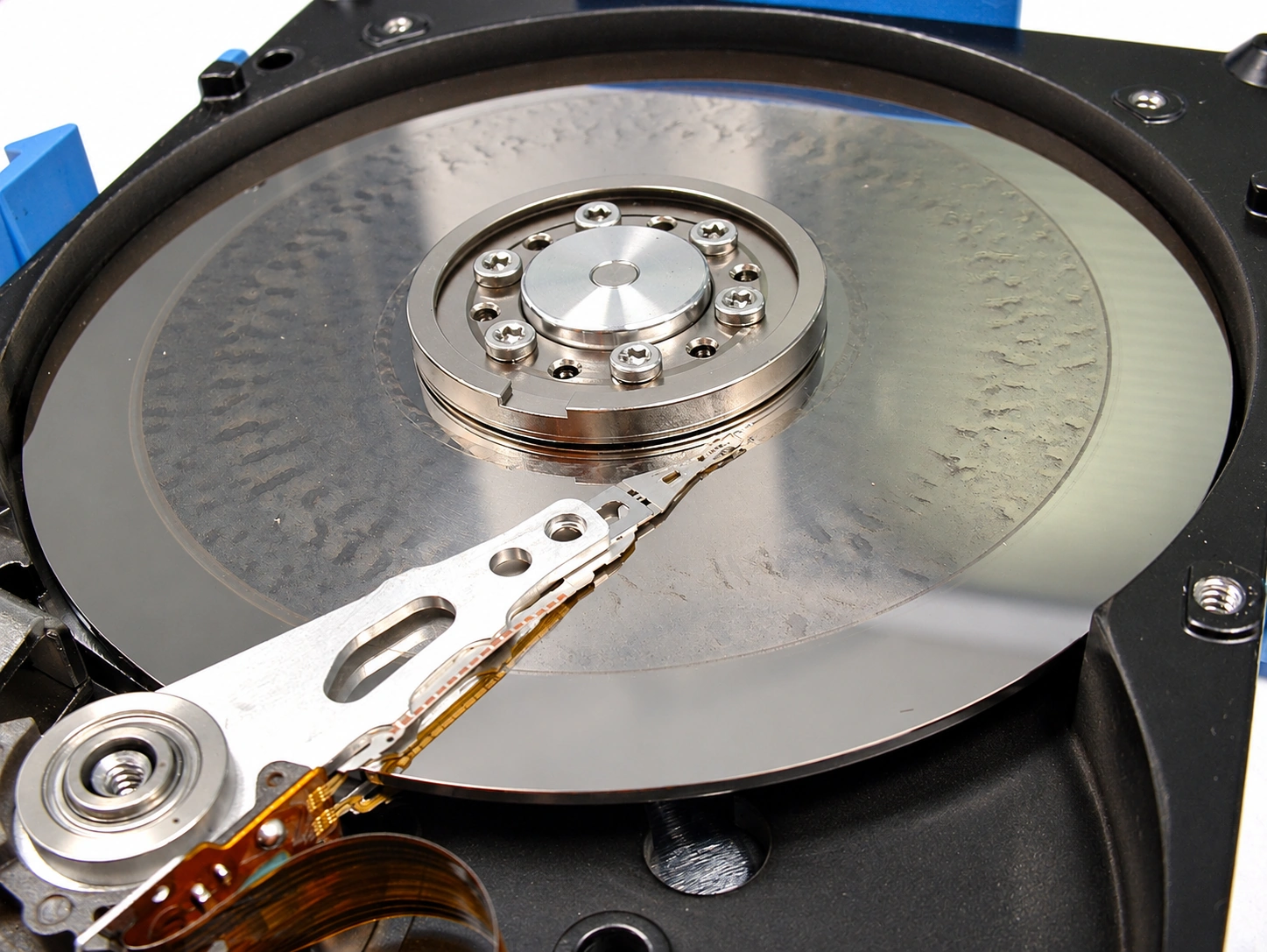
Recovery software searches the data that the drive can still return. It may use surviving directory information or recognizable file patterns. It cannot realign heads, restart a seized motor, or restore missing magnetic material.
That explains the title’s software boundary: software can help when the apparent “damage” is logical, or later on a readable copy that a specialist has produced. It does not repair physical damage.
Mechanical Failure Is One Type of Physical Failure
Hard disk mechanical failure data recovery concerns moving components, such as the head assembly or spindle motor. Electrical faults affect circuitry instead. Firmware faults can also block access, sometimes without unusual sounds.
Ontrack identifies head crashes and motor failures among mechanical problems and explains that opening these drives requires a cleanroom environment. That is a specialist procedure, not a home repair step. Source: Ontrack
How to Assess a Suspected Damaged Drive Without Repeated Testing
Start with the failure history. Did someone delete a folder, or did the drive fall while running? Did the problem follow a power surge? Those details often matter more than the Windows error message.
If the drive is already disconnected after an impact or abnormal noise, leave it that way. Record the model number from the label and describe the symptoms to a lab.
For an otherwise normal external HDD with no impact, liquid exposure, burning smell, or mechanical warning signs, a single check with a known-good compatible cable and direct USB port may rule out a connection problem. Use only a manufacturer-compatible power supply. If the problem persists, avoid a cycle of new adapters and repeated restarts.
If Windows already shows a stable drive, Disk Management can help you identify its capacity and status. Decline any initialization or formatting prompt. Correct capacity is useful information; it is not proof of good health.
Per damaged hard drive data recovery, RAW status, missing drive letters, and detection failures are clues rather than diagnoses. A normal sound or a passing health indicator also cannot exclude every fault. Do not run an extended surface test simply to decide whether scanning is safe.
Choose the Recovery Route Before Starting a Scan
First, check existing copies without reconnecting the suspect disk. A verified backup can return the files with no further stress on the original. If no usable copy exists, physical warning signs take priority over software experiments. Only consider a direct recovery scan when the evidence points to logical loss on stable hardware.
Route 1: Restore an Existing Copy
Ideale per: anyone with File History, a separate backup disk, cloud version history, a NAS snapshot, or another intact copy.
A backup is usually the most predictable route because it avoids reading the damaged source. Its limitation is coverage: it may omit recent work or exclude some folders.
- Disconnect the suspect drive.
- Open the backup or cloud account from a healthy computer.
- Restore the relevant folders to healthy storage.
- Open representative files and confirm the versions and dates.
For ordinary deletion on a stable disk, also check the Recycle Bin. Do not reconnect a mechanically failing drive merely to inspect it. If the available copies miss essential files, move to the lab or software route according to the drive’s condition.
Route 2: Use a Lab for Suspected Physical Damage
Ideale per: a dropped, clicking, grinding, electrically damaged, or unstable drive, especially when it holds the only valuable copy.
Per hard disk mechanical failure data recovery, a lab can assess problems that consumer recovery software cannot address. Depending on the diagnosis, engineers may work on electronics, firmware, or internal components before attempting controlled data extraction.
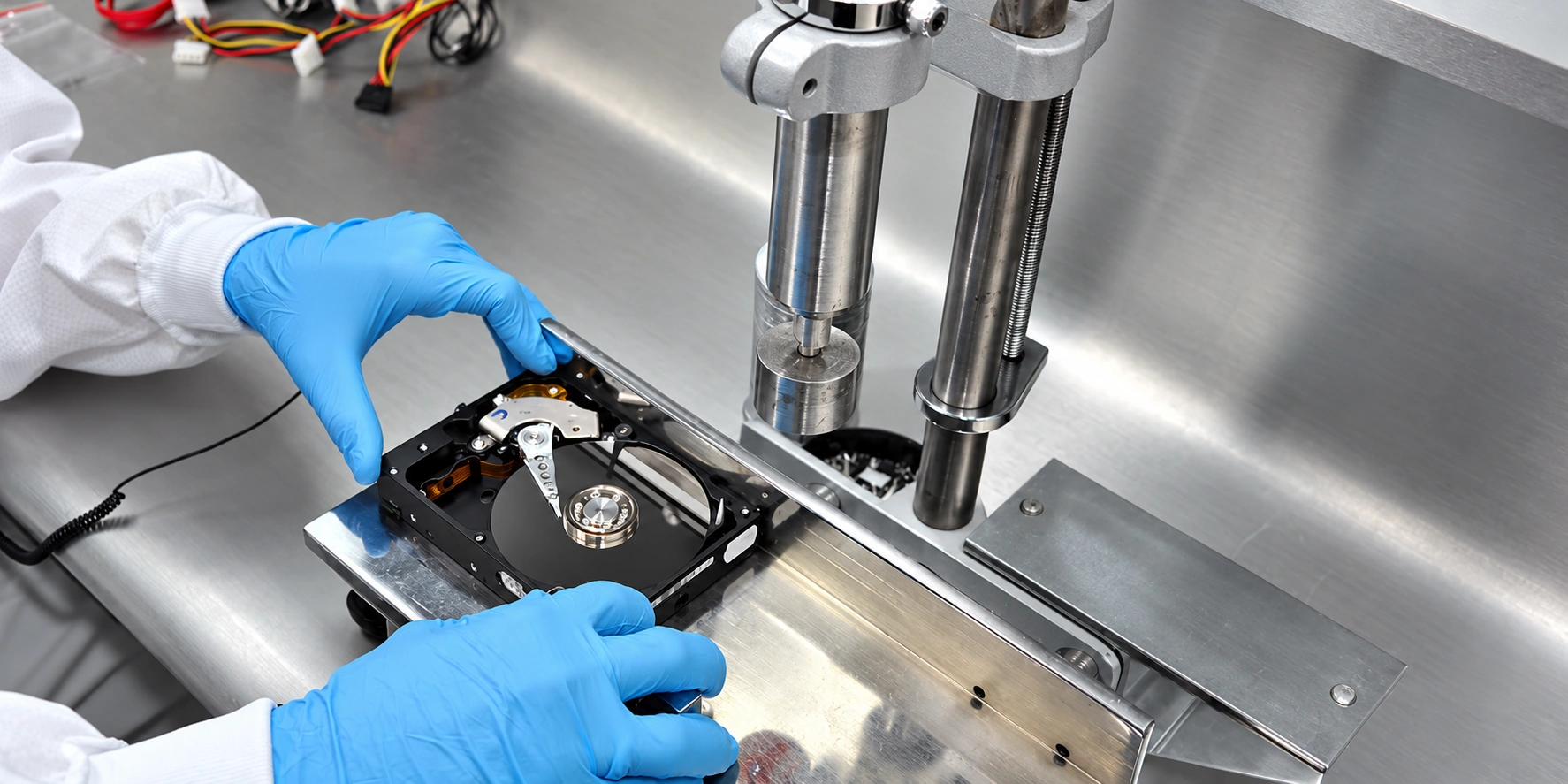
The goal is typically to obtain a readable image or clone, then reconstruct files from that copy. Some cases need donor components or cleanroom work; others do not. Ask the provider to explain what your specific diagnosis requires.
Before authorizing work, ask:
- Will you perform the work in-house or send the drive elsewhere?
- What fees apply for diagnosis, donor parts, shipping, and unsuccessful attempts?
- Can I approve a written quote before recovery work begins?
- How will you identify partial recovery and verify my priority files?
- What privacy, return, and data-retention terms apply?
Professional hard drive recovery has limits. Extensive platter damage can prevent complete recovery. Pricing and timing depend on the actual fault, parts, capacity, and service level, so a generic online estimate cannot replace an assessment.
Tell the lab what matters most: a particular photo folder, accounting database, or current project. Also disclose previous scans, repairs, and opening attempts. If you decline the quote, ask how the provider will return the original drive and any removed components.
Where Disk Imaging Fits
A disk image preserves readable sectors for later work. It can reduce repeated access to the original, but creating it still requires reading the source. Imaging is therefore not automatically safe for a mechanically failing HDD.
GNU ddrescue’s official guidance recommends copying a failing drive and attempting repairs on the copy. It also warns against file-system repair on a drive with I/O errors. This supports an image-first approach for appropriately assessed cases; it does not make DIY imaging suitable for every failure. Source: GNU ddrescue manual
Quando hard disk physical damage data recovery involves unstable reads, let a specialist decide how to acquire the data. A consumer cloning program and repeated full scans are not substitutes for controlled imaging.
Route 3: Use Magic Data Recovery for Stable Logical Loss
Ideale per: a Windows-accessible HDD with deleted files, quick-format loss, or file-system errors, with no evidence of physical failure and no adequate backup.
Magic Data Recovery addresses missing file access on readable storage. Its scanning, filtering, and preview workflow helps you locate documents, photos, videos, and other recoverable content. Amagicsoft’s HDD guidance covers deleted files, formatting, and inaccessible partitions. Source: Amagicsoft
Consider a common example: someone quick-formats the wrong external HDD. It continues to operate normally, reports its expected capacity, and shows no read errors. A recovery scan may locate surviving data, provided later activity has not overwritten it. A drive that starts clicking after a fall belongs on the lab route instead.
For a suitable logical-loss case, this workflow offers a more controlled way to pursue the files than formatting the disk or running repairs first. You can inspect results and save them elsewhere before deciding what to do with the original. That is a reason to recommend it; it is not evidence of a higher recovery rate than competing tools.
Supporta Windows 7/8/10/11 e Windows Server
Steps to Recover Files from a Stable HDD
1. Prepare healthy storage. Install Magic Data Recovery on a different physical drive. Prepare another drive with enough space for the recovered files.
2. Select the affected HDD or partition. Check its identity and capacity so you do not scan the wrong device.
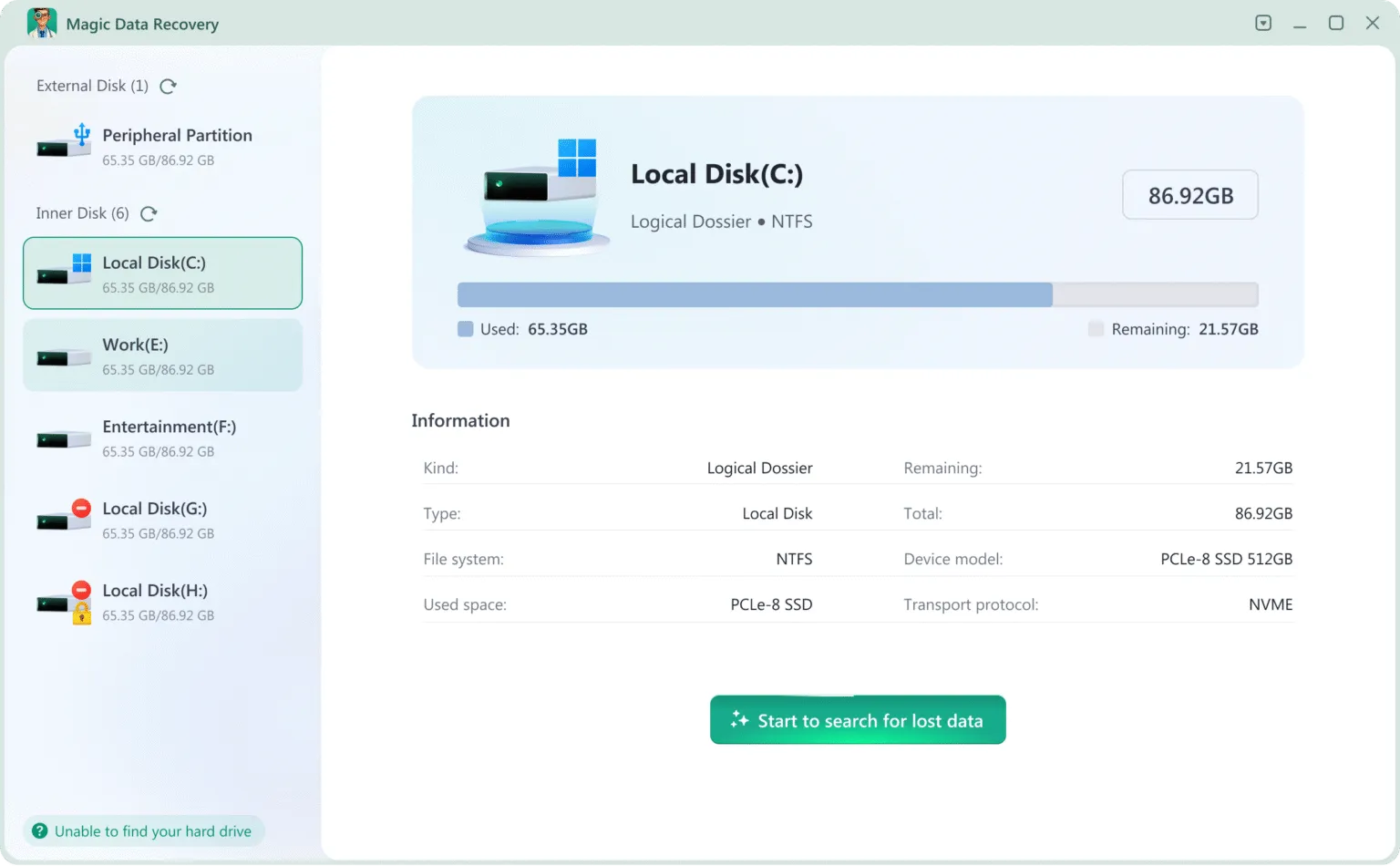
3. Start the recovery scan. Search for the missing content. Stop if the device develops unusual noises, repeated disconnects, or persistent read errors.
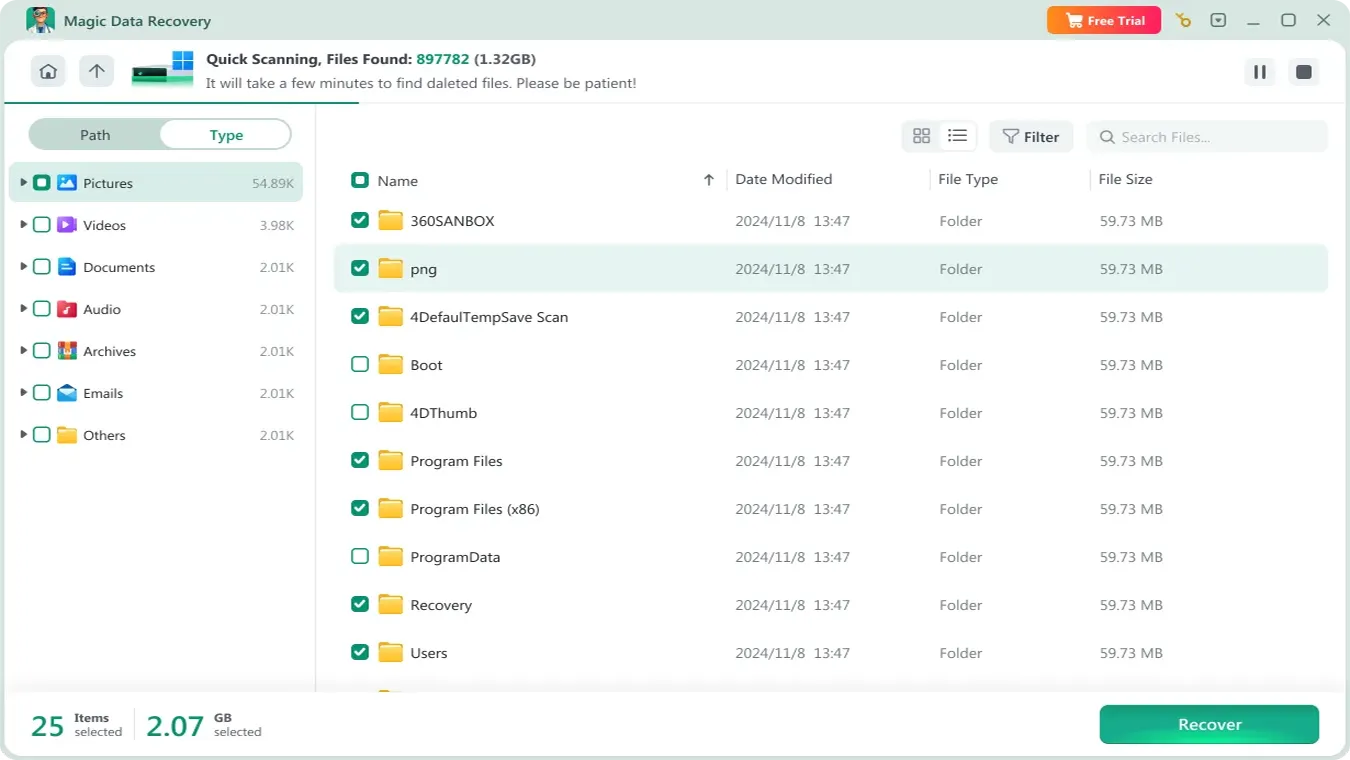
4. Esaminare i risultati. Use available search and filtering options. Preview supported file types rather than judging success by filenames alone.

5. Recover to another physical drive. A different partition on the source HDD is not a safe destination.
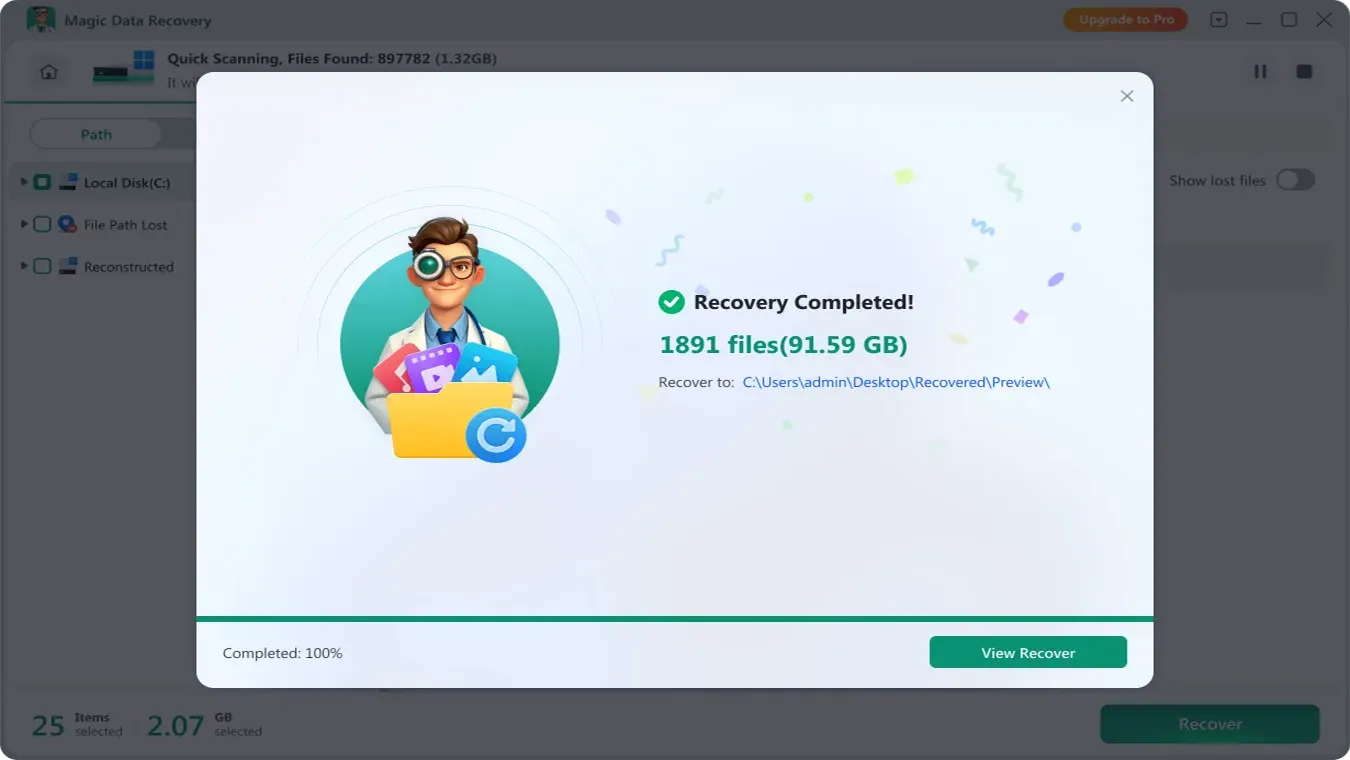
6. Open the recovered files. Verify their contents in the applications you normally use.
The expected result is usable copies on healthy storage. A scan may find only part of a file, and a preview cannot prove every part of a large file is intact.
If the software cannot access the disk reliably, stop. For physical hard drive data recovery, another application cannot solve an unreadable mechanism. Keep the source available for professional assessment instead of running successive deep scans.
Verify the Files Before Calling Recovery Successful
A filename in a results list can survive even when its contents do not. Assess Recupero dati su disco rigido by opening the recovered copies:
- Documenti: check the pages, tables, images, and recent edits.
- Photos: open full-resolution files and look for missing or corrupted areas.
- Video: test playback at several points, including near the end.
- Archives and databases: test extraction or use the application’s integrity checks on copies.
For lab work, request verification of your priority files before accepting a partial recovery as sufficient. Keep the original disk unchanged until you understand what you have recovered and what remains missing.
Avoid Repairs That Can Make Recovery Harder
CHKDSK and file-system repair tools aim to restore consistency. They do not repair damaged heads or recover every missing file. On a suspect disk, their reads and metadata changes can complicate the recovery task.
Similarly, initialization and formatting change disk structures. Do not accept those prompts because Windows presents them as the next step.
Avoid freezer tricks, cover removal, and casual circuit-board swaps. Matching a board’s appearance does not establish compatibility. With mechanical hard drive failure recovery, leave internal work to a qualified specialist.
After recovery, replace a physically failing drive. If the problem was purely logical and you plan to reuse the HDD, verify your backups before testing or reformatting it.
Reduce the Risk of Another Data Loss
Once your files are safe, build a backup routine that covers the work you cannot recreate. Keep three copies across at least two types of storage, with one copy off-site. An independent backup matters because synchronization can propagate deletion or unwanted changes.
Turn on version history for frequently edited documents and projects. Then test a restore occasionally: a backup job that completes is useful only if you can retrieve the right files. Record where the backups live and which folders they exclude.
For external HDDs, use a stable surface, keep cables clear of walkways, and avoid moving the enclosure while it operates. Replace damaged cables with compatible ones. If a drive begins to disconnect, slow down unexpectedly, or make new sounds, address the warning before it becomes your only route to important data.
Finally, keep recovery output separate from the source disk and make another verified copy of irreplaceable files. A newly recovered folder should not remain your only copy.
Conclusione
Successo data recovery from a physically damaged hard disk starts with choosing the right route. Repeated clicking, impact damage, unstable reads, and electrical faults call for professional assessment. Keep that drive powered off rather than testing more software.
For stable hardware with deletion, formatting, or file-system loss, we recommend Magic Data Recovery for its practical scan, preview, and recover workflow. It helps you pursue readable files before changing the disk’s structure. Use our hard drive recovery resource for related HDD scenarios, and always save recovered data to another physical drive.
Supporta Windows 7/8/10/11 e Windows Server
Domande frequenti
How much does physical hard drive data recovery cost?
Does a spinning hard drive mean the heads still work?
Can a lab recover data from scratched platters?
How long does hard disk mechanical failure data recovery take?
Will a replacement USB enclosure solve the problem?
Can a recovery lab bypass BitLocker encryption?
Does a hard drive warranty cover data recovery?
Can Magic Data Recovery repair a physically damaged HDD?

Jason è uno specialista nel recupero dati e nell’assistenza tecnica con oltre 15 anni di esperienza sul campo. Ha lavorato a lungo a stretto contatto con gli utenti finali, risolvendo casi complessi di perdita di dati e fornendo soluzioni pratiche di recupero in caso di cancellazione accidentale, unità formattate, file system danneggiati, partizioni perse, guasti di sistema e altre emergenze di recupero. La sua competenza comprende anche il backup e il ripristino, la riparazione dei file e il ripristino di emergenza, con particolare attenzione a fornire indicazioni sicure, affidabili e tecnicamente accurate.