
Settore danneggiato dell'HDD: Cosa significa e come gestirlo in modo sicuro

Indice dei contenuti
Come funzionano i settori danneggiati degli HDD
Una moderna unità disco contiene miliardi di piccoli settori, ognuno dei quali contiene 512 byte o 4 KB di dati. Quando un settore non supera i controlli di integrità, il sistema operativo lo segnala come un settore negativo. Questo fallimento si verifica di solito per due motivi:
Corruzione a livello di file system
Danni meccanici o magnetici al piatto
Poiché queste cause sono fondamentalmente diverse, anche la recuperabilità dei dati varia in modo significativo.
Tipi di settori danneggiati degli HDD
1. Settore logico danneggiato
A settore logico danneggiato si verifica quando la struttura del settore si corrompe anche se il piatto fisico è ancora intatto. Le cause tipiche sono:
spegnimento improvviso durante la scrittura
crash del sistema
malware
incoerenze del file system
rimozione impropria delle unità esterne
Caratteristiche
La superficie è fisicamente fine
Windows potrebbe contrassegnare il settore come “cattivo” a causa di errori di checksum.
I dati all'interno del settore potrebbero essere ancora recuperabili
Fissabilità
I settori logici danneggiati sono solitamente riparabili perché il problema è basato sul software. Strumenti come CHKDSK o utility di riparazione dei settori possono rimappare o ricostruire i metadati. Poiché la superficie del disco non è danneggiata, software di recupero dati spesso può estrarre la maggior parte o tutti i file persi.
2. Settore fisico danneggiato
A settore fisico danneggiato si verifica quando il piatto del disco subisce un danno reale e permanente. Le cause includono:
incidenti alla testa
degrado magnetico nel tempo
contaminazione da polvere
usura meccanica
urti o cadute estreme
Caratteristiche
La superficie è danneggiata in modo permanente.
Potrebbero comparire rumori di scatto, ronzio o stridore.
Disk SMART può segnalare “Settori riallocati”, “Errori non correggibili” o “Settori in attesa”.”
Fissabilità
Settori danneggiati fisici non può essere riparato. L'unica soluzione praticabile è quella di:
① Interrompere immediatamente la scrittura sul disco.
② Clonare l'unità settore per settore.
③ Recuperare i dati dal clone utilizzando un software specializzato.
La recuperabilità dei dati dipende dal numero di settori danneggiati. Quando il guasto è grave, può essere necessario un servizio di camera bianca professionale.
Settore logico o fisico danneggiato
Quando si ha a che fare con i problemi del disco rigido, uno dei problemi più comuni che gli utenti riscontrano è la presenza di settori danneggiati. Tuttavia, non tutti i settori danneggiati sono uguali. In genere si dividono in due tipi: settori logici danneggiati e settori danneggiati fisici. Molti utenti pensano che ogni settore danneggiato sia permanente, ma in realtà questi due tipi differiscono notevolmente per il modo in cui si formano, per l'effetto che hanno sull'unità e per il modo in cui possono essere risolti.
Per aiutare l'utente a comprendere chiaramente la differenza e a scegliere il metodo di riparazione o ripristino corretto, la seguente tabella di confronto evidenzia le principali distinzioni tra settori danneggiati logici e fisici.
Caratteristica | Settore logico danneggiato | Settore fisico danneggiato |
Causa | Corruzione del software | Danno meccanico o magnetico |
Riparabile? | Sì | No |
Recuperabilità dei dati | Alto | Medio-basso (dipende dalla gravità) |
Sintomi | Errori di file, lettura lenta | Clic, congelamento, avvisi SMART |
Azione raccomandata | CHKDSK, scansione del software | Clonazione del disco, recupero professionale |
È possibile riparare i settori danneggiati di un disco rigido?
Se Settori danneggiati dell'HDD La possibilità di ripararli dipende dal tipo di danno. In generale, i settori danneggiati si dividono in due tipologie principali: settori danneggiati logici e settori danneggiati fisici.
I settori difettosi logici sono solitamente causati da problemi a livello di software, quali errori del file system, spegnimenti non corretti, operazioni di scrittura interrotte, malware o strutture del disco danneggiate. In molti casi, questi settori possono essere contrassegnati, isolati o riparati dagli strumenti di gestione del disco di Windows, da CHKDSK o dalle utility diagnostiche del produttore. Se la superficie del disco sottostante è ancora integra, l’unità potrebbe continuare a funzionare normalmente dopo la correzione dell’errore.
I settori danneggiati fisicamente sono un caso a sé stante. Si verificano quando la superficie magnetica del piatto del disco rigido è fisicamente danneggiata oppure quando l’unità presenta usura meccanica, problemi alle testine, componenti obsoleti, danni da surriscaldamento o problemi legati agli urti. Questi settori non possono essere realmente riparati perché la superficie di memorizzazione stessa non è più affidabile. Gli strumenti di gestione del disco possono solo contrassegnare queste aree come inutilizzabili, in modo che il sistema operativo eviti di scriverci dati in futuro.
Ecco perché è importante non considerare ogni Settore danneggiato dell'HDD allo stesso modo. Se il problema è di natura logica, gli strumenti di riparazione potrebbero essere d’aiuto. Se invece il problema è di natura fisica, ripetuti tentativi di riparazione potrebbero sottoporre l’unità a uno stress maggiore e aumentare il rischio di perdita dei dati. Quando l’unità contiene file importanti, l’approccio più sicuro consiste nel recuperare o eseguire prima il backup dei dati, per poi decidere se utilizzare gli strumenti di riparazione o sostituire l’unità.
È possibile recuperare i dati da un'unità con settore danneggiato?
Sì, ma la percentuale di successo è diversa. I settori logici danneggiati offrono il massima probabilità di recupero perché la superficie del disco è a posto. Tuttavia, il ripristino di un danno fisico richiede uno strumento di sola lettura che eviti di stressare l'unità.
Moderno applicazioni di recupero dati leggere attentamente i settori danneggiati e saltare le aree instabili per ridurre l'ulteriore degrado. Pertanto, agire tempestivamente aumenta notevolmente la possibilità di ripristinare i file persi prima che l'unità si deteriori ulteriormente.
Come recuperare i dati in modo sicuro da un'unità con settore danneggiato

Passo 1: interrompere la scrittura sull'unità
Evitare di copiare, scaricare o installare qualsiasi cosa sul disco. Le nuove scritture possono sovrascrivere i dati recuperabili.
Passo 2: Creare un clone a livello di settore (facoltativo ma consigliato)
Se l'unità disco mostra sintomi fisici (scatto, blocco), clonare prima l'unità. In questo modo si proteggono i dati da ulteriori danni.
Passo 3: Eseguire uno strumento di recupero dati di sola lettura
Scegliete una soluzione in grado di eseguire la scansione dei settori instabili. Uno strumento professionale aumenta il successo del recupero perché legge l'unità in modo controllato e sicuro. Magic Data Recovery è uno strumento di recupero dati consigliato, che supporta più di 5000 tipi di file.
Fase 4: Recuperare i file e farne il backup
Recuperare sempre per un'altra unità per evitare la sovrascrittura.
Cosa fare prima di riparare i settori danneggiati dell'HDD
Prima di provare a fissare Settori danneggiati dell'HDD, è opportuno adottare alcune precauzioni importanti. Un disco rigido con settori danneggiati potrebbe già essere instabile, e alcune operazioni di riparazione possono modificare il file system, spostare i dati o contrassegnare le aree danneggiate come inutilizzabili. Se il disco contiene file importanti, agire nell'ordine sbagliato potrebbe rendere più difficile il recupero.
Innanzitutto, smettete di salvare nuovi file sull'HDD interessato. I nuovi dati potrebbero sovrascrivere i record dei file persi o danneggiati, soprattutto se l'unità presenta errori nel file system. Se il disco è ancora accessibile, copiate i file più importanti su un'altra unità funzionante il prima possibile.
In secondo luogo, verifica se l'unità presenta sintomi di guasto grave. Se l'HDD emette rumori simili a clic, si disconnette frequentemente, blocca il computer, diventa estremamente lento o non compare in "Gestione disco", evita di eseguire ripetute scansioni o comandi di riparazione. Questi segnali potrebbero indicare un danno fisico e costringere l'unità a funzionare potrebbe aggravare il problema.
In terzo luogo, è bene valutare il recupero dei dati prima di procedere alla riparazione. Strumenti come CHKDSK Possono essere utili in caso di errori logici, ma i comandi di riparazione potrebbero modificare le strutture del disco. Se i file sono mancanti, danneggiati o inaccessibili, utilizzare innanzitutto un software di recupero dati come Magic Data Recovery per eseguire una scansione dell'HDD interessato e recuperare i file importanti su un altro dispositivo di archiviazione. Non salvare i file recuperati sullo stesso disco danneggiato.
Una volta messi al sicuro i dati, è possibile provare alcuni metodi di riparazione adeguati, come controllare lo stato SMART, eseguire CHKDSK, utilizzare lo strumento diagnostico del produttore dell'unità o sostituire l'HDD se i settori danneggiati continuano ad aumentare. In caso di settori danneggiati fisicamente o di un'unità con avvisi SMART sempre più preoccupanti, la sostituzione rappresenta solitamente la soluzione più sicura a lungo termine.
Come risolvere i settori danneggiati dell'HDD logico
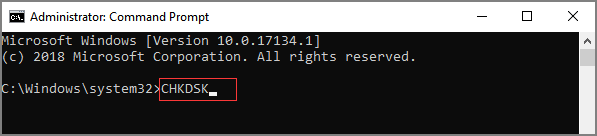
Se si conferma che il problema è logico, è possibile ripararlo utilizzando:
Metodo 1: CHKDSK di Windows
- Aprire il Prompt dei comandi come amministratore.
- Entrare:
chkdsk C: /f /r
- Riavviare e consentire a Windows di eseguire la scansione.
Metodo 2: Strumenti diagnostici del produttore
Seagate, Western Digital, Toshiba e altri forniscono utility per riorganizzare i settori indeboliti.
Metodo 3: Strumenti di scansione della superficie del disco
Questi strumenti leggono ogni settore per rilevare le aree corrotte e riparare le incongruenze dei metadati.
Conclusione
Se il disco rigido mostra segni di instabilità o aree illeggibili, intervenire tempestivamente aumenta notevolmente le possibilità di ripristinare i file. I problemi logici possono spesso essere risolti, mentre i danni fisici richiedono un attento recupero in sola lettura.
Quando siete pronti, potete scaricare Magic Data Recovery a scansione del disco rigido in modo sicuro e recuperare i dati accessibili senza causare ulteriore stress al disco.
Supporta Windows 7/8/10/11 e Windows Server
Domande frequenti sul settore danneggiato dell'HDD
Che cos’è un settore danneggiato su un disco rigido (HDD)?
È possibile riparare i settori danneggiati di un disco rigido?
CHKDSK è sicuro in caso di settori danneggiati sull'HDD?
Quali sono le cause dei settori danneggiati su un'unità disco?
Come faccio a sapere se il mio disco rigido presenta settori danneggiati?
È possibile recuperare i dati da un disco rigido con settori danneggiati?
Devo continuare a utilizzare un disco rigido con settori danneggiati?
I settori danneggiati sono gli stessi negli HDD e negli SSD?

Erin Smith è riconosciuta come una delle scrittrici più professionali di Amagicsoft. Negli ultimi 10 anni ha continuamente affinato le sue capacità di scrittura e ha aiutato milioni di lettori a risolvere i loro problemi tecnologici.