
How to Recover Unsaved Notepad Files After Restart
If Windows restarted before you saved an important note, you may wonder how to recover unsaved Notepad files after restart without making the situation worse. The first step is to identify what is actually missing. An unsaved Windows 11 session, temporary data, a previously saved TXT file, and a truly deleted file require different recovery methods.
Modern Windows 11 Notepad can preserve unsaved tabs through session state. By contrast, classic Windows 10 Notepad usually cannot restore text that existed only in RAM after a restart. Therefore, the right recovery method depends on your Windows version and whether the document was ever saved to storage.
이 가이드는 다음과 같이 설명합니다. how to recover unsaved Notepad files after restart in the safest order. You will first check Notepad’s native recovery options, then search local paths, cloud copies, and backups. Only after you confirm that a previously saved TXT file is genuinely missing should you move to disk recovery. For broader recovery logic after actual deletion, see our 삭제된 파일 복구 가이드.
목차
Quick Diagnosis: How to Recover Unsaved Notepad Files After Restart
Before you use recovery software, determine which situation matches yours. Missing does not always mean deleted.
무슨 일이 있었나요? | What may be missing? | 무엇부터 해볼까 |
Windows 11 restarted with an unsaved tab | Session data | Reopen Notepad |
Windows 11 does not reopen the tab | TabState/session data | Check TabState |
Windows 10 restarted before you saved | Text that may have existed only in RAM | Check Temp as a last attempt |
You saved the file but cannot find it | Existing TXT file or changed path | Search File Explorer and OneDrive |
You edited an existing TXT file | Older copy | 이전 버전 또는 파일 기록 |
You deleted a saved TXT file | Actual disk file | Recycle Bin or file recovery |
Therefore, the first question in how to recover unsaved Notepad files after restart 는:
Did this text ever exist as a saved TXT file?
If you actually use Notepad++, follow our separate guide to recover unsaved Notepad++ files. Notepad and Notepad++ use different recovery mechanisms.
Method 1: How to Recover Unsaved Notepad Files After Restart on Windows 11
On Windows 11, start with Notepad itself. Microsoft added session-state saving to modern Notepad, so it can reopen previous tabs, including unsaved content.
First, launch Notepad. If the missing tab returns:
- Open the restored tab.
- 프레스
Ctrl + Shift + S. - Give the document a clear name.
- Save it to a safe folder.
This is the best first step for how to recover unsaved Notepad files after restart on Windows 11 because the content may still belong to the Notepad session rather than a deleted file.
Check “When Notepad Starts”
If the tab does not appear, open:
Notepad > Settings > When Notepad starts

Then check whether Notepad continues the previous session. However, if it starts a new session and discards unsaved changes, the old tab may not return. Therefore, check this setting before you reset or reinstall Notepad. Microsoft describes this feature in its Notepad session-state update.
Method 2: Check Windows 11 Notepad TabState
If reopening Notepad fails, press Win + R and enter:
%LOCALAPPDATA%\Packages\Microsoft.WindowsNotepad_8wekyb3d8bbwe\LocalState\TabState
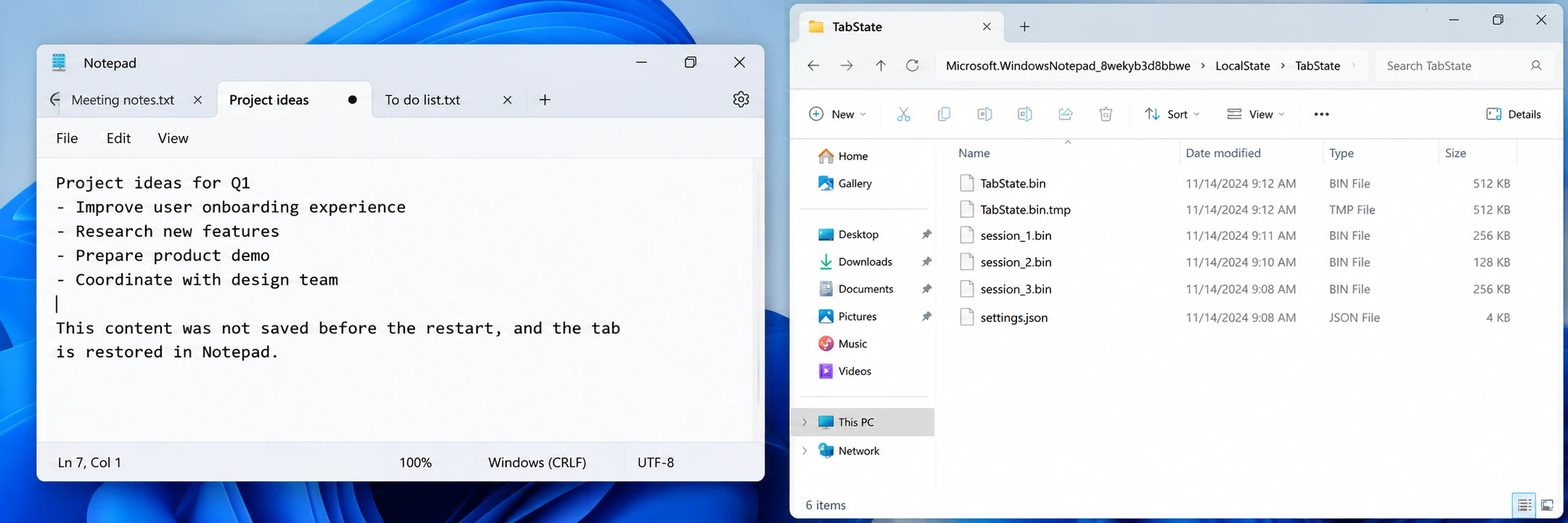
Before you change anything, copy the entire TabState folder somewhere safe. Then reopen Notepad and check whether the tab returns.
This gives Windows 11 users another native route for how to recover unsaved Notepad files after restart.
However, TabState data is not a normal .txt document. Therefore, renaming a .bin file does not guarantee readable text.
How to Recover Notepad Files Unsaved on Windows 10 After Restart
If you search how to recover notepad files unsaved windows 10 after restart, the situation is different. Classic Windows 10 Notepad does not provide the same session restoration as modern Windows 11 Notepad.
If you typed text, never saved it, and then restarted Windows, the newest content may have existed only in RAM. Because RAM is volatile, a restart clears that content.
Consequently, disk recovery software normally cannot reconstruct text that never reached storage.
Still, the next checks may help with how to recover unsaved Notepad files after restart 를 클릭합니다.
Method 3: Check the Windows Temp Folder
Temporary folders sometimes contain recent application or system data. However, classic Notepad does not guarantee an autosaved copy there.
For more details, see our guide to recover temporary files in Windows 11/10.
프레스 Win + R, 입력 %TEMP%, and then:
- Sort files by Date modified.
- Focus on the time before the restart.
- Check recent .tmp and .txt files.
- Copy a promising file elsewhere before editing it.
다음 내용도 확인해 보세요:
C:\Users\YourName\AppData\Local\Temp
Although this check is worth trying, Temp is not a guaranteed answer to how to recover unsaved Notepad files after restart. If Windows never wrote the text to disk, no temporary copy may exist.
Method 4: Search for a Saved TXT File
Sometimes a document feels “unsaved” even though an earlier copy already exists. For example, you may have pressed Ctrl + S once and continued editing afterward.
Open File Explorer, search:
*.txt
그런 다음 결과를 다음 기준으로 정렬하세요. 수정된 날짜.
- 데스크톱
- 문서
- 다운로드
- OneDrive
- Your usual work folders
Also search part of the file name if you remember it.
이 단계가 중요한 이유는 다음과 같습니다. how to recover unsaved Notepad files after restart should not immediately become a deleted-file recovery task. If the TXT file still exists, simply locate and reopen it.
Check OneDrive Before Disk Recovery
If Desktop or Documents syncs with OneDrive, check the matching cloud folder and its Recycle Bin.
A TXT file may still exist online even when the local copy is missing. Therefore, check both locations before you move to disk recovery.
Method 5: Restore an Older Notepad File from Backup
If the TXT file existed before the restart, right-click its original folder and check:
속성 > 이전 버전
In addition, open 파일 기록 if you enabled it earlier.
These options cannot restore text that you never saved. However, they may restore an older version of an existing TXT file.
Therefore, backup recovery should come before disk scanning when working through how to recover unsaved Notepad files after restart.
Before Recovery Software: Confirm the TXT File Was Actually Deleted
Do not start a disk scan simply because a file is missing. First, confirm:
- The document previously existed as a saved .txt file.
- Reopening Notepad did not restore it.
- File Explorer search did not find it.
- You checked the original and likely alternate folders.
- OneDrive or another synced location has no usable copy.
- Previous Versions or File History has no usable copy.
- Windows still detects the source drive normally.
This checkpoint keeps how to recover unsaved Notepad files after restart focused on the right problem instead of treating every missing session as a deleted file.
Method 6: Recover a Deleted Notepad File with Magic Data Recovery
Once you confirm that a saved TXT file is genuinely deleted or lost, Magic Data Recovery 원본 드라이브에서 복구 가능한 데이터를 스캔할 수 있습니다.
This method fits accidental deletion, Shift + Delete, an emptied Recycle Bin, or a saved TXT file that disappeared from storage.
If you only emptied the Recycle Bin, review how to recover files emptied from the Recycle Bin.
Importantly, Magic Data Recovery does not recreate text that existed only in RAM. Therefore, it supports the disk-recovery stage of how to recover unsaved Notepad files after restart, not Notepad session recovery.
Magic Data Recovery 사용 방법
1단계: Magic Data Recovery 다운로드 및 설치
Download and install Magic Data Recovery. If the missing TXT file came from the system drive, install the software on another drive when possible. This reduces new writes to the location that may still contain recoverable data.
Windows 7/8/10/11 및 Windows Server 지원
Step 2: Select the Drive Where the Notepad File Was Stored
Launch the software and select the drive that originally contained the TXT file. For example, choose the system drive if you saved the document on the Desktop or in Documents. Then start the scan.

Step 3: Scan for the Deleted Notepad File
Magic Data Recovery automatically performs an Advanced Scan. Meanwhile, recoverable files appear as the scan progresses. Search for the original file name if you remember it. Alternatively, narrow the results to .txt files.

Step 4: Recover the Notepad File to a Safe Location
Finally, select the TXT file and click 복구. Save it to another drive or storage location instead of the drive being scanned. Otherwise, new writes could overwrite other recoverable data.

For users who prefer a graphical workflow, Magic Data Recovery makes this stage easier because you can scan, filter, preview, and recover without command-line syntax.
Method 7: Use Windows File Recovery for a Deleted TXT File
If your investigation into how to recover unsaved Notepad files after restart shows that a saved TXT file was actually deleted, Windows File Recovery provides another option.
예를 들어
winfr C: E: /extensive /n *.txt
Here:
- C: is the source drive.
- E: is the recovery destination.
- *.txt limits the search to TXT files.
원본과 대상은 서로 다른 드라이브여야 합니다.
Microsoft’s Windows 파일 복구 안내서 also recommends reducing activity on the source drive. However, Windows File Recovery cannot restore text that never existed on storage.
After Recovery: Reopen and Verify the Notepad File
Finding a file in scan results does not complete how to recover unsaved Notepad files after restart. You still need a usable document.
회복 후:
- Open the recovered .txt file in Notepad.
- Confirm that the expected text appears.
- Check whether the newest content is present.
- Look for unusual characters or encoding problems.
- Use Save As to create a fresh copy.
- Back up the verified document.
If you recovered several similar files, compare their modification dates and contents before choosing one.
Why You Cannot Always Recover Unsaved Notepad Files After Restart
The reason becomes clearer when you separate three storage states:
Text in RAM → Notepad session data → Saved TXT file
Modern Windows 11 Notepad may preserve session data. Once you save a file, Windows writes a normal TXT file to storage.
However, disk recovery tools cannot restore volatile RAM after Windows restarts.
따라서
- Windows 11 session data may return through Notepad or TabState.
- Completely unsaved Windows 10 text may disappear after restart.
- A saved but deleted TXT file may remain recoverable until new data overwrites it.
그렇기 때문에 how to recover unsaved Notepad files after restart has no single solution for every case.
What to Do Before Trying More Recovery Methods
While troubleshooting how to recover unsaved Notepad files after restart, protect the remaining data.
First, do not reset or reinstall Notepad before checking its Windows 11 session data. Likewise, avoid clearing Temp or AppData too early.
If a saved TXT file is actually deleted, reduce:
- 다운로드
- Software installations
- Disk cleanup
- Large file transfers
- Other unnecessary writes
Most importantly, recover first and clean up later.
How to Prevent Unsaved Notepad Loss After a Restart
On Windows 11, keep previous-session behavior enabled if you often leave Notepad tabs open. Nevertheless, session recovery should not replace a backup.
대신:
- Save important notes early.
- 프레스
Ctrl + Sregularly. - Store TXT files in a synced or backed-up folder.
- Use version history when possible.
- Consider an editor with stronger autosave features for longer work.
These habits reduce the need to research how to recover unsaved Notepad files after restart 를 다시 클릭합니다.
결론
가장 안전한 방법은 how to recover unsaved Notepad files after restart starts by identifying what is actually missing.
On Windows 11, reopen Notepad and check its session data first. On Windows 10, inspect temporary locations and search for an older saved copy. Next, check File Explorer, OneDrive, Previous Versions, and backups. Our 삭제된 파일 복구 가이드 explains the next steps after you confirm actual deletion.
Only then should you move to disk recovery. In that situation, Magic Data Recovery provides a practical option because it lets you scan the source drive, filter the results, inspect possible TXT files, and recover the document to a safer location.
Most importantly, do not treat every missing Notepad document as deleted. Matching the method to the actual loss scenario gives you a clearer and more reliable answer to how to recover unsaved Notepad files after restart.
Windows 7/8/10/11 및 Windows Server 지원
FAQs About How to Recover Unsaved Notepad Files After Restart
Can I recover an unsaved Notepad file after restarting Windows 11?
How do I recover Notepad files unsaved on Windows 10 after restart?
Where does Windows 11 Notepad keep unsaved session data?
Does Windows 10 Notepad autosave unsaved files?
Can recovery software recover a Notepad file that was never saved?
Can Magic Data Recovery recover deleted TXT files?
Can I recover a Notepad file after emptying the Recycle Bin?

바실리는 이 분야에서 약 10년간 실무 경험을 쌓은 데이터 복구 전문가입니다. 그는 경력 전반에 걸쳐 삭제된 파일, 포맷된 드라이브, 손실된 파티션 및 RAW 파일 시스템과 관련된 수천 건의 복잡한 사례를 성공적으로 해결했습니다. 그의 전문 지식은 헥스 에디터와 같은 전문 도구를 사용한 수동 복구 방법과 복구 소프트웨어를 사용한 고급 자동화 솔루션을 모두 다룹니다. 바실리의 사명은 IT 전문가와 일반 사용자 모두에게 신뢰할 수 있는 데이터 복구 지식을 제공하여 소중한 디지털 자산을 보호할 수 있도록 돕는 것입니다.