
Windows 11에서 삭제된 사용자 계정 복구: 안전한 복구 가이드

실수로 Windows 11 사용자 계정을 삭제했는데, 해당 계정의 ‘바탕화면’, ‘문서’, ‘다운로드’ 폴더가 사라진 것을 발견했습니다. 이 경우 Windows 11에서 삭제된 사용자 계정 복구하기 데이터의 경우, 먼저 Windows가 해당 계정을 직접 삭제했는지, 프로필을 불러오는 데 실패했는지, 아니면 기본 파일이 삭제되었는지 확인하십시오. 계정이 사라졌다고 해서 반드시 개인 파일까지 사라진 것은 아닙니다.
아직 회복의 가능성이 남아 있을지도 모릅니다. 이전 프로필 폴더가 남아 있다면, 그 안의 개인 파일을 다른 계정으로 복사할 수 있는 경우가 많습니다. 백업과 적절한 복원 스냅샷을 활용하면 더 많은 선택지가 생깁니다. 하지만 완전히 삭제된 파일은 복구하기가 더 어려우며, 특히 파일이 덮어쓰기되거나 SSD TRIM이 실행된 후에는 더욱 그렇습니다.
다른 계정을 만들거나 레지스트리를 수정하기 전에, 아직 남아 있는 항목이 있는지 확인하세요. 이 가이드는 데이터 우선 접근 방식을 따르며, Windows 계정 설정, 기존 프로필 폴더, 기본 제공 복구 옵션부터 시작합니다. 개인 파일이 실제로 삭제된 경우, 해당 상황에 맞는 삭제된 파일 복구 방법 해당 데이터를 덮어쓸 수 있는 작업을 수행하기 전에.
목차
중요: 사용자 프로필 데이터를 우선적으로 보호하십시오
원본 프로필을 찾을 수 없다면, 무슨 일이 일어났는지 파악할 때까지는 Windows 드라이브에 불필요한 데이터를 기록하지 마십시오.
- Windows를 초기화하거나 다시 설치하지 마십시오. 중요한 파일을 안전하게 보관하기 전에.
- 남아 있는 프로필 폴더는 삭제하지 마십시오. 또는 레지스트리 항목.
- 복구 소프트웨어를 설치하지 마십시오 영향을 받은 파티션에서.
- 복구된 파일을 저장하지 마십시오 원래 데이터가 손실되었던 위치로.
임시 프로필에 대한 특별 주의사항: Windows에서 “임시 프로필로 로그인되었습니다” 또는 “계정에 로그인할 수 없습니다”라는 메시지가 표시되면, 새로 작성하거나 수정한 작업 파일은 별도의 드라이브에 저장하십시오. 로그아웃하거나 재시작하기 전에.
마이크로소프트는 세션이 종료되면 임시 프로필이 삭제될 수 있다고 설명합니다. 따라서 해당 프로필 내에서 생성되거나 저장된 파일은 사라질 수 있습니다.
또한, 원래 프로필에 남아 있는 파일을 임시 프로필로 옮기지 마십시오. 대신 별도의 저장소에 복사하십시오.
삭제된 파일의 경우, 드라이브 활동이 계속되면 복구 가능한 데이터가 덮어쓰일 수 있습니다. SSD의 경우, TRIM 기능으로 인해 복구 가능성이 더욱 낮아질 수 있습니다.
Windows 11에서 삭제된 사용자 계정 복구: 빠른 진단
보시는 대로 | 가능성이 높은 상황 | 권장 조치 |
계정이 없지만, 오래된 계정입니다 | 계정은 삭제되었으나 파일이 남아 있는 경우 | 파일을 백업하고 새 계정을 생성하세요 |
Windows에서 임시 바탕화면이 열립니다. | 원본 프로필을 불러오지 못했습니다. | 임시 세션 작업을 보호한 다음 원인을 파악하십시오 |
계정 및 프로필 폴더가 사라졌습니다 | 개인 파일 삭제 가능성 | 백업을 확인한 다음, 삭제된 데이터를 스캔하세요 |
이 PC에서 Microsoft 계정이 삭제되었습니다 | 로컬 계정 연결이 제거되었습니다. | 계정을 다시 추가하고 클라우드 파일을 확인하세요 |
업데이트 후 계정이 사라졌습니다 | 프로필 로딩 문제 가능성 | 기존 폴더 및 복원 옵션 확인 |
직장 또는 학교 계정 삭제됨 | 조직에서 관리하는 신원 관련 문제 | IT 관리자에게 문의하십시오 |
주요 차이점: 개인 파일을 복구하는 것은 원래의 Windows 계정을 복원하는 것과는 다릅니다.
따라서, 방법을 선택하기 전에 누락된 구성 요소를 파악해야 합니다.
계정, 프로필, SID가 서로 다른 이유
Windows는 사용자 계정과 해당 계정에 연결된 파일 및 설정을 분리합니다.
- 사용자 계정: Windows 로그인 및 권한 관리에 사용되는 식별자입니다.
- Security Identifier (SID): A unique identifier assigned to the account.
- User profile: The files and settings associated with that account, normally under
C:\Users\Username.
When Windows deletes a local account, recreating the same username generates a new SID.
However, removing an account does not prove that every file in its previous profile folder has disappeared. The actual result depends on how the account or profile was removed.
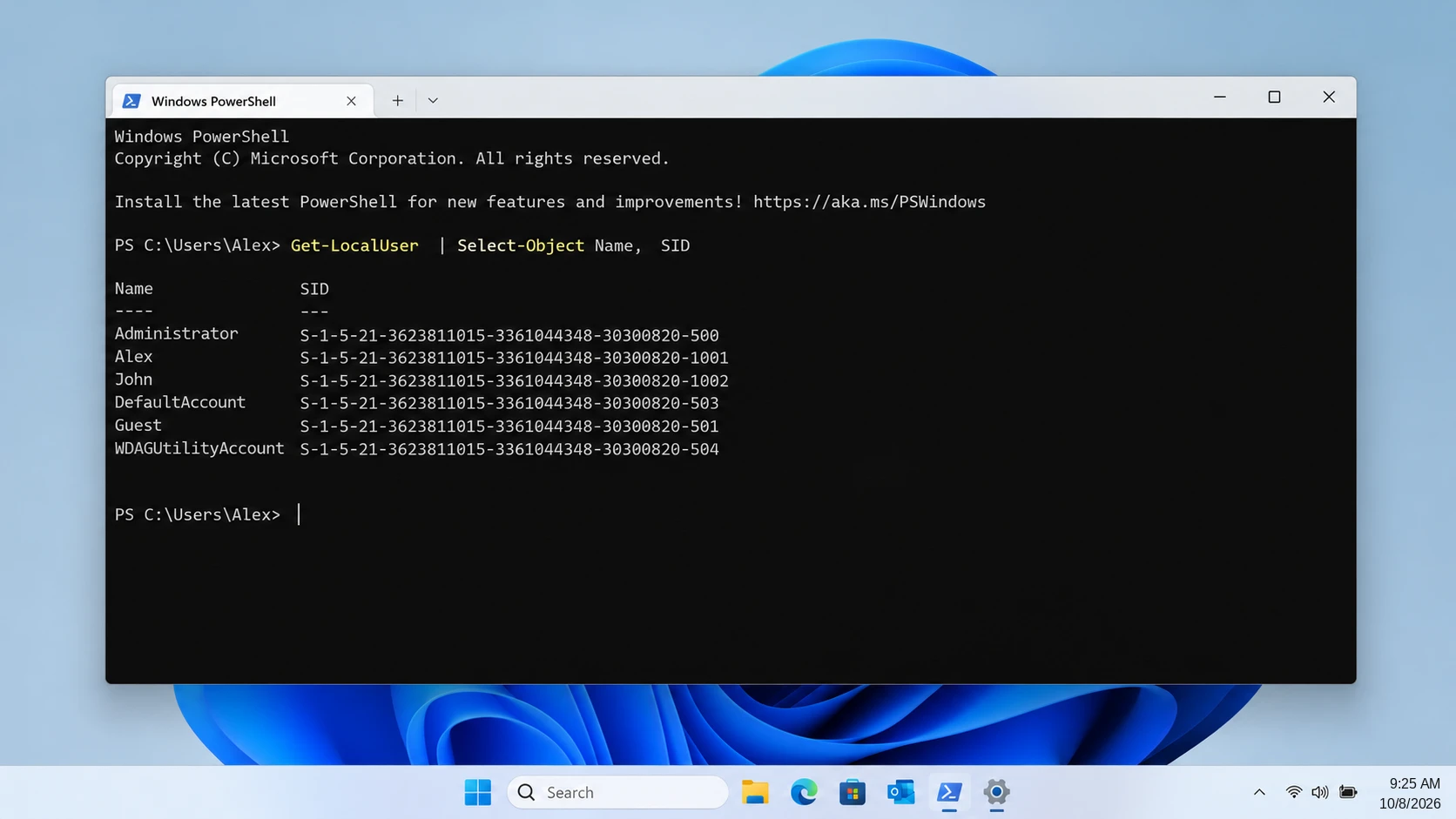
How to Check the Correct SID
A common mistake is to run whoami /user from an administrator account and compare that SID with the missing user’s registry entry.
That comparison is invalid unless the command runs in the affected user’s own sign-in session.
whoami /user reports the identity of the current session, not the account you are investigating.
For an existing local account, open Windows PowerShell as an administrator and run:
Get-LocalUser | Select-Object Name, SID
Find the affected account by name and compare its SID with the corresponding ProfileList entry.
Alternatively, when signed in directly to the affected account, run:
whoami /user
If the account no longer appears in the local account list, a leftover profile folder or registry key does not prove that the original account still exists.
For domain or Microsoft Entra accounts, local-account commands may not provide the full identity information. Use the appropriate organizational account tools.
Method 1: Check Whether the Deleted Windows User Profile Still Exists
최적 대상: A user account that disappeared while the original files may still remain.
This is the safest first method because it checks existing files without attempting to recover deleted storage blocks.
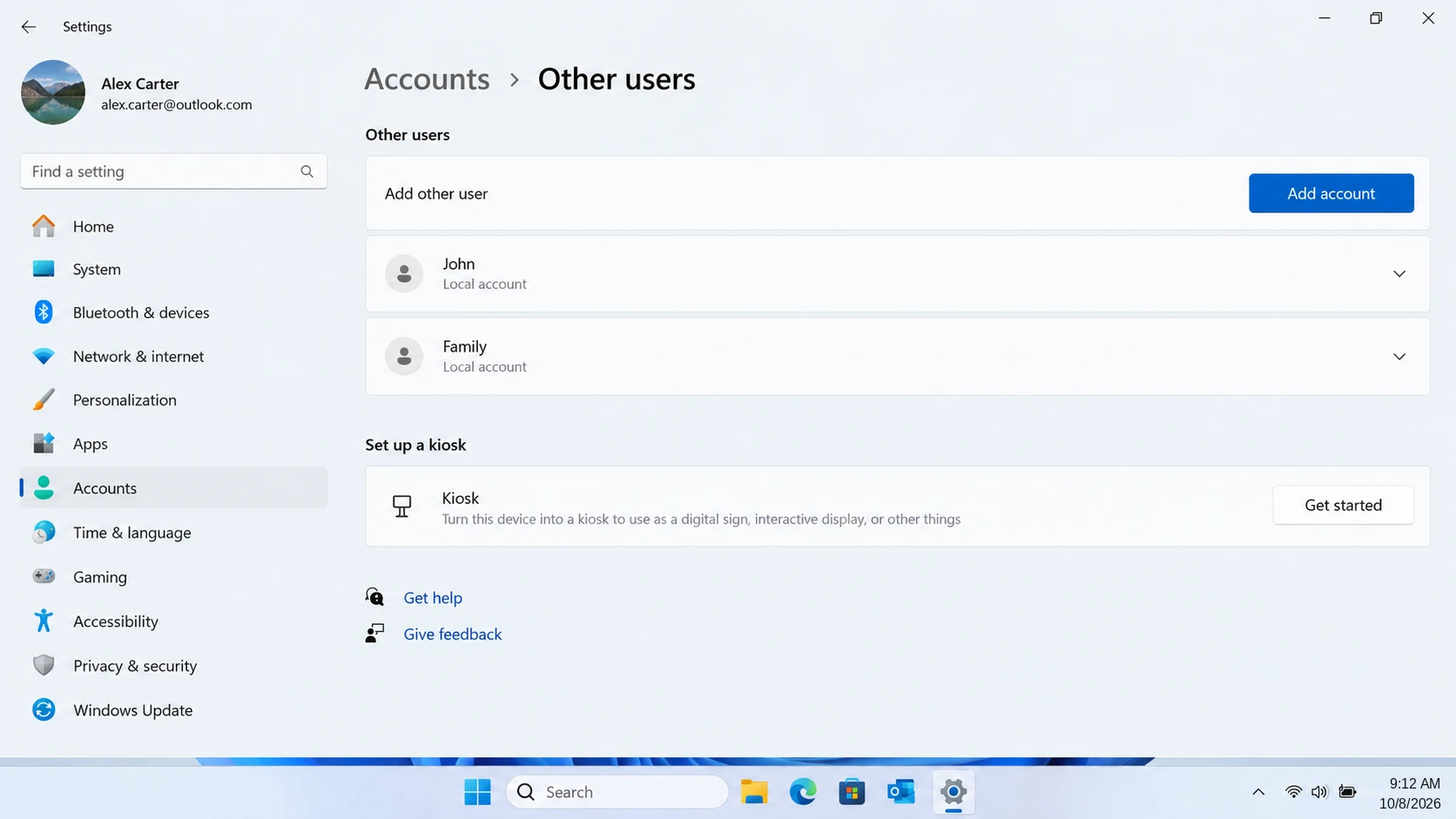
Step 1: Check Windows Account Settings
Sign in using another administrator account.
열기:
Settings > Accounts > Other users
Check whether the affected account still appears.
마이크로소프트의 Manage User Accounts in Windows documentation describes how Windows adds and removes local user accounts.
If the account still exists, investigate a profile-loading problem instead of recreating it.
Step 2: Inspect the Original Profile Folder
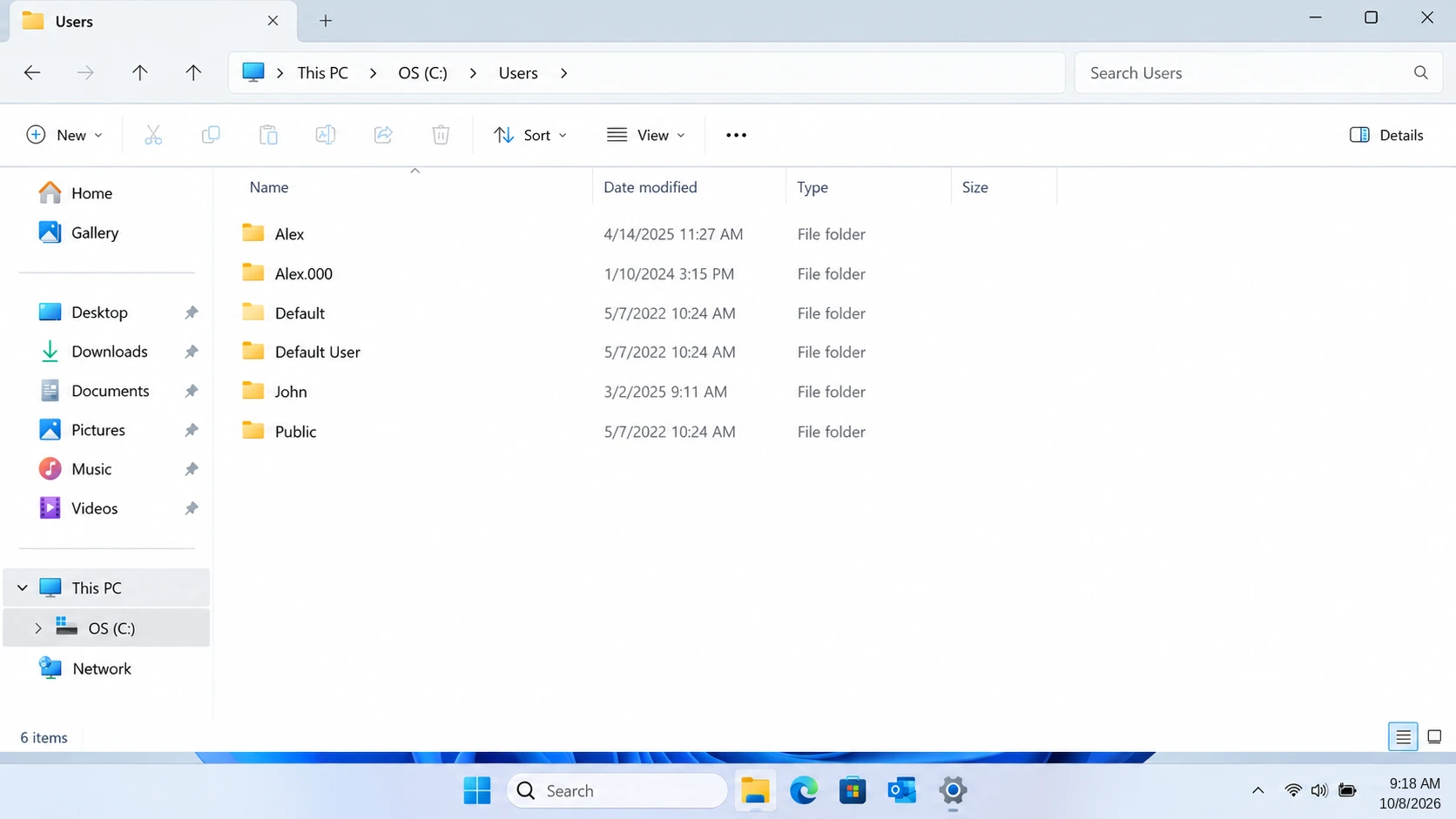
Open File Explorer and enter:
C:\Users
Look for the original username, including possible folders with suffixes such as .000.
Open the folder and inspect its Documents, Desktop, Downloads, and Pictures directories.
If the files exist, copy important data to a separate drive.
예상 결과: You locate and can open the original personal files.
만약 실패할 경우: Check OneDrive and File History. If the folder was deleted, see the 삭제된 폴더 복구 가이드.
Method 2: Restore Deleted Profile Files from Backups
최적 대상: Missing personal files when OneDrive, File History, or another backup was already enabled.
A usable backup is generally more reliable than attempting to reconstruct deleted files from disk.
Restore from OneDrive
- Sign in to OneDrive using the original Microsoft account.
- Check Desktop, Documents, and Pictures.
- Inspect the OneDrive Recycle Bin.
- Download or restore the missing files.
However, OneDrive only protects files that successfully synchronized.
파일 기록을 사용하여 복원
파일 기록이 활성화된 경우:
- Connect the backup drive.
- 열기 제어판 > 시스템 및 보안 > 파일 기록.
- 선택 개인 파일 복원.
- Browse to a backup created before deletion.
- Restore the required files to safe storage.
Microsoft explains this process in its File History recovery documentation.
예상 결과: Previously backed-up files return with usable content.
제한 사항: A backup cannot restore files it never saved. Restoring personal files also does not recreate the original Windows SID.
Method 3: Create a New Windows Account and Copy Surviving Files
최적 대상: A deleted account whose original C:\Users folder still contains personal files.
After protecting the surviving data, create a clean Windows account.
- 열기 Settings > Accounts > Other users.
- 선택 계정 추가.
- Create a local account or add the Microsoft account.
- Sign in once to initialize the new profile.
- Sign out and return to an administrator account.
- Copy personal files from
C:\Users\OldNameto the appropriate folders underC:\Users\NewName.
Microsoft recommends creating a new profile when the existing one is corrupted. See Fix a corrupted user profile.
Avoid copying the entire old profile blindly. In particular, corrupted profile settings or registry hive files can reproduce the original problem.
예상 결과: The new account opens normally and the transferred files remain accessible.
제한 사항: The replacement account has a new SID. Application settings, encrypted files, and permissions may require additional attention.
If the old files are genuinely deleted, recover them before rebuilding the account on the affected drive.
Method 4: Fix a Temporary Windows 11 User Profile
최적 대상: An existing account that loads a temporary desktop instead of its original profile.
This situation is often mistaken for account deletion.
Step 1: Save Temporary-Session Work
Before signing out, copy any files created or modified during the temporary session to another drive.
Also preserve surviving files from the original C:\Users\OldName 폴더로 이동합니다.
Do not save copies into the temporary Desktop or Documents folder and assume they will remain after restarting.
마이크로소프트의 Temporary User Profiles documentation confirms that changes stored in a temporary profile may disappear at the end of the session.
Step 2: Verify the Affected Account’s SID
Use PowerShell:
Get-LocalUser | Select-Object Name, SID
Find the existing local account and record its SID.
Then open Registry Editor:
HKEY_LOCAL_MACHINE\SOFTWARE\Microsoft\Windows NT\CurrentVersion\ProfileList
Compare the affected account’s SID with the relevant registry entries.
확인 ProfileImagePath to identify which folder the entry references.
Step 3: Inspect ProfileList Without Making Unverified Changes
Some temporary-profile problems involve two similar entries, including one ending in .bak.
하지만, .bak does not prove that the account was deleted. It may reflect a profile-loading failure.
Export the relevant registry key before considering any changes.
Do not rename, merge, or delete SID entries unless you have confirmed the correct account, profile path, and repair procedure.
For most users, creating a clean account and copying intact personal files is safer than experimenting with registry mappings.
예상 결과: Windows either loads the original profile after the underlying issue is resolved or provides a working replacement profile.
제한 사항: ProfileList repair cannot recreate a deleted Windows account or recover missing file content.
Real-World Case: A Temporary Profile Mistaken for Deleted Files
A documented Microsoft Community case demonstrates why diagnosis matters before attempting file recovery.
In September 2023, a Windows user reported that their files seemed to have disappeared after an update. The symptoms resembled a deleted profile, but the support discussion identified temporary-profile behavior.
The recommended initial action was to restart Windows multiple times rather than immediately delete folders or modify registry entries.
Reported result: The user later confirmed that restarting the computer several times resolved the problem. Another participant also reported success. The original user did not need to report a successful deleted-sector recovery because the issue was access to the normal profile, not confirmed permanent deletion.
Source: Microsoft Q&A — Windows update and missing files.
What this case shows: A blank or unfamiliar desktop is not sufficient evidence that personal files were deleted. First confirm whether Windows loaded a temporary profile.
This is a real user-reported outcome, not an Amagicsoft laboratory test. It does not establish a recovery success rate, and restarting is not a substitute for protecting temporary-session files.
Method 5: Use Windows Restore Options Carefully
최적 대상: A recent account or profile problem when a suitable restore point already exists.
Windows offers two different restore mechanisms. Neither should be started before securing any newer files you need.
Option A: Point-in-Time Restore
On supported Windows 11 version 24H2 or later installations, Point-in-time restore can roll back the Windows system drive to an earlier snapshot.
However, the feature must have been available and enabled before the incident, and a suitable snapshot must still exist.
Microsoft states that snapshots are normally retained for up to 72 hours. Therefore, this is primarily an option for recent problems.
Before proceeding, confirm:
- The feature is available on your Windows installation.
- A snapshot exists from before the account was removed.
- Important files created after that snapshot are backed up.
- You have the BitLocker recovery key if required.
- The system has sufficient free space and reliable power.
열기 Settings > System > Recovery > Point-in-time restore to inspect available configuration and snapshots.
To restore, enter Windows Recovery Environment and select:
Troubleshoot > Point-in-time restore
Then review the selected snapshot before confirming.
Critical risk: This operation rolls back the entire Windows system drive, not just one account. Documents, installed applications, passwords, certificates, encryption keys, and settings changed after the snapshot may be lost or reverted.
Cloud files stored in services such as OneDrive are not directly rolled back, but local synchronized copies and account settings may change.
Furthermore, restoration itself modifies the system drive. If you are trying to recover genuinely deleted files from that drive, secure or recover them first whenever possible.
See Microsoft’s Point-in-time restore documentation.
Option B: System Restore
System Restore is less comprehensive.
프레스 Win + R, 다음을 입력하세요:
rstrui.exe
Then select a suitable restore point.
System Restore can roll back certain system files and registry settings. However, it does not restore permanently deleted personal files.
예상 결과: A suitable Point-in-time snapshot may restore the earlier system state. System Restore may correct some existing profile-loading problems.
만약 실패할 경우: Return to surviving files or backups. Do not repeatedly roll back Windows in an attempt to reconstruct deleted documents.
Method 6: Recover Deleted Profile Files with Windows File Recovery
최적 대상: Missing files that were actually deleted from a healthy, accessible Windows drive.
Microsoft는 다음을 제공합니다. Windows 파일 복구, a command-line tool for attempting recovery of deleted files.
예를 들어
winfr C: E: /regular /n \Users\OldName\Documents\
여기서, C: is the source drive and E: is a different recovery destination. The original profile folder name replaces OldName.
Regular mode is appropriate for many recent NTFS deletions. Extensive mode may be useful for other supported situations.
However, Windows File Recovery does not rebuild the user account, and recovered filenames or folder structures may be incomplete.
예상 결과: The tool saves discovered files to a recovery directory on the destination drive.
만약 실패할 경우: Review the Windows 11 permanently deleted file recovery guide, or consider another appropriate recovery method.
Method 7: Recover Deleted User Profile Files with Magic Data Recovery
최적 대상: Deleted profile files when C:\Users\OldName no longer contains the necessary data and no usable backup exists.
After checking the built-in recovery options, Magic Data Recovery provides a graphical method for searching the affected storage device.
Unlike File History or OneDrive, it scans storage for recoverable deleted file data instead of restoring a previously saved copy.
This makes it relevant when documents, photos, videos, archives, or other personal files disappeared after a Windows account was removed.
However, it cannot recreate the original SID, restore Windows account permissions, repair profile loading, or reconstruct overwritten files.
내장된 복구 옵션이 더 이상 작동하지 않는다면, 새로운 데이터가 삭제된 파일을 덮어쓰기 전에 Magic Data Recovery를 사용해 볼 수 있습니다.
How to Use Magic Data Recovery to Recover Deleted User Profile Files
1단계: Magic Data Recovery 다운로드 및 설치
Download Magic Data Recovery and install it on a different drive or partition, preferably a separate physical drive.
Do not install it on the affected Windows partition because installation may overwrite deleted profile data.
Windows 7/8/10/11 및 Windows Server 지원
Step 2: Select the Drive Where the Deleted User Profile Was Stored
Launch Magic Data Recovery and select the drive that previously contained C:\Users\OldName.
For most computers, this is the Windows system drive. Start the scan after confirming the correct source.

Step 3: Scan for Deleted User Profile Files
Allow the program to scan the selected drive. Review discovered documents, pictures, videos, archives, and other personal files.
Where available, use filenames and file-type categories to narrow the results.

4단계: 복구 전 파일 미리보기
Select promising files and use 미리 보기 when supported. Check whether the displayed content matches the missing document or image.
However, preview support depends on the file type and condition. A filename appearing in the scan results does not guarantee usable file content.

5단계: 파일을 안전한 위치로 복구하기
Select the required files and restore them to another drive. Avoid writing them back to the original Windows system partition.
After recovery, open the restored files and verify their contents before transferring them into a replacement profile.

For detailed instructions, see the Magic Data Recovery 사용자 가이드.
Verify the Recovery Results Before Rebuilding the Profile
Finding file names during a scan is not the same as recovering usable files.
After recovery, check:
- File size: Confirm important files have plausible sizes rather than unexpected 0 KB values.
- Actual content: Open documents, images, spreadsheets, and videos using their normal applications.
- Completeness: Check several pages, images, or video sections rather than just the beginning.
- Folder coverage: Compare the restored files with a previous backup or known file list.
A recovered file may still be damaged even when its original filename appears.
Therefore, protect the restored data and confirm that important files work before resetting Windows or deleting old profile folders.
Recovery Limits: When Should You Stop DIY Recovery?
상황 | 중요한 제한 사항 |
Deleted local Windows account | Recreating the username does not restore its original SID |
Overwritten personal files | Software cannot reconstruct overwritten content |
SSD deletion with TRIM | Some or all deleted content may be unrecoverable |
BitLocker-protected drive | The appropriate recovery key may be required |
EFS-encrypted user files | Original certificates and private keys may be necessary |
물리적으로 고장 난 드라이브 | Software cannot repair hardware damage |
If the drive clicks, disconnects repeatedly, or cannot be read reliably, stop scanning it.
Similarly, if the only copy of critical data exists on a failing or encrypted drive, professional assistance may be safer than repeated recovery attempts.
For healthy storage, logical file recovery remains an option. For damaged hardware, the recovery strategy must change.
How to Prevent Another Windows User Profile Loss
After recovering your files, establish a more reliable backup process.
Back up before account removal. Check Desktop, Documents, Downloads, Pictures, and important application folders before deleting any Windows account.
Keep independent backups. File History, cloud storage, and separate local backups serve different purposes. Do not assume cloud synchronization protects every version of a file.
Verify backup contents. Open sample documents and confirm that the important folders exist on the backup destination.
Preserve encryption keys. Keep BitLocker recovery keys and relevant EFS certificates accessible before making account or system changes.
Create a recovery checklist. Before removing an account, verify which files, applications, and permissions depend on it.
These precautions reduce the chance that a routine account-management task becomes a permanent file-loss incident.
결론
To Windows 11에서 삭제된 사용자 계정 복구하기 data, first determine whether the account disappeared, Windows loaded a temporary profile, or the underlying files were actually deleted.
If the old profile folder remains, back up its contents and create a clean account. If OneDrive or File History contains a copy, restore that first. When dealing with a temporary profile, protect new work before signing out. Use Point-in-time restore only after understanding its full-system rollback risks.
For genuinely deleted files, follow the appropriate Deleted File Recovery methods before making further changes to the drive.
If no usable backup remains and the storage device is healthy, Magic Data Recovery offers another way to search for recoverable personal files.
The safest sequence is straightforward: protect existing data, identify the problem, restore usable files, verify the results, and only then rebuild or repair the Windows profile.
Windows 7/8/10/11 및 Windows Server 지원
자주 묻는 질문
'계정 및 데이터 삭제'를 선택한 후, Windows 11에서 삭제된 사용자 계정을 복구할 수 있나요?
'whoami /user' 명령어를 실행하면 삭제된 Windows 계정의 SID가 표시되나요?
Get-LocalUser SID를 표시할 수 있습니다. 삭제된 계정은 해당 목록에 더 이상 표시되지 않을 수 있습니다.Windows 임시 프로필에 저장된 파일은 재시작 후 사라지나요?
같은 방법으로 Windows 10에서 삭제된 사용자 프로필을 복구할 수 있나요?
C:\Users, OneDrive, 파일 기록 및 적절한 시스템 복원 지점 등이 있습니다. Windows 파일 복구 기능이나 기타 복구 소프트웨어를 사용하면 완전히 삭제된 파일을 복구하는 데 도움이 될 수도 있습니다. 다만, 특정 시점 복원 기능의 사용 가능 여부는 Windows 버전에 따라 다르며, Windows 10의 표준 지원은 2025년 10월에 종료됩니다.Windows 업데이트가 실패한 후 삭제된 Windows 11 사용자 프로필을 복구할 수 있나요?
C:\Users 그리고 임시 세션에 저장된 작업 내용을 보호하십시오. 기존 파일이 남아 있다면, 복구 작업을 시도하기 전에 해당 파일을 안전한 저장소로 복사해 두십시오. 복원 지점이 도움이 될 수는 있지만, 삭제된 개인 파일의 복구를 보장할 수는 없습니다.선택한 스냅샷 이후에 중요한 파일이 생성된 경우, 특정 시점 복원은 안전한가요?
복구 소프트웨어를 사용하면 권한 및 암호화된 파일을 포함한 전체 Windows 계정을 복원할 수 있나요?

바실리는 이 분야에서 약 10년간 실무 경험을 쌓은 데이터 복구 전문가입니다. 그는 경력 전반에 걸쳐 삭제된 파일, 포맷된 드라이브, 손실된 파티션 및 RAW 파일 시스템과 관련된 수천 건의 복잡한 사례를 성공적으로 해결했습니다. 그의 전문 지식은 헥스 에디터와 같은 전문 도구를 사용한 수동 복구 방법과 복구 소프트웨어를 사용한 고급 자동화 솔루션을 모두 다룹니다. 바실리의 사명은 IT 전문가와 일반 사용자 모두에게 신뢰할 수 있는 데이터 복구 지식을 제공하여 소중한 디지털 자산을 보호할 수 있도록 돕는 것입니다.