
Serviço de recuperação de disco rígido perto de mim: laboratório ou software?
Quando um disco rígido deixa de ser reconhecido, desaparece do Windows ou perde arquivos importantes de repente, procurar um serviço de recuperação de disco rígido perto de mim Essa é uma primeira reação compreensível. Mas a loja de informática mais próxima não é, necessariamente, o lugar mais seguro para seus dados. A primeira questão é saber se o disco rígido apresentou uma falha física ou se o hardware ainda funciona e a perda é de natureza lógica.
Se o disco emitir ruídos como cliques ou rangidos, não girar, desconectar-se repetidamente, ou se tiver sofrido queda, queimadura ou exposição a líquidos, pare de usá-lo e considere recorrer a um laboratório profissional de recuperação de dados. Se o disco permanecer estável e detectável, mas os arquivos tiverem sido excluídos, o disco tiver sido formatado rapidamente ou o sistema de arquivos tiver ficado no formato RAW, a recuperação ainda pode ser possível sem a necessidade de reparo de hardware.
O próximo passo mais seguro é, portanto, primeiro, diagnosticar; depois, recuperar; e só reparar depois que os arquivos importantes estiverem protegidos. Não formate, inicialize, reinicie repetidamente nem execute comandos de reparo apenas para tornar o disco utilizável novamente. Para uma visão mais ampla dos cenários de perda de dados em HDDs, consulte o artigo da Amagicsoft soluções de recuperação de disco rígido.
Índice
Importante: proteja o disco antes de tentar qualquer coisa
O que você fizer imediatamente após a perda de dados pode afetar o que ainda é possível recuperar.
Pare de gravar novos dados na unidade. Novos arquivos podem sobrescrever dados excluídos ou inacessíveis.
Não formate nem inicialize uma unidade ilegível embora ainda faltem arquivos importantes. Se o Gerenciamento de Discos indicar que um disco usado anteriormente está como “Não inicializado”, siga o fluxo de trabalho mais seguro, que prioriza a recuperação, descrito em Como recuperar dados de um disco rígido não inicializado.
Não execute o CHKDSK com opções de reparo antes da recuperação simplesmente porque o Windows relata erros no sistema de arquivos.
Não faça varreduras repetidas em um disco rígido que esteja fazendo barulho de clique, rangido ou que esteja instável.
Nunca abra um disco rígido por conta própria. A contaminação interna pode dificultar a recuperação física.
Se você vier a usar um software de recuperação posteriormente, instale-o em outro disco e salve os arquivos recuperados em outro lugar.
Documentos da Microsoft que CHKDSK O uso dos parâmetros de reparo /f, /r, /x ou similares pode corrigir ou modificar estruturas no volume de destino. Isso faz com que essa seja uma ferramenta de reparo, e não a etapa mais segura para a recuperação de dados quando arquivos insubstituíveis ainda estão em risco.
A Seagate também observa que ruídos persistentes de atrito, arranhões ou estalos fortes podem indicar um problema físico e que o uso contínuo pode agravar os danos. Consulte o site da Seagate guia sobre ruídos do disco rígido.
Resposta rápida: Você precisa de um laboratório de recuperação ou de um software?
Use o estado da unidade — e não apenas sua localização — para decidir qual será o próximo passo.
O que você vê | O que isso geralmente significa | A direção mais segura a seguir |
Arquivos excluídos, o disco funciona normalmente | Perda de dados lógicos | Verifique os locais de backup/reciclagem e, se necessário, utilize um software de recuperação |
Unidade formatada rapidamente, ainda detectada | Perda de dados lógicos | Pare de usá-lo e recupere os dados antes de reformatar |
Partição RAW ou inacessível, unidade estável | Problema no sistema de arquivos | Recupere dados importantes antes do conserto |
Os arquivos sumiram, mas o disco abre normalmente | Problema relacionado a caminho, sistema de arquivos, exclusão ou malware | Primeiro, faça o diagnóstico; não presuma que se trata de uma falha física |
Ruídos persistentes de clique ou rangido | Possível falha mecânica | Desligue o aparelho e recorra a um laboratório especializado |
A unidade fica se desconectando repetidamente | Problema de hardware, alimentação, mídia ou conexão | Evite exames repetidos; considere a possibilidade de um diagnóstico profissional |
A unidade não gira ou não é detectada em lugar nenhum | Possível falha de hardware | Serviço profissional de recuperação |
Danos causados por água, fogo, queda ou eletricidade | Danos físicos | Não ligue o aparelho sem necessidade; use um laboratório |
Única cópia de dados de grande valor | Graves consequências de um erro no “faça você mesmo” | Considere recorrer a um profissional antes de fazer experiências |
Se os arquivos desapareceram, mas o disco em si ainda funciona normalmente, comece com verificações de baixo risco antes de presumir que eles foram excluídos. O Amagicsoft’s Como recuperar arquivos que desapareceram no Windows abrange arquivos ocultos, locais alterados, perfis, OneDrive, problemas no sistema de arquivos e exclusão definitiva.
A principal diferença é simples: uma unidade em bom estado e legível, mas com dados ausentes, é candidata à recuperação por meio de software; uma unidade instável ou com danos físicos, por outro lado, não é.
What Does a Local Hard Drive Recovery Service Actually Do?
A local search result can represent several very different businesses:
A dedicated data recovery laboratory.
A computer repair shop that performs basic logical recovery.
A storefront that accepts drives and forwards them to another laboratory.
A national recovery company using a local drop-off or service-area listing.
A mail-in laboratory located somewhere else.
These are not equivalent. A general repair shop may be excellent at replacing disks, reinstalling Windows, or repairing computers but may not have the equipment or controlled environment needed for mechanical hard drive work.
Why a “Near Me” Result May Not Be a Local Recovery Lab
A search result that appears local does not automatically mean the hard drive will be opened, imaged, or recovered at a laboratory in your city. Google Business Profile supports service-area businesses, and businesses that do not serve customers at their listed address can remove the public address and define the cities, postal codes, or other areas they serve. That setup is legitimate, but it means a “near me” result can represent a service-area listing rather than the physical location where recovery work takes place.
Data recovery adds another layer: some nearby storefronts are intake or drop-off points that forward damaged drives to a central laboratory. That can still be a valid service model, but you should know who will actually handle the device before approving the job.
Ask these questions:
- Where will my drive be physically diagnosed and recovered?
- Is mechanical recovery performed at this location or sent elsewhere?
- Will another company or subcontractor handle the drive?
- Can I communicate directly with the lab that performs the recovery?
- Are additional shipping, handling, or intermediary fees possible?
A convenient drop-off point can be useful, but proximity and technical capability are not the same thing.
Hard Drive Repair Near Me vs Data Recovery Near Me
Hard drive repair e recuperação de dados do disco rígido have different goals.
A repair technician may try to make the device operational again. That can involve formatting, reinstalling Windows, repairing the file system, replacing the drive, or otherwise restoring normal computer operation.
A data recovery specialist has a different priority: preserve and extract the data before attempting to make the original drive usable again.
If the files are more important than the physical hard drive, recovery should come first. Formatting an unreadable disk may make Windows recognize it again, but that does not mean the missing files have been protected. Likewise, CHKDSK can repair file-system structures, but its purpose is disk repair rather than deleted-file recovery.
Safer order: Recover or back up → verify important files → repair, format, replace, or reuse.
Is the Problem Logical or Physical?
You do not need to identify the exact failed component yourself. You only need enough information to avoid choosing the wrong recovery path.
Signs of Logical Data Loss
Windows still detects the hard drive consistently.
The disk spins normally.
There are no abnormal mechanical sounds.
Os arquivos foram excluídos acidentalmente.
A Lixeira foi esvaziada.
The wrong partition was quick-formatted.
Uma partição se tornou RAW ou inacessível.
Files disappeared after a file-system error.
Data disappeared following an OS problem or malware incident.
The partition is visible in Disk Management even though files cannot be opened.
If the main issue followed a quick format, see Recover Data from a Formatted Hard Drive for the format-specific recovery path rather than treating the disk as a mechanical failure.
Quick Format vs Full Format: Microsoft documents that a formato rápido removes the file table and root directory without a sector-by-sector bad-area scan, while a full format performs more extensive volume processing; for recovery planning, a quick format is usually the less destructive scenario, whereas a full format can sharply reduce what software can recover.
Sinais de falha física
Treat the problem as potentially physical if the drive has persistent clicking or grinding, will not spin, repeatedly drops offline, becomes progressively harder to read, or has suffered a drop, water, fire, or electrical damage. Severe overheating, a burning smell, or unstable capacity reporting are additional warnings. Do not keep scanning simply to confirm a hardware failure.
An unrecognized but otherwise quiet drive may still have a logical or connection issue; use Como recuperar dados de um disco rígido não reconhecido to diagnose it. If bad-sector warnings appear, protect the data before repair and see Corrigir setores defeituosos da unidade de disco rígido de forma segura e eficaz.
DIY vs Software vs Lab: A Practical Decision Matrix
The drive condition tells you what is technically safe, but the value and uniqueness of the data should determine how much risk you are willing to accept. Two people can have the same logical failure and reasonably choose different paths if one drive contains replaceable downloads and the other holds the only copy of business records or family archives.
Drive Condition | Data Is Replaceable / Low Value | Data Is Unique / High Value |
Stable and normally detected | Check backups first; software recovery may be reasonable. | Minimize use, verify backups, and consider imaging or professional help if a failed attempt would be costly. |
Stable but RAW / file-system damaged | Recover files before repair; software may be appropriate. | Avoid CHKDSK or formatting; consider professional recovery if the data cannot be replaced. |
Intermittently detected or unstable | Stop repeated scans and decide whether the data justifies professional recovery. | Stop DIY and use a professional recovery service. |
Clicking, grinding, non-spinning, or physically damaged | Replace the drive if the data is not worth professional recovery. | Power off the drive and use a professional lab. |
This matrix is a risk framework, not a guarantee of recoverability. If the hardware becomes less stable during any DIY attempt, move toward professional recovery rather than trying additional software.
When You Should Use a Professional Data Recovery Lab First
How to Choose a Hard Drive Recovery Service Near Me
Do not select a recovery provider solely because it ranks first in a local search. Ask the following questions before approving the work.
Confirm the Provider Is an Actual Recovery Lab
Ask where the disk will physically be examined and where any hardware work will be performed. A storefront that forwards drives elsewhere may still provide a legitimate service, but you should know who is handling the device.
Check Their Experience with Professional Data Recovery
Ask whether they routinely handle failed HDD heads or motors, firmware problems, damaged PCBs, unstable disks, bad sectors, imaging of failing media, and physically damaged drives. If the first recommendation is to format, reinstall Windows, or replace the disk before discussing your files, clarify that data recovery—not device repair—is your priority.
Review the Diagnostic and Authorization Process
A professional provider should be able to explain how the drive will be evaluated, whether the problem appears logical or physical, what work is proposed, which files or data sets you want prioritized, the expected turnaround, and the quoted price before you authorize recovery.
Understand the Limits of “No Data, No Fee”
Policies differ. Ask whether diagnostics, donor parts, expedited service, return shipping, replacement media, unsuccessful attempts, or cancellation after diagnosis can still incur charges.
Evaluate Data Privacy and Handling Practices
For business or sensitive personal data, ask about chain of custody, staff access controls, encryption of recovered files, retention of temporary copies, deletion procedures, and how the original drive is returned or disposed of.
If the drive contains confidential business records, financial documents, personal photos, or other sensitive data, ask who can access the recovered files and whether the provider maintains a documented chain of custody from intake to return.
Define What Counts as a Successful Recovery
Finding filenames is not the same as recovering usable data. Ask whether you will receive a file list or other verification before final delivery when possible. The same principle applies to software recovery: a detected filename is not proof that the entire file is intact.
How Much Does Hard Drive Recovery Service Cost?
There is no reliable universal price for professional recovery because the amount of work differs substantially between cases. Cost is usually influenced by:
Logical vs physical failure.
Hard drive model and capacity.
Condition of the media.
Firmware complexity.
Whether donor parts are required.
Whether the drive must be opened.
Previous recovery attempts.
Amount of data requested.
Standard vs emergency turnaround.
Destination media and shipping.
For a deeper breakdown, see Amagicsoft’s HDD Data Recovery Cost guide.
Real-world quotes can vary significantly. In one r/datarecovery discussion about a clicking hard drive, a user reported professional estimates starting around $600–$900. In another r/datarecovery case, the user said a $100 upfront charge was followed by a $4,800 recovery quote, with return media charged separately.
These are individual experiences, not industry-standard prices, but they show why you should compare what the final quote includes, not just the advertised starting price.
Hard Drive Recovery Quote Checklist: What to Ask Before You Approve the Job
A low advertised starting price is not enough to compare recovery providers. After diagnosis, ask for a written quote that makes clear what is included, what can trigger additional charges, and what happens if you decline or the recovery is unsuccessful. The goal is to compare the total recovery arrangement, not just one headline number.
Quote Item | What to Ask |
Diagnostic fee | Is evaluation free, or is there a charge if I decline the recovery? |
Recovery fee | Is the post-diagnosis price fixed, capped, or only an estimate? |
Peças de doadores | Are donor heads, PCBs, or other parts included in the quote? |
Unsuccessful recovery | What, if anything, do I owe if the requested data cannot be recovered? |
Mídia de destino | Is a return drive included, or must I buy/provide one separately? |
Shipping / handling | Who pays inbound shipping, return shipping, and any handling charges? |
Rush service | Does emergency or expedited recovery add a separate fee? |
Cancellation | Are there charges if I decline after diagnosis or after donor parts are ordered? |
Recovery verification | Can I review a file list, sample, or other verification before final payment? |
Retenção de dados | How long will recovered copies remain on the provider’s systems, and how are they deleted? |
Also ask whether the quote covers the entire device or only the specific files you requested. For high-value cases, document your priority folders or file types before work begins so the provider knows what matters most. If two quotes differ substantially, compare the diagnostic finding and scope of work—not just the price. A lower quote may exclude donor parts, return media, emergency service, or other costs that appear later.
Local Recovery Service vs Mail-In Recovery
“Near me” is useful when you want fast physical drop-off, face-to-face communication, or need to avoid shipping a damaged drive. But proximity should not outweigh technical capability.
A qualified mail-in laboratory may be preferable to a nearby general repair store if the local business does not perform hardware-level recovery itself.
Local Service | Mail-In Lab |
Convenient physical drop-off | Wider choice of specialized labs |
Easier face-to-face communication | May offer deeper hardware specialization |
No outbound shipping initially | Requires secure packaging and transit |
Quality varies greatly by provider | Turnaround includes shipping time |
May actually forward the disk elsewhere | Work may occur directly at the advertised lab |
The goal is not to find the closest counter. It is to find the appropriate recovery capability for the condition of your drive.
When Recovery Software Is a Reasonable Alternative
Not every person searching for a hard drive recovery service near me has a physically damaged HDD. If all of the following are true, software recovery may be reasonable:
The drive is consistently detected by Windows.
It does not click, grind, overheat, or repeatedly disconnect.
The loss followed deletion, quick formatting, RAW/file-system damage, or another logical problem.
No usable backup or existing copy is available.
Você pode salvar os arquivos recuperados em outra unidade em bom estado.
If a valid backup exists, restore from that first. A verified existing copy is safer and more predictable than scanning a lost-data source. Only when the data is genuinely missing and the hardware remains stable does recovery software become the natural next option.
Recover Logical Hard Drive Data with Magic Data Recovery
Melhor para: A hard drive that is stable and readable by Windows but has lost data after deletion, formatting, RAW/file-system problems, or similar logical loss.
Not for: Clicking, grinding, non-spinning, water-damaged, severely unstable, or otherwise physically failed hard drives.
When there is no usable backup and the device can still be read normally, Magic Data Recovery provides a software-based recovery path. It supports hard drives and other common storage devices, scanning and preview, and more than 5,000 file formats.
Compatível com Windows 7/8/10/11 e Windows Server
Step 1: Install It on a Healthy Drive
Do not install recovery software on the hard drive containing the missing files. Use another internal disk or another Windows computer where practical.
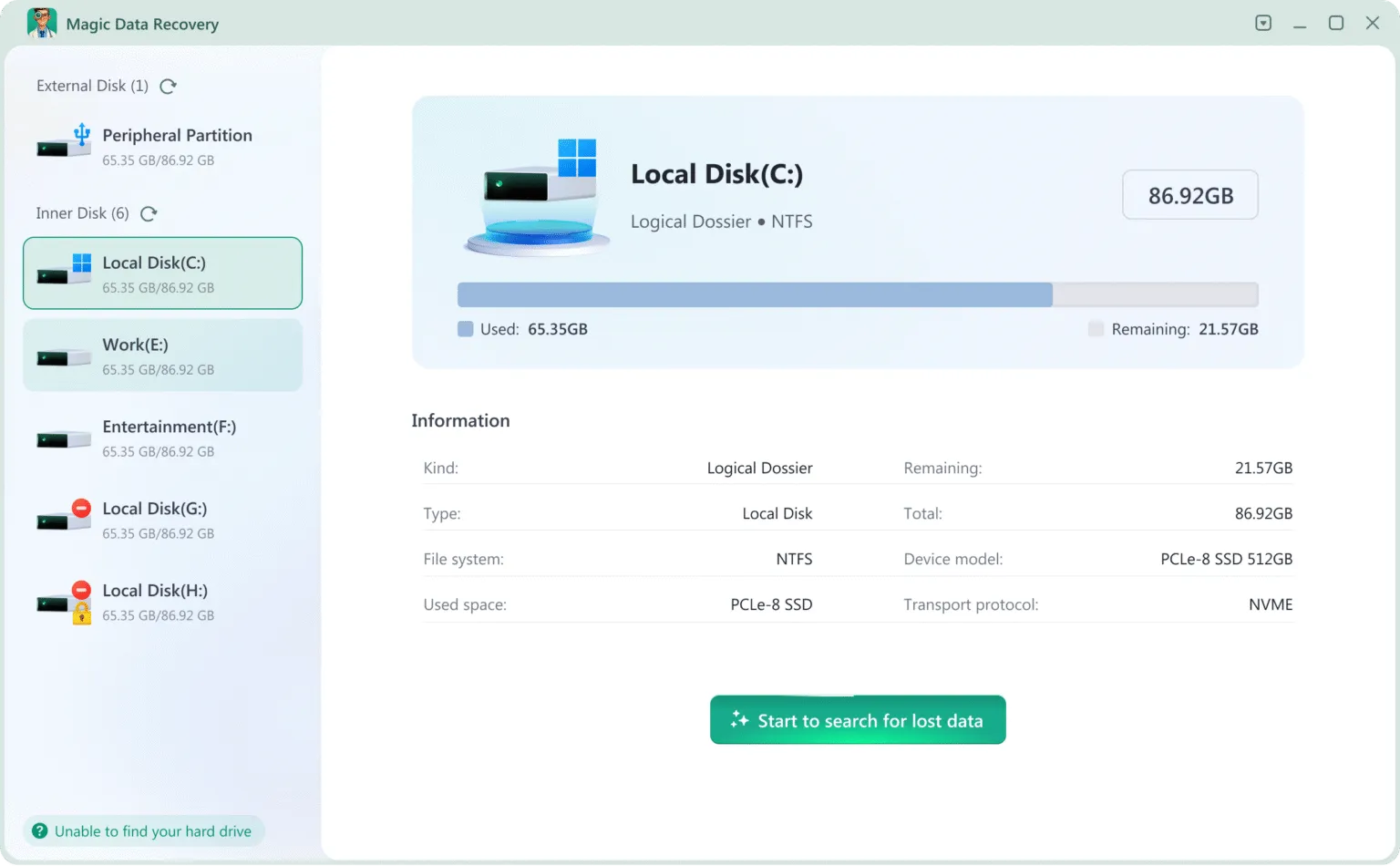
Step 2: Select the Affected Hard Drive and Scan
Open Magic Data Recovery and select the physical drive or partition where the data was lost. If the hard drive begins disconnecting, making abnormal sounds, or becoming unstable, stop the scan. Recommended screenshot: drive-selection screen.
Etapa 3: Filtrar e visualizar os resultados
Use folders, filename search, file-type filtering, and preview to locate important data. A successful preview is useful evidence that the file content can be read, but finding a filename alone does not guarantee that every byte of the file is intact. Recommended screenshot: file filtering + Preview.

Step 4: Recover to Another Physical Drive
Select the files you need and save them to a healthy destination. Do not recover them back to the same hard drive. Recommended screenshot: recovery destination selection.
Verify the Recovery
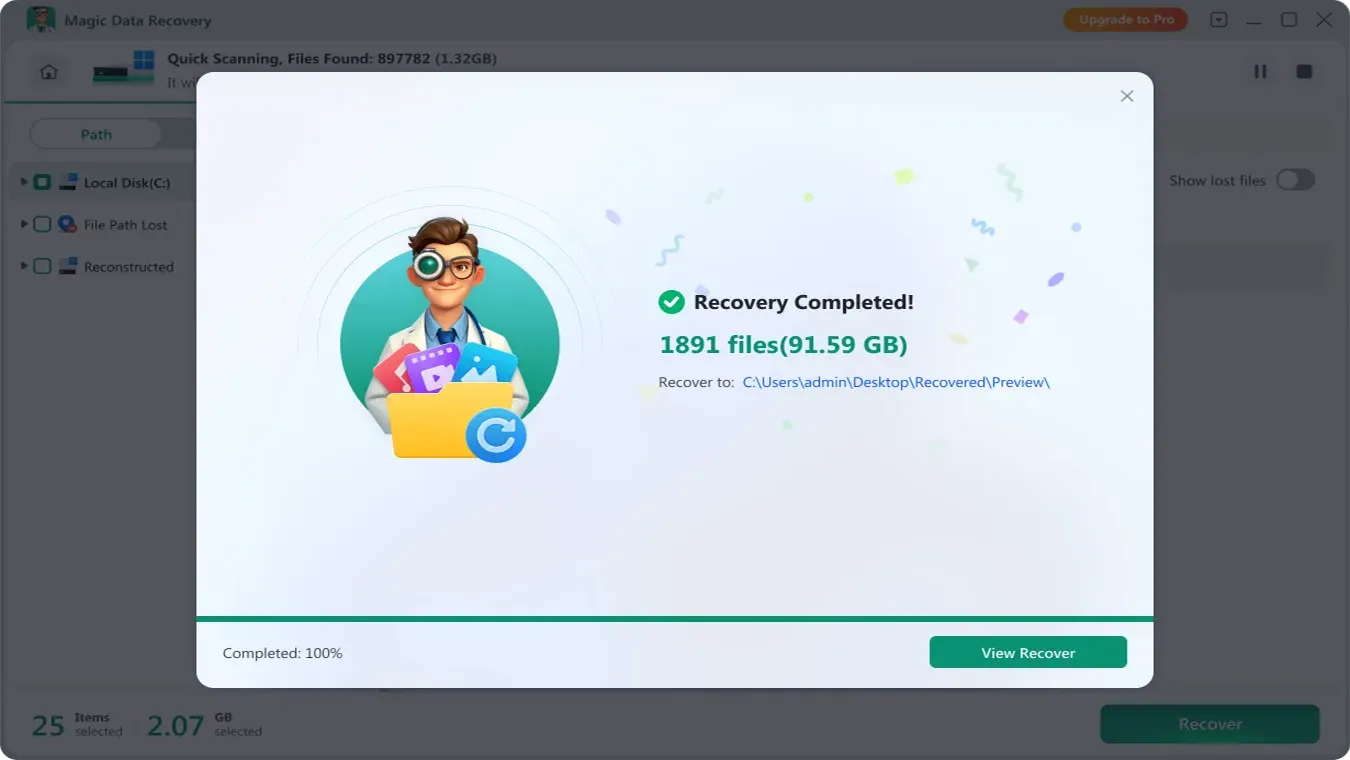
Do not consider the job finished just because the program reports success. Open representative recovered files from the destination drive:
Open documents.
View several photos.
Play parts of important videos.
Test archives.
Check file sizes.
Verify critical project data with its original application.
If important files cannot be previewed or opened after recovery, do not repeatedly write new data or perform repairs on the source. Reassess whether a professional service is warranted.
Do Not Use Repair Tools Before Important Data Is Safe
Several actions can make a disk look healthier while changing the original storage state.
CHKDSK
CHKDSK is useful for file-system maintenance, but its repair modes are designed to fix the volume. Microsoft states that /f fixes file-system errors and /r includes /f functionality while locating bad sectors and attempting to recover readable information. See the official Microsoft CHKDSK documentation.
That is useful after important files are protected. It is not the same as preserving the original disk state for recovery. Amagicsoft also explains the command, repair modes, and risks in What Does CHKDSK Do?.
Formatação
Formatting can create a usable file system again, but that solves a device-state problem, not a data-recovery problem. Recover first. Format later.
Initializing a Disk
If Disk Management reports a disk as Unknown or Not Initialized, do not initialize it merely to make it appear usable while important data remains missing.
Opening the Hard Drive
Do not remove the HDD cover at home. Physical hard drives are precision devices, and opening one outside an appropriate controlled environment can introduce contamination.
How to Reduce the Chance of Needing Recovery Again
Keep at least one independent backup of important data; for critical files, consider a 3-2-1 backup strategy.
Do not treat cloud synchronization as your only backup. Deletion or unwanted changes can also synchronize.
Never keep your only backup on the same physical disk as the original.
Verify backups by opening sample files instead of assuming the backup job succeeded.
Replace drives that repeatedly show read errors, unstable detection, or abnormal mechanical behavior.
Back up important data before formatting, repartitioning, repairing a file system, or reinstalling an operating system.
A recovery plan is useful, but a verified backup usually provides a more predictable outcome.
Conclusão
Se você está procurando um serviço de recuperação de disco rígido perto de mim, choose the recovery path based on the condition of the drive and the value of the data—not simply the distance to the nearest shop.
A clicking, grinding, non-spinning, physically damaged, or unstable HDD should normally be powered down and evaluated by a professional recovery service. A stable, Windows-detected drive with deleted, formatted, RAW, or otherwise logically lost data may have a software-recovery path, especially when no usable backup exists.
Whatever path you choose, protect the source first. Do not format, initialize, repair, or save recovered files back to the affected disk before important data has been verified elsewhere. For broader HDD scenarios, return to Amagicsoft’s soluções de recuperação de disco rígido. If the drive is physically healthy and the loss is logical, Magic Data Recovery can scan, preview, and recover data to another drive.
Compatível com Windows 7/8/10/11 e Windows Server
Perguntas frequentes sobre o serviço de recuperação de disco rígido perto de mim
O serviço de recuperação de disco rígido mais próximo é sempre a melhor opção?
Quanto custa uma recuperação profissional de dados de um disco rígido?
Uma oficina normal de reparos de computadores pode recuperar dados do disco rígido?
Um software de recuperação consegue recuperar dados de um disco rígido que está fazendo barulho?
Devo executar o CHKDSK antes de enviar um disco para recuperação?
Um serviço especializado consegue recuperar um disco rígido que o Windows não reconhece?
Quanto tempo leva a recuperação do disco rígido?
Devo tentar o método Magic Data Recovery antes de recorrer a um serviço profissional?

Jason é especialista em recuperação de dados e suporte técnico, com mais de 15 anos de experiência prática. Ele tem trabalhado extensivamente com usuários finais, resolvendo casos complexos de perda de dados e oferecendo soluções práticas de recuperação para exclusões acidentais, unidades formatadas, sistemas de arquivos danificados, partições perdidas, falhas de sistema e outras emergências de recuperação. Sua especialização também abrange backup e restauração, reparo de arquivos e recuperação de desastres, com forte ênfase em orientações seguras, confiáveis e tecnicamente precisas.