
Recuperação de cartão SD: Restaurar arquivos do cartão SD
Perder fotos, vídeos ou documentos de um cartão SD pode parecer uma situação urgente. No entanto, clicar sem pensar, reconectar repetidamente e formatar rapidamente podem dificultar a recuperação. Recuperação de cartão SD funciona melhor quando você para de usar o cartão, protege os dados originais e o digitaliza antes do conserto.
Este guia explica como Recuperação de cartão SD como funciona, o que fazer primeiro e como recuperar arquivos perdidos do cartão SD com segurança. Você também aprenderá quando recuperação de cartão SD formatado pode funcionar, como lidar com cartões corrompidos e por quê Magic Data Recovery é uma ferramenta prática para a segurança Recuperação de cartão SD.
Compatível com Windows 7/8/10/11 e Windows Server
Índice
O que é a recuperação de cartão SD?
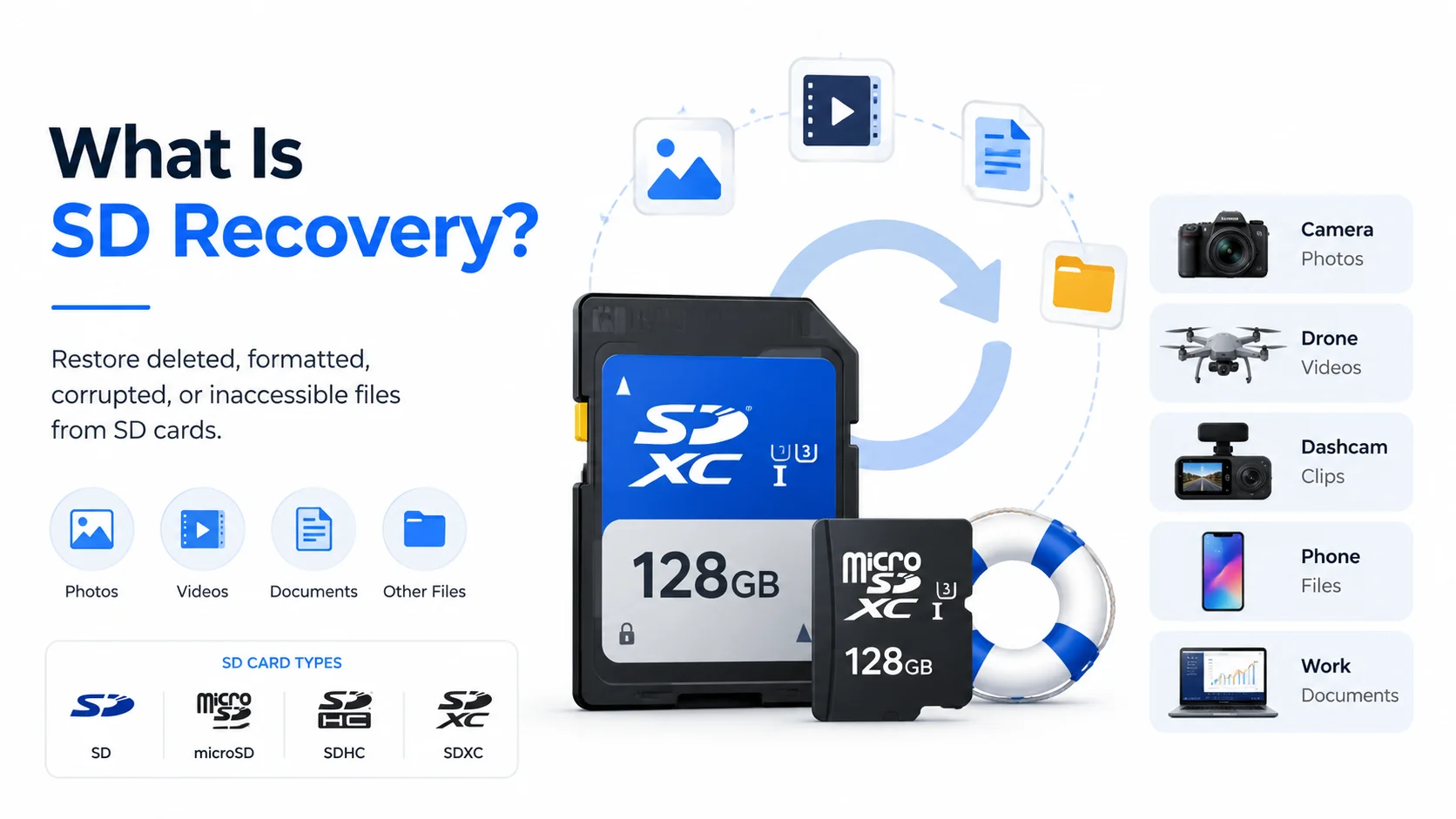
Recuperação de cartão SD significa recuperar arquivos excluídos, formatados, corrompidos ou inacessíveis de um cartão SD, microSD, SDHC ou SDXC. Esses cartões costumam armazenar fotos tiradas com câmeras, vídeos de drones, clipes de câmeras de painel, arquivos de celular e documentos de trabalho.
Em muitos casos de exclusão, o conteúdo do arquivo permanece no cartão por algum tempo. O cartão simplesmente marca o espaço antigo como disponível. Portanto, os softwares de recuperação muitas vezes conseguem localizar os dados perdidos antes que novos arquivos os sobrescrevam. Formatação rápida funciona de maneira semelhante. Ele altera o sistema de arquivos, mas pode não apagar todos os arquivos imediatamente.
Ainda assim, nenhuma ferramenta consegue recuperar dados após uma sobrescrita completa. Por esse motivo, a primeira regra de software de recuperação de cartões de memória É simples: pare de usar o cartão antes de digitalizá-lo.
Comece a recuperação do cartão da maneira certa
Antes de tentar qualquer método de recuperação, retire o cartão da sua câmera, celular, drone ou gravador. Em seguida, não o formate, mesmo que o Windows peça para você fazer isso. Além disso, evite usar ferramentas de reparo até recuperar os arquivos importantes.
Em seguida, conecte o cartão ao computador usando um leitor confiável. Faça a varredura com um software de recuperação e salve os arquivos recuperados em outra unidade de armazenamento. Acima de tudo, não salve os resultados de volta no mesmo cartão SD.
Essas etapas reduzem o risco de sobrescrita. Além disso, elas mantêm o cartão original inalterado durante Recuperação de cartão SD. Se a placa estiver quente, apresentar rachaduras ou travar o computador, pare de tentar consertá-la por conta própria e considere procurar ajuda profissional.
Quando a recuperação do cartão pode funcionar?
As chances de recuperação dependem da causa da perda de dados. No entanto, em muitos casos, há uma chance razoável de recuperação se você agir rapidamente.
Situação | Chance de recuperação | Melhor ação |
Fotos ou vídeos excluídos | Alto, a menos que seja sobrescrito | Pare de usar o cartão e digitalize-o |
Formato rápido | Médio a alto | Use a verificação profunda e visualize os arquivos |
Cartão em formato RAW ou corrompido | Médio | Recupere arquivos antes do reparo |
O cartão solicita formatação | Médio | Cancele a formatação e faça a digitalização primeiro |
Formato completo ou reutilização intensa | Baixa | Tente fazer uma varredura, mas esteja ciente das limitações |
Danos físicos | Não está claro | Procure ajuda profissional para a recuperação |
Por exemplo, um fotógrafo que exclui uma pasta e para de fotografar pode recuperar muitos arquivos. No entanto, um usuário que formata o cartão e os vídeos novos gravados em 4K podem perder alguns dados de forma definitiva. Portanto, é importante ter expectativas realistas durante recuperação de cartão SD corrompido.
Melhor software de recuperação de cartões SD: por que escolher o Magic Data Recovery?
Muitos usuários procuram o o melhor software de recuperação de cartões SD ou software gratuito de recuperação de cartões SD após a perda de arquivos. Algumas ferramentas oferecem apenas a verificação gratuita, enquanto outras exigem conhecimentos de linha de comando. Em contrapartida, o Magic Data Recovery oferece aos usuários comuns um fluxo de trabalho claro para verificação, visualização e recuperação.
Magic Data Recovery ajuda a recuperar arquivos de cartões SD, cartões microSD, pen drives, discos rígidos, SSDs e outros dispositivos de armazenamento. É compatível com os principais tipos de arquivos, incluindo fotos, vídeos, arquivos de áudio, documentos, arquivos compactados e arquivos RAW de câmeras. Portanto, é adequado para situações reais, desde câmeras Recuperação de fotos do cartão SD para a recuperação de vídeos de drones.
A ferramenta resolve três principais problemas. Primeiro, ela faz a varredura de cartões apagados, formatados ou inacessíveis. Segundo, permite que os usuários visualizem os arquivos antes de salvá-los. Em terceiro lugar, evita etapas técnicas complicadas. Por exemplo, um fotógrafo pode precisar de arquivos RAW excluídos, enquanto um usuário de drone pode precisar de vídeos MP4 perdidos. Em ambos os casos, o Magic Data Recovery oferece um caminho prático de recuperação sem exigir que se faça um reparo primeiro.
Como usar o Magic Data Recovery para Recuperação de SD
Siga estas etapas para recuperar arquivos com segurança.
Etapa 1: Faça o download e instale o software
Baixe o Magic Data Recovery no site oficial Amagicsoft site abaixo. Em seguida, instale-o no seu computador, e não no cartão SD afetado. Isso é importante porque a instalação no dispositivo de armazenamento danificado pode sobrescrever os arquivos perdidos.
Compatível com Windows 7/8/10/11 e Windows Server
Etapa 2: Conectar o cartão SD e selecione o cartão a ser lido
Insira o cartão SD em um leitor de cartões confiável e conecte-o ao seu PC. Se o Windows solicitar que você formate o cartão, clique em Cancelar. Em seguida, abra o Magic Data Recovery e selecione o cartão SD de destino para iniciar a busca pelos arquivos perdidos.

Etapa 3: Aguarde até que a verificação seja concluída
O software executa automaticamente uma varredura avançada. Enquanto isso, ele lista todos os arquivos recuperáveis à medida que a verificação avança.

Etapa 4: Prévia Arquivos
Após a digitalização, visualize as fotos, vídeos, documentos e outros arquivos. Essa etapa ajuda você a escolher os arquivos de que precisa e a evitar itens danificados.

Etapa 5: Recuperar os arquivos
Por fim, salve os arquivos selecionados em outra unidade. Nunca salve os arquivos recuperados de volta no mesmo cartão SD durante Recuperação de cartão SD.

Dicas para melhorar os resultados da recuperação
É possível melhorar os resultados adotando hábitos cuidadosos. Primeiro, aja rapidamente após a exclusão, formatação ou danificação do cartão. Em seguida, evite gravar novos arquivos no cartão. Depois, faça uma verificação antes de reparar ou formatar. Após a recuperação, formate os cartões SD no dispositivo original, ejetá-los com segurança e faça backup dos arquivos importantes após cada sessão de fotos ou viagem.
Conclusão: Escolha uma solução mais segura para recuperação de cartões SD
Recuperação de cartão SD funciona melhor quando você age rapidamente, protege o cartão original e usa uma ferramenta que faz uma varredura antes de realizar alterações. Arquivos excluídos, formatações rápidas, cartões RAW e cartões de memória corrompidos ainda podem conter dados recuperáveis. No entanto, ações descuidadas podem diminuir suas chances.
Magic Data Recovery merece ser recomendado porque resolve problemas reais dos usuários. Oferece um fluxo de trabalho claro, é compatível com os principais formatos de foto e vídeo, aceita cartões SD e microSD e permite que os usuários visualizem os arquivos antes de recuperação de arquivos do cartão SD. Se você quer uma opção mais eficiente e fácil de usar para iniciantes Recuperação de cartão SD Como solução, tente o método Magic Data Recovery antes de adotar medidas de reparo mais arriscadas.
Compatível com Windows 7/8/10/11 e Windows Server
Perguntas frequentes sobre a recuperação de cartões SD
O que é a recuperação de SD?
A recuperação de cartões SD é o processo de restaurar arquivos excluídos, formatados, corrompidos ou inacessíveis de cartões SD, microSD, SDHC e SDXC. Esse processo funciona melhor quando os dados perdidos ainda estão presentes no cartão. Portanto, você deve parar de usar o cartão imediatamente e fazer uma varredura nele antes de salvar novos arquivos.
É possível recuperar arquivos excluídos de um cartão SD de graça?
Algumas ferramentas oferecem varredura gratuita, enquanto outras permitem uma recuperação gratuita limitada. No entanto, os limites gratuitos variam de acordo com o produto. Antes de confiar em qualquer ferramenta, faça uma varredura no cartão e visualize os resultados. Se os arquivos parecerem recuperáveis, escolha um método que os salve com segurança em outra unidade.
É possível recuperar os dados de um cartão SD formatado?
Sim, a recuperação de um cartão SD formatado pode funcionar após uma formatação rápida, especialmente se você não tiver reutilizado o cartão. No entanto, uma formatação completa ou novas gravações podem sobrescrever os arquivos antigos. Para obter o melhor resultado, pare de usar o cartão, execute uma varredura profunda e salve os arquivos recuperados em outro local.
O Magic Data Recovery é bom para a recuperação do SD?
O Magic Data Recovery é uma opção prática para a recuperação de cartões SD, pois é compatível com cartões apagados, formatados e corrompidos. Ele também permite que os usuários visualizem os arquivos recuperáveis antes de salvá-los. Assim, mesmo os iniciantes podem verificar fotos, vídeos, documentos e arquivos RAW sem precisar usar ferramentas complicadas de linha de comando.
É possível recuperar fotos e vídeos do cartão SD de uma câmera?
Sim, muitas vezes é possível recuperar fotos e vídeos da câmera, desde que não tenham sido sobrescritos por novos dados. Pare de fotografar, retire o cartão e faça uma varredura nele com um software de recuperação. Essa abordagem funciona para imagens JPG, fotos RAW, vídeos MP4, arquivos MOV e outros formatos comuns de mídia de câmera.
O que devo fazer se meu cartão SD ficar no formato RAW ou estiver corrompido?
Não formate o cartão primeiro. Em vez disso, conecte-o a um leitor de cartão confiável e faça a varredura com um software de recuperação. Depois de recuperar os arquivos importantes, você poderá reparar ou reformatar o cartão. Essa ordem reduz o risco, pois as ações de reparo podem alterar o sistema de arquivos.
Onde devo salvar os arquivos recuperados do cartão SD?
Salve os arquivos recuperados no seu computador, em um disco rígido externo ou em outro dispositivo de armazenamento seguro. Não os salve de volta no mesmo cartão SD durante a recuperação. Caso contrário, você poderá sobrescrever arquivos que o software ainda não tenha restaurado, o que pode prejudicar os resultados da recuperação.

Vasilii é um especialista em recuperação de dados com cerca de 10 anos de experiência prática na área. Ao longo de sua carreira, ele resolveu com sucesso milhares de casos complexos envolvendo arquivos excluídos, unidades formatadas, partições perdidas e sistemas de arquivos RAW. Sua experiência abrange métodos de recuperação manual usando ferramentas profissionais, como editores hexadecimais, e soluções automatizadas avançadas com software de recuperação. A missão do Vasilii é tornar o conhecimento confiável sobre recuperação de dados acessível tanto para profissionais de TI quanto para usuários comuns, ajudando-os a proteger seus valiosos ativos digitais.