
Formatação rápida: Como funciona, recuperação de dados e práticas recomendadas
A formatação de uma unidade é uma tarefa comum ao preparar o armazenamento para reutilização. No entanto, muitos usuários escolhem acidentalmente Formato rápido sem entender completamente suas consequências. Como resultado, arquivos importantes podem parecer estar permanentemente perdidos em segundos.
Neste artigo, você aprenderá como essa opção de formatação funciona, como ela difere de uma Formato completo, Se os dados permanecem recuperáveis, e como restaurar arquivos perdidos com segurança. Se você estiver enfrentando perda de dados após a formatação, este artigo também explica por que Magic Data Recovery é uma solução confiável.
Índice
O que é Formato rápido?
É uma opção de formatação disponível no Windows, macOS e em muitas ferramentas de gerenciamento de disco. Ela prepara um dispositivo de armazenamento, como um disco rígido, SSD, para reutilização, reconstruindo a estrutura do sistema de arquivos.
Ao contrário dos métodos de formatação mais completos, esse processo de formatação rápida é concluído em segundos, pois não examina a superfície do disco nem apaga os blocos de dados existentes.
Cenários comuns em que essa opção de formato é usada
Os usuários geralmente aplicam esse método de formatação quando:
- Reinstalação do Windows ou do macOS
- Preparação de uma unidade USB para transferência de arquivos
- Redefinição de um disco rígido externo
- Correção de pequenos erros no sistema de arquivos
- Configuração de uma nova partição
Embora conveniente, a velocidade dessa abordagem geralmente cria a falsa impressão de que os dados foram completamente apagados.
Como Formato rápido Trabalhos: O princípio técnico
Para entender a recuperação de dados após a formatação, é essencial saber o que realmente acontece durante o processo.
O que acontece durante o processo
Quando você executa um Formato rápido, o sistema:
- Exclui os metadados do sistema de arquivos (como a tabela de alocação de arquivos ou MFT)
- Marca o espaço em disco como disponível
- Cria uma estrutura de sistema de arquivos nova e vazia
O que não acontece
No entanto, essa opção não o faz:
- Substituir dados de arquivos existentes
- Verificação de setores defeituosos
- Apagar conteúdo com segurança
Em termos práticos, seus arquivos ainda existem no disco até que novos dados os substituam.
Como realizar uma Formato no Windows (passo a passo)
A compreensão do processo ajuda a reduzir o risco de perda acidental de dados.
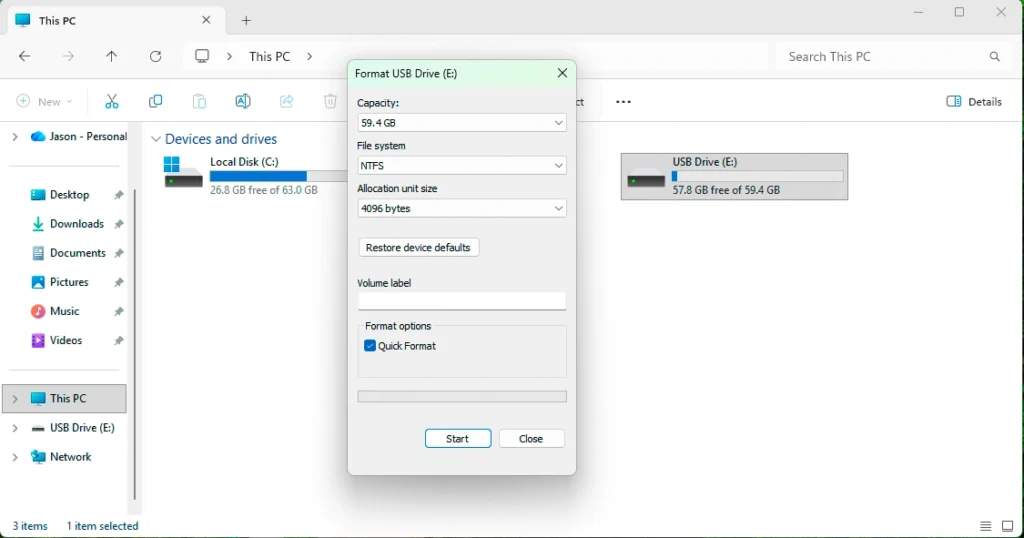
Usando o Windows File Explorer
- Abrir este PC
- Clique com o botão direito do mouse na unidade de destino
- Selecionar formato
- Verificar Formato rápido
- Escolha um sistema de arquivos (NTFS, FAT32, ou exFAT)
- Clique em Iniciar
Uso do gerenciamento de disco
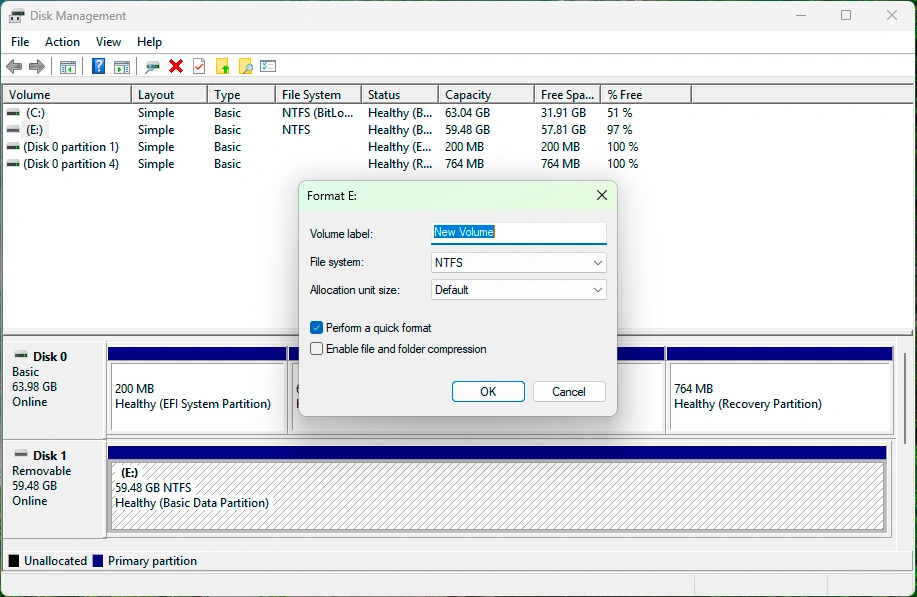
- Pressione Win + X → Gerenciamento de disco
- Clique com o botão direito do mouse na partição
- Selecionar formato
- Ativar a opção de formatação rápida
- Confirmar a operação
Um prompt de confirmação avisa sobre a perda de dados, mas não explica a possibilidade de recuperação.
Formato rápido vs formato completo: Principais diferenças
A escolha entre esses dois métodos tem implicações de longo prazo para a segurança e a recuperação de dados.
Recurso | Formato rápido | Formato completo |
Tempo necessário | Segundos | Minutos a horas |
Exclui o sistema de arquivos | Sim | Sim |
Substitui dados | Não | Sim |
Verifica se há setores defeituosos | Não | Sim |
Dados recuperáveis | Alta | Muito baixo |
Recomendado para reutilização | Limitada | Sim |
Quando cada opção é apropriada
- Formato rápido: Problemas menores, reutilização rápida, limpeza temporária
- Formato completo: Venda de uma unidade, preocupações com a segurança, verificação profunda de erros
Os dados podem ser recuperados após a formatação?
Sim, na maioria dos casos, recuperação de dados após um rápido processo de formatação é altamente possível.
Por que a recuperação funciona
Como esse método remove apenas as referências de arquivo, o software de recuperação pode:
- Verificar setores brutos do disco
- Identificar assinaturas de arquivos
- Reconstruir arquivos excluídos
Quando a recuperação pode falhar
O sucesso da recuperação diminui se:
- Novos dados são gravados na unidade
- A Formato completo é realizado posteriormente
- O TRIM está ativado em SSDs
- O disco sofre danos físicos
Para obter melhores resultados, pare de usar a unidade imediatamente após a formatação.
Como recuperar dados após a formatação
A recuperação de dados requer uma ferramenta que possa examinar além do sistema de arquivos.
Solução recomendada: Magic Data Recovery
Magic Data Recovery foi projetado para restaurar arquivos perdidos devido à formatação, exclusão acidental, e perda de partição.
Compatível com Windows 7/8/10/11 e Windows Server
Principais problemas que ele resolve
- Arquivos ausentes após a formatação
- Partições inacessíveis
- Fotos perdidas, documentos e vídeos
- Recuperação de unidades externas e USB
Por que o Magic Data Recovery é uma escolha confiável
Em vez de declarações de marketing, o valor de Magic Data Recovery está no desempenho prático da recuperação.
Principais vantagens
- Tecnologia de varredura profunda que ignora sistemas de arquivos excluídos
- Suporte para NTFS, FAT32, exFAT e outros
- Compatível com HDDs, SSDs, unidades USB e cartões SD
- Varredura somente de leitura para evitar a substituição de dados
Caso de uso no mundo real
Um cenário comum envolve usuários que formatam uma unidade USB para corrigir um erro no sistema de arquivos. Depois de usar a opção de formatação rápida, os arquivos desaparecem. O Magic Data Recovery pode verificar o dispositivo, localizar arquivos recuperáveis e visualizá-los antes da restauração.
Por que é mais confiável do que os métodos manuais
As tentativas de recuperação manual, como CHKDSK ou reformatação, geralmente reduzem as taxas de sucesso. Por outro lado, o Magic Data Recovery preserva o conteúdo original do disco enquanto executa varreduras avançadas.
Práticas recomendadas para evitar a perda de dados
A prevenção continua sendo a estratégia mais eficaz.
Dicas práticas
- Sempre faça backup dos arquivos importantes antes de formatá-los
- Verifique novamente as opções de formato antes de confirmar
- Evitar a formatação de unidades com erros desconhecidos
- Pare de usar a unidade imediatamente se ocorrer perda de dados
Esses hábitos reduzem significativamente a necessidade de recuperação.
Conclusão
Formato rápido é rápido e conveniente, mas muitas vezes é mal compreendido. Embora remova o acesso ao sistema de arquivos, ele não apaga imediatamente os dados. Isso possibilita a recuperação, desde que não ocorram mais gravações.
Quando os arquivos são perdidos após a formatação, Se você estiver procurando uma solução de recuperação confiável após a formatação, uma solução profissional como o Magic Data Recovery oferece uma maneira segura, eficiente e comprovada de restaurar dados valiosos sem causar mais danos. Se você estiver procurando uma solução de recuperação confiável após a formatação, Magic Data Recovery oferece uma combinação equilibrada de confiabilidade, facilidade de uso e profundidade técnica adequada para a maioria dos usuários.
Compatível com Windows 7/8/10/11 e Windows Server
Perguntas frequentes
A formatação rápida é suficiente para USB?
Por que um formato completo é mais vantajoso do que uma opção rápida?
Devo fazer a formatação rápida ou a formatação completa do PS3?
É melhor formatar rapidamente ou formatar totalmente uma unidade USB?
Há alguma desvantagem em usar o exFAT?
O formato completo vale a pena?
Qual formato devo usar para minha SSD?

Erin Smith é reconhecida como uma das redatoras mais profissionais do Amagicsoft. Ela aprimorou continuamente suas habilidades de redação nos últimos 10 anos e ajudou milhões de leitores a resolver seus problemas de tecnologia.