
Como recuperar arquivos no Windows 10: guia de recuperação fácil
Quando um documento, foto, vídeo ou arquivo de projeto importante desaparece, muitas vezes a primeira reação é o pânico. Muitos usuários procuram por restaurar arquivos no Windows 10 porque eles querem uma solução clara, e não uma palestra técnica. Felizmente, um arquivo excluído ainda pode existir no disco, mesmo quando o Windows já não o exibe na pasta original.
Este guia explica como restaurar Windows 10 arquivos os usuários costumam perder após a exclusão acidental, a limpeza da Lixeira, Shift + Delete, falha na formatação ou no backup. Primeiro, você aprenderá os métodos integrados mais seguros. Em seguida, verá quando Magic Data Recovery torna-se uma solução prática, especialmente quando você precisa recuperar arquivos excluídos da Lixeira sem comandos complexos.
Antes de tentar qualquer método de recuperação de arquivos excluídos, pare de usar a unidade afetada. Não instale programas grandes, não baixe novos arquivos nem salve os dados recuperados no mesmo local. Essa medida simples reduz o risco de sobrescrever os dados excluídos.
Compatível com Windows 7/8/10/11 e Windows Server
Índice
Por que ainda é possível recuperar arquivos do Windows 10 após a exclusão
O Windows 10 nem sempre apaga um arquivo imediatamente. Em muitos casos, o sistema remove a referência ao arquivo e marca o espaço de armazenamento como disponível. Portanto, os dados originais podem permanecer na unidade até que novos dados os substituam.
É por isso que o tempo é fundamental. Se você agir rapidamente, poderá recuperar arquivos da Lixeira, de um backup, de uma conta na nuvem ou por meio de uma verificação de recuperação. No entanto, o uso intenso da mesma unidade pode sobrescrever os dados perdidos.
Situação de perda de arquivos | Melhor método de recuperação |
O arquivo ainda aparece na Lixeira | Restaurar da Lixeira |
A Lixeira foi esvaziada | Use o Magic Data Recovery ou o Windows File Recovery |
O Histórico de arquivos foi ativado | Restaurar do histórico de arquivos |
Arquivo sincronizado com o OneDrive | Verificar a Lixeira na nuvem |
A unidade foi formatada | Executar uma varredura profunda |
Por isso, a melhor maneira de restaurar arquivos no Windows 10 é adequar o método à causa da perda do arquivo.
As melhores formas integradas de recuperar arquivos do Windows 10
O Windows 10 oferece várias opções de recuperação. Algumas funcionam apenas quando há um backup. Outras ajudam em casos de exclusão simples. Portanto, comece pelo método mais fácil e recorra a uma recuperação mais aprofundada somente quando for necessário.
Restaurar arquivos da lixeira
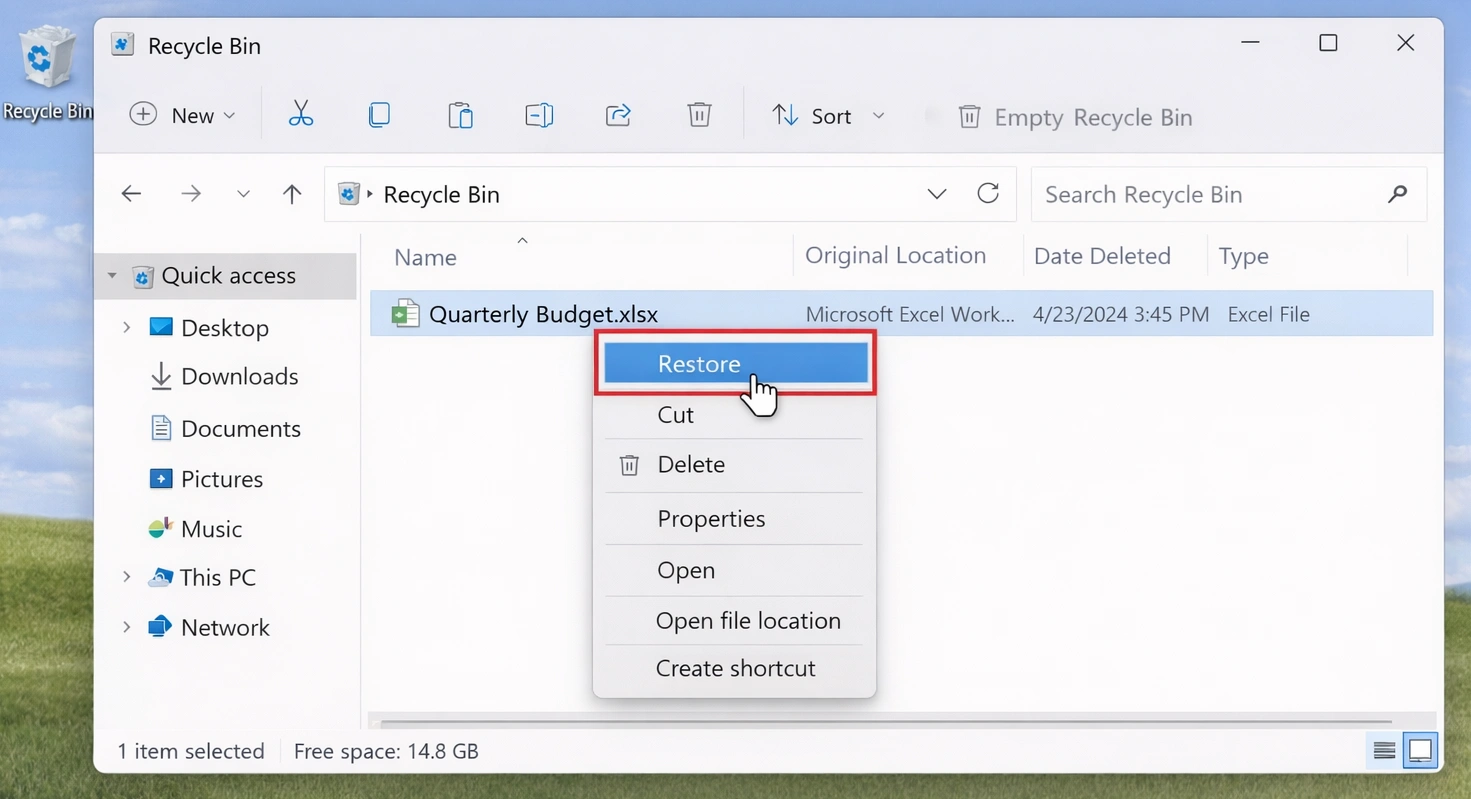
A Lixeira deve ser sempre verificada primeiro. Se você excluiu os arquivos normalmente, o Windows pode ainda mantê-los lá.
- Abra a Lixeira.
- Pesquise o arquivo por nome, tipo ou data de exclusão.
- Clique com o botão direito do mouse no arquivo.
- Selecione “Restaurar”.”
- Verifique a pasta original.
Este método ajuda você a recuperar arquivos rapidamente, sem precisar de nenhum software adicional. No entanto, isso não funcionará se você tiver usado Shift + Delete, esvaziou a Lixeira, excluiu um arquivo muito grande ou removeu arquivos de determinados dispositivos de armazenamento.
Se o arquivo não aparecer nesse local, tente um método mais aprofundado. Você ainda pode recuperar arquivos excluídos da Lixeira com uma verificação de recuperação.
Restaurar arquivos com o Histórico de Arquivos
O Histórico de Arquivos pode ajudar se você tiver ativado essa função antes do arquivo desaparecer. Ele armazena versões das pastas selecionadas e permite recuperar cópias anteriores.
Digite “Restaurar seus arquivos com o Histórico de Arquivos” na pesquisa do Windows. Em seguida, abra a janela do Histórico de Arquivos, navegue pelas versões, selecione o arquivo ou a pasta e clique no botão “Restaurar”. Além disso, você pode clicar com o botão direito do mouse em uma pasta, escolher “Propriedades” e abrir “Versões anteriores”.”

No entanto, o Histórico de Arquivos só funciona se você o tiver ativado antes da perda de dados. Se não houver nenhum backup, você precisará de outra maneira de restaurar o Windows 10 arquivos.
Como usar o Magic Data Recovery para recuperar arquivos do Windows 10
Se a Lixeira estiver vazia e não houver nenhum backup, Magic Data Recovery oferece uma opção mais fácil para iniciantes. Ele faz uma varredura na unidade original, localiza os dados recuperáveis, exibe uma pré-visualização dos arquivos e salva os itens selecionados em um local seguro.
Essa abordagem funciona especialmente bem quando você precisa recuperar arquivos excluídos da Lixeira, recuperar arquivos após pressionar Shift + Delete ou evitar o uso de ferramentas de linha de comando. Em vez de digitar comandos de recuperação, você pode usar uma interface guiada e verificar os resultados da varredura visualmente.
Etapa 1: Faça o download e instale o Magic Data Recovery
Primeiro, baixe o Magic Data Recovery e instale-o em uma unidade que não seja o local original dos arquivos excluídos. Isso ajuda a reduzir o risco de sobrescrever os dados perdidos antes do início da recuperação.
Compatível com Windows 7/8/10/11 e Windows Server
Etapa 2: Selecione a unidade a ser examinada
Em seguida, inicie o Magic Data Recovery. Na interface principal, selecione a unidade ou partição de onde seus arquivos desapareceram. Depois, inicie a varredura para procurar dados recuperáveis.

Etapa 3: Examinar a unidade em busca de arquivos excluídos
O Magic Data Recovery faz a varredura da unidade selecionada e exibe os arquivos recuperáveis à medida que o processo avança. Enquanto isso, você pode aguardar a conclusão da varredura ou conferir os resultados listados durante a varredura.

Etapa 4: Visualizar os arquivos excluídos antes da recuperação
Em seguida, use o recurso de visualização para verificar o conteúdo do arquivo antes da recuperação. Essa etapa ajuda a confirmar se é o arquivo correto, especialmente quando os resultados da varredura incluem várias versões ou nomes semelhantes.

Etapa 5: Recuperar arquivos em um local seguro
Por fim, selecione os arquivos que deseja recuperar e salve-os em uma unidade, partição ou local de armazenamento diferente. Não restaure os arquivos no mesmo local de onde eles desapareceram, pois isso pode sobrescrever outros dados recuperáveis.

Por que o Magic Data Recovery é útil
O Magic Data Recovery resolve um problema comum: as ferramentas integradas do Windows muitas vezes exigem um backup ou o uso de comandos técnicos. Em contrapartida, essa ferramenta ajuda os usuários restaurar o Windows 10 arquivos por meio de um processo mais claro.
Isso pode ser útil quando você esvaziou a Lixeira, usou Shift + Delete, perdeu tipos comuns de arquivos, não tem o Histórico de Arquivos, deseja visualizar arquivos ou precisa de uma alternativa mais simples à Recuperação de Arquivos do Windows.
Além disso, o Magic Data Recovery não afirma que todos os arquivos possam ser sempre recuperados. A recuperação depende do fato de novos dados terem ou não sobrescrito o arquivo excluído. Essa limitação honesta torna a ferramenta mais confiável do que soluções que prometem resultados irrealistas.
Recuperar arquivos do Windows 10 com o Windows File Recovery
Recuperação de arquivos do Windows é a ferramenta de recuperação de arquivos da Microsoft que funciona por linha de comando. Ela pode recuperar arquivos de unidades locais, pen drives e cartões de memória. No entanto, é mais indicada para usuários avançados do que para iniciantes, pois exige o uso de comandos precisos.
Um comando básico pode ter a seguinte forma:
winfr C: D: /regular /n \Users\YourName\Documents\*.docx
Neste exemplo, a ferramenta faz a varredura na unidade C e salva os documentos do Word recuperados na unidade D. As unidades de origem e de destino devem ser diferentes, o que ajuda a proteger os dados recuperáveis contra a sobrescrita.

A Recuperação de Arquivos do Windows pode ser útil quando você entende os caminhos dos arquivos, as letras das unidades e os modos de recuperação. No entanto, muitos usuários consideram a linha de comando algo complicado. Portanto, se você quiser restaurar o Windows 10 arquivos Com menos esforço técnico, o Magic Data Recovery pode parecer mais fácil de operar.
Restaurar arquivos no Windows 10 a partir do OneDrive ou de um backup na nuvem
Se você sincronizou seus arquivos com o OneDrive ou outro serviço em nuvem, verifique a Lixeira na nuvem antes de usar ferramentas de recuperação mais avançadas. Às vezes, a exclusão local não remove a cópia na nuvem imediatamente.
No OneDrive, abra o OneDrive online, acesse a Lixeira, localize o arquivo excluído, selecione-o e clique em “Restaurar”. Esse método funciona bem quando a sincronização foi executada antes da exclusão. No entanto, os serviços em nuvem mantêm os arquivos excluídos apenas por um período limitado. Portanto, se a Lixeira na nuvem não contiver mais o arquivo, talvez seja necessário usar um software de recuperação para recuperar arquivos excluídos da Lixeira na unidade original.
Magic Data Recovery x Opções de recuperação integradas do Windows
Cada método tem uma finalidade diferente. Portanto, analise sua situação antes de escolher uma solução.
Opção de recuperação | Melhor para | Vantagem principal | Limite principal |
Lixeira | Exclusão normal recente | Rápido e gratuito | Falha após o esvaziamento |
Histórico de arquivos | Pastas com cópia de segurança | Recurso “Windows Seguro” | Requer configuração prévia |
Recuperação de arquivos do Windows | Usuários técnicos | Ferramenta gratuita da Microsoft | Requer comandos |
Backup na nuvem | Arquivos sincronizados | Recuperação remota prática | Depende do prazo de retenção |
Magic Data Recovery | Sem backup, Lixeira esvaziada, Shift + Delete | Varredura visual, visualização, recuperação guiada | O sucesso depende do status da sobrescrita |
Essa comparação explica por que o Magic Data Recovery merece um lugar no seu plano de recuperação. Ele não substitui os backups. Em vez disso, ele preenche a lacuna quando a Lixeira, o Histórico de Arquivos e os backups na nuvem não são suficientes.
Por exemplo, se você esvaziou a Lixeira após excluir uma pasta de trabalho, o Histórico de Arquivos pode não estar disponível e a Recuperação de Arquivos do Windows pode parecer muito técnica. Nesse caso, o Magic Data Recovery oferece uma maneira prática de restaurar o Windows 10 arquivos dos quais os usuários precisam com urgência.
Dicas para aumentar suas chances de recuperar arquivos do Windows 10
A recuperação de arquivos depende tanto do momento certo quanto do método utilizado. Portanto, siga estas dicas antes de fazer a varredura na unidade.
Primeiro, pare de usar o disco afetado. Novos dados podem sobrescrever os arquivos excluídos. Em seguida, instale um software de recuperação em outro disco ou partição, se possível. Depois, salve os arquivos recuperados em outro local, como outra partição, um pen drive ou um dispositivo de armazenamento separado.
Além disso, use a visualização antes da recuperação. A visualização ajuda a identificar o arquivo correto e a evitar a restauração de itens desnecessários. Por fim, tente uma verificação mais profunda quando a verificação rápida falhar, especialmente após a limpeza da Lixeira, a formatação ou problemas no sistema de arquivos.
Erros comuns ao tentar restaurar arquivos do Windows 10
Muitos usuários dificultam a recuperação sem perceber. Felizmente, é possível evitar os erros mais comuns.
Não continue trabalhando na unidade afetada. Além disso, não instale ferramentas de recuperação no mesmo local de onde os arquivos desapareceram. Em seguida, evite salvar os arquivos recuperados de volta na pasta original. Por fim, não formate a unidade novamente antes da recuperação.
Em vez disso, siga uma sequência segura. Verifique primeiro a Lixeira. Em seguida, verifique o Histórico de Arquivos e os backups na nuvem. Se essas opções não derem certo, use o Magic Data Recovery ou outra ferramenta de recuperação adequada para recuperar arquivos excluídos da Lixeira.
Conclusão
Quando você precisar restaurar Windows 10 arquivos, comece pelos métodos mais seguros e simples. Verifique primeiro a Lixeira. Depois disso, verifique o Histórico de Arquivos, as Versões Anteriores e os backups na nuvem. Essas opções funcionam melhor quando o Windows ou sua conta na nuvem ainda mantêm uma cópia.
No entanto, se você precisar recuperar arquivos excluídos da Lixeira, Magic Data Recovery oferece uma solução mais prática para usuários comuns. Ele verifica o disco, exibe uma pré-visualização dos arquivos excluídos e recupera os dados selecionados sem a necessidade de comandos.
Nenhuma ferramenta pode garantir a recuperação depois que os dados foram sobrescritos. No entanto, o Magic Data Recovery oferece uma maneira clara, prática e fácil de usar, mesmo para iniciantes, de recuperar arquivos excluídos quando as opções integradas do Windows não são suficientes.
Compatível com Windows 7/8/10/11 e Windows Server
PERGUNTAS FREQUENTES
É possível recuperar arquivos do Windows 10 depois de esvaziar a Lixeira?
Sim, ainda é possível recuperar arquivos excluídos, desde que não tenham sido sobrescritos por novos dados. Primeiro, pare de usar a unidade afetada. Em seguida, faça uma varredura com o Magic Data Recovery ou use o Windows File Recovery, caso tenha conhecimento de comandos. Uma resposta rápida aumenta suas chances de sucesso.
Como faço para recuperar arquivos excluídos da Lixeira?
Para recuperar arquivos excluídos da Lixeira, use uma ferramenta de recuperação para fazer uma varredura na unidade onde os arquivos estavam originalmente. O Magic Data Recovery ajuda você a localizar dados excluídos, visualizar arquivos e salvar os itens selecionados em outro local. Não os recupere na mesma pasta.
É possível recuperar arquivos sem usar um software?
Sim, é possível recuperar arquivos sem usar nenhum software, desde que eles ainda estejam na Lixeira, no Histórico de Arquivos, nas Versões Anteriores ou no backup na nuvem. No entanto, depois de esvaziar a Lixeira e caso não haja um backup, um software pode ser a opção mais prática para a recuperação.
O Magic Data Recovery é seguro para iniciantes?
Sim. O Magic Data Recovery oferece aos iniciantes um fluxo de trabalho visual, em vez de linhas de comando. Você escolhe uma unidade, executa uma varredura, visualiza os resultados e recupera os arquivos selecionados. Mesmo assim, é recomendável instalá-lo em um local diferente daquele afetado e salvar os arquivos recuperados em outro lugar.
Por que não consigo encontrar os arquivos excluídos na Lixeira?
O Windows pode ignorar a Lixeira quando você usa Shift + Delete, exclui arquivos muito grandes, esvazia a Lixeira ou remove arquivos de alguns dispositivos de armazenamento. O Storage Sense também pode excluir itens antigos. Nesses casos, você precisa de outra maneira de restaurar arquivos no Windows 10.
A recuperação de arquivos do Windows é melhor do que o Magic Data Recovery?
O Windows File Recovery pode funcionar bem para usuários avançados, especialmente quando eles conhecem os comandos e os caminhos dos arquivos. No entanto, o Magic Data Recovery é mais adequado para usuários que preferem varredura visual, filtros, visualização prévia e recuperação guiada. Portanto, a melhor escolha depende do seu nível de familiaridade com a tecnologia.
Onde devo salvar os arquivos recuperados?
Salve os arquivos recuperados em uma unidade, partição ou dispositivo de armazenamento diferente. Isso protege os dados recuperáveis restantes contra a sobrescrita. Por exemplo, se você perdeu arquivos da unidade C, recupere-os na unidade D, em uma unidade USB ou em outro local de armazenamento seguro.

Vasilii é um especialista em recuperação de dados com cerca de 10 anos de experiência prática na área. Ao longo de sua carreira, ele resolveu com sucesso milhares de casos complexos envolvendo arquivos excluídos, unidades formatadas, partições perdidas e sistemas de arquivos RAW. Sua experiência abrange métodos de recuperação manual usando ferramentas profissionais, como editores hexadecimais, e soluções automatizadas avançadas com software de recuperação. A missão do Vasilii é tornar o conhecimento confiável sobre recuperação de dados acessível tanto para profissionais de TI quanto para usuários comuns, ajudando-os a proteger seus valiosos ativos digitais.