
Restore Files Windows 10: Easy Recovery Guide

When an important document, photo, video, or project file disappears, panic often comes first. Many users search for restore files Windows 10 because they want a clear fix, not a technical lecture. Fortunately, a deleted file may still exist on the drive, even when Windows no longer shows it in the original folder.
This guide explains how to restore Windows 10 files users commonly lose after accidental deletion, Recycle Bin cleanup, Shift + Delete, formatting, or backup failure. First, you will learn the safest built-in methods. Then, you will see when Magic Data Recovery becomes a practical solution, especially when you need to restore files deleted from Recycle Bin without complex commands.
Before you try any deleted file recovery method, stop using the affected drive. Do not install large programs, download new files, or save recovered data to the same location. This simple action reduces the risk of overwriting deleted data.
Supports Windows 7/8/10/11 and Windows Server
Table of Contents
Why You Can Still Restore Windows 10 Files After Deletion
Windows 10 does not always erase a file immediately. In many cases, the system removes the file reference and marks the storage space as available. Therefore, the original data may remain on the drive until new data replaces it.
That is why timing matters. If you act quickly, you may restore files from the Recycle Bin, a backup, a cloud account, or a recovery scan. However, heavy use of the same drive may overwrite the lost data.
File Loss Situation | Best Recovery Method |
File still appears in Recycle Bin | Restore from Recycle Bin |
Recycle Bin has been emptied | Use Magic Data Recovery or Windows File Recovery |
File History was enabled | Restore from File History |
File synced with OneDrive | Check cloud Recycle Bin |
Drive was formatted | Run a deep scan |
As a result, the best way to restore files Windows 10 is to match the method to the cause of file loss.
Best Built-In Ways to Restore Windows 10 Files
Windows 10 gives you several recovery options. Some work only when a backup exists. Others help with simple deletion. So, start with the easiest method and move to deeper recovery only when necessary.
Restore Files from the Recycle Bin
The Recycle Bin should always come first. If you deleted files normally, Windows may still keep them there.
- Open the Recycle Bin.
- Search for the file by name, type, or deleted date.
- Right-click the file.
- Choose “Restore.”
- Check the original folder.
This method helps you restore files quickly without extra software. However, it will not work if you used Shift + Delete, emptied the Recycle Bin, deleted a very large file, or removed files from certain storage devices.
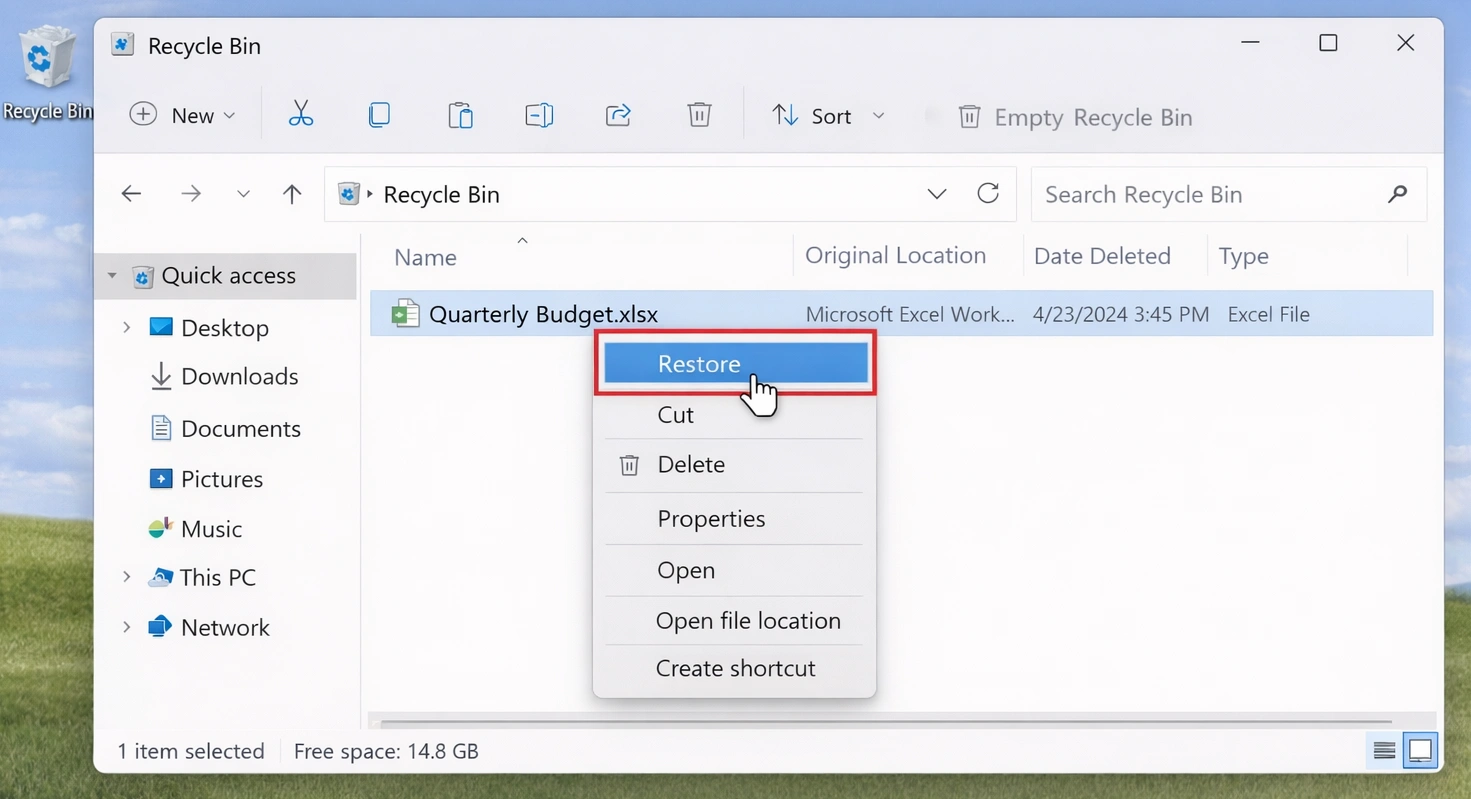
If the file does not appear there, move to a deeper method. You may still restore files deleted from Recycle Bin with a recovery scan.
Restore Files with File History
File History can help if you enabled it before the file disappeared. It saves versions of selected folders and lets you recover older copies.
Type “Restore your files with File History” in Windows search. Then, open the File History window, browse versions, select the file or folder, and click the restore button. Additionally, you can right-click a folder, choose “Properties,” and open “Previous Versions.”

However, File History only works if you enabled it before data loss. If no backup exists, you need another way to restore Windows 10 files.
How to Use Magic Data Recovery to Restore Windows 10 Files
If the Recycle Bin is empty and no backup exists, Magic Data Recovery gives you a more beginner-friendly path. It scans the original drive, finds recoverable data, previews files, and saves selected items to a safe location.
This approach works especially well when you need to restore files deleted from Recycle Bin, recover files after Shift + Delete, or avoid command-line tools. Instead of typing recovery commands, you can use a guided interface and check scan results visually.
Step 1: Download and Install Magic Data Recovery
First, download Magic Data Recovery and install it on a drive that is not the original location of the deleted files. This helps reduce the risk of overwriting lost data before recovery begins.
Supports Windows 7/8/10/11 and Windows Server
Step 2: Select the Drive to Scan
Next, launch Magic Data Recovery. From the main interface, choose the drive or partition where your files disappeared. Then, start the scan to search for recoverable data.

Step 3: Scan the Drive for Deleted Files
Magic Data Recovery scans the selected drive and shows recoverable files as the process continues. Meanwhile, you can wait for the scan to finish or review listed results during the scan.

Step 4: Preview Deleted Files Before Recovery
After that, use the preview feature to check file content before recovery. This step helps you confirm the correct file, especially when scan results include multiple versions or similar names.

Step 5: Recover Files to a Safe Location
Finally, select the files you want to recover and save them to a different drive, partition, or storage location. Do not restore files to the same location where they disappeared, because this may overwrite other recoverable data.

Why Magic Data Recovery Is Useful
Magic Data Recovery solves a common problem: Windows built-in tools often need either a backup or technical commands. By contrast, this tool helps users restore Windows 10 files through a clearer process.
It can help when you emptied the Recycle Bin, used Shift + Delete, lost common file types, lack File History, want file preview, or need a simpler alternative to Windows File Recovery.
Moreover, Magic Data Recovery does not claim that every file can always return. Recovery depends on whether new data has overwritten the deleted file. This honest limitation makes the tool more reliable than solutions that promise unrealistic results.
Restore Windows 10 Files with Windows File Recovery
Windows File Recovery is Microsoft’s command-line recovery tool. It can recover files from local drives, USB drives, and memory cards. However, it suits advanced users more than beginners because it requires exact commands.
A basic command may look like this:
winfr C: D: /regular /n \Users\YourName\Documents\*.docx
In this example, the tool scans drive C and saves recovered Word documents to drive D. The source and destination drives must differ, which helps protect recoverable data from overwriting.

Windows File Recovery can help when you understand file paths, drive letters, and recovery modes. However, many users find the command line stressful. Therefore, if you want to restore Windows 10 files with less technical effort, Magic Data Recovery may feel easier to operate.
Restore Files Windows 10 from OneDrive or Cloud Backup
If you synced your files with OneDrive or another cloud service, check the cloud Recycle Bin before using deeper recovery tools. Sometimes, a local deletion does not remove the cloud copy immediately.
For OneDrive, open OneDrive online, go to the Recycle Bin, find the deleted file, select it, and click “Restore.” This method works well when sync ran before deletion. However, cloud services keep deleted files only for a limited time. Therefore, if the cloud Recycle Bin no longer contains the file, you may need recovery software to restore files deleted from Recycle Bin on the original drive.
Magic Data Recovery vs Windows Built-In Recovery Options
Each method has a different purpose. Therefore, compare your situation before you choose a solution.
Recovery Option | Best For | Main Advantage | Main Limit |
Recycle Bin | Recent normal deletion | Fast and free | Fails after emptying |
File History | Backed-up folders | Safe Windows feature | Requires prior setup |
Windows File Recovery | Technical users | Free Microsoft tool | Requires commands |
Cloud Backup | Synced files | Convenient remote recovery | Depends on retention period |
Magic Data Recovery | No backup, emptied Recycle Bin, Shift + Delete | Visual scan, preview, guided recovery | Success depends on overwrite status |
This comparison explains why Magic Data Recovery deserves a place in your recovery plan. It does not replace backups. Instead, it fills the gap when Recycle Bin, File History, and cloud backups cannot help.
For example, if you emptied the Recycle Bin after deleting a work folder, File History may not exist and Windows File Recovery may feel too technical. In that case, Magic Data Recovery provides a practical way to restore Windows 10 files users need urgently.
Tips to Improve Your Chance to Restore Windows 10 Files
File recovery depends on both timing and method. Therefore, follow these tips before you scan the drive.
First, stop using the affected drive. New data can overwrite deleted files. Next, install recovery software on another drive or partition if possible. Then, save recovered files somewhere else, such as another partition, a USB drive, or a separate storage device.
Also, use preview before recovery. Preview helps you identify the right file and avoid restoring unnecessary items. Finally, try a deeper scan when a quick scan fails, especially after Recycle Bin cleanup, formatting, or file system issues.
Common Mistakes When You Try to Restore Windows 10 Files
Many users make recovery harder without realizing it. Fortunately, you can avoid the most common mistakes.
Do not keep working on the affected drive. Also, do not install recovery tools in the same location where the files disappeared. Next, avoid saving recovered files back to the original folder. Finally, do not format the drive again before recovery.
Instead, follow a safe order. Check the Recycle Bin first. Then, review File History and cloud backups. If those options fail, use Magic Data Recovery or another suitable recovery tool to restore files deleted from Recycle Bin.
Conclusion
When you need to restore Windows 10 files, start with the safest and simplest methods. Check the Recycle Bin first. After that, review File History, Previous Versions, and cloud backups. These options work best when Windows or your cloud account still keeps a copy.
However, if you need to restore files deleted from Recycle Bin, Magic Data Recovery offers a more useful solution for everyday users. It scans the drive, previews deleted files, and recovers selected data without commands.
No tool can guarantee recovery after data has been overwritten. Nevertheless, Magic Data Recovery gives you a clear, practical, and beginner-friendly way to recover deleted files when built-in Windows options are not enough.
Supports Windows 7/8/10/11 and Windows Server
FAQ
Can I Restore Windows 10 Files After Emptying the Recycle Bin?
Yes, you may still recover deleted files if new data has not overwritten them. First, stop using the affected drive. Then, scan it with Magic Data Recovery or use Windows File Recovery if you understand commands. A quick response gives you a better chance.
How Do I Restore Files Deleted from Recycle Bin?
To restore files deleted from Recycle Bin, use a recovery tool to scan the drive where the files originally existed. Magic Data Recovery helps you search deleted data, preview files, and save selected items to another location. Do not recover them to the same folder.
Can I Restore Files Without Software?
Yes, you can restore files without software if they still appear in the Recycle Bin, File History, Previous Versions, or cloud backup. However, once you empty the Recycle Bin and lack a backup, software may offer the most practical recovery path.
Is Magic Data Recovery Safe for Beginners?
Yes. Magic Data Recovery gives beginners a visual workflow instead of command lines. You choose a drive, run a scan, preview results, and recover selected files. Even so, you should install it away from the affected location and save recovered files elsewhere.
Why Can’t I Find Deleted Files in the Recycle Bin?
Windows may skip the Recycle Bin when you use Shift + Delete, delete very large files, empty the bin, or remove files from some storage devices. Storage Sense may also clear old items. In these cases, you need another way to restore files Windows 10.
Is Windows File Recovery Better Than Magic Data Recovery?
Windows File Recovery can work well for advanced users, especially when they know commands and file paths. However, Magic Data Recovery suits users who prefer visual scanning, filters, preview, and guided recovery. Therefore, the better choice depends on your technical comfort.
Where Should I Save Recovered Files?
Save recovered files to a different drive, partition, or storage device. This protects remaining recoverable data from overwriting. For example, if you lost files from drive C, recover them to drive D, a USB drive, or another safe storage location.

Vasilii is a data recovery specialist with around 10 years of hands-on experience in the field. Throughout his career, he has successfully solved thousands of complex cases involving deleted files, formatted drives, lost partitions, and RAW file systems. His expertise covers both manual recovery methods using professional tools like hex editors and advanced automated solutions with recovery software. Vasilii's mission is to make reliable data recovery knowledge accessible to both IT professionals and everyday users, helping them safeguard their valuable digital assets.