跳至內容
amagicsoft 標誌圖示
  • 首頁
  • 產品
    • Magic Data Recovery
    • Magic Recovery Key
  • 商店
  • 部落格
  • 更多資訊
    • 關於 Amagicsoft
    • 聯絡我們
    • 隱私權政策
    • 條款
    • 許可協議
    • 退款政策
  • 繁體中文
    • English
    • 日本語
    • 한국어
    • Deutsch
    • Français
    • Español
磁碟問題修正

SD 磁碟機無法辨識:6 種經驗證的修復方法
2025 年 12 月 28 日 Vasilii 尚未有評論
無法辨識 SD 磁碟機的 6 種經驗證維修方法

Nowdays, digital cameras, smartphones, and other portable devices use SD cards to store data. However, it’s not uncommon for users to face the issue where their SD drive is suddenly not recognized by their computer or device. Whether it’s a microSD card, SDHC, or SDXC, this issue can occur for a variety of reasons.

Fortunately, there are multiple solutions to fix an SD card that is not showing up. In this guide, we will explore the common causes and provide step-by-step instructions on how to resolve the problem and recover data from the corrupted SD card.

目錄

Why is My SD Drive Is Not Recognized?

There are several reasons why your SD card might not be recognized:

1. Driver Issues

If the drivers for your SD card reader are outdated or corrupted, your computer may fail to detect the card. This is especially common after system updates or hardware changes.

2. Card Reader Problems

The issue might not lie with the SD card itself but with the card reader. If the reader is faulty or incompatible with your SD card, it may fail to detect the card.

3. Corrupted File System

Sometimes, the file system of the SD card can become corrupted, making it unreadable. This often happens when the card is removed improperly or experiences power loss during a write operation.

4. Hardware Failure

In rare cases, SD cards can fail due to internal hardware malfunctions. Physical damage can make the SD card unreadable. This could happen due to wear and tear, exposure to extreme conditions, or improper ejection from a device.

How to Fix an SD Drive That Is Not Recognized

如果您的 SD card is not showing up, follow these troubleshooting steps:

1. Check the SD Card on Another Device

Before assuming your SD card is faulty, test it in another device. If it works in another camera, smartphone, or computer, the issue may lie with your computer or card reader.


2. Restart Your Computer

A simple restart can sometimes resolve detection issues caused by software glitches or temporary hardware malfunctions.


3. Try a Different Card Reader or USB Port

Sometimes, the issue is with the card reader or USB port you’re using. Try using a different card reader or port. If using a USB hub, connect the card reader directly to the computer.


4. Update or Reinstall Drivers for the Not Recognized SD Drive

Outdated or corrupt drivers can make your SD card not recognized. Follow these steps to update or reinstall your drivers:

  • 開啟 裝置管理員 (you can search for it in the Start menu).
  • Find the SD card reader 在下 磁碟機.
  • 按一下滑鼠右鍵,然後選擇 更新驅動程式 或 解除安裝裝置.
  • Restart your computer, and Windows should reinstall the drivers automatically.


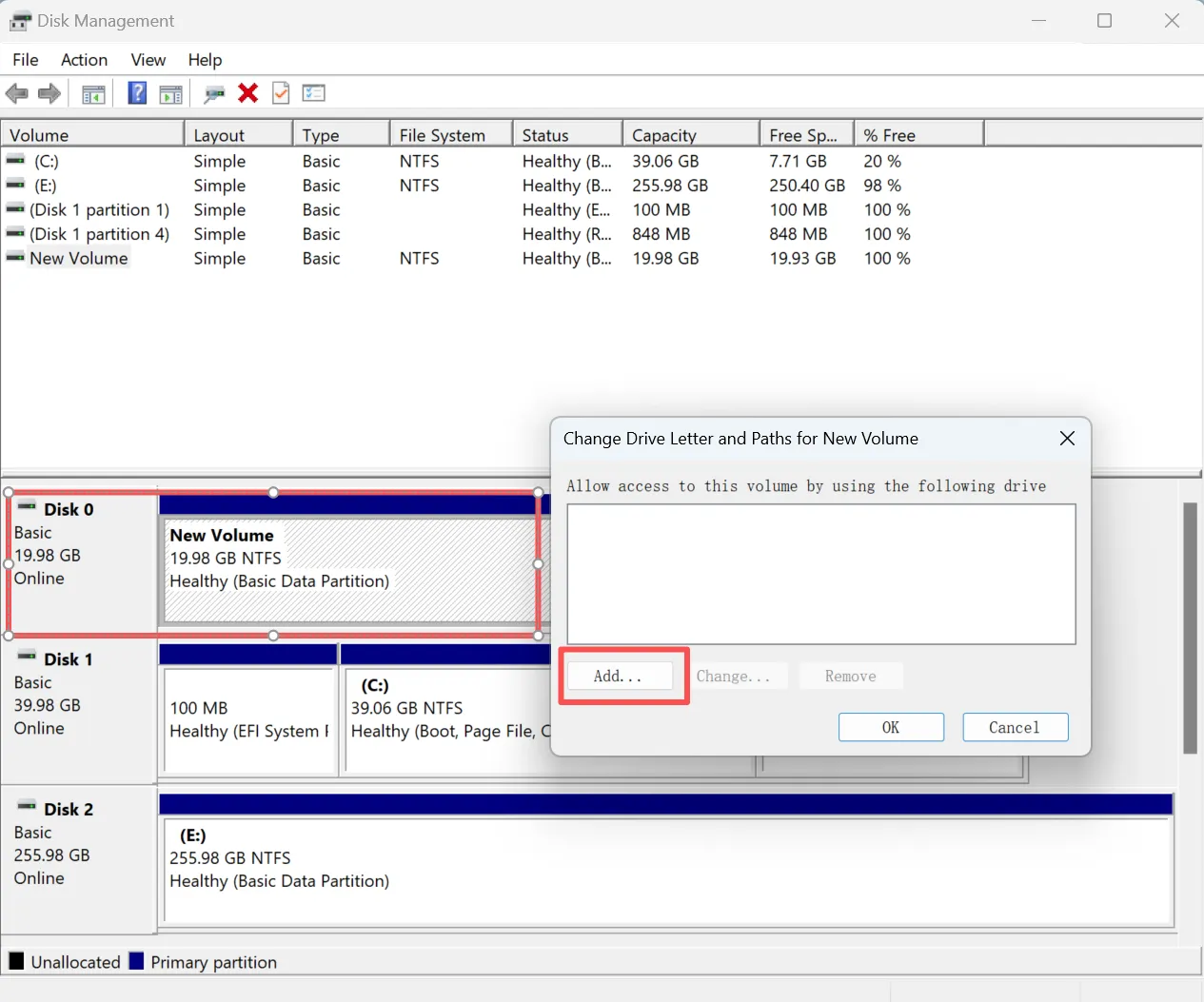
5. Use Disk Management to Assign a Drive Letter for the Not Recognized SD Drive

If the SD card is physically working but not appearing in File Explorer, you can try to assign a drive letter.

  • Right-click on the 開始 menu and select 磁碟管理.
  • Locate the SD card in the list of drives.
  • Right-click on it and select 變更磁碟機代號和路徑.
  • Assign a new drive letter.
add-drive-letter-to-fix-SD-Drive-not-recognized-issue

6. Format the SD Card (If Necessary)

If the system still cannot recognize your SD card, you may need to format it. Formatting will erase all the data, so ensure you have a backup for the data on the SD card.

To format the SD card:

  • 開啟 檔案總管 and right-click on the SD card.
  • 選擇 格式.
  • Choose a file system (exFAT is commonly used for larger cards).
  • 鍵點選 開始 to format the card.

If you don’t want to risk data loss by formatting, data recovery from the not recognized SD drive would be the first choice.

How to Recover Files from a Not Recognized SD Drive

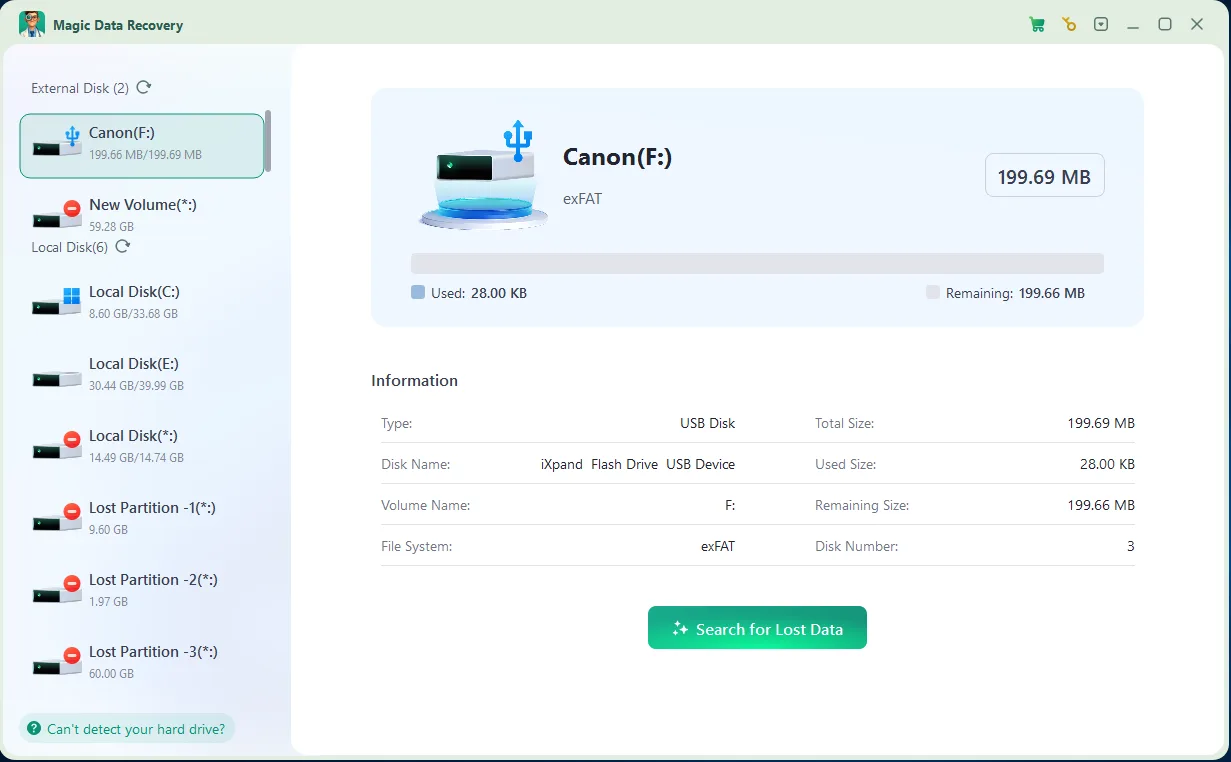
如果您已經 lost data due to a corrupted or unreadable SD card, you may still recover the data with the right tools. Magic Data Recovery is an advanced solution for recovering lost files from a non-detected SD card. This tool offers a read-only mode, ensuring that no data is overwritten during the recovery process.

總結

如果您的 SD drive is not recognized, don’t panic. By following the steps outlined above, you can troubleshoot the issue and fix the problem in most cases. If the issue persists and you need to recover lost data, using a data recovery tool like Magic Data Recovery is your best choice before repairing the SD card. Download Magic Data Recovery to safely recover your files from SD cards, and ensure your data is protected from future issues.

下載 Magic Data Recovery

支援 Windows 7/8/10/11 和 Windows Server

SD Drive Not Recognized – FAQ

1.How to fix SD drive not recognized?

If the computer cannot recognize the SD card, start by checking whether it works on another device to rule out hardware failure. If the card is functional, update or reinstall the SD card reader drivers and verify the card appears in Disk Management. Assigning a new drive letter often resolves detection issues caused by system conflicts.

2.Why is my SD card suddenly unreadable?

An SD card may suddenly become unreadable due to file system corruption, unsafe removal, power interruption during data transfer, or internal memory wear. In many cases, the data is still intact but inaccessible until the file system is repaired or scanned with a professional recovery tool.

3.Why won't my SD card show up in files?

If the SD card does not appear in File Explorer, it may not have a valid drive letter or the file system may be damaged. Checking Disk Management helps determine whether the card is detected at a lower level by the operating system. When the card is visible there but inaccessible, data recovery should be performed before formatting.

4.How do I get my computer to read my micro SD card?

To make a computer read a micro SD card, use a compatible card reader and ensure the reader drivers are properly installed. Testing the card on another system helps confirm whether the issue is software-related or hardware-related. Updating reader and USB drivers can also improve detection reliability.

5.How to fix a dead micro SD card?

A micro SD card that appears dead may be suffering from severe corruption or internal controller failure. While physical damage cannot be repaired, data can sometimes be recovered using read-only recovery software before the card is retired. Continued use is not recommended once failure symptoms appear.

6.What is the lifespan of an SD card?

The average lifespan of an SD card ranges from several years to a decade, depending on write cycles, usage frequency, and environmental conditions. Cards used for continuous recording, such as in cameras or dashcams, tend to wear out faster due to limited flash memory write endurance.

7.How to recover an undetected SD card?

Even if an SD card is not detected in File Explorer, it may still be accessible at the disk level. Professional tools like Magic Data Recovery can scan undetected or RAW SD cards in read-only mode and safely extract recoverable files without modifying the original storage.

8.How to tell if an SD card is bad?

An SD card may be failing if it frequently disconnects, becomes read-only, produces repeated file errors, or is not recognized by multiple devices. When these symptoms occur, stop using the card immediately and attempt data recovery to prevent permanent data loss.
  • WiKi
Vasilii

Vasilii 是一位在該領域擁有約 10 年實務經驗的資料復原專家。在他的職業生涯中,他已成功解決數千個複雜的個案,包括刪除的檔案、格式化的硬碟機、遺失的磁碟分割和 RAW 檔案系統。他的專業知識涵蓋使用十六進位編輯器等專業工具的手動復原方法,以及使用復原軟體的進階自動解決方案。Vasilii 的使命是讓 IT 專業人士和一般使用者都能獲得可靠的資料復原知識,協助他們保護寶貴的數位資產。.

文章導覽

上一頁
下一頁

搜尋

類別

  • Bitlocker 復原
  • 刪除的檔案復原
  • 磁碟問題修正
  • 文件復原
  • 格式化檔案復原
  • 硬碟復原
  • 授權金鑰復原
  • 遺失檔案復原
  • 記憶卡復原
  • 新聞
  • 密碼復原
  • 照片復原
  • SSD 復原
  • USB 磁碟機復原
  • 使用者指南
  • 視訊復原
  • 維基
  • Windows 問題修正

最近發表的文章

  • 免費還原 SD 卡中刪除的檔案
    如何在 2026 年免費還原 SD 卡中刪除的檔案
  • 從 Windows 復原已刪除檔案的成熟方法
    復原 Windows 上已刪除檔案的成熟方法
  • 無法辨識 SD 磁碟機的 6 種經驗證維修方法
    SD 磁碟機無法辨識:6 種經驗證的修復方法

標籤

CHKDSK 與磁碟工具 磁碟修復 錯誤疑難排解 如何 Magic Data Recovery Magic Recovery Key WiKi

相關文章

瞭解有關快閃記憶卡記憶體的一切
維基

快閃記憶卡記憶體:完整指南與復原解決方案

2025 年 12 月 27 日 Smith, Erin 在〈Flash Card Memory: Complete Guide & Recovery Solutions〉中留言功能已關閉

目錄 引言:瞭解快閃記憶卡記憶體的重要性 快閃記憶卡記憶體已成為現代數位生活中無所不在的儲存解決方案。從相機和智慧型手機到遊戲主機和工業設備,這些小型的可攜式記憶體裝置以精巧的格式儲存重要資料。然而,使用者經常會遇到意外刪除、損壞、[...] 等問題。

WD 磁碟機無法辨識 如何解決此問題
磁碟問題修正

無法識別 WD 磁碟機:如何修復此問題

2025 年 12 月 27 日 Vasilii 在〈WD Drive Not Recognized: How to Fix This Issue〉中留言功能已關閉

如果您的 WD (Western Digital) 硬碟機無法被電腦識別,請不要驚慌。這個問題相當普遍。有幾個因素可能會導致此問題,包括 USB 連接埠故障、驅動程式過時或邏輯錯誤。幸運的是,有多種方法可以排除故障並修復問題。在本指南中,我們將教您幾個步驟 [...]

硬碟機無法辨識?以下是修復方法
磁碟問題修正

硬碟機無法辨識?以下是修復方法

2025 年 12 月 26 日 Vasilii 在〈Hard Drive Not Recognized? Here’s How to Fix it〉中留言功能已關閉

當您的電腦無法識別硬碟機時,可能會立即引起對潛在資料遺失的疑慮。無論問題影響的是內接式硬碟機或外接式硬碟機,情況通常都是可以復原的。在許多情況下,硬碟機本身仍可正常運作,只是邏輯問題導致它無法出現在檔案總管中 [...]

amagicsoft 標誌圖示

我們的願景是成為全球知名的軟體品牌和服務供應商,為使用者提供頂級的產品和服務。

產品
  • Magic Data Recovery
  • Magic Recovery Key
政策
  • 條款
  • 隱私權政策
  • 退款政策
  • 許可協議
公司簡介
  • 關於 Amagicsoft
  • 聯絡我們
  • 商店
追蹤我們

版權所有 © 2025 Amagicsoft。版權所有。

  • 條款
  • 隱私權政策