
SD 磁碟機無法辨識:6 種經驗證的修復方法
當您的 無法識別 SD 磁碟機 在 Windows 11 或 Windows 10 中,此問題可能是由於讀卡機故障、驅動程式過時、缺少磁碟機代號、檔案系統損毀,或是讀卡機本身受損所導致。正確的 SD 卡解決方案 這取決於該卡片是否會出現在「檔案總管」、「裝置管理員」或 磁碟管理.
在對記憶卡進行格式化或執行任何修復指令之前,請先確認其中是否存有重要的照片、影片或文件。對受損的檔案系統進行格式化、初始化或修復,可能會覆寫或修改可恢復的資料。如果系統偵測到 SD 卡,但顯示為 RAW 格式、未分配、無法存取,或提示需要格式化,您可以使用 Magic Data Recovery 在嘗試進行進一步修復之前,請先掃描該卡並恢復重要檔案。.
本指南說明如何診斷 SD 卡為何無法顯示,並提供 10 項實用的 安全修復無法識別的 SD 讀卡機的解決方案.
支援 Windows 7/8/10/11 和 Windows Server
目錄
快速解答:如何解決 SD 卡無法被辨識的問題
若要在 Windows 11 或 Windows 10 中修復無法被識別的 SD 讀卡機,請按照以下步驟操作:
- 請取出 SD 卡,然後重新插入。.
- 請嘗試使用另一個 USB 連接埠、讀卡機或電腦。.
- 請確認讀卡機是否支援您的 SD、SDHC 或 SDXC 記憶卡。.
- 請在「裝置管理員」和「磁碟管理」中檢查該卡。.
- 啟用、更新、重新安裝或還原讀卡機驅動程式。.
- 為 SD 卡指派一個新的磁碟機代號。.
- 請檢查 BIOS 或 UEFI 中的內建讀卡機設定。.
- 若記憶卡處於 RAW 格式、未分配狀態或無法存取,請嘗試恢復重要檔案。.
- 請務必在備份資料後,才執行 CHKDSK。.
- 將 SD 卡格式化作為最終解決方案。.
Windows 的「磁碟管理」可顯示儲存裝置是否具有分割區、檔案系統或磁碟機代號。此外,它也可用於建立和格式化磁碟區,或變更磁碟機代號。讓 SD 卡優先顯示
在嘗試隨機修復之前,請先確認 Windows 能否在硬體、磁碟或檔案系統層級偵測到該卡。.
新聞 Windows + X 並開啟 磁碟管理. 您也可以按下 Windows + R, 輸入 diskmgmt.msc, 並選擇 OK. 如下表所示。.
SD 卡狀態 | 可能的問題 | 建議採取的行動 |
在「檔案總管」中顯示,但無法開啟 | 檔案系統錯誤、檔案損毀或權限問題 | 先還原重要檔案,然後檢查檔案系統 |
在「磁碟管理」中顯示,但沒有磁碟機代號 | 缺少或衝突的磁碟機代號 | 指定新的磁碟機代號 |
顯示為 RAW | 檔案系統已損毀或未受支援 | 在執行 CHKDSK 或格式化之前恢復資料 |
顯示為「未分配」 | 分區遺失或損毀 | 在建立新磁區之前先還原檔案 |
出現在「裝置管理員」中,但未出現在「磁碟管理」中 | 驅動程式、讀卡機、USB 控制器或連線問題 | 更新或重新安裝驅動程式 |
顯示的容量正確,但無法存取 | 邏輯損毀或分區資訊受損 | 使用資料恢復軟體掃描該卡片 |
顯示「無媒體」或 0 位元組 | 讀卡機、轉接器、控制器或硬體可能發生故障 | 請嘗試使用另一台讀卡機;避免格式化或反覆嘗試修復 |
在任何地方都找不到 | 讀卡機故障、硬體不相容、讀卡機已停用,或實體卡片故障 | 測試另一台讀卡機、另一個連接埠和另一台電腦 |
此項診斷至關重要,因為指派磁碟機代號並無法修復物理上受損的記憶卡,而若僅因簡單的磁碟機代號衝突就對記憶卡進行格式化,則會不必要地刪除其中的內容。.
為什麼我的 SD 磁碟機無法辨識?
SD 卡可能因多種原因而不再顯示。.
接頭鬆動或髒污
灰塵、氧化、接觸點磨損,或卡片插入不當,都可能導致 SD 卡與讀卡機之間的通訊中斷。.
讀卡機或 USB 連接埠故障
SD 卡可能運作正常,但內建讀卡機、USB 讀卡機、轉接器、連接線、USB 集線器或連接埠可能有故障。.
卡片或讀卡機不相容
較舊的裝置可能支援標準 SD 或 SDHC 記憶卡,但不支援較新的 SDXC 記憶卡。SD 協會指出,較舊的 SD 和 SDHC 裝置未必與 SDXC 記憶卡相容。請務必確認讀卡機或主機裝置所支援的容量及記憶卡標準。 r 磁碟機代號衝突
Windows 可能會偵測到 SD 卡,但無法在「檔案總管」中顯示該卡,因為該卡尚未被指派磁碟機代號,或是其目前的磁碟機代號與其他儲存裝置或網路裝置衝突。.
讀卡機驅動程式已停用或損毀
若驅動程式遺失、過時、已停用或損毀,可能會導致 Windows 無法與內建或 USB 讀卡機進行通訊。.
檔案系統損毀
不當移除裝置、檔案傳輸過程中斷電、系統當機、快閃記憶體故障,或攝影機錄影中斷,都可能導致檔案系統受損。. 該卡片此時可能會顯示為 RAW, 、格式設定出錯,或無法存取。.
遺失或損毀的分割區
如果磁卡的分區資訊受損,即使儲存區域中仍存有可恢復的檔案,「磁碟管理」仍可能會將其空間顯示為「未分配」。.
BIOS 或 UEFI 設定
某些筆記型電腦允許在 BIOS 或 UEFI 韌體中啟用或停用內建讀卡機。重置或更新韌體可能會變更此設定。.
SD 卡硬體故障
若記憶卡出現彎曲、裂痕、過熱、液體損壞或電路損壞等狀況,可能無法透過 Windows 進行修復。若出現反覆斷開連接、容量顯示錯誤、顯示 0 位元組,或在多台裝置上均無法正常運作等情況,則可能表示存在硬體層級的問題。.
如何修復無法辨識的 SD 磁碟機
如果您的 SD 卡無法顯示, 請遵循以下故障排除步驟:
在另一台裝置上檢查 SD 卡
在假設您的 SD 卡有問題之前,請先在其他裝置上進行測試。如果它能在其他相機、智慧型手機或電腦上運作,問題可能出在您的電腦或讀卡機上。.
重新啟動電腦
簡單的重新啟動有時可以解決軟體故障或暫時的硬體故障所造成的偵測問題。.
請嘗試使用另一台讀卡機或另一個 USB 連接埠
有時候,問題出在您使用的讀卡機或 USB 連接埠。請嘗試使用不同的讀卡機或連接埠。如果使用 USB 集線器,請將讀卡機直接連接到電腦。.
針對未被識別的 SD 讀卡機更新或重新安裝驅動程式
過期或損壞的驅動程式會使您的 SD 卡無法識別。請按照以下步驟更新或重新安裝驅動程式:
- 開啟 裝置管理員 (您可以在「開始」功能表中搜尋)。.
- 尋找 SD 卡讀卡機 在下 磁碟機.
- 按一下滑鼠右鍵,然後選擇 更新驅動程式 或 解除安裝裝置.
- 重新啟動電腦,Windows 應該會自動重新安裝驅動程式。.
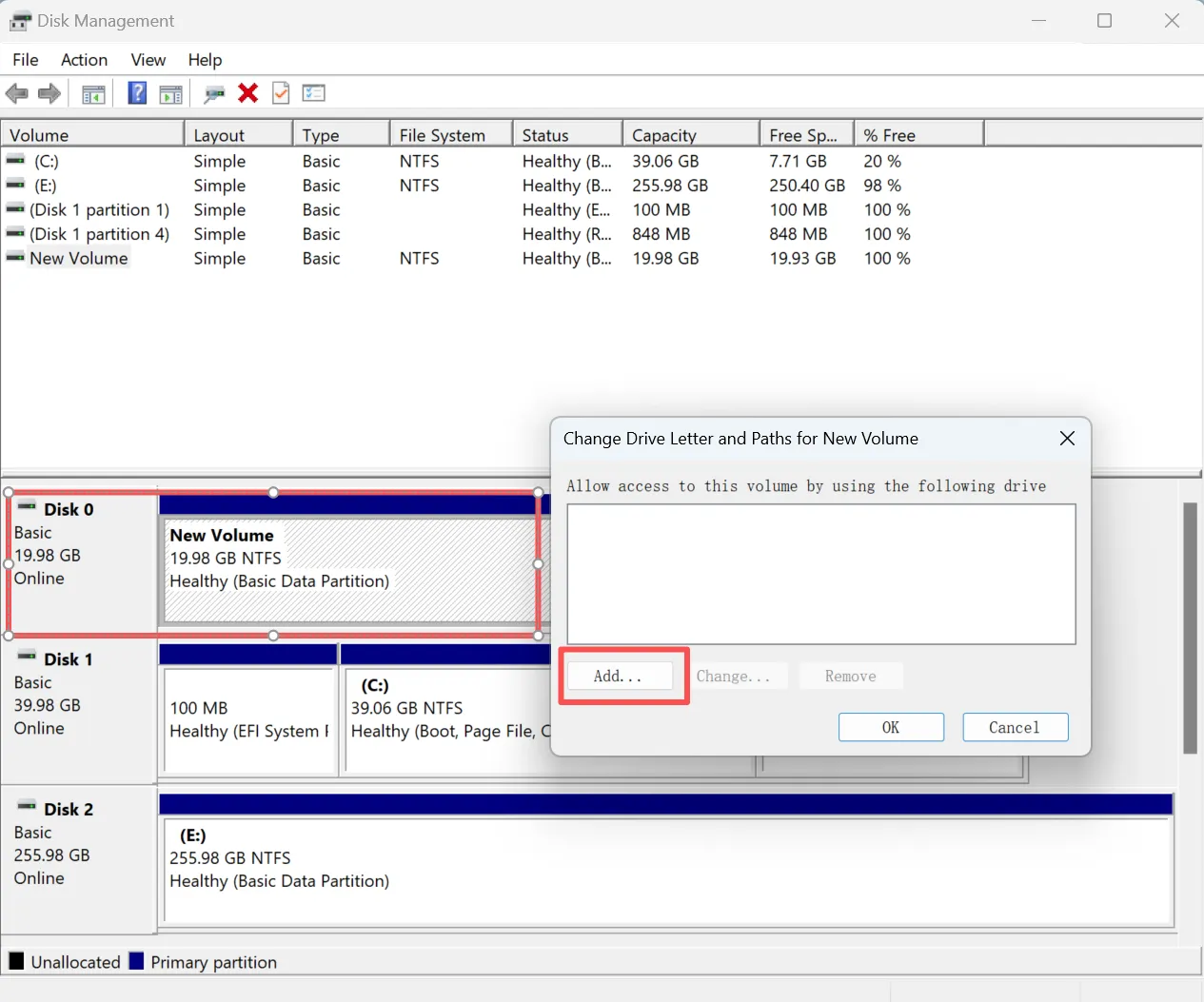
使用「磁碟管理」指派磁碟機代號 用於未識別的 SD 磁碟機
如果 SD 卡可正常運作,但未出現在檔案總管中,您可以嘗試指定磁碟機代號。.
- 右鍵按一下 開始 功能表,並選擇 磁碟管理.
- 在磁碟機清單中找到 SD 卡。.
- 按一下滑鼠右鍵,然後選擇 變更磁碟機代號和路徑.
- 指定新的磁碟機代號。.
請謹慎執行 CHKDSK
CHKDSK 會檢查卷的檔案系統和元資料是否有錯誤。若搭配修復參數使用,例如 /f, ,它會嘗試修正邏輯性檔案系統問題。SK 並非資料復原工具。微軟指出,對 FAT 檔案系統進行修復可能會變更檔案分配表,有時甚至可能導致資料遺失。在使用修復參數之前,請先復原或備份重要檔案。.
請先執行唯讀檢查
- 搜尋 指令提示.
- 選擇 以管理員身分執行.
- 輸入以下指令,並將
E:並加上 SD 卡的實際磁碟機代號:chkdsk E:
若未指定修復參數,CHKDSK 會報告磁區狀態,但不會修復錯誤。磁碟系統錯誤
在保護您的資料後,請執行以下指令: chkdsk E: /f

的 /f 此參數會指示 CHKDSK 修復偵測到的錯誤。在修復過程中,可能需要鎖定或卸載該磁區。當卡片:
- 顯示為 RAW 格式,且包含重要檔案
- 反覆斷線
- 顯示的容量不正確
- 導致 Windows 當機
- 疑似有物理性損壞
如果 Windows 顯示 CHKDSK 無法用於 RAW 磁碟,請先恢復檔案,然後再格式化記憶卡。.
如何從未識別的 SD 磁碟機中復原檔案
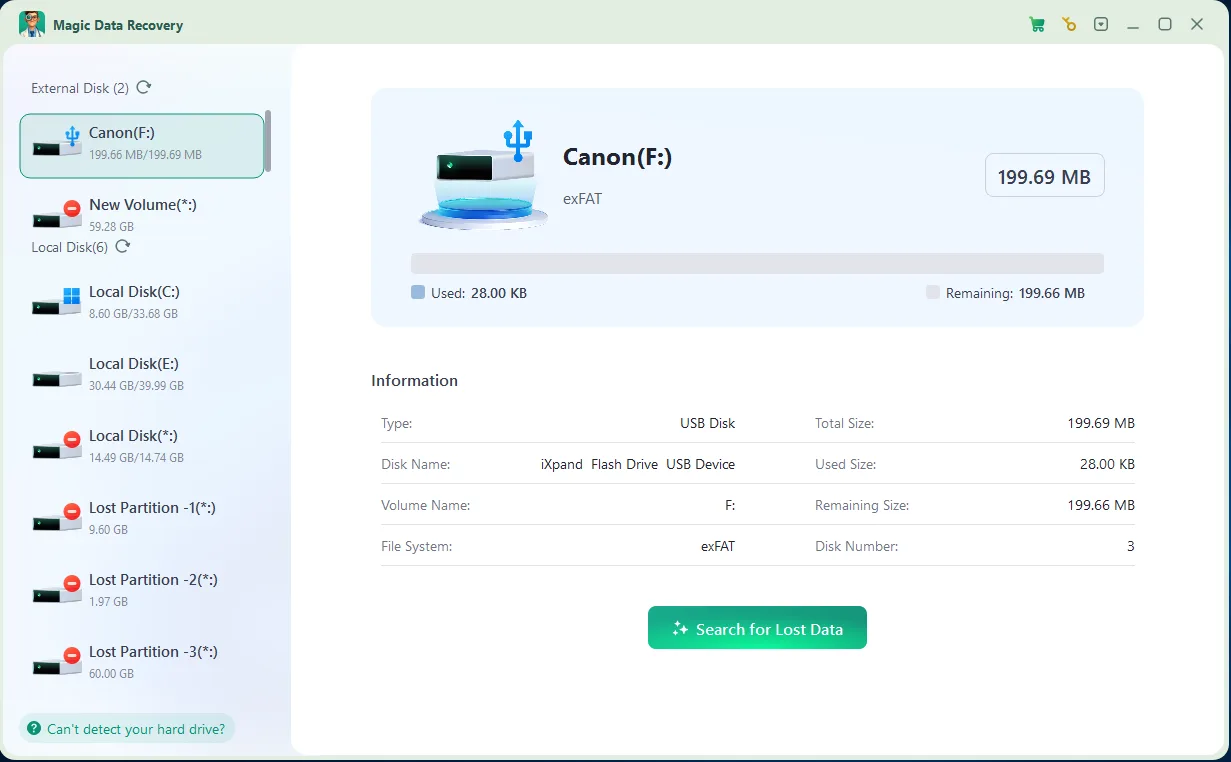
如果您因 SD 卡損毀或無法讀取而遺失資料,您仍可以使用正確的工具復原資料。. Magic Data Recovery 是從未偵測到的 SD 卡中復原遺失檔案的先進解決方案。此工具提供唯讀模式,可確保在復原過程中不會覆寫任何資料。.
如何防止 SD 卡再次無法被識別
解決問題後,請遵循以下做法,以降低再次發生故障的機率:
- 在從電腦中取出記憶卡之前,請先安全彈出記憶卡。.
- 在取出記憶卡之前,請先關閉相機或其他裝置。.
- 錄製或傳輸檔案時,請勿取出記憶卡。.
- 請避免將卡片填滿。.
- 請使用支援該卡片標準與容量的讀卡機。.
- 請更換鬆動或損壞的 microSD 轉接器。.
- 請保持隱形眼鏡乾燥且清潔。.
- 請避免在不相容的裝置上連續使用同一張卡片。.
- 定期備份重要的相片和視訊。.
- 請更換那些經常斷線、變成唯讀狀態或產生檔案錯誤的卡片。.
一張在多次故障後又恢復運作的 SD 卡,不應被視為重要資料的唯一備份。.
總結
當 無法識別 SD 磁碟機, 首先請確認該記憶卡是否出現在「裝置管理員」、「磁碟管理」或「檔案總管」中。這能幫助您判斷問題是否與實體連接、讀卡機、驅動程式、磁碟機代號、分割區或檔案系統有關。.
從無損檢測開始 SD 卡解決方案 例如重新連接讀卡機、更換讀卡機、檢查相容性、更新驅動程式,以及指派新的磁碟機代號。.
如果 SD 卡顯示為 RAW 格式、未分配、無法存取,或要求格式化,請在嘗試修復前先備份資料。. Magic Data Recovery 可在 CHKDSK 檢查或格式化導致記憶卡內容變更之前,掃描偵測到的 SD 卡,並協助恢復照片、影片、文件及其他檔案。.
支援 Windows 7/8/10/11 和 Windows Server
無法辨識 SD 磁碟機 - 常見問題
如何解決 SD 磁碟機無法辨識的問題?
為什麼我的 SD 卡突然無法讀取?
為什麼我的 SD 卡無法在檔案中顯示?
如何讓電腦讀取我的 micro SD 卡?
如何修復無效的 micro SD 卡?
SD 卡的使用壽命有多長?
如何復原未偵測到的 SD 卡?
如何判斷 SD 卡是否壞了?

Vasilii 是一位在該領域擁有約 10 年實務經驗的資料復原專家。在他的職業生涯中,他已成功解決數千個複雜的個案,包括刪除的檔案、格式化的硬碟機、遺失的磁碟分割和 RAW 檔案系統。他的專業知識涵蓋使用十六進位編輯器等專業工具的手動復原方法,以及使用復原軟體的進階自動解決方案。Vasilii 的使命是讓 IT 專業人士和一般使用者都能獲得可靠的資料復原知識,協助他們保護寶貴的數位資產。.