
SDドライブが認識されない:6つの実証済みの修理方法
あなたの SDドライブが認識されない Windows 11 または Windows 10 では、この問題は、カードリーダーの故障、ドライバーのバージョンが古い、ドライブ文字が割り当てられていない、ファイルシステムの破損、またはカードの物理的な損傷が原因である可能性があります。正しい SDカード・ソリューション そのカードが「ファイル エクスプローラー」や「デバイスマネージャー」に表示されるかどうかによって異なります、あるいは ディスク管理.
カードをフォーマットしたり、修復コマンドを実行したりする前に、そのカードに重要な写真、動画、または文書が含まれていないか確認してください。フォーマット、初期化、または破損したファイルシステムの修復を行うと、復元可能なデータが上書きされたり変更されたりする可能性があります。SDカードが検出されているものの、「RAW」と表示されたり、未割り当て状態だったり、アクセスできない状態だったり、フォーマットを求められたりする場合は、以下の方法を使用できます。 Magic Data Recovery さらなる修復作業を行う前に、カードをスキャンして重要なファイルを復元してください。.
このガイドでは、SDカードが認識されない原因を特定する方法について解説し、10の実用的な 認識されないSDドライブを安全に修復する方法.
Windows 7/8/10/11およびWindows Serverをサポート
目次
【クイック回答】SDカードが認識されない場合の対処法
Windows 11 または Windows 10 で認識されない SD ドライブを修復するには:
- SDカードを取り外し、再度差し込んでください。.
- 別のUSBポート、カードリーダー、または別のパソコンを試してみてください。.
- お使いのSD、SDHC、またはSDXCカードが、お使いのリーダーで対応していることを確認してください。.
- 「デバイスマネージャー」と「ディスクの管理」でそのカードを確認してください。.
- カードリーダーのドライバーを有効にする、更新する、再インストールする、またはロールバックします。.
- SDカードに新しいドライブ文字を割り当ててください。.
- BIOS または UEFI で、内蔵カードリーダーの設定を確認してください。.
- カードがRAW状態、未割り当て、またはアクセスできない場合でも、重要なファイルを復元します。.
- データのバックアップを済ませた後にのみ、CHKDSKを実行してください。.
- 最終手段として、SDカードをフォーマットしてください。.
Windowsの「ディスクの管理」では、ストレージデバイスにパーティション、ファイルシステム、またはドライブ文字が割り当てられているかどうかを確認できます。また、ボリュームの作成やフォーマット、ドライブ文字の変更にも使用できます。SDカードが最初に表示される場合
むやみに修復を試みる前に、Windows がそのカードをハードウェア、ディスク、またはファイルシステムレベルで認識できるかどうかを確認してください。.
プレス Windows + X そして開く ディスク管理. また、次のキーを押すこともできます Windows + R, 入力 diskmgmt.msc, を選択する。 OK. 以下の表に示されている通りです。.
SDカードのステータス | 考えられる問題 | 推奨される対応 |
ファイルエクスプローラーには表示されるが、開くことができない | ファイルシステムのエラー、ファイルの破損、または権限の問題 | 重要なファイルを復元してから、ファイルシステムを確認してください |
「ディスクの管理」にドライブ文字なしで表示される | ドライブ文字がない、または重複している | 新しいドライブ文字を割り当てる |
RAWとして表示される | ファイルシステムが破損しているか、サポートされていない | CHKDSK を実行したり、フォーマットしたりする前にデータを復元する |
「未割り当て」と表示される | パーティションの紛失または破損 | 新しいボリュームを作成する前にファイルを復元する |
「デバイスマネージャー」には表示されるが、「ディスクの管理」には表示されない | ドライバ、リーダー、USBコントローラ、または接続の問題 | ドライバを更新または再インストールする |
正しい容量が表示されているが、アクセスできない | 論理的な破損、またはパーティション情報の破損 | 復元ソフトを使ってカードをスキャンする |
「メディアなし」または 0 バイトと表示される | リーダー、アダプター、コントローラー、またはハードウェアの故障の可能性があります | 別のリーダーを試してみてください。書式設定や、繰り返し修復を試みることは避けてください。 |
どこにも表示されない | リーダーの不具合、ハードウェアの非互換性、リーダーが無効になっている、またはカードの物理的な故障 | 別のリーダー、ポート、およびコンピュータで試してみてください |
この診断は重要です。なぜなら、ドライブ文字を割り当てても物理的に損傷したカードは修復されない一方で、単なるドライブ文字の競合があるカードをフォーマットしてしまうと、不必要にその内容が消去されてしまうからです。.
SDドライブが認識されないのはなぜですか?
SDカードが表示されなくなる原因はいくつか考えられます。.
接続が緩んでいる、または汚れている
ほこり、酸化、接点の摩耗、またはカードの挿入不良により、SDカードとリーダー間の通信が妨げられることがあります。.
カードリーダーまたはUSBポートの不具合
SDカード自体は正常に動作しているものの、内蔵リーダー、USBカードリーダー、アダプター、ケーブル、USBハブ、またはポートに不具合がある可能性があります。.
対応していないカードまたはリーダー
古いデバイスでは、標準のSDカードやSDHCカードには対応していても、新しいSDXCカードには対応していない場合があります。SD協会によると、古いSDカードやSDHCカード対応のデバイスは、必ずしもSDXCカードと互換性があるとは限りません。必ず、リーダーやホストデバイスが対応している容量やカード規格を確認してください。 r ドライブ文字の競合
Windows は SD カードを認識しても、ドライブ文字が割り当てられていないか、または現在のドライブ文字が別のストレージデバイスやネットワークデバイスと重複しているため、ファイル エクスプローラーに表示されない場合があります。.
カードリーダーのドライバーが機能していない、または破損している
ドライバが欠落している、古くなっている、無効になっている、または破損している場合、Windows が内蔵または USB カードリーダーと通信できなくなることがあります。.
ファイルシステムの破損
安全でない取り外し、ファイル転送中の電源断、システムのクラッシュ、フラッシュメモリの故障、またはカメラ録画の中断は、ファイルシステムに損傷を与える可能性があります。. その場合、カードはRAWとして表示される可能性があります, 、書式設定が変更されたり、アクセスできなくなったりすることがあります。.
パーティションの紛失または破損
カードのパーティション情報が破損している場合、ストレージ領域には復元可能なファイルが残っているにもかかわらず、「ディスクの管理」ではその領域が「未割り当て」として表示されることがあります。.
BIOS または UEFI の設定
一部のノートパソコンでは、BIOS または UEFI ファームウェアで内蔵カードリーダーの有効・無効を切り替えることができます。ファームウェアのリセットや更新を行うと、この設定が変更される場合があります。.
SDカードの物理的故障
曲がったり、ひびが入ったり、過熱したり、液体の影響を受けたり、電気的な損傷を受けたカードは、Windows では修復できない場合があります。繰り返し接続が切断される、容量が正しく認識されない、0 バイトの状態になる、または複数のデバイスで認識されないといった現象は、ハードウェアレベルの問題を示している可能性があります。.
認識されないSDドライブを修復する方法
もし SDカードが表示されない, 以下のトラブルシューティング手順に従ってください:
別の端末でSDカードを確認してください
SDカードが故障していると思い込む前に、別のデバイスでテストしてください。他のカメラ、スマートフォン、コンピュータで動作する場合、問題はコンピュータまたはカードリーダーにある可能性があります。.
コンピュータを再起動する
ソフトウェアの不具合やハードウェアの一時的な故障による検出の問題は、単純な再起動で解決することがあります。.
別のカードリーダーやUSBポートを試してみてください
使用しているカードリーダーやUSBポートに問題がある場合もあります。別のカードリーダーやポートを使ってみてください。USBハブを使用している場合は、カードリーダーをコンピュータに直接接続してください。.
認識されないSDドライブのドライバーを更新または再インストールする
ドライバが古い、または破損していると、SDカードが認識されないことがあります。以下の手順に従って、ドライバを更新または再インストールしてください:
- オープン デバイスマネージャー (スタートメニューで検索できます)。.
- を探す SDカードリーダー アンダー ディスク・ドライブ.
- 右クリックして ドライバーの更新 または デバイスのアンインストール.
- コンピュータを再起動すると、Windowsが自動的にドライバを再インストールします。.
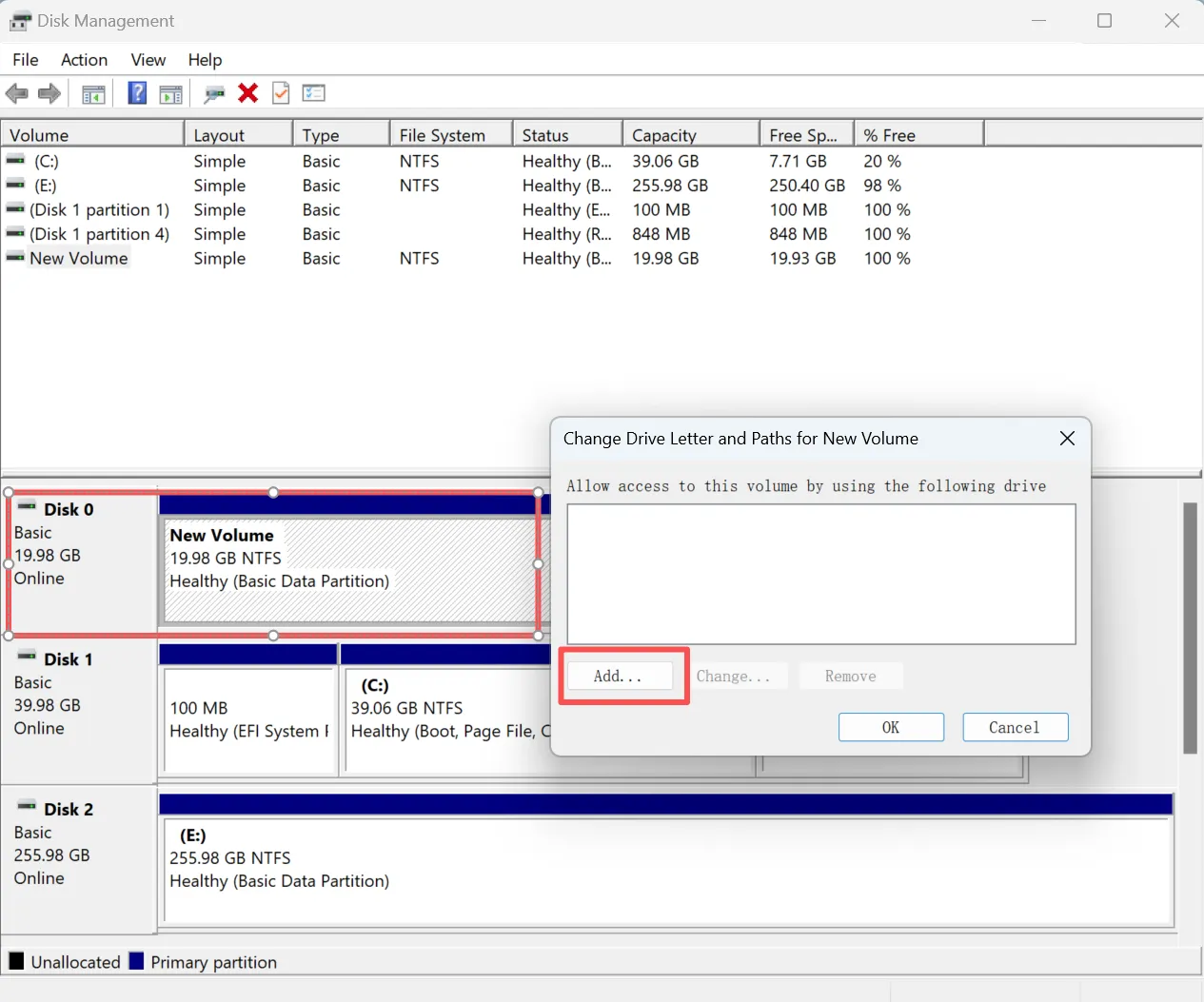
「ディスクの管理」を使用してドライブ文字を割り当てる 認識されないSDドライブ
SDカードが物理的に動作しているにもかかわらずファイルエクスプローラーに表示されない場合は、ドライブ文字を割り当ててみてください。.
- を右クリックする。 スタート メニューから ディスク管理.
- ドライブのリストからSDカードを探します。.
- それを右クリックして ドライブレターとパスの変更.
- 新しいドライブ文字を割り当てる。.
CHKDSK は慎重に実行してください
CHKDSK は、ボリュームのファイルシステムとメタデータにエラーがないかチェックします。次のような修復パラメータと組み合わせて使用すると、 /f, 、論理的なファイルシステムの問題を修正しようとします。SKはデータ復旧ツールではありません。マイクロソフトは、FATファイルシステムの修復を行うとファイルアロケーションテーブルが変更され、場合によってはデータが失われる可能性があることを指摘しています。修復パラメータを使用する前に、重要なファイルを復元またはバックアップしてください。.
まず読み取り専用チェックを実行する
- 検索 コマンドプロンプト.
- 選択 管理者として実行する.
- 以下のコマンドを入力し、
E:SDカードの実際のドライブ文字を指定して:chkdsk E:
修復パラメータを指定しない場合、CHKDSK はボリュームの状態を報告しますが、エラーは修正しません。物理的なファイルシステムエラー
データを保護したら、次のコマンドを実行してください: chkdsk E: /f

について /f このパラメータを指定すると、CHKDSKは検出されたエラーを修復するよう指示されます。修復処理の実行中は、ボリュームをロックするか、マウントを解除する必要がある場合があります。CHKDSKを実行する際、カードが:
- RAWとして表示され、重要なファイルが含まれています
- 繰り返し接続が切れる
- 容量が正しく表示されない
- Windowsがフリーズしてしまう
- 物理的な損傷の疑いがある
Windows で「CHKDSK は RAW ドライブでは使用できません」というメッセージが表示された場合は、まずファイルを復元してから、カードをフォーマットしてください。.
SDカードのフォーマット(必要な場合)
それでもシステムがSDカードを認識できない場合は、以下の方法が考えられます。 フォーマットする必要がある. .フォーマットするとすべてのデータが消去されるため、SDカードのデータのバックアップを確実に取ってください。.
SDカードをフォーマットする:
- オープン ファイルエクスプローラー をクリックし、SDカードを右クリックします。.
- 選択 フォーマット.
- ファイルシステム (エクストラファット が一般的である)。.
- クリック スタート をクリックしてカードをフォーマットしてください。.
フォーマットによるデータ消失のリスクを冒したくない場合は、データ・リカバリーを行う。 認識されないSDドライブ が第一候補だろう。.
認識されないSDドライブからファイルを復元する方法
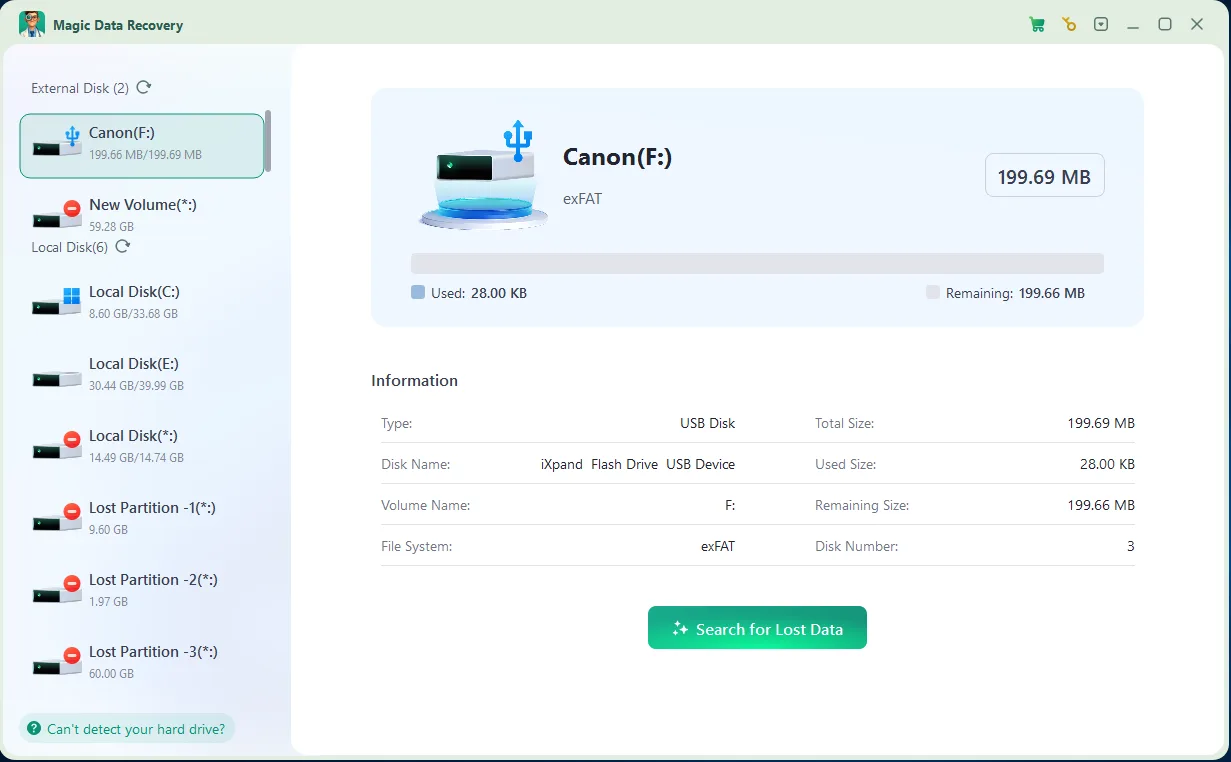
SDカードが壊れたり読めなくなったりしてデータを失った場合でも、適切なツールを使えばデータを復元できる可能性があります。. Magic Data Recovery は、検出されないSDカードから失われたファイルを復元するための高度なソリューションです。このツールは読み取り専用モードを提供し、復元プロセス中にデータが上書きされないことを保証します。.
SDカードが再び認識されなくなるのを防ぐ方法
問題が解決したら、再発を防ぐために以下の対策を実施してください:
- カードをコンピュータから取り外す前に、安全にイジェクトしてください。.
- カメラやその他の機器のカードを取り出す前に、電源を切ってください。.
- 録画中やファイル転送中は、カードを取り出さないでください。.
- カードをいっぱいに書き込まないようにしてください。.
- カードの規格と容量に対応したリーダーを使用してください。.
- 緩んでいる、または破損しているmicroSDアダプターは交換してください。.
- コンタクトレンズは乾燥した清潔な状態に保ってください。.
- 互換性のないデバイス間で、同じカードを連続して使用することは避けてください。.
- 大切な写真やビデオを定期的にバックアップする。.
- 頻繁に接続が切断されたり、読み取り専用になったり、ファイルエラーが発生したりするカードは交換してください。.
繰り返し故障した後に再び動作するようになったSDカードは、重要なデータの唯一の保存先として信頼すべきではありません。.
まとめ
(1)の場合 SDドライブが認識されない, まず、そのカードが「デバイスマネージャー」、「ディスクの管理」、または「ファイル エクスプローラー」に表示されるかどうかを確認してください。これにより、問題が物理的な接続、カードリーダー、ドライバー、ドライブ文字、パーティション、あるいはファイルシステムのいずれに関連しているかがわかります。.
まずは非破壊的な方法から始めましょう SDカードソリューション たとえば、カードの再接続、リーダーの交換、互換性の確認、ドライバーの更新、新しいドライブ文字の割り当てなどです。.
SDカードが「RAW」、「未割り当て」、「アクセス不可」と表示されたり、フォーマットを求められたりする場合は、修復を試みる前にデータを保護してください。. Magic Data Recovery 検出したSDカードをスキャンし、CHKDSKの実行やフォーマットによってカードの内容が変更される前に、写真、動画、文書、その他のファイルの復元を支援します。.
Windows 7/8/10/11およびWindows Serverをサポート
SDドライブが認識されない - FAQ
SDドライブが認識されない場合の対処方法
SDカードが突然読めなくなったのはなぜですか?
SDカードがファイルに表示されないのはなぜですか?
コンピュータにマイクロSDカードを読み込ませるには?
壊れたマイクロSDカードを修理するには?
SDカードの寿命はどのくらいですか?
検出されなかったSDカードを復元するには?
SDカードの不良を見分ける方法は?

バシリイは、この分野で約10年の実務経験を持つデータ復元のスペシャリストです。そのキャリアを通じて、彼は削除されたファイル、フォーマットされたドライブ、失われたパーティション、RAWファイルシステムを含む何千もの複雑なケースの解決に成功してきました。彼の専門知識は、16進エディタなどの専門ツールを使用した手動復元方法と、復元ソフトウェアを使用した高度な自動化ソリューションの両方をカバーしています。バシリの使命は、信頼できるデータ復元知識をITプロフェッショナルと一般ユーザーの双方が利用できるようにし、貴重なデジタル資産を保護できるようにすることです。.