
SD Drive Not Recognized: 6 Proven Repair Methods
When your SD drive is not recognized in Windows 11 or Windows 10, the problem may be caused by a faulty card reader, an outdated driver, a missing drive letter, file-system corruption, or physical damage to the card. The correct SD card solution depends on whether the card appears in File Explorer, Device Manager, or Disk Management.
Before formatting the card or running any repair command, check whether it contains important photos, videos, or documents. Formatting, initializing, or repairing a damaged file system may overwrite or modify recoverable data. If the SD card is detected but appears as RAW, unallocated, inaccessible, or asks to be formatted, you can use Magic Data Recovery to scan the card and recover important files before attempting further repairs.
This guide explains how to diagnose why an SD card is not showing up and provides 10 practical solutions to fix an unrecognized SD drive safely.
Supports Windows 7/8/10/11 and Windows Server
Table of Contents
Quick Answer: How to Fix an SD Drive Not Recognized
To fix an SD drive that is not recognized in Windows 11 or Windows 10:
- Remove and reconnect the SD card.
- Try another USB port, card reader, or computer.
- Confirm that the reader supports your SD, SDHC, or SDXC card.
- Check the card in Device Manager and Disk Management.
- Enable, update, reinstall, or roll back the card reader driver.
- Assign the SD card a new drive letter.
- Check the internal card reader setting in BIOS or UEFI.
- Recover important files if the card is RAW, unallocated, or inaccessible.
- Run CHKDSK only after protecting your data.
- Format the SD card as a final solution.
Windows Disk Management can show whether a storage device has a partition, file system, or drive letter. It can also be used to create and format volumes or change drive letters. e the SD Card Appears First
Before trying random repairs, determine whether Windows can detect the card at the hardware, disk, or file-system level.
Press Windows + X and open Disk Management. You can also press Windows + R, enter diskmgmt.msc, and select OK. what you see with the following table.
SD card status | Likely problem | Recommended action |
Appears in File Explorer but cannot be opened | File-system error, damaged files, or permission problem | Recover important files, then check the file system |
Appears in Disk Management without a drive letter | Missing or conflicting drive letter | Assign a new drive letter |
Appears as RAW | Damaged or unsupported file system | Recover data before CHKDSK or formatting |
Appears as Unallocated | Lost or damaged partition | Recover files before creating a new volume |
Appears in Device Manager but not Disk Management | Driver, reader, USB controller, or connection issue | Update or reinstall the driver |
Shows the correct capacity but cannot be accessed | Logical corruption or damaged partition information | Scan the card with recovery software |
Shows “No Media” or 0 bytes | Possible reader, adapter, controller, or hardware failure | Try another reader; avoid formatting or repeated repair attempts |
Does not appear anywhere | Faulty reader, incompatible hardware, disabled reader, or physical card failure | Test another reader, port, and computer |
This diagnosis is important because assigning a drive letter will not repair a physically damaged card, while formatting a card with a simple drive-letter conflict would unnecessarily erase its contents.
Why is My SD Drive Is Not Recognized?
An SD card may stop appearing for several reasons.
Loose or Dirty Connection
Dust, oxidation, worn contacts, or an improperly inserted card can interrupt communication between the SD card and the reader.
Faulty Card Reader or USB Port
The SD card may be working correctly while the built-in reader, USB card reader, adapter, cable, USB hub, or port is defective.
Incompatible Card or Reader
Older devices may support standard SD or SDHC cards but not newer SDXC cards. The SD Association notes that older SD and SDHC devices are not necessarily compatible with SDXC cards. Always check the capacity and card standards supported by the reader or host device. r Conflicting Drive Letter
Windows may detect the SD card but fail to display it in File Explorer because no drive letter has been assigned or its current letter conflicts with another storage or network device.
Disabled or Corrupted Card Reader Driver
A missing, outdated, disabled, or corrupted driver can prevent Windows from communicating with an internal or USB card reader.
File-System Corruption
Unsafe removal, power loss during a file transfer, system crashes, failing flash memory, or interrupted camera recording can damage the file system. The card may then appear as RAW, request formatting, or become inaccessible.
Lost or Damaged Partition
If the card’s partition information is damaged, Disk Management may show its space as Unallocated even though recoverable files remain on the storage area.
BIOS or UEFI Setting
Some laptops allow the internal card reader to be enabled or disabled in BIOS or UEFI firmware. A firmware reset or update may change this setting.
Physical SD Card Failure
A bent, cracked, overheated, liquid-damaged, or electrically damaged card may not be repairable through Windows. Repeated disconnections, incorrect capacity, 0-byte status, or failure on multiple devices can indicate a hardware-level problem.
How to Fix an SD Drive That Is Not Recognized
If your SD card is not showing up, follow these troubleshooting steps:
Check the SD Card on Another Device
Before assuming your SD card is faulty, test it in another device. If it works in another camera, smartphone, or computer, the issue may lie with your computer or card reader.
Restart Your Computer
A simple restart can sometimes resolve detection issues caused by software glitches or temporary hardware malfunctions.
Try a Different Card Reader or USB Port
Sometimes, the issue is with the card reader or USB port you’re using. Try using a different card reader or port. If using a USB hub, connect the card reader directly to the computer.
Update or Reinstall Drivers for the Not Recognized SD Drive
Outdated or corrupt drivers can make your SD card not recognized. Follow these steps to update or reinstall your drivers:
- Open Device Manager (you can search for it in the Start menu).
- Find the SD card reader under Disk Drives.
- Right-click and select Update driver or Uninstall device.
- Restart your computer, and Windows should reinstall the drivers automatically.
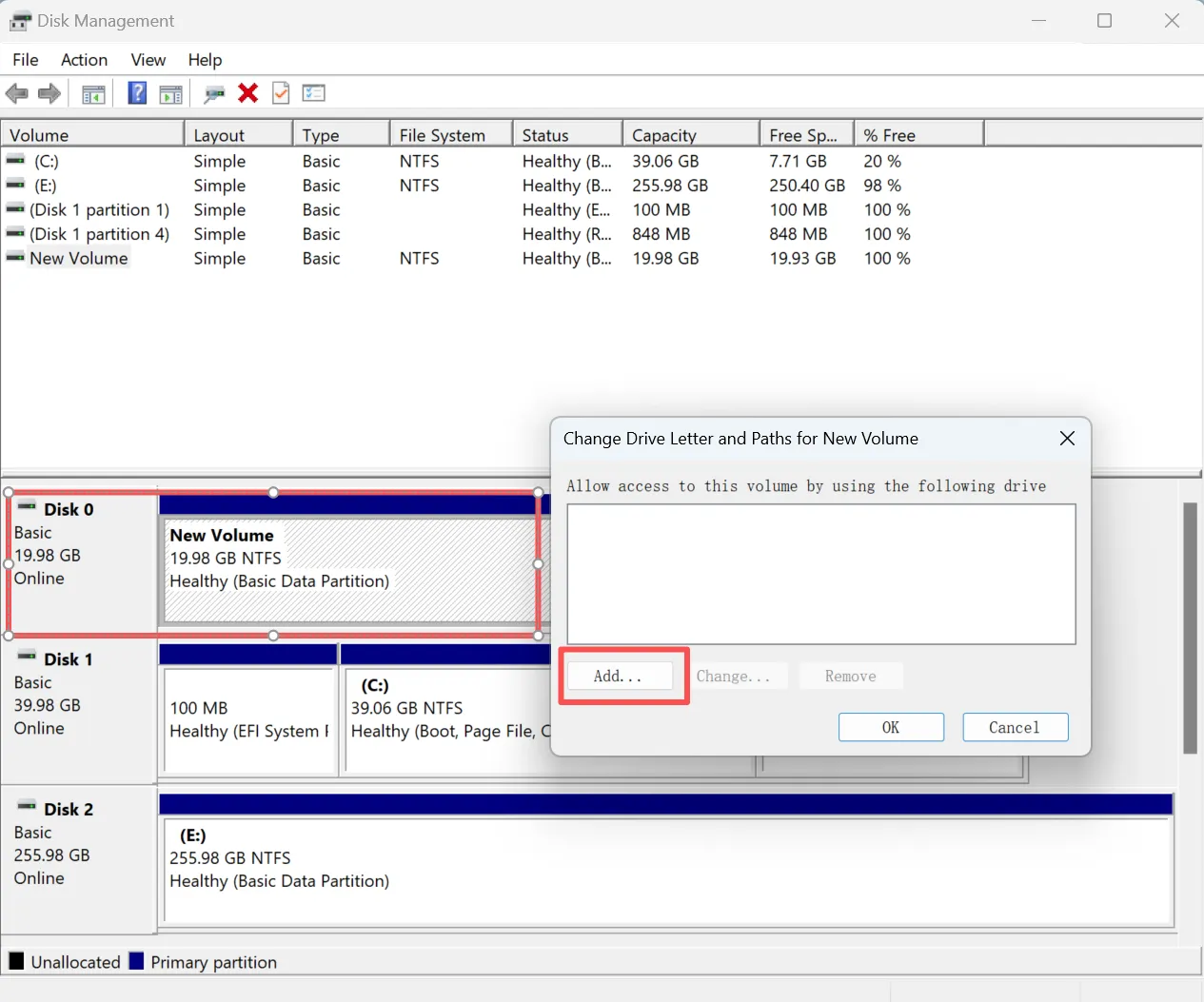
Use Disk Management to Assign a Drive Letter for the Not Recognized SD Drive
If the SD card is physically working but not appearing in File Explorer, you can try to assign a drive letter.
- Right-click on the Start menu and select Disk Management.
- Locate the SD card in the list of drives.
- Right-click on it and select Change Drive Letter and Paths.
- Assign a new drive letter.
Run CHKDSK Carefully
CHKDSK checks a volume’s file system and metadata for errors. When used with repair parameters such as /f, it attempts to correct logical file-system problems. SK is not a data recovery tool. Microsoft notes that repairs on FAT file systems may change the file allocation table and can sometimes result in lost data. Recover or back up important files before using a repair parameter.
Run a Read-Only Check First
- Search for Command Prompt.
- Select Run as administrator.
- Enter the following command, replacing
E:with the SD card’s actual letter:chkdsk E:
Without a repair parameter, CHKDSK reports the volume status but does not fix errors. gical File-System Errors
After protecting your data, run: chkdsk E: /f

The /f parameter instructs CHKDSK to fix detected errors. The volume may need to be locked or dismounted while the repair runs. CHKDSK when the card:
- Appears as RAW and contains important files
- Disconnects repeatedly
- Shows the wrong capacity
- Makes Windows freeze
- Has suspected physical damage
If Windows reports that CHKDSK is not available for RAW drives, recover the files first and format the card afterward.
Format the SD Card (If Necessary)
If the system still cannot recognize your SD card, you may need to format it. Formatting will erase all the data, so ensure you have a backup for the data on the SD card.
To format the SD card:
- Open File Explorer and right-click on the SD card.
- Select Format.
- Choose a file system (exFAT is commonly used for larger cards).
- Click Start to format the card.
If you don’t want to risk data loss by formatting, data recovery from the not recognized SD drive would be the first choice.
How to Recover Files from a Not Recognized SD Drive
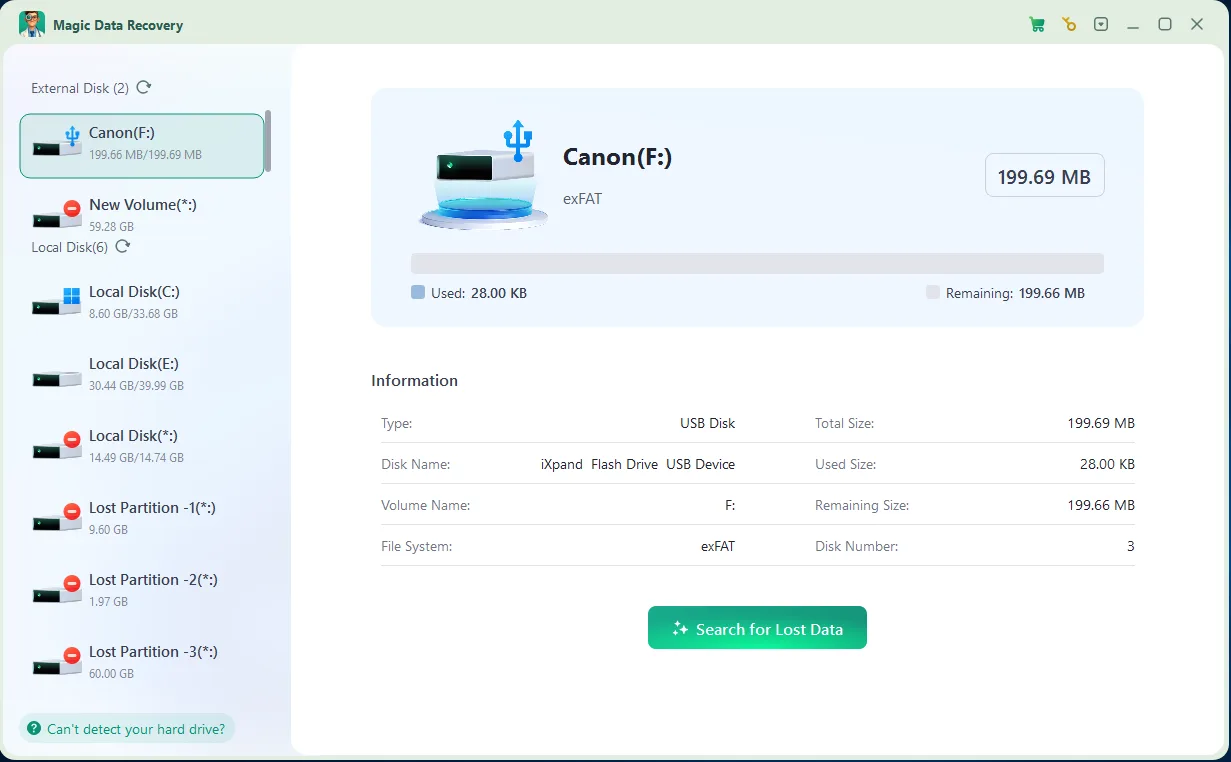
If you’ve lost data due to a corrupted or unreadable SD card, you may still recover the data with the right tools. Magic Data Recovery is an advanced solution for recovering lost files from a non-detected SD card. This tool offers a read-only mode, ensuring that no data is overwritten during the recovery process.
How to Prevent an SD Card from Becoming Unrecognized Again
After resolving the problem, follow these practices to reduce the chance of another failure:
- Eject the card safely before removing it from a computer.
- Turn off a camera or other device before removing its card.
- Do not remove the card during recording or file transfer.
- Avoid filling the card completely.
- Use a reader that supports the card’s standard and capacity.
- Replace loose or damaged microSD adapters.
- Keep the contacts dry and clean.
- Avoid using the same card continuously across incompatible devices.
- Back up important photos and videos regularly.
- Replace cards that frequently disconnect, become read-only, or generate file errors.
An SD card that starts working again after repeated failures should not be trusted as the only copy of important data.
Conclusion
When an SD drive is not recognized, first determine whether the card appears in Device Manager, Disk Management, or File Explorer. This tells you whether the problem is related to the physical connection, card reader, driver, drive letter, partition, or file system.
Start with non-destructive SD card solutions such as reconnecting the card, changing the reader, checking compatibility, updating the driver, and assigning a new drive letter.
If the SD card appears as RAW, Unallocated, inaccessible, or requests formatting, protect the data before attempting repairs. Magic Data Recovery can scan detected SD cards and help recover photos, videos, documents, and other files before CHKDSK or formatting changes the card.
Supports Windows 7/8/10/11 and Windows Server
SD Drive Not Recognized – FAQ
How to fix SD drive not recognized?
Why is my SD card suddenly unreadable?
Why won't my SD card show up in files?
How do I get my computer to read my micro SD card?
How to fix a dead micro SD card?
What is the lifespan of an SD card?
How to recover an undetected SD card?
How to tell if an SD card is bad?

Vasilii is a data recovery specialist with around 10 years of hands-on experience in the field. Throughout his career, he has successfully solved thousands of complex cases involving deleted files, formatted drives, lost partitions, and RAW file systems. His expertise covers both manual recovery methods using professional tools like hex editors and advanced automated solutions with recovery software. Vasilii's mission is to make reliable data recovery knowledge accessible to both IT professionals and everyday users, helping them safeguard their valuable digital assets.