Active File Recovery Review & Alternative

When important files disappear, every action matters. You may delete a work document, format the wrong drive, 清空回收站, or lose access to a partition after a 檔案系統錯誤. In these situations, many users search for active file recovery because they need a safe 硬碟解決方案 to restore files before new data overwrites them.
However, recovery success depends on more than software. You also need to stop using the affected drive, scan it correctly, preview results, and save recovered files to another safe location. This guide explains how active file recovery works, what mistakes to avoid, and how Magic Data Recovery helps Windows users recover deleted, formatted, or lost files with less confusion.
支援 Windows 7/8/10/11 和 Windows Server
目錄
What Is Active File Recovery?
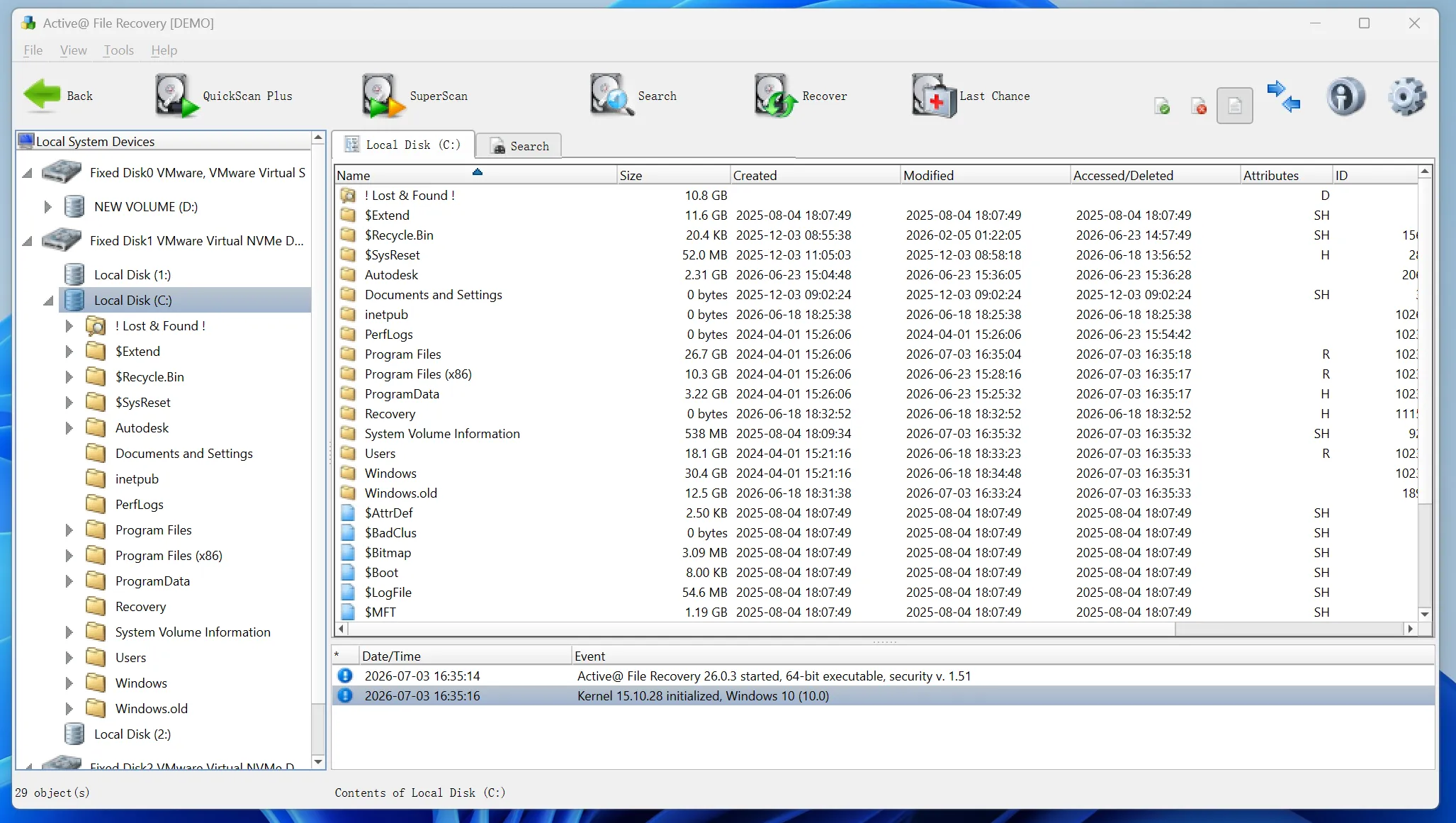
Active file recovery means scanning a storage device to locate files that no longer appear through normal access. These files may still exist after deletion or formatting. In many cases, Windows only marks the file space as available. Until new data replaces that space, a recovery tool may still find the file.
This process helps when you need to 恢復刪除的檔案, restore photos from an SD card, retrieve documents from a formatted partition, or find files after a drive becomes RAW. Therefore, the sooner you act, the better your chances become.
Still, no 檔案復原軟體 can guarantee perfect results. File condition, drive health, file system damage, and overwritten data all affect recovery. A reliable tool should help you scan carefully, preview recoverable files, and restore data without changing the original location.

When Should You Use Active File Recovery?
You should try simple options first. Check the Recycle Bin, cloud storage, email attachments, backup drives, and Windows File History. These options often restore files faster than a scan.
如果這些方法都行不通,, active file recovery becomes the next practical step. It can help after accidental deletion, quick formatting, partition loss, system crashes, virus attacks, or file system errors. Moreover, it works with storage devices such as HDDs, SSDs, USB drives, SD cards, and memory cards, as long as the lost data has not been overwritten.
How Active File Recovery Software Works
Most recovery tools use two scanning methods. First, a quick scan checks file records and recently deleted items. It works best when the file loss happened recently. Next, a deeper scan searches more sectors and file signatures. This scan takes longer, but it helps with formatted drives, damaged partitions, and RAW devices.
Even when the original file name or folder path disappears, file signatures may help the software identify photos, videos, documents, audio files, archives, and other data.
Because scan results can include damaged or duplicate files, preview matters. A preview lets you confirm content before recovery. In addition, it helps you avoid restoring unnecessary files.
Common Mistakes to Avoid Before Active File Recovery
Many users reduce their recovery chances before they even start scanning. Fortunately, you can avoid the most common mistakes with a few simple habits.
First, do not keep using the affected drive. Every new download, installation, or copied file may overwrite the missing data. Also, do not install a recovery tool on the same location where the files were lost. Instead, install the software on another healthy drive.
Next, do not save recovered files back to the original location. This action can overwrite other lost files during the same recovery process. Finally, if a drive clicks, disconnects often, or overheats, stop using software and contact a professional recovery lab.
Why Magic Data Recovery Is a Practical Active File Recovery Solution
Some recovery tools include complex scan settings, sector-level options, RAID features, or bootable media tools. These functions can help technicians. However, they may overwhelm normal users who only need to restore documents, photos, videos, or other personal files.
Magic Data Recovery focuses on a simpler recovery workflow. It helps users choose a location, scan for lost data, preview recoverable files, and save selected items to a safe destination. Therefore, it suits people who want an effective 資料復原工具 without too many technical decisions.
The tool can help with deleted files, formatted drives, lost partitions, inaccessible locations, and common file loss cases. It also supports many everyday file types, including documents, images, videos, audio files, archives, emails, and database files. In addition, it works with HDDs, SSDs, USB drives, SD cards, and memory cards.
Unlike risky manual repair attempts, Magic Data Recovery gives users a guided path. It does not ask beginners to guess advanced parameters before they understand the problem. Instead, it helps them scan first, check results, and recover files carefully.
如何使用 Magic Data Recovery
Follow these steps to recover lost files with Magic Data Recovery safely and efficiently.
步驟 1:下載並安裝 Magic Data Recovery
Download Magic Data Recovery and install it on a healthy drive instead of the location where your files were lost. This helps avoid overwriting deleted data and improves your chances of successful recovery.
支援 Windows 7/8/10/11 和 Windows Server
步驟 2: 選擇 要掃描的磁碟機
Launch Magic Data Recovery. From the main interface, choose the drive or partition where the deleted, formatted, or lost files were originally stored. Then, start the scan to search for recoverable data.

步驟 3:掃描 的 遺失檔案的硬碟機
Magic Data Recovery begins scanning the selected location and lists recoverable files as it finds them. Meanwhile, you can review the scan results and see whether the missing files appear before the full scan finishes.

步驟 4: 預覽 復原前的檔案
Next, use the preview feature to check file content, name, size, and quality when available. This step helps you confirm which files remain usable and prevents you from recovering unnecessary data.

步驟 5: 恢復 將檔案移至安全位置
Finally, select the files you want to restore and save them to a different healthy drive or storage device. Do not recover files back to the original location, because this may overwrite lost data and reduce recovery success.

Tips for Better Results
Good habits can improve your recovery results. To begin with, act quickly after data loss. The longer you use the device, the higher the overwrite risk becomes. Also, start with a scan before trying repair tools, formatting prompts, or manual fixes.
Use filters to narrow results by file type, size, date, or path. For example, if you only need lost Word documents, filter by document type and preview each important file. Likewise, if you need photos, check thumbnails and image previews before recovery.
總結
Active file recovery works best when you act quickly, avoid overwriting data, and use a clear recovery process. Before scanning, stop using the affected location. Then, choose reliable software, preview found files, and restore data to a safe destination.
For many everyday users, Magic Data Recovery offers the right balance of ease and capability. It helps recover deleted, formatted, and lost files without forcing users through complex settings. If you want a practical 硬碟機復原解決方案, try Magic Data Recovery, scan your files, preview the results, and recover what matters most.
支援 Windows 7/8/10/11 和 Windows Server
FAQ About Active File Recovery
Is active file recovery safe?
Yes, active file recovery is safe when you use trusted software and follow basic rules. Install the tool on another healthy drive, scan the affected location, and save recovered files somewhere else. Also, avoid repair commands or formatting before scanning, because those actions may reduce recovery chances.
清空資源回收筒後可以復原檔案嗎?
Yes, you may recover files after emptying the Recycle Bin if new data has not overwritten them. Start scanning as soon as possible. Do not install apps, download files, or copy data to the affected drive before recovery. A quick scan often helps with recent deletion cases.
Can active file recovery restore formatted drive data?
Yes, active file recovery can often restore files after a quick format. However, success depends on how much data the drive received after formatting. If you used the drive heavily afterward, recovery becomes harder. For better results, stop using the drive and run a deep scan.
Why can’t recovery software find my lost files?
Recovery software may fail when data has been overwritten, the file system has severe damage, or the device has physical problems. SSD TRIM can also reduce recovery chances after deletion. Therefore, you should scan early, avoid writing new data, and seek professional help for damaged hardware.
Magic Data Recovery 是否適合初學者?
Yes, Magic Data Recovery works well for beginners because it uses a simple select, scan, preview, and recover process. Users do not need to adjust complex scan parameters for common tasks. In addition, the preview feature helps them confirm files before saving recovered data.
我應該將已復原的檔案儲存到哪裡?
Save recovered files to a different healthy drive or storage device. Never save them back to the original location during recovery. This rule protects other lost files from being overwritten. If possible, choose a drive with enough free space and organize recovered files by file type.
Can any tool guarantee 100% file recovery?
No recovery tool can guarantee 100% results. Recovery depends on overwrite status, file damage, drive health, and the time passed after data loss. Reliable software should give clear scan results and preview options instead of unrealistic promises. For physically damaged drives, professional service offers a safer choice.
Vasilii 是一位在該領域擁有約 10 年實務經驗的資料復原專家。在他的職業生涯中,他已成功解決數千個複雜的個案,包括刪除的檔案、格式化的硬碟機、遺失的磁碟分割和 RAW 檔案系統。他的專業知識涵蓋使用十六進位編輯器等專業工具的手動復原方法,以及使用復原軟體的進階自動解決方案。Vasilii 的使命是讓 IT 專業人士和一般使用者都能獲得可靠的資料復原知識,協助他們保護寶貴的數位資產。.