
Avis sur Active File Recovery et solutions alternatives
Lorsque des fichiers importants disparaissent, chaque geste compte. Il peut arriver que vous supprimiez un document professionnel, que vous formatiez le mauvais disque dur, vider la corbeille, ou perdre l'accès à une partition après un erreur de système de fichiers. Dans ces situations, de nombreux utilisateurs recherchent récupération active de fichiers parce qu'ils ont besoin d'un coffre-fort solution de disque dur pour restaurer des fichiers avant que de nouvelles données ne les écrasent.
Cependant, la réussite de la récupération ne dépend pas uniquement du logiciel. Vous devez également cesser d'utiliser le disque concerné, l'analyser correctement, prévisualiser les résultats et enregistrer les fichiers récupérés dans un autre emplacement sûr. Ce guide vous explique comment procéder. récupération active de fichiers comment ça marche, quelles erreurs éviter et comment s'y prendre Magic Data Recovery permet aux utilisateurs de Windows de récupérer des fichiers supprimés, formatés ou perdus en toute simplicité.
Prise en charge de Windows 7/8/10/11 et Windows Server
Table des matières
Qu'est-ce que la récupération active de fichiers ?
Récupération active de fichiers Cela consiste à analyser un périphérique de stockage afin de localiser des fichiers qui ne sont plus accessibles par les moyens habituels. Ces fichiers peuvent encore exister après avoir été supprimés ou après un formatage. Dans de nombreux cas, Windows se contente de marquer l'espace occupé par le fichier comme disponible. Tant que de nouvelles données ne viennent pas remplacer cet espace, un outil de récupération peut encore retrouver le fichier.
Cette procédure est utile lorsque vous devez récupérer les fichiers supprimés, récupérer des photos depuis une carte SD, récupérer des documents sur une partition formatée ou retrouver des fichiers après qu'un disque est passé en mode RAW. Par conséquent, plus vous agissez rapidement, plus vous avez de chances de réussir.
Pour l'instant, non logiciel de récupération de fichiers peut garantir des résultats parfaits. L'état des fichiers, la santé du disque dur, les dommages subis par le système de fichiers et les données écrasées sont autant de facteurs qui influent sur la récupération. Un outil fiable doit vous permettre d'effectuer une analyse minutieuse, de prévisualiser les fichiers récupérables et de restaurer les données sans modifier leur emplacement d'origine.
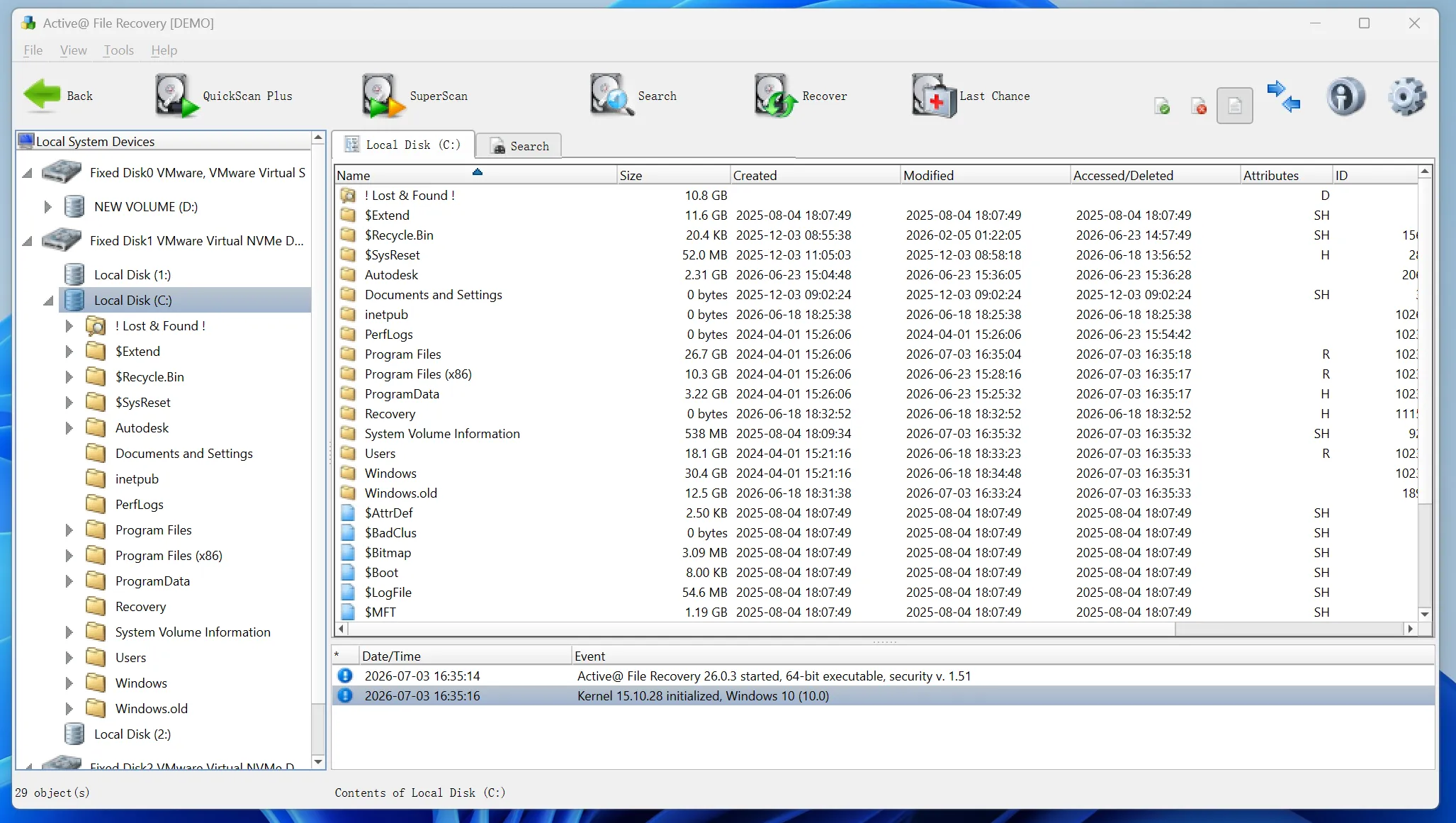
Quand faut-il utiliser la récupération active de fichiers ?
Commencez par essayer les solutions les plus simples. Vérifiez la Corbeille, votre espace de stockage dans le cloud, les pièces jointes de vos e-mails, vos disques de sauvegarde et l'historique des fichiers de Windows. Ces solutions permettent souvent de récupérer des fichiers plus rapidement qu'une analyse.
Si ces méthodes échouent, récupération active de fichiers constitue la prochaine étape concrète. Cet outil peut s'avérer utile en cas de suppression accidentelle, de formatage rapide, de perte de partition, de pannes du système, d'attaques virales ou d'erreurs du système de fichiers. De plus, il fonctionne avec des périphériques de stockage tels que les disques durs (HDD), les disques SSD, les clés USB, les cartes SD et les cartes mémoire, à condition que les données perdues n'aient pas été écrasées.
Comment fonctionne un logiciel de récupération de fichiers Active File Recovery ?
La plupart des outils de récupération utilisent deux méthodes d'analyse. Tout d'abord, une analyse rapide examine les enregistrements de fichiers et les éléments récemment supprimés. Elle est particulièrement efficace lorsque la perte de fichiers est récente. Ensuite, une analyse plus approfondie explore davantage de secteurs et de signatures de fichiers. Cette analyse prend plus de temps, mais elle s'avère utile dans le cas de disques formatés, de partitions endommagées et Périphériques RAW.
Même lorsque le nom du fichier d'origine ou le chemin d'accès au dossier disparaît, les signatures de fichiers peuvent aider le logiciel à identifier les photos, vidéos, documents, fichiers audio, archives et autres données.
Comme les résultats de l'analyse peuvent inclure des fichiers endommagés ou en double, l'aperçu est essentiel. Il vous permet de vérifier le contenu avant la récupération. De plus, il vous aide à éviter de restaurer des fichiers inutiles.
Erreurs courantes à éviter avant de procéder à une récupération active de fichiers
De nombreux utilisateurs réduisent leurs chances de récupération avant même d'avoir lancé l'analyse. Heureusement, il suffit d'adopter quelques habitudes simples pour éviter les erreurs les plus courantes.
Tout d'abord, cessez d'utiliser le disque concerné. Chaque nouveau téléchargement, chaque nouvelle installation ou chaque fichier copié risque d'écraser les données manquantes. De même, n'installez pas d'outil de récupération à l'emplacement même où les fichiers ont été perdus. Installez plutôt le logiciel sur un autre disque en bon état.
Ensuite, ne sauvegardez pas les fichiers récupérés à leur emplacement d'origine. Cela risquerait d'écraser d'autres fichiers perdus au cours du même processus de récupération. Enfin, si un disque dur émet des cliquetis, se déconnecte fréquemment ou surchauffe, cessez d'utiliser le logiciel et contactez un laboratoire de récupération professionnel.
Pourquoi Magic Data Recovery est une solution pratique de récupération de fichiers actifs
Certains outils de récupération proposent des paramètres d'analyse complexes, des options au niveau des secteurs, des fonctionnalités RAID ou des outils de support de démarrage. Ces fonctions peuvent être utiles aux techniciens. En revanche, elles risquent de dérouter les utilisateurs lambda qui ont simplement besoin de récupérer des documents, des photos, des vidéos ou d'autres fichiers personnels.
Magic Data Recovery met l'accent sur un processus de récupération plus simple. Il aide les utilisateurs à choisir un emplacement, à rechercher les données perdues, à prévisualiser les fichiers récupérables et à enregistrer les éléments sélectionnés vers une destination sûre. Il convient donc aux personnes qui recherchent une solution efficace outil de récupération des données sans trop de choix techniques.
Cet outil peut vous aider à récupérer des fichiers supprimés, à restaurer des disques formatés, à retrouver des partitions perdues, à accéder à des emplacements inaccessibles et à résoudre les cas courants de perte de fichiers. Il prend également en charge de nombreux types de fichiers courants, notamment les documents, les images, les vidéos, les fichiers audio, les archives, les e-mails et les fichiers de base de données. De plus, il fonctionne avec les disques durs (HDD), les disques SSD, les clés USB, les cartes SD et les cartes mémoire.
Contrairement aux tentatives de réparation manuelles risquées, Magic Data Recovery propose aux utilisateurs un parcours guidé. Il ne demande pas aux débutants de deviner des paramètres avancés avant même d'avoir compris la nature du problème. Au contraire, il les aide à effectuer d'abord une analyse, à vérifier les résultats, puis à récupérer leurs fichiers en toute sécurité.
Comment utiliser Magic Data Recovery
Suivez ces étapes pour récupérer vos fichiers perdus avec Magic Data Recovery, en toute sécurité et efficacement.
Étape 1 : Télécharger et installer Magic Data Recovery
Téléchargez Magic Data Recovery et installez-le sur un disque en bon état, plutôt que sur l'emplacement où vos fichiers ont été perdus. Cela permet d'éviter d'écraser les données supprimées et augmente vos chances de réussite de la récupération.
Prise en charge de Windows 7/8/10/11 et Windows Server
Étape 2 : Sélectionner le lecteur à numériser
Lancez Magic Data Recovery. Dans l'interface principale, sélectionnez le disque ou la partition sur lequel/laquelle les fichiers supprimés, formatés ou perdus étaient initialement stockés. Lancez ensuite l'analyse pour rechercher les données récupérables.

Étape 3 : Numérisation les Recherche de fichiers perdus
Magic Data Recovery commence à analyser l'emplacement sélectionné et répertorie les fichiers récupérables au fur et à mesure qu'il les détecte. Pendant ce temps, vous pouvez consulter les résultats de l'analyse et vérifier si les fichiers manquants apparaissent avant la fin de l'analyse complète.

Étape 4 : Avant-première Fichiers avant récupération
Ensuite, utilisez la fonction d'aperçu pour vérifier le contenu, le nom, la taille et la qualité des fichiers, lorsque cela est possible. Cette étape vous permet de vérifier quels fichiers sont encore utilisables et vous évite de récupérer des données inutiles.

Étape 5 : Récupérer Fichiers en lieu sûr
Enfin, sélectionnez les fichiers que vous souhaitez restaurer et enregistrez-les sur un autre disque dur ou périphérique de stockage en bon état. Ne restaurez pas les fichiers à leur emplacement d'origine, car cela risquerait d'écraser les données perdues et de réduire les chances de réussite de la récupération.

Conseils pour obtenir de meilleurs résultats
De bonnes habitudes peuvent améliorer les résultats de votre récupération. Pour commencer, agissez rapidement après une perte de données. Plus vous continuez à utiliser l'appareil, plus le risque de réécriture des données augmente. De plus, commencez par effectuer une analyse avant d'utiliser des outils de réparation, de formater le périphérique ou d'effectuer des corrections manuelles.
Utilisez les filtres pour affiner les résultats par type de fichier, taille, date ou chemin d'accès. Par exemple, si vous ne recherchez que des documents Word perdus, appliquez un filtre par type de document et prévisualisez chaque fichier important. De même, si vous recherchez des photos, consultez les vignettes et les aperçus avant de procéder à la récupération.
Conclusion
Récupération active de fichiers Pour un résultat optimal, il faut agir rapidement, éviter d'écraser les données et suivre une procédure de récupération claire. Avant de lancer l'analyse, cessez d'utiliser l'emplacement concerné. Choisissez ensuite un logiciel fiable, prévisualisez les fichiers détectés, puis restaurez les données vers une destination sûre.
Pour de nombreux utilisateurs lambda, Magic Data Recovery offre un juste équilibre entre simplicité et performances. Il permet de récupérer des fichiers supprimés, formatés ou perdus sans obliger les utilisateurs à se perdre dans des paramètres complexes. Si vous recherchez un outil pratique Solution de récupération des disques durs, essayez Magic Data Recovery, analysez vos fichiers, prévisualisez les résultats et récupérez ce qui compte le plus pour vous.
Prise en charge de Windows 7/8/10/11 et Windows Server
FAQ sur la récupération de fichiers Active File Recovery
La récupération active de fichiers est-elle sans risque ?
Oui, la récupération active de fichiers est sans danger à condition d'utiliser un logiciel fiable et de respecter certaines règles élémentaires. Installez l'outil sur un autre disque en bon état, analysez l'emplacement concerné, puis enregistrez les fichiers récupérés ailleurs. Évitez également d'utiliser des commandes de réparation ou de formater le disque avant l'analyse, car ces actions pourraient réduire les chances de récupération.
Puis-je récupérer des fichiers après avoir vidé la corbeille ?
Oui, vous pouvez récupérer des fichiers après avoir vidé la Corbeille si aucune nouvelle donnée ne les a encore écrasés. Lancez l'analyse dès que possible. N'installez pas d'applications, ne téléchargez pas de fichiers et ne copiez pas de données sur le disque concerné avant la récupération. Une analyse rapide s'avère souvent utile dans les cas de suppression récente.
La récupération active de fichiers permet-elle de récupérer les données d'un disque formaté ?
Oui, la récupération active de fichiers permet souvent de restaurer des fichiers après un formatage rapide. Cependant, le succès de l'opération dépend de la quantité de données qui ont été enregistrées sur le disque après le formatage. Si vous avez beaucoup utilisé le disque par la suite, la récupération devient plus difficile. Pour obtenir de meilleurs résultats, cessez d'utiliser le disque et lancez une analyse en profondeur.
Pourquoi les logiciels de récupération ne parviennent-ils pas à retrouver mes fichiers perdus ?
Les logiciels de récupération peuvent s'avérer inefficaces lorsque les données ont été écrasées, que le système de fichiers est gravement endommagé ou que le périphérique présente des problèmes physiques. La fonction TRIM des SSD peut également réduire les chances de récupération après une suppression. Il est donc recommandé de lancer une analyse dès que possible, d'éviter d'écrire de nouvelles données et de faire appel à un professionnel en cas de matériel endommagé.
Magic Data Recovery est-il bon pour les débutants ?
Oui, Magic Data Recovery convient bien aux débutants car il repose sur un processus simple : sélection, analyse, aperçu et récupération. Les utilisateurs n'ont pas besoin de régler des paramètres d'analyse complexes pour les tâches courantes. De plus, la fonction d'aperçu leur permet de vérifier les fichiers avant d'enregistrer les données récupérées.
Où dois-je enregistrer les fichiers récupérés ?
Enregistrez les fichiers récupérés sur un autre disque ou périphérique de stockage en bon état. Ne les réenregistrez jamais à leur emplacement d'origine pendant la récupération. Cette règle permet d'éviter que d'autres fichiers perdus ne soient écrasés. Si possible, choisissez un disque disposant d'un espace libre suffisant et classez les fichiers récupérés par type de fichier.
Existe-t-il un outil capable de garantir la récupération d'un fichier 100% ?
Aucun outil de récupération ne peut garantir des résultats 100%. La récupération dépend de l'état de réécriture, de l'endommagement des fichiers, de l'état de santé du disque dur et du temps écoulé depuis la perte des données. Un logiciel fiable doit fournir des résultats d'analyse clairs et proposer des options de prévisualisation, plutôt que de faire des promesses irréalistes. Pour les disques durs physiquement endommagés, le recours à un service professionnel constitue un choix plus sûr.

Vasilii est un spécialiste de la récupération de données qui possède une dizaine d'années d'expérience pratique dans ce domaine. Tout au long de sa carrière, il a résolu avec succès des milliers de cas complexes impliquant des fichiers supprimés, des disques formatés, des partitions perdues et des systèmes de fichiers RAW. Son expertise couvre à la fois les méthodes de récupération manuelle à l'aide d'outils professionnels tels que les éditeurs hexagonaux et les solutions automatisées avancées à l'aide de logiciels de récupération. La mission de Vasilii est de rendre accessible aux professionnels de l'informatique et aux utilisateurs quotidiens des connaissances fiables en matière de récupération de données, afin de les aider à sauvegarder leurs précieuses ressources numériques.