
Reseña y alternativas de Active File Recovery
Cuando desaparecen archivos importantes, cada paso cuenta. Puede que borres un documento de trabajo, formatees la unidad equivocada, vaciar la papelera de reciclaje, o perder el acceso a una partición tras un error del sistema de archivos. En estas situaciones, muchos usuarios buscan recuperación activa de archivos porque necesitan una caja fuerte solución de disco duro para recuperar los archivos antes de que los nuevos datos los sobrescriban.
Sin embargo, el éxito de la recuperación no depende únicamente del software. También es necesario dejar de utilizar la unidad afectada, analizarla correctamente, previsualizar los resultados y guardar los archivos recuperados en otra ubicación segura. En esta guía se explica cómo hacerlo. recuperación activa de archivos cómo funciona, qué errores hay que evitar y cómo Magic Data Recovery Ayuda a los usuarios de Windows a recuperar archivos borrados, formateados o perdidos con menos complicaciones.
Compatible con Windows 7/8/10/11 y Windows Server
Índice
¿Qué es la recuperación activa de archivos?
Recuperación activa de archivos Consiste en escanear un dispositivo de almacenamiento para localizar archivos que ya no aparecen mediante el acceso habitual. Estos archivos pueden seguir existiendo tras su eliminación o el formateo. En muchos casos, Windows solo marca el espacio del archivo como disponible. Hasta que nuevos datos ocupen ese espacio, una herramienta de recuperación aún puede encontrar el archivo.
Este proceso resulta útil cuando necesitas recuperar archivos borrados, recuperar fotos de una tarjeta SD, recuperar documentos de una partición formateada o encontrar archivos cuando una unidad pasa a estar en formato RAW. Por lo tanto, cuanto antes actúes, mayores serán tus posibilidades.
Aún así, no software de recuperación de archivos puede garantizar resultados perfectos. El estado de los archivos, el estado de la unidad, los daños en el sistema de archivos y los datos sobrescritos influyen en la recuperación. Una herramienta fiable debería ayudarte a realizar un análisis minucioso, previsualizar los archivos recuperables y restaurar los datos sin alterar su ubicación original.
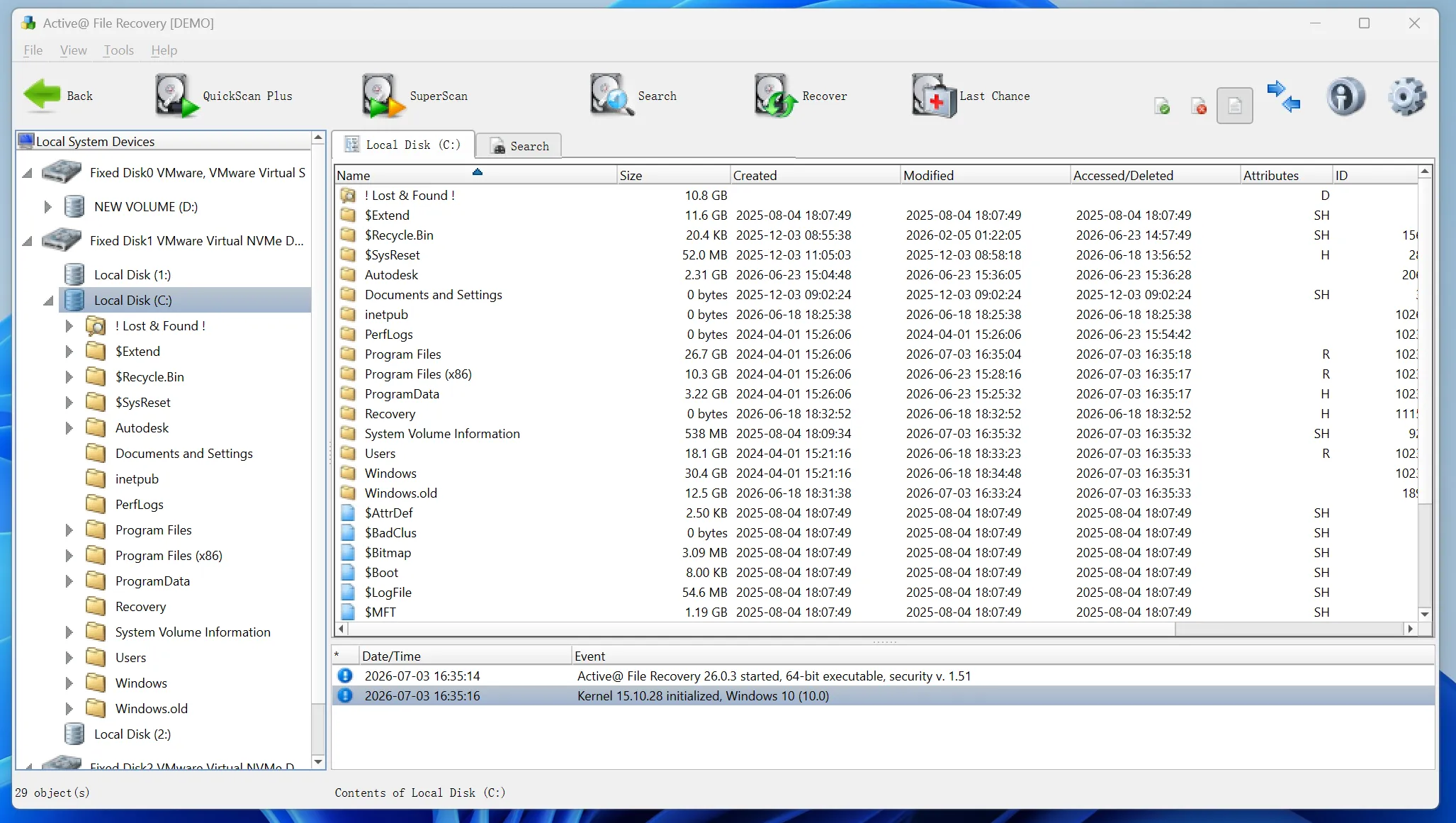
¿Cuándo conviene utilizar la recuperación activa de archivos?
Deberías probar primero con opciones sencillas. Revisa la Papelera de reciclaje, el almacenamiento en la nube, los archivos adjuntos de los correos electrónicos, las unidades de copia de seguridad y el Historial de archivos de Windows. Estas opciones suelen permitir recuperar los archivos más rápido que un análisis.
Si esos métodos fallan, recuperación activa de archivos es el siguiente paso práctico. Puede resultar útil tras un borrado accidental, un formateo rápido, la pérdida de una partición, fallos del sistema, ataques de virus o errores del sistema de archivos. Además, funciona con dispositivos de almacenamiento como discos duros (HDD), discos SSD, memorias USB, tarjetas SD y tarjetas de memoria, siempre y cuando los datos perdidos no se hayan sobrescrito.
Cómo funciona el software de recuperación de archivos Active File Recovery
La mayoría de las herramientas de recuperación utilizan dos métodos de análisis. En primer lugar, un análisis rápido comprueba los registros de archivos y los elementos eliminados recientemente. Funciona mejor cuando la pérdida de archivos se ha producido hace poco. A continuación, un análisis más profundo examina más sectores y firmas de archivos. Este análisis tarda más tiempo, pero resulta útil en el caso de unidades formateadas, particiones dañadas y Dispositivos RAW.
Incluso cuando el nombre del archivo original o la ruta de la carpeta desaparecen, las firmas de los archivos pueden ayudar al software a identificar fotos, vídeos, documentos, archivos de audio, archivos comprimidos y otros datos.
Dado que los resultados del análisis pueden incluir archivos dañados o duplicados, la vista previa es importante. La vista previa te permite comprobar el contenido antes de la recuperación. Además, te ayuda a evitar restaurar archivos innecesarios.
Errores comunes que hay que evitar antes de proceder a la recuperación activa de archivos
Muchos usuarios reducen sus posibilidades de recuperación incluso antes de empezar el análisis. Afortunadamente, puedes evitar los errores más comunes adoptando unos cuantos hábitos sencillos.
En primer lugar, no sigas utilizando la unidad afectada. Cada nueva descarga, instalación o archivo copiado podría sobrescribir los datos perdidos. Además, no instales una herramienta de recuperación en la misma ubicación en la que se perdieron los archivos. En su lugar, instala el software en otra unidad que funcione correctamente.
A continuación, no guardes los archivos recuperados en la ubicación original. Esto podría sobrescribir otros archivos perdidos durante el mismo proceso de recuperación. Por último, si una unidad hace ruido, se desconecta con frecuencia o se sobrecalienta, deja de utilizar el software y ponte en contacto con un laboratorio de recuperación profesional.
Por qué Magic Data Recovery es una solución práctica para la recuperación activa de archivos
Algunas herramientas de recuperación incluyen ajustes de análisis complejos, opciones a nivel de sector, funciones RAID o herramientas de soportes de arranque. Estas funciones pueden resultar de gran ayuda para los técnicos. Sin embargo, pueden resultar abrumadoras para los usuarios normales que solo necesitan recuperar documentos, fotos, vídeos u otros archivos personales.
Magic Data Recovery se centra en un proceso de recuperación más sencillo. Ayuda a los usuarios a elegir una ubicación, buscar los datos perdidos, obtener una vista previa de los archivos recuperables y guardar los elementos seleccionados en un destino seguro. Por lo tanto, es ideal para quienes buscan una solución eficaz herramienta de recuperación de datos sin tener que tomar demasiadas decisiones técnicas.
Esta herramienta puede ayudar a recuperar archivos borrados, unidades formateadas, particiones perdidas, ubicaciones inaccesibles y casos habituales de pérdida de archivos. Además, es compatible con numerosos tipos de archivos de uso cotidiano, como documentos, imágenes, vídeos, archivos de audio, archivos comprimidos, correos electrónicos y archivos de bases de datos. Asimismo, funciona con discos duros (HDD), discos SSD, memorias USB, tarjetas SD y tarjetas de memoria.
A diferencia de los arriesgados intentos de reparación manual, Magic Data Recovery ofrece a los usuarios un proceso guiado. No exige a los principiantes que adivinen parámetros avanzados antes de comprender el problema. En su lugar, les ayuda a realizar primero un análisis, comprobar los resultados y recuperar los archivos con cuidado.
Cómo utilizar Magic Data Recovery
Sigue estos pasos para recuperar archivos perdidos con Magic Data Recovery de forma segura y eficaz.
Paso 1: Descargar e instalar Magic Data Recovery
Descarga Magic Data Recovery e instálalo en una unidad que esté en buen estado, en lugar de en la ubicación donde se perdieron tus archivos. Esto ayuda a evitar que se sobrescriban los datos eliminados y aumenta tus posibilidades de recuperar los archivos con éxito.
Compatible con Windows 7/8/10/11 y Windows Server
Segundo paso: Seleccione la unidad a escanear
Inicia Magic Data Recovery. En la interfaz principal, selecciona la unidad o partición en la que se almacenaban originalmente los archivos eliminados, formateados o perdidos. A continuación, inicia el análisis para buscar datos recuperables.

Paso 3: Escanear el Unidad de archivos perdidos
Magic Data Recovery comienza a escanear la ubicación seleccionada y muestra una lista de los archivos recuperables a medida que los va encontrando. Mientras tanto, puedes revisar los resultados del escaneo y comprobar si los archivos perdidos aparecen antes de que finalice el escaneo completo.

Paso 4: Vista previa Archivos antes de la recuperación
A continuación, utiliza la función de vista previa para comprobar el contenido, el nombre, el tamaño y la calidad de los archivos, siempre que sea posible. Este paso te ayuda a confirmar qué archivos siguen siendo utilizables y evita que recuperes datos innecesarios.

Paso 5: Recuperar Archivos a un lugar seguro
Por último, selecciona los archivos que quieras restaurar y guárdalos en otra unidad o dispositivo de almacenamiento que funcione correctamente. No restaures los archivos en su ubicación original, ya que esto podría sobrescribir los datos perdidos y reducir las posibilidades de éxito de la recuperación.

Consejos para obtener mejores resultados
Los buenos hábitos pueden mejorar los resultados de la recuperación. Para empezar, actúa con rapidez tras la pérdida de datos. Cuanto más tiempo utilices el dispositivo, mayor será el riesgo de sobrescritura. Además, empieza por realizar un análisis antes de probar herramientas de reparación, opciones de formateo o soluciones manuales.
Utiliza los filtros para acotar los resultados por tipo de archivo, tamaño, fecha o ruta. Por ejemplo, si solo necesitas documentos de Word perdidos, filtra por tipo de documento y echa un vistazo a cada archivo importante. Del mismo modo, si necesitas fotos, revisa las miniaturas y las vistas previas de las imágenes antes de la recuperación.
Conclusión
Recuperación activa de archivos Funciona mejor si se actúa con rapidez, se evita sobrescribir los datos y se sigue un proceso de recuperación claro. Antes de iniciar el análisis, deja de utilizar la ubicación afectada. A continuación, elige un software fiable, previsualiza los archivos encontrados y restaura los datos en un destino seguro.
Para muchos usuarios habituales, Magic Data Recovery ofrece el equilibrio perfecto entre facilidad de uso y funcionalidad. Ayuda a recuperar archivos borrados, formateados y perdidos sin obligar a los usuarios a realizar configuraciones complejas. Si buscas una herramienta práctica Solución de recuperación de discos duros, prueba Magic Data Recovery, analiza tus archivos, previsualiza los resultados y recupera lo que más te importa.
Compatible con Windows 7/8/10/11 y Windows Server
Preguntas frecuentes sobre la recuperación de archivos activos
¿Es segura la recuperación activa de archivos?
Sí, la recuperación de archivos en tiempo real es segura siempre que se utilice un software de confianza y se sigan unas normas básicas. Instala la herramienta en otra unidad que funcione correctamente, analiza la ubicación afectada y guarda los archivos recuperados en otro lugar. Además, evita ejecutar comandos de reparación o formatear antes de realizar el análisis, ya que esas acciones pueden reducir las posibilidades de recuperación.
¿Puedo recuperar archivos después de vaciar la Papelera de reciclaje?
Sí, puedes recuperar archivos después de vaciar la Papelera de reciclaje si no se han sobrescrito con datos nuevos. Empieza el análisis lo antes posible. No instales aplicaciones, descargues archivos ni copies datos en la unidad afectada antes de la recuperación. Un análisis rápido suele ser útil en los casos de eliminación reciente.
¿La recuperación activa de archivos permite recuperar los datos de una unidad formateada?
Sí, la recuperación activa de archivos suele permitir recuperar archivos tras un formateo rápido. Sin embargo, el éxito depende de la cantidad de datos que se hayan escrito en la unidad tras el formateo. Si has utilizado mucho la unidad desde entonces, la recuperación resulta más difícil. Para obtener mejores resultados, deja de utilizar la unidad y realiza un análisis profundo.
¿Por qué el software de recuperación no encuentra mis archivos perdidos?
El software de recuperación puede fallar cuando los datos se han sobrescrito, el sistema de archivos presenta daños graves o el dispositivo tiene problemas físicos. La función TRIM de los SSD también puede reducir las posibilidades de recuperación tras el borrado. Por lo tanto, conviene realizar un análisis lo antes posible, evitar escribir nuevos datos y solicitar ayuda profesional en caso de que el hardware esté dañado.
¿Es Magic Data Recovery bueno para principiantes?
Sí, Magic Data Recovery es ideal para principiantes porque sigue un proceso sencillo de selección, escaneo, vista previa y recuperación. Los usuarios no tienen que ajustar parámetros de escaneo complejos para las tareas habituales. Además, la función de vista previa les permite comprobar los archivos antes de guardar los datos recuperados.
¿Dónde debo guardar los archivos recuperados?
Guarda los archivos recuperados en otra unidad o dispositivo de almacenamiento que funcione correctamente. Nunca los guardes de nuevo en la ubicación original durante el proceso de recuperación. Esta norma evita que se sobrescriban otros archivos perdidos. Si es posible, elige una unidad con suficiente espacio libre y organiza los archivos recuperados por tipo de archivo.
¿Hay alguna herramienta que garantice la recuperación de un archivo 100%?
Ninguna herramienta de recuperación puede garantizar resultados 100%. La recuperación depende del estado de sobrescritura, del daño sufrido por los archivos, del estado de la unidad y del tiempo transcurrido desde la pérdida de datos. Un software fiable debería ofrecer resultados de análisis claros y opciones de vista previa, en lugar de promesas poco realistas. En el caso de unidades con daños físicos, recurrir a un servicio profesional supone una opción más segura.

Vasilii es un especialista en recuperación de datos con unos 10 años de experiencia práctica en este campo. A lo largo de su carrera, ha resuelto con éxito miles de casos complejos relacionados con archivos borrados, unidades formateadas, particiones perdidas y sistemas de archivos RAW. Su experiencia abarca tanto métodos de recuperación manual con herramientas profesionales como editores hexadecimales como soluciones automatizadas avanzadas con software de recuperación. La misión de Vasilii es poner los conocimientos sobre recuperación de datos al alcance tanto de los profesionales informáticos como de los usuarios de a pie, ayudándoles a salvaguardar sus valiosos activos digitales.