
「Active File Recovery」のレビューと代替ツール
重要なファイルが消えてしまったときは、どんな行動も重要です。仕事の書類を誤って削除してしまったり、間違ったドライブをフォーマットしてしまったり、, ごみ箱を空にする, あるいは、以下の操作後にパーティションへのアクセスができなくなる可能性があります。 ファイルシステムエラー. このような状況では、多くのユーザーが アクティブファイルの復元 安全が必要だから ハードドライブ・ソリューション 新しいデータによって上書きされる前に、ファイルを復元するため。.
ただし、復元の成功はソフトウェアだけにかかっているわけではありません。影響を受けたドライブの使用を中止し、正しくスキャンを行い、結果をプレビューし、復元されたファイルを別の安全な場所に保存する必要があります。このガイドでは、その方法について説明します。 アクティブファイルの復元 その仕組み、避けるべき間違い、そしてその方法 Magic Data Recovery Windowsユーザーが、削除されたファイルやフォーマットされたファイル、紛失したファイルを、迷うことなく復元できるよう支援します。.
Windows 7/8/10/11およびWindows Serverをサポート
目次
アクティブ・ファイル・リカバリーとは?
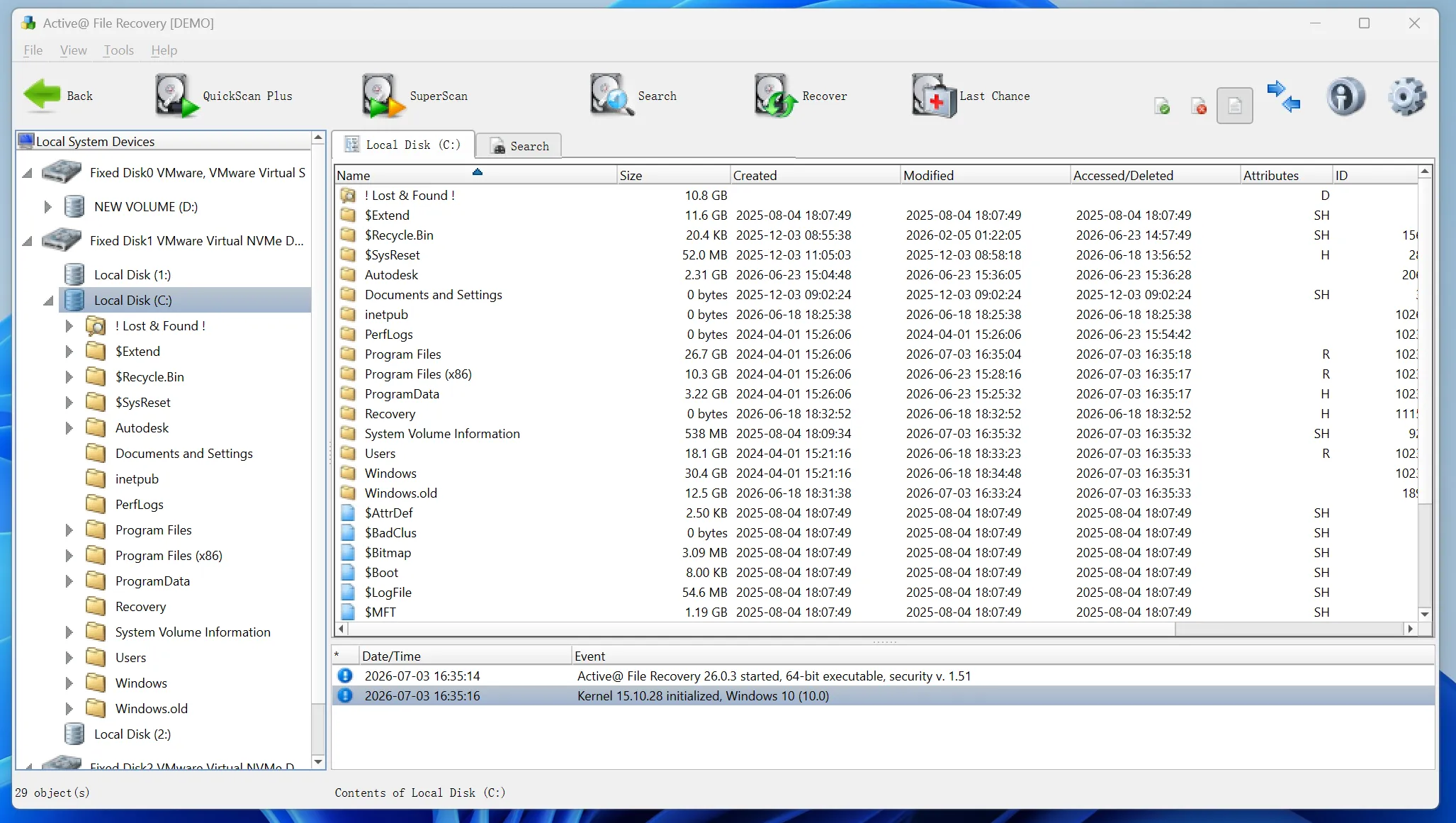
アクティブファイルの復元 これは、ストレージデバイスをスキャンして、通常のアクセスでは表示されなくなったファイルの位置を特定することを意味します。これらのファイルは、削除やフォーマット後も依然として存在している可能性があります。多くの場合、Windows はそのファイル領域を「空き領域」としてマークするだけです。新しいデータがその領域を上書きするまでは、復元ツールがそのファイルを見つけられる可能性があります。.
この手順は、次のような場合に役立ちます。 削除されたファイルの復元, 、SDカードから写真を復元したり、フォーマットされたパーティションから文書を取り戻したり、ドライブがRAW状態になった後にファイルを見つけたりすることができます。したがって、早ければ早いほど、成功の可能性が高まります。.
それでも、ない ファイル復元ソフト 完璧な結果を保証できるわけではありません。ファイルの状態、ドライブの健全性、ファイルシステムの破損、上書きされたデータなどは、すべて復元結果に影響を与えます。信頼性の高いツールであれば、入念にスキャンを行い、復元可能なファイルをプレビューし、元の場所を変更することなくデータを復元できるはずです。.
「Active File Recovery」はどのような場合に使用すべきか?
まずは簡単な方法を試してみてください。ごみ箱、クラウドストレージ、メールの添付ファイル、バックアップ用ドライブ、Windowsのファイル履歴を確認してください。これらの方法なら、スキャンを行うよりも早くファイルを復元できることがよくあります。.
もしそれらの方法がうまくいかない場合は、, アクティブファイルの復元 が、次に取るべき実用的な手段となります。誤って削除してしまった場合、急なフォーマット、パーティションの消失、システムのクラッシュ、ウイルス感染、ファイルシステムのエラーなどが発生した際に役立ちます。さらに、失われたデータが上書きされていない限り、HDD、SSD、USBメモリ、SDカード、メモリーカードなどのストレージデバイスに対応しています。.
アクティブファイル復元ソフトウェアの仕組み
ほとんどの復元ツールは、2つのスキャン方式を採用しています。まず、クイックスキャンでは、ファイルレコードや最近削除された項目をチェックします。これは、ファイルの損失が最近発生した場合に最も効果的です。次に、詳細スキャンでは、より多くのセクタやファイルシグネチャを検索します。このスキャンには時間がかかりますが、フォーマットされたドライブや破損したパーティションなどに対応するのに役立ちます。 RAWデバイス.
元のファイル名やフォルダパスが失われてしまった場合でも、ファイルのシグネチャによって、ソフトウェアが写真、動画、文書、音声ファイル、アーカイブ、その他のデータを識別できる場合があります。.
スキャン結果には破損したファイルや重複したファイルが含まれる可能性があるため、プレビューは重要です。プレビュー機能を使えば、復元前に内容を確認できます。また、不要なファイルを復元してしまうのを防ぐのにも役立ちます。.
アクティブなファイル復元を行う前に避けるべきよくある間違い
多くのユーザーは、スキャンを始める前から復元の可能性を低下させてしまっています。幸いなことに、いくつかの簡単な習慣を身につけるだけで、最もよくあるミスを避けることができます。.
まず、問題のあるドライブは使用し続けないでください。新たにダウンロードやインストールを行ったり、ファイルをコピーしたりするたびに、失われたデータが上書きされてしまう可能性があります。また、ファイルが失われたのと同じ場所に復元ツールをインストールしないでください。代わりに、別の正常なドライブにソフトウェアをインストールしてください。.
次に、復元したファイルを元の場所に保存しないでください。そうすると、同じ復元処理の過程で、他の失われたファイルが上書きされてしまう可能性があります。最後に、ドライブからカチカチという音がしたり、頻繁に接続が切れたり、過熱したりする場合は、ソフトウェアの使用を中止し、専門のデータ復旧業者に連絡してください。.
Magic Data Recoveryが実用的なアクティブファイル復旧ソリューションである理由
一部の復旧ツールには、複雑なスキャン設定、セクタレベルのオプション、RAID機能、あるいは起動用メディア作成ツールなどが含まれています。これらの機能は技術者にとっては役立つものですが、文書や写真、動画、その他の個人ファイルを復元したいだけの一般ユーザーにとっては、扱いにくいものとなる可能性があります。.
Magic Data Recovery よりシンプルな復元ワークフローに重点を置いています。ユーザーが保存先を選択し、失われたデータをスキャンし、復元可能なファイルをプレビューし、選択した項目を安全な保存先に保存するのを支援します。そのため、効率的な データ復旧ツール あまり技術的な判断を必要とせずに。.
このツールは、削除されたファイル、フォーマットされたドライブ、失われたパーティション、アクセスできない場所、および一般的なファイル消失のケースに対応しています。また、文書、画像、動画、音声ファイル、アーカイブ、メール、データベースファイルなど、日常的に使用される多くのファイル形式に対応しています。さらに、HDD、SSD、USBドライブ、SDカード、メモリカードなどにも対応しています。.
リスクを伴う手動での修復作業とは異なり、Magic Data Recoveryはユーザーに手順を案内します。初心者に、問題を理解する前に高度なパラメータを推測するよう求めることはありません。その代わりに、まずスキャンを行い、結果を確認し、慎重にファイルを復元できるようサポートします。.
Magic Data Recoveryの使い方
Magic Data Recovery を使用して、紛失したファイルを安全かつ効率的に復元するには、以下の手順に従ってください。.
ステップ1: Magic Data Recoveryのダウンロードとインストール
Magic Data Recoveryをダウンロードし、ファイルが失われた場所ではなく、正常に動作しているドライブにインストールしてください。これにより、削除されたデータの上書きを防ぎ、復元が成功する可能性が高まります。.
Windows 7/8/10/11およびWindows Serverをサポート
ステップ2: 選択 スキャンするドライブ
Magic Data Recoveryを起動します。メイン画面から、削除・フォーマット・紛失したファイルが元々保存されていたドライブまたはパーティションを選択します。その後、スキャンを開始して、復元可能なデータを検索します。.

ステップ3:スキャン その 紛失したファイルのドライブ
Magic Data Recoveryは、選択した場所のスキャンを開始し、復元可能なファイルが見つかり次第、一覧表示します。その間、フルスキャンが完了する前に、スキャン結果を確認して、失われたファイルが表示されているかどうかを確認することができます。.

ステップ4: プレビュー 復旧前のファイル
次に、プレビュー機能を使用して、ファイルの内容、名前、サイズ、および(利用可能な場合は)品質を確認します。この手順により、どのファイルが引き続き使用可能かを確認でき、不要なデータを復元してしまうのを防ぐことができます。.

ステップ5: 回復する ファイルを安全な場所へ
最後に、復元したいファイルを選択し、別の正常なドライブまたはストレージデバイスに保存してください。元の場所にファイルを復元しないでください。そうすると、失われたデータが上書きされ、復元の成功率が低下する恐れがあります。.

より良い結果を得るためのヒント
良い習慣は、データ復旧の成果を高めることができます。まず、データが失われたら迅速に対応しましょう。デバイスを長く使い続けるほど、データが上書きされるリスクが高まります。また、修復ツールやフォーマット指示、手動での修復を試みる前に、まずはスキャンから始めましょう。.
フィルターを使用して、ファイルの種類、サイズ、日付、またはパスで検索結果を絞り込んでください。たとえば、紛失したWord文書のみが必要な場合は、ファイルの種類でフィルターをかけ、重要なファイルを1つずつプレビューしてください。同様に、写真が必要な場合は、復元する前にサムネイルや画像のプレビューを確認してください。.
まとめ
アクティブファイルの復元 迅速に対応し、データの上書きを避け、明確な復元手順を踏むことが最も効果的です。スキャンを行う前に、問題のある場所の使用を中止してください。その後、信頼性の高いソフトウェアを選び、検出されたファイルをプレビューして、安全な保存先にデータを復元してください。.
多くの一般ユーザーにとっては、, Magic Data Recovery 使いやすさと機能性のバランスが絶妙です。複雑な設定を強いることなく、削除されたファイルやフォーマットされたファイル、紛失したファイルの復元を支援します。実用的なツールをお探しなら HDD復旧ソリューション, 、Magic Data Recoveryをお試しください。ファイルをスキャンし、結果をプレビューして、最も重要なデータを復元しましょう。.
Windows 7/8/10/11およびWindows Serverをサポート
「Active File Recovery」に関するよくある質問
アクティブファイルの復元は安全ですか?
はい、信頼できるソフトウェアを使用し、基本的なルールに従えば、アクティブファイルの復元は安全です。ツールは別の正常なドライブにインストールし、問題のある場所をスキャンして、復元されたファイルは別の場所に保存してください。また、スキャンを行う前に修復コマンドを実行したり、フォーマットを行ったりすることは避けてください。そうした操作を行うと、復元の可能性が低くなる恐れがあります。.
ごみ箱を空にした後、ファイルを復元できますか?
はい、ごみ箱を空にした後でも、新しいデータで上書きされていなければ、ファイルを復元できる可能性があります。できるだけ早くスキャンを開始してください。復元作業を行うまでは、アプリのインストール、ファイルのダウンロード、および対象のドライブへのデータのコピーは行わないでください。最近削除されたファイルの場合は、クイックスキャンが有効なことが多いです。.
アクティブファイルリカバリーでは、フォーマットされたドライブのデータを復元できますか?
はい、クイックフォーマット後のファイル復元は、多くの場合、アクティブファイル復元によって可能です。ただし、復元の成否は、フォーマット後にそのドライブにどれだけのデータが書き込まれたかによって左右されます。フォーマット後にそのドライブを頻繁に使用していた場合、復元は難しくなります。より良い結果を得るためには、ドライブの使用を中止し、ディープスキャンを実行してください。.
なぜ復元ソフトは、失われたファイルを見つけられないのでしょうか?
データが上書きされた場合、ファイルシステムに深刻な損傷がある場合、またはデバイスに物理的な問題がある場合、復元ソフトウェアは正常に動作しない可能性があります。また、SSDのTRIM機能も、削除後の復元可能性を低下させる要因となります。そのため、早急にスキャンを行い、新しいデータの書き込みを避け、ハードウェアに損傷がある場合は専門家に相談してください。.
Magic Data Recoveryは初心者に適していますか?
はい、Magic Data Recoveryは「選択、スキャン、プレビュー、復元」というシンプルなプロセスを採用しているため、初心者にも使いやすいです。一般的な作業では、複雑なスキャンパラメータを調整する必要はありません。さらに、プレビュー機能により、復元したデータを保存する前にファイルの内容を確認することができます。.
復旧したファイルはどこに保存すればよいですか?
復元したファイルは、別の正常なドライブまたはストレージデバイスに保存してください。復元作業中は、決して元の場所に保存し直さないでください。このルールは、他の紛失したファイルが上書きされるのを防ぐためです。可能であれば、十分な空き容量のあるドライブを選び、復元したファイルをファイルの種類ごとに整理してください。.
100%ファイルの復元を保証できるツールはありますか?
どの復旧ツールも、100%の結果を100%保証することはできません。復旧の成否は、上書き状況、ファイルの破損度合い、ドライブの状態、およびデータ損失から経過した時間によって左右されます。信頼できるソフトウェアであれば、非現実的な約束をするのではなく、明確なスキャン結果とプレビュー機能を提供するはずです。物理的に損傷したドライブの場合は、専門業者に依頼する方がより安全な選択肢となります。.

バシリイは、この分野で約10年の実務経験を持つデータ復元のスペシャリストです。そのキャリアを通じて、彼は削除されたファイル、フォーマットされたドライブ、失われたパーティション、RAWファイルシステムを含む何千もの複雑なケースの解決に成功してきました。彼の専門知識は、16進エディタなどの専門ツールを使用した手動復元方法と、復元ソフトウェアを使用した高度な自動化ソリューションの両方をカバーしています。バシリの使命は、信頼できるデータ復元知識をITプロフェッショナルと一般ユーザーの双方が利用できるようにし、貴重なデジタル資産を保護できるようにすることです。.