
從 NAS 硬碟恢復資料:7 種安全的方法
如果您需要 從 NAS 硬碟中恢復資料, 首先需釐清實際發生了什麼情況。無論是誤刪檔案、NAS 資源回收筒已清空、外接機箱故障、RAID 陣列降級,還是實體硬碟損壞,都需要採用不同的復原方法。在許多情況下,應先檢查 NAS 的內建保護機制,再進行磁碟層級的復原。.
由於大多數 NAS 裝置最終都是將資料儲存於 HDD 或 SSD 上,因此了解基礎的 硬碟復原解決方案 此外,這也能協助您避免損壞底層磁碟。若內建的復原選項無法使用,且受影響的儲存裝置能安全地作為獨立掃描目標呈現在 Windows 中,, Magic Data Recovery 可能有助於恢復已刪除或已格式化的檔案。.
支援 Windows 7/8/10/11 和 Windows Server
目錄
在從 NAS 硬碟恢復資料之前
NAS 的結構比一般外接硬碟更為複雜。Synology、QNAP、WD、ASUSTOR 及其他系統可能會透過 RAID 或 SHR 技術將多顆實體硬碟組合在一起。此外,這些系統還可支援 Linux 檔案系統、快照、儲存池、加密以及邏輯磁碟區管理。.
因此,在你……之前 從 NAS 硬碟中恢復資料, 請遵循以下預防措施:
- 請停止在 NAS 上複製、同步、下載或建立檔案。.
- 請在可行時暫停自動備份或同步工作。.
- 當 Windows 要求您初始化 NAS 硬碟時,請勿進行初始化。.
- 請勿僅因 Windows 報告檔案系統不受支援,就對磁碟進行格式化。.
- 在釐清哪顆硬碟發生故障之前,請避免啟動 RAID 重建程序。.
- 請根據原始插槽編號,為每個已移除的硬碟標示編號。.
- 請保留原始磁碟的順序。.
- 若硬碟發出喀噠聲、反覆斷開連接,或出現嚴重硬體錯誤,請立即停止自行修復。.
若您的主要問題是從已映射的網路資料夾中刪除檔案,請參閱這份指南: 如何還原從網路磁碟機中刪除的檔案. 一個已映射的磁碟機,例如 Z: 這僅僅是一條網路路徑;實際上被刪除的資料仍保留在背後的 NAS 或伺服器儲存裝置上。.
此外,請記住 RAID 並非備份機制。它能在特定硬碟發生故障時提升系統可用性,但無法防範誤刪、勒索軟體、檔案損毀,或是所有多硬碟同時故障的情況。.
方法 1:從資源回收筒還原已刪除的 NAS 檔案
若要進行簡單的刪除,最安全的方法是 從 NAS 硬碟中恢復資料 通常是 NAS 的「資源回收筒」。.
此方法不會重建已刪除的磁區,而是還原 NAS 在刪除後刻意保留下來的檔案。.
如何從 Synology NAS 硬碟中還原已刪除的檔案
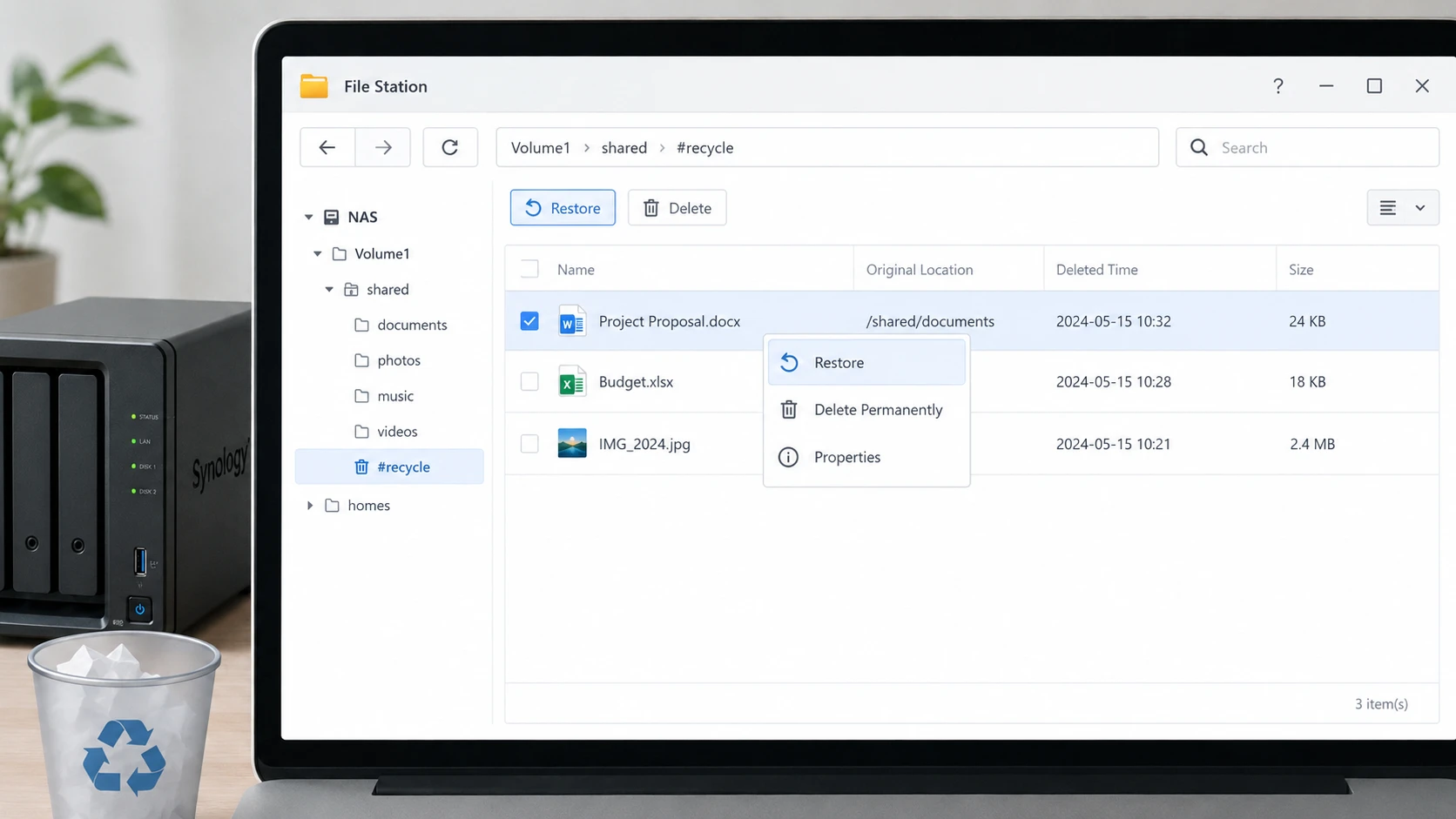
如果您正在尋找 如何從 Synology NAS 硬碟中還原已刪除的檔案, 開啟 檔案站 並找到該 #recycle 受影響的共用資料夾內的目錄。.
若在刪除前已啟用「資源回收筒」,Synology 便會將已刪除的檔案保留於該處。您可選取所需的檔案或資料夾,並將其還原。.
然而,在以下情況下,此方法將無法奏效:
- 「資源回收筒」已被停用。.
- 「資源回收筒」已經清空了。.
- 該檔案已被自動清理任務移除。.
- 該共用資料夾本身已無法存取。.
- 儲存池受損導致 DSM 無法掛載該卷。.
在這些情況下,請繼續執行快照和備份作業。.
使用網路資源回收筒從 QNAP 硬碟中還原資料
至 從 QNAP 硬碟中恢復資料 不慎刪除後,請開啟 檔案站 並檢查 回收站.
若在刪除檔案前已啟用此功能,QNAP 的「網路回收筒」便能保留來自受支援共用資料夾中的已刪除檔案。.
如果所需檔案仍然存在,請在嘗試較低層級的復原操作之前,先將其還原。.
方法 2:利用快照從 NAS 磁碟機還原資料
如果「資源回收筒」是空的,快照可能是次安全的方法來 從 NAS 硬碟中恢復資料.
快照會記錄受支援儲存裝置在特定時間點的狀態。因此,當檔案:
- 刪除
- 已替換
- 修改方式不正確
- 遭勒索軟體攻擊
- 被不需要的版本覆寫
在受支援的 Synology 系統上,「快照複製」功能可從較早的快照中還原檔案。視設定而定,使用者亦可透過 SMB 存取先前版本。.
同樣地,QNAP 的快照功能可還原個別檔案和資料夾,而無需還原整個儲存卷。.
快照之所以特別有用,是因為它們避免了以磁區為單位的掃描。然而,, 自動儲存和快照並非永久性備份. 舊的快照可能會根據保留設定而最終被移除。.
方法 3:從備份還原 NAS 資料
在拆卸 NAS 之前,請先確認是否已有另一份副本。.
備份通常比嘗試……更為安全 從 NAS 硬碟中恢復資料 直接是因為它不依賴已刪除的磁區是否仍保持完整。.
可能的地點包括:
- USB 備份隨身碟
- 另一台 NAS
- Synology Hyper Backup
- QNAP HBS
- 雲端備份服務
- Windows 或工作站的備份
- 離線歸檔儲存
- 以往的伺服器遷移
若情況允許,請先將檔案還原至另一個目錄。接著,在替換 NAS 中的現有資料之前,請確認已還原的文件、資料庫、照片或專案檔案能否正常開啟。.
此外,還需區分「同步」與「備份」。雙向同步任務可能會將誤刪的檔案複製到另一台裝置上,而版本化備份則能保留較早的副本。.
方法 4:當 NAS 機箱無法開機時恢復資料
有時 NAS 本身會發生故障,但其硬碟卻仍運作正常。.
例如,機箱可能包含:
- 電源供應器故障
- 損壞的主機板
- 韌體損壞
- 一個失效的網路介面
- 作業系統問題
在這種情況下、, 從 NAS 硬碟中恢復資料 意指存取現有的檔案系統,而非搜尋已刪除的檔案。.
針對受支援的 Synology 系統,Synology 提供了相關文件,說明如何將所有必要的硬碟連接至個人電腦,並使用 Linux 來建置特定的 RAID、SHR、Btrfs 及 ext4 配置。.
請勿假設只要將單一硬碟連接至 Windows,就能顯示您的檔案。.
Windows 可能會要求您對該磁碟進行初始化或格式化,因為許多 NAS 系統採用 Windows 無法解析的 Linux 檔案系統或 RAID 結構。.
如果 Windows 無法正確識別已連接的磁碟,請參閱此處,了解邏輯偵測問題與硬體故障之間的差異 硬碟無法被識別的解決指南 在對磁碟進行任何變更之前。.
方法 5:重建已損壞的 RAID 或 NAS 儲存池
當 RAID 本身發生故障時,多磁碟 NAS 的復原作業便會變得更加複雜。.
視 NAS 型號而定,陣列可能會使用:
- RAID 0
- RAID 1
- RAID 5
- RAID 6
- RAID 10
- Synology SHR
- 特定供應商的儲存佈局
當 RAID 元資料受損時,專業的 RAID 復原軟體可能需要利用磁碟順序、RAID 等級、條帶大小、奇偶校驗輪替及偏移量等資訊,來虛擬重建陣列。.
在許多情況下,這必須在進行常規檔案恢復之前完成。.
如欲進一步了解專注於 RAID 的軟體如何重建受損陣列,請參閱 DiskInternals RAID 資料復原指南.
一項關鍵規則是必須保持磁碟的順序。.
若您移除四顆 NAS 硬碟,請立即將其標示為「插槽 1」、「插槽 2」、「插槽 3」及「插槽 4」。請勿隨意調換硬碟位置,也不要讓另一台 NAS 自動對其進行初始化。.
同樣地,當另一顆硬碟狀態不穩定時,應避免反覆重建已降級的陣列。RAID 重建會對尚可運作的硬碟造成沉重的讀取負載,並可能使原本就岌岌可危的狀況雪上加霜。.
方法 6:在合適的 NAS 機殼中使用 Magic Data Recovery
Magic Data Recovery 本軟體專為從 Windows 可識別為實體磁碟或分割區的儲存裝置中恢復檔案而設計。其恢復流程包含:選取儲存裝置、掃描該裝置、預覽可恢復的檔案,以及將恢復的資料儲存至其他位置。.
然而,NAS 資料恢復存在一項重要的限制:
Magic Data Recovery 並非 RAID 重建工具。.
因此,您不應移除 RAID 5、RAID 6、SHR 或其他條帶化陣列中的一顆磁碟,並假設該磁碟包含完整的檔案系統。.
在以下情況下,Magic Data Recovery 更為合適:
- 該 NAS 使用的是獨立硬碟,而非多硬碟 RAID 陣列。.
- 已刪除的檔案原本存放在可直接存取的儲存磁碟上。.
- 一顆 NAS 備份硬碟不慎被格式化了。.
- 已還原或重建的邏輯卷可呈現在 Windows 上。.
- 從連接至 NAS 的獨立 USB 隨身碟或擴充硬碟中刪除了檔案。.
與「資源回收筒」、「快照」及「備份」不同,資料恢復軟體會搜尋儲存裝置,以尋找那些無法透過一般檔案系統存取的檔案資料。.
有關已刪除硬碟資料復原的更詳盡說明,請參閱 如何從硬碟中恢復已刪除的資料.
如果內建的恢復選項不再有效,請在新的資料覆寫已刪除檔案之前,嘗試使用 Magic Data Recovery。.
如何使用 Magic Data Recovery 建立無障礙 NAS 儲存裝置
步驟 1:下載並安裝 Magic Data Recovery
在 Windows 上下載並安裝 Magic Data Recovery。.
不過,請勿將其安裝在受影響的磁碟或分割區上。若將新的程式檔案寫入相同的儲存區域,可能會覆寫已刪除的資料。.
支援 Windows 7/8/10/11 和 Windows Server
步驟 2: 選擇 儲存 NAS 檔案的磁碟機
將獨立 NAS 硬碟、備份硬碟或其他適當的儲存裝置連接至 Windows 系統。啟動 Magic Data Recovery,並選取原本存放遺失檔案的磁碟機。.
如果該磁碟屬於多磁碟 RAID 或 SHR 陣列,請勿獨立掃描該磁碟。請先重建邏輯陣列。.

步驟 3: 掃描 針對遺失或刪除的 NAS 檔案
開始掃描。軟體會搜尋選定的儲存裝置,並逐步顯示其能辨識的檔案。在掃描進行期間,您可以檢視掃描結果。.
在此過程中,請避免修改來源磁碟。.

步驟 4: 預覽 復原前的檔案
使用 預覽 在可用的情況下,用以檢查所找到的檔案是否包含預期的內容。.
當多個已復原的檔案名稱相似時,預覽功能特別有用。不過,並非每個受損或碎片化的檔案都能成功預覽。.

步驟 5: 恢復 將檔案移至安全位置
選取所需的檔案,並將其還原至另一顆狀態良好的硬碟。.
在資料恢復過程中,切勿將已恢復的資料寫回原始的 NAS 硬碟、備份硬碟或分割區。.

有關其他磁碟層級的復原原則,請參閱 硬碟復原指南 說明了為何停止寫入並將資料恢復至另一顆硬碟至關重要。.
方法 7:針對實體硬碟故障使用專業 NAS 資料恢復服務
軟體無法修復實體磁碟的損壞。.
若有一台或多台 NAS 硬碟:
- 發出喀噠聲或嘎吱聲
- 反覆斷線
- 無法正確旋轉
- 從 BIOS 或控制器中消失
- 產生嚴重的讀取錯誤
- 導致系統在存取過程中當機
請停止嘗試使用一般軟體進行資料恢復。.
專業的資料復原實驗室能夠從不穩定的磁碟中建立受控的磁碟映像,並嘗試根據這些映像進行 RAID 重建。.
當多個 RAID 成員發生故障時,這一點尤為重要。.
當加密元資料受損、RAID 配置不明,或 NAS 內含無法取代的業務資料時,您也應考慮尋求專業的資料恢復服務。.
如何提高 NAS 的資料恢復機率
準備的最好時機是 從 NAS 硬碟中恢復資料 是在資料遺失發生之前。.
一套切實可行的 NAS 保護策略應包含:
- 啟用資源回收筒 關於重要的共用資料夾。.
- 設定快照 只要 NAS 和檔案系統支援這些功能。.
- 建立帶有版本的備份 而非完全依賴同步。.
- 請另行備份 NAS 外部。.
- 保留一份離線或異地副本 重要檔案。.
- 記錄 RAID 配置與磁碟順序。.
- 請將加密金鑰和復原金鑰安全地儲存起來。.
- 監控硬碟狀態,並及早更換性能衰退的硬碟。.
- 定期測試備份 而不是假設它們可以被恢復。.
這些措施提供了多層次的復原機制。因此,單一故障並不會自動導致永久性的資料遺失。.
總結
最安全的方式是 從 NAS 硬碟中恢復資料 這取決於資料是怎麼消失的。 如果是一般刪除,請先檢查 Synology 或 QNAP 的「資源回收筒」。接著,檢查快照和備份。若 NAS 機箱發生故障但硬碟仍正常運作,請保留完整的硬碟組,並依照製造商的復原程序操作。另一方面,若 RAID 陣列受損,通常需要先進行支援 RAID 的重建,才能還原個別檔案。.
您也可以瀏覽 Amagicsoft 的 硬碟復原解決方案 以了解許多 NAS 系統背後實體硬碟的資料恢復選項。.
當內建的恢復方法失敗,且遺失的檔案儲存於獨立硬碟或其他可安全存取的磁碟機上時,, Magic Data Recovery 可提供實用的磁碟掃描選項。然而,當 NAS 架構需要時,此功能應作為 RAID 重建、快照、備份或專業資料復原的輔助手段,而非取代這些功能。.
支援 Windows 7/8/10/11 和 Windows Server
常見問題
在永久刪除檔案後,還能從 NAS 硬碟中恢復資料嗎?
是的,資料仍有可能恢復,但請優先使用快照和版本化備份,因為這些方法能保留現有副本,且不會掃描已刪除的磁區。若兩者皆不存在,請立即停止向 NAS 寫入資料。若持續進行寫入操作,可能會覆寫已刪除的內容。SSD TRIM、RAID 運作、加密以及後續的寫入操作,都可能降低永久刪除檔案的恢復機率。.
如果「資源回收筒」已清空,該如何從 Synology NAS 硬碟中還原已刪除的檔案?
請檢查快照複製、先前版本、Synology Drive 版本歷史紀錄、Hyper Backup 以及任何外部備份副本。若上述位置均未包含遺失的檔案,則可能需要進行磁碟層級的復原。然而,RAID 和 SHR 卷宗通常橫跨多個磁碟,因此請勿在未先重建陣列的情況下,將已移除的單一成員磁碟視為可完整復原的卷宗。.
如何從 QNAP 硬碟中恢復資料?
首先,檢查 QNAP 的「網路回收筒」。接著檢視可用的快照和 HBS 備份。如果儲存池無法再掛載,請釐清問題是出在 NAS 機箱、檔案系統,還是 RAID 配置上。 多磁碟 QTS 或 QuTS hero 陣列可能需要執行支援 RAID 的重建程序,而非僅針對單一成員磁碟執行一般檔案回復軟體。.
Magic Data Recovery 能否直接掃描 NAS 的網路共用資料夾?
Magic Data Recovery 僅支援 Windows 可作為適當實體磁碟或分割區存取的儲存裝置;其設計並非透過映射的 NAS 路徑執行 RAID 重建。對於一般網路共用資料夾,請先檢查「資源回收筒」、快照及備份。僅當底層儲存裝置可在受支援的配置下安全存取時,才應使用磁碟層級的復原功能。.
在恢復 NAS 檔案之前,是否應該先重建已損壞的 RAID?
並非自動進行。RAID 重建會將資料寫入整個陣列,並對尚可運作的硬碟造成相當大的負擔。若另有硬碟狀態不穩定,重建過程可能會使復原工作更加困難。當重要檔案已無法存取,或有多個硬碟回報錯誤時,請先妥善保存這些硬碟,在可行情況下建立映像檔,並在執行另一次重建之前,考慮採用支援 RAID 的復原方式。.
為什麼 Windows 會要求我格式化 NAS 硬碟?
許多 NAS 系統採用 Linux 檔案系統、RAID 元資料、LVM 或廠商專屬的儲存佈局,這些都是 Windows 無法直接解讀的。因此,當將狀態正常的 NAS 硬碟連接至 Windows 電腦時,該硬碟可能會顯示為 RAW、未初始化或未格式化。 請勿僅為了使磁碟可讀取而對其進行初始化或格式化,因為此舉會改變復原所需的儲存元資料。.
預防 NAS 資料遺失的最佳方法是什麼?
採用多層獨立的保護機制。針對重要的共用資料夾啟用「資源回收筒」,設定快照,並在獨立的儲存裝置上維護版本化備份。此外,請為關鍵資料保留至少一份離線或異地副本。記錄 RAID 配置、磁碟順序及加密金鑰,監控磁碟健康狀態,並定期測試備份還原功能,而非僅依賴 RAID 本身。.

Vasilii 是一位在該領域擁有約 10 年實務經驗的資料復原專家。在他的職業生涯中,他已成功解決數千個複雜的個案,包括刪除的檔案、格式化的硬碟機、遺失的磁碟分割和 RAW 檔案系統。他的專業知識涵蓋使用十六進位編輯器等專業工具的手動復原方法,以及使用復原軟體的進階自動解決方案。Vasilii 的使命是讓 IT 專業人士和一般使用者都能獲得可靠的資料復原知識,協助他們保護寶貴的數位資產。.