
Recover Data from NAS Drive: 7 Safe Methods
If you need to recover data from NAS drive, first identify what actually happened. Accidentally deleted files, an empty NAS Recycle Bin, a failed enclosure, a degraded RAID array, and physical disk damage all require different recovery methods. In many cases, checking built-in NAS protection should come before disk-level recovery.
Because most NAS devices ultimately store data on HDDs or SSDs, understanding basic hard drive recovery solutions can also help you avoid damaging the underlying disks. If built-in recovery options are unavailable and the affected storage can be safely presented to Windows as an independent scan target, Magic Data Recovery may help recover deleted or formatted files.
Supports Windows 7/8/10/11 and Windows Server
Table of Contents
Before You Recover Data from NAS Drive
A NAS is more complex than a normal external hard drive. Synology, QNAP, WD, ASUSTOR, and other systems may combine multiple physical disks through RAID or SHR. They can also use Linux file systems, snapshots, storage pools, encryption, and logical volume management.
Therefore, before you recover data from NAS drive, follow these precautions:
- Stop copying, syncing, downloading, or creating files on the NAS.
- Pause automated backup or synchronization jobs when possible.
- Do not initialize NAS disks when Windows asks you to.
- Do not format a disk simply because Windows reports an unsupported file system.
- Avoid starting a RAID rebuild until you understand which disk failed.
- Label every removed disk by its original bay number.
- Preserve the original disk order.
- Stop DIY recovery if a drive clicks, disconnects repeatedly, or shows serious hardware errors.
If your main problem is deletion from a mapped network folder, see this guide on how to recover files deleted from a network drive. A mapped drive such as Z: is only a network path; the actual deleted data remains on the NAS or server storage behind it.
Also remember that RAID is not a backup. It improves availability when certain disks fail, but it does not protect against accidental deletion, ransomware, file corruption, or every multi-disk failure.
Method 1: Recover Deleted NAS Files from the Recycle Bin
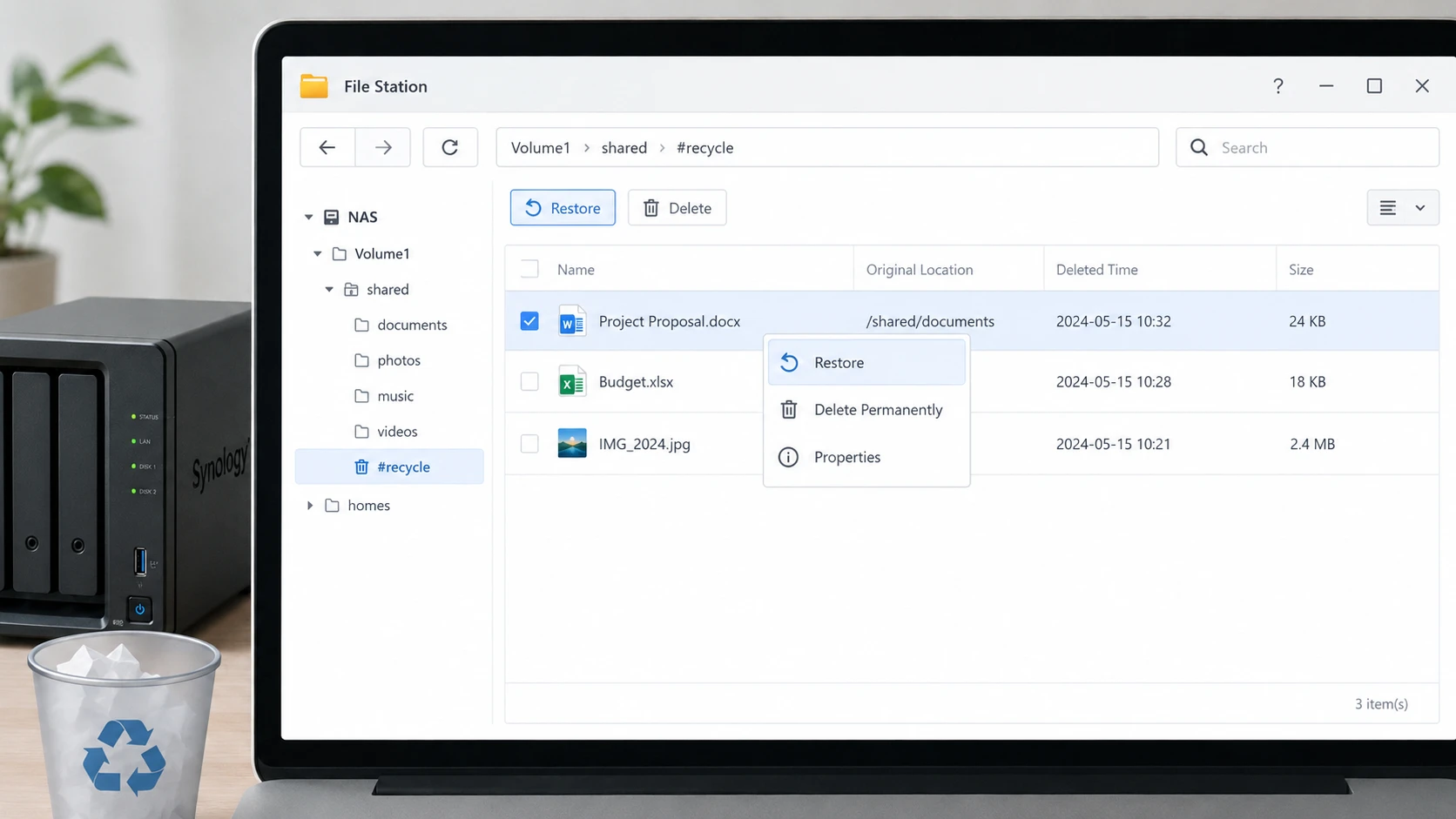
For simple deletion, the safest way to recover data from NAS drive is usually the NAS Recycle Bin.
This method does not reconstruct deleted sectors. Instead, it restores a file that the NAS deliberately retained after deletion.
How to Recover Deleted Files from Synology NAS Drive
If you are looking for how to recover deleted files from synology NAS drive, open File Station and locate the #recycle directory inside the affected shared folder.
When Recycle Bin was enabled before deletion, Synology can retain deleted files there. You can then select the required file or folder and restore it.
However, this method will not work when:
- Recycle Bin was disabled.
- The Recycle Bin has already been emptied.
- An automatic cleanup task removed the file.
- The shared folder itself became inaccessible.
- Storage pool damage prevents DSM from mounting the volume.
In those situations, continue with snapshots and backups.
Recover Data from QNAP Drive Using Network Recycle Bin
To recover data from qnap drive after accidental deletion, open File Station and check the Recycle Bin.
QNAP’s Network Recycle Bin can retain deleted files from supported shared folders when the feature was enabled before the deletion occurred.
If the required file is still there, restore it before attempting lower-level recovery.
Method 2: Recover Data from NAS Drive with Snapshots
If the Recycle Bin is empty, snapshots may provide the next safest way to recover data from NAS drive.
A snapshot records the state of supported storage at a particular point in time. Consequently, it can help when a file was:
- Deleted
- Replaced
- Modified incorrectly
- Damaged by ransomware
- Overwritten with an unwanted version
On supported Synology systems, Snapshot Replication can restore files from an earlier snapshot. Depending on the configuration, users may also access previous versions through SMB.
Likewise, QNAP snapshots can restore individual files and folders without necessarily restoring the complete storage volume.
Snapshots are especially useful because they avoid sector-level scanning. However, autosave and snapshots are not permanent backups. Old snapshots may eventually be removed according to retention settings.
Method 3: Restore NAS Data from a Backup
Before dismantling the NAS, check whether another copy already exists.
A backup is often safer than attempting to recover data from NAS drive directly because it does not depend on deleted sectors remaining intact.
Possible locations include:
- USB backup drives
- Another NAS
- Synology Hyper Backup
- QNAP HBS
- Cloud backup services
- Windows or workstation backups
- Offline archival storage
- Previous server migrations
When possible, restore files to a separate directory first. Then verify that the recovered documents, databases, photos, or project files open correctly before replacing current NAS data.
Also distinguish synchronization from backup. A two-way sync job may copy accidental deletion to another device, whereas a versioned backup can preserve earlier copies.
Method 4: Recover Data When the NAS Enclosure Will Not Boot
Sometimes the NAS itself fails while its hard drives remain healthy.
For example, the enclosure may have:
- A failed power supply
- A damaged motherboard
- Broken firmware
- A failed network interface
- An operating system problem
In this situation, recover data from NAS drive means gaining access to the existing file system rather than searching for deleted files.
For supported Synology systems, Synology documents procedures for connecting all required disks to a PC and using Linux to assemble certain RAID, SHR, Btrfs, and ext4 configurations.
Do not assume that connecting a single disk to Windows will reveal your files.
Windows may instead ask you to initialize or format it because many NAS systems use Linux file systems or RAID structures that Windows cannot interpret.
If Windows cannot recognize an attached disk correctly, review the differences between logical detection problems and hardware failure in this hard drive not recognized guide before changing anything on the disk.
Method 5: Reconstruct a Failed RAID or NAS Storage Pool
Multi-disk NAS recovery becomes more complicated when the RAID itself has failed.
Depending on the NAS, the array may use:
- RAID 0
- RAID 1
- RAID 5
- RAID 6
- RAID 10
- Synology SHR
- Vendor-specific storage layouts
When RAID metadata becomes damaged, specialized RAID recovery software may need to virtually reconstruct the array using information such as disk order, RAID level, stripe size, parity rotation, and offsets.
This must happen before normal file recovery in many cases.
For more background on how RAID-focused software reconstructs damaged arrays, see the DiskInternals RAID Recovery guide.
A critical rule is to preserve disk order.
If you remove four NAS drives, label them immediately as Bay 1, Bay 2, Bay 3, and Bay 4. Do not shuffle the disks or let another NAS automatically initialize them.
Likewise, avoid repeatedly rebuilding a degraded array when another disk is unstable. RAID rebuilds place heavy read workloads on surviving drives and can make an already fragile situation worse.
Method 6: Use Magic Data Recovery in Suitable NAS Cases
Magic Data Recovery is designed for file recovery from storage devices that Windows can access as physical drives or partitions. Its recovery workflow involves selecting the storage device, scanning it, previewing recoverable files, and saving recovered data elsewhere.
However, an important limitation applies to NAS recovery:
Magic Data Recovery is not a RAID reconstruction tool.
Therefore, you should not remove one member of a RAID 5, RAID 6, SHR, or another striped array and assume it contains the complete file system.
Magic Data Recovery is more appropriate when:
- The NAS used a standalone disk rather than a multi-disk RAID.
- Deleted files existed on a directly accessible storage disk.
- A NAS backup disk was accidentally formatted.
- A recovered or reconstructed logical volume can be presented to Windows.
- Files were deleted from a separate USB or expansion disk connected to the NAS.
Unlike Recycle Bin, snapshots, and backups, recovery software searches storage for file data that is no longer available through normal file-system access.
For a broader explanation of deleted HDD recovery, see how to recover deleted data from a hard drive.
If the built-in recovery options no longer work, you can try Magic Data Recovery before new data overwrites the deleted files.
How to Use Magic Data Recovery for an Accessible NAS Drive
Step 1: Download and Install Magic Data Recovery
Download and install Magic Data Recovery on Windows.
However, do not install it on the affected drive or partition. Writing new program files to the same storage area may overwrite deleted data.
Supports Windows 7/8/10/11 and Windows Server
Step 2: Select the Drive Where the NAS Files Were Stored
Connect the standalone NAS disk, backup disk, or other appropriate storage device to Windows. Launch Magic Data Recovery and select the drive that originally contained the lost files.
If the disk belongs to a multi-disk RAID or SHR array, do not scan it independently. Reconstruct the logical array first.

Step 3: Scan for Lost or Deleted NAS Files
Start the scan. The software searches the selected storage device and gradually displays files it can identify. You can review the results while the scan progresses.
Avoid modifying the source drive during this process.

Step 4: Preview Files Before Recovery
Use Preview when available to check whether a found file appears to contain the expected content.
Previewing is especially useful when several recovered files have similar names. However, not every damaged or fragmented file can necessarily be previewed successfully.

Step 5: Recover Files to a Safe Location
Select the required files and recover them to another healthy drive.
Never write recovered data back to the original NAS disk, backup disk, or partition while recovery is still underway.

For additional disk-level recovery principles, the Hard Disk Recovery Guide explains why stopping writes and recovering to another drive matter.
Method 7: Use Professional NAS Recovery for Physical Disk Failure
Software cannot repair physical disk damage.
If one or more NAS drives:
- Make clicking or grinding sounds
- Repeatedly disconnect
- Fail to spin correctly
- Disappear from BIOS or controllers
- Develop severe read errors
- Cause the system to freeze during access
stop attempting normal software recovery.
A professional recovery laboratory can create controlled disk images from unstable drives and then attempt RAID reconstruction from those images.
This is especially important when several RAID members have failed.
You should also consider professional recovery when encryption metadata is damaged, the RAID configuration is unknown, or the NAS contains irreplaceable business data.
How to Improve NAS Recovery Chances
The best time to prepare to recover data from NAS drive is before data loss occurs.
A practical NAS protection strategy should include:
- Enable Recycle Bin on important shared folders.
- Configure snapshots where the NAS and file system support them.
- Create versioned backups rather than relying entirely on synchronization.
- Keep a separate backup outside the NAS.
- Maintain an offline or off-site copy of critical files.
- Document RAID configuration and disk order.
- Store encryption and recovery keys securely.
- Monitor drive health and replace degrading disks early.
- Test backups periodically instead of assuming they can be restored.
These measures provide several recovery layers. Therefore, one failure does not automatically become permanent data loss.
Conclusion
The safest way to recover data from NAS drive depends on how the data disappeared. For ordinary deletion, start with Synology or QNAP Recycle Bin. Next, check snapshots and backups. If the NAS enclosure fails but the disks remain healthy, preserve the complete disk set and follow the manufacturer’s recovery procedure. A damaged RAID, meanwhile, normally requires RAID-aware reconstruction before individual files can be restored.
You can also review Amagicsoft’s hard drive recovery solutions to understand recovery options for the physical HDDs behind many NAS systems.
When the built-in recovery methods fail and the lost files are stored on a standalone or otherwise safely accessible drive, Magic Data Recovery can provide a practical disk-scanning option. However, it should complement rather than replace RAID reconstruction, snapshots, backups, or professional recovery when the NAS architecture requires them.
Supports Windows 7/8/10/11 and Windows Server
FAQs
Can I recover data from NAS drive after permanently deleting files?
Yes, recovery may still be possible, but start with snapshots and versioned backups because they preserve existing copies without scanning deleted sectors. If neither exists, stop writing data to the NAS. Continued activity can overwrite deleted content. SSD TRIM, RAID activity, encryption, and subsequent writes can all reduce the chance of recovering permanently deleted files.
How to recover deleted files from Synology NAS drive if Recycle Bin is empty?
Check Snapshot Replication, Previous Versions, Synology Drive version history, Hyper Backup, and any external backup copies. If none contains the missing file, disk-level recovery may be necessary. However, RAID and SHR volumes often span several disks, so do not treat one removed member disk as a complete recoverable volume without reconstructing the array first.
How can I recover data from QNAP drive?
First, check QNAP's Network Recycle Bin. Then inspect available snapshots and HBS backups. If the storage pool no longer mounts, identify whether the problem involves the NAS enclosure, file system, or RAID configuration. Multi-disk QTS or QuTS hero arrays may require RAID-aware reconstruction instead of ordinary file recovery software running against one member disk.
Can Magic Data Recovery scan a NAS network share directly?
Magic Data Recovery works with storage that Windows can access as an appropriate physical drive or partition; it is not designed to perform RAID reconstruction through a mapped NAS path. For a normal network share, check Recycle Bin, snapshots, and backups first. Use disk-level recovery only when the underlying storage can be accessed safely in a supported configuration.
Should I rebuild a degraded RAID before recovering NAS files?
Not automatically. A RAID rebuild writes data across the array and places considerable stress on surviving disks. If another disk is unstable, the rebuild could make recovery harder. When important files are already inaccessible or multiple disks report errors, preserve the drives, create images when possible, and consider RAID-aware recovery before performing another rebuild.
Why does Windows ask me to format a NAS hard drive?
Many NAS systems use Linux file systems, RAID metadata, LVM, or vendor-specific storage layouts that Windows cannot interpret directly. Therefore, a healthy NAS disk can appear RAW, uninitialized, or unformatted when attached to a Windows PC. Do not initialize or format the disk merely to make it readable because doing so changes storage metadata needed for recovery.
What is the best way to prevent NAS data loss?
Use several independent protection layers. Enable Recycle Bin for important shares, configure snapshots, and maintain versioned backups on separate storage. In addition, keep at least one offline or off-site copy of critical data. Document RAID configuration, disk order, and encryption keys, monitor drive health, and periodically test backup restoration instead of relying on RAID alone.

Vasilii is a data recovery specialist with around 10 years of hands-on experience in the field. Throughout his career, he has successfully solved thousands of complex cases involving deleted files, formatted drives, lost partitions, and RAW file systems. His expertise covers both manual recovery methods using professional tools like hex editors and advanced automated solutions with recovery software. Vasilii's mission is to make reliable data recovery knowledge accessible to both IT professionals and everyday users, helping them safeguard their valuable digital assets.