Accidentally Formatted External Hard Drive: How to Recover

accidentally formatted external hard drive how to recover

如果你搜尋了 accidentally formatted external hard drive how to recover, you probably selected the wrong disk, changed its file system, or clicked Format after Windows displayed an error. Do not copy anything to the drive, format it again, or run a repair command yet. This guide explains the safest recovery order, when backups can help, and how a professional 格式化硬碟機復原解決方案 can scan the device before new data overwrites your files.

簡短回答: Stop using the external drive immediately. Check whether the operation was a quick or full format, prepare a second healthy drive, and restore from a backup if one exists. Otherwise, scan the formatted disk with reliable external drive recovery software. Always save recovered files to a different physical drive.

目錄

Can You Recover Data from an Accidentally Formatted External Hard Drive?

In many cases, yes. However, the result depends on the formatting method, storage technology, physical condition, and activity after the mistake.

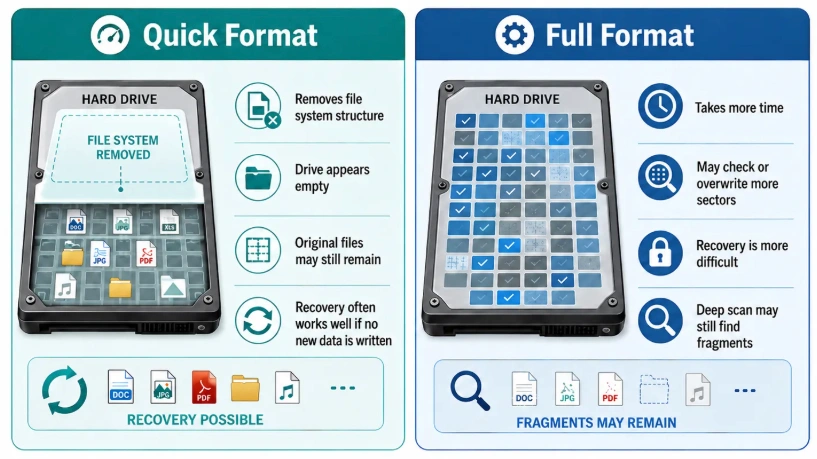
A quick format usually removes or replaces essential file system records and marks the storage space as available. The file contents may remain until new data uses those sectors. Therefore, 快速格式化資料恢復 is often possible when you stop using the drive immediately.

A full format is far more destructive. Microsoft states that a full format writes to every sector, while a quick format skips that full-sector writing process. Consequently, recovery after a current Windows full format is usually extremely limited or impractical.

情況

復甦前景

建議行動

Quick-formatted external HDD with no new data

更好

Scan the entire drive immediately

Full-formatted HDD in current Windows

非常低

Verify the format type and manage expectations

External SSD after formatting

More uncertain

Disconnect it and scan as soon as possible

Drive appears as RAW but remains detectable

Often logical data loss

Recover files before repairing the file system

HDD clicks, disappears, or does not spin

可能的硬體故障

Stop powering it on and contact a recovery lab

New files were copied after formatting

減少

Stop all writes and recover critical files first

快速格式化與完整格式化

what is the difference between quick format and full format

The words “formatted external hard drive” do not describe one identical event.

A 快速格式 creates a new file system structure without deliberately writing across every data sector. Although original filenames, directories, and folder paths may disappear, file content can remain recoverable.

By contrast, a 完整格式 on a modern Windows system writes across the volume. That difference directly affects whether you can recover data from a formatted external hard drive.

HDD 與 SSD 資料恢復比較

what is the difference between hdd and ssd

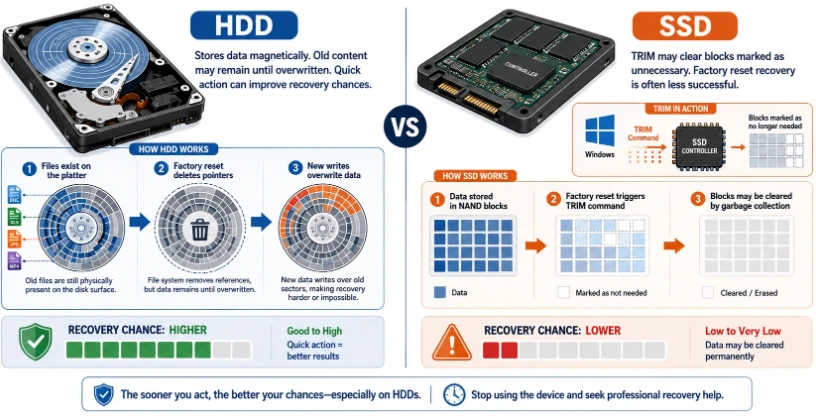
Traditional hard disk drives store information magnetically. After a quick format, untouched sectors may remain readable until another file overwrites them.

External SSDs behave differently. TRIM and internal garbage collection may clear blocks that the operating system marks as unused. Some USB bridge controllers do not pass TRIM commands consistently, so results vary by enclosure and device.

In either case, the safest response remains the same: disconnect the external drive and prevent new writes.

Accidentally Formatted External Hard Drive: How to Recover Safely

Before choosing a recovery method, stabilize the situation. Recovery software can only find information that remains on the storage device.

Follow these immediate steps:

  1. Stop using the external hard drive. Do not create folders, copy test files, or download anything to it.
  2. Disconnect it safely. Reconnect the drive only when you are ready to scan it.
  3. Identify what happened. Note whether you selected Quick Format, unchecked Quick Format, changed NTFS to exFAT, or used another operating system.
  4. 請準備另一顆硬碟。. The destination must have enough free space for all recovered data.
  5. 檢查是否有身體上的警示徵兆。. Clicking, grinding, repeated disconnections, burning smells, or failure to spin require professional help.
  6. 請勿先執行 CHKDSK。. Repair tools modify file system metadata and may make later recovery harder.
  7. Do not initialize or repartition the disk. Those actions write new structures to the affected storage device.

當使用者詢問 accidentally formatted external hard drive how to recover, the most important answer is not the name of a particular tool. It is the correct order:

Preserve the drive → recover the files → verify the results → repair or reformat the device.

Method 1: Recover Files with Magic Data Recovery

When no usable backup exists, scan-based recovery software is usually the most practical solution.

How to Recover Accidentally Formatted External Hard Drive with Magic Data Recovery

Magic Data Recovery is designed for logical data loss on Windows, including accidental formatting, file deletion, file system errors, RAW drives, and lost partitions. It can scan external hard drives and identify more than 5,000 file types. Its preview function also helps users verify file quality before saving the results.

支援 Windows 7/8/10/11 和 Windows Server

為什麼 Magic Data Recovery 適合此情況

An accidentally formatted external hard drive creates three common problems:

  • The original folders may disappear.
  • The previous file system may have been replaced.
  • Users may not know which files remain intact.

Magic Data Recovery addresses these problems through full-drive scanning, file-type filtering, preview, and recovery to a separate destination.

其主要優點包括

  • Support for formatted HDDs, external SSDs, USB storage, and memory cards.
  • Recovery of documents, photos, videos, audio, archives, emails, and project files.
  • A visual interface that does not require command-line knowledge.
  • 還原前的檔案預覽。.
  • Support for deletion, formatting, RAW file systems, and other logical errors.
  • A free testing allowance for checking recoverable files before purchasing a larger license.

The current product page states that the free edition can recover up to 500 MB of data.

Magic Data Recovery does not repair clicking hardware or guarantee the recovery of overwritten files. Instead, it provides a controlled way to evaluate a healthy, detectable drive after logical data loss.

步驟 1:將 Magic Data Recovery 安裝在狀態良好的磁碟上

請將 Magic Data Recovery 下載並安裝至電腦的內建系統磁碟機或其他狀態良好的儲存裝置上。.

支援 Windows 7/8/10/11 和 Windows Server

Never install the program on the accidentally formatted external hard drive. Installation creates new files, and writing those files to the affected disk could overwrite recoverable content.

Step 2: Select the Formatted External Hard Drive

Connect the external drive directly to a stable USB port. Avoid an unreliable USB hub when possible.

Open Magic Data Recovery and identify the device by its:

  • Storage capacity
  • Model name
  • 磁碟機代號
  • 分區資訊

Double-check your selection, especially when several external drives are connected.

Step 3: Scan the Entire Drive

開始掃描,並讓掃描完成。.

A formatted disk often requires deeper scanning because the new file system may no longer contain valid references to the previous files. Deep scanning searches the storage space for remaining file records and recognizable file signatures.

掃描期間:

  • Do not open the drive in File Explorer.
  • Do not run another disk utility.
  • Do not copy files to the affected device.
  • Keep the USB connection stable.

Interrupting the scan does not necessarily damage the disk, but a complete scan usually produces a more comprehensive result.

Step 4: Filter and Preview Found Files

Use file type, file size, date, name, and path filters to narrow the results.

Preview important:

  • 圖片
  • Word and Excel documents
  • PDFs
  • 影片
  • Audio recordings
  • 檔案
  • Design and project files

Folder paths do not always survive formatting. Therefore, inspect reconstructed folders and file-type-based result groups even when the original directory structure is missing.

Preview is especially valuable during 格式化硬碟機復原 because it helps distinguish usable files from incomplete or corrupted results.

Step 5: Recover Files to Another Physical Drive

Select the required files and choose another physical disk as the recovery destination.

不要

  • Save files back to the formatted external drive.
  • Create a new destination partition on the affected disk.
  • Use the same external disk for temporary storage.
  • Reformat the device before checking the recovered files.

After recovery, open several files from each important folder. Verify documents, play videos, inspect photos at full resolution, and test compressed archives.

For additional external-drive scenarios, read this guide to data recovery from an external hard drive.

Method 2: Restore Files from an Existing Backup

A valid backup is the cleanest recovery source because it does not depend on data remaining in unused disk sectors.

Check every location that may contain another copy:

  • Another external hard drive
  • 一台 NAS 裝置
  • Windows 檔案歷史
  • 視窗備份
  • OneDrive
  • Dropbox
  • Google Drive
  • Time Machine on a separate Mac backup disk
  • Application-specific backup folders
  • Exported project archives
  • Version-control repositories

Microsoft explains that File History can restore previously backed-up versions of personal files. Apple’s Time Machine can restore selected items, folders, or a backed-up environment. These options only work when the files were backed up before formatting and the erased external drive was not the only backup location.

Check your backups before starting a long scan. However, pause automatic synchronization first. A cloud application may otherwise synchronize deletions or overwrite an older copy.

使用 Windows 檔案歷史紀錄進行還原

在 Windows 上:

  1. 請連接存放「檔案歷史紀錄」備份的磁碟機。.
  2. 開啟控制台。.
  3. 選擇 系統與安全性.
  4. 開啟 檔案歷史.
  5. 選擇 還原個人檔案.
  6. Browse the available versions.
  7. Restore the required folders to a healthy drive.

File History cannot recreate files that were never included in a backup.

從雲端儲存還原

Sign in to the cloud service that previously synchronized the missing folders. Check:

  • 回收站或垃圾桶
  • 刪除的檔案
  • 版本歷史
  • 共用資料夾
  • Previous file versions
  • Archived project folders

Do not immediately enable synchronization on the newly formatted drive. Download restored files to a healthy location first.

Restore with Time Machine

Mac users can open Time Machine, browse the backup timeline, select files or folders, and restore them.

However, this method will not work when the accidentally formatted external drive was itself the only Time Machine backup disk. In that case, you must recover the backup files from another copy or scan the formatted disk.

方法 3:嘗試使用 Windows 檔案還原功能

Advanced Windows users can try Microsoft’s command-line Windows File Recovery application.

Microsoft supports recovery from internal drives, external drives, and USB devices. For an NTFS disk after formatting, Microsoft recommends Extensive mode. The source and destination must be different drives.

Suppose the formatted external hard drive is E: and the healthy recovery destination is D:. A filtered command could be:

  1. winfr E: D: /extensive /n *.docx /n *.xlsx /n *.jpg /n *.mp4

This command searches the E: drive for Word documents, Excel spreadsheets, JPEG images, and MP4 videos. It saves discovered files to a recovery folder on D:.

You can also search for a specific name:

  1. winfr E: D: /extensive /n *invoice*

Important limitations include:

  • No visual file preview
  • Command-line syntax
  • Potentially incomplete folder structures
  • Large numbers of unsorted results
  • Limited control for inexperienced users
  • Source and destination drives must be different

Windows File Recovery may suit technical users seeking a free Microsoft option. For most ordinary users, a visual external drive recovery software workflow with filtering and preview is easier to manage.

方法 4:使用專業的資料復原服務

Recovery software is appropriate for logical problems. A professional laboratory is safer when the drive shows physical failure symptoms or contains irreplaceable data.

Stop DIY attempts when:

  • The HDD clicks, grinds, beeps, or repeatedly spins down.
  • Windows and Disk Management cannot detect the device consistently.
  • The drive was dropped, flooded, burned, or exposed to an electrical surge.
  • Scanning causes repeated disconnections.
  • The enclosure or drive becomes unusually hot.
  • The disk contains critical legal, business, scientific, or personal data.
  • The external drive does not spin at all.

Repeatedly powering on a damaged HDD can worsen internal problems. Do not open the sealed drive body. Hard disks require a controlled environment because dust can damage the platter surface.

A professional service may image the drive, repair electronic components, or temporarily replace damaged internal parts. You can compare logical and physical cases in this 硬碟資料恢復服務指南.

您應該選擇哪種恢復方法?

方法

最適合

Main Benefit

主要限制

Magic Data Recovery

Quick format, RAW drive, missing files, no backup

Visual scan, filtering, preview, and broad file support

Requires another healthy destination

Backup restoration

Files copied before formatting

Clean and low-risk recovery

Only works when a valid backup exists

Windows 檔案復原

Windows 技術使用者

免費的 Microsoft 命令列工具

No visual preview and harder syntax

專業服務

Physical failure or highly valuable data

Hardware-level diagnosis and imaging

成本較高且週轉時間較長

For the typical accidentally formatted external hard drive how to recover situation, check backups first.

When no backup exists and the external drive remains stable and detectable, run external hard drive format recovery software. Choose a professional laboratory instead when physical failure is possible.

降低復原成功率的常見錯誤

Avoid the following actions until every important file has been recovered and verified.

重新格式化磁碟機

A second format does not restore the previous file system. Instead, it creates additional metadata and may further reduce recoverability.

Copying Test Files to the Drive

Users sometimes copy a small file to check whether the disk works. Even a small write can overwrite sectors containing part of an important photo, document, archive, or video.

Installing Recovery Software on the Affected Disk

Installation creates program files, logs, temporary files, and configuration data. Install the recovery application on the computer’s internal drive instead.

將復原的檔案儲存至相同的磁碟機

Recovering files to their original storage device can overwrite data that the scan has not yet restored. Always select another physical disk.

在執行復原之前執行 CHKDSK

CHKDSK attempts to repair file system structures. It may change directory entries, allocation records, and other metadata.

Recover the files first. Repair the file system only after securing the data.

Creating New Partitions

Partitioning writes new structural information to the disk. It does not unformat an external hard drive, and it may complicate subsequent scanning.

Repeatedly Scanning a Failing HDD

A healthy formatted drive can usually tolerate scanning. A clicking, overheating, or unstable hard disk may deteriorate during repeated attempts.

Assuming Every Found File Is Intact

A filename in the result list does not prove that the file content remains complete. Preview files and open recovered copies before considering the process successful.

What to Do After Recovering the Files

First, verify the recovered data.

  • Open representative documents.
  • Play several videos from beginning to end.
  • Inspect photos at full resolution.
  • Extract important ZIP or RAR archives.
  • Test project files in their original applications.
  • Compare recovered file sizes with expected sizes.

Next, create at least two copies of critical files before repairing the original external drive.

If the drive is physically healthy, you can reformat it using an appropriate file system:

NTFS:Choose NTFS for Windows-focused storage, large files, file permissions, and other Windows features.

exFAT:Choose exFAT when you frequently move large files between Windows and macOS.

APFS:Choose APFS for storage that will mainly be used with current Mac systems.

FAT32:FAT32 provides broad device compatibility, but it cannot store an individual file larger than 4 GB.

Finally, examine the drive’s health. Replace the device when errors return, the connection remains unstable, or the disk repeatedly becomes inaccessible.

When Windows continually displays a formatting prompt or the disk becomes RAW again, recover the files first. Then review this RAW 硬碟資料恢復指南 在嘗試維修之前,請先檢查您的電腦。.

How to Prevent Another Accidental Format

A reliable prevention strategy should not depend on remembering to click the correct drive every time.

Use these practices:

  1. Give every external disk a descriptive volume label.
  2. Disconnect backup drives when they are not in use.
  3. Keep at least three copies of critical files.
  4. Store the copies on at least two types of media.
  5. Maintain one offline or off-site backup.
  6. Enable File History, Time Machine, or another versioned backup system.
  7. Confirm the disk model and capacity before formatting.
  8. Review the selected file system before starting.
  9. Avoid formatting from an account used for routine work.
  10. Test backup restoration periodically.

A backup is only reliable when you can restore data from it.

總結

當您面對 accidentally formatted external hard drive how to recover, stop using the disk before trying anything else. A valid backup provides the safest recovery path. Windows File Recovery can help experienced users, while a professional service remains the correct choice for physical damage.

For a healthy external drive affected by quick formatting, file deletion, RAW status, or file system errors, Magic Data Recovery offers a practical balance of deep scanning, filtering, preview, and broad file support.

It does not make unrealistic promises. Instead, it helps you assess what remains recoverable before saving files to a safe destination. For more prevention, diagnosis, and recovery guidance, return to the formatted drive recovery hub.

支援 Windows 7/8/10/11 和 Windows Server

FAQs About Accidentally Formatted External Hard Drive Recovery

I accidentally formatted my external hard drive. Can I recover everything?

You may recover many files after a quick format if you stopped using the drive immediately. However, no tool can promise complete recovery because new writes, fragmentation, damaged sectors, encryption, and the format method affect the result. Scan the entire disk, preview important files, and save recovered data to another physical drive.

Does quick formatting permanently erase an external hard drive?

A quick format normally rebuilds essential file system structures and marks the previous storage space as available. It does not perform the same full-sector writing process as a full format. Therefore, old files may remain recoverable until new data overwrites them. Disconnect the drive and begin recovery before copying anything back.

Can I recover data after a full format?

Recovery after a full format is much less likely. On current Windows systems, a full format writes to every sector, which overwrites previous content rather than only resetting file system records. You may still verify what happened or consult a specialist for critical cases, but expectations should remain low when the entire volume was overwritten.

Is it safe to use CHKDSK after accidentally formatting the drive?

Do not run CHKDSK before recovering important files. CHKDSK repairs file system structures and may change metadata, directory entries, or allocation information that recovery software could otherwise analyze. Recover and verify your data first. Afterward, you may repair or reformat the drive if hardware diagnostics show that the device remains healthy.

Can Magic Data Recovery recover a formatted external hard drive?

Magic Data Recovery can scan external hard drives affected by quick formatting, deletion, RAW file systems, partition loss, and other logical errors. It supports preview and recovery to another drive. Results still depend on overwriting, disk condition, encryption, and format type, so stop using the device and scan it as soon as possible.

Can I recover files from a formatted external SSD?

Possibly, but SSD recovery can be more difficult than HDD recovery because TRIM and garbage collection may clear blocks that the operating system marks as unused. Disconnect the SSD immediately and avoid further writes. Scan it from another Windows drive, and save any recoverable files to a different physical device.

Why are recovered filenames or folders missing?

Formatting may replace the file system records that stored original names, folder paths, timestamps, and allocation details. A deep scan can identify files through signatures even when that metadata is gone. As a result, recovered items may appear in reconstructed folders or use generated names, although the file content itself may still open correctly.

我應該使用軟體還是專業的復原服務?

Use software when the external drive remains stable, appears in Windows, and the loss followed quick formatting or another logical error. Choose a professional service when the HDD clicks, was dropped, disconnects during scans, or contains irreplaceable data. Continuing DIY scans on failing hardware can increase damage and reduce later recovery options.

Jason 在電腦資料安全產業擁有超過 15 年的實務經驗。他專精於資料復原、備份與還原,以及檔案修復技術,已協助全球數百萬使用者解決複雜的資料遺失與安全問題。.