
SD-Wiederherstellung: Dateien von der SD-Karte wiederherstellen
Der Verlust von Fotos, Videos oder Dokumenten auf einer SD-Karte kann ein dringendes Problem darstellen. Panikartige Klicks, wiederholtes Anschließen und eine voreilige Formatierung können die Wiederherstellung jedoch erschweren. SD-Wiederherstellung Das funktioniert am besten, wenn Sie die Karte nicht mehr verwenden, die Originaldaten sichern und sie vor der Reparatur einscannen.
Dieser Leitfaden erklärt, wie SD-Wiederherstellung wie es funktioniert, was man zuerst tun muss und wie man Verlorene Dateien von der SD-Karte wiederherstellen sicher. Sie werden auch lernen, wann Wiederherstellung einer formatierten SD-Karte wie es funktionieren könnte, wie man mit beschädigten Karten umgeht und warum Magic Data Recovery ist ein praktisches Hilfsmittel für die sichere SD-Karten-Wiederherstellung.
Unterstützt Windows 7/8/10/11 und Windows Server
Inhaltsübersicht
Was ist SD-Wiederherstellung?
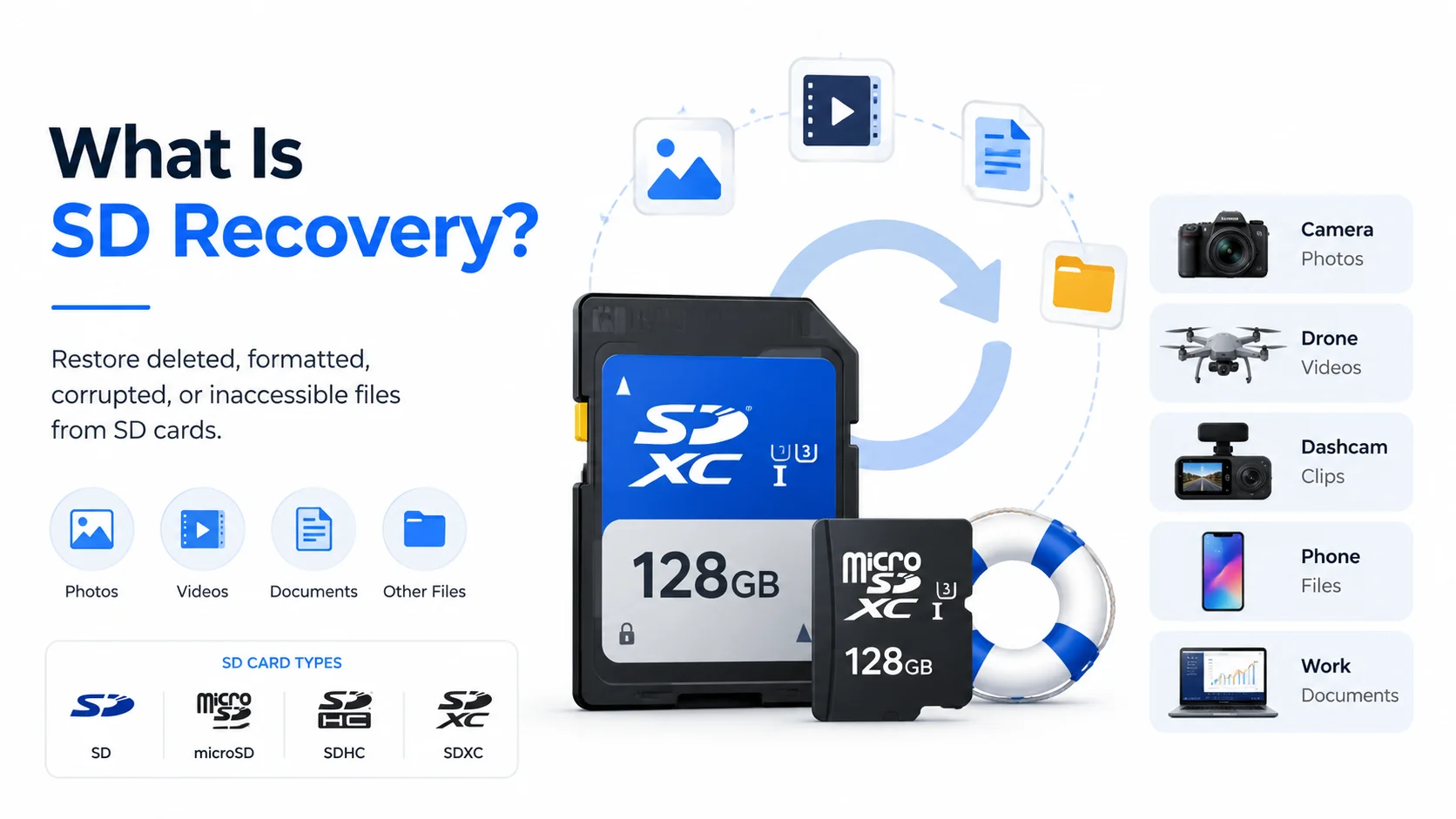
SD-Wiederherstellung bedeutet die Wiederherstellung gelöschter, formatierter, beschädigter oder unzugänglicher Dateien von einer SD-Karte, microSD-Karte, SDHC-Karte oder SDXC-Karte. Auf diesen Karten werden häufig Fotos von Kameras, Drohnenvideos, Dashcam-Aufnahmen, Dateien vom Smartphone und Arbeitsdokumente gespeichert.
In vielen Fällen bleibt der Dateiinhalt nach dem Löschen noch eine Weile auf der Karte erhalten. Die Karte kennzeichnet den alten Speicherplatz lediglich als verfügbar. Daher kann eine Wiederherstellungssoftware verlorene Daten oft noch finden, bevor sie durch neue Dateien überschrieben werden. Schnelle Formatierung funktioniert auf ähnliche Weise. Es verändert das Dateisystem, löscht jedoch möglicherweise nicht jede Datei sofort.
Dennoch kann kein Tool Daten wiederherstellen, die vollständig überschrieben wurden. Aus diesem Grund lautet die erste Regel von Software zur Wiederherstellung von Speicherkarten Das ist ganz einfach: Verwenden Sie die Karte nicht mehr, bevor Sie sie einscannen.
Starten Sie die Kartenwiederherstellung auf die richtige Art und Weise
Bevor Sie eine Wiederherstellungsmethode ausprobieren, entfernen Sie die Karte aus Ihrer Kamera, Ihrem Smartphone, Ihrer Drohne oder Ihrem Aufnahmegerät. Formatieren Sie die Karte anschließend nicht, auch wenn Windows Sie dazu auffordert. Verwenden Sie außerdem keine Reparaturtools, bis Sie wichtige Dateien wiederhergestellt haben.
Schließen Sie die Karte anschließend mit einem zuverlässigen Lesegerät an Ihren Computer an. Scannen Sie sie mit einer Wiederherstellungssoftware und speichern Sie die wiederhergestellten Dateien auf einem anderen Laufwerk. Speichern Sie die Ergebnisse auf keinen Fall wieder auf derselben SD-Karte.
Diese Schritte verringern das Risiko einer Überschreibung. Außerdem bleibt die Originalkarte währenddessen unverändert. SD-Wiederherstellung. Sollte sich die Karte heiß anfühlen, Risse aufweisen oder Ihren Computer zum Absturz bringen, sollten Sie Ihre eigenen Reparaturversuche einstellen und professionelle Hilfe in Anspruch nehmen.
Wann kann eine Kartenwiederherstellung funktionieren?
Die Chancen auf eine Wiederherstellung hängen von der Ursache des Datenverlusts ab. Dennoch bestehen in vielen Fällen gute Aussichten, wenn Sie schnell handeln.
Situation | Chance auf Erholung | Beste Aktion |
Gelöschte Fotos oder Videos | Hoch, sofern nicht überschrieben | Die Karte nicht mehr verwenden und einscannen |
Schnelles Format | Mittel bis hoch | Tiefenscan verwenden und Dateien in der Vorschau anzeigen |
RAW-Karte oder beschädigte Karte | Mittel | Dateien vor der Reparatur wiederherstellen |
Die Karte erfordert eine Formatierung | Mittel | Zuerst Formatierung aufheben und scannen |
Vollständiges Format oder umfassende Wiederverwendung | Niedrig | Probieren Sie einen Scan aus, rechnen Sie jedoch mit Einschränkungen |
Physische Schäden | Unklar | Nutzen Sie professionelle Hilfe bei der Genesung |
Ein Fotograf, der beispielsweise einen Ordner löscht und dann nicht mehr fotografiert, kann möglicherweise viele Dateien wiederherstellen. Ein Benutzer hingegen, der formatiert die Karte und bei der Aufnahme neuer 4K-Videos können möglicherweise einige Daten dauerhaft verloren gehen. Daher ist es wichtig, realistische Erwartungen zu haben, während Wiederherstellung einer beschädigten SD-Karte.
Die beste SD-Wiederherstellungssoftware: Warum sollten Sie sich für Magic Data Recovery entscheiden?
Viele Nutzer suchen nach dem Die beste Software zur Datenwiederherstellung auf SD-Karten oder Kostenlose Software zur Wiederherstellung von SD-Karten nach dem Verlust von Dateien. Einige Tools bieten nur eine kostenlose Scan-Funktion, während andere Kenntnisse im Umgang mit der Befehlszeile erfordern. Im Gegensatz dazu bietet Magic Data Recovery normalen Nutzern einen übersichtlichen Arbeitsablauf mit Scan, Vorschau und Wiederherstellung.
Magic Data Recovery hilft bei der Wiederherstellung von Dateien von SD-Karten, microSD-Karten, USB-Sticks, Festplatten, SSDs und anderen Speichermedien. Es unterstützt gängige Dateiformate, darunter Fotos, Videos, Audiodateien, Dokumente, Archive und Kamera-RAW-Dateien. Daher eignet es sich für konkrete Anwendungsfälle, beispielsweise bei Kameras SD-Karte Foto Wiederherstellung zur Wiederherstellung von Drohnenvideos.
Das Tool löst drei zentrale Probleme. Erstens scannt es gelöschte, formatierte oder unzugängliche Speicherkarten. Zweitens ermöglicht es den Nutzern eine Vorschau der Dateien, bevor diese gespeichert werden. Drittens vermeidet es komplizierte technische Schritte. So benötigt beispielsweise ein Fotograf möglicherweise gelöschte RAW-Dateien, während ein Drohnennutzer verlorene MP4-Videos wiederherstellen möchte. In beiden Fällen bietet Magic Data Recovery einen praktischen Weg zur Wiederherstellung, ohne dass zunächst eine Reparatur erforderlich ist.
So verwenden Sie Magic Data Recovery für SD-Wiederherstellung
Befolgen Sie diese Schritte, um Dateien sicher wiederherzustellen.
Schritt 1: Herunterladen und Installieren der Software
Laden Sie Magic Data Recovery von der offiziellen Amagicsoft auf der unten angegebenen Website. Installieren Sie das Programm anschließend auf Ihrem Computer und nicht auf der betroffenen SD-Karte. Dies ist wichtig, da eine Installation auf dem beschädigten Speichermedium dazu führen kann, dass verlorene Dateien überschrieben werden.
Unterstützt Windows 7/8/10/11 und Windows Server
Schritt 2: Verbinden Sie die SD-Karte und wählen Sie die zu scannende Karte aus
Stecken Sie die SD-Karte in ein zuverlässiges Kartenlesegerät und schließen Sie dieses an Ihren PC an. Falls Windows Sie auffordert, die Karte zu formatieren, klicken Sie auf „Abbrechen“. Öffnen Sie anschließend Magic Data Recovery und wählen Sie die gewünschte SD-Karte aus, um mit der Suche nach verlorenen Dateien zu beginnen.

Schritt 3: Warten, bis der Scan abgeschlossen ist
Die Software führt automatisch einen erweiterten Scan durch. Währenddessen listet sie alle wiederherstellbaren Dateien auf, während der Scan fortschreitet.

Schritt 4: Vorschau Dateien
Sehen Sie sich nach dem Scan Fotos, Videos, Dokumente und andere Dateien in der Vorschau an. Dieser Schritt hilft Ihnen dabei, die benötigten Dateien auszuwählen und beschädigte Dateien zu vermeiden.

Schritt 5: Wiederherstellen die Dateien
Speichern Sie die ausgewählten Dateien abschließend auf einem anderen Laufwerk. Speichern Sie wiederhergestellte Dateien während des Vorgangs niemals wieder auf derselben SD-Karte. SD-Wiederherstellung.

Tipps zur Verbesserung der Erholungsergebnisse
Mit einigen umsichtigen Gewohnheiten können Sie die Ergebnisse verbessern. Handeln Sie zunächst umgehend nach dem Löschen, Formatieren oder bei einer Beschädigung der Karte. Vermeiden Sie anschließend das Speichern neuer Dateien auf der Karte. Führen Sie vor der Reparatur oder Formatierung einen Scan durch. Formatieren Sie SD-Karten nach der Wiederherstellung im ursprünglichen Gerät, entfernen Sie die Karten sicher und sichern Sie wichtige Dateien nach jedem Shooting oder jeder Reise.
Fazit: Entscheiden Sie sich für eine sicherere Lösung zur SD-Karten-Wiederherstellung
SD-Wiederherstellung Das funktioniert am besten, wenn Sie schnell handeln, die Originalkarte schützen und ein Tool verwenden, das vor dem Vornehmen von Änderungen einen Scan durchführt. Gelöschte Dateien, schnell formatierte Karten, RAW-Karten und beschädigte Speicherkarten können möglicherweise noch wiederherstellbare Daten enthalten. Unachtsames Vorgehen kann Ihre Chancen jedoch verringern.
Magic Data Recovery ist empfehlenswert, da es echte Probleme der Nutzer löst. Es bietet einen übersichtlichen Arbeitsablauf, unterstützt gängige Foto- und Videoformate, ist mit SD- und microSD-Karten kompatibel und ermöglicht es den Nutzern, eine Vorschau der Dateien anzuzeigen, bevor Dateien von der SD-Karte wiederherstellen. Wenn Sie eine effizientere und einsteigerfreundlichere SD-Wiederherstellung Als Lösung sollten Sie zunächst Magic Data Recovery ausprobieren, bevor Sie riskantere Reparaturmaßnahmen ergreifen.
Unterstützt Windows 7/8/10/11 und Windows Server
Häufig gestellte Fragen zur SD-Wiederherstellung
Was ist SD-Wiederherstellung?
Unter SD-Wiederherstellung versteht man den Vorgang der Wiederherstellung gelöschter, formatierter, beschädigter oder nicht mehr zugänglicher Dateien von SD-Karten, microSD-Karten, SDHC-Karten und SDXC-Karten. Die Wiederherstellung gelingt am besten, wenn die verlorenen Daten noch auf der Karte vorhanden sind. Daher sollten Sie die Karte sofort nicht mehr verwenden und sie scannen, bevor Sie neue Dateien darauf speichern.
Kann ich gelöschte Dateien von einer SD-Karte kostenlos wiederherstellen?
Einige Programme bieten eine kostenlose Überprüfung an, während andere eine begrenzte kostenlose Wiederherstellung ermöglichen. Die kostenlosen Funktionen variieren jedoch je nach Produkt. Bevor Sie sich auf ein Programm verlassen, sollten Sie die Karte scannen und eine Vorschau der Ergebnisse anzeigen. Wenn die Dateien wiederherstellbar erscheinen, wählen Sie eine Methode, mit der Sie sie sicher auf einem anderen Laufwerk speichern können.
Können Daten von einer formatierten SD-Karte wiederhergestellt werden?
Ja, die Wiederherstellung von Daten auf einer formatierten SD-Karte kann nach einer Schnellformatierung funktionieren, insbesondere wenn Sie die Karte noch nicht wiederverwendet haben. Eine vollständige Formatierung oder neue Aufnahmen können jedoch alte Dateien überschreiben. Um das bestmögliche Ergebnis zu erzielen, sollten Sie die Karte nicht weiter verwenden, einen Tiefenscan durchführen und die wiederhergestellten Dateien an einem anderen Ort speichern.
Eignet sich Magic Data Recovery zur Wiederherstellung von SD-Daten?
Magic Data Recovery ist eine praktische Wahl für die Wiederherstellung von SD-Karten, da es gelöschte, formatierte und beschädigte Karten unterstützt. Außerdem können Nutzer vor dem Speichern eine Vorschau der wiederherstellbaren Dateien anzeigen. So können auch Anfänger Fotos, Videos, Dokumente und RAW-Dateien überprüfen, ohne komplizierte Befehlszeilentools verwenden zu müssen.
Kann ich Fotos und Videos von der SD-Karte einer Kamera wiederherstellen?
Ja, Fotos und Videos von der Kamera lassen sich oft wiederherstellen, sofern sie nicht durch neue Daten überschrieben wurden. Beenden Sie die Aufnahme, entfernen Sie die Speicherkarte und scannen Sie sie mit einer Wiederherstellungssoftware. Diese Vorgehensweise eignet sich für JPG-Bilder, RAW-Fotos, MP4-Videos, MOV-Dateien und andere gängige Medienformate von Kameras.
Was soll ich tun, wenn meine SD-Karte den Status „RAW“ anzeigt oder beschädigt ist?
Formatieren Sie die Karte nicht zuerst. Schließen Sie sie stattdessen an ein zuverlässiges Kartenlesegerät an und scannen Sie sie mit einer Wiederherstellungssoftware. Nachdem Sie wichtige Dateien wiederhergestellt haben, können Sie die Karte reparieren oder neu formatieren. Diese Reihenfolge verringert das Risiko, da Reparaturmaßnahmen das Dateisystem verändern können.
Wo sollte ich wiederhergestellte SD-Kartendateien speichern?
Speichern Sie die wiederhergestellten Dateien auf Ihrem Computer, einer externen Festplatte oder einem anderen sicheren Speichermedium. Speichern Sie sie während der Wiederherstellung nicht erneut auf derselben SD-Karte. Andernfalls könnten Sie Dateien überschreiben, die die Software noch nicht wiederhergestellt hat, was zu schlechteren Wiederherstellungsergebnissen führen kann.

Vasilii ist ein Datenrettungsspezialist mit rund 10 Jahren praktischer Erfahrung in diesem Bereich. Im Laufe seiner Karriere hat er Tausende von komplexen Fällen mit gelöschten Dateien, formatierten Laufwerken, verlorenen Partitionen und RAW-Dateisystemen erfolgreich gelöst. Sein Fachwissen umfasst sowohl manuelle Wiederherstellungsmethoden mit professionellen Tools wie Hex-Editoren als auch fortschrittliche automatische Lösungen mit Wiederherstellungssoftware. Vasilii hat es sich zur Aufgabe gemacht, zuverlässiges Wissen zur Datenwiederherstellung sowohl IT-Fachleuten als auch normalen Nutzern zugänglich zu machen und ihnen dabei zu helfen, ihre wertvollen digitalen Ressourcen zu schützen.