
Anleitung zum Wiederherstellen gelöschter Dateien unter Windows 11
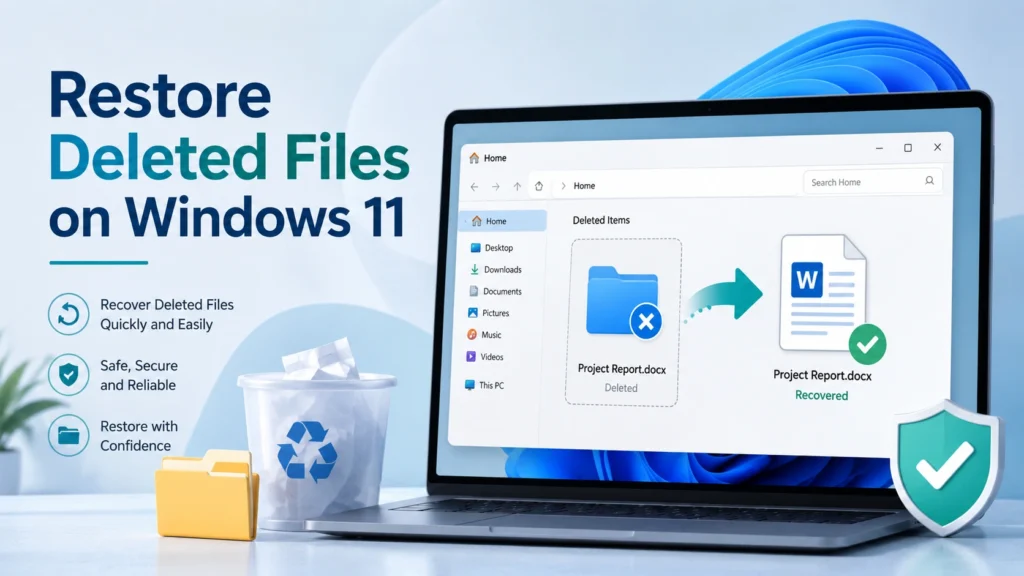
Das versehentliche Löschen wichtiger Dateien kann sehr stressig sein, vor allem, wenn man sie im Papierkorb nicht mehr findet. Die gute Nachricht ist, dass es noch mehrere sichere Möglichkeiten gibt, gelöschte Dateien wiederherstellen unter Windows 11, sofern Sie schnell handeln und vermeiden, neue Daten auf das betroffene Laufwerk zu schreiben. In dieser Anleitung wird erläutert, wie das Löschen unter Windows funktioniert, welche integrierten Optionen Sie zuerst ausprobieren sollten und wann ein spezielles gelöschte dateien wiederherstellen lösung ist die sicherere Wahl.
Wenn Sie Folgendes benötigen Gelöschte Dateien unter Windows 11 wiederherstellen Da Nutzer Daten häufig nach dem Leeren des Papierkorbs, dem Formatieren eines Laufwerks oder der Behebung eines Dateisystemfehlers verlieren, lautet die wichtigste Regel ganz einfach: Verwenden Sie das Laufwerk sofort nicht mehr. Neue Downloads, Softwareinstallationen, Updates oder gespeicherte Dateien können die gelöschten Daten überschreiben und die Chancen auf eine Wiederherstellung verringern.
Inhaltsübersicht
Warum gelöschte Dateien möglicherweise noch wiederherstellbar sind
Wenn Sie in Windows 11 eine Datei löschen, entfernt das System in der Regel den Dateieintrag aus der normalen Ansicht. Der eigentliche Dateiinhalt wird jedoch möglicherweise nicht sofort vom Speicherplatz gelöscht. Stattdessen kennzeichnet Windows diesen Speicherplatz als verfügbar für neue Daten.
Aus diesem Grund Windows stellt gelöschte Dateien wieder her Diese Methoden können in vielen Fällen funktionieren. Der Erfolg der Wiederherstellung hängt jedoch von mehreren Faktoren ab:
- Ob sich die Datei noch im Papierkorb befindet
- Ob „Dateiversionsverlauf“ oder eine andere Sicherung vorhanden ist
- Ob OneDrive die Datei synchronisiert hat
- Ob der Speicherplatz der gelöschten Datei durch neue Daten überschrieben wurde
- Ob das Laufwerk Dateisystemfehler oder physische Schäden aufweist
Vermeiden Sie daher willkürliche Reparaturversuche. Formatieren Sie das Laufwerk nicht erneut. Führen Sie vor der Wiederherstellung keine Tools zur Festplattenreparatur aus. Installieren Sie außerdem keine Wiederherstellungssoftware auf demselben Laufwerk, auf dem die gelöschten Dateien gespeichert waren.
Die beste Vorgehensweise zum Wiederherstellen gelöschter Dateien unter Windows 11
Bevor Sie fortgeschrittene Tools einsetzen, befolgen Sie bitte die unten aufgeführte, sicherste Reihenfolge der Wiederherstellungsmaßnahmen. Dieser Ansatz hilft Ihnen, unnötige Risiken zu vermeiden, und gibt einfachen Methoden zunächst eine Chance, zu funktionieren.
Prüfen Sie zuerst den Papierkorb
Der Papierkorb ist der schnellste Weg, um gelöschte Dateien wiederherstellen wenn Sie sie auf normale Weise von einer internen Festplatte gelöscht haben.
Schritte:
- Öffnen Sie den Papierkorb auf dem Desktop.
- Suchen Sie nach dem Namen der gelöschten Datei oder des gelöschten Ordners.
- Klicken Sie mit der rechten Maustaste auf das Element.
- Wählen Sie Wiederherstellen.
- Überprüfen Sie den ursprünglichen Speicherort des Ordners.
Diese Methode eignet sich am besten für kürzlich gelöschte Dateien. Sie hilft jedoch möglicherweise nicht, wenn Sie die Tastenkombination „Umschalt + Entf“ verwendet, den Papierkorb geleert, Dateien von einem Wechseldatenträger gelöscht oder reine OneDrive-Dateien aus der Cloud entfernt haben.
„Originalordner“ und „Windows durchsuchen“ aktivieren
Manchmal ist die Datei zwar noch vorhanden, lässt sich aber aufgrund der Windows-Suche, geänderter Verknüpfungen oder verschobener Ordner nur schwer finden. Bevor Sie eine Wiederherstellungssoftware einsetzen, sollten Sie sorgfältig suchen.
Probieren Sie folgende Maßnahmen aus:
- Öffnen Sie den Datei-Explorer und suchen Sie nach dem Dateinamen.
- Suche nach Dateiendung, z. B. .docx, .xlsx, .jpg, .pdf oder .mp4.
- Überprüfen Sie den Desktop, den Ordner „Downloads“, „Dokumente“, „Bilder“ sowie benutzerdefinierte Projektordner.
- Ordner nach Änderungsdatum sortieren.
- Prüfen Sie, ob die Datei in einem anderen Benutzerkonto vorhanden ist.
Dieser Schritt mag einfach klingen, verhindert jedoch unnötige Wiederherstellungsversuche, falls die Datei lediglich verschoben und nicht gelöscht wurde.
Gelöschte Dateien aus dem Dateiverlauf wiederherstellen
Wenn die Dateiversionsgeschichte vor dem Löschen aktiviert war, können ältere Versionen von Dateien und Ordnern wiederhergestellt werden. Diese Methode eignet sich gut für Dokumente, Schulunterlagen, Geschäftsunterlagen und Projektordner.
Schritte:
- Öffnen Sie den Ordner, in dem sich die gelöschte Datei zuvor befand.
- Klicken Sie mit der rechten Maustaste in den Ordner.
- Wählen Sie „Eigenschaften“.
- Öffnen Sie die Registerkarte Vorgängerversionen.
- Wählen Sie eine Version aus, die vor der Löschung erstellt wurde.
- Klicken Sie auf „Wiederherstellen“ oder kopieren Sie die Datei an einen anderen Speicherort.
Die Dateiversionsgeschichte kann nicht helfen, wenn Sie sie nie aktiviert haben. Dennoch lohnt es sich, dies zu überprüfen, bevor Sie zu weitergehenden Wiederherstellungsmaßnahmen übergehen.
Gelöschte OneDrive-Dateien wiederherstellen
Wenn Ihre Ordner „Desktop“, „Dokumente“ oder „Bilder“ mit OneDrive synchronisiert werden, befinden sich Ihre gelöschten Dateien möglicherweise im OneDrive-Papierkorb und nicht im lokalen Windows-Papierkorb.
Schritte:
- Rufen Sie OneDrive online auf.
- Melden Sie sich mit demselben Microsoft-Konto an.
- Öffnen Sie den Papierkorb.
- Wählen Sie die gelöschten Dateien oder Ordner aus.
- Klicken Sie auf Wiederherstellen.
Diese Methode ist besonders nützlich für Nutzer, die auf mehreren Geräten arbeiten. Da die Cloud-Wiederherstellung jedoch Aufbewahrungsfristen unterliegt, sollten Sie nicht zu lange warten.
Versuchen Sie Windows File Recovery
„Windows File Recovery“ ist ein Microsoft-Befehlszeilentool zur Wiederherstellung gelöschter Dateien von lokalen Speichergeräten. Es kann hilfreich sein, wenn Dateien nicht mehr im Papierkorb zu finden sind, könnte für normale Benutzer jedoch etwas zu technisch sein.
Ein grundlegendes Befehlsformat sieht wie folgt aus:
winfr Quelllaufwerk: Ziellaufwerk: /Modus /Schalter
Wenn Sie beispielsweise gelöschte Dokumente von Laufwerk C: auf Laufwerk E: wiederherstellen möchten, könnten Sie einen Befehl verwenden, der auf den Ordner „Dokumente“ abzielt und die wiederhergestellten Dateien auf einem anderen Laufwerk speichert.
Dieses Tool weist für viele Nutzer zwei wesentliche Einschränkungen auf:
- Es verwendet eine Befehlszeilensyntax, was verwirrend sein kann.
- Sie müssen das richtige Quelllaufwerk, das Ziellaufwerk, den Modus und die Filter kennen.
Aus diesem Grund eignet sich „Windows File Recovery“ zwar für technisch versierte Nutzer, doch viele normale Nutzer bevorzugen einen visuellen Arbeitsablauf mit Scan- und Vorschau-Funktion.
Wenn integrierte Methoden nicht ausreichen
Die integrierten Tools funktionieren am besten, wenn sich die Datei noch im Papierkorb, im Sicherungsverlauf oder im Cloud-Speicher befindet. In schwierigeren Situationen versagen sie jedoch häufig.
Möglicherweise benötigen Sie spezielle Wiederherstellungssoftware, wenn:
- Sie haben den Papierkorb geleert.
- Sie haben Shift + Delete verwendet.
- Sie haben Dateien von einem USB-Stick, einer SD-Karte oder einer externen Festplatte gelöscht.
- Das Laufwerk wurde versehentlich formatiert.
- Windows fordert Sie auf, das Laufwerk vor der Verwendung zu formatieren.
- Das Dateisystem weist Fehler auf.
- Ein Virus oder ein unerwarteter Systemabsturz hat Dateien gelöscht.
- Sie müssen die Dateien vor der Wiederherstellung in der Vorschau anzeigen.
In dieser Phase ändert sich das Ziel. Es geht nicht mehr nur darum, einen Dateinamen zu finden. Sie müssen das Speichermedium sicher scannen, die Qualität der Dateien überprüfen und die Daten an einem anderen Speicherort wiederherstellen.
Für Nutzer, die kostenlose Tools vergleichen, ist dies Leitfaden für kostenlose Datenwiederherstellungs-Freeware kann auch dazu beitragen, zu erklären, warum Vorschau, Scantiefe und Speicherort für die Wiederherstellung eine Rolle spielen.
Warum Magic Data Recovery eine praktische Wahl ist
Magic Data Recovery ist nützlich, wenn die in Windows integrierten Methoden nicht gelöschte Dateien wiederherstellen erfolgreich. Es unterstützt die Wiederherstellung nach Löschung, Formatierung, Dateisystemfehlern, Partitionsverlust, Virenschäden und anderen häufigen Datenverlustszenarien.
Der größte Vorteil ist der geführte Arbeitsablauf. Anstatt Befehle einzugeben, können Sie ein Laufwerk scannen, eine Vorschau der wiederherstellbaren Dateien anzeigen, nur die gewünschten Dateien auswählen und die wiederhergestellten Daten an einem anderen sicheren Speicherort speichern.
Kernprobleme, die es löst
Magic Data Recovery hilft in praktischen Situationen wie zum Beispiel:
- Wiederherstellen von Dateien nach dem Leeren des Papierkorbs
- Gelöschte Dateien unter Windows 11, Windows 10 und anderen Windows-Systemen wiederherstellen
- Verlorene Dokumente, Fotos, Videos, Archive und Office-Dateien wiederfinden
- Wiederherstellung von Dateien von formatierten Laufwerken oder unzugänglichen Partitionen
- Externe Laufwerke, USB-Sticks, Speicherkarten und lokale Festplatten scannen
- Vorschau der Dateien vor der Wiederherstellung, um die Wiederherstellung unbrauchbarer Daten zu vermeiden
Dadurch passt es besser, wenn grundlegende Windows stellt gelöschte Dateien wieder her Die Methoden liefern keine Ergebnisse.
Warum diese Methode zuverlässiger sein kann als herkömmliche Verfahren
Der Papierkorb funktioniert nur, wenn Windows das gelöschte Element noch dort speichert. Die Dateiversionsgeschichte funktioniert nur, wenn Sie die Sicherung aktiviert hatten, bevor die Datei verschwunden ist. Die Windows-Dateiwiederherstellung kann helfen, erfordert jedoch Befehle über die Befehlszeile.
Magic Data Recovery bietet einen benutzerfreundlicheren Wiederherstellungsprozess:
- Wählen Sie das Laufwerk aus, auf dem die Dateien verloren gegangen sind.
- Führen Sie einen Scan durch.
- Dokumente, Fotos, Videos und andere Dateien in der Vorschau anzeigen.
- Wählen Sie die benötigten Dateien aus.
- Stellen Sie sie auf einem anderen Laufwerk wieder her.
Dieser Vorgang reduziert das Rätselraten. Außerdem hilft er den Benutzern, einen häufigen Fehler zu vermeiden: die Wiederherstellung von Dateien an denselben Speicherort, wodurch andere gelöschte Daten überschrieben werden.
Bei Fällen, in denen Daten von einer Festplatte gelöscht wurden, können Sie auch diese Anleitung zum Thema lesen, in der erklärt wird, wie man Gelöschte Dateien auf der Festplatte wiederherstellen.
So stellen Sie gelöschte Dateien mit Magic Data Recovery wieder her
Befolgen Sie diese Schritte, falls der Papierkorb, die Datensicherung und die Cloud-Wiederherstellung das Problem nicht beheben.
Schritt 1: Beenden Sie die Verwendung des betroffenen Laufwerks
Beenden Sie vor dem Scanvorgang das Speichern von Dateien auf dem betroffenen Laufwerk. Befanden sich die gelöschten Dateien auf Laufwerk C:, sollten Sie keine neuen Programme installieren, keine großen Dateien herunterladen und keine Systemaktualisierungen durchführen.
Schließen Sie das Laufwerk nach Möglichkeit an einen anderen Windows-Computer an und scannen Sie es dort.
Schritt 2: Magic Data Recovery auf einem sicheren Laufwerk installieren
Installieren Sie Magic Data Recovery auf einem anderen Laufwerk als dem, auf dem die Dateien verloren gegangen sind. Wenn Sie beispielsweise Dateien von einem externen Laufwerk gelöscht haben, installieren Sie die Software auf dem internen Laufwerk Ihres Computers.
Unterstützt Windows 7/8/10/11 und Windows Server
Sie können dem offiziellen Magic Data Recovery Benutzerhandbuch falls Sie einen detaillierten Produkt-Workflow benötigen.
Schritt 3: Wählen Sie den Ort der verlorenen Daten
Öffnen Sie das Programm und wählen Sie die Festplatte, Partition, den USB-Stick, die Speicherkarte oder das externe Laufwerk aus, auf dem die gelöschten Dateien gespeichert waren.
Wenn Sie den genauen Ordner nicht kennen, scannen Sie die gesamte Partition. Ein vollständiger Scan dauert zwar länger, bietet aber eine umfassendere Abdeckung.

Schritt 4: Scannen und Vorschau der Dateien
Starten Sie den Scanvorgang und warten Sie auf die Ergebnisse. Überprüfen Sie anschließend mithilfe der Vorschau, ob die Dateien verwendbar sind. Dieser Schritt ist wichtig, da ein wiederhergestellter Dateiname nicht immer bedeutet, dass der Inhalt der Datei intakt geblieben ist.

Wenn Sie beispielsweise Word-Dokumente wiederherstellen müssen, können Sie mithilfe der Vorschau überprüfen, ob sich das Dokument korrekt öffnen lässt. Lesen Sie dazu auch diese Anleitung zum Thema Wiederherstellung gelöschter Word-Dateien falls es sich bei Ihren verlorenen Dateien hauptsächlich um DOC- oder DOCX-Dokumente handelt.
Schritt 5: Wiederherstellung auf einem anderen Laufwerk
Wählen Sie die gewünschten Dateien aus und speichern Sie sie auf einem anderen Laufwerk. Speichern Sie sie auf keinen Fall an demselben Speicherort, von dem sie gelöscht wurden.

Zum Beispiel:
- Von C: gelöscht → auf D: oder einem externen Laufwerk wiederherstellen
- Vom USB-Stick gelöscht → auf die interne Festplatte des Computers wiederherstellen
- Von der SD-Karte gelöscht → auf einem Festplattenordner wiederherstellen
Dadurch werden die verbleibenden wiederherstellbaren Daten geschützt und das Gesamtergebnis der Wiederherstellung verbessert.
Wenn Sie nach der Vorschau der Ergebnisse bereit sind, weitere Dateien wiederherzustellen, können Sie die Vollversion unter Magic Data Recovery-Kaufseite.
Gelöschte Dateien unter Windows 11 wiederherstellen: Vergleich der Methoden
Methode | Am besten für | Schwierigkeitsgrad | Wichtigste Einschränkung |
Papierkorb | Kürzlich gelöschte lokale Dateien | Einfach | Funktioniert nicht nach Entleeren oder Shift + Delete |
Datei-Geschichte | Gesicherte persönliche Dateien | Einfach | Muss vor dem Löschen aktiviert werden |
OneDrive-Papierkorb | Synchronisierte Cloud-Dateien | Einfach | Es gelten Aufbewahrungsfristen für Cloud-Daten |
Windows Dateiwiederherstellung | Technische lokale Wiederherstellung | Mittel bis schwer | Erfordert die Verwendung über die Befehlszeile |
Magic Data Recovery | Gelöschte, formatierte, beschädigte oder unzugängliche Daten | Leicht bis mittel | Die Wiederherstellung hängt vom Überschreibungsstatus ab |
Dieser Vergleich zeigt, warum Sie zunächst die kostenlosen integrierten Optionen nutzen sollten und erst dann auf Wiederherstellungssoftware zurückgreifen sollten, wenn diese Methoden versagen.
Häufige Fehler, die den Erholungserfolg mindern
Viele gescheiterte Wiederherstellungsversuche sind darauf zurückzuführen, dass die Benutzer zu schnell handeln. Vermeiden Sie diese Fehler:
Software auf demselben Laufwerk installieren
Wenn Sie Dateien auf Laufwerk C: gelöscht haben, kann die Installation von Software auf Laufwerk C: den Speicherplatz der gelöschten Dateien überschreiben. Verwenden Sie nach Möglichkeit ein anderes Laufwerk.
Wiederhergestellte Dateien auf dem Ursprungslaufwerk speichern
Das ist einer der gefährlichsten Fehler. Speichern Sie wiederhergestellte Dateien immer auf einem anderen Laufwerk.
CHKDSK vor der Wiederherstellung ausführen
CHKDSK kann zwar Dateisystemfehler beheben, aber auch Dateieinträge verändern. Wenn die Datenwiederherstellung für Sie oberste Priorität hat, sollten Sie zunächst wichtige Dateien scannen und wiederherstellen.
Das Laufwerk erneut formatieren
Falls Windows Sie auffordert, ein Laufwerk zu formatieren, klicken Sie vor der Wiederherstellung nicht auf „Formatieren“. Eine Formatierung kann die Situation verschlimmern.
Die Annahme, dass Dateinamen eine vollständige Wiederherstellung bedeuten
Ein Scan-Ergebnis zeigt zwar möglicherweise einen Dateinamen an, der Inhalt kann jedoch beschädigt sein. Sehen Sie sich wichtige Dateien nach Möglichkeit vor der Wiederherstellung in der Vorschau an.
Bewährte Vorgehensweisen nach der Wiederherstellung gelöschter Dateien
Nachdem Sie gelöschte Dateien wiederherstellen, sie vor künftigen Verlusten zu schützen.
Nutzen Sie diese Tipps:
- Aktivieren Sie die Dateiversionsgeschichte oder ein anderes Sicherungsprogramm.
- Synchronisieren Sie wichtige Dokumente mit OneDrive oder einem anderen Cloud-Dienst.
- Bewahren Sie eine Offline-Sicherung für wichtige Dateien auf.
- Speichern Sie wichtige Dateien nicht ausschließlich auf USB-Sticks oder SD-Karten.
- Überprüfen Sie die Einstellungen des Papierkorbs und vermeiden Sie es, diesen zu umgehen, sofern dies nicht unbedingt erforderlich ist.
- Verwenden Sie einen Virenschutz, um das Risiko von virenbedingten Datenverlusten zu verringern.
Ein gutes Wiederherstellungstool hilft bei Datenverlust, aber ein Backup-Plan beugt wiederholten Notfällen vor.
Schlussfolgerung
An gelöschte Dateien wiederherstellen Unter Windows 11 sollten Sie zunächst den Papierkorb, die Windows-Suche, den Dateiverlauf und OneDrive ausprobieren. Wenn diese Methoden nicht zum Erfolg führen, kann die Windows-Dateiwiederherstellung technisch versierten Benutzern helfen, doch der Arbeitsablauf über die Befehlszeile ist möglicherweise nicht für jeden geeignet.
Bei komplexeren Fällen, Magic Data Recovery bietet einen übersichtlicheren und sichereren Ansatz. Es scannt Speichergeräte, unterstützt die Wiederherstellung gelöschter und formatierter Dateien, bewältigt Fehler im Dateisystem und ermöglicht eine Vorschau der Dateien vor der Wiederherstellung. Damit ist es eine praktische Wahl für Nutzer, die eine zuverlässige gelöschte dateien wiederherstellen lösung ohne sich ausschließlich auf die Standard-Windows-Tools zu verlassen.
Wenn Sie versuchen Gelöschte Dateien unter Windows 11 wiederherstellen Wenn Sie die Dateien weder im Papierkorb noch in den Sicherungskopien finden können, sollten Sie das betroffene Laufwerk nicht mehr verwenden und es so schnell wie möglich scannen. Je schneller Sie handeln, desto größer sind Ihre Chancen, brauchbare Dateien wiederherzustellen.
Unterstützt Windows 7/8/10/11 und Windows Server
FAQs
Kann ich unter Windows 11 gelöschte Dateien wiederherstellen, nachdem ich den Papierkorb geleert habe?
Ja, Sie können gelöschte Dateien auch nach dem Leeren des Papierkorbs noch wiederherstellen, sofern die Dateidaten noch nicht überschrieben wurden. Stellen Sie die Nutzung des betroffenen Laufwerks sofort ein und versuchen Sie es dann mit der Windows-Dateiwiederherstellung oder einem speziellen Wiederherstellungsprogramm. Zur Sicherheit sollten Sie das Laufwerk zunächst scannen und die Dateien auf einem anderen Speichermedium wiederherstellen.
Wie lassen sich gelöschte Dateien, die Windows-11-Nutzer versehentlich verloren haben, am besten wiederherstellen?
Die beste Vorgehensweise hängt davon ab, wie die Dateien gelöscht wurden. Beginnen Sie mit dem Papierkorb und überprüfen Sie anschließend den Dateiverlauf, OneDrive und frühere Versionen. Sollten diese Optionen nicht zum Erfolg führen, verwenden Sie eine Wiederherstellungssoftware, mit der Sie das Laufwerk scannen und vor der Wiederherstellung eine Vorschau der Dateien anzeigen können. Diese Reihenfolge sorgt für einen sichereren und effizienteren Ablauf.
Stellt die Windows-Systemwiederherstellung gelöschte persönliche Dateien wieder her?
Nein, die Systemwiederherstellung stellt hauptsächlich Systemdateien, Treiber, Einstellungen und Änderungen an der Registrierungsdatenbank wieder her. Sie dient nicht als Tool zur Wiederherstellung persönlicher Dateien wie Dokumente, Fotos, Videos oder Downloads. Um persönliche Dateien wiederherzustellen, verwenden Sie den Papierkorb, den Dateiverlauf, OneDrive, die Windows-Dateiwiederherstellung oder spezielle Software zur Wiederherstellung gelöschter Dateien.
Kann ich dauerhaft gelöschte Dateien ohne Software wiederherstellen?
Manchmal, ja. Wenn Sie vor dem Löschen die Dateiversionsgeschichte, die Cloud-Sicherung oder die OneDrive-Synchronisierung aktiviert haben, können Sie Dateien möglicherweise ohne zusätzliche Software wiederherstellen. Wenn jedoch keine Sicherung vorhanden ist und die Dateien nicht mehr im Papierkorb zu finden sind, benötigen Sie in der Regel ein Wiederherstellungstool, um das Speichermedium zu scannen.
Ist Magic Data Recovery für die Wiederherstellung gelöschter Dateien geeignet?
Ja, Magic Data Recovery nutzt einen Scan- und Vorschau-Workflow, mit dem Benutzer wiederherstellbare Dateien vor dem Speichern überprüfen können. Um sicherzugehen, sollten Sie das Programm auf einem anderen Laufwerk installieren und die Dateien an einem separaten Speicherort wiederherstellen. So vermeiden Sie, dass gelöschte Daten, die möglicherweise noch auf dem ursprünglichen Laufwerk vorhanden sind, überschrieben werden.
Warum sollte ich wiederhergestellte Dateien nicht auf demselben Laufwerk speichern?
Das Speichern wiederhergestellter Dateien auf demselben Laufwerk kann andere gelöschte Dateien überschreiben, die noch wiederherstellbar sind. Dies ist besonders riskant bei der Wiederherstellung vom Laufwerk C:, von USB-Sticks, SD-Karten oder externen Festplatten. Wählen Sie zum Schutz der verbleibenden Daten stets ein anderes Laufwerk als Ziel für die Wiederherstellung.
Kann ich unter Windows 11 gelöschte Dateien von einem USB-Stick oder einer SD-Karte wiederherstellen?
Ja, aber USB-Sticks und SD-Karten umgehen oft den Windows-Papierkorb. Wenn Sie Dateien von einem Wechseldatenträger gelöscht haben, sollten Sie das Gerät sofort nicht mehr verwenden. Schließen Sie es anschließend an Ihren Windows 11-PC an und scannen Sie es mit einem Wiederherstellungstool, das Wechseldatenträger und eine Dateivorschau unterstützt.
Was soll ich tun, wenn Windows mich auffordert, das Laufwerk vor der Wiederherstellung zu formatieren?
Formatieren Sie das Laufwerk nicht, wenn Sie die Dateien benötigen. Eine Formatierung kann die Wiederherstellung erschweren, insbesondere wenn neue Dateisystemstrukturen alte Datensätze überschreiben. Brechen Sie stattdessen die Aufforderung ab, schließen Sie das Laufwerk sicher an und scannen Sie es zunächst mit einer Datenwiederherstellungssoftware. Stellen Sie wichtige Dateien wieder her, bevor Sie eine Reparatur oder Formatierung versuchen.

Jason ist ein Spezialist für Datenwiederherstellung und technischen Support mit über 15 Jahren praktischer Erfahrung. Er hat intensiv mit Endnutzern zusammengearbeitet, schwierige Fälle von Datenverlust behoben und praktische Lösungen für versehentlich gelöschte Daten, formatierte Laufwerke, beschädigte Dateisysteme, verlorene Partitionen, Systemausfälle und andere Notfälle im Bereich der Datenwiederherstellung bereitgestellt. Zu seinen Fachgebieten gehören außerdem Datensicherung und -wiederherstellung, Dateireparatur sowie Notfallwiederherstellung, wobei er besonderen Wert auf eine sichere, zuverlässige und technisch korrekte Beratung legt.