
Quicken-Dateien verschwunden? Anleitung zur Wiederherstellung
Wenn Ihr Quicken-Dateien sind verschwunden, gehen Sie nicht davon aus, dass Ihre Finanzdaten endgültig verloren sind. Möglicherweise hat Quicken den Dateipfad verloren, Windows hat die Datei verschoben, OneDrive hat den Speicherort für „Dokumente“ geändert oder es existiert noch eine brauchbare Sicherungskopie. Führen Sie daher eine Fehlerdiagnose durch, bevor Sie neue Daten auf das betroffene Laufwerk schreiben.
In dieser Anleitung wird gezeigt, wie man Quicken-QDF-Datei suchen Speicherorte, ein Backup wiederherstellen, Windows und OneDrive überprüfen und Gelöschte Quicken-Datei wiederherstellen Daten mit Magic Data Recovery wenn normal Wiederherstellung gelöschter Dateien Methoden schlagen fehl.
Unterstützt Windows 7/8/10/11 und Windows Server
Inhaltsübersicht
Warum sind Ihre Quicken-Dateien verschwunden?
Wenn Quicken-Dateien sind verschwunden, können verschiedene Probleme dasselbe Symptom hervorrufen. Beispielsweise fordert Quicken Sie möglicherweise auf, eine Datendatei auszuwählen, oder startet ohne Konten.
Häufige Ursachen sind:
- Quicken hat eine andere Datendatei geöffnet.
- Die QDF-Datei wurde in einen anderen Ordner verschoben.
- Windows hat die Speicherort der Quicken-Datei.
- OneDrive hat die Dokumente umgeleitet oder synchronisiert.
- Jemand hat die QDF-Datei versehentlich gelöscht.
- Im Zuge einer PC-Migration wurde die Datei in ein anderes Profil verschoben.
- Der Haupt-QDF verschwand, aber ein QDF-Sicherung existiert nach wie vor.
Behandeln Sie daher “fehlende” und “gelöschte” Dateien unterschiedlich. Suchen Sie zunächst nach der Originaldatei und nach Sicherungskopien. Versuchen Sie erst dann, die gelöschte Datei wiederherzustellen, wenn beides nicht vorhanden ist.
Methode 1: Quicken-QDF-Dateien auf Ihrem Computer suchen
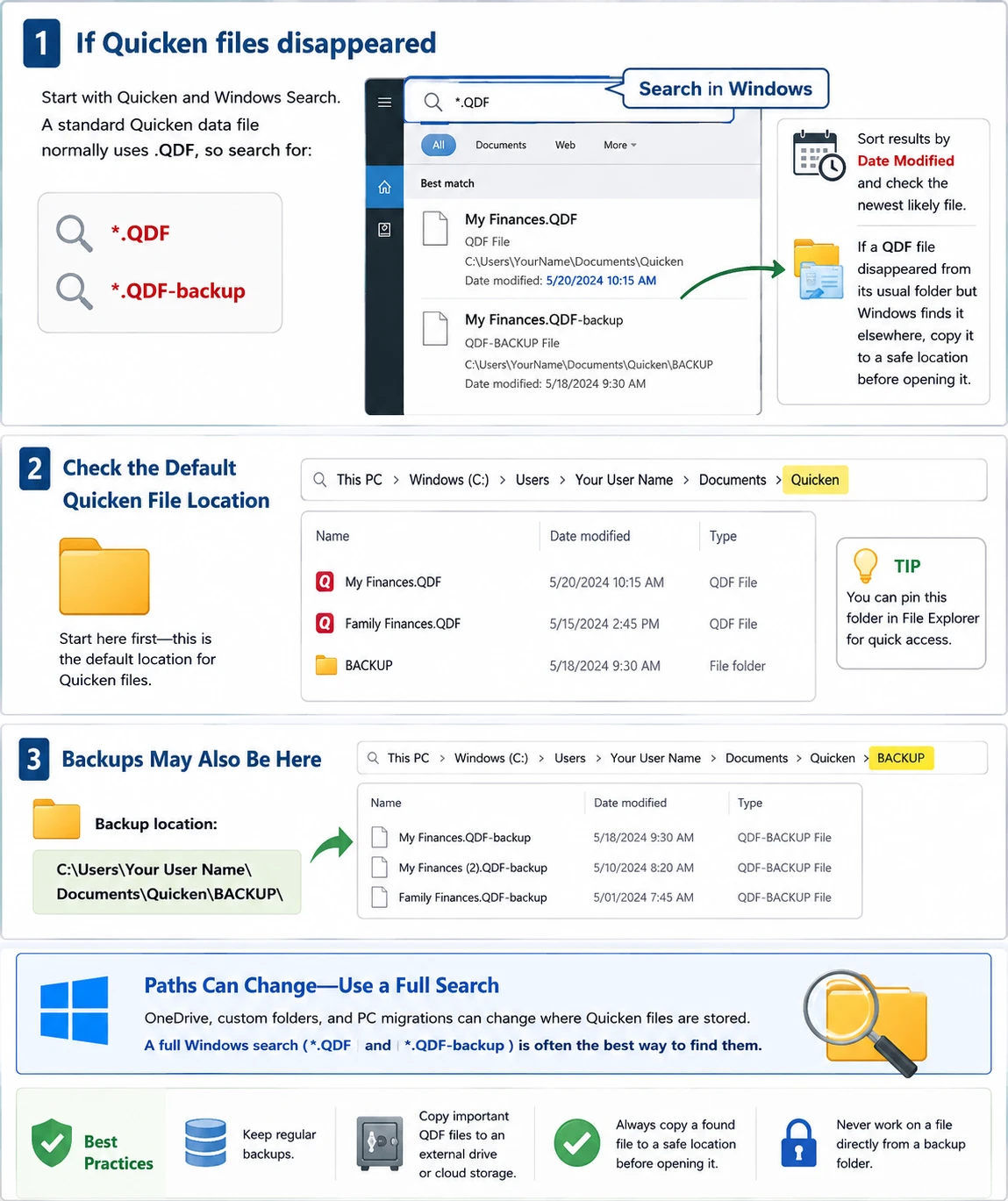
Wenn Quicken-Dateien sind verschwunden, fangen Sie mit Quicken und der Windows-Suche an. Eine Standard-Quicken-Datendatei verwendet normalerweise .QDF, also suche nach:
*.QDF*.QDF-Sicherung
Sortieren Sie anschließend die Ergebnisse nach „Änderungsdatum“ und überprüfen Sie die wahrscheinlich neueste Datei. Wenn eine Die QDF-Datei ist verschwunden aus dem üblichen Ordner, Windows findet die Datei jedoch an einem anderen Ort; kopieren Sie sie daher an einen sicheren Speicherort, bevor Sie sie öffnen.
Standardwert prüfen Speicherort der Quicken-Datei
Wenn Sie fragen Wo werden Quicken-Dateien gespeichert?, fangen Sie an mit:
C:\Benutzer\[Ihr Benutzername]\Dokumente\Quicken\
Backups können auch unter folgenden Einträgen erscheinen:
C:\Benutzer\[Ihr Benutzername]\Dokumente\Quicken\BACKUP\
OneDrive, benutzerdefinierte Ordner und PC-Migrationen können diese Pfade jedoch verändern. Daher ist eine vollständige Windows-Suche oft effektiver als die Überprüfung eines einzelnen Ordners.
Methode 2: Wiederherstellung einer Sicherungskopie, wenn Quicken-Dateien verschwunden sind
Manchmal Quicken-Dateien sind verschwunden nur aus dem Arbeitsordner, während eine kürzlich erstellte QDF-Sicherung ist weiterhin verfügbar. Durchsuchen Sie daher den gesamten Computer nach Sicherungsdateien.
Sollten mehrere angezeigt werden, vergleichen Sie deren Datumsangaben, Größen und Speicherorte. Wählen Sie anschließend die aktuellste Sicherung aus, die vor dem Auftreten des Problems erstellt wurde.
Wie man Quicken-Sicherung wiederherstellen Sichere Dateien
Verwenden Sie die Option „Aus Sicherung wiederherstellen“ in Quicken, anstatt Dateien umzubenennen oder vorhandene Daten zu überschreiben. Stellen Sie zunächst die Sicherung in einem separaten Ordner wieder her. Überprüfen Sie anschließend die letzten Transaktionen, Kontostände, Anlageaktivitäten und den Abgleichverlauf.
Wenn Quicken-Sicherungsdateien sind verschwunden Auch in diesem Fall fahren Sie unten fort. Andernfalls erstellen Sie eine neue, unabhängige Sicherungskopie, nachdem Sie die wiederhergestellten Daten überprüft haben.
Methode 3: Überprüfen Sie den Papierkorb und OneDrive, wenn Quicken-Dateien verschwunden sind
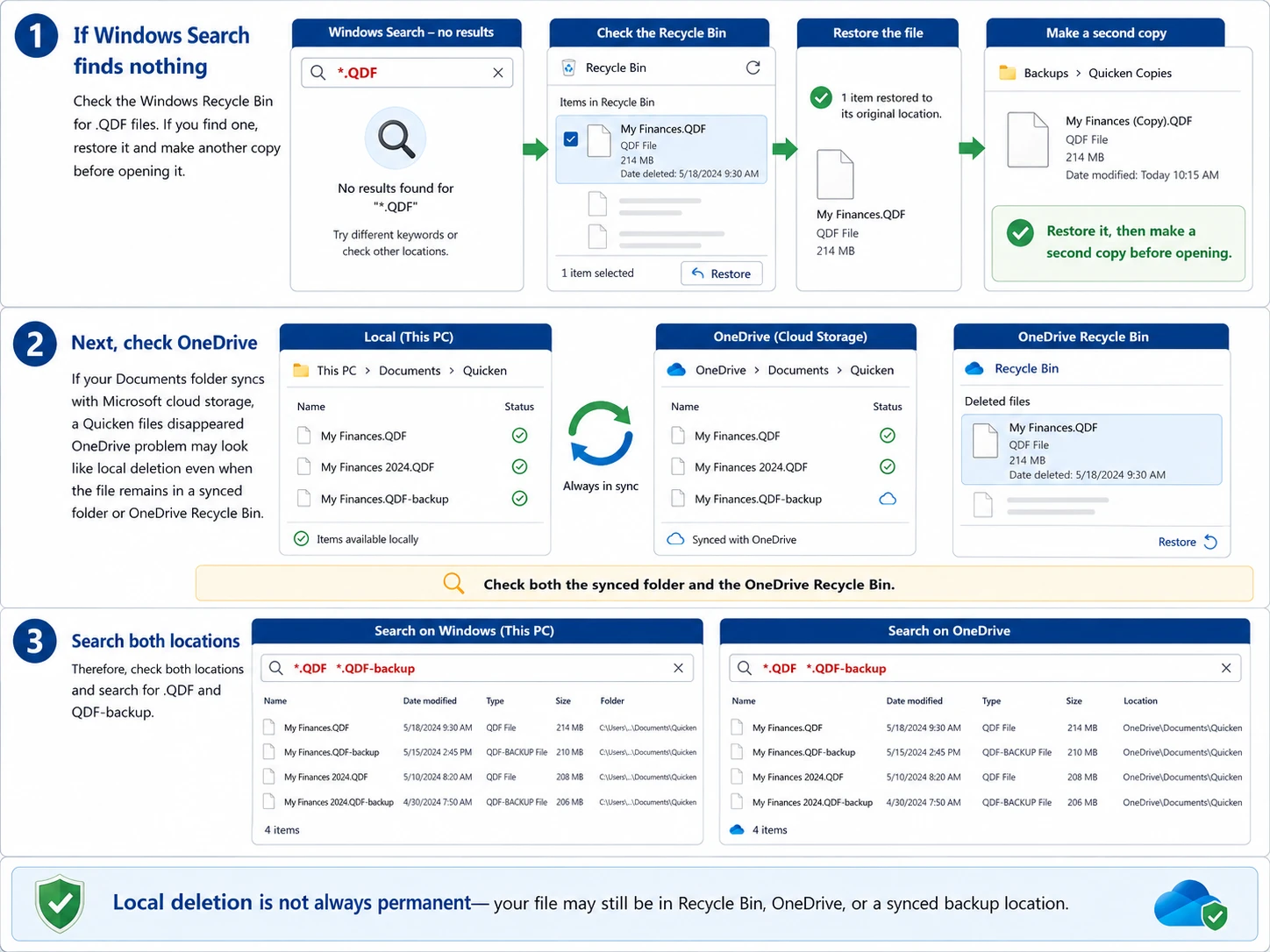
Wenn die Windows-Suche nichts findet, überprüfen Sie den Windows-Papierkorb auf .QDF Dateien. Wenn Sie eine solche Datei finden, stellen Sie sie wieder her und erstellen Sie eine weitere Kopie, bevor Sie sie öffnen.
Überprüfen Sie anschließend in OneDrive, ob Ihr Ordner „Dokumente“ mit dem Microsoft-Cloudspeicher synchronisiert wird. A Quicken-Dateien sind aus OneDrive verschwunden Das Problem kann wie eine lokale Löschung aussehen, auch wenn die Datei weiterhin in einem synchronisierten Ordner oder im OneDrive-Papierkorb vorhanden ist.
Überprüfen Sie daher beide Orte und suchen Sie nach .QDF und QDF-Sicherung.
Quicken Cloud ist kein Desktop-Backup
Die Quicken-Cloud-Synchronisierung und eine vollständige QDF-Sicherung dienen unterschiedlichen Zwecken. Gehen Sie daher nicht davon aus, dass die Cloud-Synchronisierung Ihre gesamte Desktop-Datenbank nach einem Die Quicken-Datendatei ist verschwunden. Verwenden Sie stattdessen separate QDF-Dateien oder QDF-Sicherung Exemplare.
Methode 4: „Dateiversionsverlauf“ und andere Speicherorte für Sicherungskopien überprüfen
Wenn Quicken-Dateien sind verschwunden und wenn sie sich auch nicht im Papierkorb befinden, überprüfen Sie andere Sicherungsquellen, darunter die Windows-Dateiversionsgeschichte, manuelle Sicherungen, Laufwerke früherer Computer, ältere Windows-Profile und Cloud-Sicherungsdienste.
Zum Beispiel, wenn QDF-Dateien fehlen Wenn die Probleme nach einer PC-Migration aufgetreten sind, überprüfen Sie die alte Festplatte und den früheren Ordner „Dokumente“. Falls keine brauchbare Kopie vorhanden ist, fahren Sie mit der Wiederherstellung auf Speicherebene fort.

Methode 5: Vorbereitungen zur Wiederherstellung einer gelöschten Quicken-Datei
Wenn Quicken-Dateien sind verschwunden Da jemand die Originaldatei gelöscht hat, kann die fortgesetzte Festplattenaktivität die Chancen auf eine Wiederherstellung verringern. Windows könnte diesen Speicherplatz wiederverwenden, sodass neue Schreibvorgänge die wiederherstellbaren Daten überschreiben könnten.
Vermeiden Sie daher große Downloads, die Installation von nicht benötigter Software, Tools zur Festplattenbereinigung sowie das Speichern wiederhergestellter Daten auf demselben Laufwerk. Diese Vorsichtsmaßnahme ist wichtig, wenn Sie Quicken-Datei ohne Sicherung wiederherstellen.
Methode 6: Quicken-Dateien verschwunden? Stellen Sie sie mit Magic Data Recovery wieder her
Wenn Quicken-Dateien sind verschwunden und Sie können in den Quicken-Sicherungen, im Windows-Papierkorb, auf OneDrive oder im Dateiverlauf keine brauchbare QDF-Datei finden, Magic Data Recovery kann das Laufwerk scannen, auf dem sich die fehlende Datei zuvor befand.
Im Gegensatz zur Dateiliste oder der Sicherungs- und Wiederherstellungsfunktion von Quicken arbeitet Magic Data Recovery auf Speicherebene. Daher bietet es eine weitere Möglichkeit, wenn die Datei nicht mehr in den üblichen Ordnern zu finden ist. Allerdings kann kein Wiederherstellungstool den Erfolg nach einem Überschreiben garantieren.
Schritt 1: Herunterladen und Installieren von Magic Data Recovery
Laden Sie Magic Data Recovery von der offiziellen Amagicsoft Website. Installieren Sie das Programm nach Möglichkeit auf einem anderen Laufwerk als dem, auf dem die fehlende Quicken-Datei zuvor gespeichert war.
Dadurch werden unnötige Schreibvorgänge reduziert. So verringern Sie das Risiko, Daten zu überschreiben, die möglicherweise noch wiederherstellbar sind.
Unterstützt Windows 7/8/10/11 und Windows Server
Schritt 2: Wählen Sie das Laufwerk aus, auf dem die Quicken-Datei gespeichert wurde
Starten Sie Magic Data Recovery und überprüfen Sie die Laufwerke auf der Hauptoberfläche. Wählen Sie anschließend das Laufwerk aus, auf dem die fehlende Datei ursprünglich gespeichert war. Quicken-QDF-Datei und starten Sie den Scan.

Schritt 3: Das Laufwerk nach der fehlenden Quicken-Datei durchsuchen
Magic Data Recovery startet einen erweiterten Scan und durchsucht das ausgewählte Laufwerk nach wiederherstellbaren Daten. Währenddessen werden die erkannten Dateien im Verlauf des Scans angezeigt.
Sie können die Ergebnisse bereits während des Scans einsehen. Lassen Sie den Scan jedoch nach Möglichkeit zunächst vollständig abschließen. Suchen Sie anschließend nach der fehlenden Datei anhand des Dateinamens, des ursprünglichen Pfads, des Datums, der Größe oder der Dateiendung „.QDF“, sofern vorhanden.

Schritt 4: Speichern Sie die Quicken-Datei an einem sicheren Ort
Wählen Sie abschließend die gewünschten Dateien aus und starten Sie die Wiederherstellung. Speichern Sie die wiederhergestellten Daten auf einem anderen Laufwerk oder Speicherort als dem Laufwerk, das Sie gescannt haben.
Erstellen Sie nach der Wiederherstellung eine weitere Kopie der QDF-Datei. Öffnen Sie anschließend die Kopie in Quicken und überprüfen Sie die Konten, die letzten Transaktionen, die Kontostände und andere wichtige Daten.

Warum Magic Data Recovery für dieses Szenario geeignet ist
Magic Data Recovery löst ein Problem, das mit den integrierten Quicken-Tools nicht zu bewältigen ist: Die lokale Datei ist möglicherweise nicht mehr in einem sichtbaren Ordner oder einer nutzbaren Sicherungskopie zu finden. Darüber hinaus bietet der Arbeitsablauf für Scan, Vorschau und Wiederherstellung Windows-Nutzern einen unkomplizierten Prozess.
Nehmen wir zum Beispiel an, dein Quicken-Dateien sind verschwunden vom Laufwerk C:, das Der Papierkorb ist leer, OneDrive enthält keine Kopie, und jede QDF-Sicherung ist zu alt. In diesem Fall bietet das Scannen des Originallaufwerks eine weitere praktische Möglichkeit.
Wiederherstellungssoftware sollte Backups jedoch ergänzen und nicht ersetzen.
Was ist nach der Wiederherstellung fehlender Quicken-Dateien zu tun?
Das Auffinden der Datei ist noch nicht der letzte Schritt. Lassen Sie zunächst die wiederhergestellte Originaldatei unverändert. Öffnen Sie anschließend eine Kopie in Quicken und überprüfen Sie die Kontostände, die letzten Transaktionen, die Anlageunterlagen, die Kategorien und die Kontenabstimmungen.
Wenn alles korrekt aussieht, erstellen Sie umgehend eine neue Sicherungskopie. Bewahren Sie außerdem eine weitere Kopie an einem separaten Ort auf.
So verhindern Sie, dass Quicken-Dateien erneut verschwinden
Sie können das Risiko eines erneuten Quicken-Dateien sind verschwunden Vorfall bei einer einfachen Sicherungsroutine.
Stellen Sie zunächst sicher, dass die automatischen Sicherungen aktiviert sind. Erstellen Sie anschließend vor Windows-Upgrades, Quicken-Updates, Computerumstellungen oder dem Austausch von Festplatten eine manuelle Sicherung. Bewahren Sie außerdem mindestens eine Sicherung außerhalb des primären Quicken-Ordners auf.
Testen Sie Ihre Backups schließlich regelmäßig. Ein Backup ist nur dann von Nutzen, wenn Sie es finden und wiederherstellen können.
Fazit: Was tun, wenn Quicken-Dateien verschwunden sind?
Wenn Quicken-Dateien sind verschwunden, beginnen Sie mit der sichersten Lösung. Suchen Sie zunächst nach der ursprünglichen QDF-Datei. Überprüfen Sie anschließend QDF-Sicherung Dateien, Windows-Papierkorb, OneDrive, Dateiversionsverlauf und andere Speicherorte für Sicherungskopien.
Sollten Sie dennoch keine brauchbare Kopie finden, reduzieren Sie die Schreibvorgänge auf das betroffene Laufwerk und ziehen Sie eine Wiederherstellung auf Speicherebene in Betracht. Magic Data Recovery passt zu dieser Phase, da es das Laufwerk scannen kann, nachdem normale Suchvorgänge und die Wiederherstellung aus dem Backup fehlgeschlagen sind.
Allerdings kann keine Wiederherstellungssoftware in jedem Fall von Datenverlust einen Erfolg garantieren. Aus diesem Grund eignet sich Magic Data Recovery am besten als praktische letzte Wiederherstellung gelöschter Dateien Option. Erstellen Sie nach der Wiederherstellung neue, unabhängige Sicherungskopien, um zukünftige Risiken zu minimieren.
Unterstützt Windows 7/8/10/11 und Windows Server
Häufig gestellte Fragen zu verschwundenen Quicken-Dateien
Warum ist meine Quicken-Datei plötzlich verschwunden?
Das Problem, dass eine Quicken-Datei verschwunden ist, kann auftreten, weil Quicken eine andere Datenbank geöffnet hat, Windows die Datei verschoben hat, OneDrive den Pfad für „Dokumente“ geändert hat oder jemand die QDF-Datei versehentlich gelöscht hat. Suchen Sie daher nach den Dateiendungen .QDF und .QDF-backup, bevor Sie von einem endgültigen Verlust ausgehen. Überprüfen Sie außerdem die Speicherorte der zuletzt verwendeten Dateien, den Papierkorb, OneDrive und Ihre Sicherungsordner.
Wo werden Quicken-Dateien unter Windows gespeichert?
Wenn Sie wissen möchten, wo Quicken-Dateien gespeichert sind, suchen Sie zunächst im Ordner „Dokumente\Quicken“ in Ihrem Windows-Profil. Der tatsächliche Speicherort der Quicken-Dateien kann jedoch abweichen, wenn Sie OneDrive, eine andere Partition, einen benutzerdefinierten Ordner oder ein migriertes Profil verwenden. Daher ist eine umfassende Suche nach *.QDF oft sinnvoller, als nur einen Speicherort zu überprüfen.
Was soll ich tun, wenn Quicken mich auffordert, eine Datendatei zu öffnen?
Wenn Quicken Sie auffordert, eine Datendatei zu öffnen, erstellen Sie nicht sofort eine neue Datenbank. Überprüfen Sie zunächst die zuletzt verwendeten Dateien und suchen Sie in Windows nach der Dateiendung .QDF. Durchsuchen Sie anschließend die Ordner „Dokumente\Quicken“, „OneDrive“ und die Sicherungsordner. Wenn mehrere in Frage kommende Dateien gefunden werden, vergleichen Sie die Änderungsdaten und öffnen Sie eine Kopie der Datei, die am ehesten in Frage kommt.
Kann ich eine Quicken-Datei ohne Sicherung wiederherstellen?
Ja, Sie können eine Quicken-Datei auch ohne Sicherung wiederherstellen, wenn die QDF-Datei noch an anderer Stelle vorhanden ist oder die gelöschten Daten auf dem Laufwerk noch wiederherstellbar sind. Der Erfolg hängt jedoch davon ab, was nach dem Löschen geschehen ist. Reduzieren Sie daher neue Schreibvorgänge auf dem betroffenen Laufwerk und versuchen Sie eine Wiederherstellung auf Speicherebene erst, wenn die Suche, der Papierkorb, OneDrive und der Dateiverlauf erfolglos geblieben sind.
Was ist eine QDF-Sicherungsdatei?
Eine QDF-Sicherungsdatei enthält eine Sicherungskopie der Quicken-Desktop-Daten. Sollte die aktive QDF-Datei verloren gehen oder unbrauchbar werden, können Sie die Quicken-Sicherungsdaten aus dieser Datei wiederherstellen. Durchsuchen Sie daher den gesamten Computer nach der Datei „.QDF-backup“, bevor Sie die Wiederherstellung gelöschter Dateien durchführen. Führen Sie die Wiederherstellung stets zunächst an einem separaten Speicherort durch, damit die ursprüngliche Sicherungskopie erhalten bleibt.
Kann Quicken Cloud meine lokale QDF-Sicherung ersetzen?
Nein. Die Quicken-Cloud-Synchronisierung ersetzt keine eigenständige QDF-Sicherung auf dem Desktop. Erstellen Sie daher separate Sicherungskopien wichtiger Quicken-Daten. Sollte eine Quicken-Datendatei verschwunden sein, überprüfen Sie zunächst die Speicherorte der eigentlichen QDF-Datei und der QDF-Sicherung, anstatt davon auszugehen, dass die Cloud-Synchronisierung die gesamte Desktop-Datenbank wiederherstellen kann.
Wann sollte ich Magic Data Recovery für Quicken-Dateien verwenden?
Verwenden Sie Magic Data Recovery, nachdem Quicken-Dateien verschwunden sind und Sie die Windows-Suche, Quicken-Sicherungen, den Papierkorb, OneDrive, den Dateiverlauf und andere Speicherorte für Sicherungskopien überprüft haben. Zu diesem Zeitpunkt ist die Originaldatei möglicherweise gelöscht und nicht nur verlegt. Daher bietet ein Scan auf Speicherebene eine weitere Option, auch wenn die Wiederherstellung weiterhin davon abhängt, ob die Datei durch neue Daten überschrieben wurde.

Vasilii ist ein Datenrettungsspezialist mit rund 10 Jahren praktischer Erfahrung in diesem Bereich. Im Laufe seiner Karriere hat er Tausende von komplexen Fällen mit gelöschten Dateien, formatierten Laufwerken, verlorenen Partitionen und RAW-Dateisystemen erfolgreich gelöst. Sein Fachwissen umfasst sowohl manuelle Wiederherstellungsmethoden mit professionellen Tools wie Hex-Editoren als auch fortschrittliche automatische Lösungen mit Wiederherstellungssoftware. Vasilii hat es sich zur Aufgabe gemacht, zuverlässiges Wissen zur Datenwiederherstellung sowohl IT-Fachleuten als auch normalen Nutzern zugänglich zu machen und ihnen dabei zu helfen, ihre wertvollen digitalen Ressourcen zu schützen.