
Visual Studio-Dateien wiederherstellen: 7 sichere Methoden
Wenn Sie Folgendes benötigen Visual Studio-Dateien wiederherstellen, stellen Sie zunächst fest, was tatsächlich verschwunden ist. Nicht gespeicherte Änderungen nach einem Absturz, eine gelöschte .cs Datei, einen gelöschten Projektordner und einen Lösung dauerhaft gelöscht erfordern unterschiedliche Wiederherstellungsmethoden. Die automatische Wiederherstellungsfunktion von Visual Studio kann bei nicht gespeicherten IDE-Änderungen helfen, während Visual Studio Code separate Funktionen für Backups und den lokalen Verlauf nutzt. Wenn durch das Löschen die Originaldateien von der Festplatte entfernt wurden und keine integrierte Kopie mehr vorhanden ist, Magic Data Recovery könnte hilfreich sein, bevor sie durch neue Daten überschrieben werden.
Unterstützt Windows 7/8/10/11 und Windows Server
Inhaltsübersicht
Bevor Sie Visual Studio-Dateien wiederherstellen, sollten Sie die Art des Datenverlusts ermitteln
Visual Studio und Visual Studio Code verwenden nicht dasselbe Wiederherstellungssystem. Visual Studio nutzt die automatische Wiederherstellung („AutoRecover“), während VS Code über separate Funktionen für Backups und den lokalen Verlauf verfügt. Auch die automatische Speicherung stellt keine dauerhafte Sicherung dar.
An Visual Studio-Dateien wiederherstellen Um effizient vorzugehen, gehen Sie wie folgt vor:
Situation mit Datenverlust | Die beste erste Wahl |
Visual Studio ist abgestürzt, wobei Änderungen nicht gespeichert wurden | Visual Studio – Automatische Wiederherstellung |
VS Code ist abgestürzt, wobei Änderungen noch nicht gespeichert wurden | VS Code-Backups / Hot Exit |
Die gespeicherte VS Code-Datei wurde gelöscht | Lokale Geschichte oder Papierkorb |
Die Projektdatei mit Nachverfolgung wurde gelöscht | Git oder ein anderes Versionskontrollsystem |
Der Projektordner enthielt Windows-Sicherungen | Dateihistorie / Frühere Versionen |
Datei wurde endgültig gelöscht | Windows-Dateiwiederherstellung oder Wiederherstellungssoftware |
Bevor Sie mit der umfassenden Wiederherstellung beginnen, sollten Sie keine Daten mehr auf das betroffene Laufwerk schreiben. Kompilierungen, Downloads und die Installation von Paketen können gelöschte Daten überschreiben.
Methode 1: Visual Studio-Dateien mit der automatischen Wiederherstellung wiederherstellen
Bei der vollständigen Visual Studio-IDE unter Windows sollten Sie nach einem Absturz oder einem unerwarteten Herunterfahren zunächst die automatische Wiederherstellung überprüfen.
- Starten Sie Visual Studio erneut und suchen Sie nach wiederhergestellten Dokumenten.
- Gehe zu Extras > Optionen > Umgebung > Automatische Wiederherstellung.
- Öffnen Sie den Datei-Explorer und geben Sie Folgendes ein:
%LocalAppData%\Microsoft\VisualStudio\BackupFiles. - Überprüfen Sie den Projektordner auf aktuelle Sicherungskopien.
- Öffnen Sie eine Vorlagendatei, überprüfen Sie den Code und speichern Sie ihn unter einem neuen Namen.
Laut Microsoft kann Visual Studio zuvor gespeicherte Dateien unter folgendem Pfad sichern: %LocalAppData%\Microsoft\VisualStudio\BackupFiles\[Projektname], während neue, noch nicht gespeicherte Dateien möglicherweise zufällige Namen erhalten. Die Verfügbarkeit hängt vom konfigurierten Intervall und der Aufbewahrungsfrist ab.
Das kann Visual Studio-Dateien wiederherstellen nach einem Absturz, ist jedoch nicht dafür ausgelegt, ein gesamtes Projekt wiederherzustellen, das dauerhaft aus dem Speicher gelöscht wurde.
Methode 2: Nicht gespeicherte VS Code-Dateien aus Backups wiederherstellen
Falls VS Code abgestürzt ist oder sich geschlossen hat, ohne dass Änderungen gespeichert wurden, öffnen Sie zunächst denselben Arbeitsbereich erneut. Durch „Hot Exit“ lässt sich der Zustand des Editors möglicherweise wiederherstellen. Andernfalls überprüfen Sie Folgendes:
%APPDATA%\Code\Backups
VS Code verwendet diesen Windows-Speicherort für den nicht gespeicherten Editor-Zustand.
Verwechseln Sie dies nicht mit der automatischen Wiederherstellungsfunktion von Visual Studio. Um Visual Studio-Dateien wiederherstellen, verwenden Sie den Visual Studio-Pfad; für nicht gespeicherte Inhalte in VS Code verwenden Sie den VS Code-Pfad.
Denken Sie außerdem daran, dass sich ein nicht gespeicherter Editor-Puffer von einer gelöschten Datei unterscheidet. Datenwiederherstellungssoftware arbeitet in der Regel mit Daten, die tatsächlich auf den Speicher geschrieben wurden.
Methode 3: Gelöschte VS Code-Dateien mithilfe des lokalen Verlaufs wiederherstellen
Für eine Datei, die Sie in VS Code gespeichert und später gelöscht oder geändert haben, enthält der lokale Verlauf möglicherweise eine brauchbare Version.
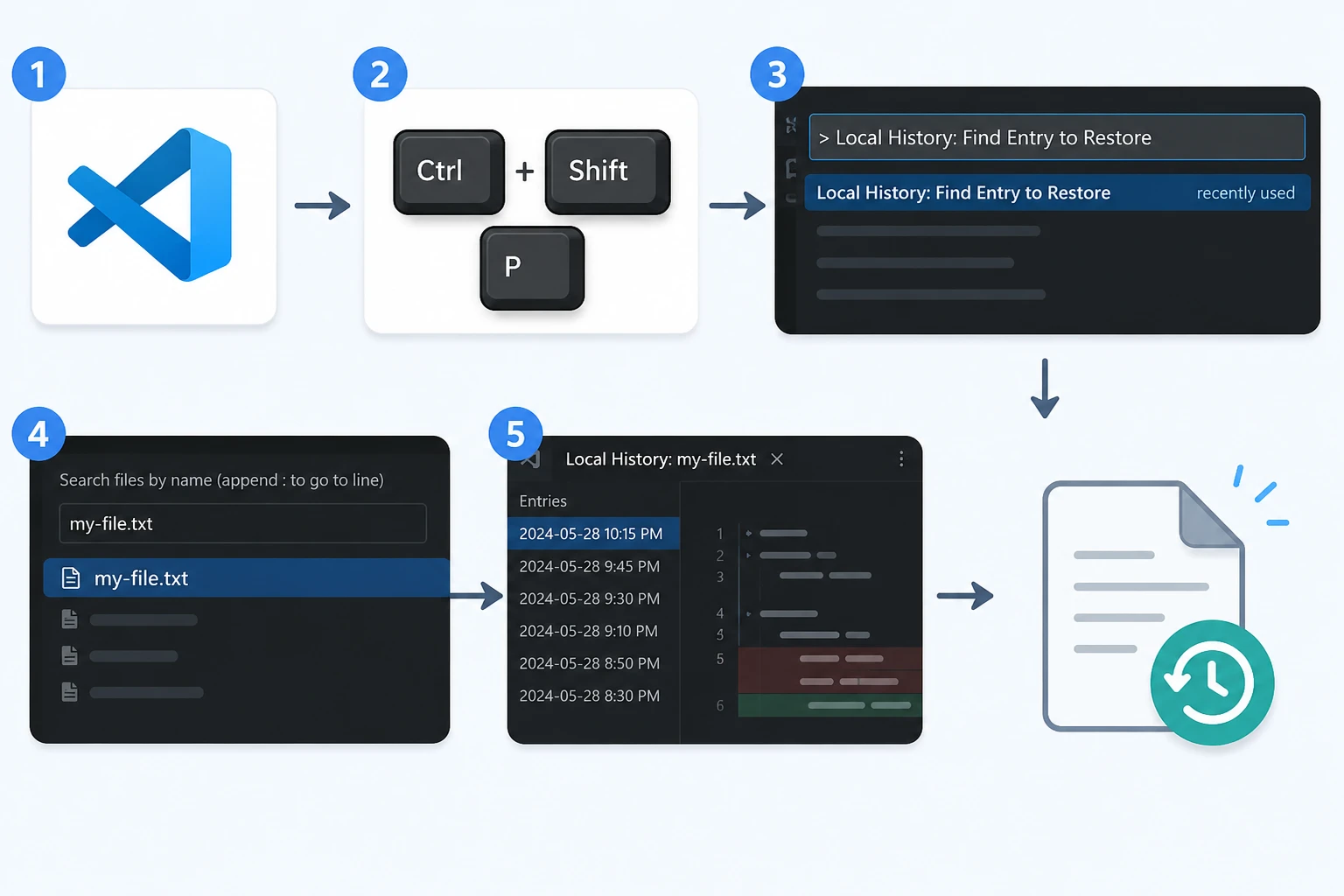
- Öffnen Sie VS Code.
- Presse Strg + Umschalt + P.
- Laufen lassen Lokale Geschichte: Eintrag zum Wiederherstellen suchen.
- Suchen Sie nach der gelöschten Datei.
- Öffnen Sie einen Eintrag mit Zeitstempel und stellen Sie die gewünschte Version wieder her.
Der lokale Verlauf von VS Code kann frühere Inhalte aus gespeicherten Editorzuständen speichern. Welche Einträge verfügbar sind, hängt jedoch von den Einstellungen, Ausschlüssen, der Dateigröße und davon ab, ob Sie die Datei zuvor gespeichert haben.
Falls die Datei erst vor kurzem verschwunden ist, können Sie auch diese überprüfen Methoden zur Wiederherstellung kürzlich gelöschter Dateien bevor Sie mit einem vollständigen Festplattenscan fortfahren.
Methode 4: Visual Studio-Dateien aus dem Papierkorb oder aus Git wiederherstellen
Überprüfen Sie bei gespeicherten Quelldateien den Papierkorb und die Versionsverwaltung, bevor Sie die Festplatte scannen.
Papierkorb überprüfen
Wenn Sie eine gespeicherte Quell-, Lösungs- oder Projektdatei auf normale Weise gelöscht haben, öffnen Sie den Papierkorb und stellen Sie die Datei an ihrem ursprünglichen Speicherort wieder her.
Dies gilt insbesondere für .cs, .cpp, .h, .json, .xml, .sln, sowie Projektordner, die über den Datei-Explorer oder einen Editor gelöscht wurden.
Falls Sie bereits geleerter Papierkorb, funktioniert der normale Befehl „Wiederherstellen“ nicht mehr. In diesem Fall ist möglicherweise eine Sicherung oder eine Wiederherstellung auf Speicherebene erforderlich.
Aus Git wiederherstellen
Wenn Git die Datei bereits im Verzeichnis hatte und du sie festgeschrieben hast, ist Git in der Regel die sauberste Lösung.
- Um eine nachverfolgte Datei ohne Commit zu löschen, verwenden Sie die Versionsverwaltung oder
git restore Pfad\zur\Datei. - Falls die benötigte Version in einem älteren Commit vorhanden ist, stelle sie aus dem Repository-Verlauf wieder her.
- Wenn Sie GitHub, GitLab oder Azure DevOps verwenden, überprüfen Sie das Remote-Repository, bevor Sie die Festplattenwiederherstellung versuchen.
Für Nutzer, die suchen Dateien in Visual Studio wiederherstellen, ist die Versionskontrolle oft sicherer als das Scannen gelöschter Speicherbereiche, da Git eine bekannte Projektversion wiederherstellt, anstatt gelöschte Speicherdaten zu rekonstruieren.
Git kann jedoch keine nicht erfasste Datei wiederherstellen, die Sie nie festgeschrieben haben, es sei denn, es existiert an anderer Stelle eine weitere Kopie davon.
Methode 5: Visual Studio-Dateien mit dem Dateiverlauf wiederherstellen
Falls der Projektordner durch die Windows-Dateiversionsgeschichte gesichert wurde, können Sie möglicherweise eine frühere Kopie wiederherstellen.
- Öffnen Sie den Datei-Explorer.
- Wechseln Sie in den Ordner, in dem sich das fehlende Projekt befand.
- Klicken Sie mit der rechten Maustaste darauf und wählen Sie Frühere Versionen wiederherstellen.
- Wählen Sie eine Version aus, die vor der Löschung erstellt wurde.
- Öffnen Sie die Datei, um den Inhalt zu überprüfen, und stellen Sie sie anschließend wieder her.
Das funktioniert gut, um Visual Studio-Dateien wiederherstellen nach einem versehentlichen Überschreiben, dem Löschen eines Projektordners oder einer fehlerhaften Bereinigung, obwohl bereits eine gültige Sicherung vorhanden ist.
Falls Ihre Entwicklungsdateien auf einer herkömmlichen Festplatte statt auf einer SSD gespeichert waren, verläuft der Wiederherstellungsvorgang anders. Weitere Informationen hierzu finden Sie unter Wiederherstellung von Festplattendaten bevor Sie einen Scan auf Festplattenebene durchführen.

Methode 6: Visual Studio-Dateien mit der Windows-Dateiwiederherstellung wiederherstellen
Wenn sich die Datei weder im Papierkorb noch in Git, in der automatischen Wiederherstellung, im lokalen Verlauf noch im Dateiverlauf befindet, kann die Windows-Dateiwiederherstellung den lokalen Speicher nach gelöschten Daten durchsuchen.
Das grundlegende Befehlsformat lautet:
winfr Quell-Laufwerk: Ziel-Laufwerk: [/Modus] [/Schalter]
Zum Beispiel, /n Mithilfe von Filtern lässt sich die Suche auf einen Projektordner oder eine bestimmte Dateiendung eingrenzen.
Das Quell- und das Ziellaufwerk müssen unterschiedlich sein. Noch wichtiger ist es, die weitere Nutzung des Quelllaufwerks zu vermeiden, da neue Schreibvorgänge den Speicherplatz belegen könnten, auf dem zuvor Ihre Quelldateien gespeichert waren.
Für Dateien, die mit Umschalttaste + Löschen oder nach dem Leeren des Papierkorbs verloren gegangen sind, lesen Sie die ausführliche Anleitung dazu, wie man dauerhaft gelöschte Dateien wiederherstellen.

Warum SSD-TRIM wichtig ist
Auf vielen modernen Entwicklungs-PCs werden Visual Studio-Projekte auf SSDs gespeichert. Dies führt zu einer zusätzlichen Einschränkung bei der Wiederherstellung.
Wenn Windows eine Datei löscht, sendet das Betriebssystem unter Umständen einen TRIM-Befehl an die SSD. Der TRIM-Befehl teilt dem Laufwerk mit, dass diese Blöcke nicht mehr benötigt werden. Der SSD-Controller kann sie dann intern löschen oder wiederverwenden.
Daher können gelöschte Daten auf einer SSD viel schneller verschwinden als gelöschte Daten auf einer HDD.
Unser Leitfaden zu SSD-Datenwiederherstellung erläutert, wie sich TRIM, das Überschreiben und der SSD-Controller auf die Datenwiederherstellung auswirken können.
Vermeiden Sie hingegen Folgendes:
- Neuerstellung umfangreicher Visual Studio-Lösungen;
- Wiederherstellung von NuGet-Paketen;
- Herunterladen von SDKs;
- die Installation umfangreicher Anwendungen;
- Dateien auf die betroffene Partition kopieren.
Jede Aktion kann zusätzliche Schreibvorgänge verursachen.
Methode 7: Visual Studio-Dateien mit Magic Data Recovery wiederherstellen
Sollten die integrierten Optionen versagen, kommt eine Datenwiederherstellungssoftware ins Spiel, wenn die Visual Studio-Dateien zuvor auf einem lokalen Speichermedium gespeichert und später gelöscht wurden.
Dies unterscheidet sich von „AutoRecover“, „Lokaler Verlauf“, „Git“ oder „Dateiverlauf“.
- Die automatische Wiederherstellung ist auf temporäre IDE-Kopien angewiesen.
- Der lokale Verlauf von VS Code basiert auf zuvor gespeicherten Editorzuständen.
- Git basiert auf nachverfolgten Versionen.
- Der Dateiverlauf hängt von vorhandenen Sicherungen ab.
- Datenwiederherstellungssoftware durchsucht Speichermedien nach wiederherstellbaren gelöschten Daten.
Magic Data Recovery kann daher als ergänzende Option dienen, wenn diese integrierten Wiederherstellungsquellen das fehlende Projekt nicht mehr enthalten.
Dies ist vor allem dann relevant, wenn:
- Eine .cs-, .cpp-, .h- oder sonstige Quelldatei wurde endgültig gelöscht;
- ein Projektordner wurde umgangen oder ist aus dem Papierkorb verschwunden;
- Der Papierkorb wurde geleert;
- Es gibt keine brauchbare Git-Version;
- Es ist keine „Dateiversionsverlauf“-Sicherung vorhanden;
- Die ursprünglich gespeicherte Datei ist von einer lokalen Festplatte oder SSD verschwunden.
Eine Wiederherstellung ist jedoch nicht garantiert. Neue Daten können die gelöschten Inhalte überschreiben, während die SSD-TRIM-Funktion die Wiederherstellung erheblich erschweren kann. Zudem kann eine Software-Wiederherstellung ein physisch beschädigtes Speichergerät nicht reparieren.
Sollten die integrierten Wiederherstellungsoptionen nicht mehr funktionieren, können Sie Magic Data Recovery ausprobieren, bevor neue Daten die gelöschten Dateien überschreiben.
So stellen Sie mit Magic Data Recovery Visual Studio-Dateien wieder her
Schritt 1: Herunterladen und Installieren von Magic Data Recovery
Laden Sie Magic Data Recovery herunter, installieren Sie es jedoch nicht auf demselben Laufwerk oder derselben Partition, auf der sich das gelöschte Visual Studio-Projekt befand.
Bei der Installation werden neue Dateien erstellt. Daher könnte die Installation einer Wiederherstellungssoftware auf der betroffenen Partition den Quellcode überschreiben, den Sie wiederherstellen möchten.
Unterstützt Windows 7/8/10/11 und Windows Server
Schritt 2: Wählen Sie das Laufwerk, auf dem die Visual Studio-Dateien gespeichert waren
Starten Sie das Programm. Wählen Sie anschließend das ursprüngliche Laufwerk oder die Partition aus, auf der sich die gelöschte Visual Studio-Lösung, der Projektordner oder einzelne Quelldateien befanden.
Starten Sie den Scan.

Schritt 3: Nach verlorenen oder gelöschten Projektdateien suchen
Lassen Sie den Scan weiterlaufen, während das Programm das ausgewählte Speichermedium durchsucht.
Überprüfen Sie die Ordner und Dateien im ursprünglichen Projektpfad sowie die entsprechenden Quellcode-, Lösungs-, Projekt-, Konfigurations- und Textdateien.

Schritt 4: Dateien an einem sicheren Ort wiederherstellen
Wählen Sie die gewünschten Dateien aus und speichern Sie sie auf einem anderen Laufwerk oder an einem anderen sicheren Speicherort.
Schreiben Sie die wiederhergestellten Dateien nicht zurück auf die ursprünglich betroffene Partition, solange die Wiederherstellung noch läuft.

Kann man Visual Studio-Dateien von einer SSD wiederherstellen?
Möglicherweise, aber die Wiederherstellung von SSD-Daten verdient besondere Beachtung, da TRIM den Ablauf nach dem Löschen beeinflussen kann.
Auf einer herkömmlichen Festplatte wird beim Löschen einer Datei in der Regel der Verweis im Dateisystem entfernt, während die zugrunde liegenden Sektoren unverändert bleiben, bis Windows sie wiederverwendet.
Auf einer SSD hingegen, TRIM kann dem SSD-Controller mitteilen, dass gelöschte Blöcke frei sind. Der Controller kann diese Blöcke dann im Rahmen der internen Bereinigung löschen.
Daher ist Zeit ein entscheidender Faktor. Wenn Ihr Visual Studio-Projekt auf einer SSD gespeichert war, sollten Sie weitere Festplattenaktivitäten unverzüglich auf ein Minimum reduzieren.
Überprüfen Sie dennoch zunächst Git, AutoRecover, den lokalen Verlauf von VS Code, den Papierkorb und Ihre Sicherungskopien. Diese Methoden sind nicht auf die Wiederherstellung gelöschter SSD-Blöcke angewiesen und können möglicherweise eine sauberere Version Ihres Projekts liefern.
So verhindern Sie den Verlust von Visual Studio-Dateien
Nachdem Sie Visual Studio-Dateien wiederherstellen, verwenden Sie mehrere Schutzebenen, anstatt sich auf eine einzige Wiederherstellungsfunktion zu verlassen.
Git von Anfang an nutzen
Richten Sie die Versionsverwaltung ein, wenn Sie ein wichtiges Projekt erstellen. Führen Sie anschließend regelmäßig Commits mit aussagekräftigen Arbeitsversionen durch.
Ein lokales Git-Repository sichert den Versionsverlauf, während ein Remote-Repository zusätzlichen Schutz vor Ausfällen des lokalen Speichers bietet.
Funktionen zur Wiederherstellung des Editors aktiviert lassen
Die AutoRecover-Funktion von Visual Studio und die Wiederherstellungsfunktionen von VS Code können die letzten Änderungen nach einem Absturz sichern.
Beides sollte jedoch weder Git noch ein echtes Backup ersetzen.
Den gesamten Projektordner sichern
Mit der Dateiversionsgeschichte, der Cloud-Synchronisierung oder einer anderen Sicherungslösung lassen sich Dateien schützen, die Git nicht nachverfolgt.
Dies ist von Bedeutung für:
- lokale Konfigurationsdateien;
- Vermögenswerte;
- exportierte Dateien;
- Datenbankdateien;
- Projektdokumentation;
- sonstige begleitende Inhalte, die durch
.gitignore.
Vermeiden Sie es, die einzige Kopie auf einem einzigen Laufwerk zu speichern
Ein Projekt, das ausschließlich auf einer SSD gespeichert ist, bleibt anfällig für versehentliches Löschen, Beschädigung, Hardwareausfälle oder Formatierung.
Verwenden Sie separate Wiederherstellungsebenen:
Editor-Wiederherstellung → Git → Remote-Repository → Sicherung
Diese Kombination verringert die Wahrscheinlichkeit, dass später eine Wiederherstellung auf Speicherebene erforderlich wird.
Schlussfolgerung
Der sicherste Weg zu Visual Studio-Dateien wiederherstellen Das hängt davon ab, was mit ihnen passiert ist. Beginnen Sie mit der automatischen Wiederherstellung von Visual Studio für nicht gespeicherte IDE-Änderungen, den VS Code-Sicherungen für den nicht gespeicherten VS Code-Zustand und dem lokalen Verlauf für früher gespeicherte VS Code-Versionen. Überprüfen Sie anschließend den Papierkorb, Git, den Dateiverlauf und die Windows-Dateiwiederherstellung.
Wenn ein gespeichertes Projekt oder eine Quelldatei endgültig gelöscht wurde und diese Wiederherstellungsquellen keine brauchbare Kopie mehr enthalten, Magic Data Recovery kann eine Wiederherstellungsoption auf Speicherebene bieten. Handeln Sie jedoch schnell, da das Überschreiben und SSD-TRIM die Daten reduzieren können Wiederherstellung gelöschter Dateien Möglichkeiten.
Letztendlich ist es am besten, zunächst die Daten wiederherzustellen und anschließend die Git- und Backup-Sicherheit zu verbessern, damit man bei der nächsten versehentlichen Löschung nicht auf eine Festplattenwiederherstellung angewiesen ist.
Unterstützt Windows 7/8/10/11 und Windows Server
FAQs
Wie kann ich Visual Studio-Dateien nach einem Absturz wiederherstellen?
Um Visual Studio-Dateien nach einem Absturz wiederherzustellen, öffnen Sie Visual Studio erneut und prüfen Sie, ob Dokumente wiederhergestellt wurden. Überprüfen Sie anschließend den Ordner „%LocalAppData%\Microsoft\VisualStudio\BackupFiles\[Projektname]“, sofern die automatische Wiederherstellung aktiviert war. „AutoRecover“ enthält möglicherweise aktuelle Editor-Kopien, stellt jedoch keine dauerhafte Projektsicherung dar. Wenn durch das Löschen eine zuvor gespeicherte Datei aus dem Speicher entfernt wurde, verwenden Sie stattdessen eine Methode zur Wiederherstellung gelöschter Dateien.
Kann Visual Studio Dateien wiederherstellen, die nie gespeichert wurden?
Visual Studio kann manchmal eine neue, nicht gespeicherte Datei wiederherstellen, wenn die automatische Wiederherstellung vor dem Absturz eine temporäre Kopie erstellt hat. Neue, nicht gespeicherte Dateien können zufällig generierte Sicherungsnamen tragen. Die Wiederherstellung hängt jedoch von den Einstellungen der automatischen Wiederherstellung und dem Zeitpunkt ab. Wenn der Inhalt nie auf die Festplatte geschrieben wurde und keine temporäre Kopie vorhanden ist, stehen herkömmlicher Datenwiederherstellungssoftware möglicherweise keine gespeicherten Dateidaten zur Verfügung, die sie ausfindig machen könnte.
Wo speichert Visual Studio Code Sicherungskopien ungespeicherter Dateien?
Unter Windows kann VS Code nicht gespeicherte Editor-Sicherungsdaten unter „%APPDATA%\Code\Backups“ speichern. Dieser Speicherort unterscheidet sich vom „AutoRecover“-Ordner der vollständigen Visual Studio-IDE. VS Code bietet außerdem einen „Lokalen Verlauf“ für gespeicherte Dateiversionen. Überprüfen Sie daher den Ordner „Backups“ auf nicht gespeicherte Editorzustände und den Ordner „Lokaler Verlauf“, wenn Sie eine früher gespeicherte Kopie oder eine zuvor gelöschte Datei benötigen.
Kann ich ein gelöschtes Visual Studio-Projekt wiederherstellen, das sich nicht im Papierkorb befindet?
Ja, sofern noch eine weitere Kopie oder wiederherstellbare Speicherdaten vorhanden sind. Überprüfen Sie zunächst die Wiederherstellungsfunktionen von Git, Visual Studio oder VS Code, den Dateiverlauf sowie andere Sicherungen. Wenn das Projekt dauerhaft aus dem lokalen Speicher gelöscht wurde und keine Sicherung mehr vorhanden ist, können die Windows-Dateiwiederherstellung oder eine Datenwiederherstellungssoftware die gelöschten Daten möglicherweise noch finden, bevor sie durch neue Schreibvorgänge auf der Festplatte überschrieben werden.
Hilft Git dabei, Visual Studio-Dateien wiederherzustellen?
Ja. Wenn Git die fehlende Datei nachverfolgt hat und Sie sie festgeschrieben haben, ist Git oft der sicherste Weg, Visual Studio-Dateien wiederherzustellen, da es eine bekannte Version wiederherstellt, anstatt gelöschte Festplattendaten zu rekonstruieren. Sie können nachverfolgte Löschungen wiederherstellen oder frühere Versionen aus dem Commit-Verlauf abrufen. Git kann jedoch keine nicht nachverfolgte Datei wiederherstellen, die nie festgeschrieben wurde, es sei denn, es existiert eine weitere Kopie.
Kann eine Wiederherstellungssoftware überschriebene oder per TRIM gelöschte Visual Studio-Dateien wiederherstellen?
Nicht zuverlässig. Sobald neue Daten die Sektoren überschreiben, die eine gelöschte Datei enthielten, ist der ursprüngliche Inhalt möglicherweise nicht mehr vorhanden. SSD-TRIM kann es dem Controller zudem ermöglichen, gelöschte Blöcke zu löschen, was die Wiederherstellung erschwert. Stellen Sie daher die Nutzung des betroffenen Laufwerks umgehend ein und installieren Sie niemals Wiederherstellungssoftware oder speichern Sie wiederhergestellte Dateien auf derselben Partition, auf der der Datenverlust aufgetreten ist.
Wie lässt sich der Verlust von Visual Studio-Dateien am besten verhindern?
Verwenden Sie mehrere Schutzebenen. Aktivieren Sie die automatische Wiederherstellung, halten Sie den lokalen Verlauf von VS Code verfügbar, nutzen Sie Git mit häufigen, aussagekräftigen Commits, übertragen Sie wichtige Repositorys auf einen Remote-Dienst und führen Sie regelmäßige Projekt-Backups durch. Die automatische Speicherung schützt Ihre jüngsten Arbeitsergebnisse, Git sichert den Versionsverlauf und Backups beugen einem umfassenden Datenverlust vor. Zusammen verringern diese Methoden die Abhängigkeit von einer Notfall-Dateiwiederherstellung erheblich.

Vasilii ist ein Datenrettungsspezialist mit rund 10 Jahren praktischer Erfahrung in diesem Bereich. Im Laufe seiner Karriere hat er Tausende von komplexen Fällen mit gelöschten Dateien, formatierten Laufwerken, verlorenen Partitionen und RAW-Dateisystemen erfolgreich gelöst. Sein Fachwissen umfasst sowohl manuelle Wiederherstellungsmethoden mit professionellen Tools wie Hex-Editoren als auch fortschrittliche automatische Lösungen mit Wiederherstellungssoftware. Vasilii hat es sich zur Aufgabe gemacht, zuverlässiges Wissen zur Datenwiederherstellung sowohl IT-Fachleuten als auch normalen Nutzern zugänglich zu machen und ihnen dabei zu helfen, ihre wertvollen digitalen Ressourcen zu schützen.