
File Carving: So funktioniert die Datenwiederherstellung
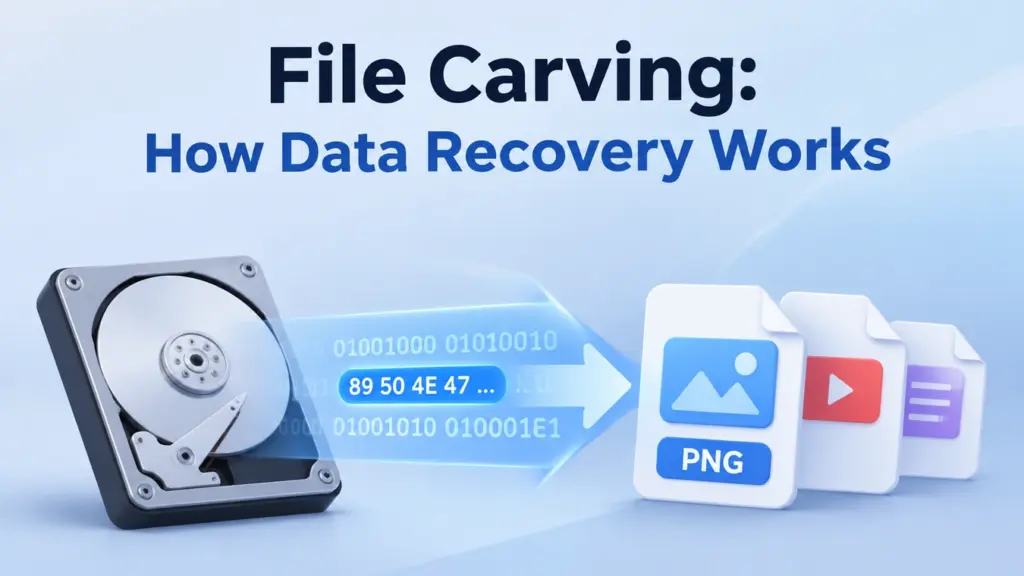
Schnitzen von Feilen findet und extrahiert Dateien, indem es deren Daten ausliest, anstatt auf Dateisystem-Einträge zurückzugreifen. Es sucht nach bekannten Byte-Mustern, überprüft den Dateiaufbau und ermittelt wahrscheinliche Start- und Endpunkte. Dies kann hilfreich sein, wenn Ordner- oder Dateieinträge verloren gegangen sind. Allerdings lassen sich auf diese Weise möglicherweise keine alten Dateinamen wiederherstellen oder fragmentierte Dateien rekonstruieren.
Die Methode funktioniert bei Daten, die von einem Tool noch gelesen werden können. Sie lässt sich auf NTFS-, FAT32- und exFAT-Laufwerke sowie auf Festplatten, USB-Sticks, SD-Karten, SSDs und Festplatten-Images anwenden.
Inhaltsübersicht
So funktioniert File Carving
Eine typische Datei-Carving Der Scan umfasst vier Schritte:
- Lies die Daten nach bekannten Dateisignaturen durchsuchen.
- Überprüfen Sie jeden Treffer und sehen Sie sich dessen Dateistruktur an.
- Ermitteln Sie den voraussichtlichen Anfangs- und Endpunkt der Datei.
- Kopieren Sie die Daten und überprüfen Sie das Ergebnis.
Manche Tools scannen den freien Speicherplatz. Andere scannen ein volles Volume oder ein Festplatten-Image. Der Scanbereich hängt vom jeweiligen Tool und der jeweiligen Aufgabe ab.
Dateiköpfe und Signaturen finden
Eine Dateisignatur ist eine Folge von Bytes, die auf einen Dateityp hinweisen kann. Ein Wiederherstellungsprogramm sucht nach diesen Mustern, um mögliche Dateien zu finden.
Eine PNG-Datei beginnt beispielsweise mit dieser acht Byte langen Signatur: 89 50 4E 47 0D 0A 1A 0A.
Ein Treffer deutet auf eine mögliche PNG-Datei hin. Er beweist jedoch nicht, dass das vollständige Bild noch vorhanden ist. Einige Bytes könnten fehlen, beschädigt sein oder mit Daten aus anderen Dateien vermischt sein. Signaturbasierte Dateiwiederherstellung beginnt mit dieser Suche, während umfassendere Methoden auch den Dateiaufbau überprüfen.
Ein Dateiname oder eine Dateiendung liefert nicht denselben Beweis. Das Umbenennen einer .jpg Datei an .png ändert seine Daten nicht. Header können auch Felder für die Größe, die Bildbreite oder andere Dateidetails enthalten. Siehe die Leitfaden zu Dateisignaturen und Magic Numbers Weitere Beispiele finden Sie hier.
Anfang und Ende einer Datei finden
Das Auffinden eines Headers ist nur der erste Schritt. Ein Tool muss außerdem ermitteln, wie viele Bytes zu dieser Datei gehören.
Dateitypen kennzeichnen ihr Ende auf unterschiedliche Weise:
- Bei einigen ist der Endpunkt bekannt.
- Manche speichern eine Datei oder die Datengröße.
- Manche unterteilen Daten in Blöcke oder Datensätze.
- Andere benötigen einen Parser, um die Dateistruktur auszulesen.
Eine Suche nach Kopf- und Fußzeilen funktioniert also nicht bei jeder Datei. Ein Endmarker kann auch innerhalb der normalen Daten vorkommen. Bei manchen Dateitypen gibt es keinen einheitlichen Endmarker.
PNG-Chunks: Warum die erste IEND-Übereinstimmung falsch sein kann
Die W3C-PNG-Spezifikation besagt, dass eine PNG-Datei mit einer acht Byte langen Signatur beginnt. PNG speichert den Rest der Datei in Chunks.
Jeder Block enthält vier Felder:
Feld | Länge | Zweck |
Länge | 4 Bytes | Gibt die Größe des Datenfelds an |
Typ | 4 Bytes | Benennt den Chunk |
Daten | Variabel | Enthält die Chunk-Daten |
CRC | 4 Bytes | Überprüft den Typ und die Daten |
Ein vollständiger Chunk verwendet 12 + Datenlänge Bytes. Das Feld „Length“ zählt weder sich selbst noch das Feld „Type“ noch den CRC mit.
Jede PNG-Datei beginnt mit einem IHDR Chunk. Sein Datenfeld ist immer 13 Byte groß. Der gesamte Chunk ist 25 Byte lang.
In der Signatur werden Offsets verwendet 0x00–0x07. Der erste Abschnitt beginnt bei 0x08. Der nächste Abschnitt beginnt bei 0x21:
0x08 + 25 = 0x21
Diese Berechnung zeigt, wo der nächste Abschnitt beginnt.
Consider a specification-based teaching sample: a valid 136-byte PNG. Its tEXt chunk holds the text IEND as part of a comment.
Struktur | Chunk start | Data length | Next offset |
PNG Signature |
| 8 Bytes |
|
IHDR |
| 13 bytes |
|
tEXt |
| 56 bytes |
|
IDAT |
| 11 Bytes |
|
IEND |
| 0 Bytes |
|
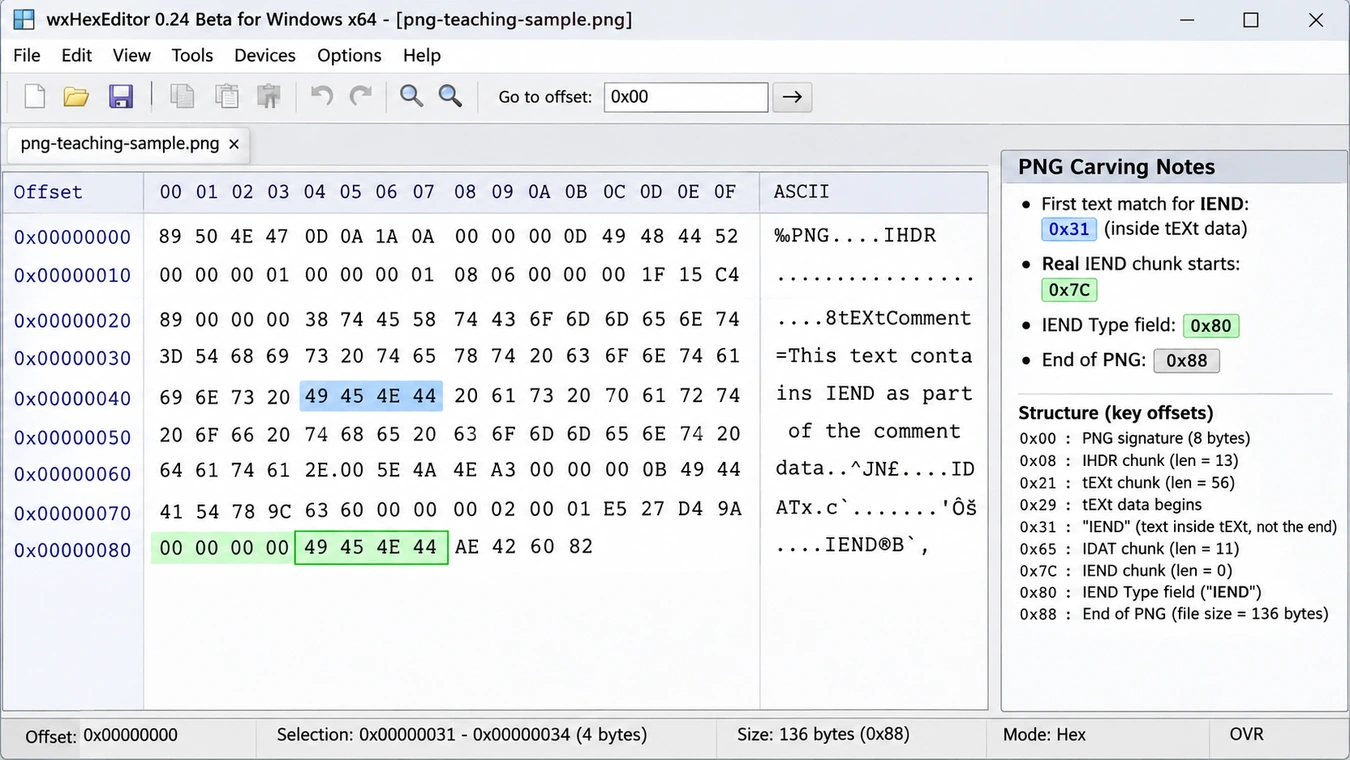
Die tEXt data starts at 0x29. The first text match for IEND is at 0x31. It sits inside the text data. It is not the end of the PNG.
The real IEND chunk starts at 0x7C. Its Type field starts at 0x80. Its Data field has no bytes, so the PNG ends at 0x88.
This sample shows why a byte search is not enough. A byte search finds the first match. A PNG parser reads each Length field and checks if IEND sits in a chunk Type field.
PNG also has a CRC for each chunk. The CRC checks the Type and Data fields, not the Length field. It can find some forms of damage. However, it cannot prove that a found image is the same as the old one.
Copy and Check the Found File
After a tool finds the likely end, it copies the data. But a copied file is not always a good file.
It may have a valid header but lack later data. It may also have wrong size fields, broken records, or bytes from other files.
A tool can check the result in several ways:
- Check that key headers and fields are present.
- Check size values and file bounds.
- Check CRCs or other checks when the file type has them.
- Open or parse the found file.
- Compare its hash with a trusted copy, if one exists.
A file that opens may still be broken. Some apps can show part of a damaged image or document.
File Carving Techniques
Anders file carving techniques use different levels of file detail. A tool may use more than one method in the same scan.
Methode | Wie es funktioniert | Hauptgrenze |
Header and footer | Finds start and end patterns | A pattern may appear inside other data |
Size-based | Uses a known size or a size field | The size may be lost or wrong |
Layout-based | Reads fields, chunks, or records | Needs rules for that file type |
Content checks | Tests if the data forms a valid file | Checks vary by file type |
Fragment search | Looks for parts that may belong together | The right order may be hard to prove |
Header, Footer, and Size
These methods work best when a file type has clear start and end data. A tool can find a header and look for its end marker. It can also read a size field and copy that many bytes.
But an end marker may sit inside file data. A size field may also refer to one part of a larger file. If a tool reads the wrong value, it may copy too much or too little.
Layout and Content Checks
A layout-based tool reads the parts inside a file. For example, it can read PNG chunk sizes or check records in a ZIP file.
Content checks go one step further. They test whether the parts form a file that makes sense. These checks can cut down on false matches. Still, they cannot bring back bytes that are gone.
A file may pass some checks and still differ from the old file. These checks raise trust in a result, but they do not prove that it is the same file.
Find File Fragments
Fragment search tries to put split file parts back in the right order. It may use file rules, data patterns, and other clues.
Research from DFRWS on carving split files with object checks looks at ways to check and join file parts.
This work is harder than a basic signature scan. The result depends on the file type, the parts that remain, and clues about their order.
File Carving vs. Metadata-Based Recovery
The key difference between Datei-Carving and metadata-based recovery is the data each method uses to find a file.
Vergleich | Metadata-Based Recovery | File Carving |
Main clue | File-system records and cluster maps | File signatures and data layout |
Old file name | May still exist in file records | Usually not found from file data alone |
Ordnerpfad | May still exist in folder records | Usually not kept |
Fragmentierte Dateien | Can use saved cluster maps | Needs more clues to join parts |
Main need | Usable file records or maps | Readable data and known file rules |
Beste Passform | File records still help find the data | File records are gone or cannot help |
How File-System Records Find Data
On NTFS, the Master File Table holds records about files. A file record can have data that tells the system where file content sits.
For data stored outside the file record, NTFS mapping pairs list data runs. They can show which clusters hold each part and the order of those parts.
Microsoft explains these records in its Master File Table guide und attribute record header guide. These pages cover NTFS version 3.
Other file systems use other maps:
- FAT32 uses FAT entries to link the clusters that hold a file.
- exFAT uses directory entries to describe file data. Its
NoFatChainflag shows whether a file uses one run of clusters or a FAT chain.
Die Microsoft exFAT spec sets out these rules. If these maps still work, a tool can use them to find split parts in the right order. This gives metadata-based recovery an edge over a scan that only looks for file signatures.
But good file records do not prove that the data is still whole. The NTFS Deleted File MFT Test shows why file records, data location, and file content need their own checks. For more on this method, see Wiederherstellung von Metadaten des Dateisystems.
Raw Data Recovery Explained: Why File Names Go Missing
Rohe Verwertung often means a scan that reads data without using the normal file and folder records. In many cases, it includes a scan for file signatures and file carving.
The term can mean different things in different tools. It is not a file-system standard. In this context, raw file carving recovery means finding files in readable data without using the old folder records.
Raw Recovery Without Original File Names
File systems keep file names and folder paths in their own records. Those names do not have to appear in the file data.
So, a tool may find a JPEG or PDF but not know its old name or folder. It may give the found file a new name instead.
PhotoRec says that it does not bring back old file names or folder paths. It finds files by their data signatures. See the PhotoRec guide.
Some details may still stay inside the file. A JPEG may hold EXIF data. A PDF may hold a title or author name. These details are not the same as the old file name or folder path.
Raw Recovery Is Not a RAW File System
The word RAW can mean two things:
- Raw recovery: A scan that reads data without using normal file and folder records.
- RAW file system: A volume that Windows cannot read as a known file system.
A RAW volume does not prove that all data is gone. The file-system records may be damaged, hard to read, or from a file system that Windows does not support.
A raw scan may still find data that can be read. But it does not fix the volume or bring back its old folder tree.
Encryption also matters. A BitLocker volume usually needs to be unlocked before a tool can read the files inside it. PhotoRec explains this need for BitLocker volumes.
Why File Fragmentation Limits File Carving
A file is split when its data sits in more than one run of clusters. A file-system-aware tool can use saved cluster maps to find each part. A basic carver may not have those maps.
Think of a file with three parts:
A → B → C
If the parts sit next to each other, the data order may also be A → B → C. A tool can read from A to C if it knows the right start and end.
Now look at a split file:
Storage order | Daten |
Block 1 | A |
Block 2 | X (data from another file) |
Block 3 | B |
Block 4 | C |
The file occupies consecutive blocks. A sequential read can collect A, B, and C in order if the start and boundary are known.
Illustrative model only. A, B, and C are parts of one file; X belongs to unrelated data. The blocks do not represent physical NAND pages or a real disk image.
The file still needs A → B → C. But a scan from A may read A → X → B. It has mixed in data from another file.
So, a good header does not prove that the next blocks belong to the same file. The NIST file carving draft lists split data as a key issue for file carving.
Can File Carving Recover Fragmented Files?
Sometimes. If file-system maps still work, a tool may use them to find each part. Advanced carving can also use file rules and other clues.
But there may be many possible parts. The right order may not be clear. Compressed or locked data can make the job even harder because it hides clues in the data.
No one method can promise to rebuild every split file from its data alone. See Fragmented Files Explained for more on split files.
File Carving Limitations and Recovery Conditions
The result depends on how much data a tool can still read and how well it can find the file parts.
Limit | Warum es wichtig ist | Possible Result |
Überschriebene Daten | New data takes the place of old bytes | Some or all data may be lost |
SSD TRIM | The drive may stop showing freed data | Old data may no longer be read |
Split files | Parts do not sit in a row | The file may be incomplete |
No clear end | The file has no safe end point | The tool may copy too much or too little |
False matches | The same byte pattern may appear in other data | A false file may be found |
Verschlüsselung | The tool cannot read locked data | File signatures may not show |
Unknown file type | The tool has no rules for that type | The tool may miss the file |
Überschriebene Daten
A tool can only copy bytes that it can still read. It cannot make old data from new data. Some parts may survive a partial write. Even then, the found file may be broken or lack key data.
SSD TRIM and Data That Cannot Be Read
On some systems, Windows can send TRIM or deallocation hints when file-system space is freed. These hints tell the drive that it can reuse those blocks. Microsoft explains this in its guide to TRIM and Unmap hints.
TRIM does not mean that every deleted file vanishes at once. The result depends on the drive and its setup. But once the drive has dealt with freed blocks, normal reads may no longer return the old data.
So, a scan cannot copy data that the drive no longer shows.
Locked Data and Unknown File Types
Locked data often hides the byte patterns that a tool needs to find a file. The tool may need the data to be unlocked first.
A tool may also find a file start but fail to read the rest. This can happen if it does not know that file type or a newer version of it.
So, no result does not always mean that no data remains. The tool may not know how to read what is there.
How to Check Carved Files
A match does not mean that a tool has found a full file. Check each result in steps.
Siehe | What It Shows | What It Does Not Show |
Signature found | A known byte pattern is there | A full file is there |
File layout looks right | Some file rules match | All old data is still there |
File opens | An app can read some or all of it | It is the same as the old file |
Hash matches an old copy | Both files have the same bytes | The old name or folder |
Some file types use CRC checks. These can find some data errors. But a good CRC does not prove that a file is the real old file.
If you have a trusted copy, compare file hashes. A match shows that both files have the same bytes. If you do not have a copy, check the file layout, size, content, and whether an app can read it from start to end.
When Should You Use File Carving?
Carving can help when file-system records no longer show where files are, but a tool can still read some file data.
Common cases include:
- A damaged file system with missing folder records.
- Deleted files whose file records no longer help.
- A formatted drive that still holds old data.
- A disk image that needs a scan for file types.
- Files that a metadata-based scan cannot find.
If file records still work, metadata-based recovery may be a better first choice. It can keep old names, folder paths, and maps for split files.
Before you try to recover data, protect the source drive:
- Stop saving new data to the drive.
- Do not format, set up, or repair the source before you save key data.
- If the data matters, make a full drive image before more scans.
- Scan the image or use a read-only source when you can.
- Save found files to a different drive.
If the drive clicks, drops out, or shows major read errors, stop repeated scans. More reads may make a failing drive worse.
File recovery, file-system repair, and hardware repair are not the same job. Carving copies data that still exists. It does not fix a bad drive or rebuild a file system.
Schlussfolgerung
Schnitzen von Feilen finds and copies files by reading their data and file layout. It does not need the old file-system records. Its success depends on known file patterns, clear start and end points, readable data, and clues that show the right order of file parts.
A signature match is only the first step. File checks and tests help show if the result is whole and useful. If file-system records still work, they may hold details that a data scan cannot bring back, such as old names, folder paths, and maps for split files.
Häufig gestellte Fragen
Was versteht man unter „File Carving“ bei der Datenwiederherstellung?
Können durch File Carving alte Dateinamen wiederhergestellt werden?
Können fragmentierte Dateien durch „File Carving“ wiederhergestellt werden?
Ist „Raw Recovery“ dasselbe wie ein RAW-Dateisystem?
Funktioniert das „File Carving“, nachdem eine Festplatte formatiert wurde?
Können durch „File Carving“ bereits überschriebene Daten wiederhergestellt werden?
Verhindert SSD-TRIM das „File Carving“?
Ist die metadatenbasierte Wiederherstellung besser als das „File Carving“?

Vasilii ist ein Datenrettungsspezialist mit rund 10 Jahren praktischer Erfahrung in diesem Bereich. Im Laufe seiner Karriere hat er Tausende von komplexen Fällen mit gelöschten Dateien, formatierten Laufwerken, verlorenen Partitionen und RAW-Dateisystemen erfolgreich gelöst. Sein Fachwissen umfasst sowohl manuelle Wiederherstellungsmethoden mit professionellen Tools wie Hex-Editoren als auch fortschrittliche automatische Lösungen mit Wiederherstellungssoftware. Vasilii hat es sich zur Aufgabe gemacht, zuverlässiges Wissen zur Datenwiederherstellung sowohl IT-Fachleuten als auch normalen Nutzern zugänglich zu machen und ihnen dabei zu helfen, ihre wertvollen digitalen Ressourcen zu schützen.